
When the speaker on your iPhone 15 suddenly goes quiet, it can leave you scrambling to hear calls or media. This issue can pop up for a few different reasons, from simple software hiccups to physical blockages. I'd start with the quick checks first, as they solve the problem more often than not.
If you are not sure whether it is the speakers or the software, run an online online speaker test first. Working test tones rule out a hardware fault in seconds.
Check Your Volume and Silent Mode
It sounds obvious, but it's the most common fix. Press the volume up button on the left side of your phone a few times while you're trying to play something. Make sure the Ring/Silent switch above the volume buttons isn't showing an orange stripe, which means it's in silent mode.
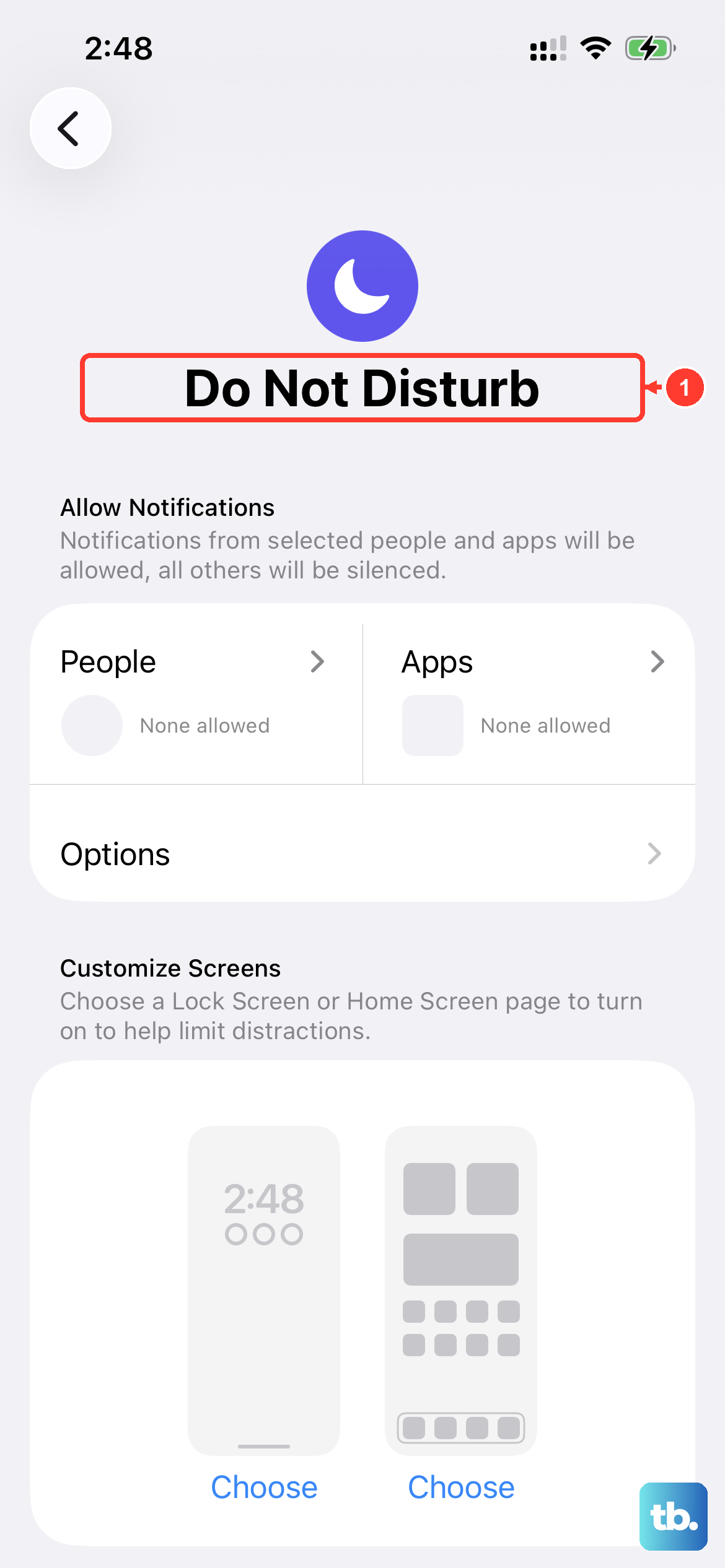
Also, pull down Control Center by swiping from the top-right corner. Check that the volume slider is all the way up and that the bell icon isn't highlighted, which would indicate Focus modes are silencing things.
Disconnect Bluetooth and Audio Routes
Your iPhone might be trying to send sound somewhere else. Open Control Center and look at the audio card in the top-right. If it shows anything other than your iPhone's name, tap it and select iPhone from the list.
You can also go to Settings > Bluetooth and turn Bluetooth off entirely for a moment to see if sound returns to the speaker. Don't forget to check for any wired headphones in the USB-C port, too.
Clean the Speaker Grills
The iPhone 15 has a speaker grill along the top edge for the earpiece and another along the bottom edge. Over time, pocket lint, dust, or debris can get packed in there and muffle the sound.
Take a close look with a flashlight. You can gently brush the grills with a clean, dry, soft-bristled toothbrush. A bit of compressed air from a can, held a few inches away, can also help dislodge particles without pushing them in further.
Restart Your iPhone 15
A simple restart clears out temporary glitches that can affect audio. Go to Settings > General > Shut Down, slide to power off, and turn it back on after 30 seconds.
If the screen is unresponsive or the issue is more stubborn, try a force restart. Quickly press and release the Volume Up button, then quickly press and release the Volume Down button. Finally, press and hold the Side button until you see the Apple logo appear, then let go.
Check for a Software Update
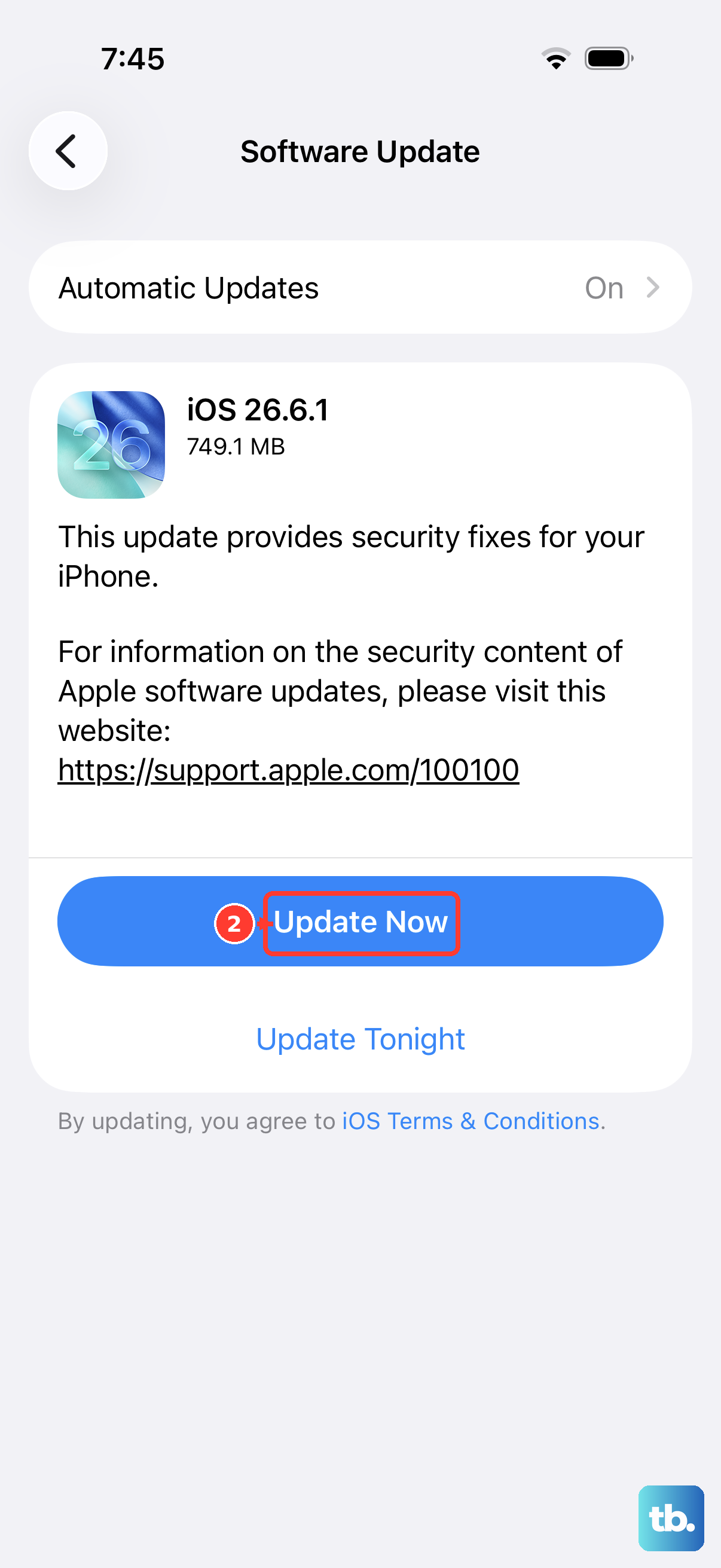
Apple frequently releases iOS updates that include bug fixes for audio and speaker problems. Since you're on iOS 26, it's worth making sure you have the latest version installed.
Head to Settings > General > Software Update. If an update is available, tap Download and Install. It's a good idea to plug your phone in and connect to Wi-Fi before starting.
Review Sound and Accessibility Settings
Some specific settings can override your speaker. Go to Settings > Sounds & Haptics. Make sure the Ringer and Alerts volume slider is up and that Change with Buttons is toggled on.
Next, check Settings > Accessibility > Audio/Visual. Ensure the balance slider is centered and that Mono Audio is turned off. Also, look under Settings > Accessibility > Touch and make sure Call Audio Routing is set to Automatic.
Test in Safe Mode (Diagnostic Boot)
If a recently downloaded app is causing a conflict, you can check by restarting into a diagnostic state. This isn't a traditional "Safe Mode," but you can test by force restarting the phone as described above and then not unlocking it with Face ID or passcode immediately.
Instead, try playing a system sound, like the ringtone from Settings, from the lock screen. If the speaker works fine here but not after you fully unlock and use apps, a third-party app is likely the culprit.
Reset All Settings
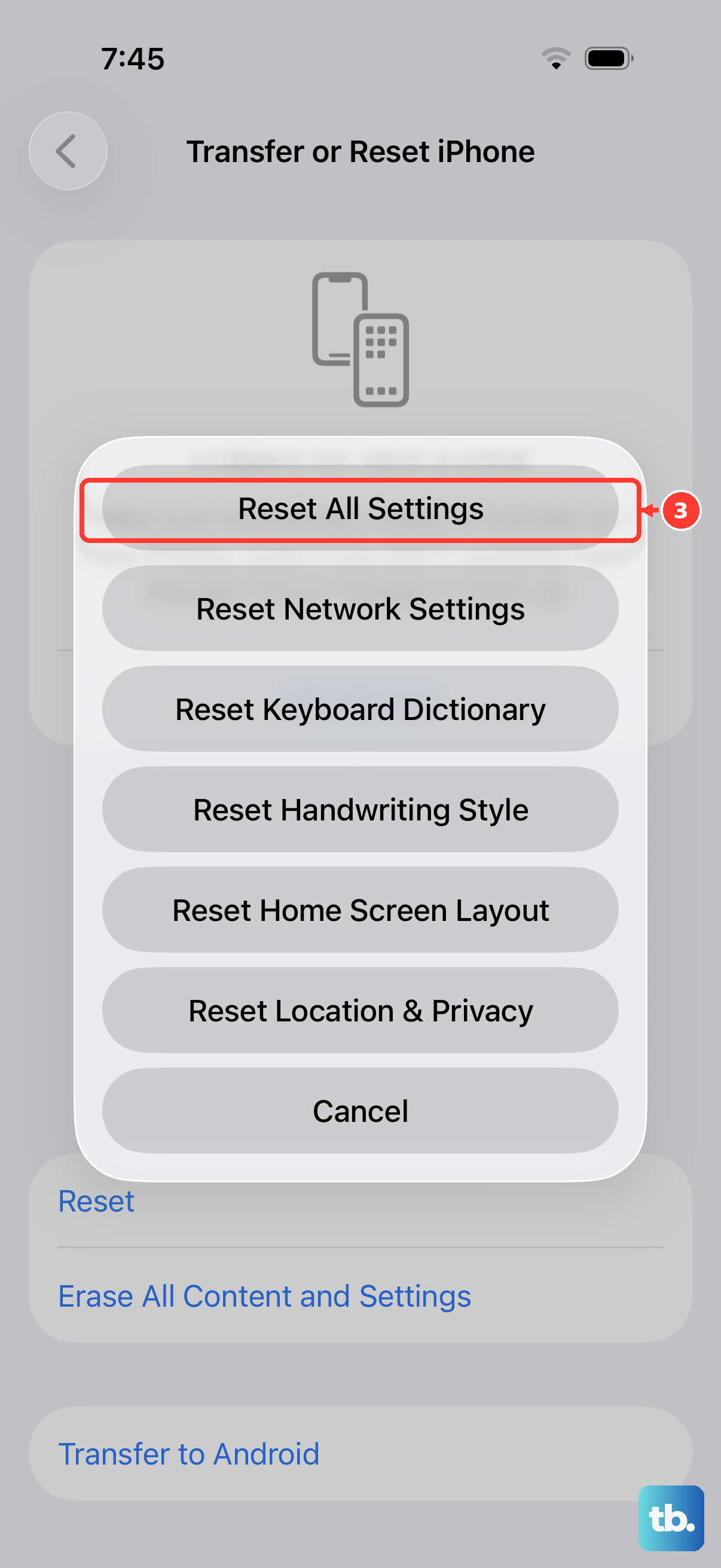
This will revert all your preferences, like Wi-Fi passwords, wallpaper, and privacy settings, back to factory defaults without erasing your personal data. It can clear out any corrupted settings causing the speaker issue.
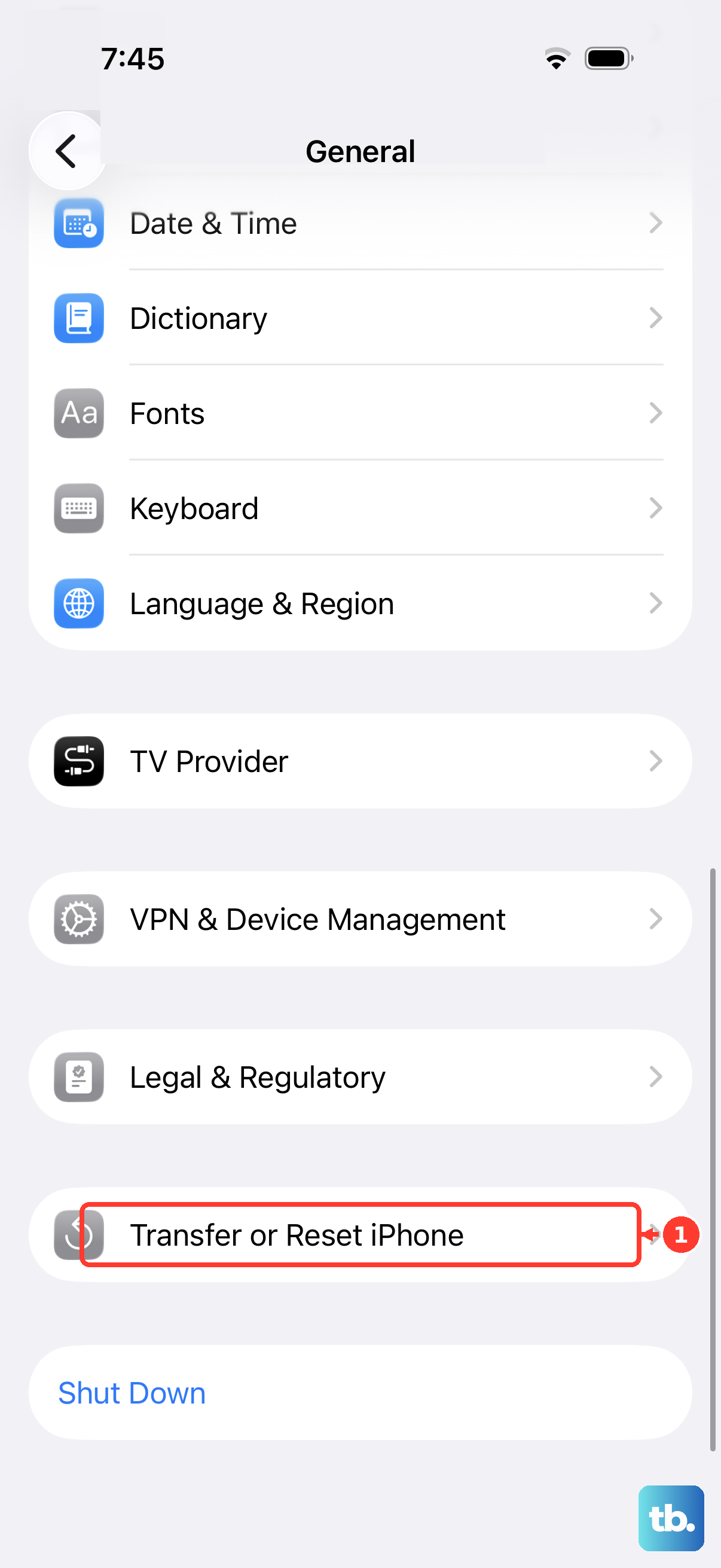
Go to Settings > General > Transfer or Reset iPhone > Reset. Then, tap Reset All Settings. You'll need to enter your passcode and confirm. Your iPhone will restart.
Check for Physical or Liquid Damage
The iPhone 15 is water-resistant, but not waterproof. If the speaker was recently exposed to a lot of moisture or a physical impact, that could be the cause. Look for any visible dents or cracks near the speaker grills.
iOS can sometimes display a liquid detection alert for the USB-C port, but not specifically for the speakers. If you suspect liquid damage, leave the phone in a dry, warm place with good airflow for at least a day before trying it again.