
When your iPhone 15's mobile data feels like it's crawling, it can turn simple tasks into a waiting game. The issue often isn't your carrier's network, but a setting or two on your phone that needs a quick adjustment.
Since the iPhone 15 was the first model to switch to USB-C, some users have found that using older, non-compliant cables for charging can sometimes cause unexpected system behavior, though it's less likely to directly affect cellular performance. Still, it's a good reminder that your phone's overall health matters. Let's get your data speeds back up.
Toggle Airplane Mode On and Off
This is the quickest fix and often the most effective. It forces your iPhone 15 to disconnect from the cellular network and reconnect fresh, which can clear up any temporary glitch. Simply swipe down from the top-right corner to open Control Center and tap the airplane icon.
Wait about 10 seconds, then tap it again to turn Airplane Mode off. You should see the cellular icon reappear in your status bar. Give it another moment, then try loading a webpage to see if the speed has improved.
Check Your Cellular Data Mode
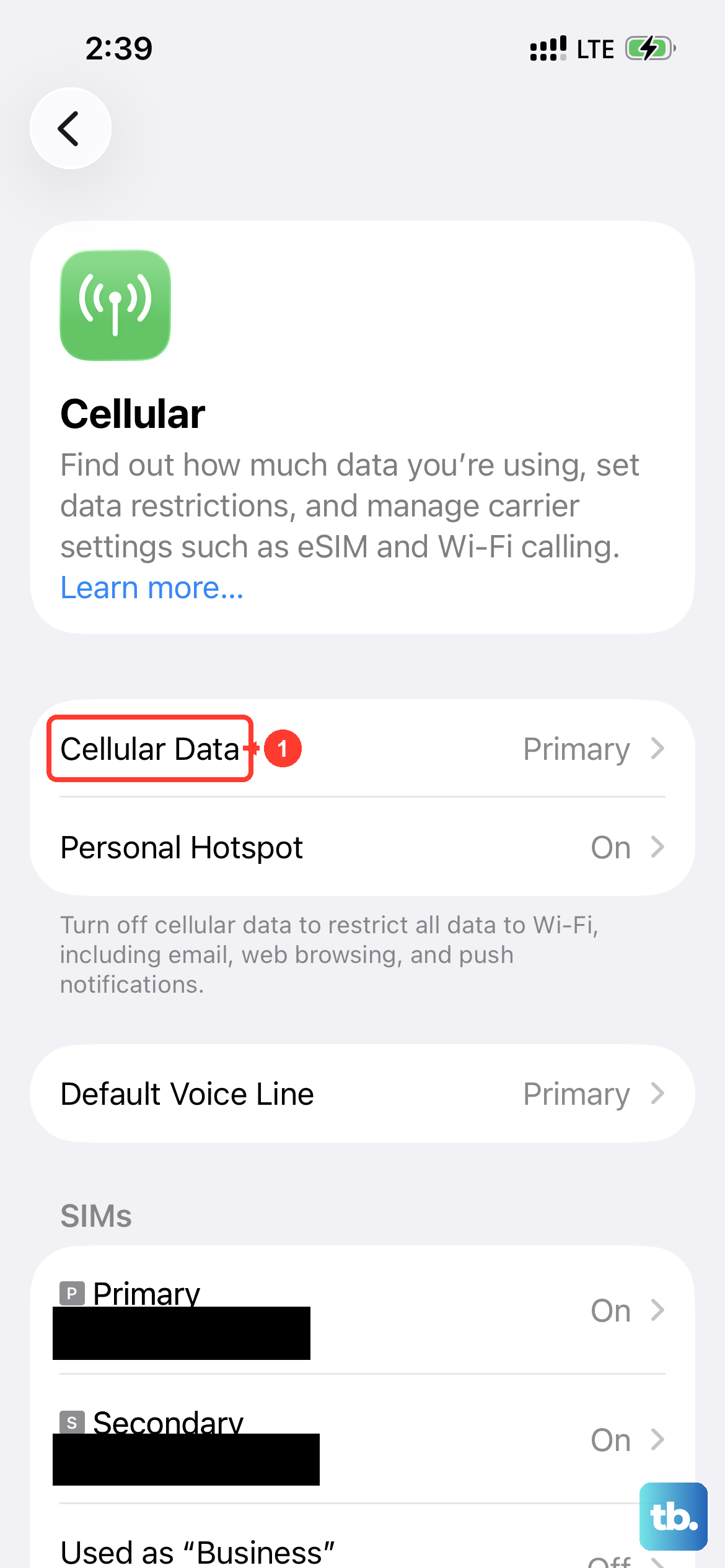
Your iPhone 15 allows you to choose which type of network technology it uses. If it's set to "5G Auto," it might be prioritizing a weak 5G signal over a stronger LTE one, which can slow things down. You can change this to force LTE, which is often more consistently fast.
Go to Settings > Cellular > Cellular Data Options > Voice & Data. Here, you can select LTE. Try this for a bit and see if your browsing feels snappier. You can always switch back to 5G Auto later.
Turn Off Wi-Fi Assist
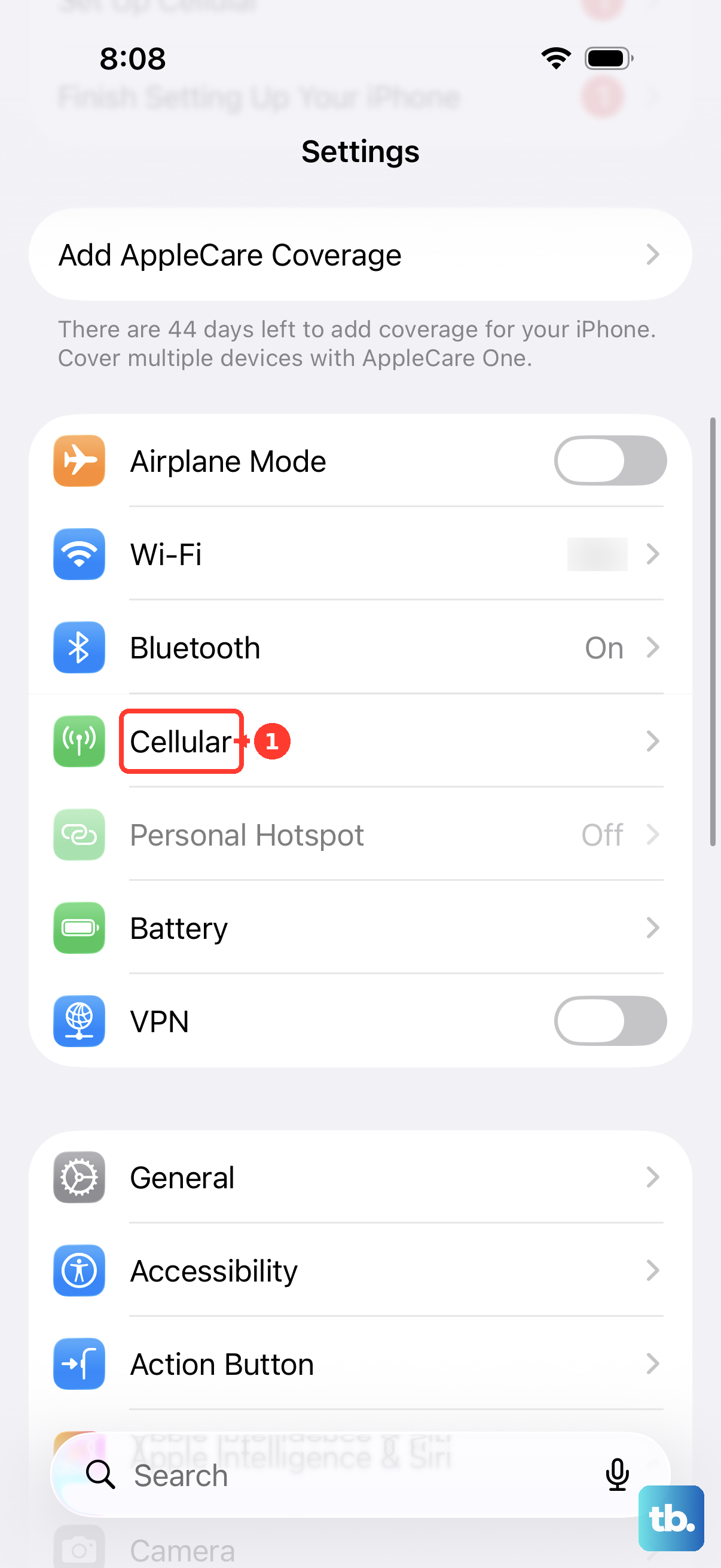
This feature is designed to help, but it can sometimes hinder. Wi-Fi Assist automatically uses cellular data when your Wi-Fi connection is poor. If you're near a spotty Wi-Fi network you're connected to, your phone might be silently bouncing between Wi-Fi and cellular, causing slowdowns.
To check, go to Settings > Cellular and scroll all the way to the bottom. You'll find the Wi-Fi Assist toggle. Try turning it off, especially if you're in an area where you know the Wi-Fi is unreliable.
Reset Your Network Settings
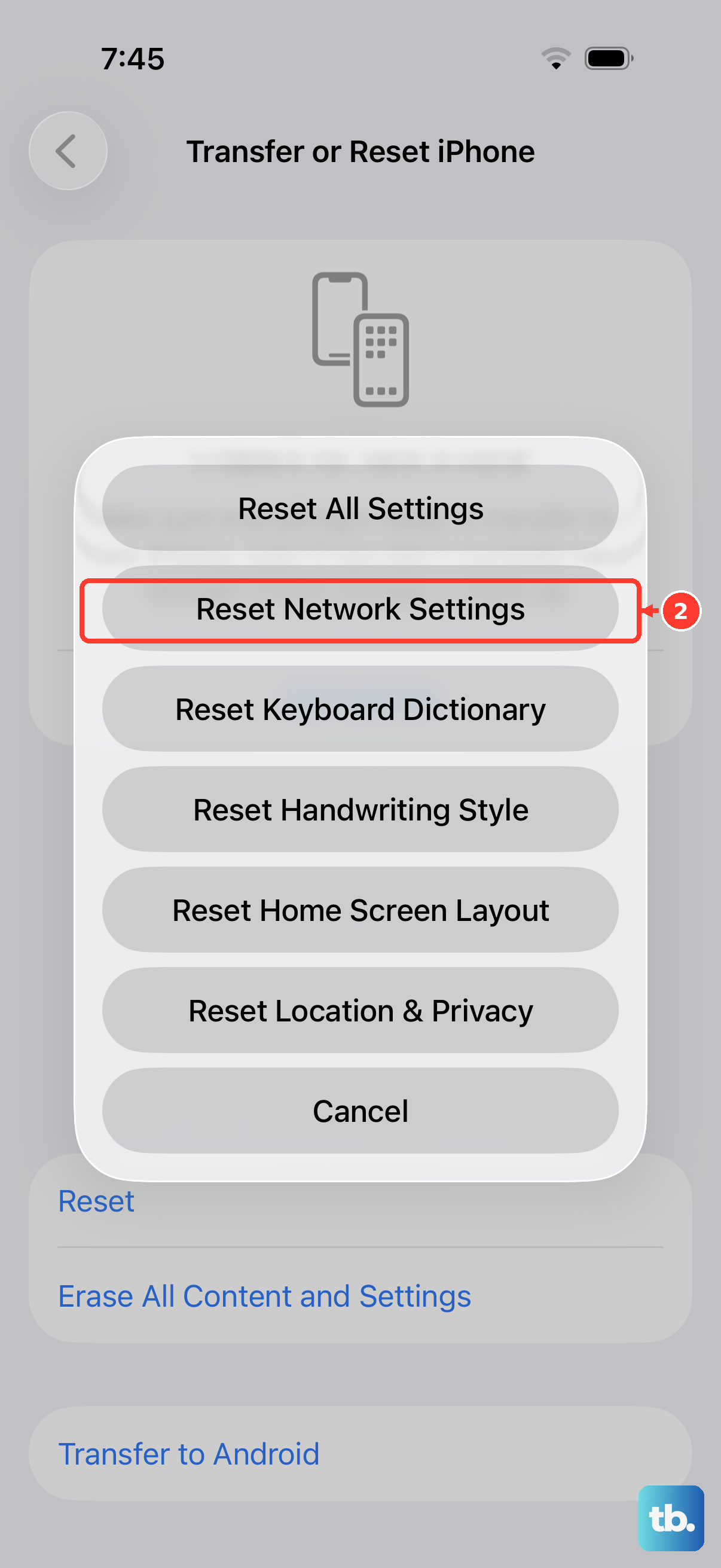
This is a more comprehensive step that clears all your saved network information. It will erase your Wi-Fi passwords, Bluetooth pairings, and cellular network preferences, forcing your iPhone 15 to rebuild them from scratch. It fixes a wide range of connectivity issues.
Before you proceed, make sure you know your important Wi-Fi passwords. Then, go to Settings > General > Transfer or Reset iPhone > Reset. Tap Reset Network Settings and enter your passcode to confirm. Your phone will restart, and you'll need to reconnect to Wi-Fi networks afterward.
Update Your Carrier Settings
Apple and your cellular provider occasionally release small updates to improve network connectivity and performance. These updates happen automatically most of the time, but it's worth checking manually.
Go to Settings > General > About. If a carrier settings update is available, a prompt will appear on this screen. Just follow the instructions to install it. It only takes a moment and requires no restart.
Disable Background App Refresh for Specific Apps
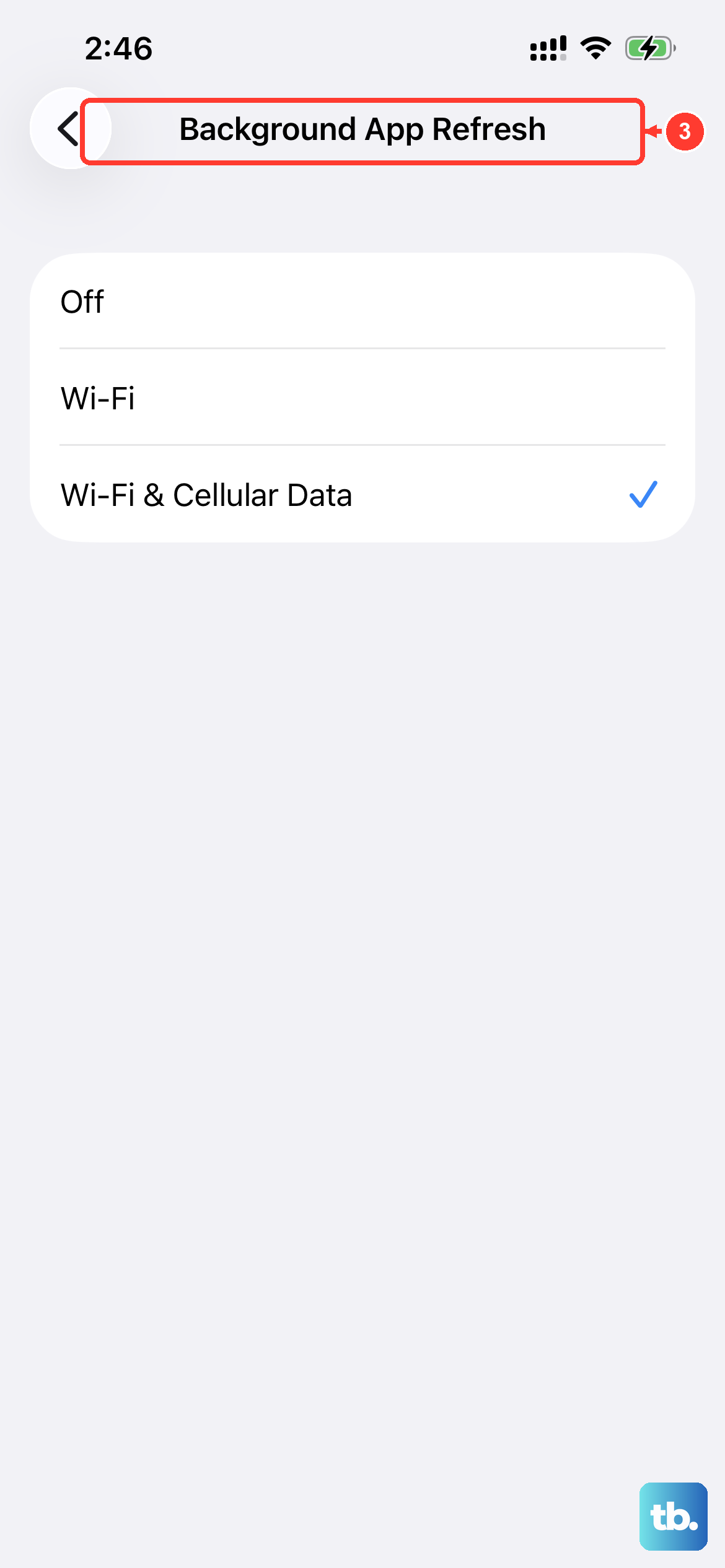
Apps running in the background can use your cellular data to fetch new content, which can consume bandwidth and slow down your active browsing. You don't need to turn it off for everything, just for data-heavy apps you don't need constant updates from.
Head to Settings > General > Background App Refresh. You can set it to "Off" completely, "Wi-Fi" only, or go through the list and toggle off individual apps like social media, email, or news apps that you don't need updating on the go.
Check for a Data Saver or Low Data Mode
iOS has a Low Data Mode specifically for cellular connections. When enabled, it pauses automatic updates and background tasks. While its main goal is to save data, it can also streamline your connection for the task at hand, potentially improving perceived speed.
To enable it, go to Settings > Cellular > Cellular Data Options. You should see a toggle for Low Data Mode. Flip it on and see if your browsing experience improves.
Clear Your Safari Browsing Data
A overloaded cache and browsing history in Safari can sometimes cause performance hiccups. Clearing this data gives the browser a fresh start. Just note that it will log you out of most websites.
Open Settings, scroll down, and tap Safari. Scroll down again and tap Clear History and Website Data. Confirm your choice. This only takes a second and won't affect your saved passwords or bookmarks.
Perform a Force Restart
Different from a standard shutdown, a force restart clears your iPhone 15's memory and can fix deeper software glitches affecting the modem. It's a safe procedure that doesn't delete any data.
Quickly press and release the Volume Up button. Quickly press and release the Volume Down button. Then, press and hold the Side button (on the right) until you see the Apple logo appear, then let go. This process takes about 15 seconds.
Contact Your Carrier
If you've tried everything here and your mobile data is still slow, the issue might be on your carrier's end. There could be network maintenance, tower issues, or congestion in your specific area.
It's also worth verifying your data plan with them. Some unlimited plans reduce speeds ("throttle") after you use a certain amount of high-speed data each month. A quick call or chat with their support can confirm if there's an outage or an account-specific issue.