
Missing calls on your iPhone 15 can be incredibly annoying, especially when you're expecting something important. You check your phone and see a missed call notification, but you never heard a sound. The good news is this is almost always a simple setting or a minor software hiccup that you can fix yourself.
Let's start with the most common fix, which is checking the Action Button. On the iPhone 15 Pro and Pro Max, the traditional ring/silent switch is gone. Instead, you have an Action Button on the left side, above the volume buttons. (If you have a standard iPhone 15 or 15 Plus, you still have the physical ring/silent switch there instead, so just flip it up to enable the ringer.) By default, pressing and holding this button toggles between ring and silent modes.
When you switch modes, a visual indicator pops up in the Dynamic Island at the top of your screen. If you see a bell icon with a slash through it, your phone is silenced. Hold the button again until you see the bell icon without the slash. I'd start with this one, as it's the easiest thing to miss if you're used to a physical switch.
Check Your Focus Modes
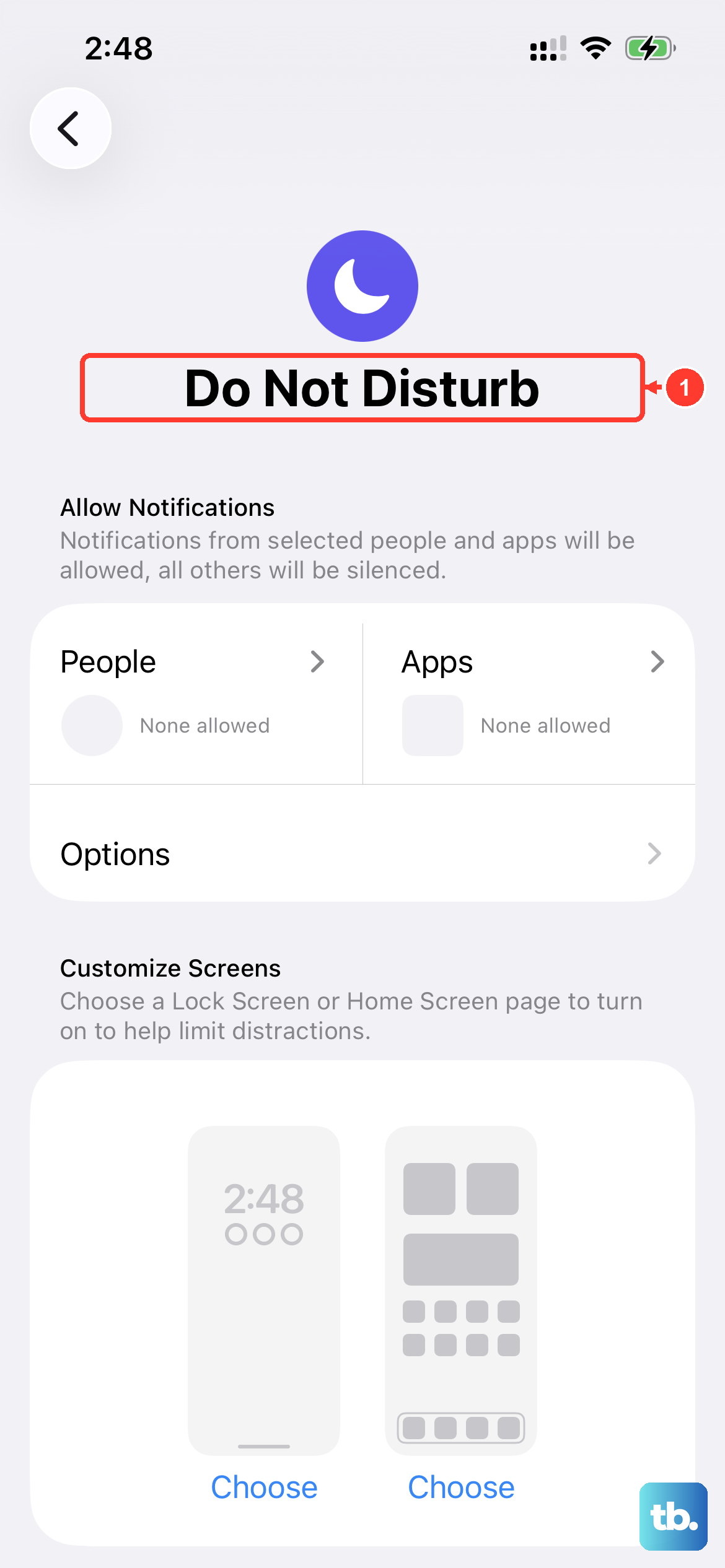
Focus modes like Do Not Disturb, Sleep, or Work can silence incoming calls. Even if you didn't turn one on manually, they can be scheduled to activate automatically. To check, swipe down from the top-right corner to open Control Center.
Look for a moon, bed, or other icon that's highlighted. If you see one, tap it to turn that Focus off. For a more thorough check, go to Settings > Focus. Here, you can see every active Focus and turn off any schedules that might be enabling them without you realizing.
Adjust Your Ringer Volume
Your ringer volume is separate from your media volume. Even if your videos are loud, your ringer might be turned all the way down. The simplest way to fix this is to unlock your iPhone 15 and press the volume up button on the side a few times.
You'll see a volume slider appear on screen. Make sure the icon next to it looks like a bell, not a speaker. If it's a speaker, you're adjusting media volume. You can also set it precisely by going to Settings > Sounds & Haptics and dragging the "Ringer and Alerts" slider to the right.
Disconnect From Bluetooth Accessories
If your iPhone 15 is connected to a Bluetooth device like AirPods, a speaker, or your car's system, incoming call audio is often routed there. Your phone itself will stay silent. To test if this is the issue, temporarily turn Bluetooth off.
You can do this quickly from Control Center by tapping the Bluetooth icon so it's no longer highlighted. Or, go to Settings > Bluetooth and toggle the main switch off. Try having someone call you again. If it rings now, you know the issue is with the Bluetooth connection.
Review Your Call Settings

A few settings in the Phone app can silently send calls to voicemail. First, check if you've accidentally blocked the person trying to reach you. Go to Settings > Phone > Blocked Contacts to see the list.
Next, look at the "Silence Unknown Callers" feature. When this is on, any number not in your contacts, your recent outgoing calls, or your Mail app won't make your phone ring. You can find this toggle in Settings > Phone. If you're waiting for a call from a new doctor or a delivery person, you'll want this off.
Change Your Ringtone
Sometimes, the specific ringtone file can become corrupted, especially if it's a custom tone you added. Switching to a different one can act as a quick reset. Go to Settings > Sounds & Haptics > Ringtone and pick a new default tone, like "Reflection" or "Opening."
Test immediately with a call from another phone. If the new ringtone works, you can try switching back to your preferred one later. This simple swap often clears up the glitch.
Restart and Update Your iPhone
A standard restart can clear out temporary software bugs that might be affecting the ringer. To restart your iPhone 15, press and hold the side button and either volume button until the power slider appears. Drag the slider, wait 30 seconds, then press the side button again to turn it back on.
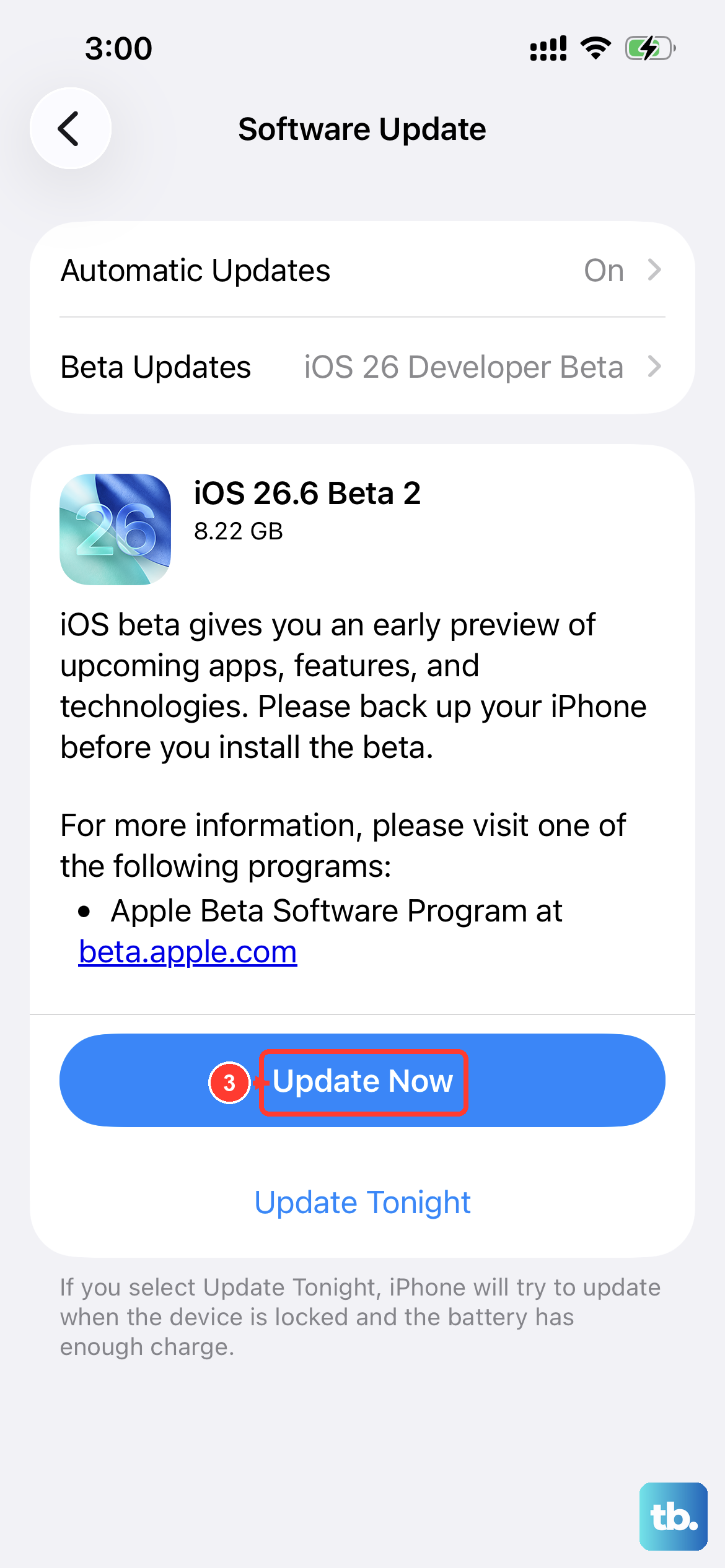
If a restart doesn't help, check for a software update. Apple frequently releases iOS updates that include bug fixes. Go to Settings > General > Software Update. If an update is available, plug your phone into power and connect to Wi-Fi to install it.
Reset All Settings
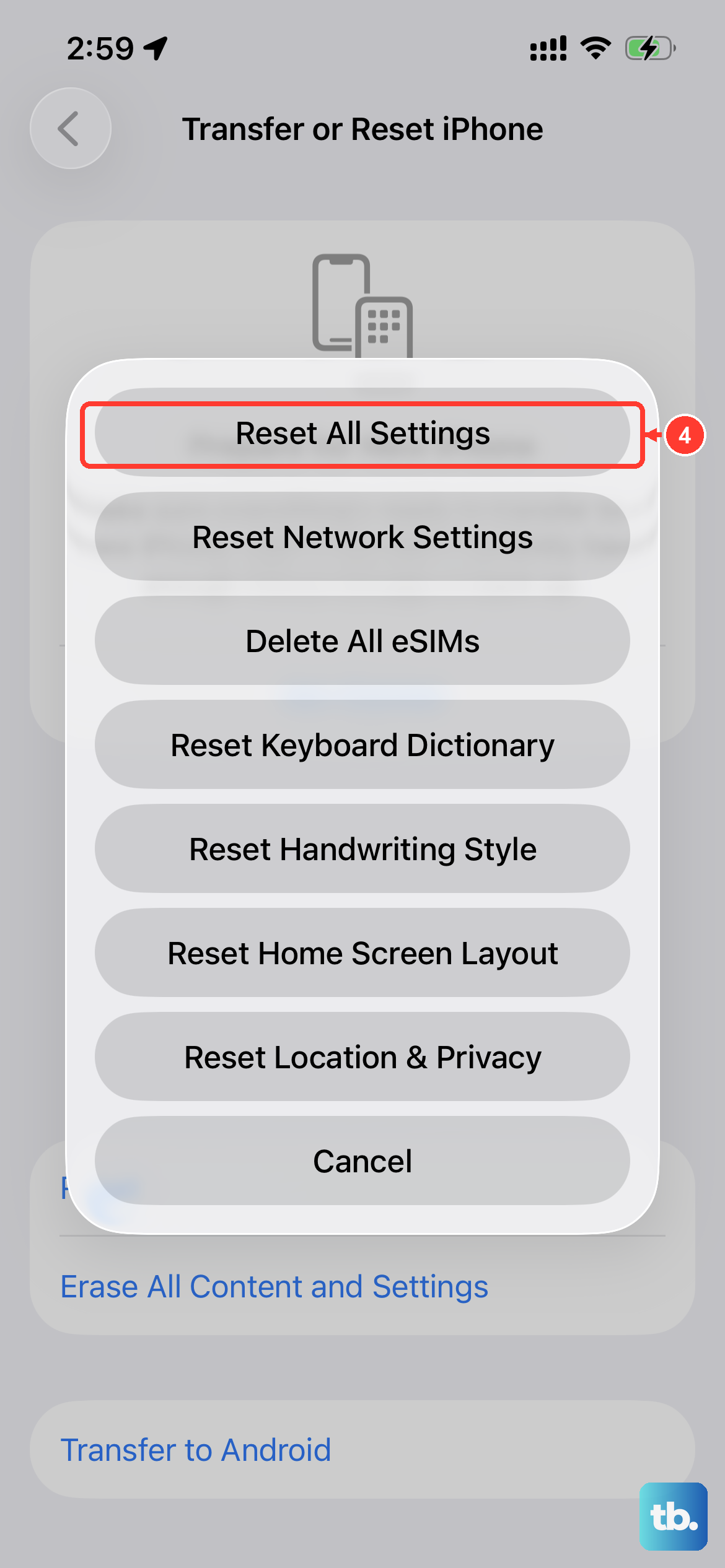
This is a more thorough step that won't delete your photos, messages, or apps, but it will reset every system setting back to its factory default. That includes your Wi-Fi passwords, wallpaper, and privacy permissions, so you'll need to set those up again.
To do this, go to Settings > General > Transfer or Reset iPhone > Reset. Then, tap "Reset All Settings" and enter your passcode. After your phone reboots, check if your ringer is working. You'll need to re-adjust your volume and ringtone afterward.
Check for App-Specific Issues
If your iPhone 15 rings for regular phone calls but not for calls from apps like WhatsApp, FaceTime, or Facebook Messenger, the problem is likely with that specific app. First, make sure the app is updated through the App Store.
Then, check the app's notification permissions. Go to Settings and scroll down to find the app in question. Tap it, then go to Notifications. Ensure "Allow Notifications" is on and that the sounds are enabled for the call notification style.











