
When you tap on a picture message and it just spins forever, it's one of the most annoying things your iPhone 15 can do. This usually happens because of a glitch with the Messages app, a problem with your cellular data connection, or a setting that got switched off.
Let's get those photos and videos downloading again.
Force Restart Your iPhone 15
This is the single best first step for any weird iPhone behavior. A force restart clears out temporary software bugs without deleting any of your data. It's different from a normal restart and often fixes download hangs.
Here's how to do it on the iPhone 15: quickly press and release the Volume Up button, then quickly press and release the Volume Down button. Finally, press and hold the Side button until you see the Apple logo appear on the screen.
Check Your Cellular Data Connection
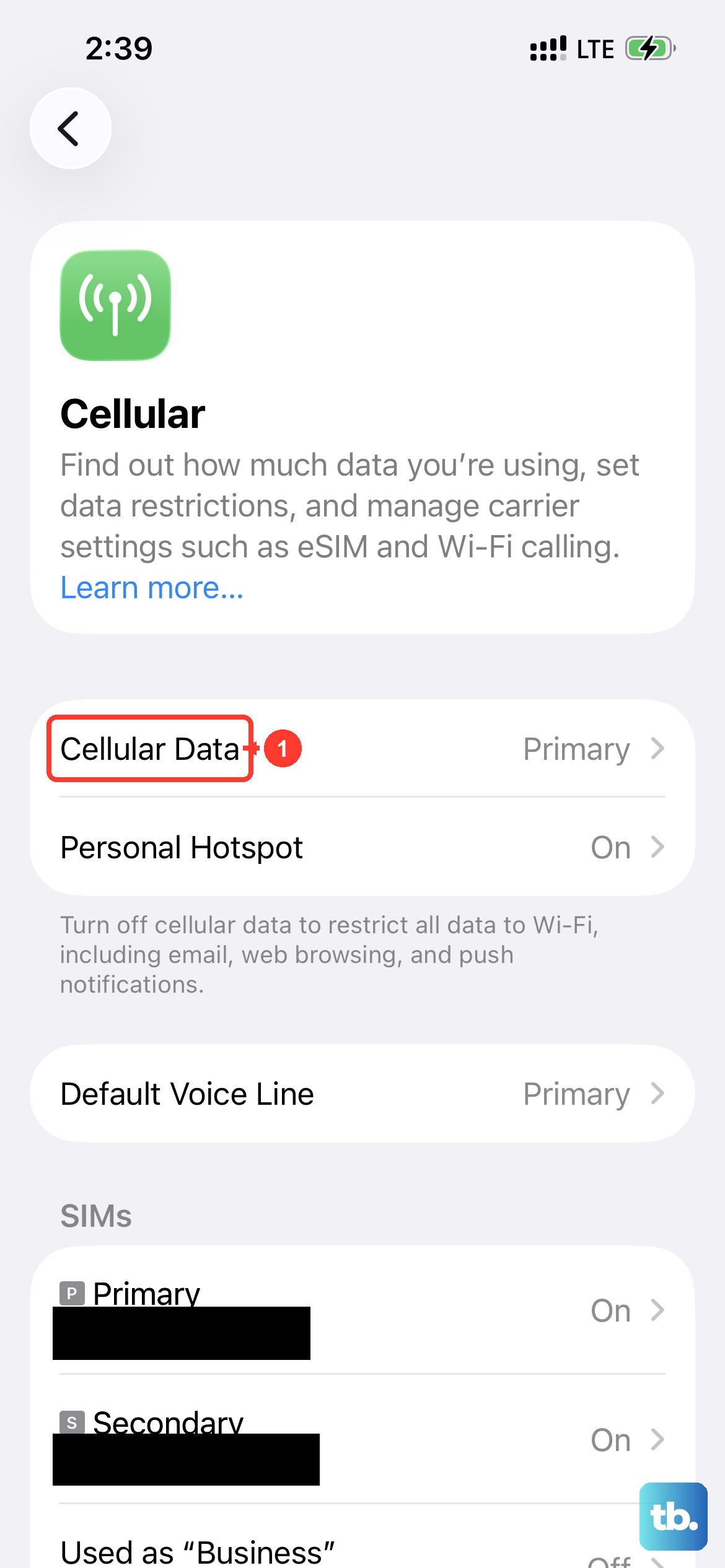
Picture messages (MMS) and videos sent via text require a cellular data connection to download. They won't come through on Wi-Fi alone. First, make sure Cellular Data is turned on by going to Settings > Cellular.
Next, check if you have a strong signal. If you're in a basement or a building with thick walls, try moving to a window or stepping outside. You can also try toggling Airplane Mode on for 15 seconds and then off again to force your phone to reconnect to the network.
Enable MMS Messaging
There's a specific setting for MMS, and sometimes it gets turned off accidentally, especially after a software update. You need to make sure it's enabled for picture messages to work.
Go to Settings > Apps > Messages. Scroll down and make sure the switch for MMS Messaging is turned on (green). If it was off, turn it on and then try downloading the stuck message again.
Update Your Carrier Settings
Your carrier occasionally sends small updates that help your iPhone 15 communicate properly with their network. These updates can fix MMS and group messaging issues. To check for one, make sure you're connected to Wi-Fi and have a cellular signal.
Then go to Settings > General > About. If an update is available, a prompt will appear on this screen. Just follow the instructions to install it.
Check Your Message Storage
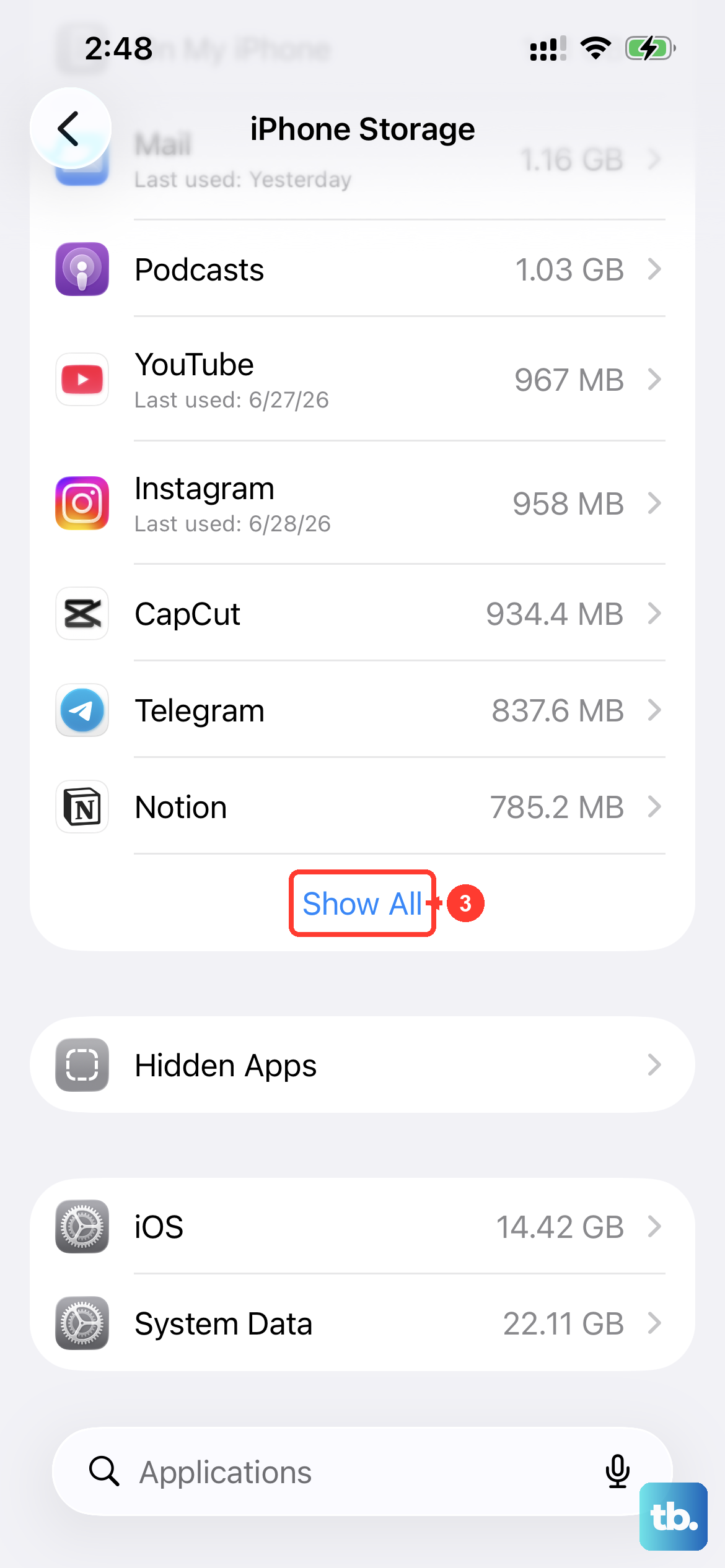
If your iPhone's storage is completely full, it may not have space to save new photos and videos from messages. Go to Settings > General > iPhone Storage to see how much space you have left.
If you're critically low, you might need to offload some photos or apps. As a quick test, try deleting a few old, large video messages from your threads. After freeing up some space, see if the new picture will download.
Reset All Network Settings
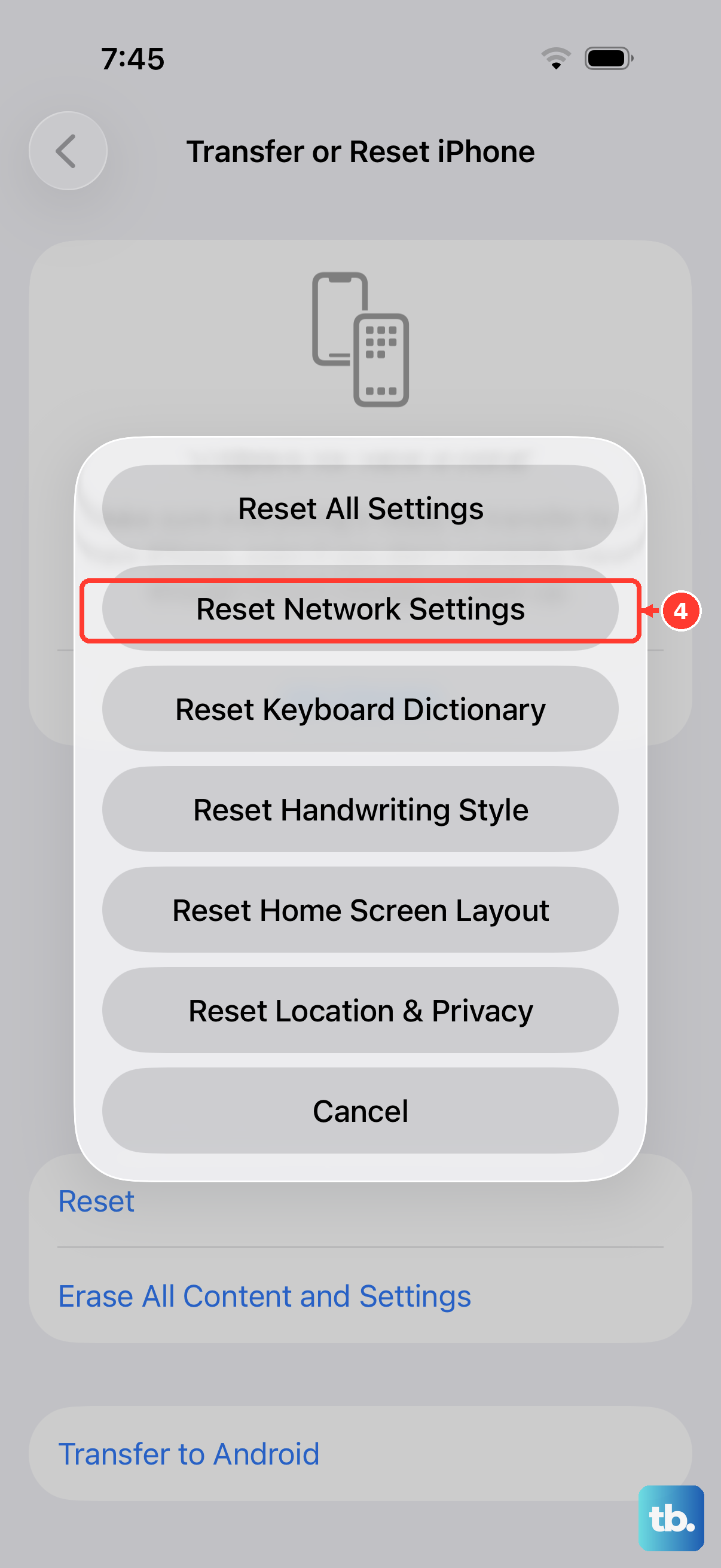
This step clears all your Wi-Fi passwords, cellular settings, and VPN configurations, so you'll have to re-enter Wi-Fi passwords afterward. It's a very effective way to fix persistent network-related download problems.
To do this, go to Settings > General > Transfer or Reset iPhone. Tap Reset and then choose Reset Network Settings. Enter your passcode if asked and confirm the reset. Your iPhone will restart.
Update to the Latest Version of iOS
Apple is constantly fixing bugs with software updates. The issue you're having might be a known bug that's been patched in a newer version of iOS. It's always a good idea to be on the latest release.
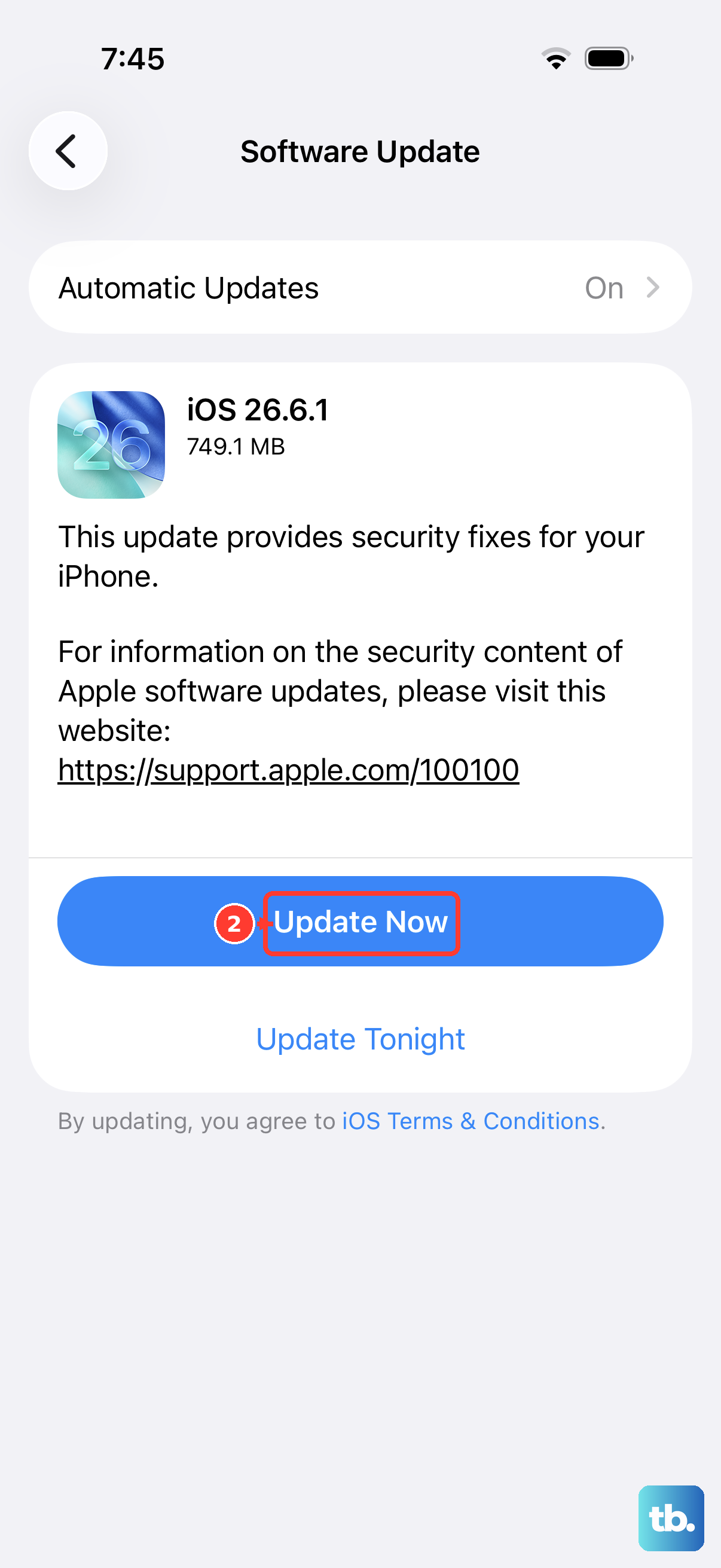
Go to Settings > General > Software Update. If an update is available, tap Download and Install. I'd recommend doing this while your phone is connected to Wi-Fi and a power source.
Delete the Problem Message Thread
If a specific conversation is causing the problem, deleting the entire thread can sometimes break the cycle. Be warned, this will erase the entire message history with that person or group.
In the Messages app, swipe left on the problematic conversation and tap the trash can icon. Confirm you want to delete it. Afterward, have the person send you a new picture message to test.
Check With Your Sender and Carrier
If you've tried everything and pictures from one person still won't download, ask them to try sending the photo a different way, like via iMessage (which will show blue bubbles) or through Mail. If the problem is with all picture messages, your final step is to contact your cellular carrier.
There could be a provisioning issue with your account, or they might need to refresh your service on their end. They can also verify that your APN (Access Point Name) settings are correct for your iPhone 15 and plan.