
A frozen or lagging keyboard on your iPhone 15 can really slow you down when you're trying to text or type. It's a common hiccup, but the good news is you can almost always fix it yourself with a few simple steps.
Force Restart Your iPhone 15
This is the go-to first fix for any weird software behavior, including a stuck keyboard. It clears the phone's temporary memory without deleting any of your stuff. The process for the iPhone 15 is a bit different from older models.
Quickly press and release the Volume Up button. Then quickly press and release the Volume Down button. Finally, press and hold the Side button (on the right) until you see the Apple logo appear, then let go. This takes about 10-15 seconds.
Close and Reopen the App
Sometimes the issue is isolated to a single app, like Messages or Notes. Swipe up from the bottom of the screen and pause in the middle to bring up the App Switcher. Find the app you're having trouble with and swipe it up and off the top of the screen to close it completely.
Then, go back to your Home Screen and tap the app icon to reopen it. This gives the app a fresh start and often resolves temporary keyboard freezes.
Update iOS
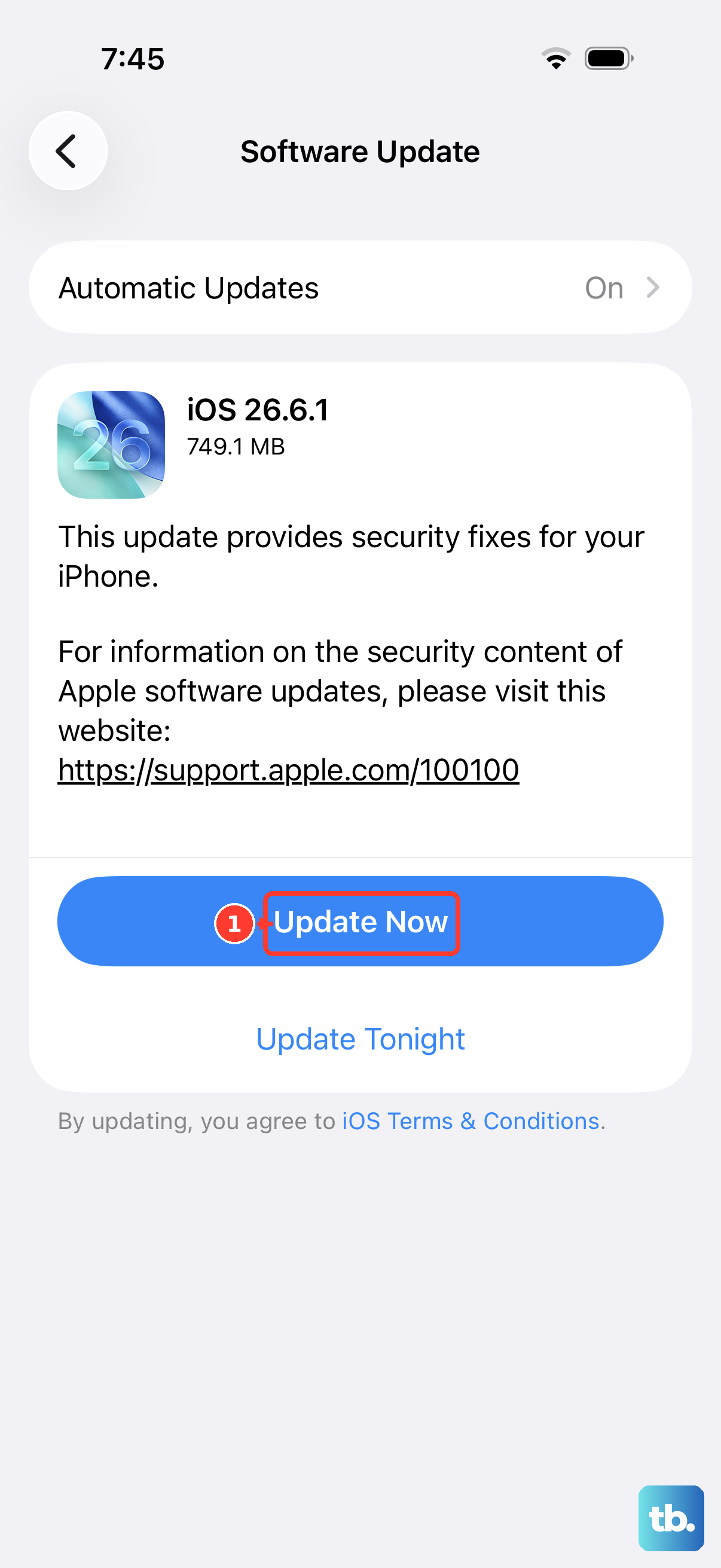
Apple regularly releases software updates that include bug fixes for issues just like this. If your keyboard started acting up after a recent update, a newer one might already have the patch.
Go to Settings > General > Software Update. If an update is available, tap "Download and Install." Make sure your phone is connected to Wi-Fi and has a good charge, or plug it into a USB-C charger.
Check for a Third-Party Keyboard App
If you've installed a keyboard like Gboard or SwiftKey, that could be the source of the lag. Try switching back to the standard Apple keyboard to test.
Open an app where you can type, like Notes. Tap and hold the globe or emoji icon on the keyboard. From the menu that pops up, select "Keyboard Settings." Here, you can see all your installed keyboards and toggle them off to disable them.
Just tap the switch next to the third-party keyboard to turn it off. Your iPhone will revert to the default keyboard immediately.
Reset All Keyboard Settings
This will return all your keyboard preferences to their factory defaults. You'll lose custom text replacements and any keyboard-specific settings, but your personal data and apps are safe.
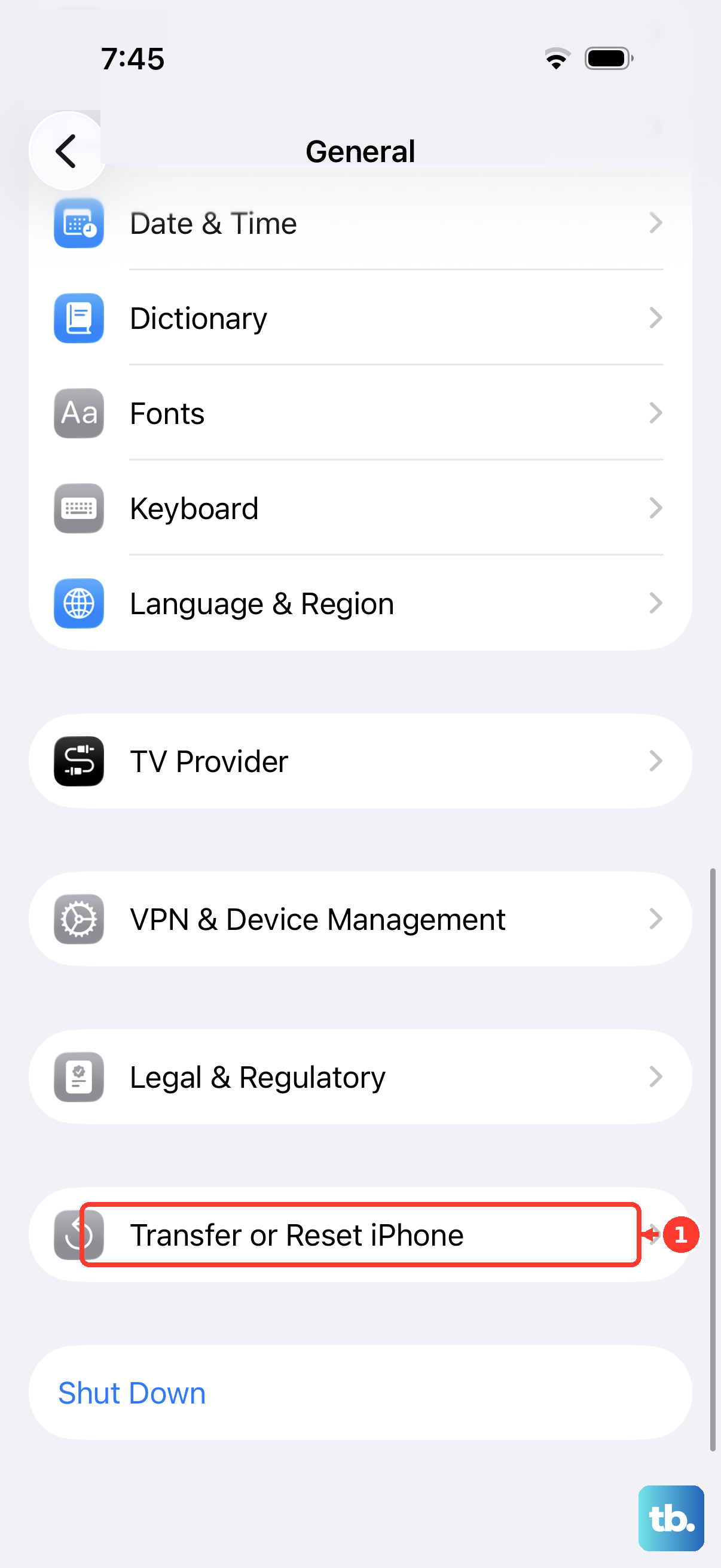
Navigate to Settings > General > Transfer or Reset iPhone. Tap "Reset" at the bottom, and then choose "Reset Keyboard Dictionary." Confirm your choice, and your phone will restart. This often clears up deep-seated glitches.
Free Up Storage Space
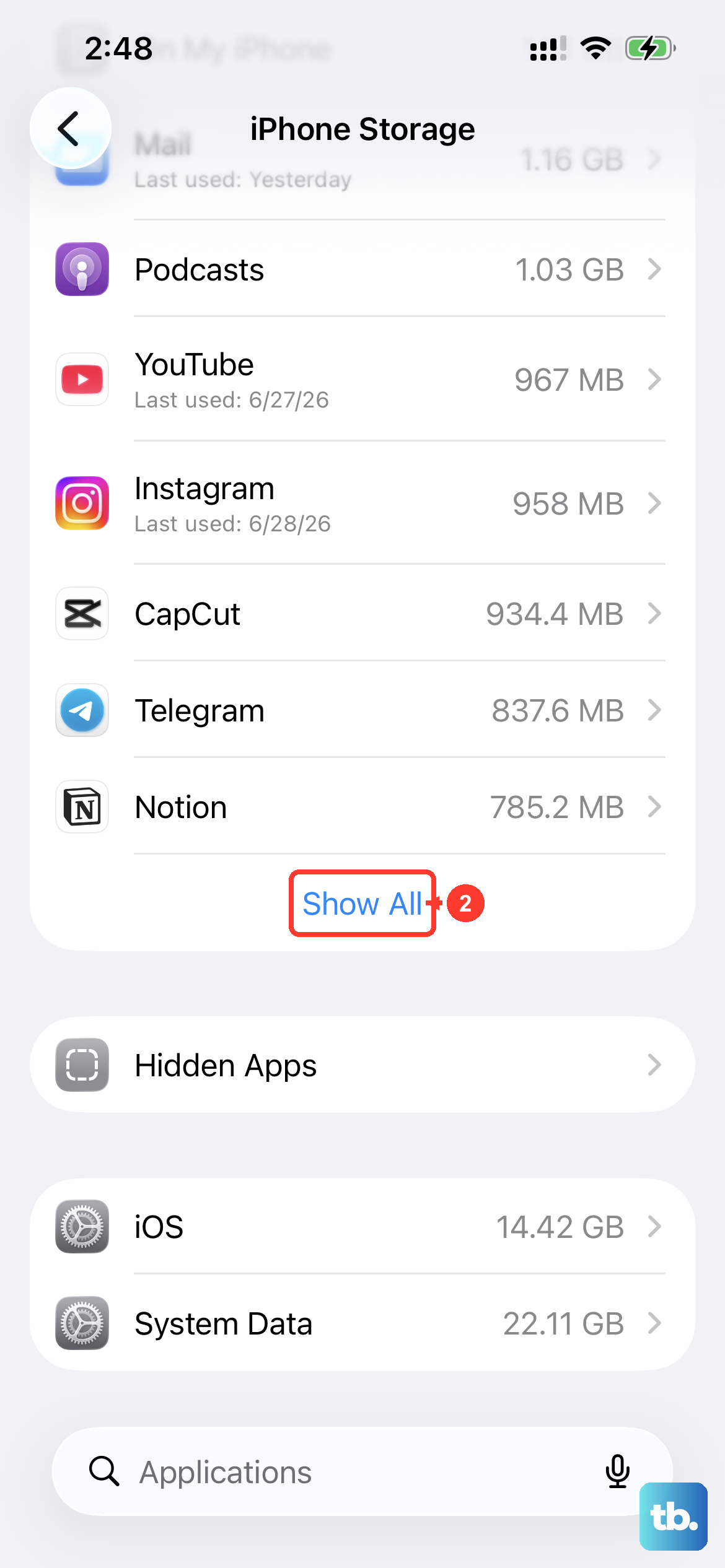
When your iPhone 15 gets very low on storage, it can struggle to run basic functions smoothly, which might include the keyboard. It's worth checking if you're running out of room.
Head to Settings > General > iPhone Storage. The bar at the top shows your used and available space. If you're critically low (like, in the red), the system will suggest ways to free up space, like offloading unused apps or reviewing large attachments.
Disable and Re-enable Predictive Text
While predictive text is helpful, its processing can sometimes cause lag, especially on older threads or documents. Turning it off temporarily is a good diagnostic step.
Go to Settings > General > Keyboard. Scroll down and toggle off "Predictive Text." Go back to your keyboard and see if it feels more responsive. You can always turn it back on later.
Check for a Physical Screen Issue
Rarely, what feels like keyboard lag can actually be the screen not registering your taps properly. This is more likely if you have a screen protector that's lifting at the edges or if the screen is very dirty.
Remove any case or screen protector and clean the screen with a soft, slightly damp, lint-free cloth. Test the keyboard again with the bare screen to see if the responsiveness improves.
Perform a Full Settings Reset
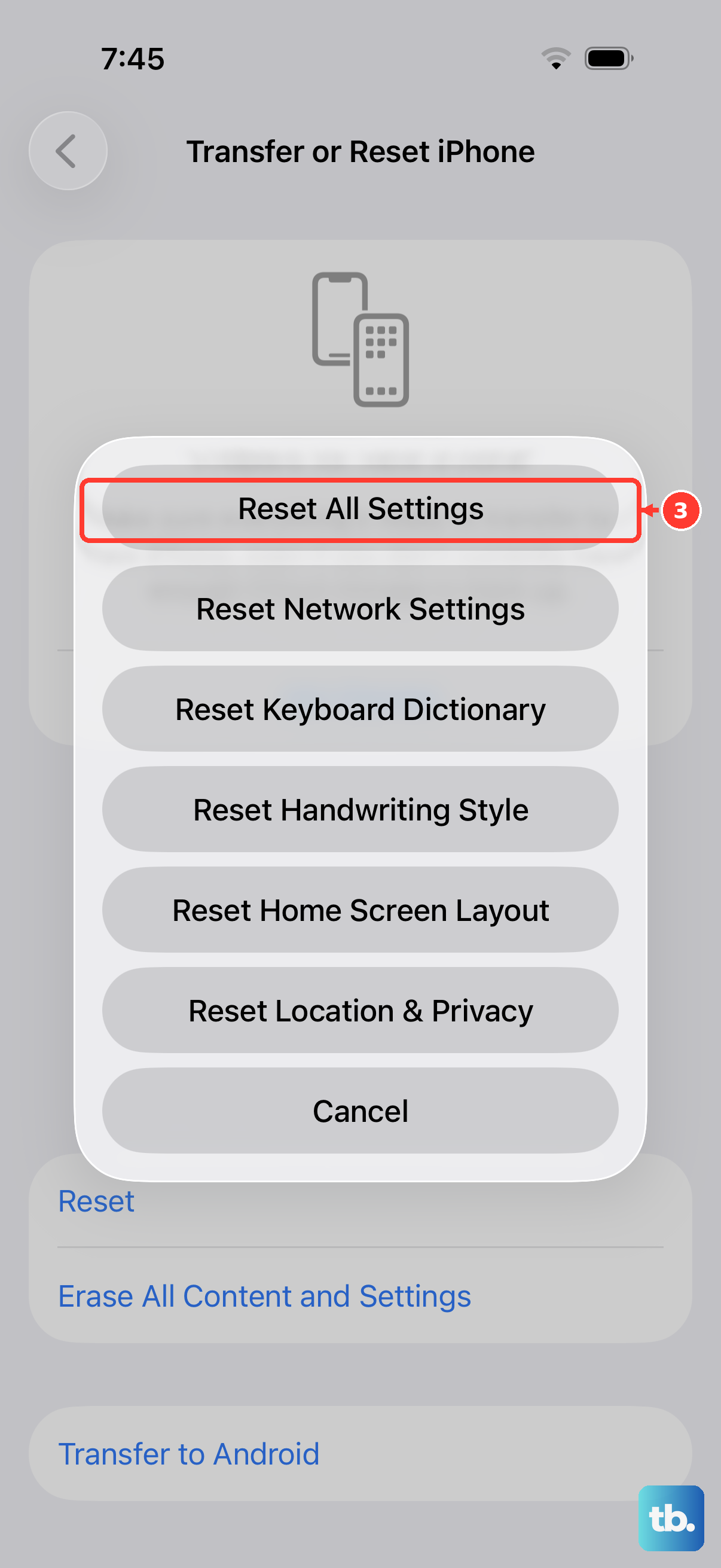
If you've tried everything else and the keyboard is still problematic, this is a stronger reset option. It will wipe all your settings back to factory default, things like Wi-Fi passwords, wallpaper, and privacy permissions, but it won't touch your photos, messages, or apps.
This is a bigger step, so I'd save it for last. Go to Settings > General > Transfer or Reset iPhone. Tap "Reset," then choose "Reset All Settings." You'll need to enter your passcode and confirm. Your phone will restart and you'll need to reconfigure your preferences, but it often resolves persistent software conflicts.