
When your iPhone 15 starts restarting on its own, it's more than just an annoyance. It can interrupt calls, disrupt your work, and make you worry about the health of your phone. The good news is, a software issue may be the cause, and troubleshooting can help.
Before you start, it's a smart move to make sure your data is backed up. You can do this quickly via iCloud by going to Settings > [Your Name] > iCloud > iCloud Backup and tapping "Back Up Now." This protects your photos, messages, and app data just in case.
Start with the simplest fix first.
Perform a Force Restart
A force restart is the digital equivalent of taking a deep breath for your iPhone. It can help when your iPhone becomes unresponsive without erasing your data. For the iPhone 15, the process is straightforward.
Quickly press and release the Volume Up button. Then, quickly press and release the Volume Down button. Finally, press and hold the Side button (on the right) until you see the Apple logo appear on the screen, then let go. This might take longer than 10 seconds.
Update iOS and Your Apps
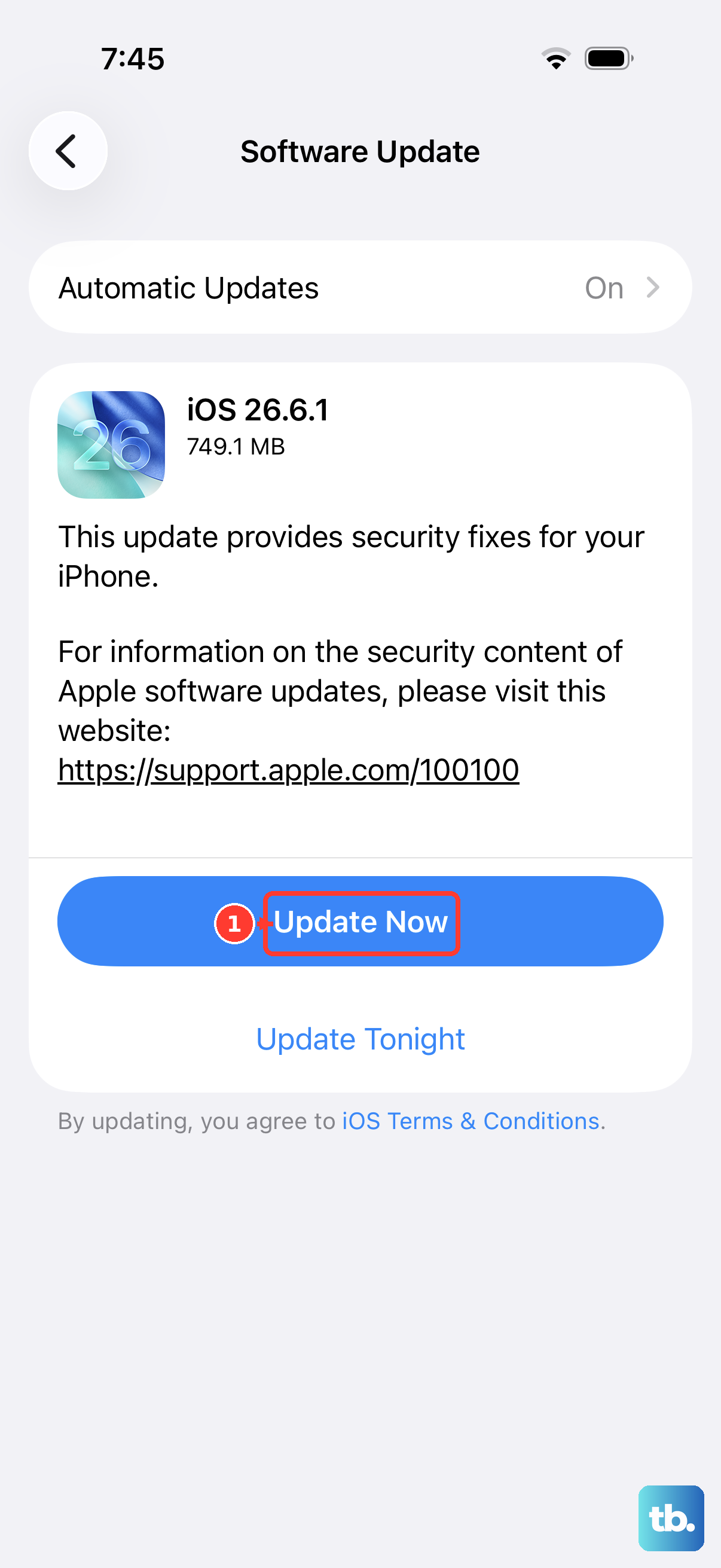
Your iPhone 15 runs iOS, and software updates include bug fixes. An outdated system can cause instability. Head to Settings > General > Software Update.
If an update is available, tap "Download and Install." Make sure your phone is plugged in and on Wi-Fi. While you're at it, check your apps too. Open the App Store, tap your profile icon in the top right, then tap App Updates to see pending updates.
Tap "Update All" to install available app updates, then check whether the restarts continue.
Check for a Problematic App
Sometimes, one misbehaving app is the troublemaker. Think about when the restarts began. Did you install a new game or utility right before the issue started? You can try removing recently downloaded apps to test.
If a particular app also closes unexpectedly or stops responding, close and reopen it, then check for updates in the App Store. If it still doesn't work, delete it and download it again. Deleting an app may remove data stored in it.
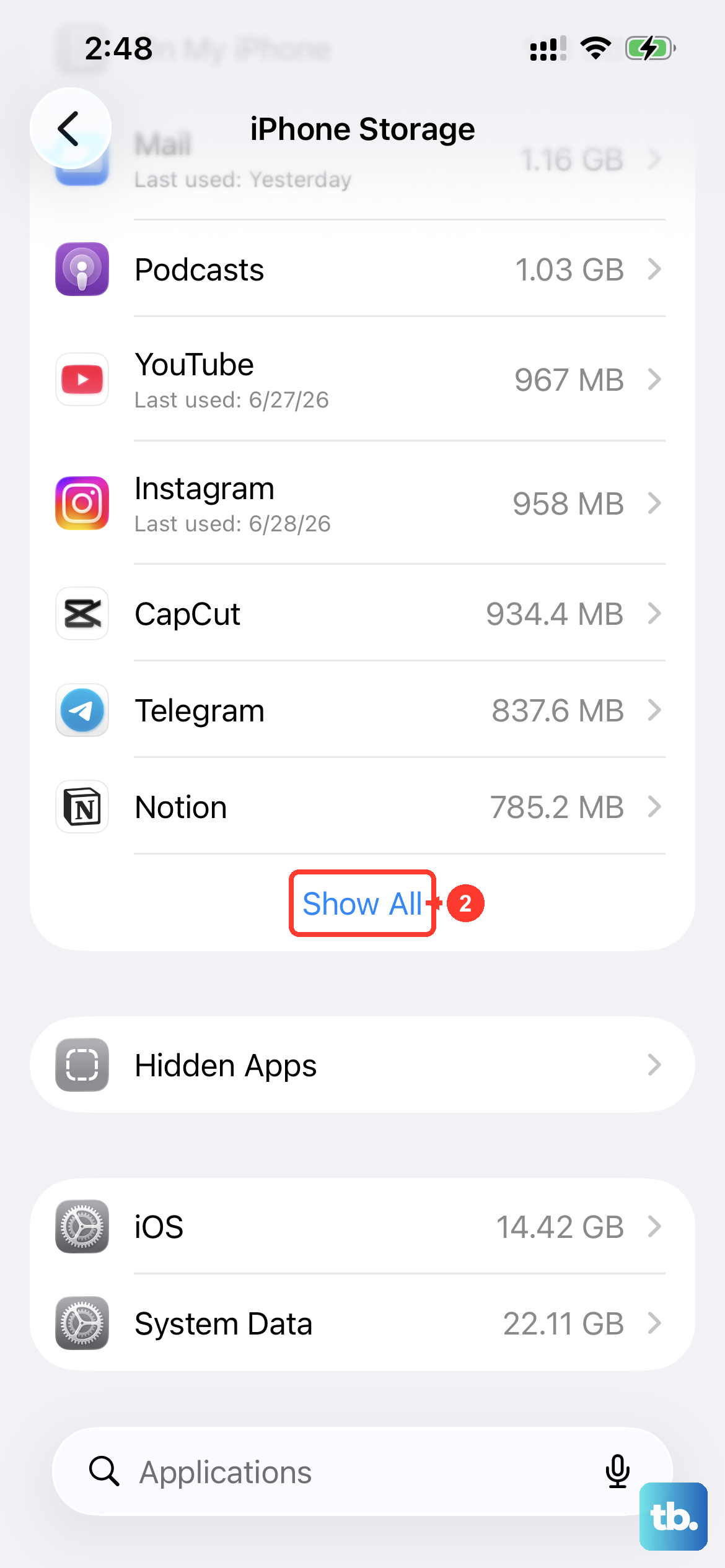
You can also check the analytics logs. Go to Settings > Privacy & Security > Analytics & Improvements > Analytics Data and look for entries that start with the name of an app you suspect. If the same app appears over and over, that is a strong clue. You can offload it from Settings > General > iPhone Storage: tap the app, then tap Offload App. This frees its storage but keeps its documents and data.
Review Your Charging Setup
If the restarts happen while charging, check your charging setup. The iPhone 15 has a USB-C connector, so make sure the cable fits properly and check the connector for debris. Try another cable or adapter if charging is unreliable.
Make sure you're using a cable with a USB-C connector for the phone, not a Lightning connector. Also, try a different compatible power adapter. For fast charging, the iPhone 15 can reach up to 50% charge in around 30 minutes with a 20W adapter or higher paired with a USB-C charging cable.
If you use MagSafe, ensure there's no debris on the back of your phone or the charger. A thick or metal case can also interfere with charging, so try removing it if charging is unreliable.
Check the 80% Charge Limit
The charge limit feature is designed to prolong your battery's lifespan. If you select an 80% limit, your phone will usually stop charging at about 80%.
If charging stops before the battery is full, check your selected limit. Go to Settings > Battery > Charging.
You can choose a charge limit from 80% to 100% in 5% steps. Choose 100% if you want a full charge; Optimized Battery Charging is available at that limit. Use this setting to manage charging rather than as a fix for random restarts.
Free Up iPhone Storage
When your storage is critically full, the operating system doesn't have room to breathe. This can lead to all sorts of instability. Go to Settings > General > iPhone Storage.
The system will show you a breakdown and may offer recommendations like reviewing large attachments or offloading unused apps. Try to keep at least a few gigabytes free. If you're near capacity, deleting some old videos or offloading apps you don't use can make a big difference.
Reset All Settings
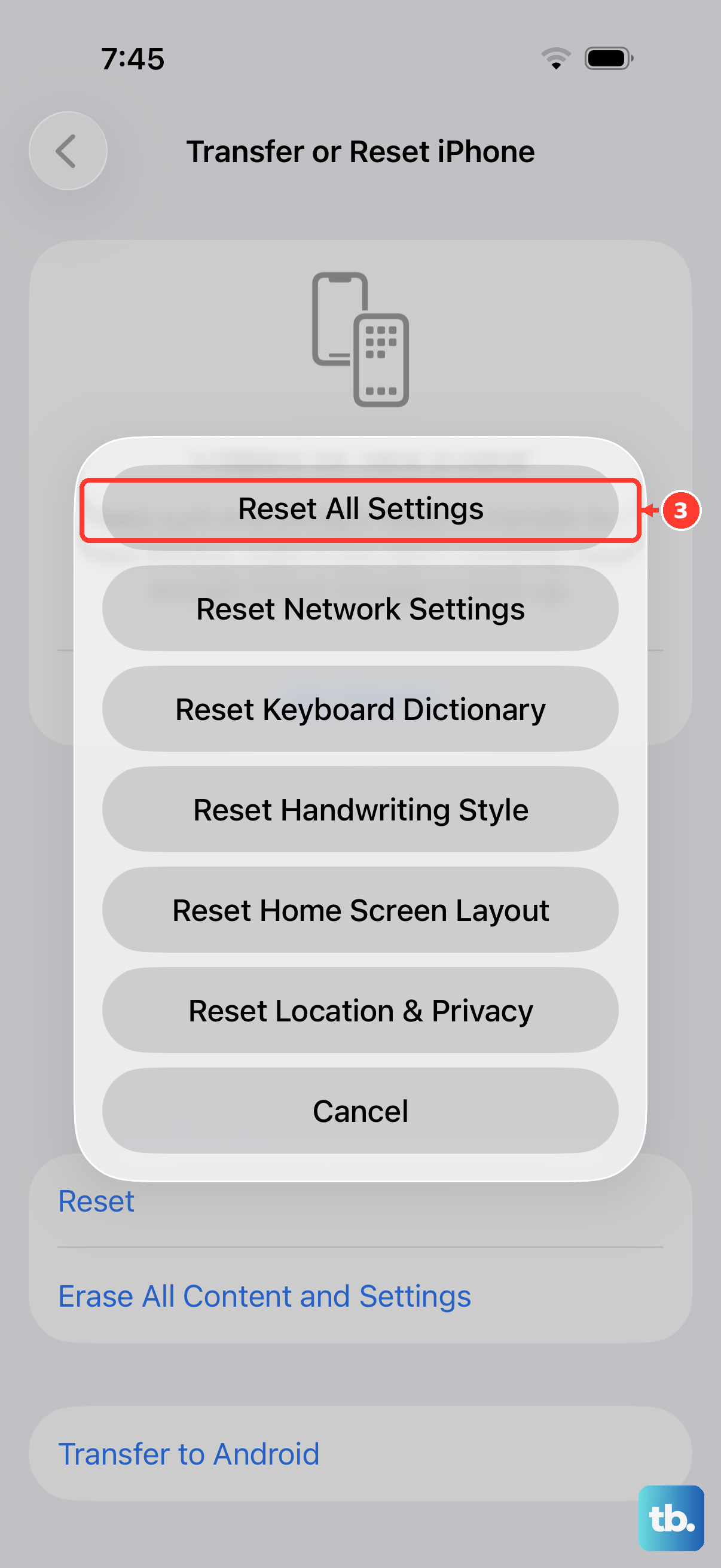
This is a more substantial step, but it won't delete your photos, messages, or apps. It will, however, remove or reset settings such as Wi-Fi networks, Bluetooth pairings, Face ID, and Apple Pay cards.
That means your Wi-Fi passwords, wallpaper, privacy permissions, and keyboard dictionary will be wiped. Go to Settings > General > Transfer or Reset iPhone > Reset.
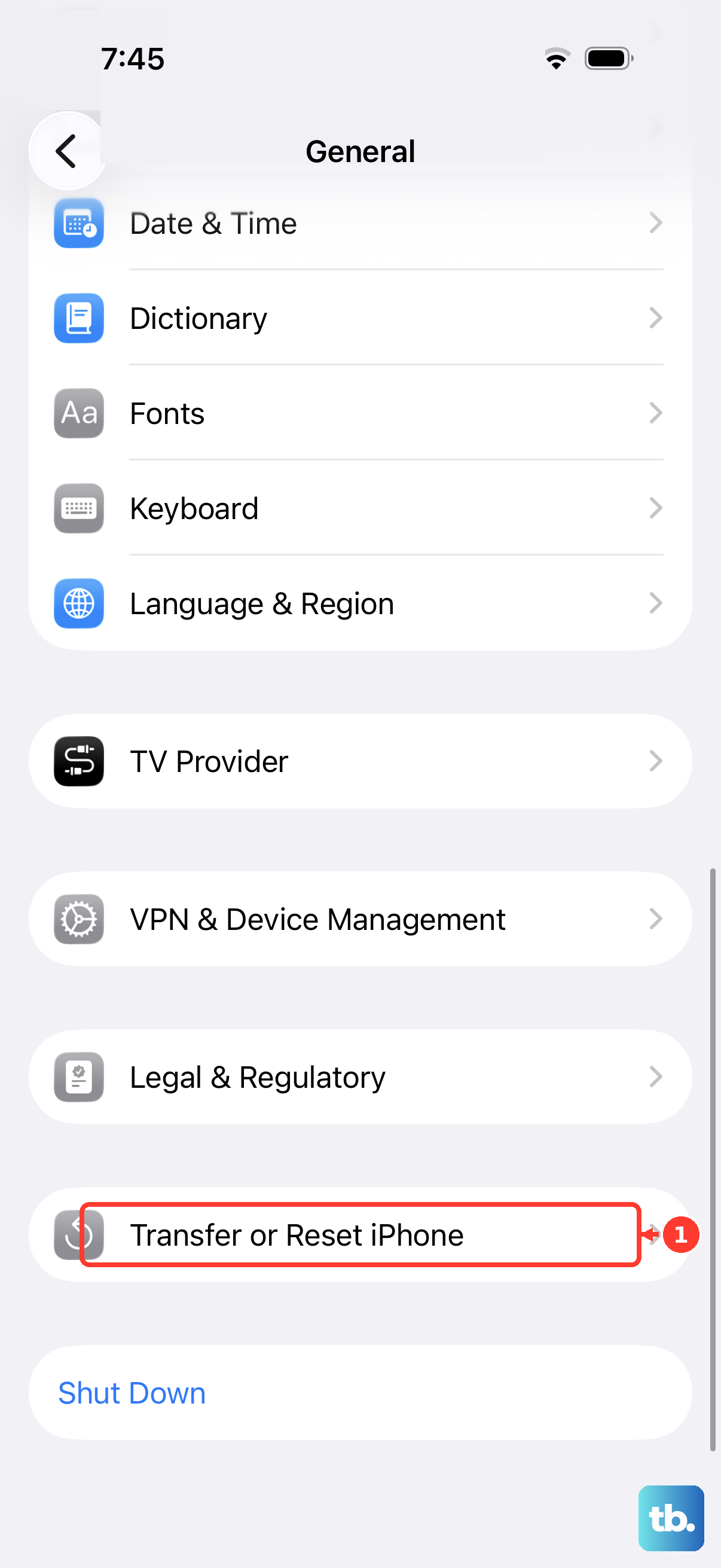
Choose "Reset All Settings." You'll need to enter your passcode. After the phone restarts, you'll have to reconnect to Wi-Fi, re-pair Bluetooth devices and your Apple Watch, and set up Face ID again.
Restore via Recovery Mode
If your iPhone 15 stays on the Apple logo for several minutes without a progress bar, try recovery mode. You'll need a compatible USB cable and a computer. Update your Mac or get the latest Apple Devices app on Windows, then open Finder on the Mac or the Apple Devices app on the PC.
Connect your iPhone to the computer with a cable. Quickly press and release the Volume Up button, then the Volume Down button. Immediately press and hold the Side button.
Keep holding it even after you see the Apple logo. Wait until you see the recovery mode screen (a cable pointing to a computer icon), then let go. Your computer will prompt you to either Update or Restore. Choose Update first if you haven't already tried it. Restore reinstalls iOS and erases all data, so it's a last resort. If the download takes more than 15 minutes and the phone leaves the recovery screen, let the download finish, then repeat the button steps.
Consider a Hardware Check
If you've tried every software fix and the random restarts continue, it's time to consider the physical device. While less common, issues like a faulty battery connection or a logic board problem can cause this.
iPhone 15 models sold in the U.S. use eSIM only, so there is no SIM card to remove and reseat. If the restarts continue, contact Apple Support or visit an Apple Store.
They can help assess the problem and advise if a repair is needed. If you bought the phone new in 2023, its standard one-year warranty has expired. Check Settings > General > AppleCare & Warranty and tap your device to see its coverage and expiration date before arranging service.