
A blurry camera on your iPhone 15 can ruin photos you can't retake. The issue might be a smudged lens, a software hiccup, or a setting that's not quite right. I'd start with the simplest fixes first, as they solve the problem most of the time.
Clean the Camera Lens
Grab a soft microfiber cloth and gently wipe the camera lenses on the back of your iPhone 15. Fingerprints and dust are the most common culprits for a hazy, blurry look. Avoid using your shirt or a paper towel, as they can leave micro-scratches on the lens coating over time.
Remove Your Case
Take your phone case off and snap a test photo. Some cases, particularly thick ones or those with plastic camera bump protectors, can actually sit over the edge of the lens. This creates a slight obstruction that diffuses light and causes blur. Also, make sure you haven't accidentally left a lens protector film on.
Tap to Focus and Adjust Exposure
Open the Camera app and tap directly on your subject on the screen. You'll see a yellow square confirming the focus point. If your subject is off-center, the camera might be focusing on the background instead. For more control, press and hold on the focus point to lock both focus and exposure (AE/AF Lock).
Switch Between Camera Lenses
Your iPhone 15 has multiple lenses. In the Camera app, tap the 0.5x, 1x, or 2x buttons to switch between them. If only one lens produces blurry photos, the issue is isolated to that specific camera module. The other lenses will be sharp, which helps narrow down the problem.
Force Close and Reopen the Camera App
Swipe up from the bottom of your screen and pause in the middle to enter the app switcher. Find the Camera app and swipe it up to close it completely. Then, reopen it and try taking a photo again. This clears any temporary glitch in the camera's software that could be affecting image processing.
Restart Your iPhone 15
Press and quickly release the Volume Up button, then press and quickly release the Volume Down button. Finally, press and hold the Side button until you see the Apple logo appear. This force restart is more thorough than a standard shutdown and can resolve deeper software conflicts affecting the camera system.
Check for Lens Cleaning Hints
If you're running iOS 26 or later, your iPhone 15 has a helpful feature that can detect a dirty lens. Before you take a photo, you might see a small notification pop up suggesting you clean the lens. If you get this hint, give the lenses another good wipe with a microfiber cloth.
Update iOS
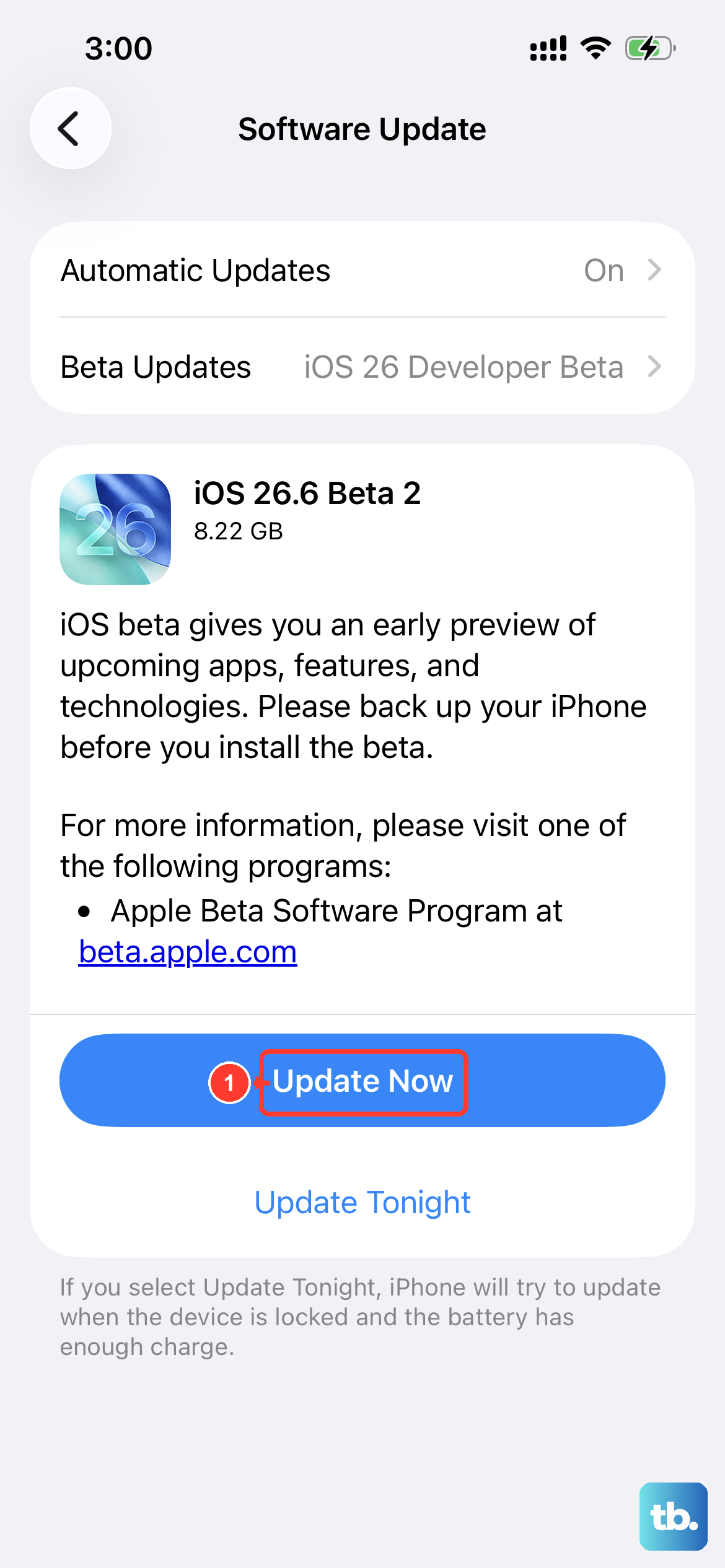
Head to Settings > General > Software Update and install any available updates. Apple frequently releases patches that include camera performance improvements and bug fixes. An issue causing blurriness in specific shooting modes might have already been resolved in a recent update.
Disable Macro Control
The iPhone 15 can automatically switch to its ultra-wide lens for extreme close-ups, which is called Macro mode. Sometimes this switch can cause unexpected blur at certain distances. Go to Settings > Camera > Macro Control and toggle it on. This gives you a manual toggle in the Camera app so you can control when it activates.
Reset All Camera Settings
If you've customized a lot of camera options, one of them might be interfering. Go to Settings > Camera > Preserve Settings and toggle everything off. This will reset the Camera app to its default state the next time you open it, which can clear up any problematic configurations.
Check for Physical Damage or Moisture
Inspect the camera lenses closely for any cracks, deep scratches, or signs of moisture inside the lens housing. Condensation can cause a permanent foggy appearance. If you see physical damage or moisture spots that don't go away, the camera module itself likely needs professional service.











