
When your iPhone 14 won't charge on a MagSafe or Qi pad, it's frustrating. Start by checking the simplest things first, like positioning and your case.
Center Your Phone on the Charger
Wireless charging needs very precise alignment. The charging coil in your iPhone 14 must line up directly with the coil in the pad. Place your phone dead center on the charging surface. If you're using a MagSafe charger, you should feel the magnets pull it into the perfect spot with a satisfying snap.
With a standard Qi charger, you won't have that magnetic guide. Look for the charging chime and the battery icon on your lock screen. If charging doesn't start, try adjusting the phone's position on the pad.
Take Off Your Case
This is a very common culprit. Thick cases, especially those with built-in wallets, metal plates for car mounts, or magnetic rings not designed for MagSafe can completely block the signal. Pop your iPhone 14 out of its case and try charging it bare.
If it works without the case, you'll need to switch to a case that's certified as MagSafe-compatible or is known to be thin enough for Qi charging. Check the case manufacturer's wireless charging compatibility information before choosing a replacement.
Inspect Your Charger and Cable
Make sure your wireless charger is actually getting power. Check that it's plugged into the wall and that any indicator light is on. Try a different outlet. The power adapter matters a lot, especially for MagSafe.
For the MagSafe Charger marked A2140, use a 20W or higher USB-C power adapter rated at 9V/2.22A or 9V/2.56A or higher for up to 15W charging on your iPhone 14. An adapter supplying only 12W at 5V/2.4A will charge more slowly. For standard Qi pads, use the adapter that came with it or one that meets its minimum wattage requirement.
Restart Your iPhone 14
A quick reboot can clear out temporary software glitches that might be interfering with the charging system. To force restart your iPhone 14, quickly press and release the Volume Up button, then quickly press and release the Volume Down button. Finally, press and hold the Side button until you see the Apple logo appear, then let go.
After it boots back up, place it on the charger again. Check for the charging indicator to see whether charging has resumed.
Clean the Back of Your Phone
Check the back glass of your iPhone 14 and the surface of the charging pad for dust, lint, or residue before placing the phone on the charger. Give both a good wipe with a soft, dry, lint-free cloth.
Pay special attention to the center of the phone's back, where the charging coil is located. A clean connection is key for efficient wireless power transfer.
Update to the Latest iOS
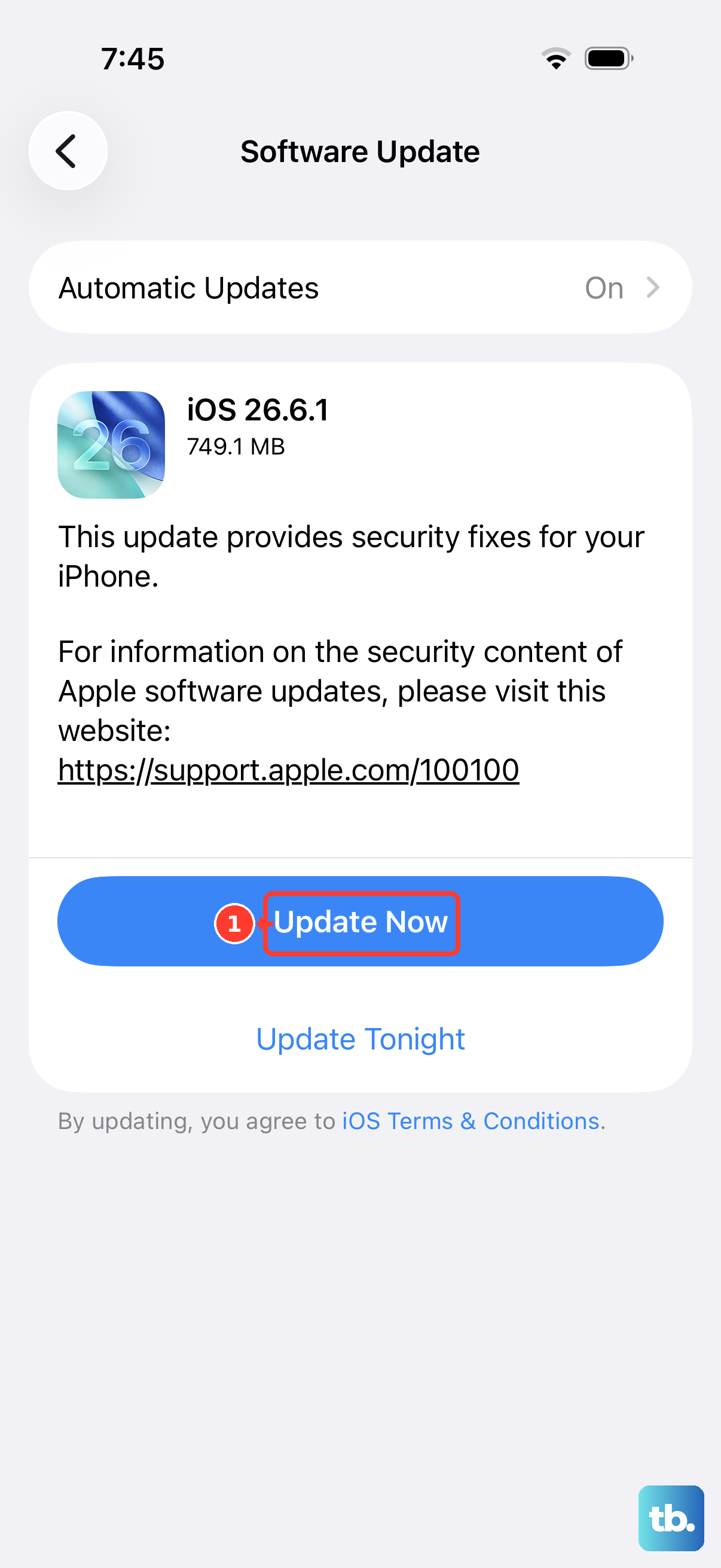
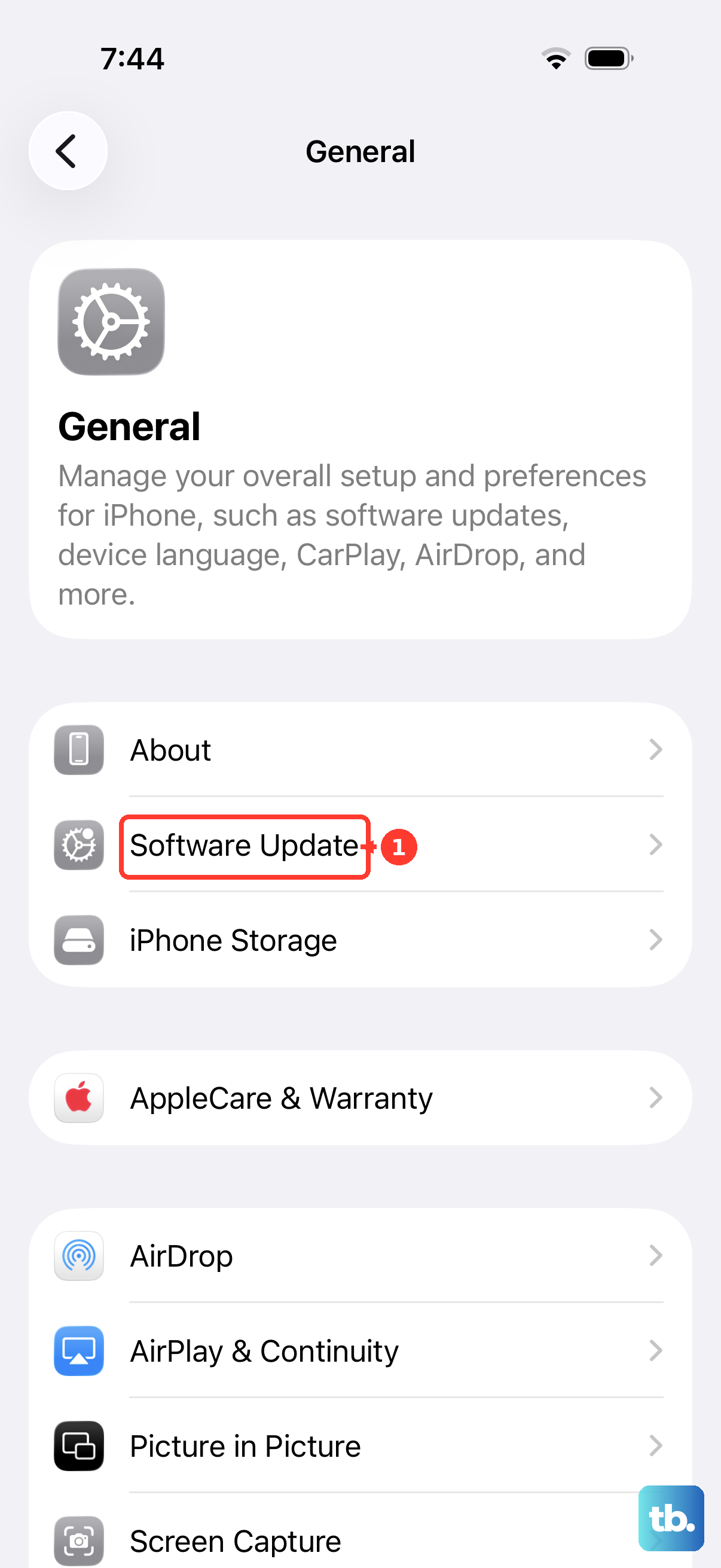
Make sure your iPhone 14 has the latest version of iOS. Before updating, back up your phone and connect it to power and Wi-Fi. To check, go to Settings > General > Software Update. If an update is available, tap Download and Install. Keeping iOS up to date gives you the fixes and improvements included in available updates.
Let Your Phone Cool Down
Your iPhone 14 and wireless charger can get warmer during charging. If your iPhone 14 gets too warm, iOS will automatically pause charging to protect the battery's long-term health. This can happen if you're using the phone intensively while it's on the charger, if the room is very hot, or if the charger itself is poorly ventilated.
If you notice your phone is hot to the touch, move it and the charger to a cooler place, away from direct sunlight. Lock the screen if you're using it. Charging will resume when the phone returns to a normal temperature.
Reset All Settings
If you're still stuck, this step can help. It resets all your system preferences, like Wi-Fi passwords, wallpaper, and privacy settings, back to default without deleting any of your personal data or apps. It can clear out deeper software conflicts.
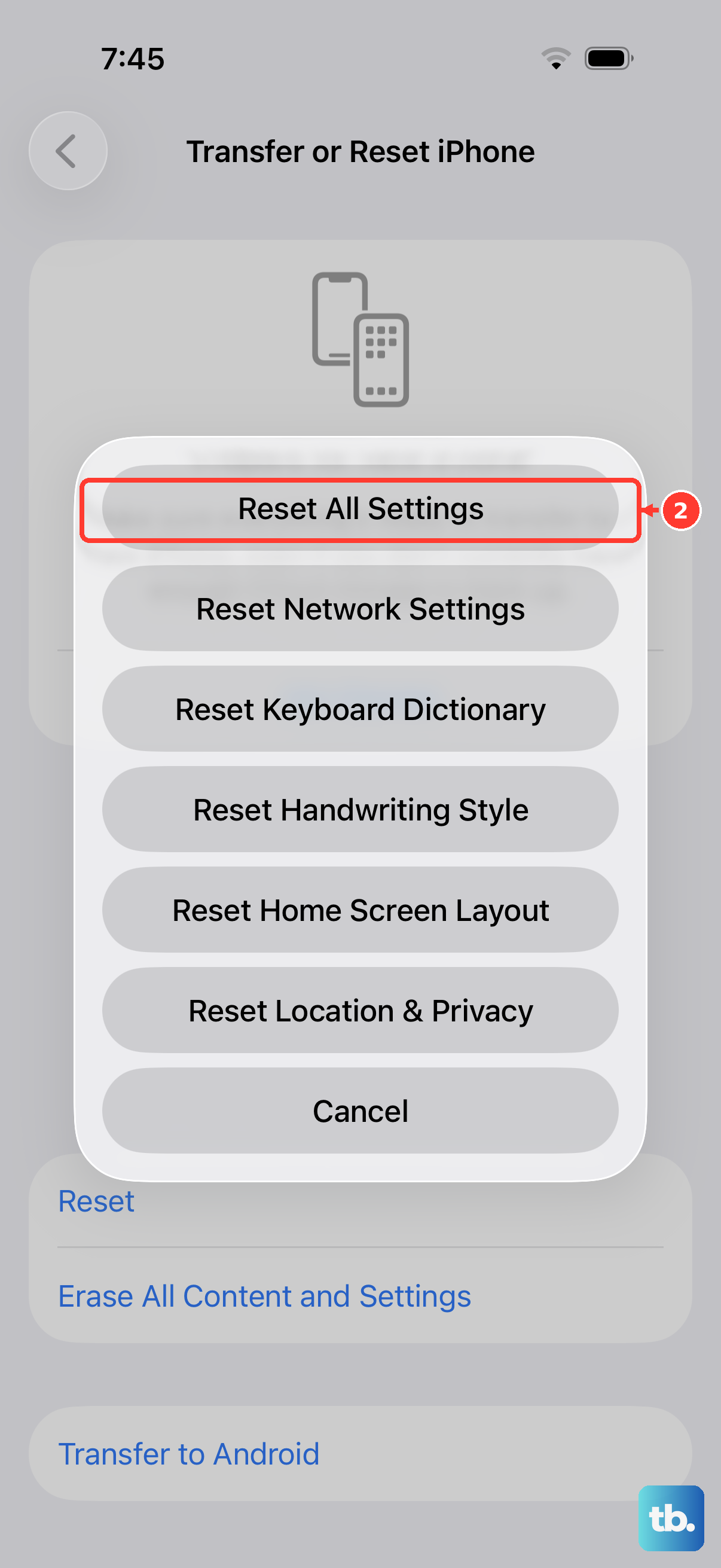
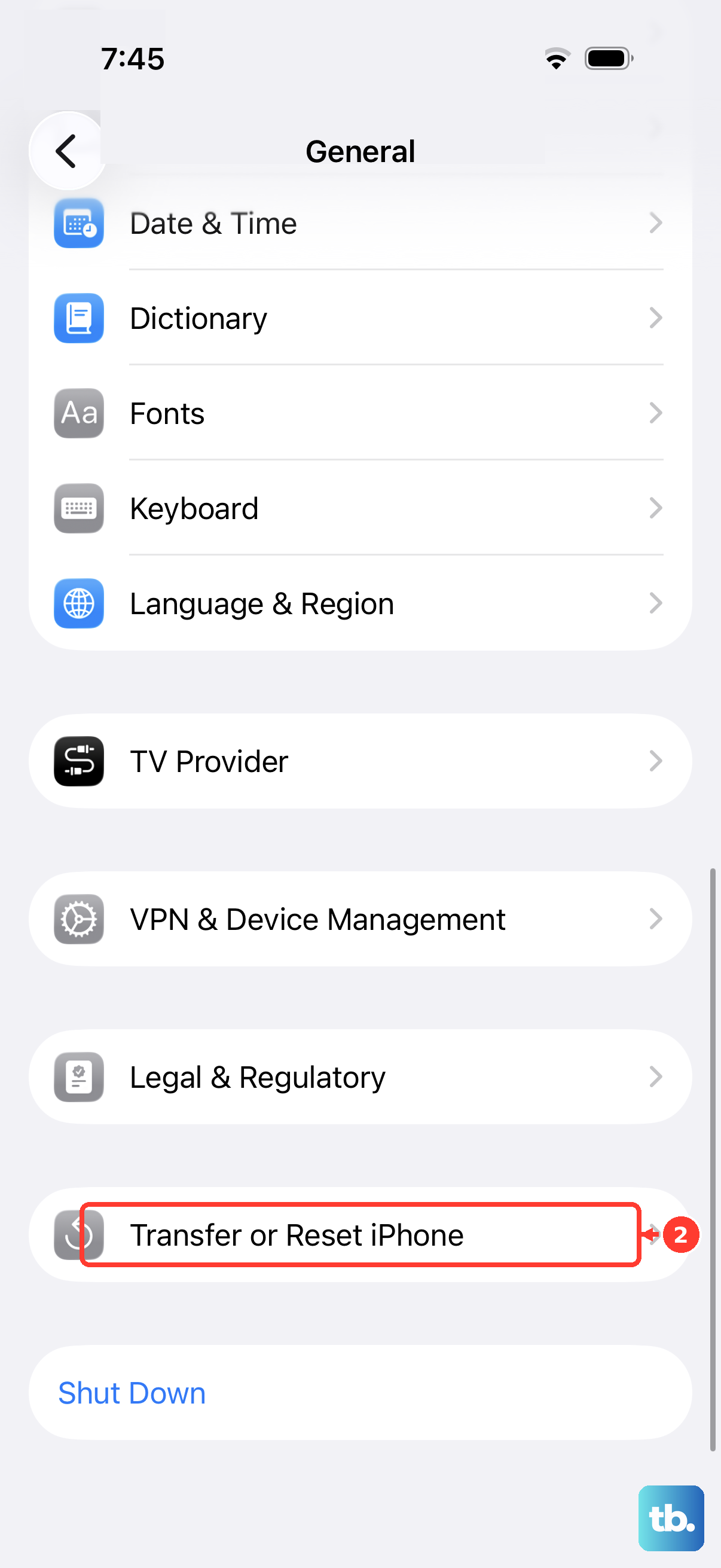
Go to Settings > General > Transfer or Reset iPhone. Tap Reset, then choose Reset All Settings. You'll need to enter your passcode. After the phone restarts, try wireless charging again.
Test With a Different Charger
This is the best way to isolate the problem. If you can, try charging your iPhone 14 on a different wireless pad. If it works on a second charger, check your original charger, its power adapter, and the phone's placement. If it still fails on multiple known-good chargers, the problem likely lies with the phone itself.
Remember, your iPhone 14 supports both the faster, magnetically-aligned MagSafe standard and the broader Qi standard. MagSafe's magnets help align the phone with the charger for efficient charging.