
You're staring at your iPhone 14, unable to join your Wi-Fi network or seeing the dreaded "No Internet Connection" message. It's a frustrating spot to be in, but it's a common issue that usually has a simple fix. These steps can help you get back online.
Toggle Wi-Fi and Restart Your iPhone
Start by checking your Wi-Fi settings. Open Settings > Wi-Fi and turn Wi-Fi off, then back on. Tap your network's name to reconnect and look for a blue checkmark beside it. The Wi-Fi button in Control Center only disconnects you from the network; it doesn't turn Wi-Fi fully off.
If that doesn't work, force restart your iPhone 14. Press and release the Volume Up button, press and release the Volume Down button, then press and hold the Side button until you see the Apple logo appear. Restarting can help with temporary software problems that might be blocking your connection.
Forget the Network and Rejoin
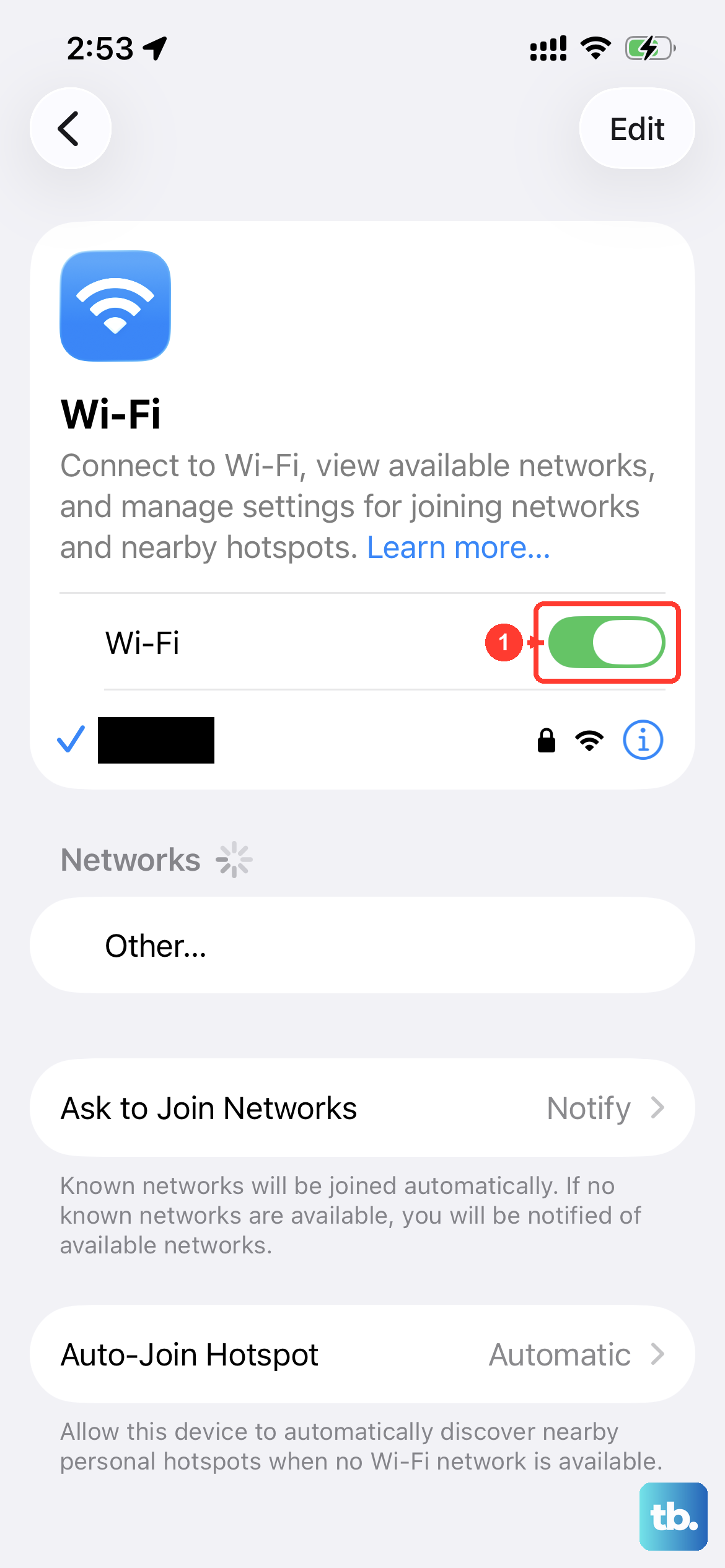
Forgetting the network removes its saved password so you can join it again. Go to Settings > Wi-Fi, tap Edit, and tap the More Info button next to your network's name. Then, tap Forget This Network and confirm with Forget.
After you forget it, select the network from the list again and re-enter the password. This can be useful if you recently changed your Wi-Fi password or router settings, so your phone uses the new settings when it rejoins.
Turn Airplane Mode On and Off
Check that Airplane Mode is off before trying to reconnect. To toggle it, open Control Center and tap the airplane icon to enable Airplane Mode, then tap it again to turn it off. You can also check Airplane Mode in Settings.
You'll see your cellular bars disappear and reappear. Once Airplane Mode is off, check if your Wi-Fi reconnects automatically. If it doesn't, manually select your network from the Wi-Fi settings list.
Check for a Software Update
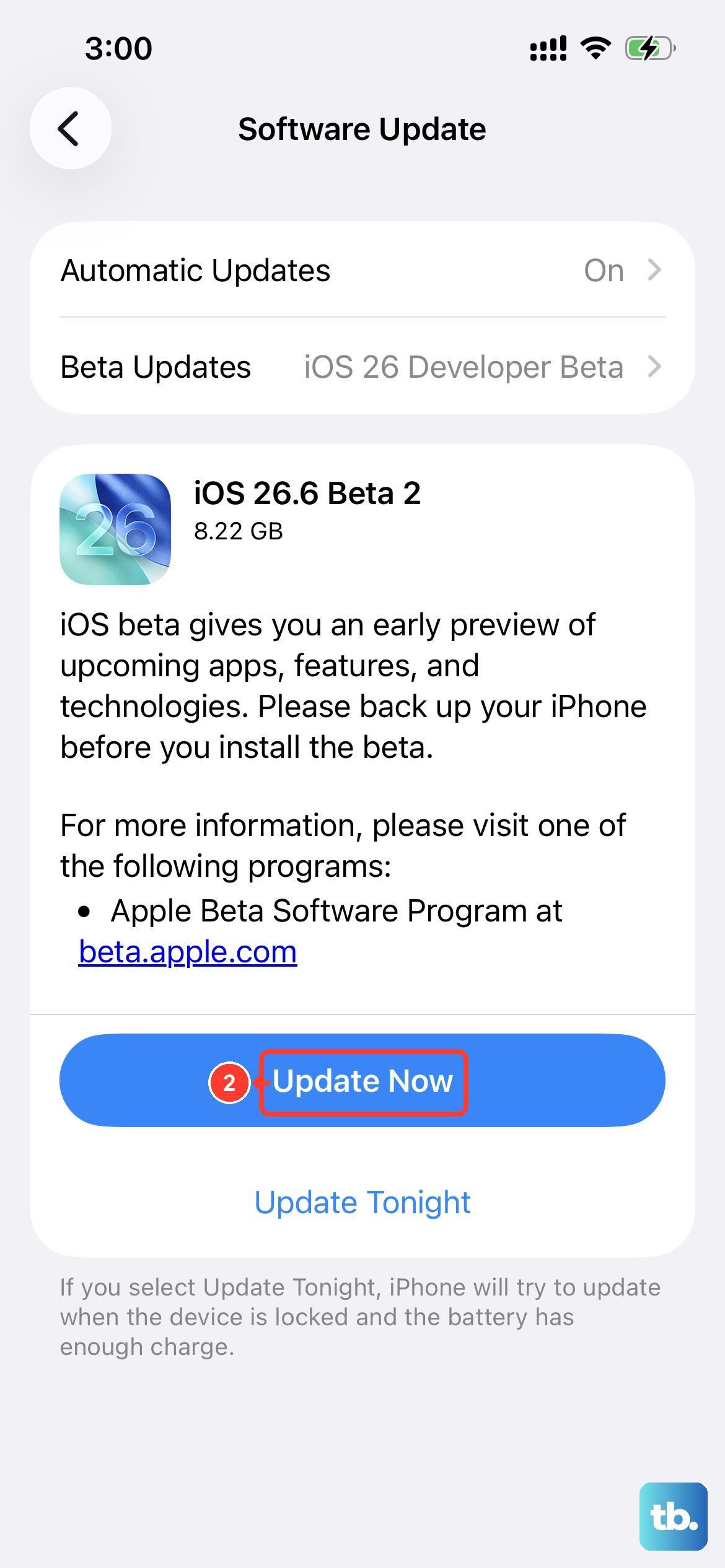
Make sure your iPhone is running the latest version of iOS before continuing with troubleshooting. Go to Settings > General > Software Update to see if anything is available.
If an update is there, back up your iPhone, connect it to power and a working Wi-Fi network, then tap "Download and Install." If you can't update wirelessly, use Finder on a Mac or the Apple Devices app or iTunes on a Windows PC.
Reset Your Network Settings
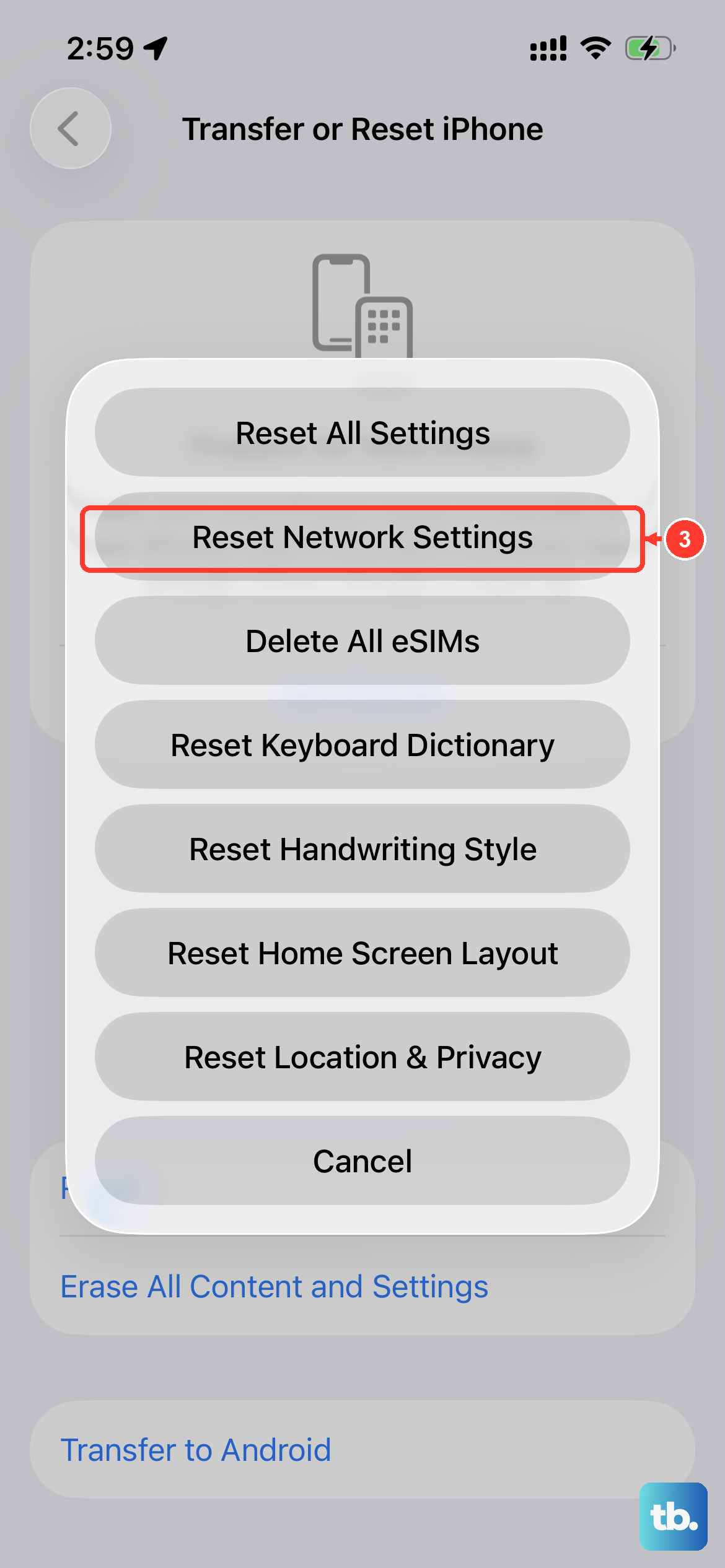
Save this step until you've tried the other fixes below. It removes saved Wi-Fi networks and passwords, cellular settings, and VPN and APN settings without deleting your personal content. If your school or workplace manages your network, check with its administrator first. Go to Settings > General > Transfer or Reset iPhone > Reset.
Then, tap Reset Network Settings and enter your passcode to confirm. Your iPhone will restart, and you'll need to reconnect to your Wi-Fi network using its password.
Disable Connectivity Assist
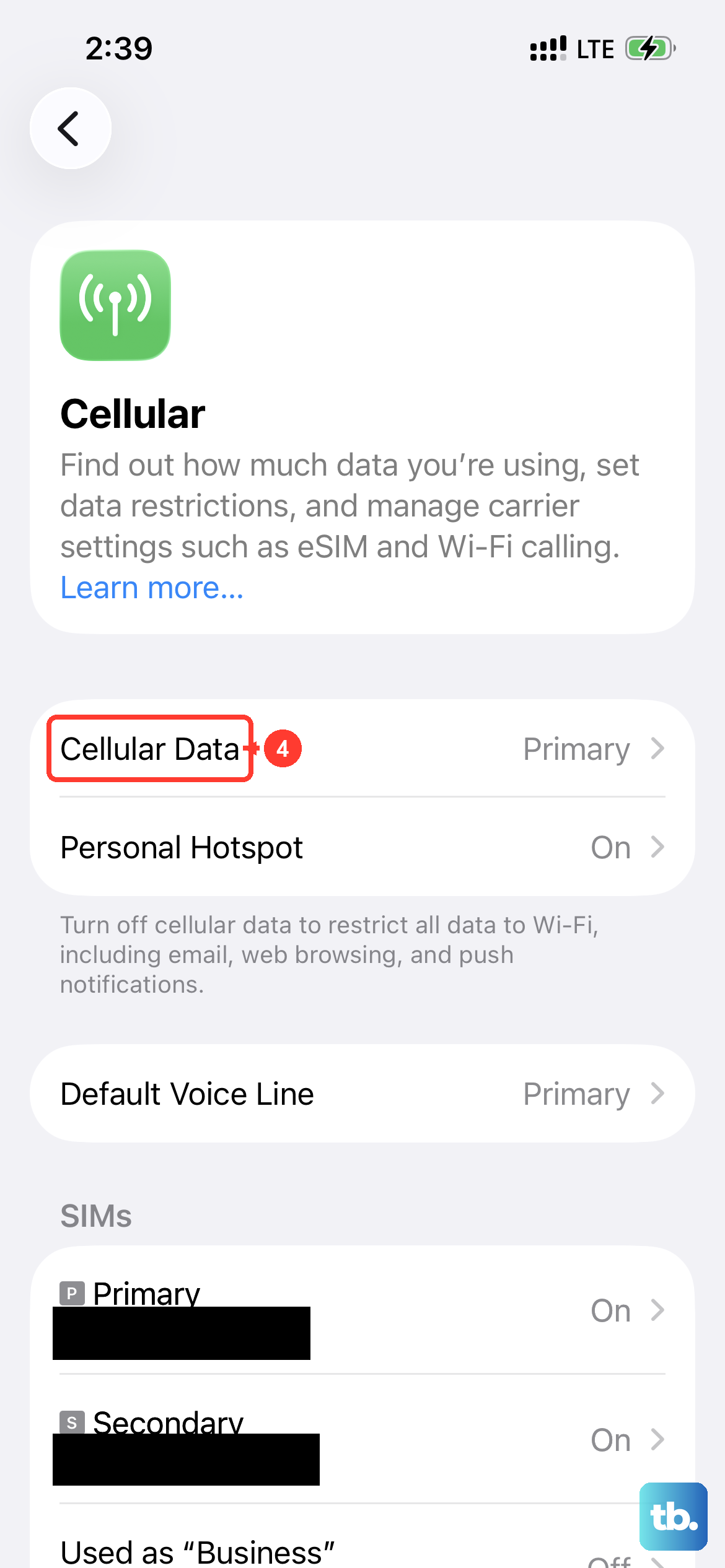
Connectivity Assist uses cellular data in addition to Wi-Fi when the Wi-Fi connection is slow or unusable. Turn it off while checking your Wi-Fi connection. If you use cellular data, you can check that Cellular Data is turned on under Settings > Cellular.
Navigate to Settings > Wi-Fi and make sure Wi-Fi is on. Scroll down and turn Connectivity Assist off, then try reconnecting to your Wi-Fi network.
Check Your Date and Time Settings
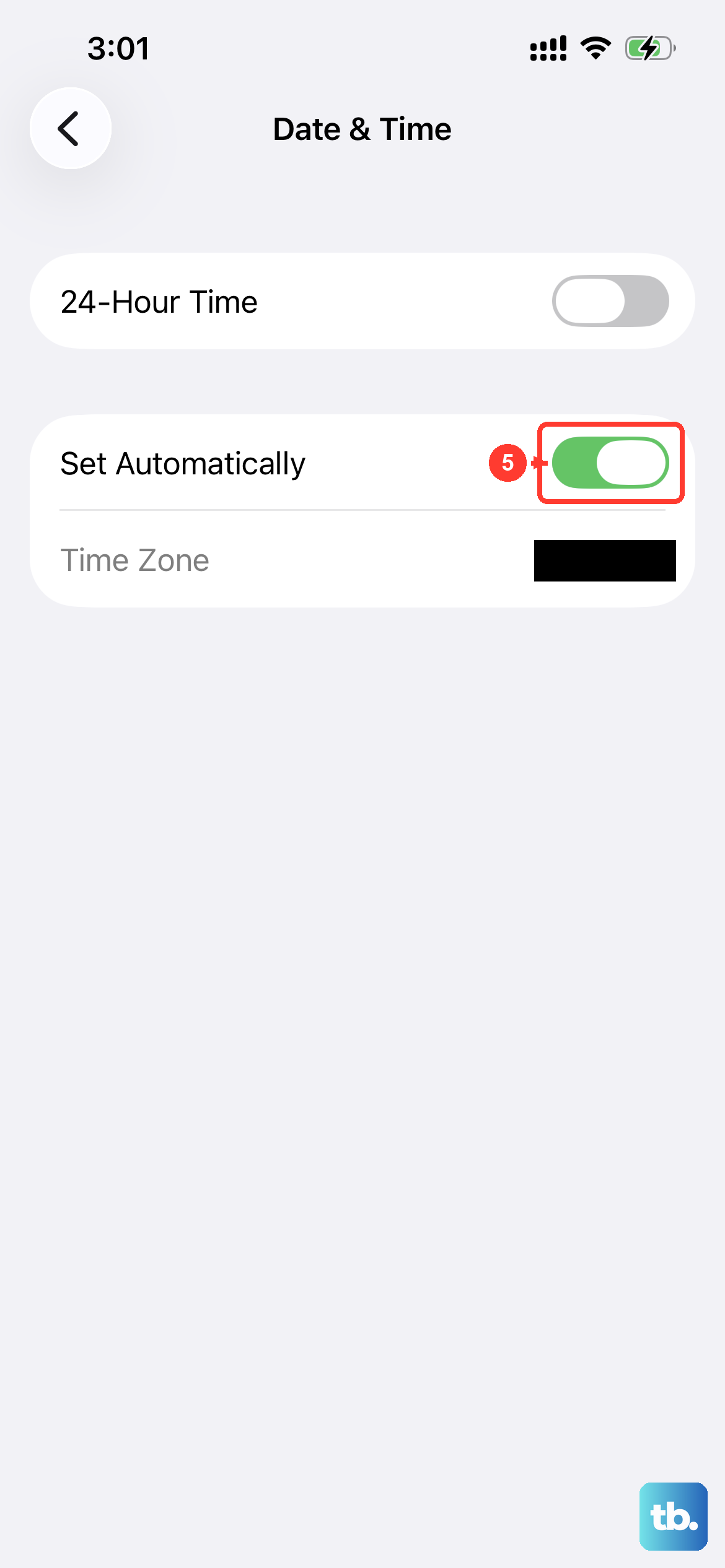
Incorrect date and time settings can interfere with network connections. Check that your phone's date, time, and time zone are correct before trying to connect again. Go to Settings > General > Date & Time.
Make sure the "Set Automatically" option is turned on, then check that the displayed date, time, and time zone are correct.
Restart Your Router and Modem
The problem might not be your iPhone at all. Restart your router and modem by unplugging them from power and plugging them back in. This refreshes the network connection and can resolve minor connection issues.
Wait for all the lights on your equipment to settle into their normal state, which can take a few minutes. Then, try connecting your iPhone 14 again. If other devices in your home also can't get online, there may be a service outage. Contact your internet service provider for help.
Try Connecting to a Different Network
To rule out a problem with your specific home network, try connecting to a different Wi-Fi source. Use a public network at a coffee shop, a friend's hotspot, or even your own cellular hotspot created from another phone.
If your iPhone 14 connects without issue to other networks, then the problem is isolated to your home Wi-Fi setup. You may need to look at your router's settings, update its firmware, or adjust its broadcast channel.
Update Router Firmware and Check Band Settings
Older router firmware can have compatibility issues with newer devices like the iPhone 14. Log into your router's admin page through a web browser (the address is usually something like 192.168.1.1) and check for a firmware update section.
Also, while you're there, check whether your router supports separate 2.4GHz and 5GHz networks. If it does, try joining the other frequency, such as 5GHz instead of 2.4GHz. Make sure your router is turned on and your iPhone is within range. If you need help with the settings, contact the router's manufacturer.