
When Siri stops responding on your iPhone 14, it feels like you've lost a helpful sidekick. The good news is that most of the time, it's a quick setting or a minor software hiccup that's easy to fix. Let's get your voice assistant back up and running.
Start with the most common fix. Open the Settings app and tap on Siri & Search. Make sure both "Listen for 'Hey Siri'" and "Press Side Button for Siri" are toggled on. I've seen this get turned off accidentally after an iOS update more times than I can count.
Retrain Siri to Recognize Your Voice
If Siri is enabled but just isn't hearing you, the voice profile might need a refresh. Go back to Settings > Siri & Search and toggle "Listen for 'Hey Siri'" off and then on again. Your iPhone 14 will walk you through the setup process, asking you to say a few phrases. This recalibrates the microphones to your specific voice and can solve a lot of recognition problems.
Check for Software Conflicts
Your iPhone 14 has features that can unintentionally block Siri. Head to Settings > Accessibility and look for Sound Recognition. If this is turned on, it will automatically disable "Hey Siri" to avoid conflicts. Toggle it off and test Siri again.
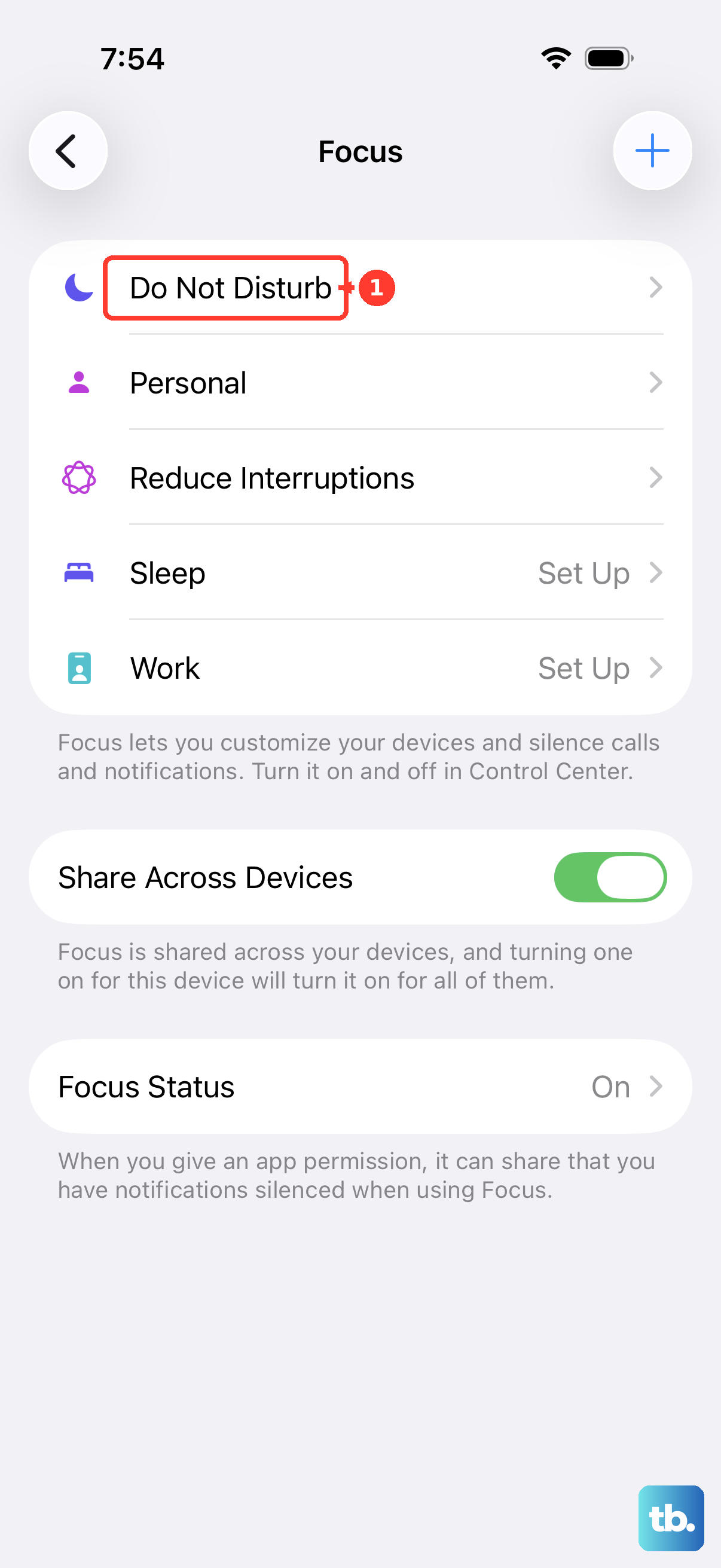
Also, take a look at your Focus modes. If you have a Focus like Do Not Disturb or Sleep active, Siri's responses can be silenced. You can adjust this by going into the specific Focus settings and ensuring Siri is allowed to respond.
Inspect Your Audio and Microphone Settings
First, check your Ring/Silent switch on the left side of your iPhone 14. If you see an orange stripe, your phone is in silent mode. Flip the switch so the stripe isn't visible. Then, press the volume up button a few times to ensure your ringer volume is turned up.
You can also tell Siri to always respond, even in silent mode. Go to Settings > Siri & Search, tap Siri Responses, and select "Always" under the Voice Feedback section.
Clean the Microphone Ports
The iPhone 14 has multiple microphones. If one gets blocked by pocket lint or debris, Siri's ability to hear you clearly drops significantly. Check the primary microphone at the bottom next to the Lightning port, the one on the back near the camera array, and the one in the front notch.
Use a soft, dry brush or a can of compressed air to gently clear any dust. Avoid using anything sharp or metallic that could damage the internal components. A clean microphone is often the simple fix for muffled or unresponsive voice commands.
Disconnect Bluetooth Accessories
While Siri is designed to work through AirPods or other headphones, a glitchy Bluetooth connection can sometimes hijack the audio input. Go to Settings > Bluetooth and tap the info icon (i) next to any connected devices, then choose "Disconnect." Try using "Hey Siri" again with no accessories paired.
If you primarily use Siri through AirPods, try forgetting the device entirely and re-pairing it. This resets the connection and can clear up audio routing issues.
Restart Your iPhone 14
A simple restart clears out temporary system glitches that can affect Siri. On your iPhone 14, press and quickly release the Volume Up button, press and quickly release the Volume Down button, then press and hold the Side button until you see the Apple logo appear. This is a force restart and it doesn't delete any of your data.
Update to the Latest iOS Version
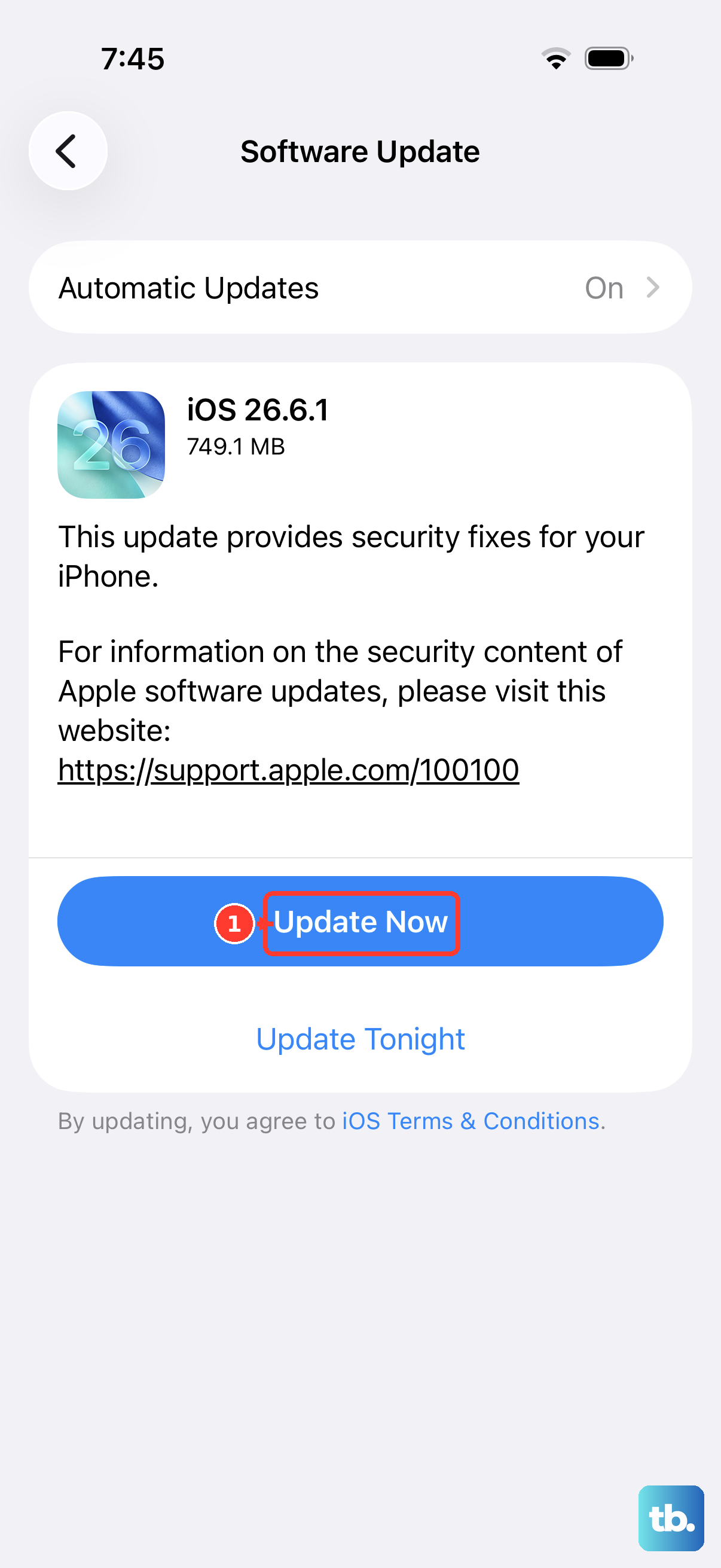
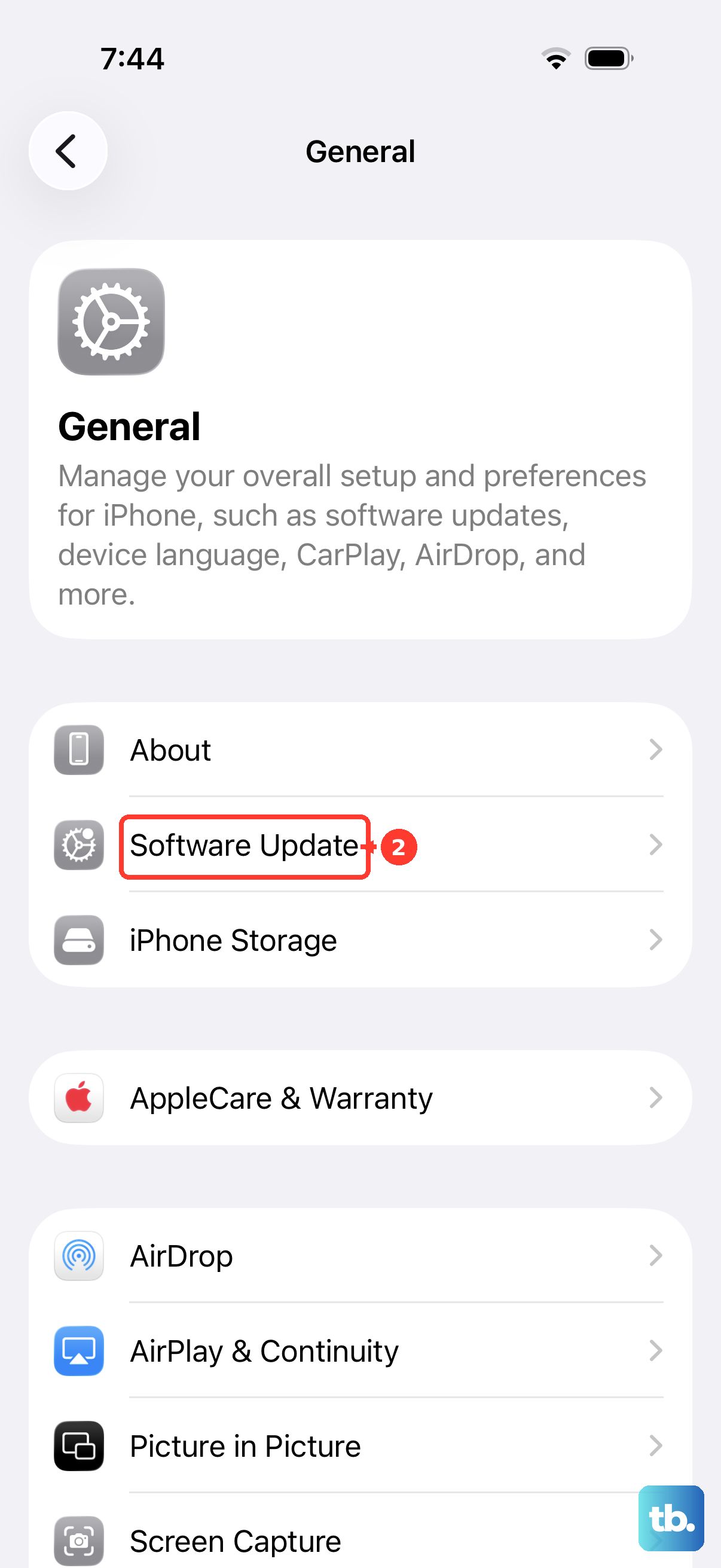
Apple frequently releases updates that patch bugs affecting system services like Siri. Since you're on iOS 26, make sure you have the latest point update installed. Go to Settings > General > Software Update. If an update is available, download and install it. This is a common fix for issues that appeared after a major OS upgrade.
Reset All Settings
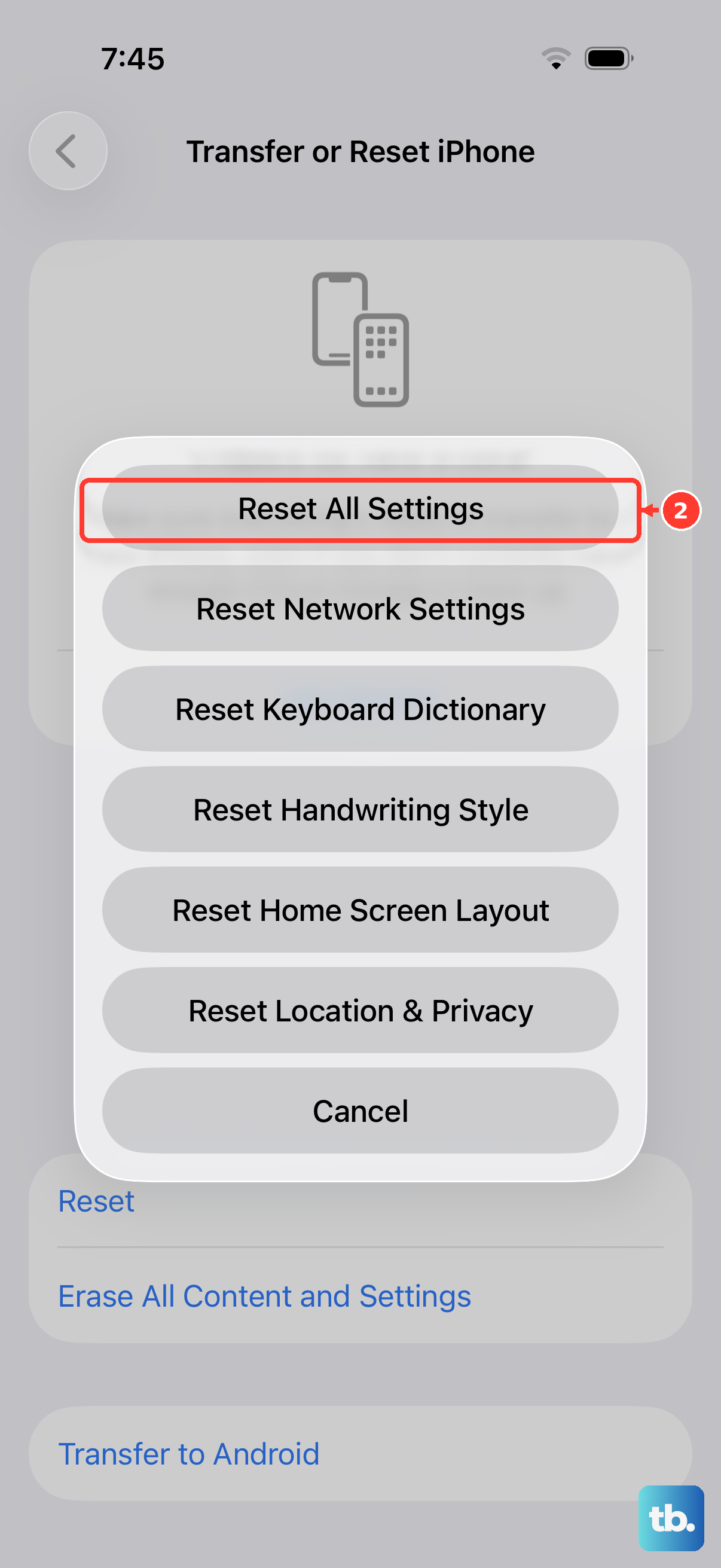
If Siri is still not cooperating, the next step is to reset all settings. This will revert all your preferences, like Wi-Fi passwords, wallpaper, and privacy settings, back to default without touching your personal data or apps. It often resolves deeper configuration conflicts.
Go to Settings > General > Transfer or Reset iPhone. Tap Reset, and then choose "Reset All Settings." You'll need to enter your passcode to confirm. After your phone reboots, you'll need to re-enable "Hey Siri" and retrain your voice, but this often solves stubborn issues.
Check Your Network Connection
While many "Hey Siri" commands are processed directly on your iPhone 14, some requests still require an internet connection. If you're asking for web searches, sports scores, or weather updates, Siri needs data. Make sure you're connected to Wi-Fi or have a strong cellular signal. Try toggling Airplane Mode on for 10 seconds and then off again to refresh your network connections.