
If your iPhone 14 has suddenly gone silent, it's a jarring experience. The sound can cut out during calls, while watching videos, or for all notifications. Start with the quickest fix first.
A browser based quick sound test helps narrow this down fast. If test tones play clearly, an app or setting may be the cause of the missing sound.
Check the physical Ring/Silent switch on the left side of your phone. If you see an orange stripe, the phone is in silent mode. Flip the switch toward the screen to turn silent mode off so calls and alerts can sound.
Check Your Volume and Focus Modes
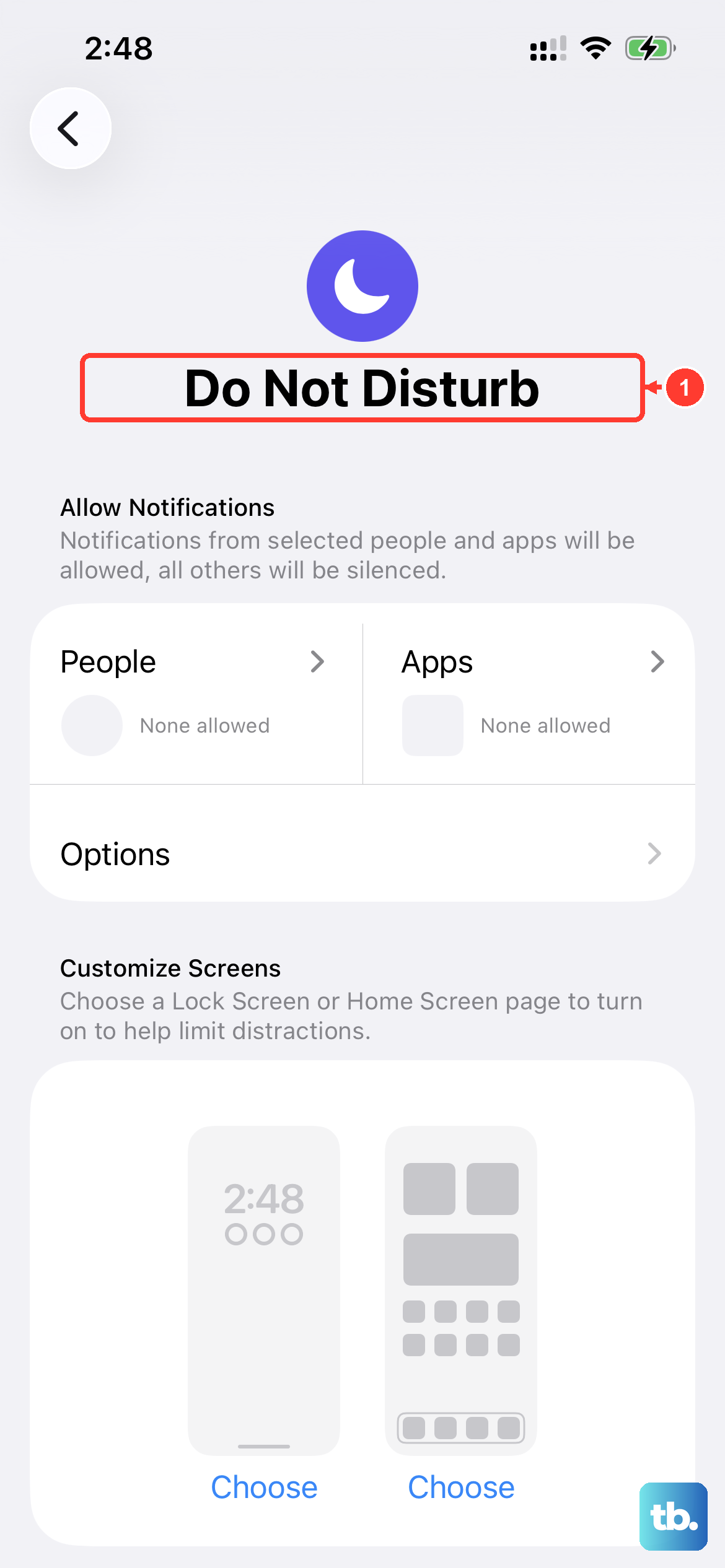
Press the volume up button on the side a few times while you're on the home screen or in an app. You'll see the volume indicator on screen. Make sure it's not all the way down.
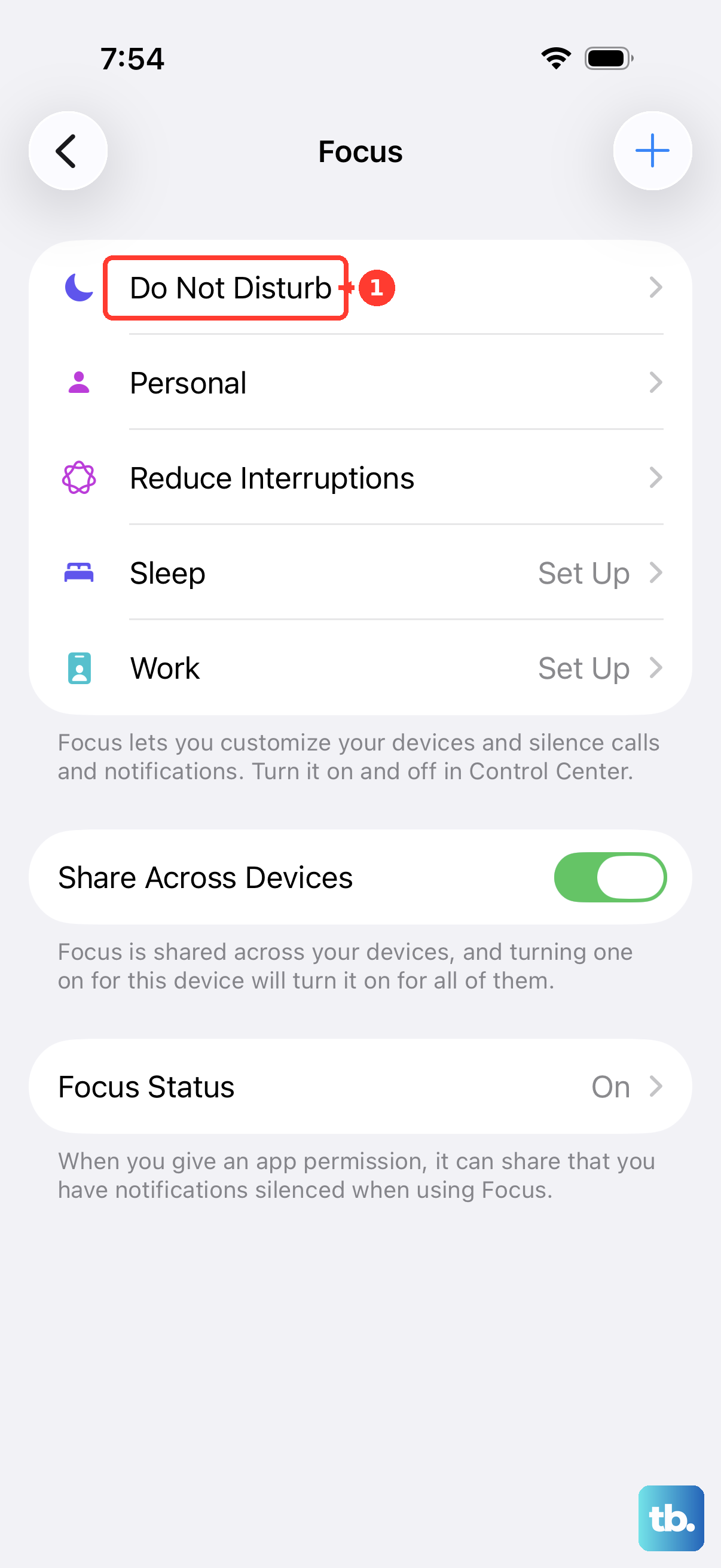
Also, swipe down from the top-right corner to open Control Center. Look for the Focus icon (like a crescent moon for Do Not Disturb). If it's highlighted, tap it to turn that Focus mode off, as some can silence notifications and calls.
Disconnect Bluetooth and Audio Accessories
Your iPhone might be trying to play sound through a connected device instead of its own speakers. Open Control Center by swiping down from the top-right corner.
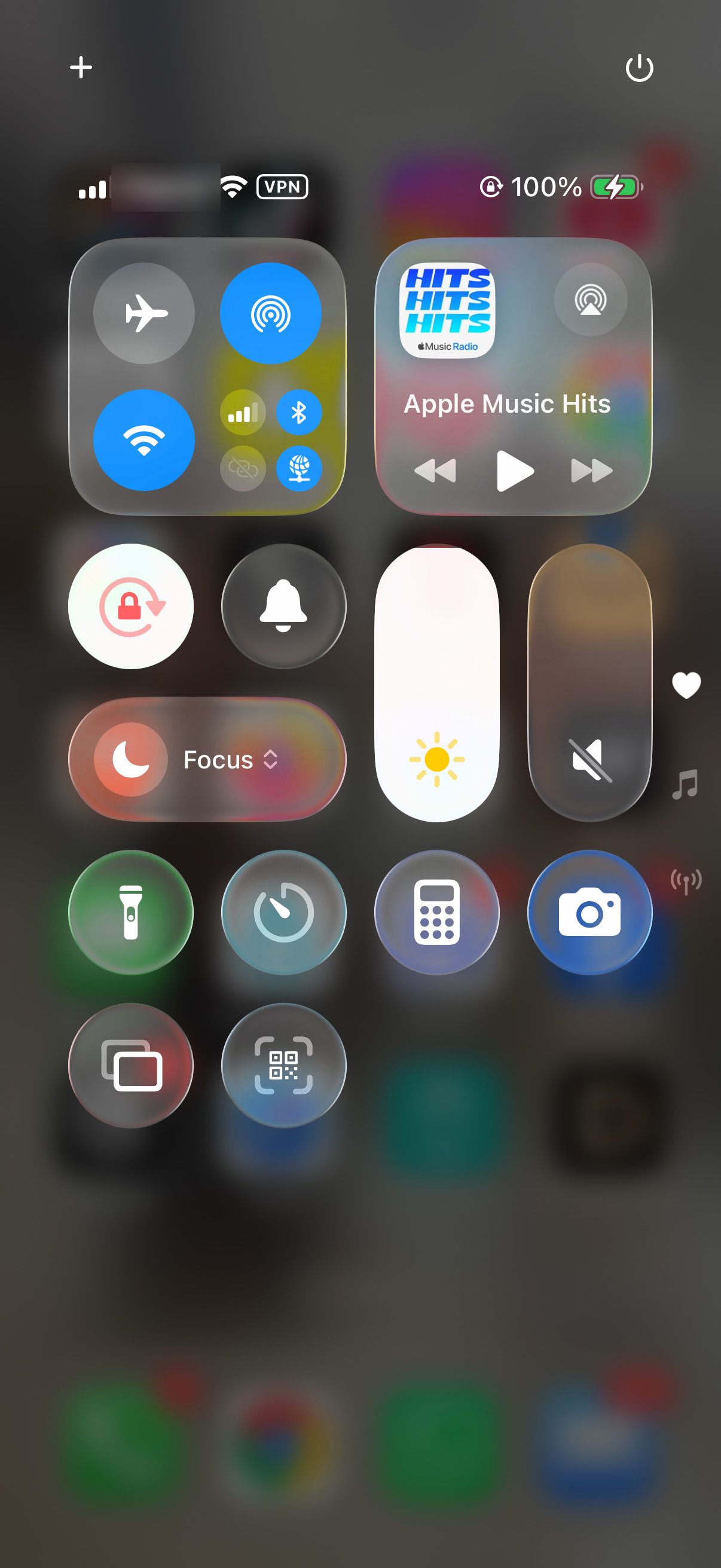
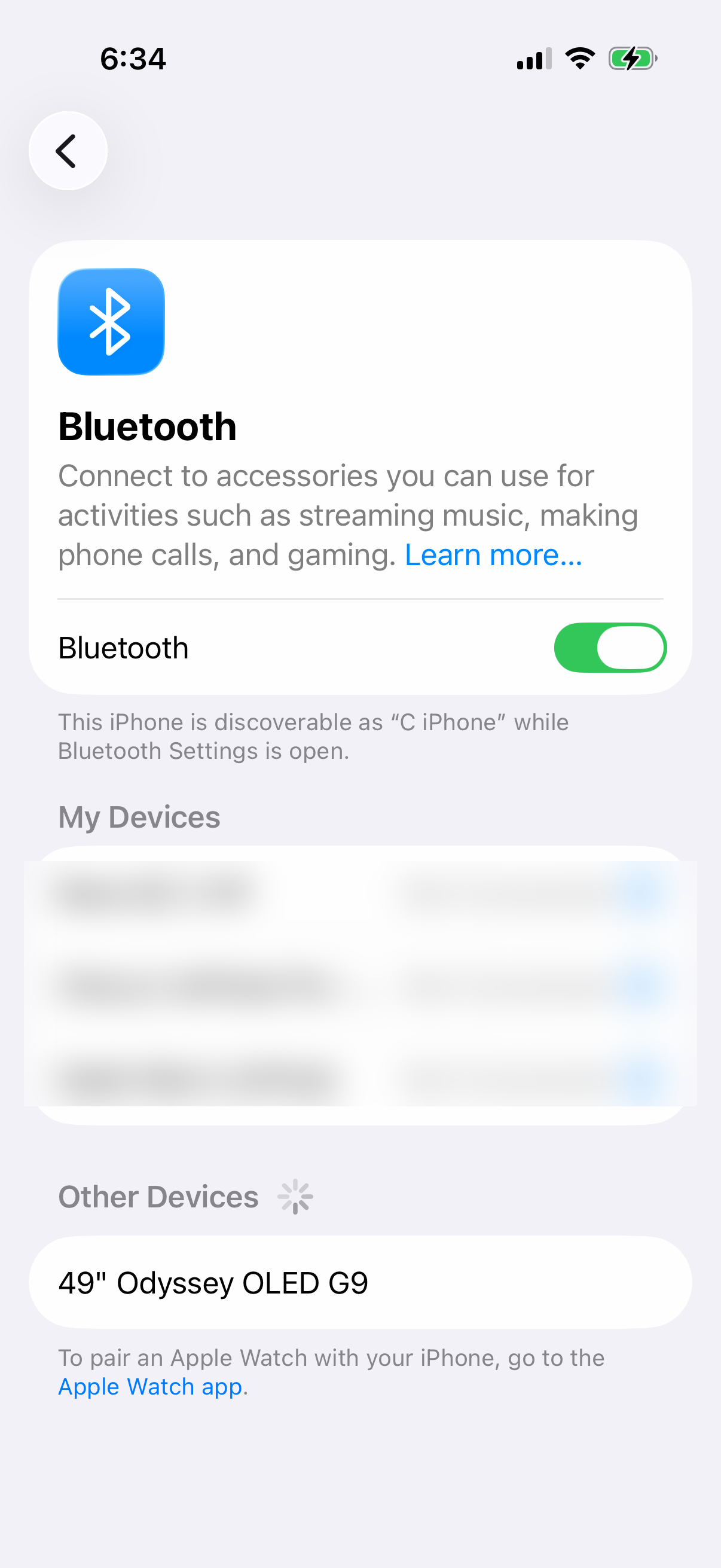
Look at the audio card in the top-right. If it shows anything other than "iPhone," tap it and select your iPhone 14 from the list. You can also go to Settings > Bluetooth and toggle it off temporarily to test.
Clean the Speaker Grills and Lightning Port
Dust and pocket lint can easily clog the speaker grills at the bottom of your iPhone 14. Take a close look with a flashlight. Use a soft, dry, clean-bristled toothbrush to gently brush the grills.
The Lightning port is also prone to lint buildup, which can interfere with audio if you're using wired headphones. Unplug all cables and power off your phone before cleaning. Use a soft, dry brush for loose lint around the opening and avoid getting moisture inside. Also check the receiver opening above the screen and gently clean it with a small, clean, dry, soft-bristled brush if needed.
Restart and Force Restart Your iPhone
A simple restart can clear temporary software glitches that affect audio. Go to Settings > General > Shut Down, slide to power off, then turn it back on once it has shut down.
If a normal restart doesn't help, try a force restart. This is different and often more effective for stubborn issues. Quickly press and release the Volume Up button, then quickly press and release the Volume Down button. Finally, press and hold the Side button until you see the Apple logo appear, then let go.
Check Sound Settings in Accessibility
There are a few settings here that can affect how audio plays. Go to Settings > Accessibility > Audio & Visual.
Make sure the balance slider is centered. Also, go to Settings > Accessibility > Touch and ensure "Call Audio Routing" is not set to "Bluetooth Headset" if you're not using one. Under Audio & Visual, you can turn on Mono Audio to make the left and right speakers play the same content.
Update iOS to the Latest Version
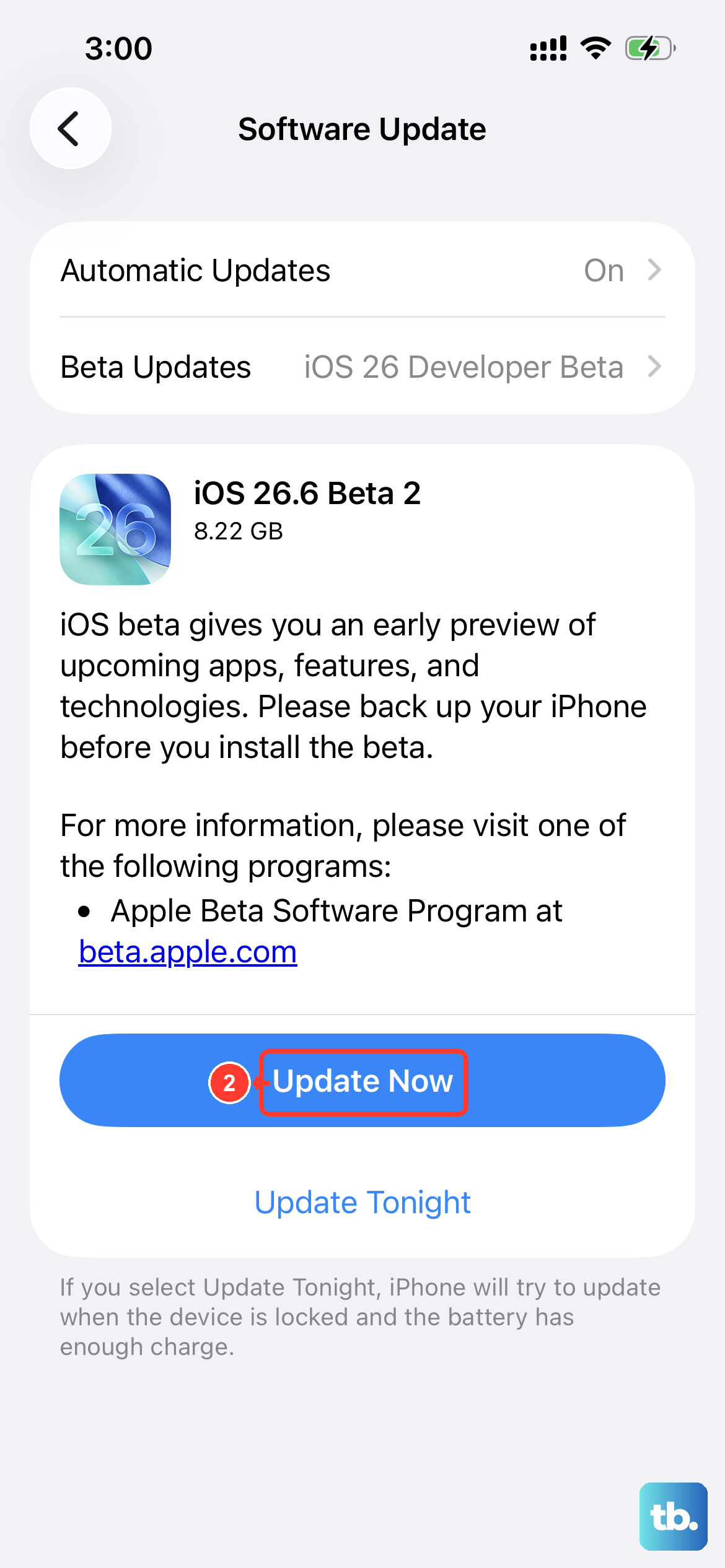
Software bugs can sometimes cause audio problems. Updates can include bug fixes. Back up your iPhone before installing an update.
Go to Settings > General > Software Update. If an update is available, tap "Download and Install." It's best to do this while connected to Wi-Fi and with your phone plugged into power.
Reset All Settings
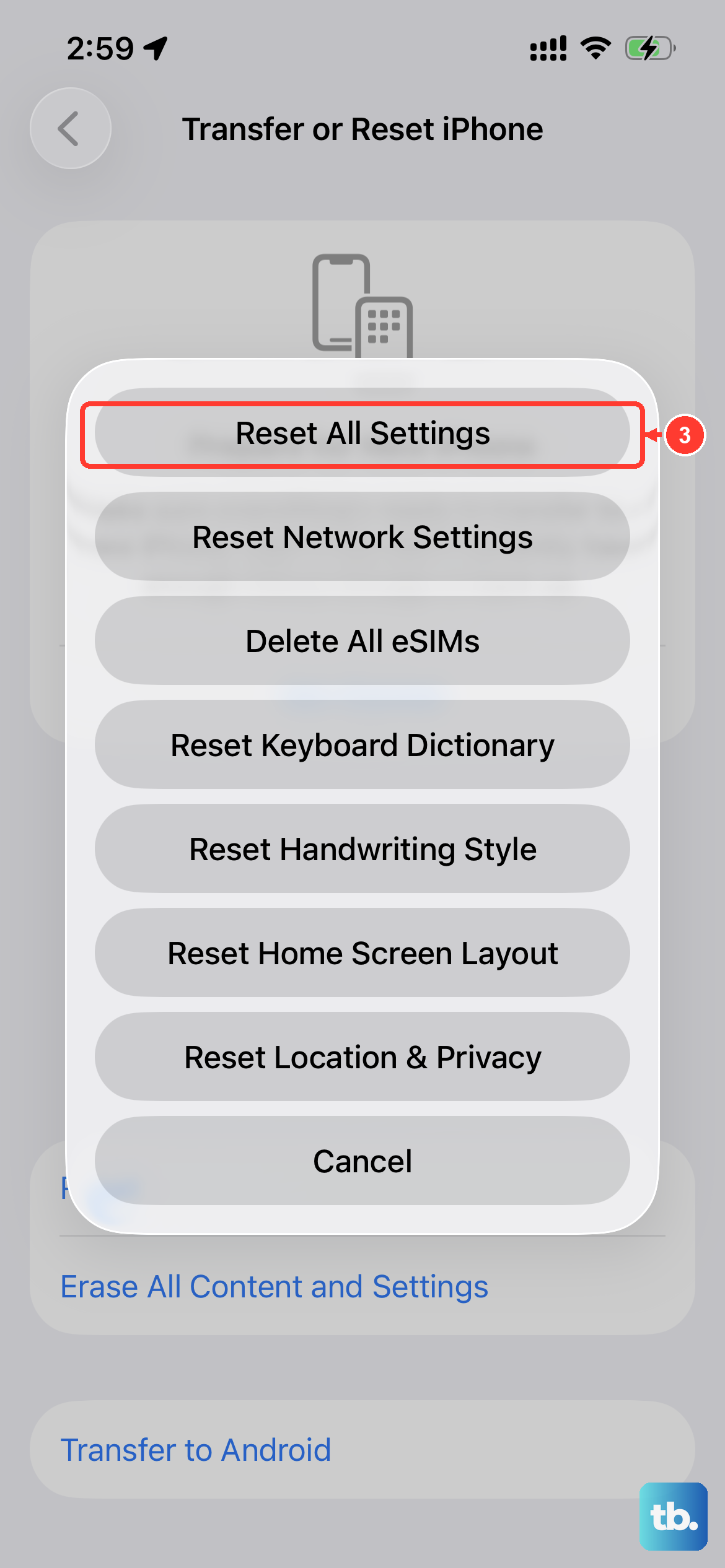
This will revert all your system settings (like Wi-Fi passwords, wallpaper, and privacy permissions) back to their defaults without deleting any of your personal data, photos, or apps. It can fix deeper configuration conflicts.
Go to Settings > General > Transfer or Reset iPhone. Tap "Reset" and then choose "Reset All Settings." You'll need to enter your passcode and confirm. Your iPhone will restart.
Test Speaker Sound
Open Settings > Sounds & Haptics and move the Ringtone and Alerts slider back and forth several times to test the speaker. If you hear nothing, or the speaker button beside the slider is dimmed, your iPhone may need service.
If you hear sound, make a call and turn on speakerphone to check call audio. If the call is still silent or you hear static or crackling, try again later or from another location, since network reception may be the cause; if sound problems persist, arrange service.