
When your iPhone 14's keyboard predictions are off, it feels like the phone is fighting you instead of helping you. You might get bizarre word suggestions, autocorrect that changes correct words to nonsense, or the predictive bar just disappears. It's a common hiccup, but the fixes are usually straightforward.
Restart Your iPhone 14
This is almost always my first move. A quick restart clears out any temporary software glitches that can confuse the keyboard's language model. It's the digital equivalent of taking a deep breath.
Just press and release the Volume Up button, press and release the Volume Down button, and then press and hold the Side button until you see the Apple logo. Give it a minute to boot back up and try typing again.
Toggle Predictive Text Off and On
Sometimes the feature just needs a quick refresh. Head into your settings and find the toggle for predictive text. Turning it off and back on can reset its brain without affecting your personal dictionary.
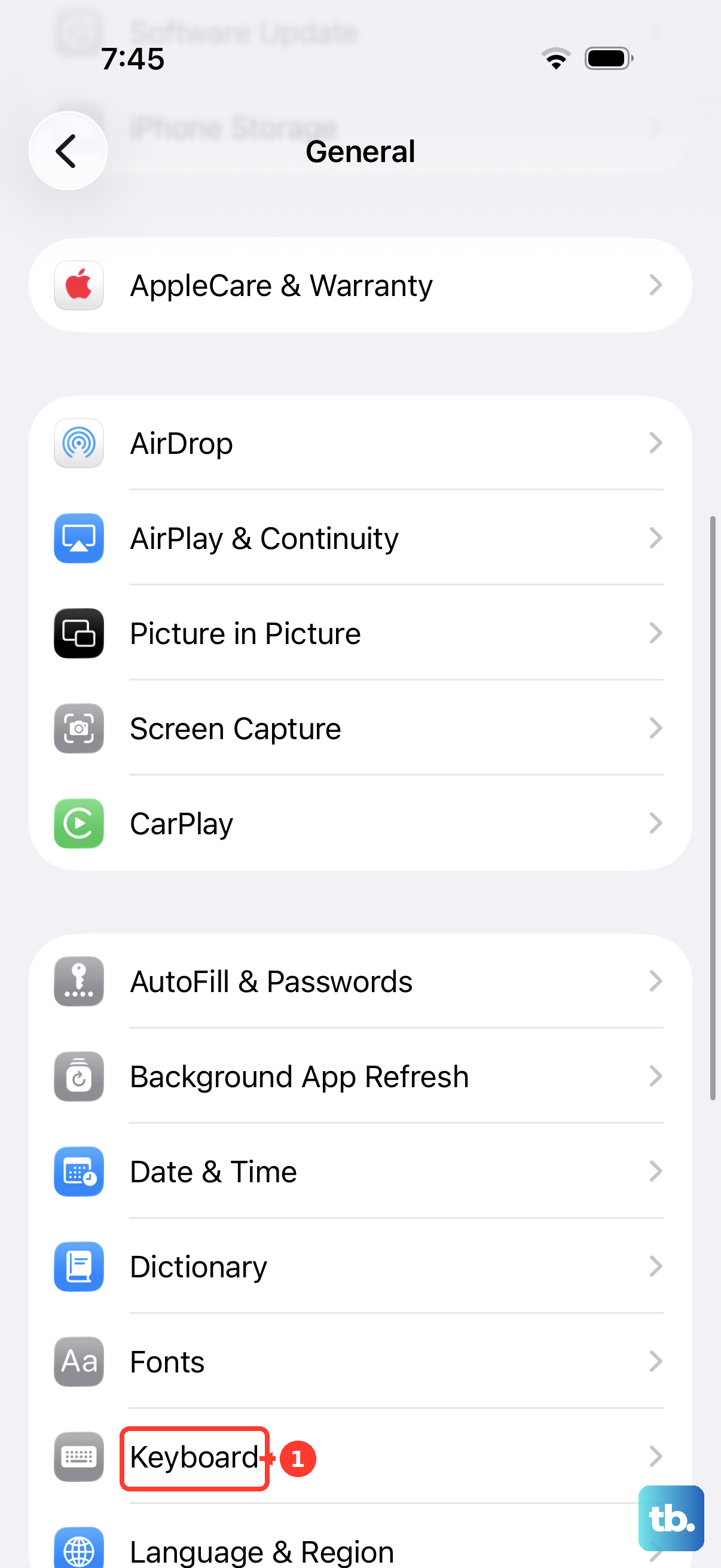
Go to Settings > General > Keyboard. At the top, you'll see the "Predictive Text" switch. Tap it to turn it off, wait a second, then tap it again to turn it back on.
Reset the Keyboard Dictionary
This is a more thorough reset. Your iPhone learns from your typing habits, but sometimes that learned data gets corrupted. Resetting the dictionary wipes that learned data clean, so it starts fresh.
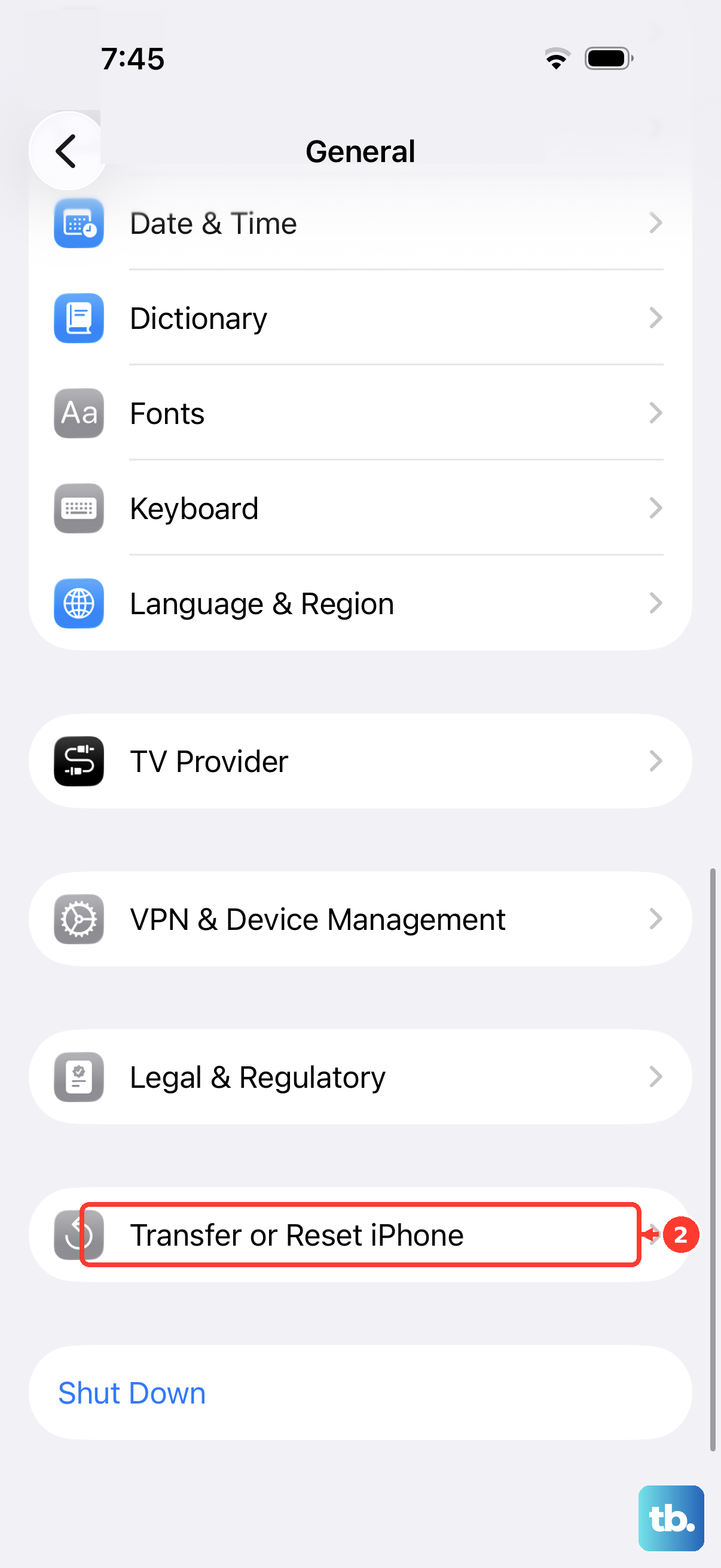
Be aware, this will erase all the custom words you've added by rejecting suggestions. To do it, go to Settings > General > Transfer or Reset iPhone > Reset. Then tap "Reset Keyboard Dictionary." You'll need to enter your passcode to confirm.
Check Your Text Replacement Entries
This is a sneaky one. The Text Replacement feature (where "omw" expands to "On my way!") can sometimes interfere. If you have old or conflicting shortcuts, they can throw off predictions.
Go to Settings > General > Keyboard > Text Replacement. Scroll through the list and see if any of your shortcuts could be causing conflicts. You can tap on one to edit it or swipe left to delete it.
Update iOS to the Latest Version
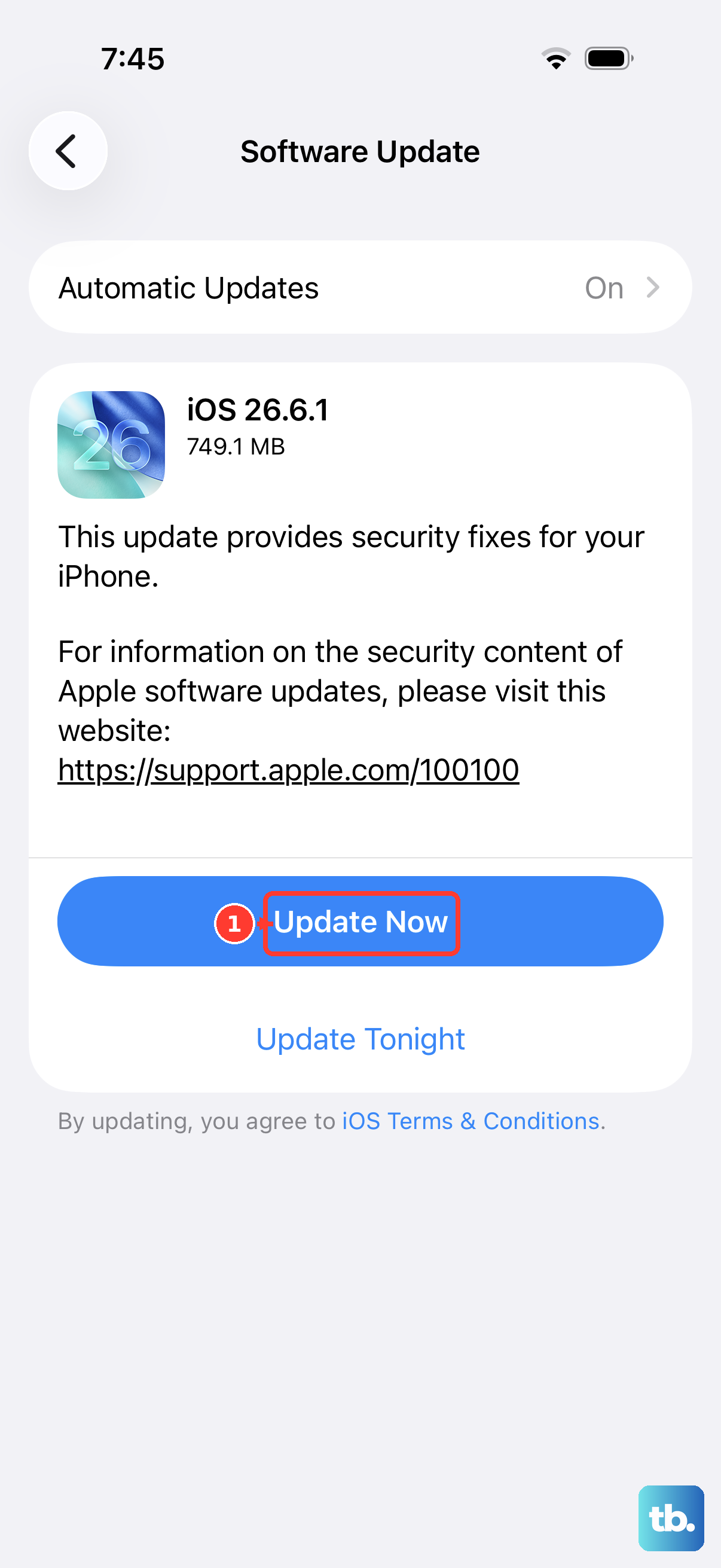
Apple frequently releases updates that include bug fixes for system components like the keyboard. If this problem started after a recent update, or you're running an older version of iOS, installing the latest update can resolve it.
Go to Settings > General > Software Update. If an update is available, tap "Download and Install." Make sure your iPhone 14 is plugged into power and connected to Wi-Fi first.
Check Your Keyboard and Language Settings
Make sure your keyboard is set up correctly for your primary language. If you have multiple keyboards enabled, like an emoji keyboard or a second language, the system might be getting confused about which one to use for predictions.
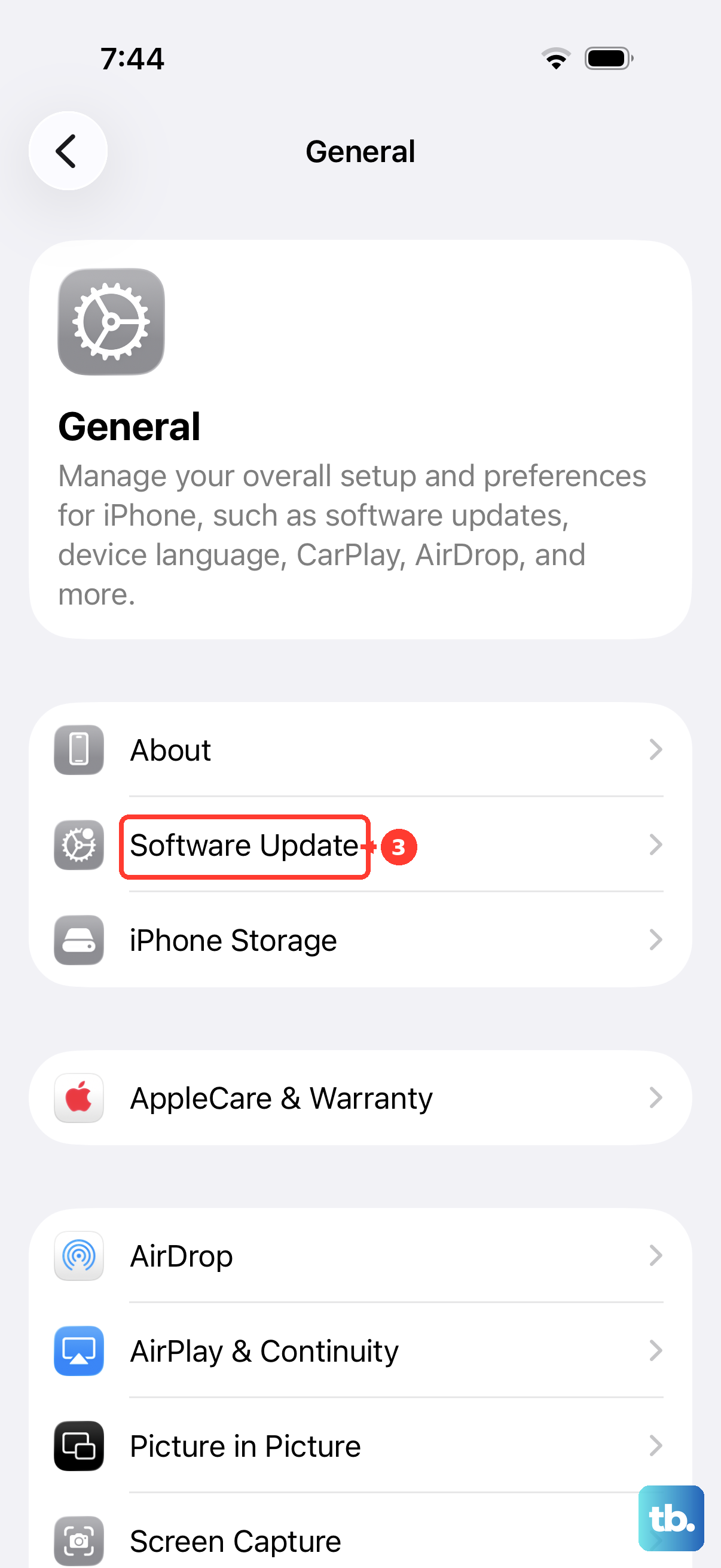
Navigate to Settings > General > Keyboard > Keyboards. Here, you can see all your active keyboards. You can tap "Edit" to remove any you don't use. Also, tap on "English" (or your primary language) in the list to ensure "Predictive Text" is enabled for it specifically.