
When your iPhone 14 keyboard suddenly stops responding or disappears, it can feel like you're locked out of your own phone. This is a common software hiccup, and there are several straightforward ways to get it working again without losing any of your data.
Force Restart Your iPhone 14
This is almost always the first thing I'd try. A force restart clears out temporary glitches in the system memory that can cause the keyboard to freeze. It's different from a normal restart and works even when the screen is unresponsive.
On your iPhone 14, quickly press and release the Volume Up button. Then, quickly press and release the Volume Down button. Finally, press and hold the Side button. Keep holding it until you see the Apple logo appear, then let go. This process takes about 10-15 seconds.
Close and Reopen the App
Sometimes the issue is isolated to a single app, like Messages or Notes. If the keyboard works elsewhere, force-quitting the problematic app can resolve it.
On your iPhone 14, swipe up from the bottom of the screen and pause in the middle to enter the App Switcher. Find the app's preview card and swipe it up and off the top of the screen to close it. Then, tap the app icon again to reopen it fresh.
Toggle Off and On a Keyboard Setting
A quick settings refresh can jog the keyboard back to life. Go to Settings > General > Keyboard. Tap on Keyboards at the top.
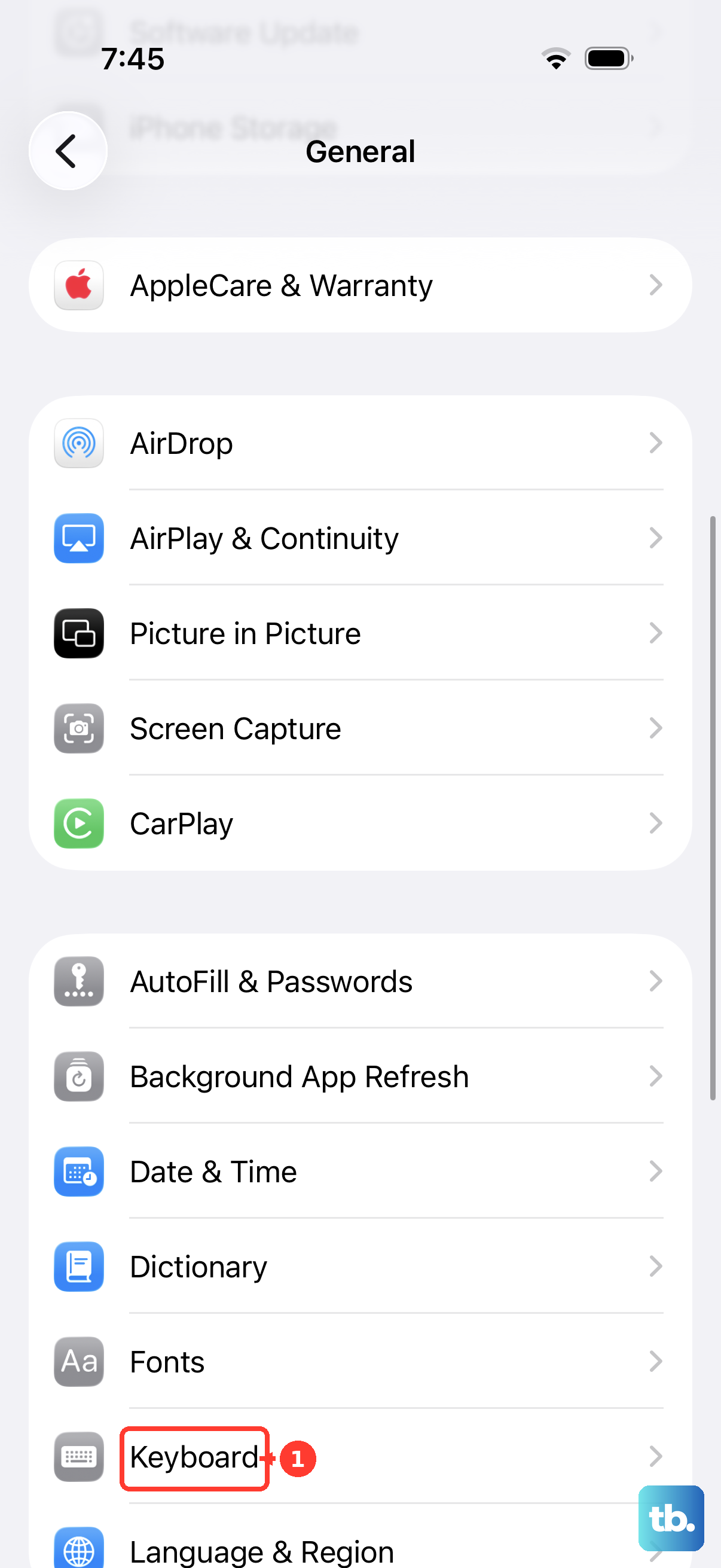
Here, you can try toggling "Predictive" off and then back on. Alternatively, if you have multiple keyboards enabled (like a third-party one and the stock iOS keyboard), try removing one by tapping Edit in the top right, then the red minus sign next to it, and Delete. Restart your phone and then add it back through the same menu.
Update iOS
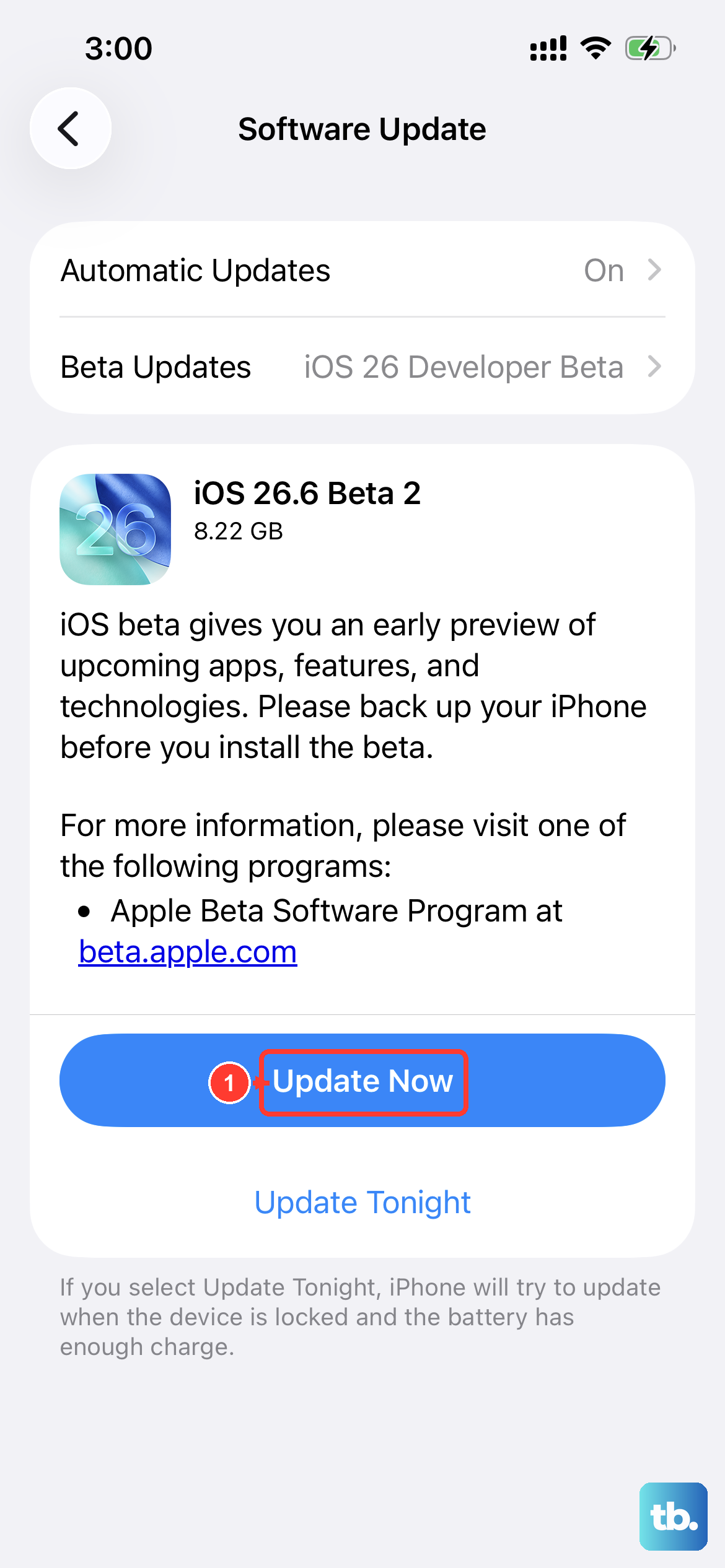
Outdated software can lead to bugs, including keyboard problems. Apple frequently releases updates with fixes for known issues. Since your iPhone 14 can run up to iOS 18, it's good to stay current.
Go to Settings > General > Software Update. If an update is available, tap Download and Install. Make sure your phone is connected to Wi-Fi and has at least 50% battery or is plugged into a charger. I've seen the iOS 18 update resolve a number of quirky bugs for users.
Reset All Keyboard Settings
This will revert all your keyboard preferences back to factory defaults without touching your personal data. You'll lose custom text replacements, any saved shortcuts, and your keyboard layout preferences, but it often fixes persistent glitches.
Navigate to Settings > General > Transfer or Reset iPhone. Tap on Reset. From the list, choose Reset Keyboard Dictionary. Confirm your choice by entering your passcode. After the reset, test the keyboard in a new message.
Check for a Stuck Software Update
Occasionally, a pending or failed software update in the background can cause system instability. It's worth checking if your phone is stuck trying to process an update.
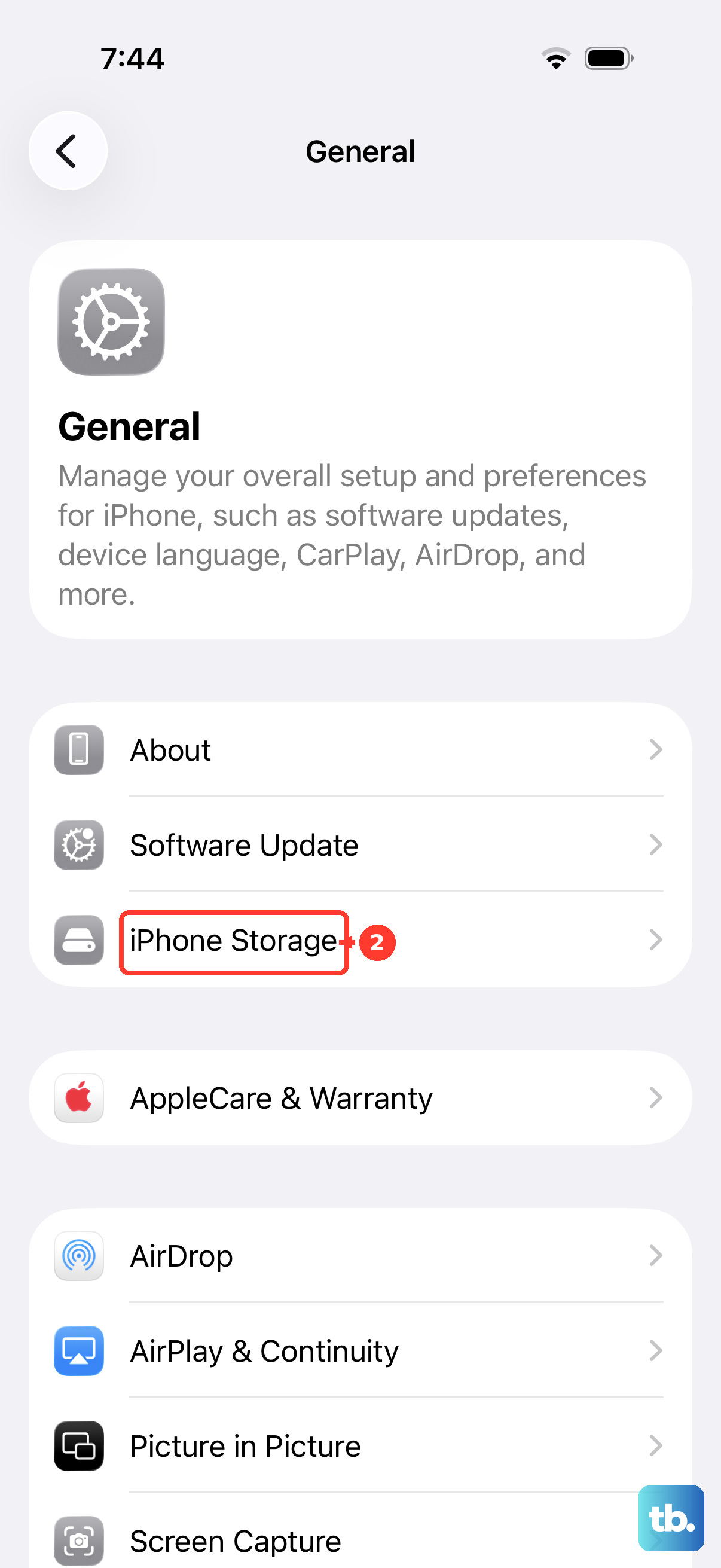
Go to Settings > General > iPhone Storage. Scroll down and look for a large iOS update file listed. If you see one, tap on it and select Delete Update. Then, restart your phone and check for the update again in Software Update, downloading a fresh copy.
Try a Third-Party Keyboard
As a diagnostic step, installing a different keyboard from the App Store, like Gboard or SwiftKey, can tell you if the problem is with the iOS system keyboard itself. If the third-party keyboard works perfectly, the issue is likely with your iPhone's software settings for the default keyboard.
Download a keyboard app, then go to Settings > General > Keyboard > Keyboards > Add New Keyboard to enable it. You can switch between them by tapping the globe icon on the stock keyboard.
Reset All Settings
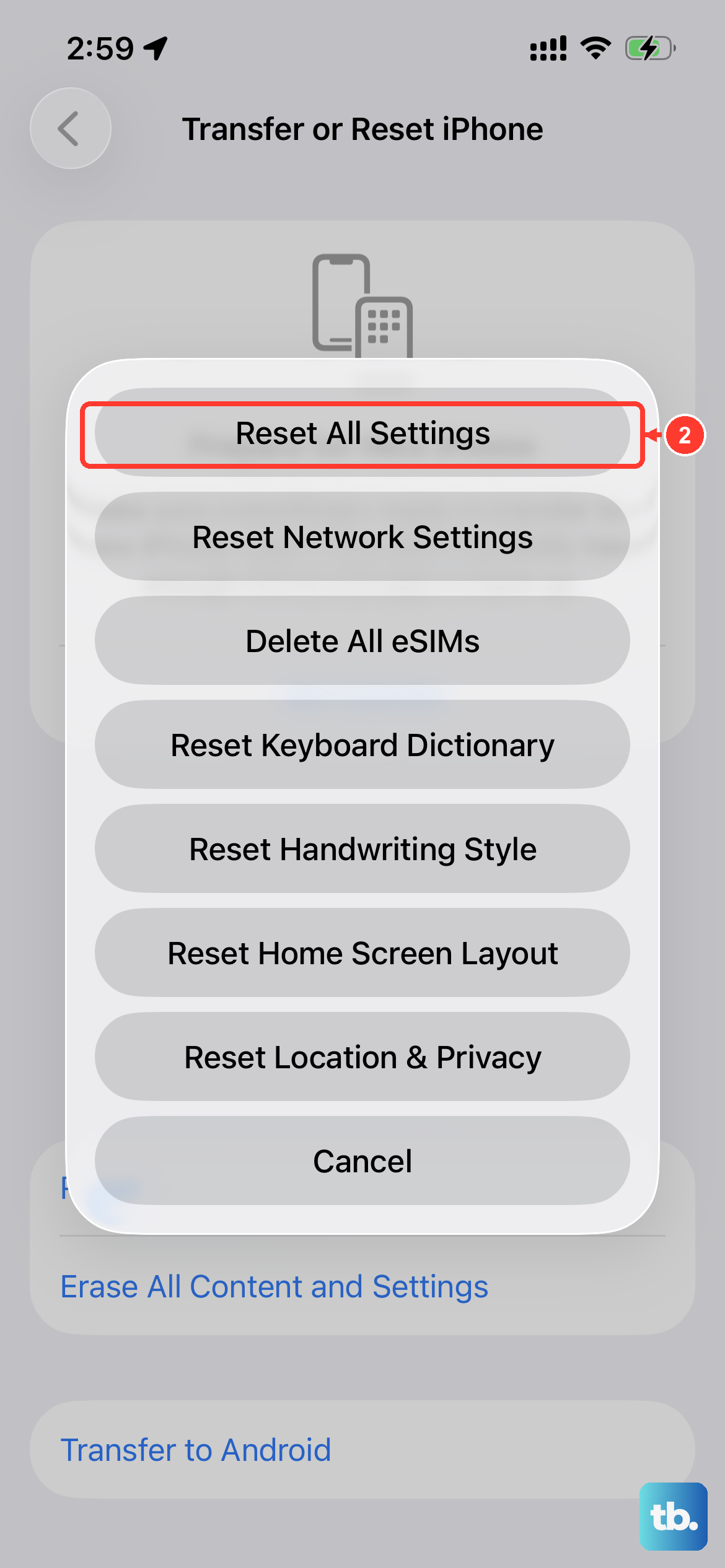
This is a more comprehensive reset that will restore all system settings, including network, privacy, and display settings, to their originals. Your photos, messages, and apps remain untouched, but you'll need to reconnect to Wi-Fi and reconfigure things like Face ID and display brightness afterward.
To do this, go to Settings > General > Transfer or Reset iPhone > Reset. This time, select Reset All Settings. Enter your passcode when prompted and confirm. Your phone will restart.
Restore iPhone via Computer
If none of the above steps work, the last software resort is to restore your iPhone using a Mac or PC. This installs a clean, fresh copy of iOS. You have two options: a standard restore, which erases everything, or a restore using a backup you make first.
First, ensure you have a recent iCloud or computer backup. Connect your iPhone 14 to your computer using its Lightning cable. Open Finder (on macOS Catalina or later) or iTunes. Select your device and choose Restore iPhone. After the process completes, you can set up your phone as new or from your backup to see if the keyboard issue is resolved.