
When your iPhone 14 won't send texts, it's incredibly frustrating. You might see a red exclamation point, a message stuck on "Sending," or just no confirmation at all. The good news is that this is almost always a software or network issue you can fix yourself.
Restart Your iPhone 14
This is the simplest fix and often the most effective. A quick restart clears out temporary software glitches that can block the Messages app. Press and quickly release the Volume Up button, then the Volume Down button. Finally, press and hold the Side button until you see the Apple logo appear.
Wait for your phone to boot back up and try sending a message again. I'd start with this one every time, as it resolves a huge number of random issues.
Check Your Cellular and Wi-Fi Signal
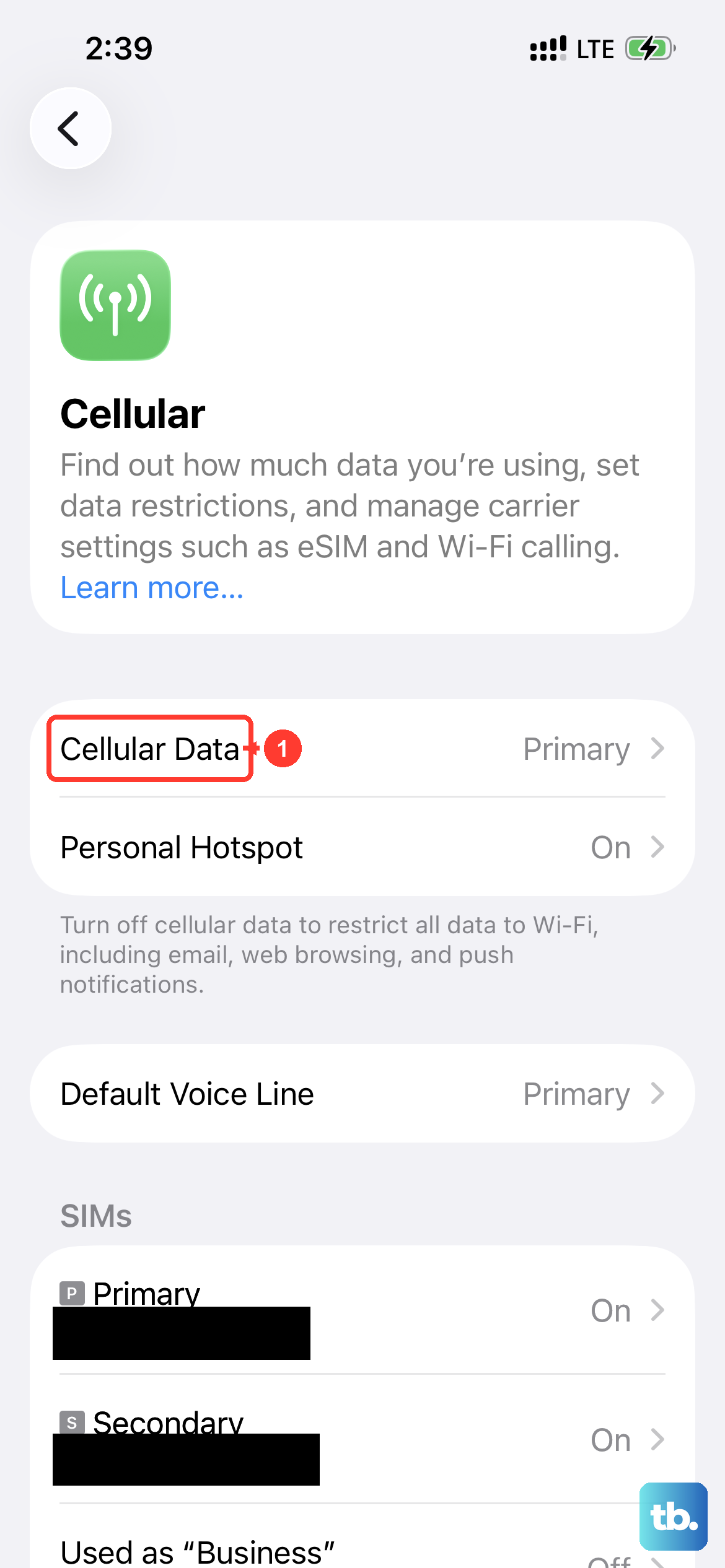
Your iPhone 14 needs a connection to send anything. iMessages (blue bubbles) require Wi-Fi or cellular data. Regular SMS/MMS (green bubbles) need a cellular signal. Look at the top of your screen. If you have no bars or a weak signal, move to a different location.
You can also try toggling Airplane Mode on for about 10 seconds, then off again. Swipe down from the top-right corner to open Control Center and tap the airplane icon. This resets all your phone's radios and can instantly restore a lost connection.
Toggle iMessage Off and Back On
If iMessages are failing, the link between your phone and Apple's servers might need a refresh. Go to Settings > Apps > Messages and turn the iMessage switch off. Wait a full minute, then turn it back on.
Your phone will re-register your number and Apple ID with the messaging service. This can clear up messages that are perpetually stuck. After it activates, try sending a new message.
Verify Apple's iMessage Service Is Working
Sometimes the problem isn't your phone at all. Apple's iMessage servers can experience rare outages. Open Safari on your iPhone 14 and go to apple.com/support/systemstatus.
Look for iMessage in the list. If there's a green dot, the service is up. If you see any other indicator, there's a known issue. While you wait for Apple to fix it, you can send as a regular text. Press and hold the failed blue message bubble and tap Send as Text Message.
Reset Your Network Settings
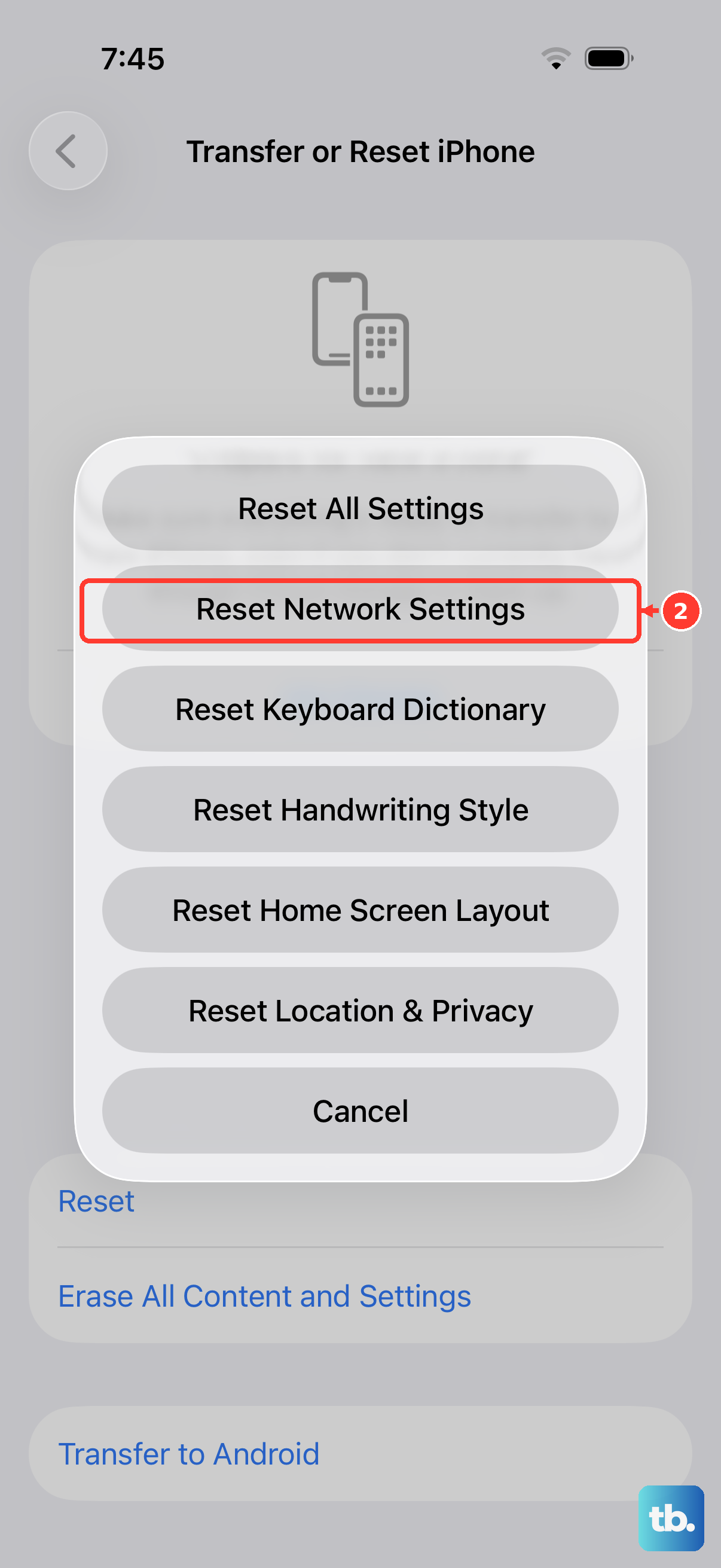
This is a stronger step for persistent issues, especially if you're also having problems with cellular data or Wi-Fi. It clears all saved networks and carrier settings and reinstalls them fresh.
Go to Settings > General > Transfer or Reset iPhone > Reset. Tap Reset Network Settings. You'll need to re-enter any Wi-Fi passwords afterward, but this often fixes deep-seated messaging problems.
Check for Blocked Contacts and MMS Settings
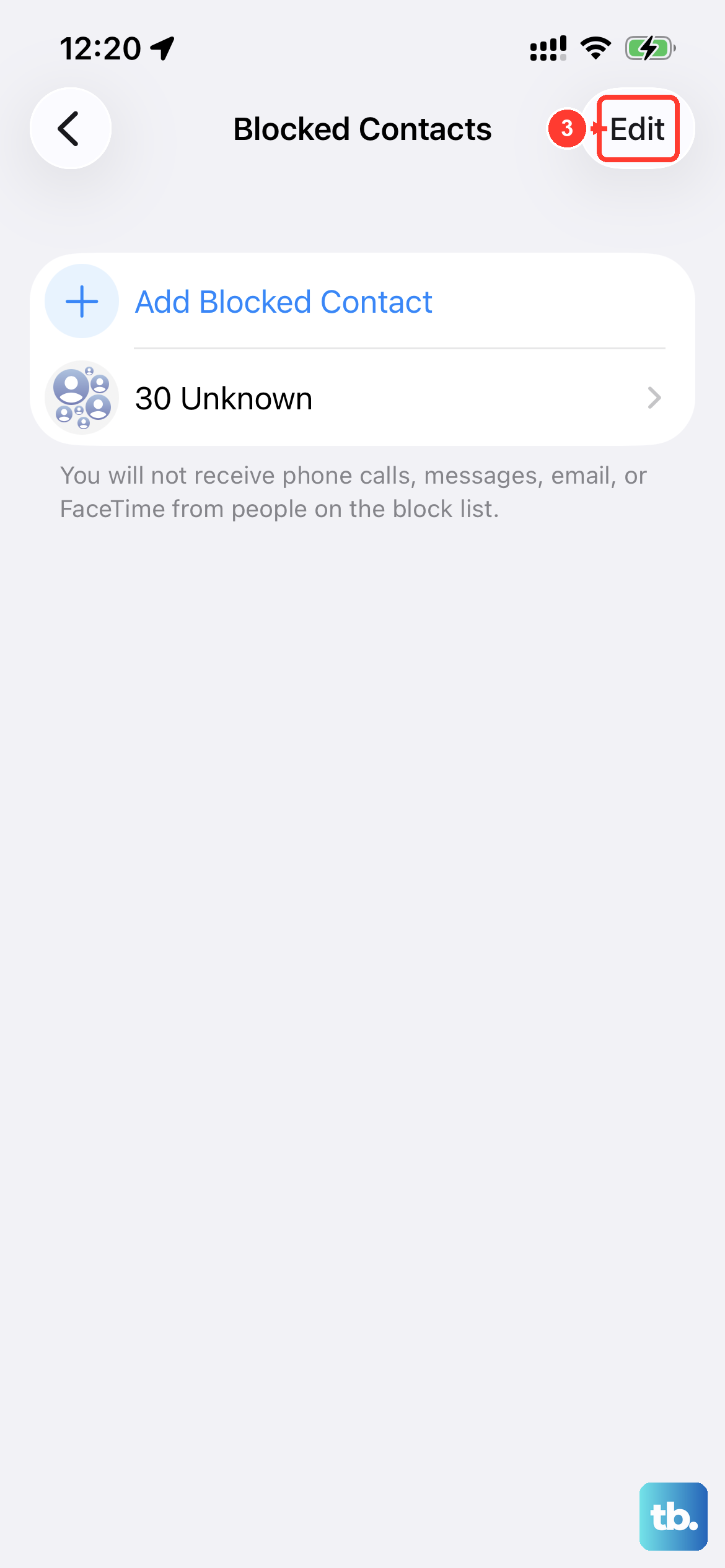
If texts fail to send to one specific person, check if you've accidentally blocked them. Go to Settings > Apps > Messages > Blocked Contacts to see the list. You can remove them from the list there.
Also, ensure MMS is enabled if you're trying to send photos or group texts. In Settings > Apps > Messages, make sure MMS Messaging is on. It's also a good idea to keep Send as SMS enabled so messages can fall back to regular text when iMessage isn't available.
Update Your Software and Carrier Settings
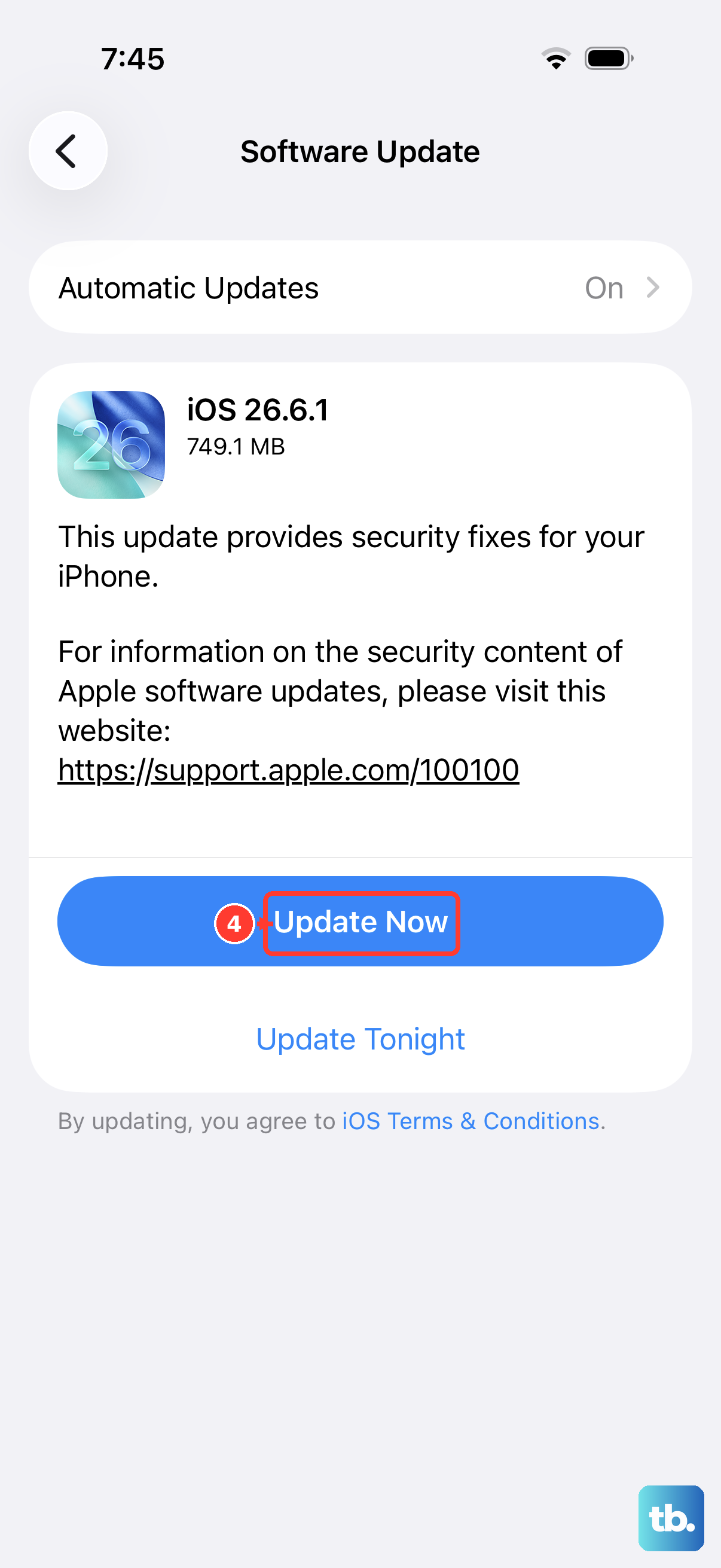
Outdated software can cause conflicts with messaging. Go to Settings > General > Software Update to install any available iOS update. These updates frequently include bug fixes for communication apps.
Next, check for a carrier settings update. Go to Settings > General > About. If an update is available, a prompt will appear. These small updates from your carrier are crucial for proper SMS and MMS functionality on their network.
Contact Your Wireless Carrier
If you've tried everything and regular SMS texts still won't send, the issue might be on your carrier's end. There could be a temporary network issue in your area, or a problem with your account provisioning.
Give them a call or use their support app. Ask them to verify that SMS and MMS messaging is fully active on your line. They can often refresh your connection on their side, which usually solves the problem immediately.