
When your iPhone 14 isn't ringing for incoming calls, it's easy to jump to the worst conclusion. I've found this is usually a simple settings hiccup or a temporary network glitch. The fixes are often straightforward and don't require a trip to the Apple Store.
Let's start with the quickest things to check. First, look at the top of your screen. If you see a moon icon, Do Not Disturb is active and may be silencing calls. You can swipe down from the top-right corner to open Control Center and tap the moon icon to turn it off.
Next, try a force restart. This can help with temporary software problems without deleting any data. On your iPhone 14, quickly press and release the Volume Up button, then the Volume Down button, then press and hold the Side button until you see the Apple logo appear.
Also, check your cellular signal. If you only have one or two bars, you might be in a dead zone. Try moving to a different room or near a window. Turn Airplane Mode on, wait five seconds, then turn it off and test an incoming call.
Check Your Do Not Disturb and Focus Settings
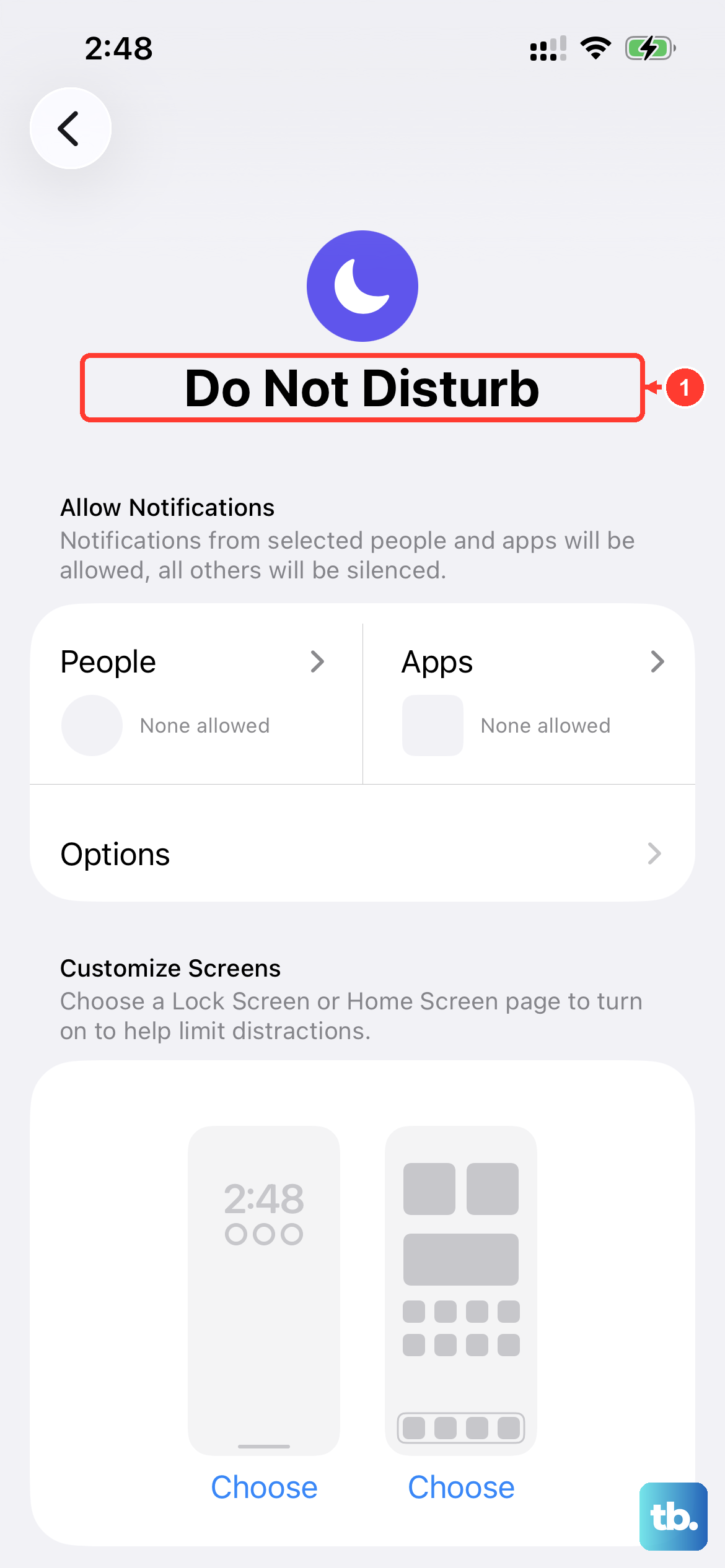
Focus modes on iOS are powerful but can sometimes be too aggressive. Open the Settings app and go to Focus. Look at any active Focus, like Do Not Disturb, Work, or Sleep.
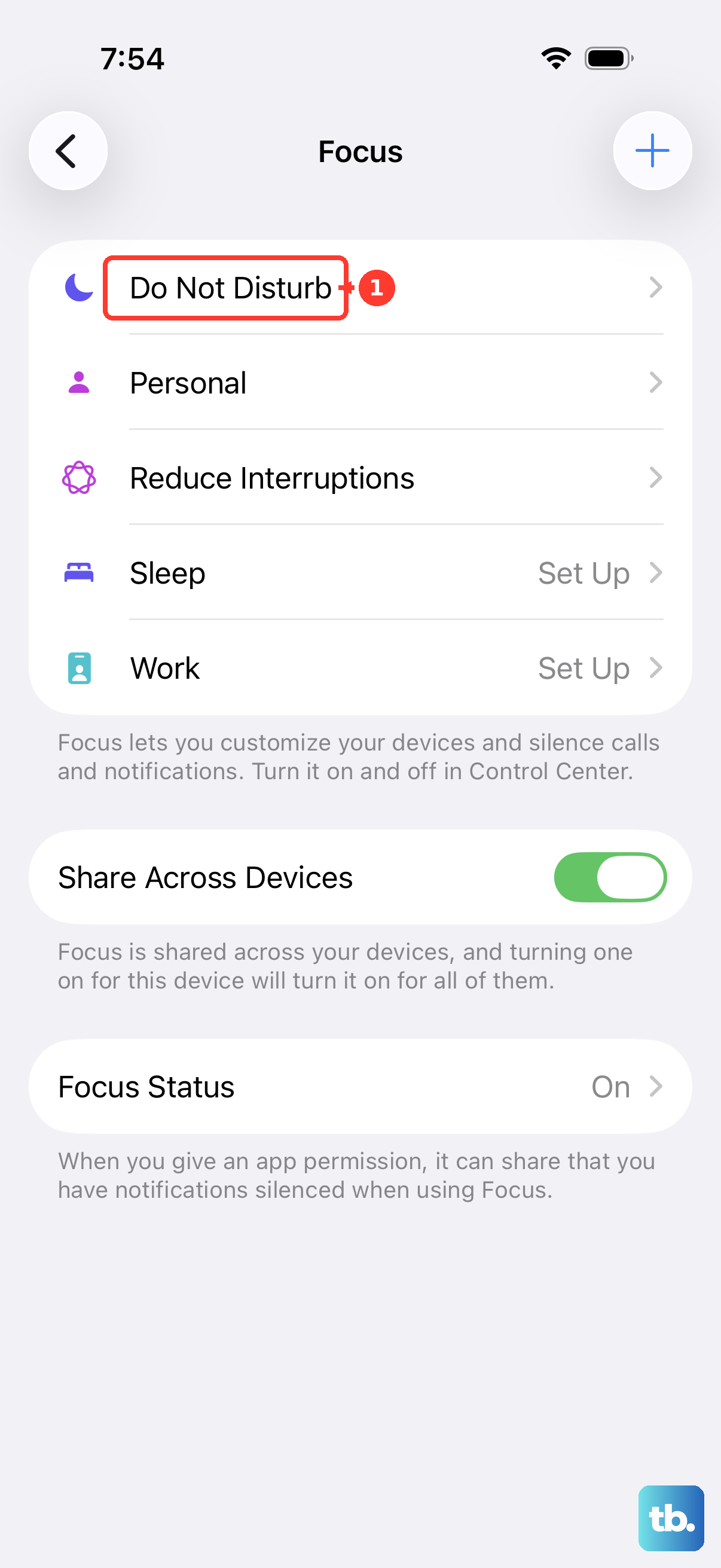
Tap on the active Focus, then tap People (or Choose People). Review Allow Notifications From or Silence Notifications From and the options for allowing calls from groups of people. You can also turn off the active Focus to test whether incoming calls ring.
Sometimes a Focus schedule can turn itself on automatically. Scroll down in the Focus settings and review any scheduled times or smart activations, like when you're at a specific location, and disable them if they're causing the issue.
Review Call Blocking and Silence Unknown Callers
Built-in call filtering features can silence legitimate calls. Go to Settings > Apps > Phone. Scroll down to "Screen Unknown Callers" and select "Never" so unsaved numbers ring normally. The "Silence" option sends these calls to voicemail, while "Ask Reason for Calling" screens them before your phone rings.
In Settings > Apps > Phone, look for "Call Blocking & Identification." This shows you a list of any call-blocking apps you have installed, like your carrier's spam filter. You can temporarily disable these to see if they're the culprit.
Also, check your actual blocked numbers list. To see your blocked numbers, go to Settings > Apps > Phone > Blocked Contacts. Review this list to make sure a friend or important number hasn't been accidentally added.
Disable Call Forwarding
If call forwarding is accidentally enabled, incoming calls may get sent to another number. To check, go to Settings > Apps > Phone > Call Forwarding. When call forwarding is on, the Call Forwarding icon also appears in the status bar.
If "Call Forwarding" is on, it may be the reason you're missing calls. Toggle "Call Forwarding" off, then have someone call you to check whether your phone receives the call.
If the option isn't available in Settings, contact your carrier to check whether your calls have errors on their system.
Update Your iOS Software
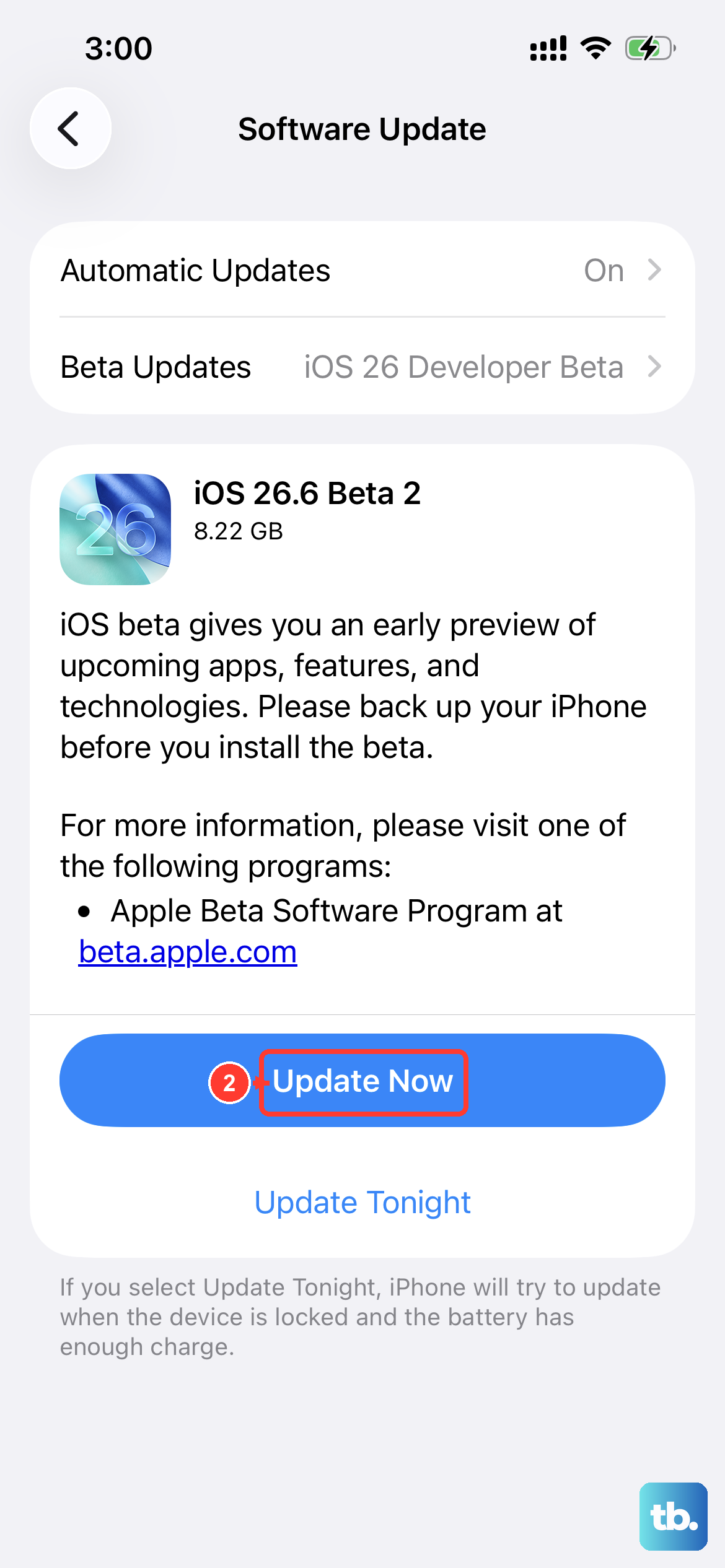
Outdated software can contribute to call issues, so check for an iOS update. Check for a carrier settings update too, and test incoming calls after updating.
Go to Settings > General > Software Update. If an update is available, tap "Download and Install." Back up your phone first, then connect it to Wi-Fi and plug it into your Lightning charger.
I'd recommend doing this step.
Reset Network Settings
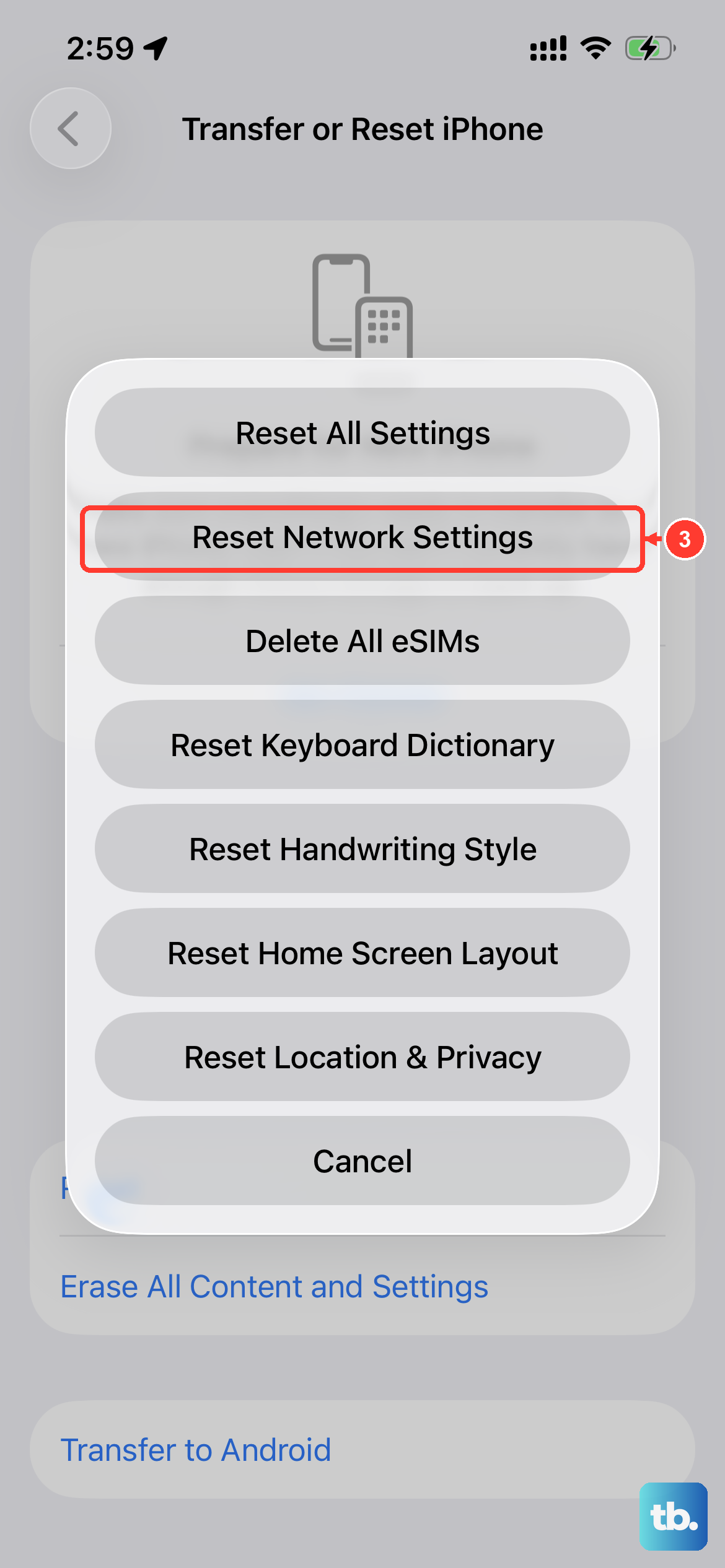
Try this only if the other fixes fail. It clears saved Wi-Fi networks and passwords, cellular settings, and VPN and APN settings, which can help with persistent calling problems. Make sure you have your Wi-Fi passwords handy.
Go to Settings > General > Transfer or Reset iPhone. Tap on "Reset" at the bottom, then choose "Reset Network Settings." Enter your passcode when prompted and confirm the reset.
Your iPhone 14 will restart. After it boots up, you'll need to reconnect to your Wi-Fi network and restore any needed VPN or APN settings.
Check Your SIM Card
A faulty or dirty physical SIM card can disrupt service. U.S. iPhone 14 models use eSIM and have no SIM tray; contact your carrier to check your account and service. If your model has a SIM tray, try removing and reinserting the card with a SIM ejector tool or a small paperclip.
Gently push the tool into the small hole on the left side of the phone. The SIM tray will pop out. Take out the SIM card, use a soft, dry brush to remove any dust from the tray, and carefully place the card back in.
If you have access to another phone, you can test your SIM card in it to see if the problem follows the card. If it does, contact your carrier to ask about a replacement SIM.
Contact Your Carrier
The issue might be on your carrier's end, not your phone. They can run diagnostics on your line and account. Ask them specifically if there are any network outages in your area or if your line has any call barring features enabled.
Ask them to confirm that your account is set up to use your iPhone and has no billing-related block. Have them check for errors affecting your calls on their system too.
Finally, inquire about any carrier settings updates. Sometimes these are pushed automatically, but you can manually check by going to Settings > General > About. If an update is available, a prompt will appear.