
If you tap send on a photo or video in your iPhone 14's Messages app and it just sits there, it's a classic MMS hang-up. This usually comes down to your cellular data connection or a setting that got flipped off. Let's get those pictures sending again.
Turn On Cellular Data for Messages
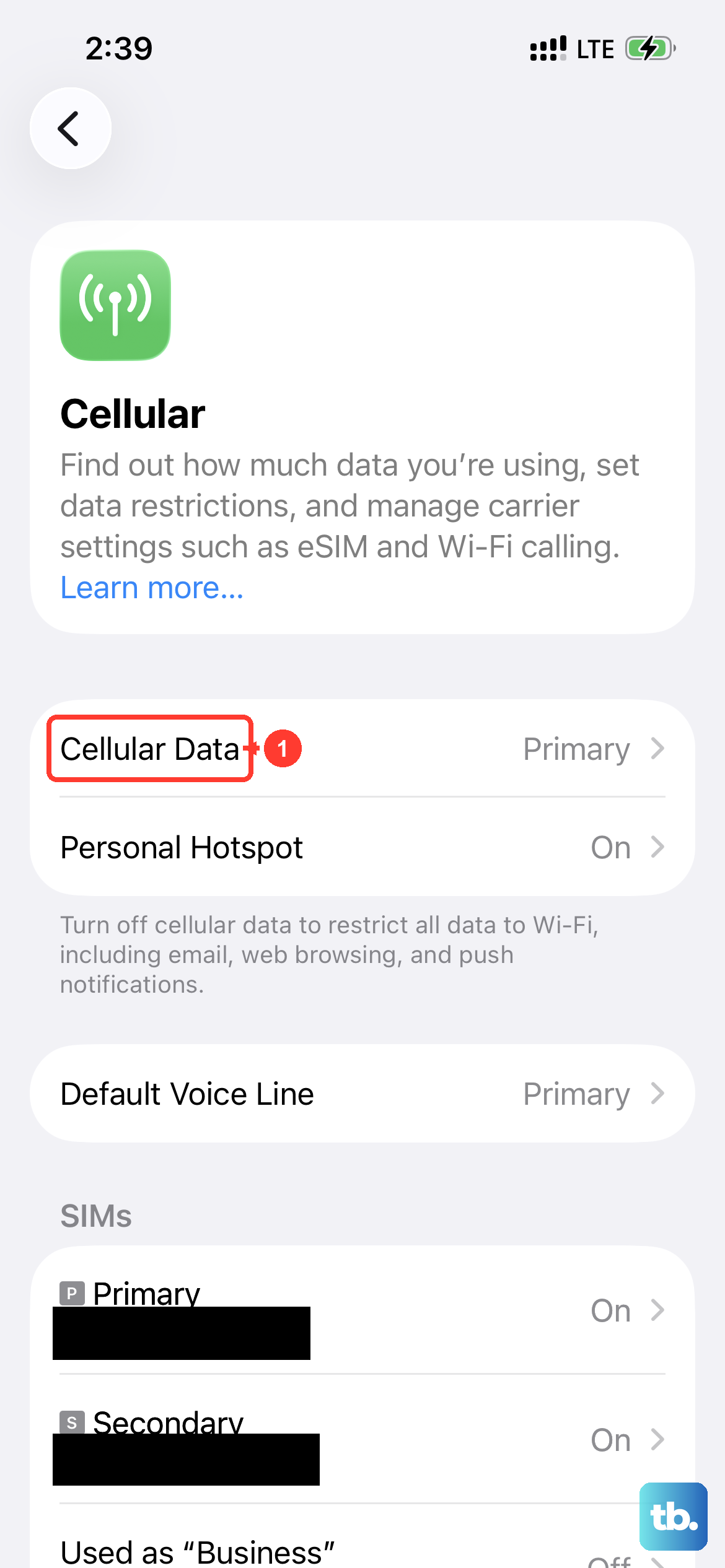
MMS, which is what your phone uses to send photos and videos to non-iPhone contacts, requires cellular data. It won't send over Wi-Fi alone. First, swipe down from the top-right corner to open Control Center and make sure the cellular data icon is blue.
Then, go to Settings > Cellular. Scroll down and find "Messages" in the list of apps. Make sure the toggle next to it is switched on, allowing it to use your mobile data.
Enable MMS Messaging in Settings
There's a specific switch for MMS that sometimes gets disabled, especially after a software update. You need to check this setting directly.
Open Settings and scroll down to Messages. In the "SMS/MMS" section, ensure that MMS Messaging is turned on. If it's off, your iPhone 14 will not send picture messages at all.
While you're here, also check that "Send as SMS" is enabled. This lets your phone fall back to a regular text if iMessage fails, which can sometimes help with delivery.
Check Your Network Connection
A weak cellular signal can cause MMS to fail. Look at the signal bars in the top-right corner of your screen. If you have only one or two, try moving to a location with better reception.
I've also seen where being connected to a Wi-Fi network that has a login portal (like in a hotel or coffee shop) can interfere. Try turning Wi-Fi off temporarily from Control Center and send the MMS using just your cellular connection to see if that's the blocker.
Restart Your iPhone 14
A simple restart can clear out a temporary software glitch that's stalling the messaging service. To restart your iPhone 14, press and quickly release the Volume Up button, press and quickly release the Volume Down button, then press and hold the Side button until you see the Apple logo appear.
Wait for it to boot up completely, then try sending your photo or video message again.
Update Your Carrier Settings
Your carrier occasionally sends small updates that fine-tune network connectivity, including for MMS. These install automatically, but sometimes you need to trigger a check.
Make sure you're connected to Wi-Fi and have a cellular signal. Then go to Settings > General > About. If an update is available, a prompt will appear on this screen. Just follow the instructions to install it.
Reset All Network Settings
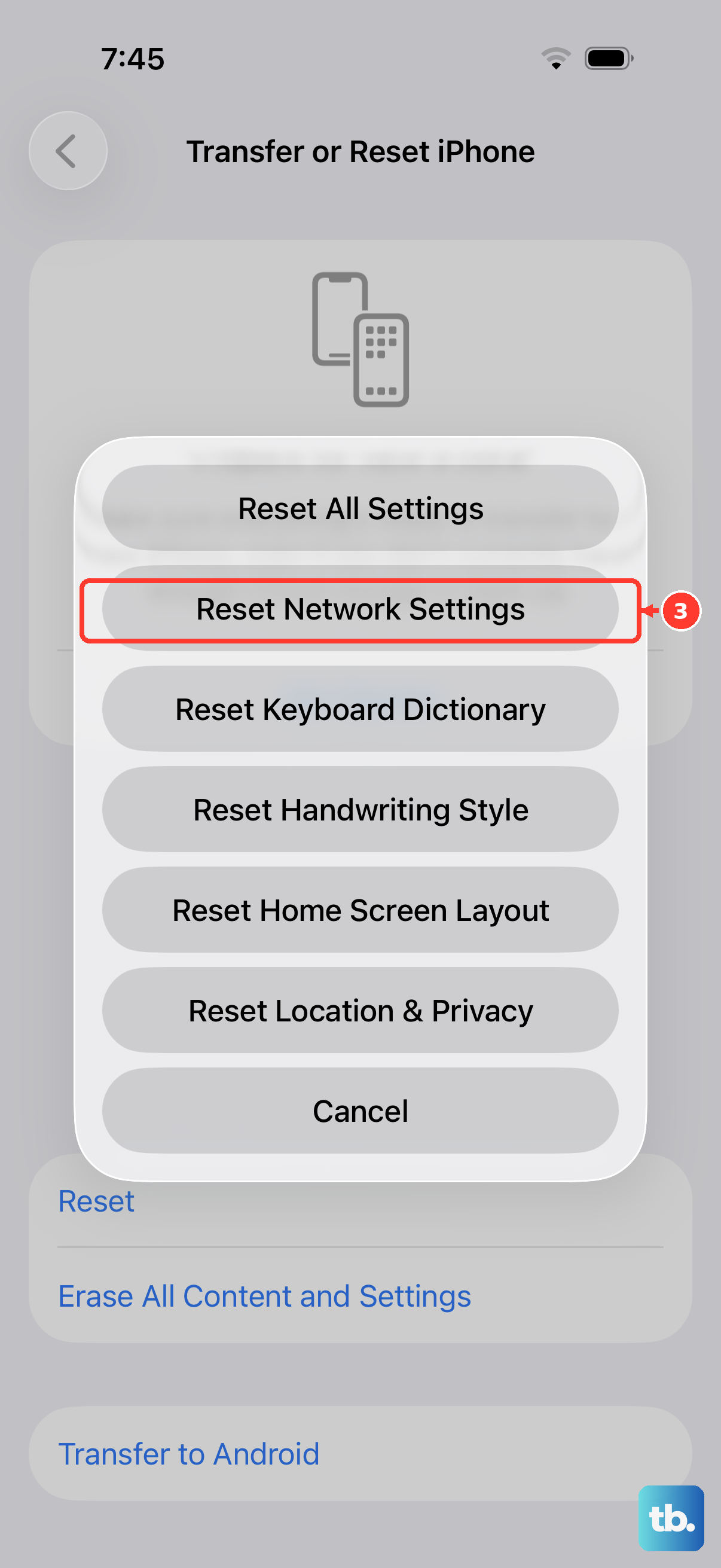
This is a more thorough step that clears all your network-related data without touching your personal content. It will erase saved Wi-Fi passwords, Bluetooth pairings, and VPN settings, so you'll have to re-enter those.
To do this, open Settings > General > Transfer or Reset iPhone. Tap Reset and then choose Reset Network Settings. Enter your passcode if asked and confirm. Your iPhone 14 will restart.
Check for a Software Update
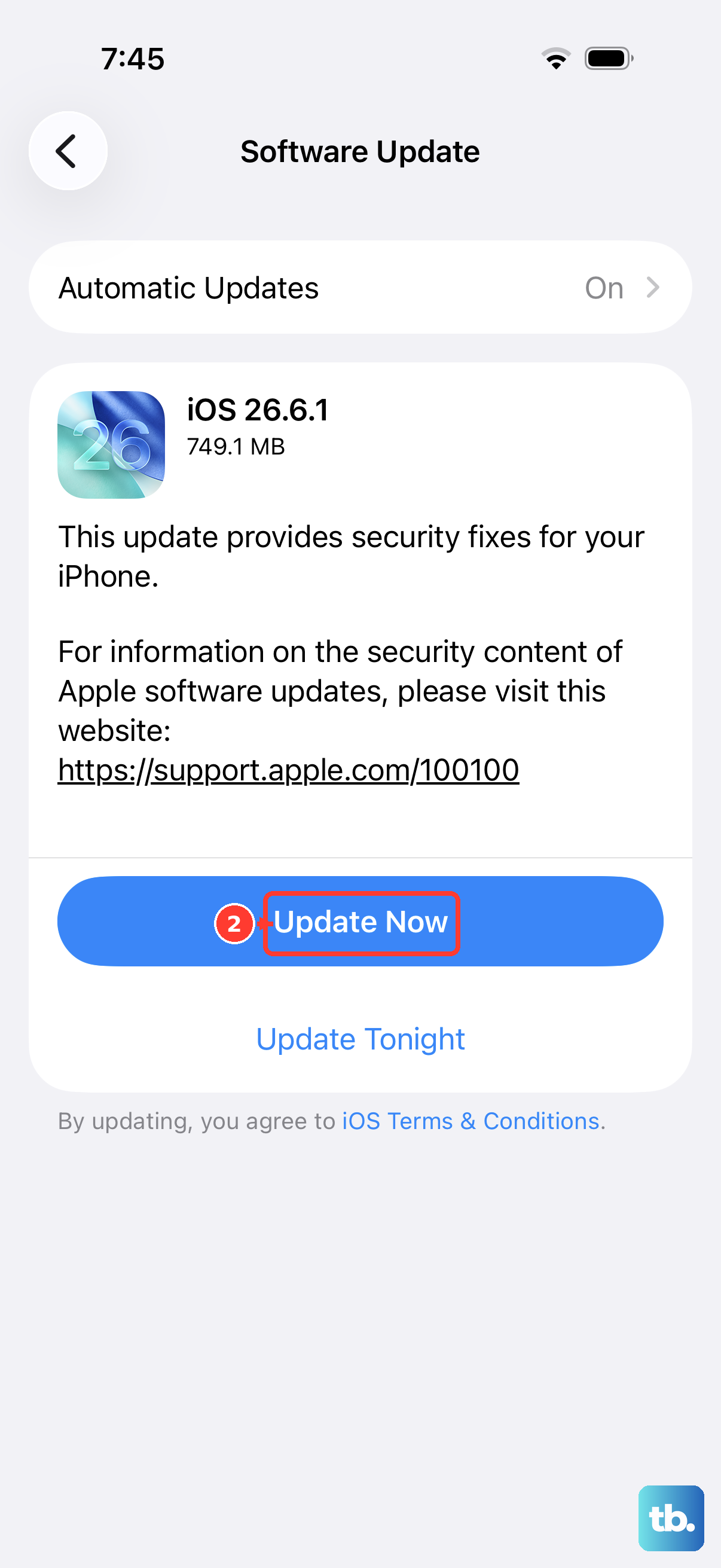
Apple fixes bugs with messaging in iOS updates. Since you're on an iPhone 14, you should be running a recent version of iOS. Go to Settings > General > Software Update.
If an update is available, tap "Download and Install." It's best to do this while connected to Wi-Fi and plugged into power. After the update installs, test your MMS again.
Review Your Message Thread
If you're trying to send a message to a group chat that includes both iPhone and Android users, the entire thread becomes an MMS conversation. Sometimes, a single very large video file can get stuck and block the whole thread.
Try sending a new photo to just one Android contact as a test. If that works, the issue might be with the original group thread. You may need to start a new conversation.
Ensure You Have Enough Storage
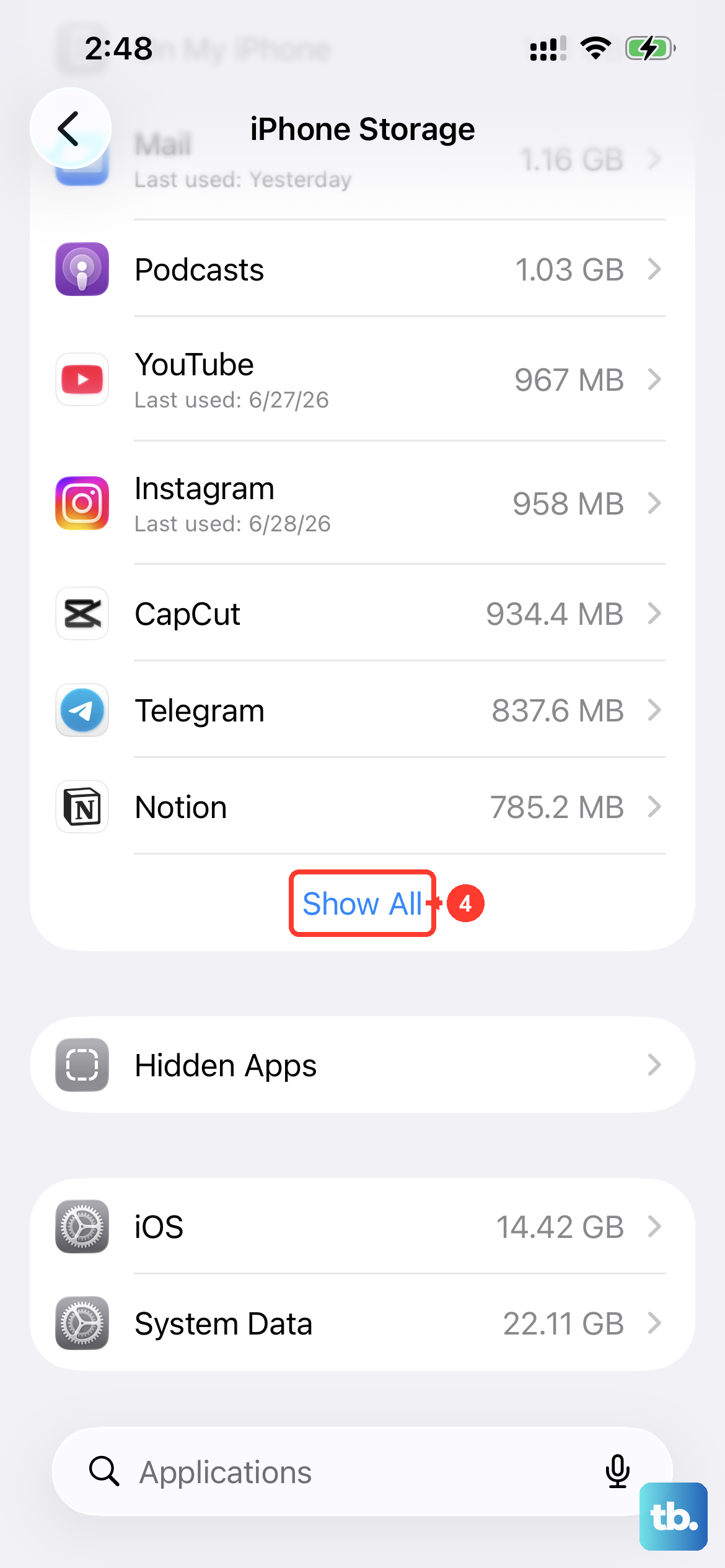
Your iPhone 14 needs a bit of free space to process and send media. If you're critically low on storage, it can fail silently. Go to Settings > General > iPhone Storage to see how much space you have left.
If you're below 1GB free, try offloading some unused apps or deleting old videos from your camera roll. After freeing up space, attempt to send the MMS again.