
When your iPhone 14 hotspot stops sharing your cellular data, it leaves your other devices stranded. Whether the "iPhone" network isn't showing up for others, connections keep dropping, or devices just won't join, the fixes are usually straightforward.
Turn the Hotspot Off and Back On
Head to Settings > Personal Hotspot and toggle it off. Wait a few seconds, then turn it back on. This quick reset often clears a temporary software glitch that's preventing the service from starting correctly. I'd start with this one, as it solves the issue more often than you'd think.
Restart Your iPhone 14
If the toggle didn't help, give your phone a fresh start. Hold the Side button and either Volume button until the power slider appears, slide to power off, wait 30 seconds, and turn it back on. This clears out any stuck network processes that could be interfering with the hotspot.
Verify Your Cellular Data is Working
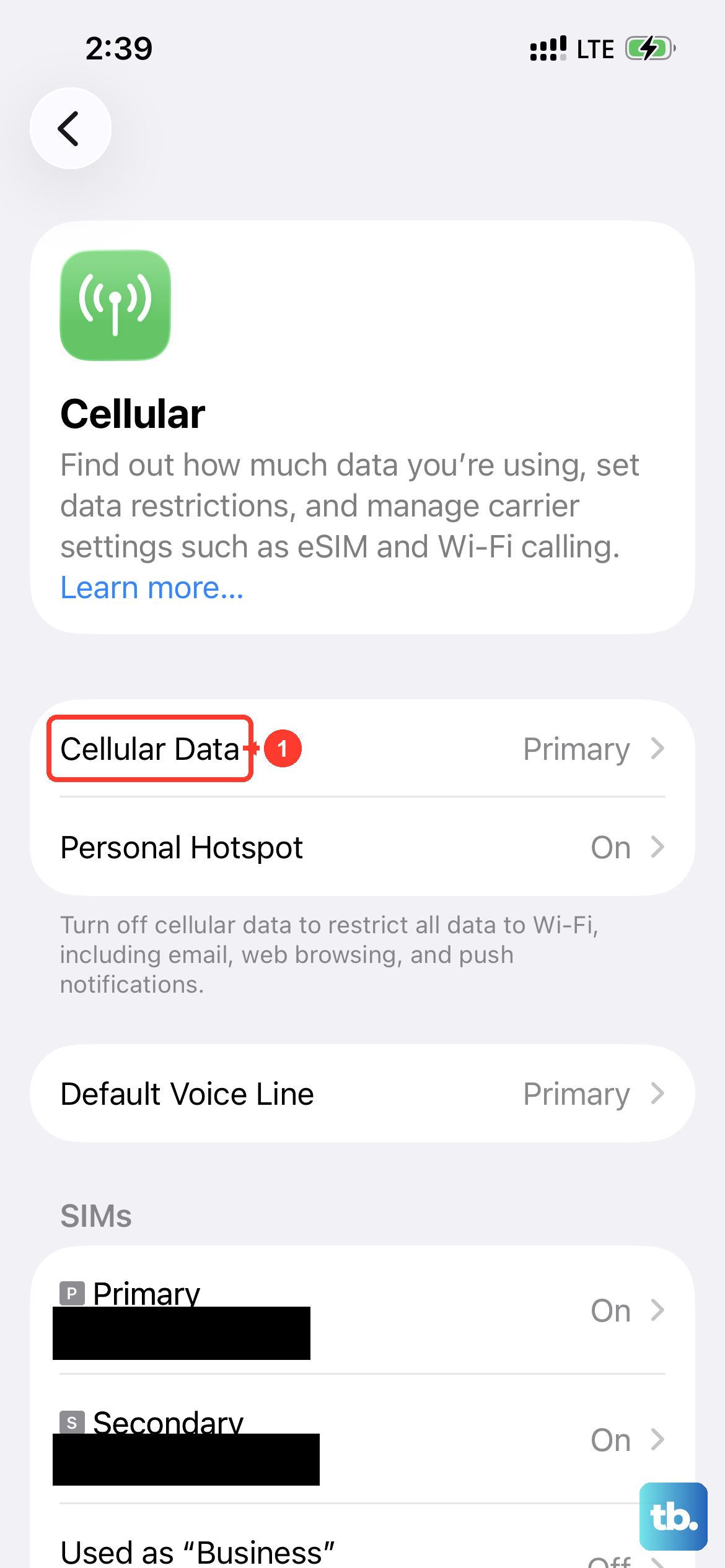
The hotspot can't work if your iPhone 14 itself isn't online. First, check that Settings > Cellular > Cellular Data
Also, double-check with your carrier that your specific plan includes Personal Hotspot. Some older or cheaper plans restrict this feature, and you might need to add it.
Reset Your Network Settings
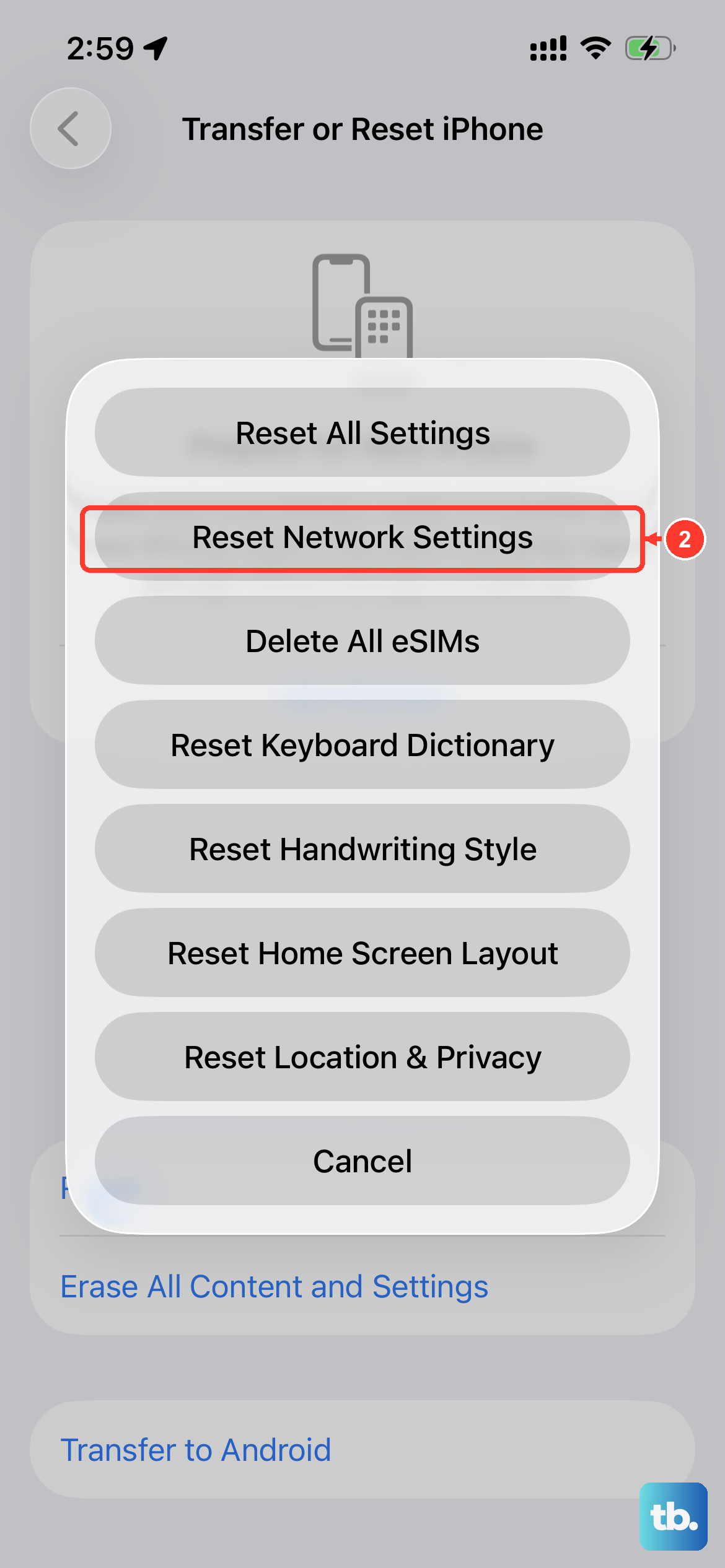
For persistent problems, this is a powerful step. Go to Settings > General > Transfer or Reset iPhone > Reset > Reset Network Settings. This will erase all Wi-Fi passwords, VPN settings, and cellular network configurations, then rebuild them. You'll need to rejoin Wi-Fi networks afterward, but it frequently resolves stubborn hotspot and connectivity bugs.
Install Any Carrier Updates
Small carrier settings updates can fix compatibility issues. Navigate to Settings > General > About. If an update is available, a prompt will appear on this screen. Tap to install it. These updates are crucial after major iOS releases, like the update to iOS 18, which introduced some connectivity issues for a number of users.
Forget the Network on the Other Device
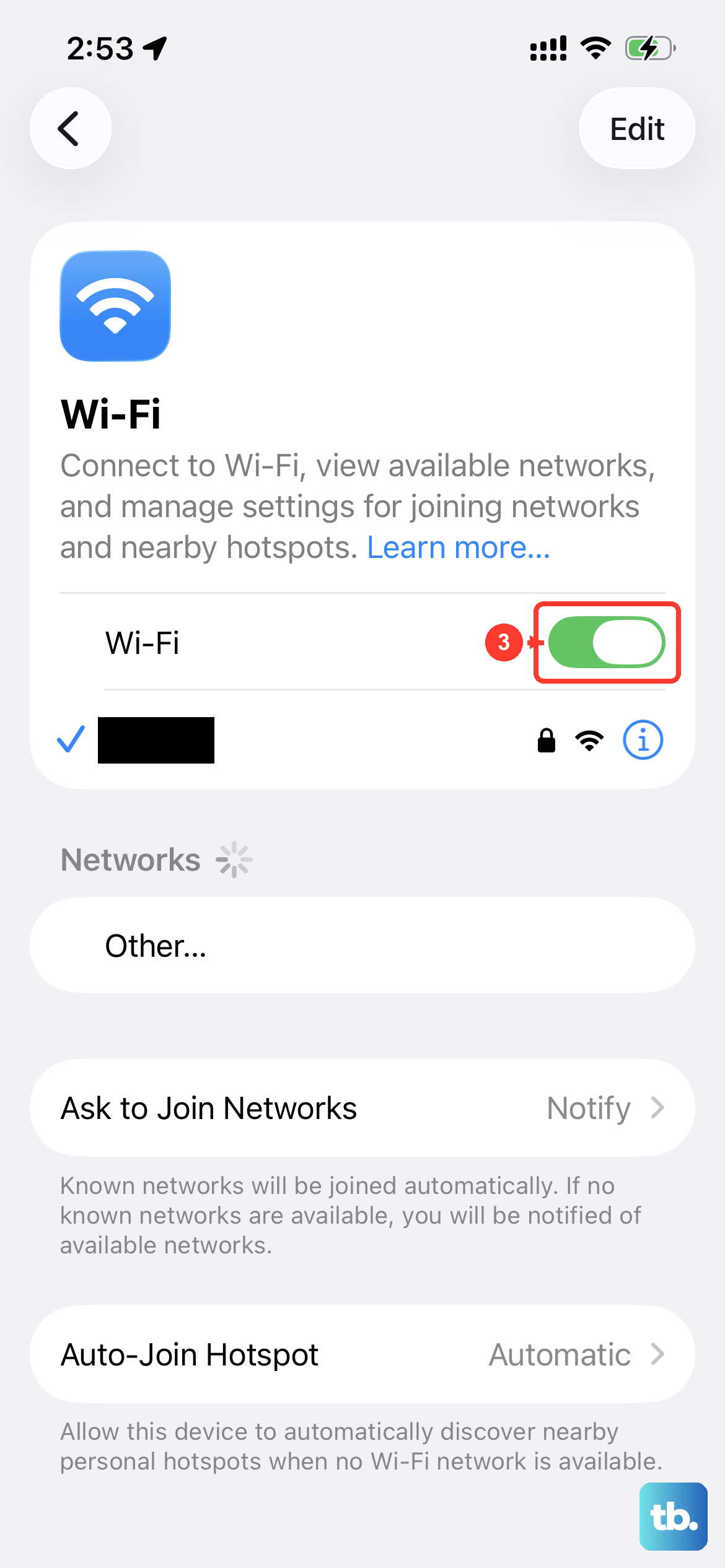
The problem might be with the device trying to connect. On your laptop or tablet, go into its Wi-Fi settings and find your "iPhone" network. Choose to forget it or remove it. Then, search for available networks again, select your iPhone 14, and enter the password fresh. A corrupted saved profile on the connecting device is a common culprit.
Change Your Hotspot's Wi-Fi Password
Go back to Settings > Personal Hotspot > Wi-Fi Password and create a new password. Tap Done to save. Now, have your other devices connect using this new password. This forces a completely new authentication handshake, bypassing any previous errors.
Use a USB Cable or Bluetooth
If the Wi-Fi hotspot is being difficult, try a different connection method. Plug your iPhone 14 into your computer using a Lightning cable (make sure it's a genuine or MFi-certified cable for reliable data transfer). On your iPhone, ensure the hotspot is on, and your computer should recognize it as a network source.
You can also try Bluetooth tethering. First, pair your iPhone and the other device via Bluetooth in their respective settings. Then, turn on your Personal Hotspot. The connected device should be able to use the connection.
Update to the Latest Version of iOS
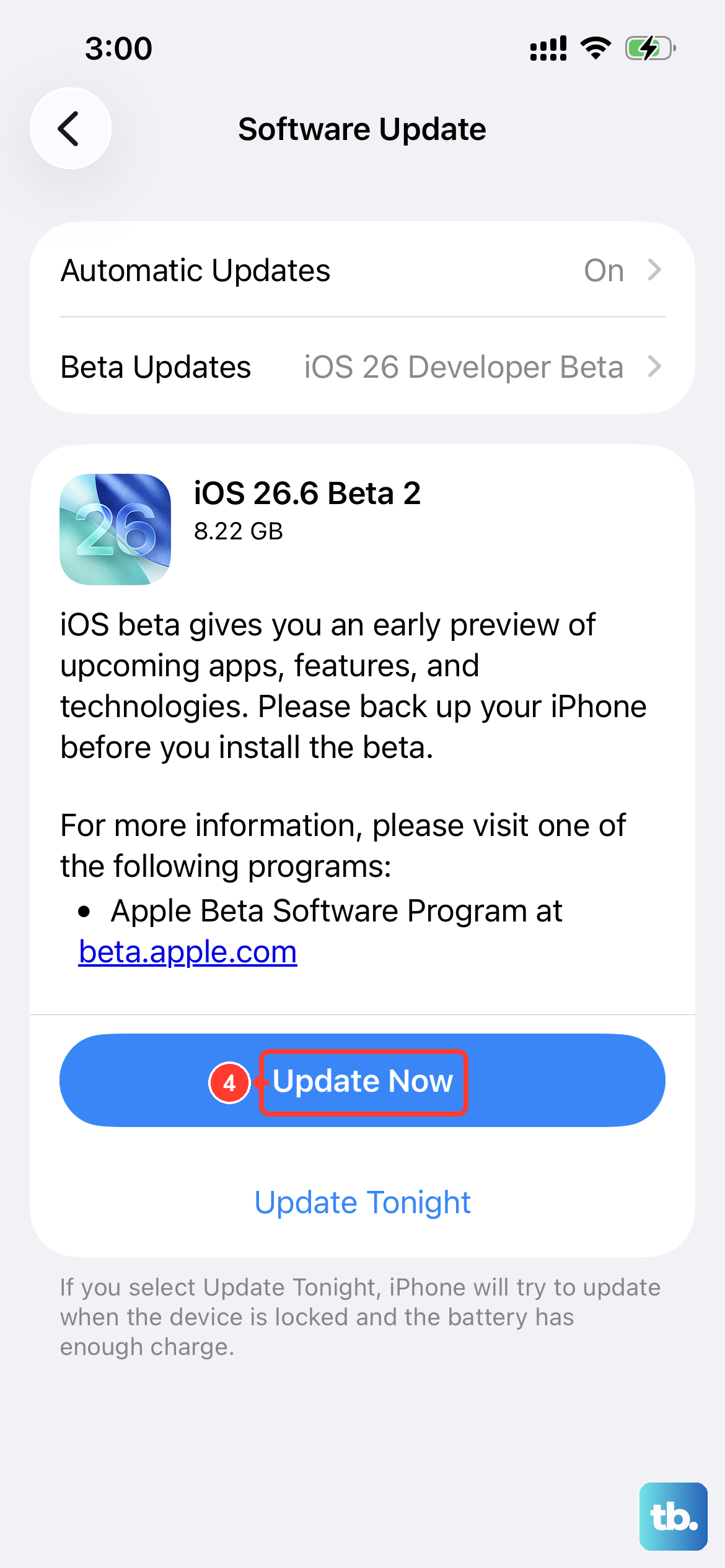
Software bugs can break features like the hotspot. Apple often patches these in updates. Go to Settings > General > Software Update and install any available update. Keeping your iPhone 14 on the latest iOS version is one of the best ways to ensure all features work as intended.