You reach for your iPhone 14 and the screen stays completely dark. No Apple logo, no lock screen, maybe not even a response when you press the buttons.
A black screen is alarming, but on most iPhone 14 units it points to something fixable: a drained battery, a software hang, or a charging accessory that has quietly given up. Before you assume the worst, work through the eight steps below in order, starting with the easiest and safest and ending with the official repair path only if nothing else brings the display back.
The good news is that a black screen rarely means the phone is gone for good. Many of these fixes take only a few minutes and none of the early ones touch your data.
Here is how to get your iPhone 14 responding again.
Give the battery an hour on power first
A dead battery is the most common reason for a black, unresponsive screen, so this is the right place to begin. Plug your iPhone 14 into power using its Lightning cable and a working adapter, then leave it alone.
The phone ships with a USB-C to Lightning cable, so use that or a known-good equivalent into a wall outlet.
Connect your iPhone 14 to power with its Lightning cable and a working adapter.
Charge your iPhone for one hour, then try again.
If a low-battery (charging) icon appears on the screen, keep it on power for at least 30 minutes or until it starts.
A deeply drained battery can show nothing on screen for several minutes before any sign of life, which is why the full hour matters. If you see that charging icon appear, that is a good signal that power is reaching the phone and it simply needs more time.
Force restart a frozen iPhone 14
If the screen is black or frozen but the phone clearly has power, a force restart often clears the hang. The iPhone 14 is a Face ID model with no Home button, so it uses the volume-and-side-button sequence.
Reproduce it exactly, because the order of presses matters.
- 1.Press and quickly release the volume up button.
- 2.Press and quickly release the volume down button.
- 3.Press and hold the side button until you see the Apple logo (this might take longer than 10 seconds).
Keep holding the side button even after the screen seems to stay dark; the Apple logo can take more than 10 seconds to appear. A force restart will not erase any of your content, so it is safe to try as often as you need.
If the logo shows up, let the phone finish booting on its own.
Inspect the cable, adapter, and charging port
When the iPhone will not charge or wake, the problem is sometimes the accessories rather than the phone. The Lightning port on the bottom of the device can also collect lint and debris that block a solid connection.
Remove any debris from the charging port on the bottom of your device.
Firmly plug your charging cable into your device.
Let your device charge for half an hour.
Also check your charging cable and USB adapter for signs of damage, like breakage or bent prongs, and stop using anything that looks worn.
To rule out a single faulty part, try a different wall outlet, a different cable, and a different charger if you have them on hand.
If a known-good setup wakes the phone, you have found your culprit.
Dry the phone properly if it got wet
If the black screen followed liquid exposure, or you have seen a liquid-detection alert, resist the urge to charge it right away. Forcing power through a wet connector can make things worse, so dry it the way the manufacturer recommends.
Unplug the cable from your iPhone.
Tap your iPhone gently against your hand with the connector facing down to remove excess liquid.
Leave your iPhone in a dry area with some airflow.
Wait at least 30 minutes before charging; it can take up to 24 hours to dry fully.
There are a few things you should never do while drying it. According to the official guidance, do not dry your iPhone using an external heat source or compressed air, do not insert a foreign object such as a cotton swab or a paper towel into the connector, and do not put your iPhone in a bag of rice.
Patience and airflow are the safest approach here.
Install the latest iOS once the screen responds
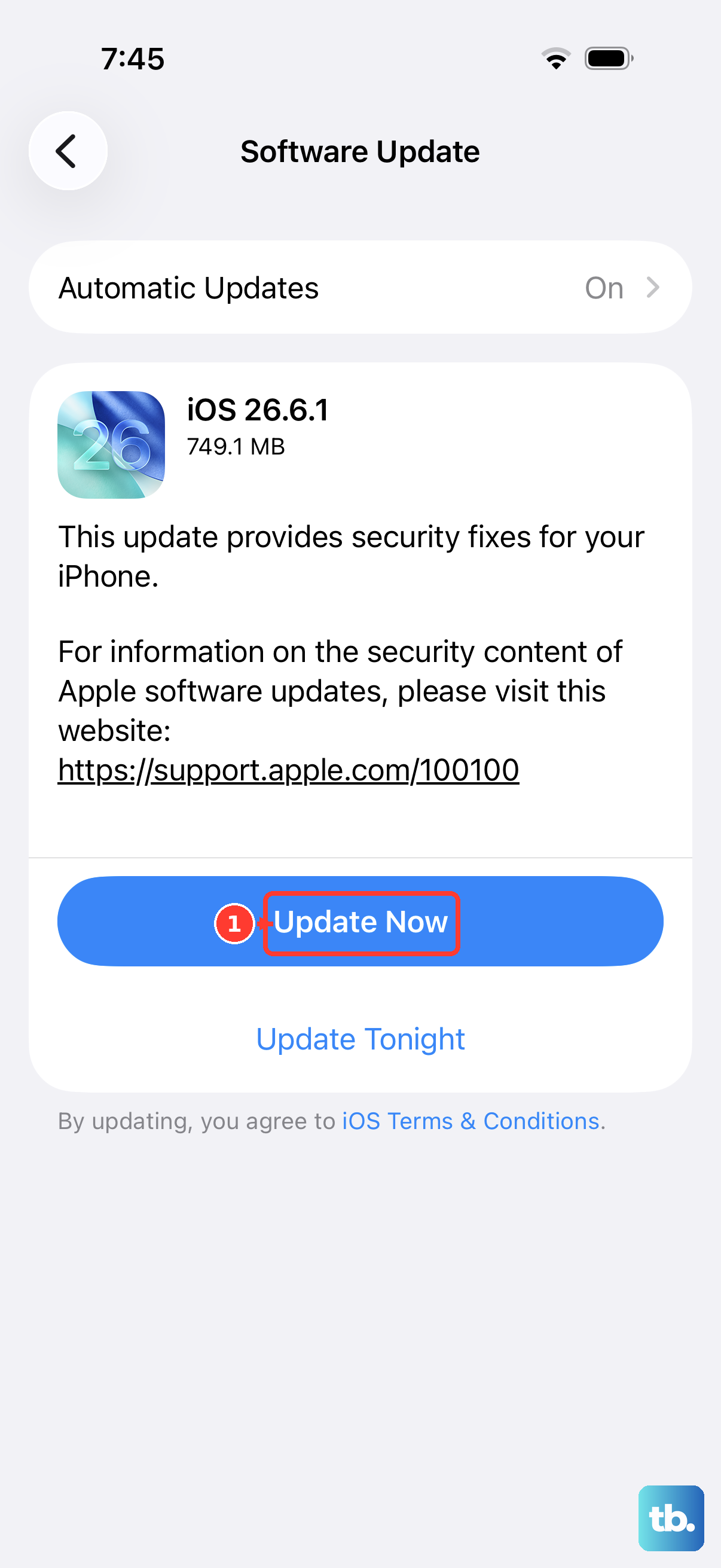
If the display comes back but the phone is glitchy or keeps blacking out, a software update can clear the bug behind it. The iPhone 14 supports iOS 26, so it is eligible for the current release.
Make sure the phone is charged or on power before you start.
Open Settings > General > Software Update.
Tap Download and Install (or Install Now).
Follow the onscreen instructions and let the phone finish.
If the screen is too unreliable to navigate the menus, you can also update with a computer.
Connect the iPhone and use Finder on a Mac (macOS Catalina or later) or the Apple Devices app on a Windows PC.
Keeping iOS current is one of the simplest ways to rule out a software cause.
Use recovery mode to update or restore
If the iPhone 14 still will not start, recovery mode lets a computer reinstall the software for you. You will need a Mac running Finder or a Windows PC with the Apple Devices app (or iTunes if the Apple Devices app is unavailable).
Connect the phone first, then trigger the recovery-mode sequence.
Connect your iPhone 14 to the computer and open Finder (Mac) or the Apple Devices app (Windows PC).
Press and quickly release the volume up button.
Press and quickly release the volume down button.
Press and hold the side button until you see the Connect to computer screen.
When offered Update or Restore, choose Update first.
Choose Update before anything else, because it reinstalls iOS without erasing your data.
Only choose Restore if Update does not work, and understand the trade-off.
WARNING: Restore reinstalls iOS and erases all your data, so back up first if the phone is reachable.
Treat Restore as a deliberate last resort, not a quick fix.
Erase all content and settings as the final software step
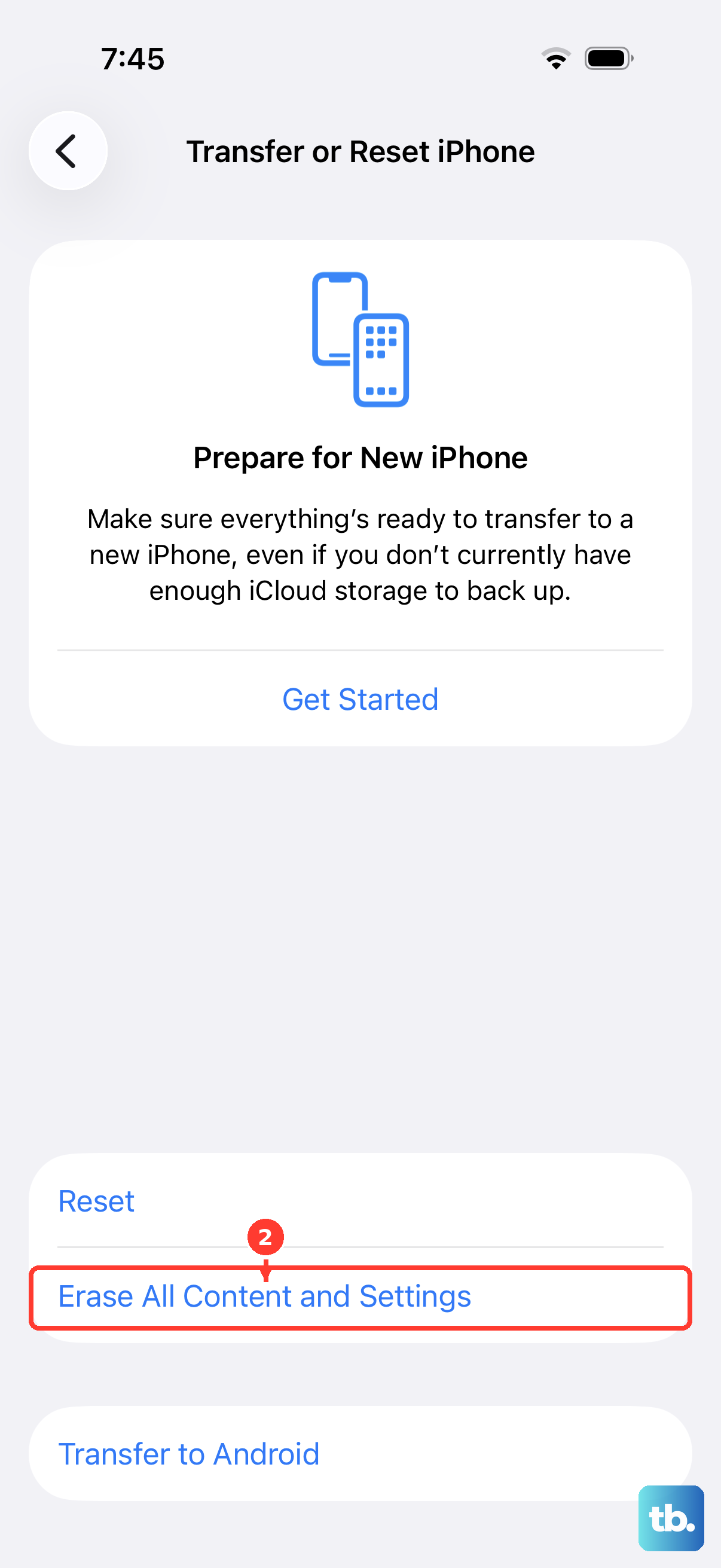
If the screen works but the black-screen behavior keeps coming back, a full erase clears corrupted software that the steps above could not. This is destructive, so handle it carefully.
WARNING: this deletes all your data, so back up first.
Open Settings > General > Transfer or Reset [device] > Erase All Content and Settings.
Tap Continue.
Enter your device passcode and your Apple Account password.
Wait for the process to finish.
Because this erases all your content and settings, a current backup is the difference between a clean reset and lost photos and messages.
Once the phone restarts, you can set it up fresh or restore from that backup.
If a clean software install still leaves you with a black screen, the cause is likely hardware.
Set up service with Apple Support
If the screen is still black after charging, force restarting, checking your accessories, and working through the steps above, the problem may be hardware. That can mean a damaged display, a worn battery, or a faulty charging port, none of which you can repair at home.
Contact Apple Support to set up service, or arrange a repair through the official Apple support site.
From there you can book a service appointment, use an Apple Authorized Service Provider, or send the phone in by mail.
A technician can test the display and internal components directly and tell you exactly what needs to be fixed.
Frequently Asked Questions
Will a force restart delete anything on my iPhone 14?
No. A force restart will not erase content on your device. It simply forces the phone to power-cycle, which clears a frozen or unresponsive state without touching your photos, apps, or settings.
How long should I leave my iPhone 14 charging before it turns on?
Charge it for one hour and then try again. If a low-battery (charging) icon appears on the screen, keep the phone on power for at least 30 minutes or until it starts up. A deeply drained battery can stay dark for several minutes before showing any sign of life.
My iPhone 14 got wet. Can I charge it right away?
No. Unplug the cable, tap the iPhone gently against your hand with the connector facing down to remove excess liquid, and leave it in a dry area with some airflow. Wait at least 30 minutes before charging, and note that it can take up to 24 hours to dry fully. Do not use an external heat source, compressed air, a cotton swab or paper towel in the connector, or a bag of rice.
What is the difference between Update and Restore in recovery mode?
Update reinstalls iOS while keeping your data, which is why you should always try it first. Restore reinstalls iOS and erases all your data, so use it only if Update does not bring the phone back.
What should I do if the screen is still black after every step?
If charging, a force restart, and the software steps all fail, the issue may be hardware such as a damaged display, battery, or charging port. Contact Apple Support to set up service or arrange a repair through the official Apple support site, where a technician can test the display and internal components.











