
When the volume buttons on your iPhone 13 stop responding, it feels like you've lost a basic function. You press them and get no feedback, no change in sound, nothing. A case or debris may be blocking the buttons, but buttons that remain unresponsive may need repair.
I'd start with the simplest solutions first. They work more often than you might think.
Remove Your Phone Case
Take your iPhone 13 out of its case. A case that's slightly misaligned, worn down, or just too tight around the buttons can physically block them from being pressed properly. Remove any protective film that might block the buttons, too, then try pressing them again.
Perform a Force Restart
A force restart may help if the phone has become unresponsive. This won't delete any of your photos, messages, or apps.
If the volume buttons still register presses, you can try this sequence on your iPhone 13. Quickly press and release the Volume Up button. Then, quickly press and release the Volume Down button. Finally, press and hold the Side button (the one on the right) and keep holding it until you see the Apple logo appear on the screen, then let go.
Check the Volume Button Setting
There's a software setting that could be the culprit. Open the Settings app and go to Sounds & Haptics. Scroll down and make sure the switch next to "Change with Buttons" is turned on (green). If it's off, your physical buttons won't adjust the ringer and alert volume.
Use the On-Screen Volume Controls
While you're figuring this out, remember you can still control the volume. Swipe down from the top-right corner of your screen to open Control Center. You'll see a volume slider there you can drag with your finger.
You can also go to Settings > Sounds & Haptics and adjust the ringer volume slider below Ringtone. This is a good way to confirm the phone's speaker itself is still working.
Clean Around the Buttons
Dust, lint, and pocket debris are common enemies of the iPhone 13's buttons. Over time, they can get packed in around the edges and stop the button from clicking properly.
Check around each button for dirt and wipe it away with a soft cloth. Keep moisture out of the openings and don't use compressed air. If a button still won't work after cleaning, or works only intermittently, arrange a repair.
Test the Buttons in Different Apps
Open your Music app, the Camera, or a YouTube video and try the volume buttons there. If they work in one app but not another, the issue is likely with that specific app, not your hardware.
Try force-closing the problematic app by swiping it away from the app switcher and reopening it. Then test the volume buttons in that app again.
Check the Ring/Silent Switch
Check for anything blocking the Ring/Silent switch on the left side of your iPhone 13. Remove any protective film or case that gets in its way, and wipe away dirt around the switch with a soft cloth. If the switch or volume buttons remain unresponsive, are damaged, or work intermittently, arrange a repair.
Enable AssistiveTouch for Virtual Buttons
AssistiveTouch puts a floating menu on your screen that includes virtual volume controls. These provide an alternative while the physical buttons aren't working. Go to Settings > Accessibility > Touch > AssistiveTouch and turn it on.
A grey circle will appear on your screen. Tap it, then tap Device > Volume Up or Volume Down. Use the virtual buttons to adjust the volume while you troubleshoot the physical buttons.
Update to the Latest iOS
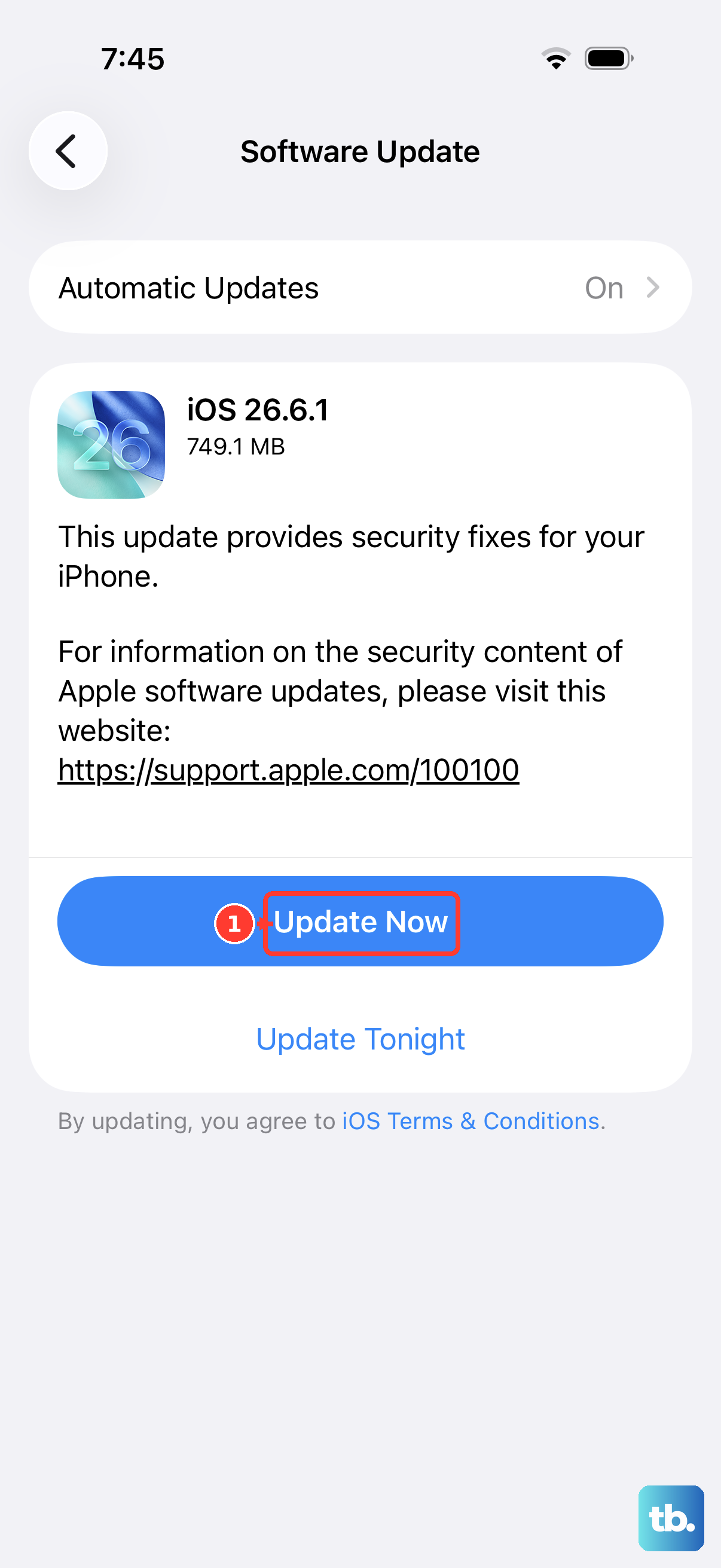
Check your iPhone 13 for software updates. Updates can include bug fixes, so install the latest version of iOS available for your phone. Back up your phone before updating.
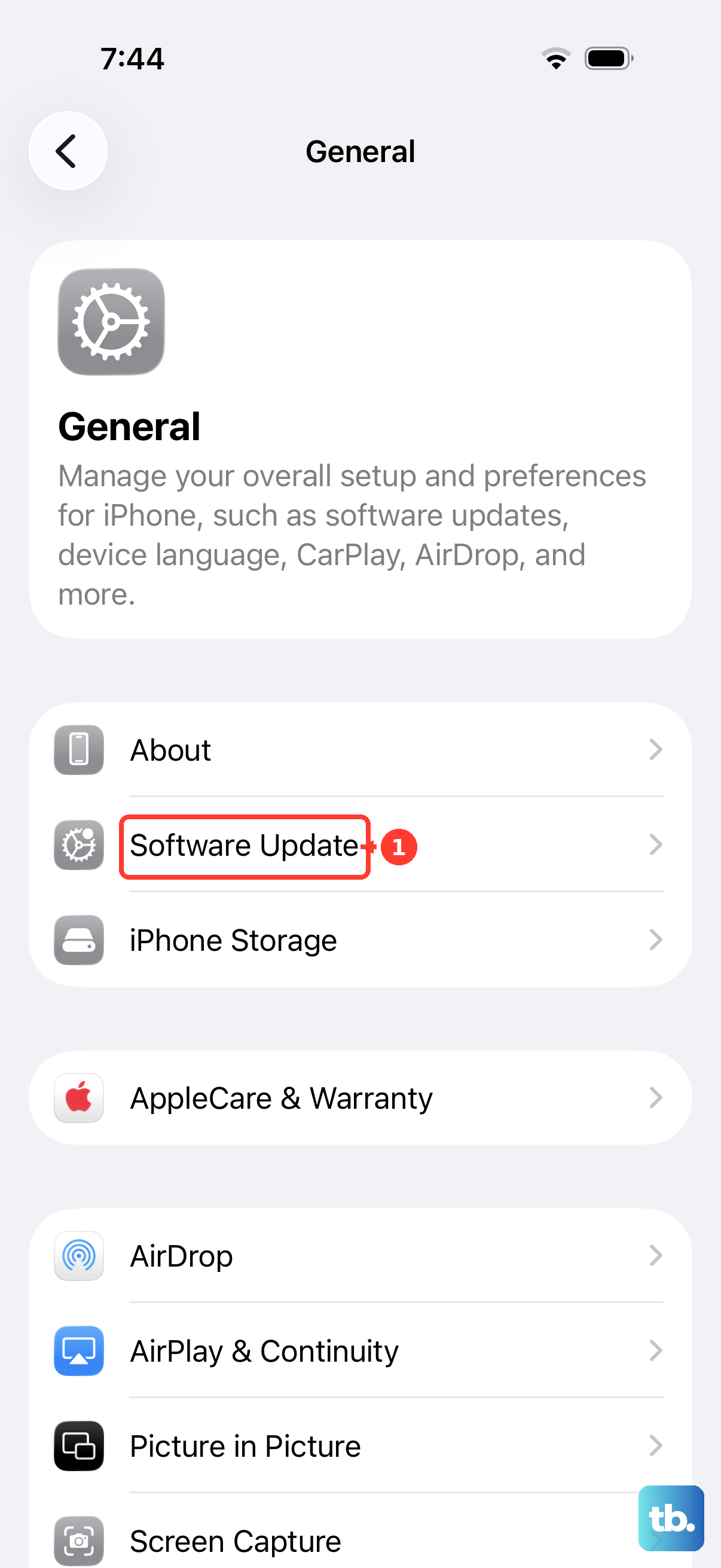
Plug your phone into power and connect to Wi-Fi. Go to Settings > General > Software Update. If an update is available, download and install it. This process can take a while, so be patient.
Reset All Settings
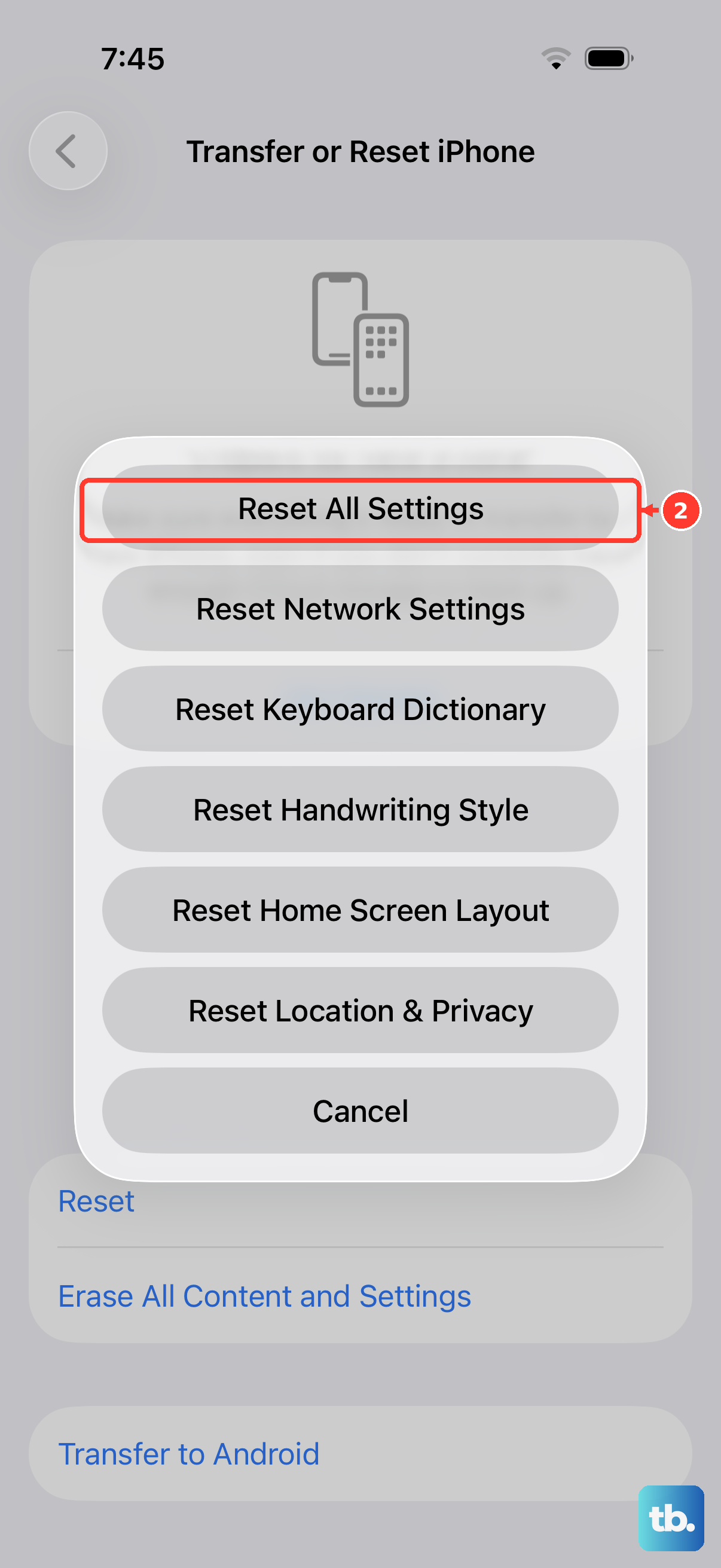
If you're still stuck, a reset of all settings can clear out corrupted preferences without erasing your personal data like photos and messages. You will have to rejoin Wi-Fi, re-pair Bluetooth devices and any Apple Watch, set up Face ID again, and reconfigure your preferences.
Go to Settings > General > Transfer or Reset iPhone. Tap Reset and then choose Reset All Settings. Enter your passcode and confirm. After your phone restarts, test the volume buttons.
Consider a Repair
If the volume buttons still aren't working, arrange an iPhone repair. A button that is damaged or only works intermittently also needs attention. On-screen volume controls can help you adjust the sound while you arrange service.
Before arranging the repair, check once more that no case or protective film is blocking either button. Look for dirt around the edges and clean it with a soft cloth. If those checks don't help, have the buttons inspected rather than trying to clear the Lightning port or replacing the battery to fix them.