
When your iPhone 13 suddenly goes silent, it can feel like you're holding a very expensive paperweight. Whether it's calls, videos, or notifications, losing sound is a major disruption. The good news is that some audio problems on the iPhone 13 come from software glitches or settings that you can check yourself.
It is worth confirming the basics with a quick left and right speaker test. If neither channel plays a tone, continue checking your sound settings and speaker openings.
Start with a force restart. A simple force restart can clear out temporary software bugs that might be muting your phone. It's the equivalent of giving your iPhone a fresh start without losing any data.
Force Restart Your iPhone 13
This is different from a normal restart and can help with temporary software issues. Here's the exact sequence for the iPhone 13: quickly press and release the Volume Up button, then quickly press and release the Volume Down button. Finally, press and hold the Side button (the one on the right) until you see the Apple logo appear, then let go.
Wait for your phone to boot back up and then test your sound by playing a video or receiving a notification. If that didn't work, continue with the checks below.
Check the Physical Mute Switch and Volume
It sounds obvious, but the mute switch is worth checking. Look at the left side of your iPhone 13, above the volume buttons. If you see a little orange strip next to the mute switch, your phone is silenced. Flip that switch forward so the orange is no longer visible.
Next, press the Volume Up button on the left side a few times while playing a video. To check ringtone volume, go to Settings > Sounds & Haptics and drag the ringer volume slider back and forth. Remove your case and check whether it is pressing the volume buttons or blocking a speaker opening.
Disconnect All Bluetooth Accessories
Your iPhone 13 might be perfectly fine, but it's sending all audio to a paired Bluetooth device like headphones, a speaker, or your car. To check, swipe down from the top-right corner to open Control Center.
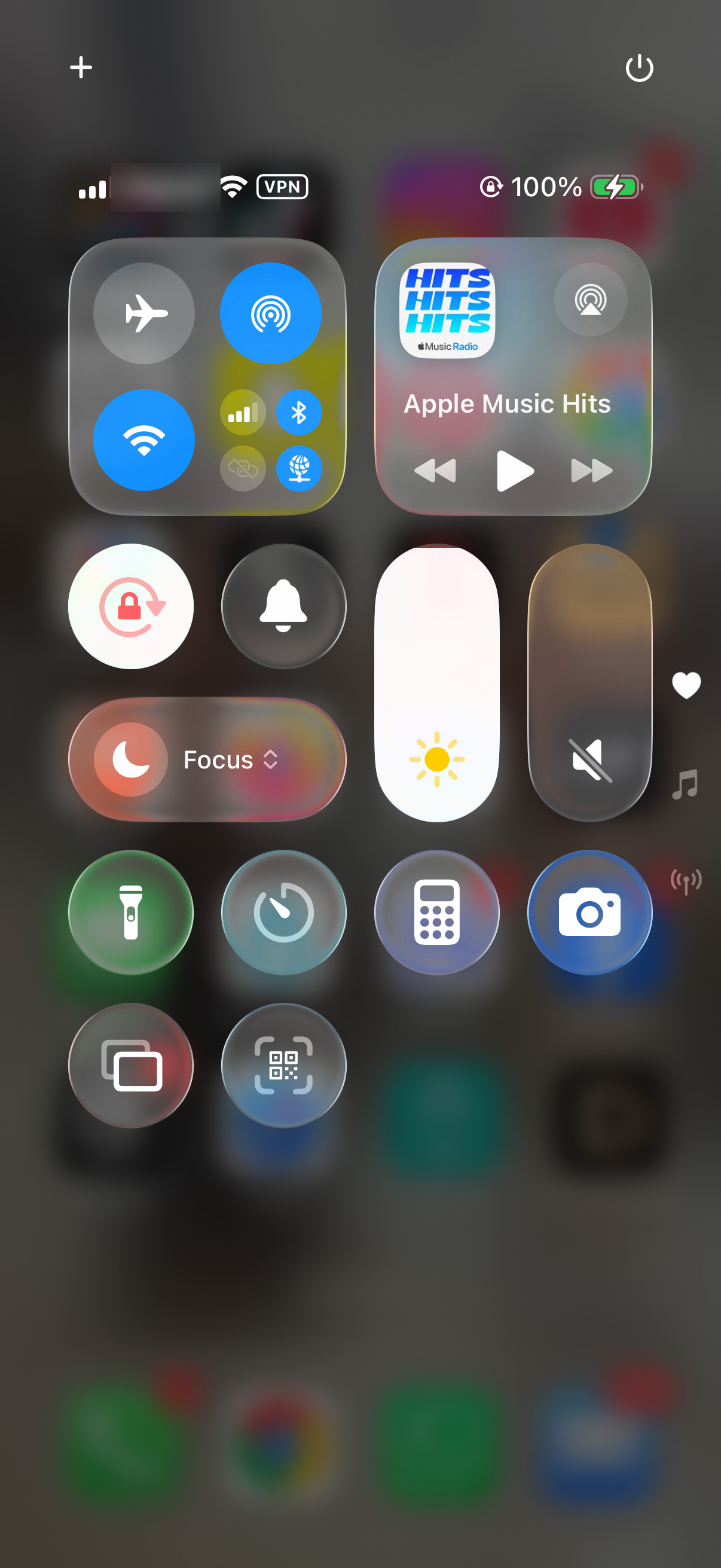
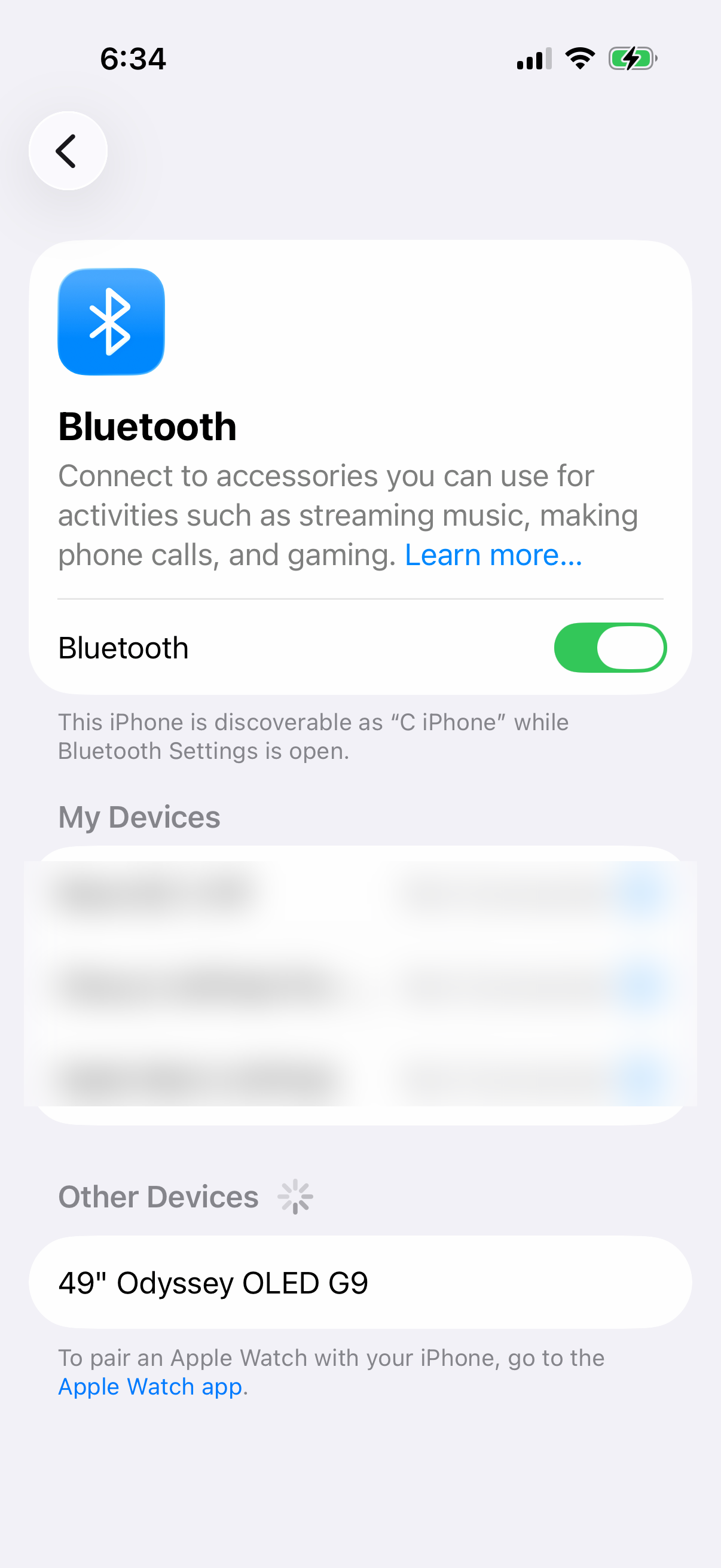
Tap the AirPlay button in the audio controls and select your iPhone as the playback destination. You can also go to Settings > Bluetooth and toggle it off entirely to rule it out.
Check Do Not Disturb and Focus Modes
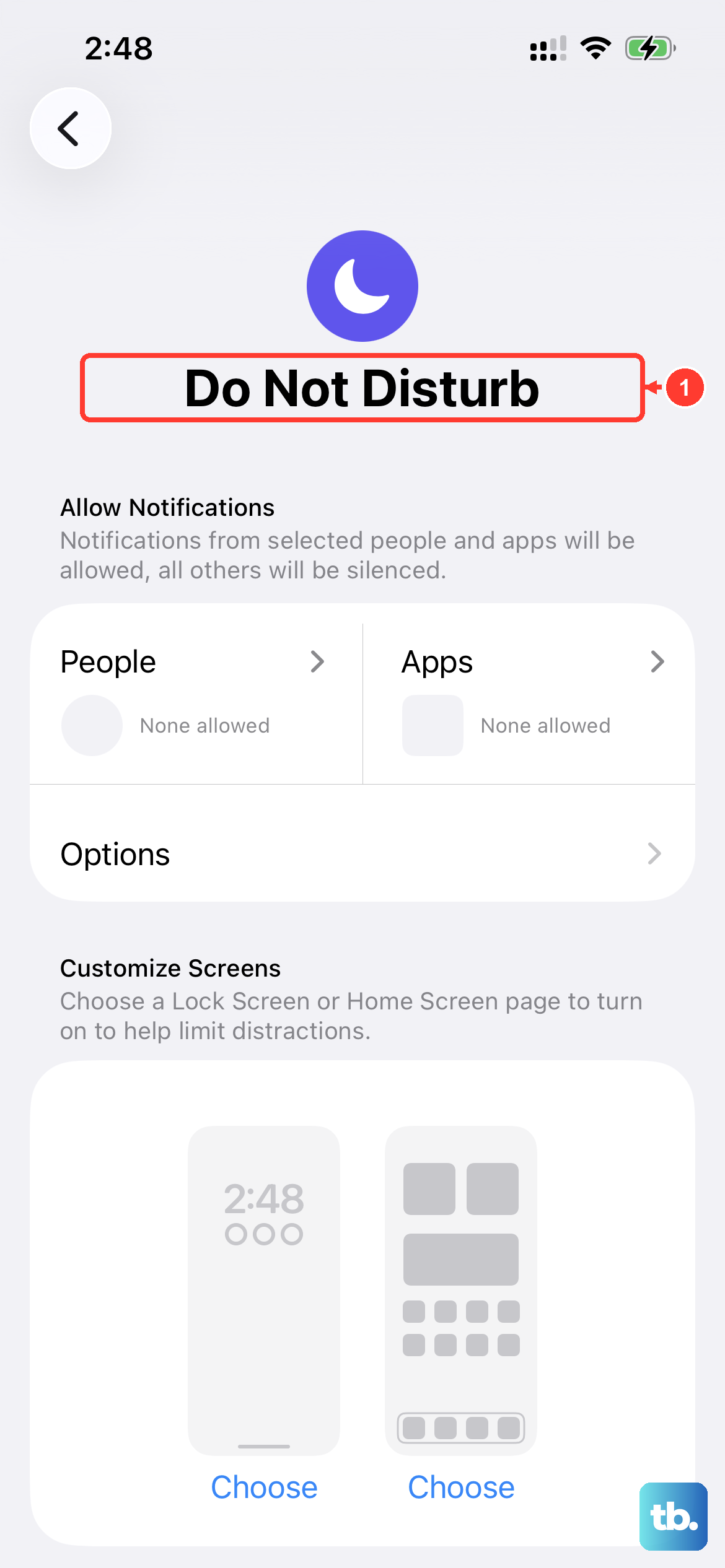
Focus modes, like Do Not Disturb, can silence calls and notifications. You might have set one and forgotten. Open Control Center by swiping down from the top-right.
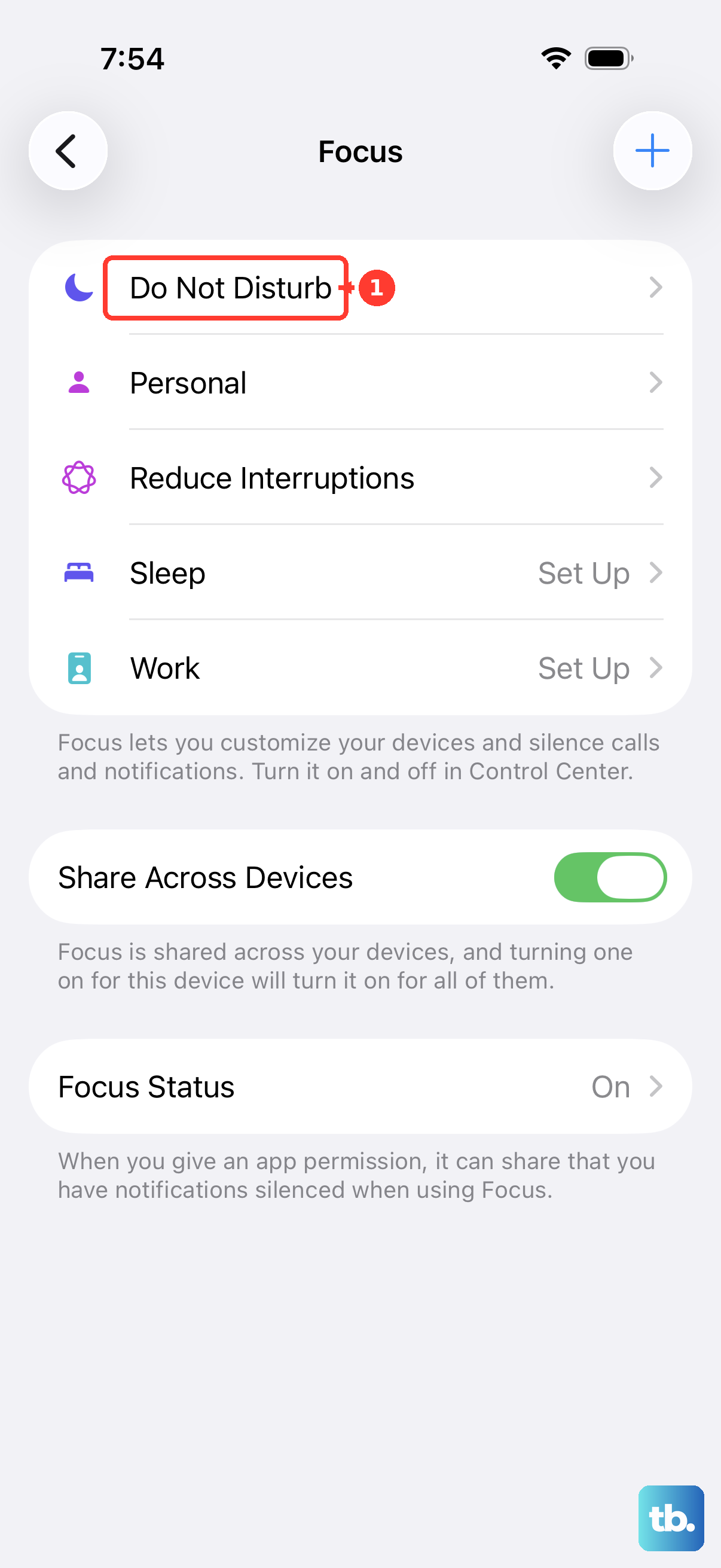
Tap the Focus icon (it looks like a crescent moon for Do Not Disturb). Make sure no Focus mode is active, or tap to turn it off. For a deeper check, go to Settings > Focus and review your scheduled and active modes.
Clean the Speaker Grilles
The iPhone 13 has speaker grilles at the bottom and in the earpiece at the top. Over time, pocket lint, dust, or debris can get packed in there and muffle the sound. Grab a soft, dry, clean-bristled toothbrush or a new, dry makeup brush.
Gently brush across the grilles to dislodge any gunk. Use only a small, soft-bristled brush that is clean and dry, and avoid getting moisture in the openings. Never use anything sharp like a paperclip, as you'll push debris further in or damage the speakers.
Review Sound Settings in Accessibility
iOS has some powerful accessibility features that can affect audio. Go to Settings > Accessibility > Audio & Visual. First, make sure the balance slider in the middle of the screen is set directly in the center.
You can also turn on "Mono Audio" to make the left and right speakers play the same content. If the problem is with supported Apple or Beats headphones, tap "Headphone Accommodations" to adjust soft sounds and frequencies for your hearing needs.
Check for a Stuck or Buggy App
If the sound is only missing from one app, like YouTube or Spotify, the problem is likely with that app, not your phone. First, force close the problematic app. Swipe up from the bottom of the screen and pause in the middle to see your open apps.
Swipe up on the app's preview to close it. Then, reopen it and test the sound. If that fails, check the App Store for any updates for that specific app, as developers often release bug fixes.
Update to the Latest Version of iOS
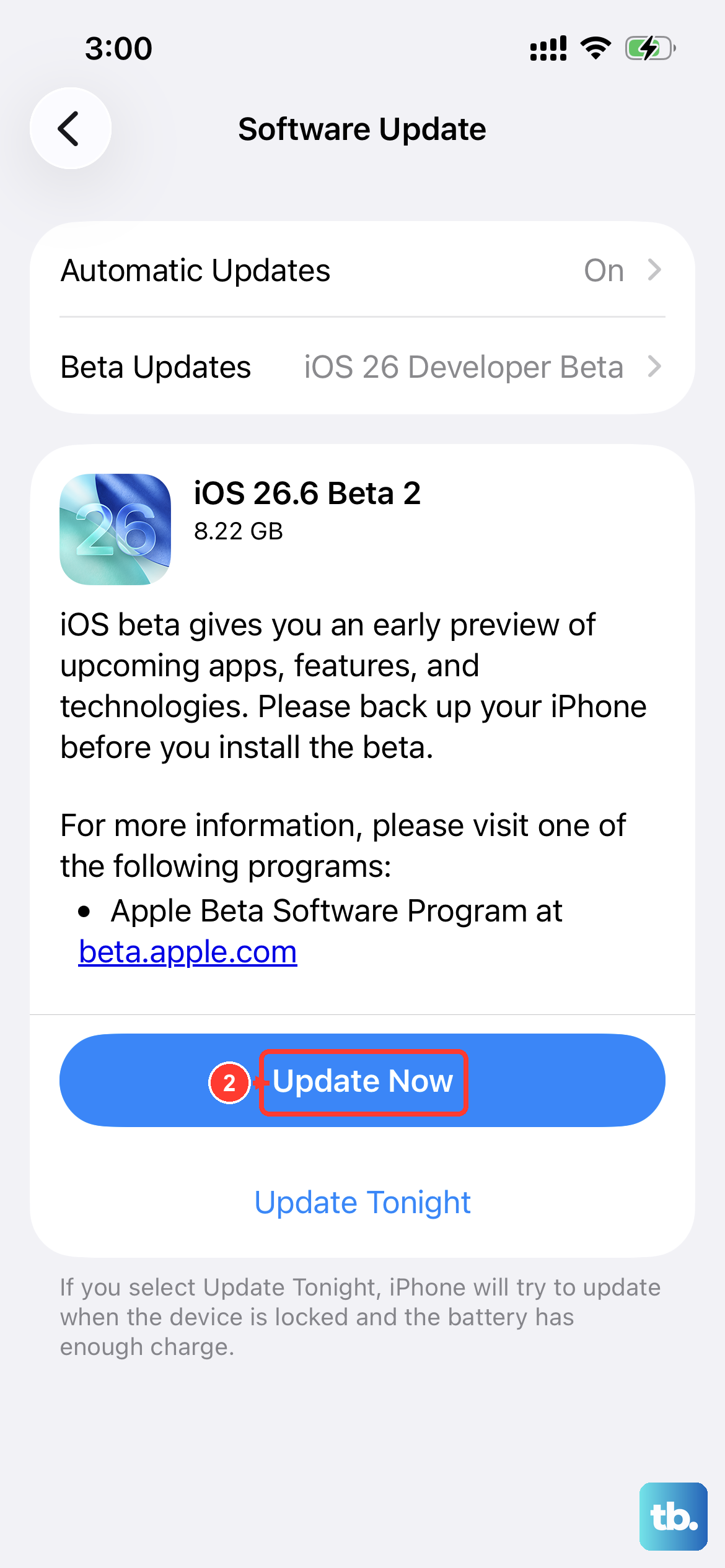
iOS updates include bug fixes. Make sure you have the latest version installed. Go to Settings > General > Software Update.
If an update is available, tap "Download and Install." Back up your iPhone first, then do this while connected to Wi-Fi and with your phone plugged into power using a reliable Lightning cable.
Reset All Settings
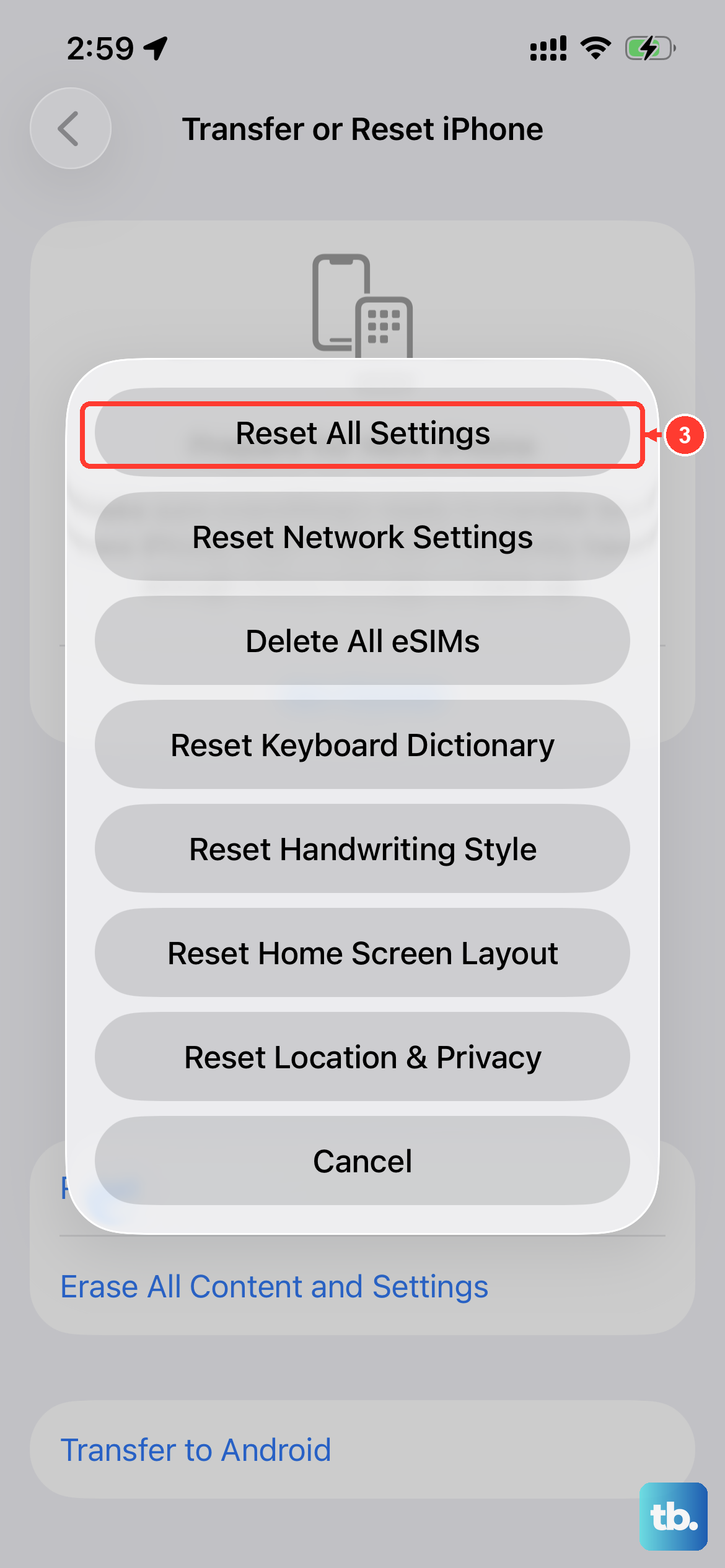
If you've tried everything and sound is still broken, this step can help. It resets all your preferences, like Wi-Fi passwords, wallpaper, and privacy settings, back to factory defaults without deleting any of your photos, messages, or apps.
Go to Settings > General > Transfer or Reset iPhone. Tap "Reset" at the bottom, then choose "Reset All Settings." You'll need to enter your passcode and confirm. Your phone will restart, and you'll have to reconfigure things like Face ID and Apple Pay, rejoin Wi-Fi networks, and pair Bluetooth devices and your Apple Watch again.