Your iPhone 13 still pulls in a strong signal at the top of the screen, but pages crawl, videos buffer, and app downloads seem to stall halfway. The phone looks connected, yet the internet feels stuck in slow motion whether you're on Wi-Fi or cellular data. The good news is that most of the causes are software or settings related, and you can work through them yourself in a few minutes.
The iPhone 13 is well equipped here. It supports 5G NR (both sub-6 GHz and mmWave), Gigabit LTE with 4x4 MIMO, and Wi-Fi 6 (802.11ax), so every speed-focused fix below applies directly to your model. Start with the quickest, safest steps at the top, and only move toward the resets and support contact at the bottom if the easy fixes don't help.
Refresh the Connection With Airplane Mode
The fastest thing to try is forcing your iPhone 13 to drop and rebuild its wireless connections. Airplane Mode turns off all radios except for Bluetooth, so flipping it on and off makes the phone re-establish both its Wi-Fi and cellular links, which often clears a slow or stuck connection.
- 1.Open Control Center by swiping down from the top-right corner of the screen.
- 2.Tap the Airplane Mode button to turn it on.
- 3.Wait a few seconds.
- 4.Tap the Airplane Mode button again to turn it off.
Give the phone a moment to reconnect to Wi-Fi or your carrier after you turn Airplane Mode off. If the slowdown was caused by a temporary handoff glitch, this single step can restore normal speeds.
Restart or Force Restart Your iPhone 13
A simple restart clears the temporary glitches that can bog down a connection. Power the phone off and back on, then test your speed again on the same network.
If your iPhone 13 has become unresponsive and won't restart normally, you can force restart it instead. This is the correct sequence for an iPhone with Face ID like the 13.
- 1.Press and quickly release the volume up button.
- 2.Press and quickly release the volume down button.
- 3.Press and hold the side button until you see the Apple logo (this might take longer than 10 seconds).
Once the Apple logo appears, you can release the side button and let the phone boot normally.
Check Your Wi-Fi and Restart the Router
If you're on Wi-Fi, confirm the iPhone is actually joined to the right network. Open the Settings app, tap Wi-Fi, turn on Wi-Fi if necessary, and tap the network name to join; a blue checkmark next to the name confirms you're connected. While you're there, make sure Airplane Mode is off.
The slowdown may be coming from your home network rather than the phone. Restart your router and cable modem by unplugging the devices and then plugging them back in, and give them a couple of minutes to come fully online. If your router supports separate frequencies, try joining the 5 GHz band instead of 2.4 GHz, which generally delivers faster speeds.
One more clue is worth checking. If other devices on the same network are also crawling, the problem may be a service outage rather than your iPhone, and waiting it out or contacting your provider is the right move.
Wait It Out or Move When the Signal Is Weak
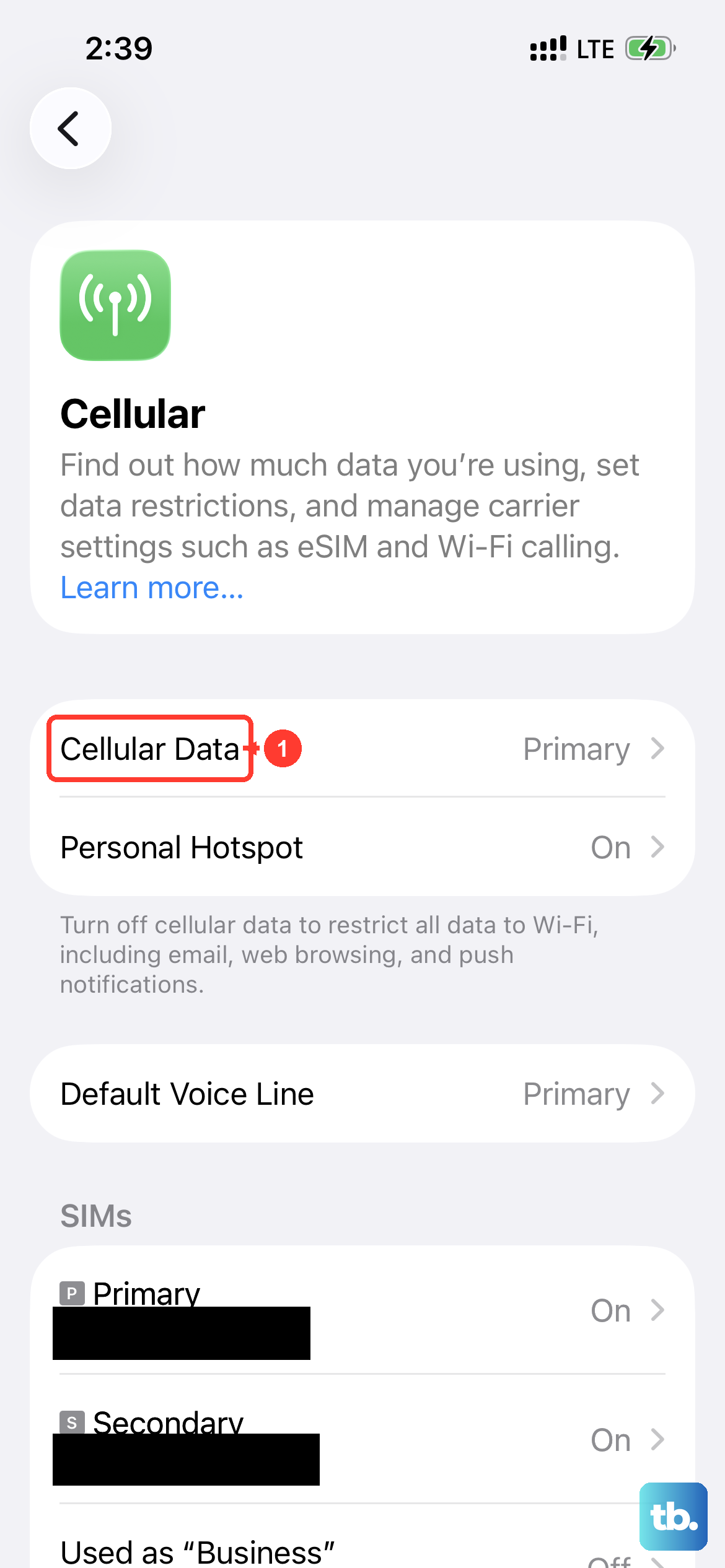
Slow performance can happen because of network congestion or because your iPhone is reconnecting to cell towers while you move around. Even when the signal bars look strong, you might still need to wait a moment, try a different location, or switch over to Wi-Fi to get usable speeds.
Pay attention to whether the slowdown follows you everywhere or only shows up in certain spots. If cellular data issues persist across multiple locations, that points to a carrier-side problem, and you should contact your carrier rather than keep reconfiguring the phone.
Turn Off Low Data Mode
Low Data Mode is designed to conserve data, but it does so by pausing automatic updates and background tasks and reducing streaming quality, all of which can make the internet feel slow. If it's switched on, turning it off may immediately improve how things load.
To turn it off for cellular, go to Settings, tap Cellular, tap Cellular Data Options, and turn Low Data Mode off. On 5G, the setting lives under Data Mode in the same menu. To turn it off for Wi-Fi, go to Settings, tap Wi-Fi, tap the Info button next to the network you're connected to, and turn off Low Data Mode.
Adjust Your 5G and LTE Setting
Because the iPhone 13 is an iPhone 12-and-later model, you can control how it chooses between 5G and LTE. Go to Settings, tap Cellular, tap Cellular Data Options, tap Voice and Data, then pick the option that fits your area.
- 5G On always uses 5G when it's available, though it might reduce battery life.
- 5G Auto (Smart Data mode) lets the iPhone switch to LTE when 5G isn't noticeably better.
- LTE uses only LTE even when 5G is available.
If 5G is unreliable where you are, switching to LTE can actually give you a more stable connection than a flaky 5G signal. For higher-quality streaming when you do have solid 5G, you can open Data Mode in the same menu and choose Allow More Data on 5G.
Free Up Storage Space
When internal storage gets too full, the whole device, including how quickly things load, can start to drag. Apple advises maintaining at least 1 GB of free space to avoid slowdowns, so clearing some room is worth doing.
You have two ways to reclaim space in Settings. You can offload an app, which frees up the storage used by the app but keeps its documents and data, or you can delete apps you no longer need outright. Offloading is the gentler option if you think you'll reinstall the app later.
Update to the Latest iOS
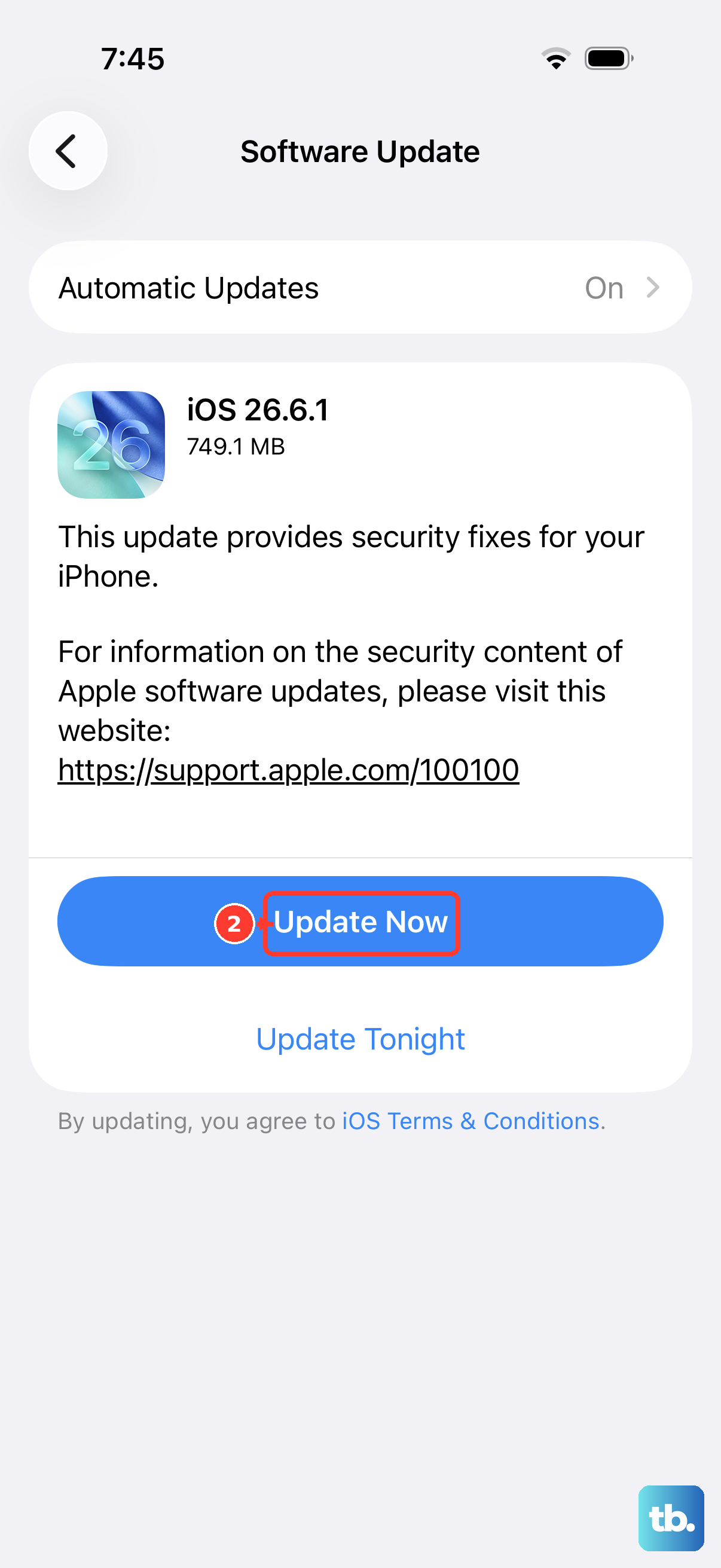
Keeping iOS current can resolve bugs that affect performance and connectivity, and your iPhone 13 is supported all the way up to iOS 26. An update is a low-effort step that sometimes fixes network issues introduced by an older software version.
Before you start, back up your device using iCloud or your computer, then plug your device into power and connect to the internet with Wi-Fi. Once it's ready, go to Settings, tap General, tap Software Update, and tap Download and Install.
Reset Network Settings
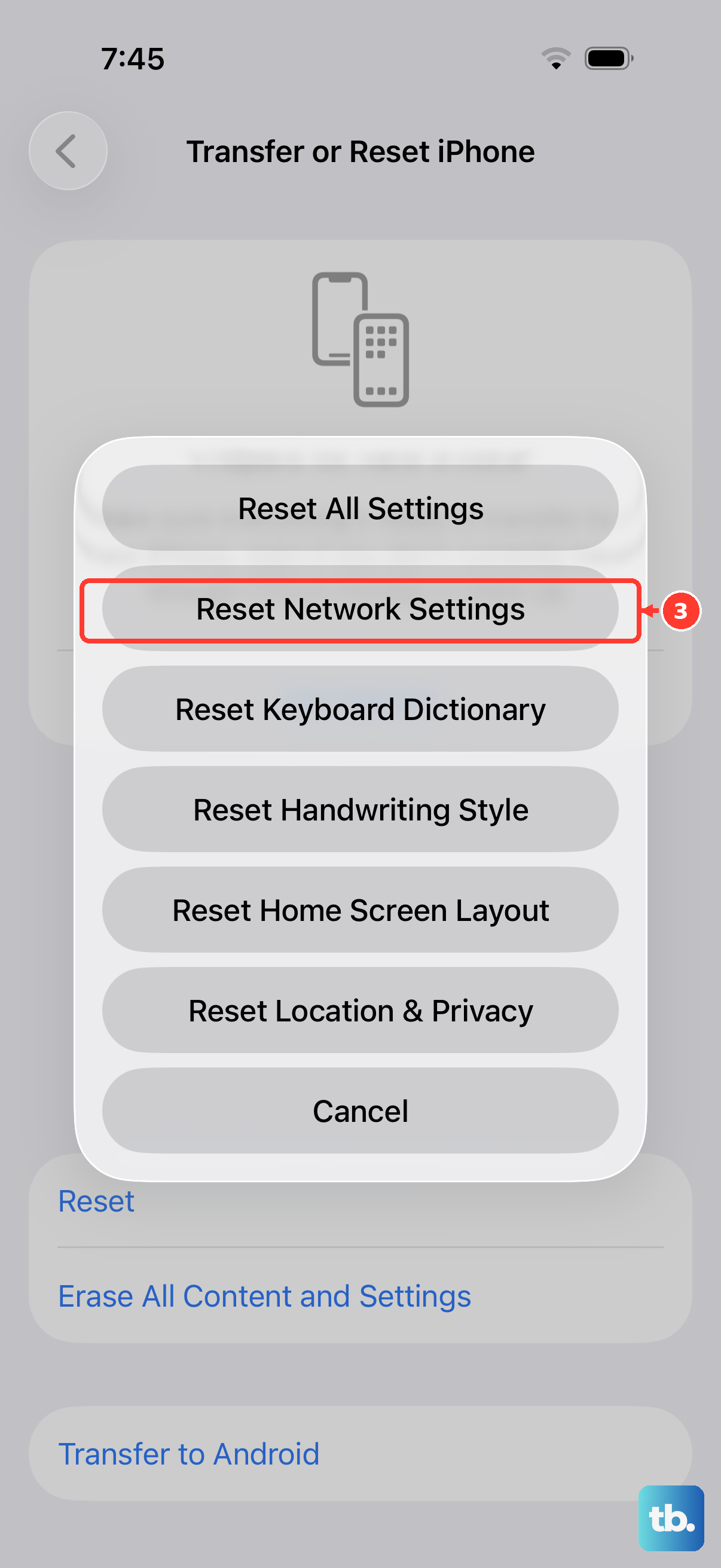
If Wi-Fi and cellular problems persist after everything above, resetting the network configuration gives you a clean slate without erasing your personal data. Use this only after the simpler fixes have failed.
Go to Settings, tap General, tap Transfer or Reset iPhone, tap Reset, then tap Reset Network Settings. This resets all Wi-Fi networks and passwords, cellular settings, and VPN and APN settings, so be ready to re-enter your Wi-Fi passwords afterward. Once it finishes, rejoin your network and test the speed again.
Erase All Content and Settings, Then Contact Support
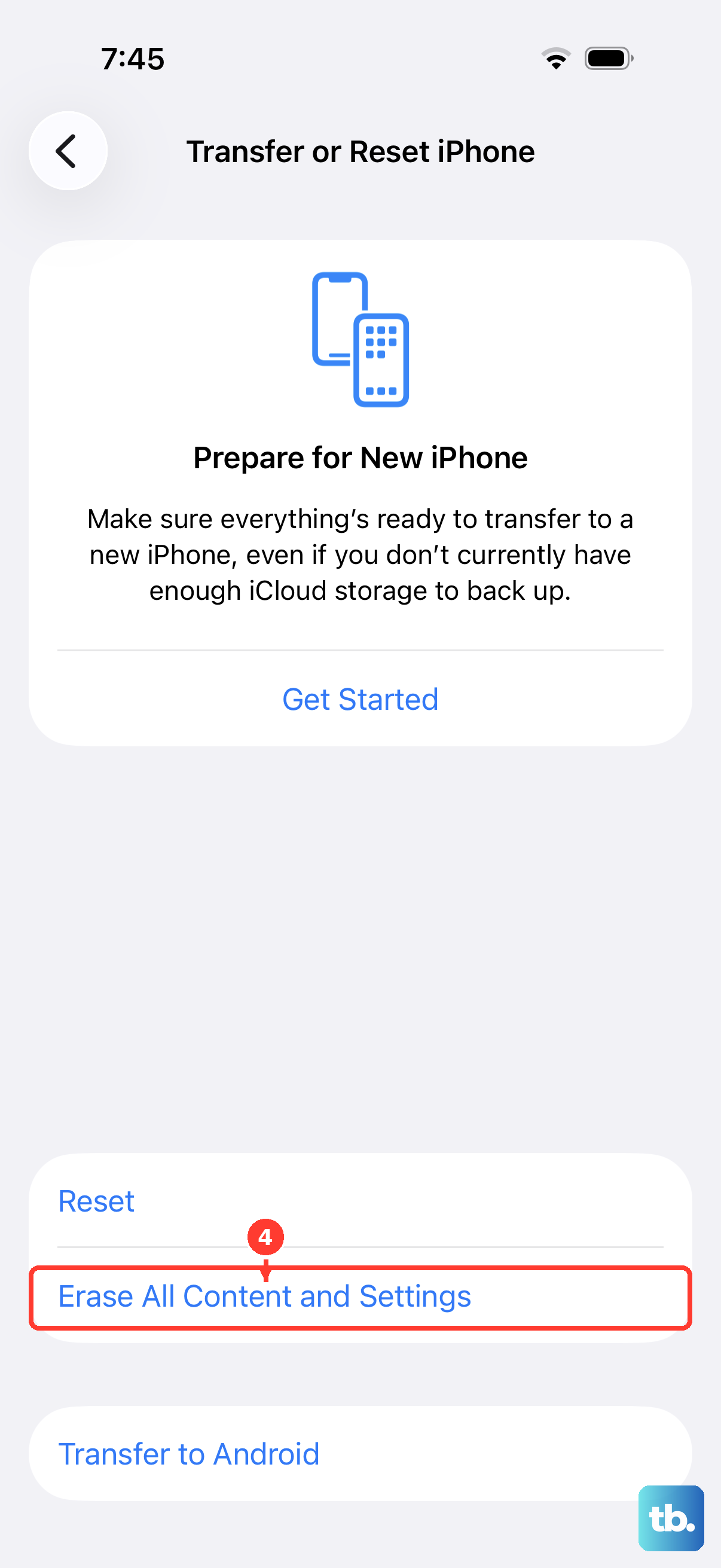
When nothing else has worked, a full reset is the final software step. This one is destructive, so treat it carefully. Erase All Content and Settings completely erases the device, including Apple Pay cards, photos, contacts, music, and apps, so you must create a backup first.
Once you've backed up, go to Settings, tap General, tap Transfer or Reset iPhone, then tap Erase All Content and Settings to wipe the phone and set it up fresh. If the slow internet continues even after a clean setup, the issue likely lies with your carrier or the hardware rather than your settings, so contact your carrier or Apple Support to investigate further.
Frequently Asked Questions
Will toggling Airplane Mode delete anything on my iPhone 13?
No. Turning Airplane Mode on and off only switches the wireless radios off and back on (it turns off all radios except for Bluetooth) to refresh your connection. It does not touch your photos, apps, messages, or any other data.
Does resetting Network Settings erase my photos and apps?
No. Reset Network Settings only clears your Wi-Fi networks and passwords, cellular settings, and VPN and APN settings. Your personal data stays intact, but you will need to re-enter saved Wi-Fi passwords afterward.
Should I use 5G On or LTE for faster internet on my iPhone 13?
It depends on your coverage. Choose 5G On to always use 5G when it's available, or LTE if 5G is unreliable in your area, since a stable LTE connection can outperform a weak 5G one. 5G Auto (Smart Data mode) is a middle ground that switches to LTE when 5G isn't noticeably better.
Why is my iPhone 13 internet slow even with full signal bars?
A strong signal doesn't guarantee fast speeds. Slow performance can come from network congestion, your iPhone reconnecting to cell towers as you move, Low Data Mode restricting background activity, or a problem with your router or carrier. Working through the steps above helps you narrow down the cause.
What should I do if the internet is still slow after a factory reset?
If a clean Erase All Content and Settings doesn't fix it, the problem is most likely outside the phone's settings, pointing to your carrier or the hardware. At that point, contact your carrier or Apple Support so they can check your account, your area's coverage, or the device itself.