
Missing calls on your iPhone 13 can be incredibly annoying, especially when you see the missed notification pop up. The phone is right there, but it never made a sound. This can come down to a setting that got changed or a software issue.
Start by checking whether a Focus mode is silencing calls. Swipe down from the top-right corner to open Control Center and look for the Focus icon, which looks like a crescent moon or another symbol like a person or a bed. If it's highlighted, tap it to turn that Focus mode off.
Also, check the physical switch on the left side of your iPhone 13. If you see an orange strip, the phone is in silent mode. Flip the switch toward the screen so the orange is no longer visible.
Check Your Focus and Do Not Disturb Settings
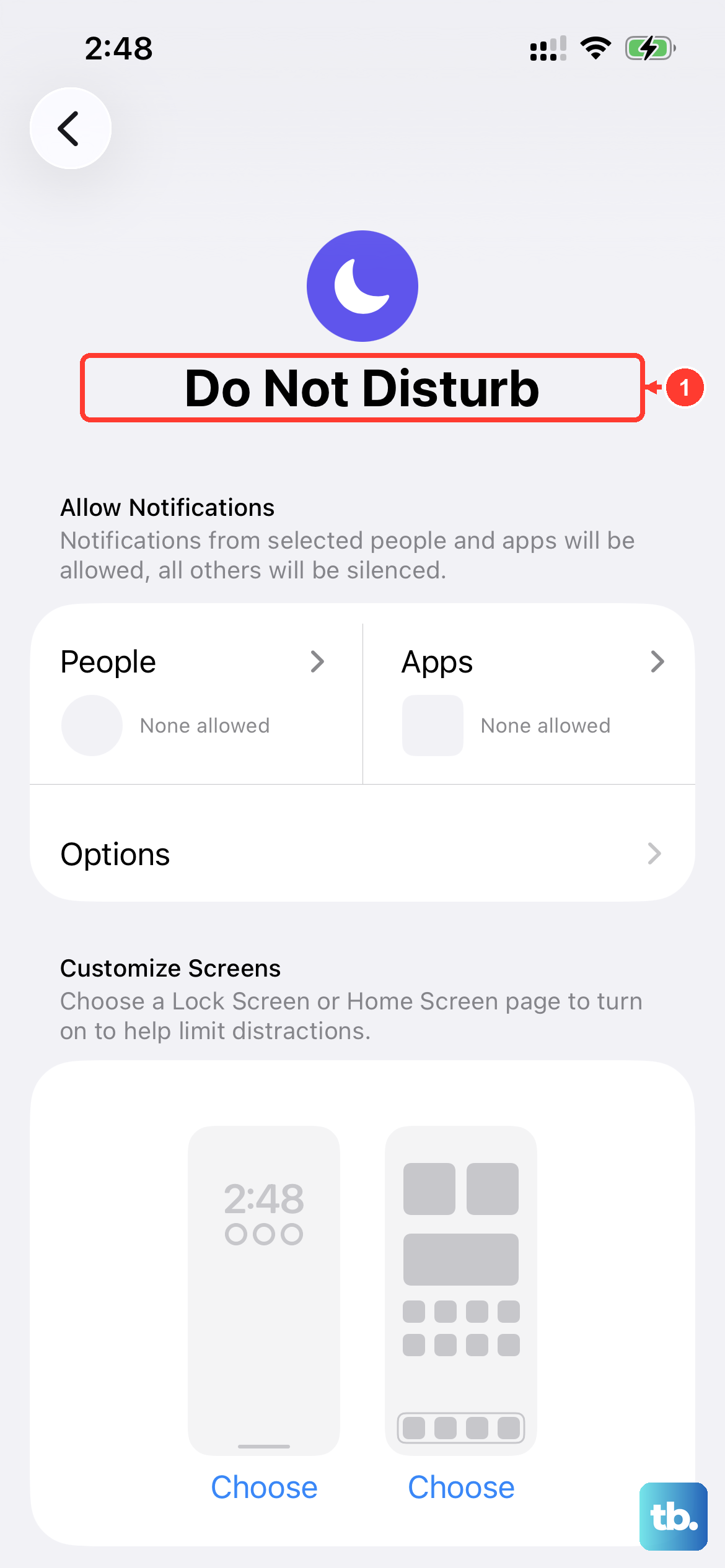
Focus modes are powerful for managing notifications, but they can easily silence calls if you forget they're on. Beyond the Control Center, you should check your scheduled Focus times.
Go to Settings > Focus. Here, you'll see all your Focus profiles like Do Not Disturb, Sleep, and Personal. Turn off any active Focus using its icon in Control Center. Then tap Do Not Disturb in Settings and scroll down to "Set a Schedule" to check for any active schedules to turn off. Disabling any automatic triggers here can prevent future surprises.
Adjust Your Ringer Volume and Sound
Your ringer volume is separate from your media volume. The side buttons can adjust it when "Change with Buttons" is on and you're not playing media or on a call. Use Settings to check the ringer volume directly.
For more precise control, go to Settings > Sounds & Haptics. Drag the ringer volume slider to the right. While you're here, tap on "Ringtone" and try selecting a different tone. If moving the slider produces no sound, your speaker might need service.
Also, ensure "Change with Buttons" is turned off. This keeps the side buttons from changing your ringer volume, so you can set it separately in Settings.
Review Call Blocking and Forwarding
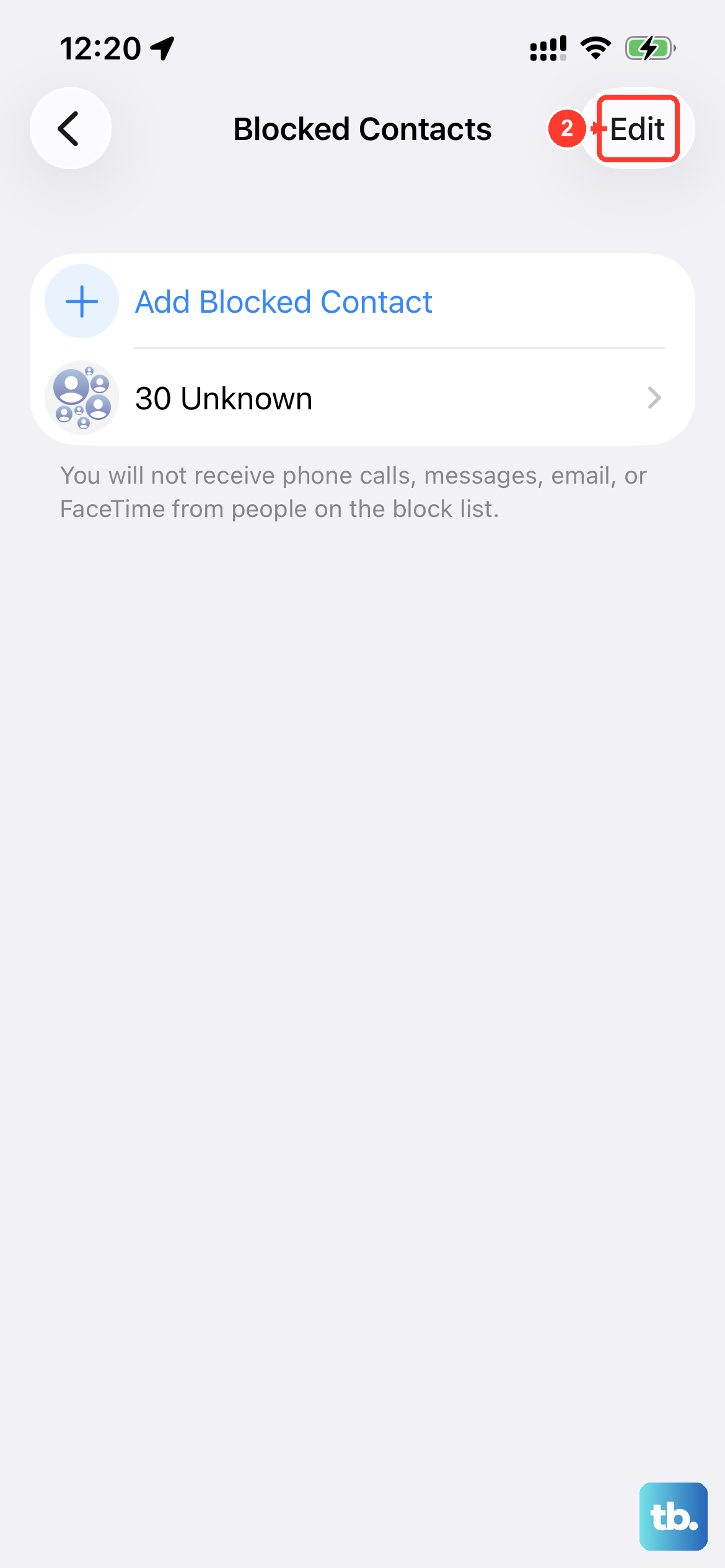
Two settings can redirect calls before your phone ever gets a chance to ring. First, check if you've accidentally blocked the caller. Go to Settings > Apps > Phone > Blocked Contacts and review the list.
Second, call forwarding might be enabled. Go to Settings > Apps > Phone > Call Forwarding and make sure the toggle is off. If it's on, all your calls are being sent to another number.
There's also a setting called Screen Unknown Callers in Settings > Apps > Phone. Selecting "Silence" sends calls from unsaved numbers to voicemail, while "Ask Reason for Calling" screens them before your phone rings. If you're expecting a call from a new doctor's office or delivery person, select "Never" so unsaved numbers ring normally.
Disconnect Bluetooth Accessories
When your iPhone 13 is connected to a Bluetooth device like AirPods, a car stereo, or a speaker, call audio may play through that accessory. Disconnect the accessory temporarily and try a test call to check whether it affects the sound you hear.
Open Control Center by swiping down from the top-right. Tap the Bluetooth icon to disconnect accessories. To turn Bluetooth fully off, go to Settings > Bluetooth and toggle it off there. Try a test call with Bluetooth disabled to see if the ring returns.
Restart and Update Your iPhone 13
A simple force restart can clear out temporary glitches affecting the sound. On the iPhone 13, you press and quickly release the volume up button, press and quickly release the volume down button, then press and hold the side button until you see the Apple logo appear.
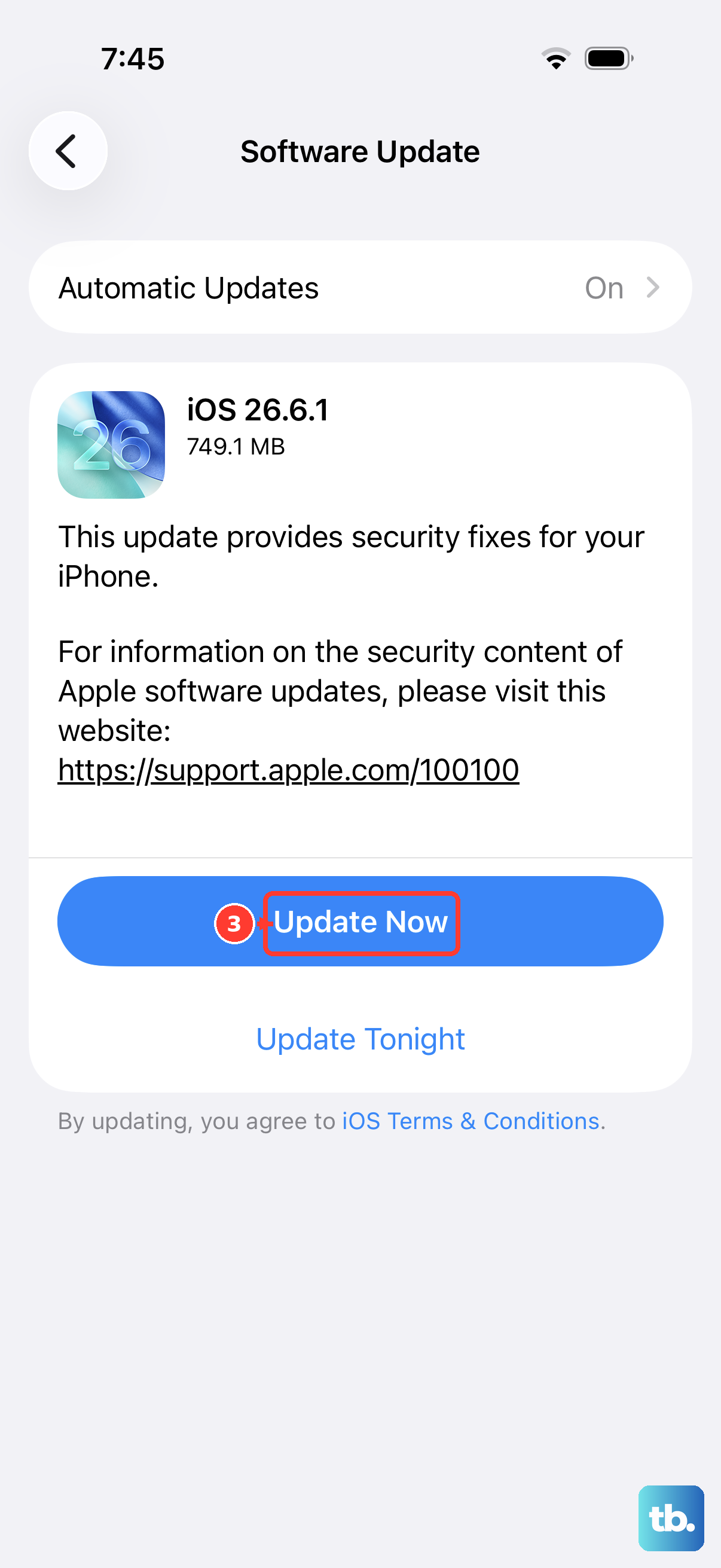
After restarting, check for a software update. Keeping iOS up to date can help with calling problems. Go to Settings > General > Software Update. If an update is available, plug your phone into power using a reliable Lightning cable and connect to WiFi to install it.
Reset Relevant Settings
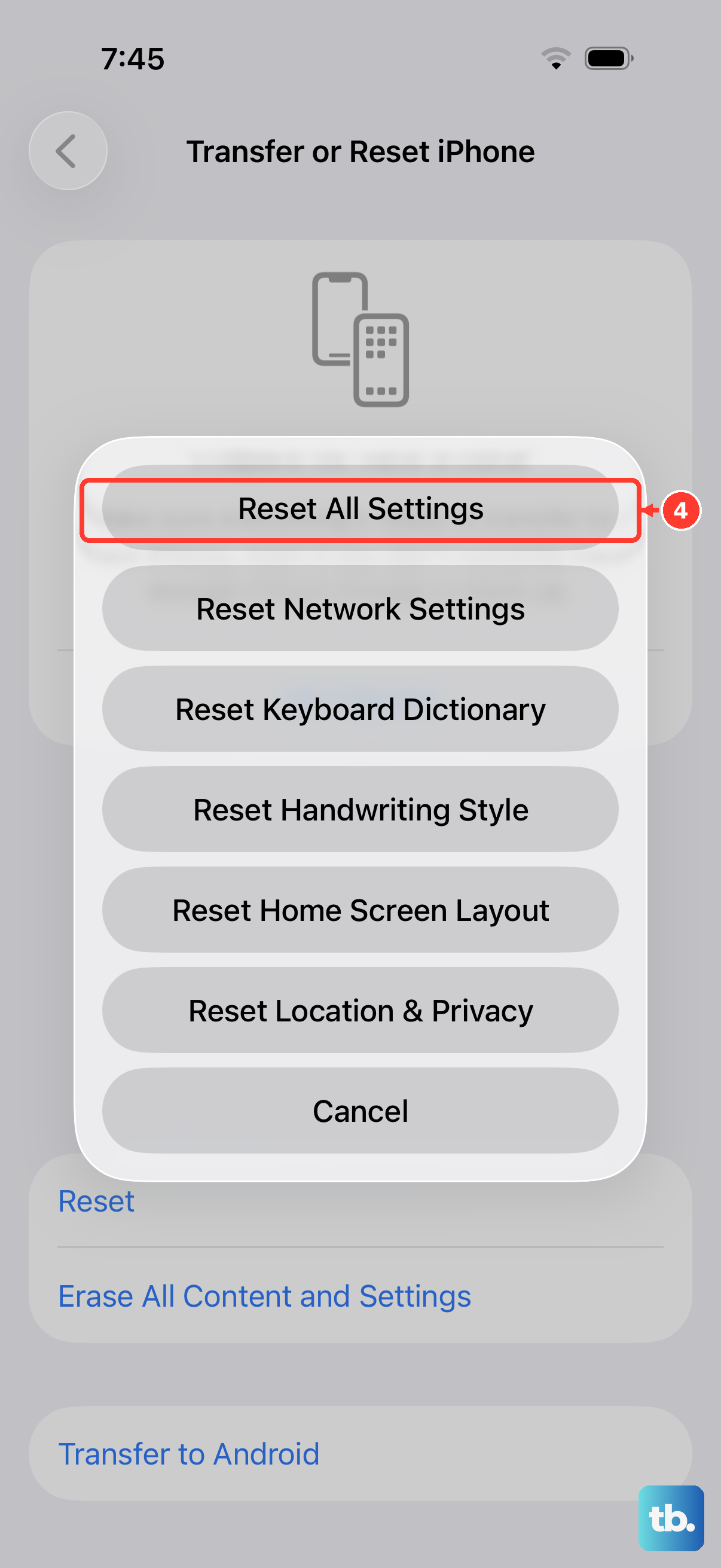
If the problem persists, you can reset specific settings without losing your data. A good place to start is resetting all settings. This will revert your sound, network, and privacy settings back to default but won't touch your photos or apps.
Go to Settings > General > Transfer or Reset iPhone > Reset. Then tap "Reset All Settings". You'll need to enter your passcode. Afterward, you'll have to reconfigure things like WiFi passwords and wallpaper, set up Face ID again, and re-pair Bluetooth devices and any Apple Watch. Apple Pay cards are also removed.
If other fixes fail and calls still aren't coming through, try "Reset Network Settings" from the same menu. This clears your WiFi networks and passwords, cellular settings, and VPN and APN configurations.
Check for App-Specific Notification Issues
If your iPhone 13 rings for regular phone calls but not for calls from apps like WhatsApp, Messenger, or Telegram, the problem may be with that app's notification settings. Open Settings > Apps and select the problematic app.
Tap on it, then select "Notifications". Make sure "Allow Notifications" is turned on. For calling apps, it's also crucial that the "Sounds" toggle is enabled. Sometimes, reinstalling the app can refresh its connection to the notification system.
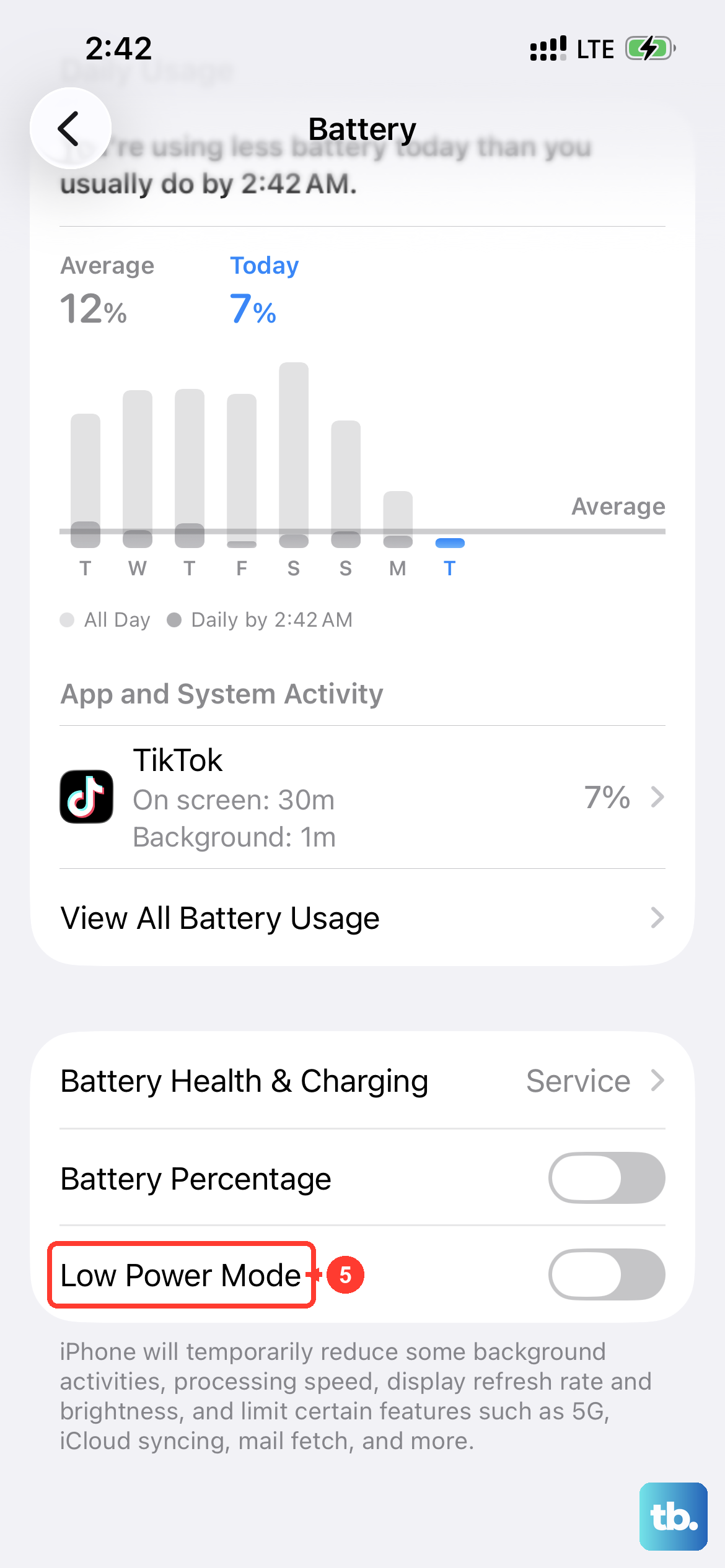
Also, check whether Low Power Mode is on, since it turns off Background App Refresh. Look for the yellow battery icon in your status bar or go to Settings > Battery and turn Low Power Mode off while testing the app.