
Missing calls on your iPhone 13 can be a real headache, especially when you're expecting something important. The issue can pop up for a bunch of reasons, from a simple Focus mode you forgot about to a deeper software hiccup. Let's walk through the most effective fixes, starting with the quick ones you should try right away.
First, give your phone a quick restart. Press and release the Volume Up button, then press and release the Volume Down button, and finally press and hold the Side button until you see the Apple logo. This force restart can clear out temporary glitches that might be interfering with calls.
Also, check your cellular signal. If you only have one or two bars, you might be in a dead zone. Try moving to a different location or going near a window. While you're at it, swipe down from the top-right corner to open Control Center and make sure Airplane Mode is off. Toggling it on and off can also give your cellular connection a fresh start.
Check Your Focus and Do Not Disturb Modes
This is one of the most common culprits. With iOS, the old Do Not Disturb has been integrated into Focus modes. If you have a Focus like Work, Sleep, or Personal turned on, it might be silencing calls from everyone or allowing only specific contacts through.
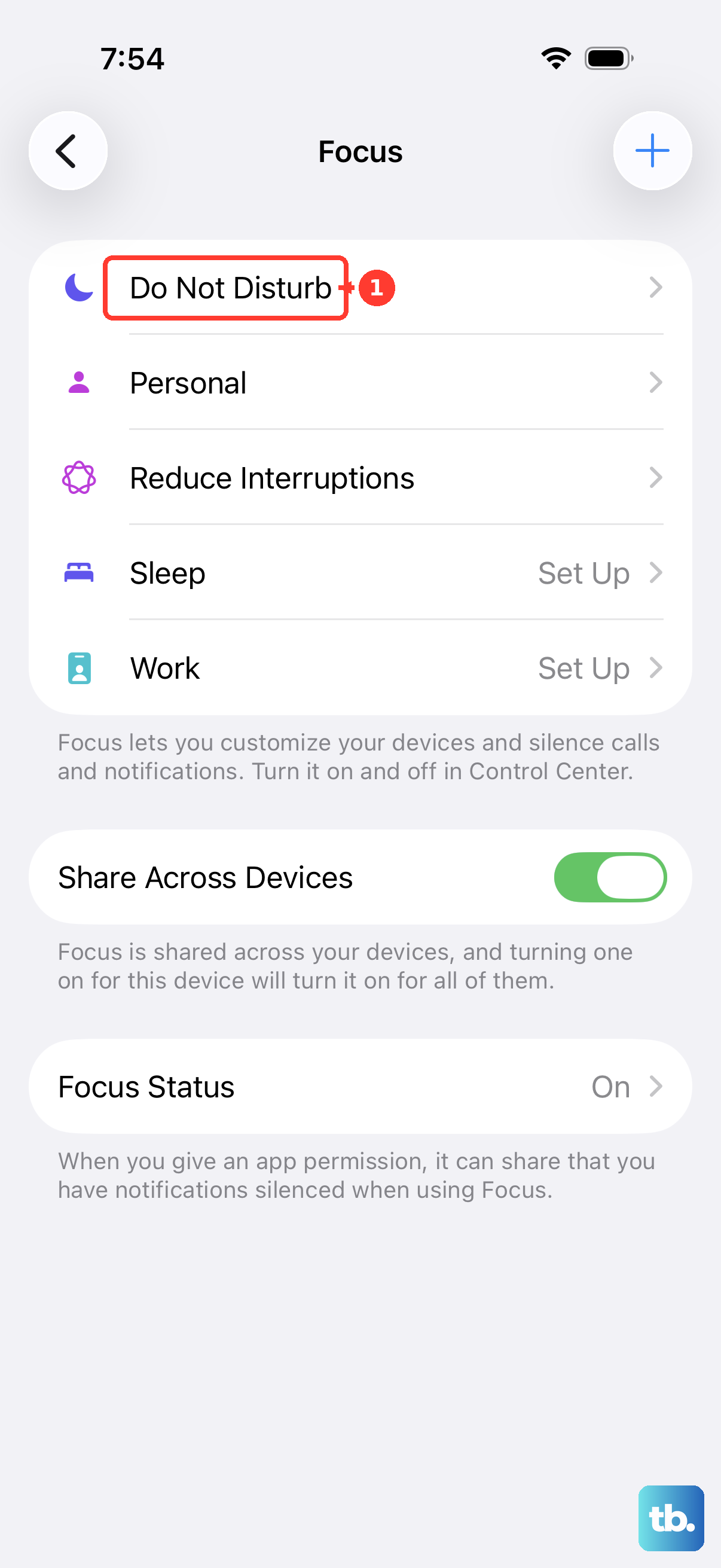
Go to Settings > Focus. Look at the list and see if any are enabled (they'll be highlighted). You can tap on each one to review its settings. Under the "Allowed Notifications" section, make sure "Calls" is set to "Allow from Everyone" or at least from the people you need to hear from.
You can also quickly check and toggle Focus modes from the Control Center. Just tap the Focus icon to see which one is active and turn it off. I've seen this fix the problem more times than I can count.
Review Your Blocked Contacts List
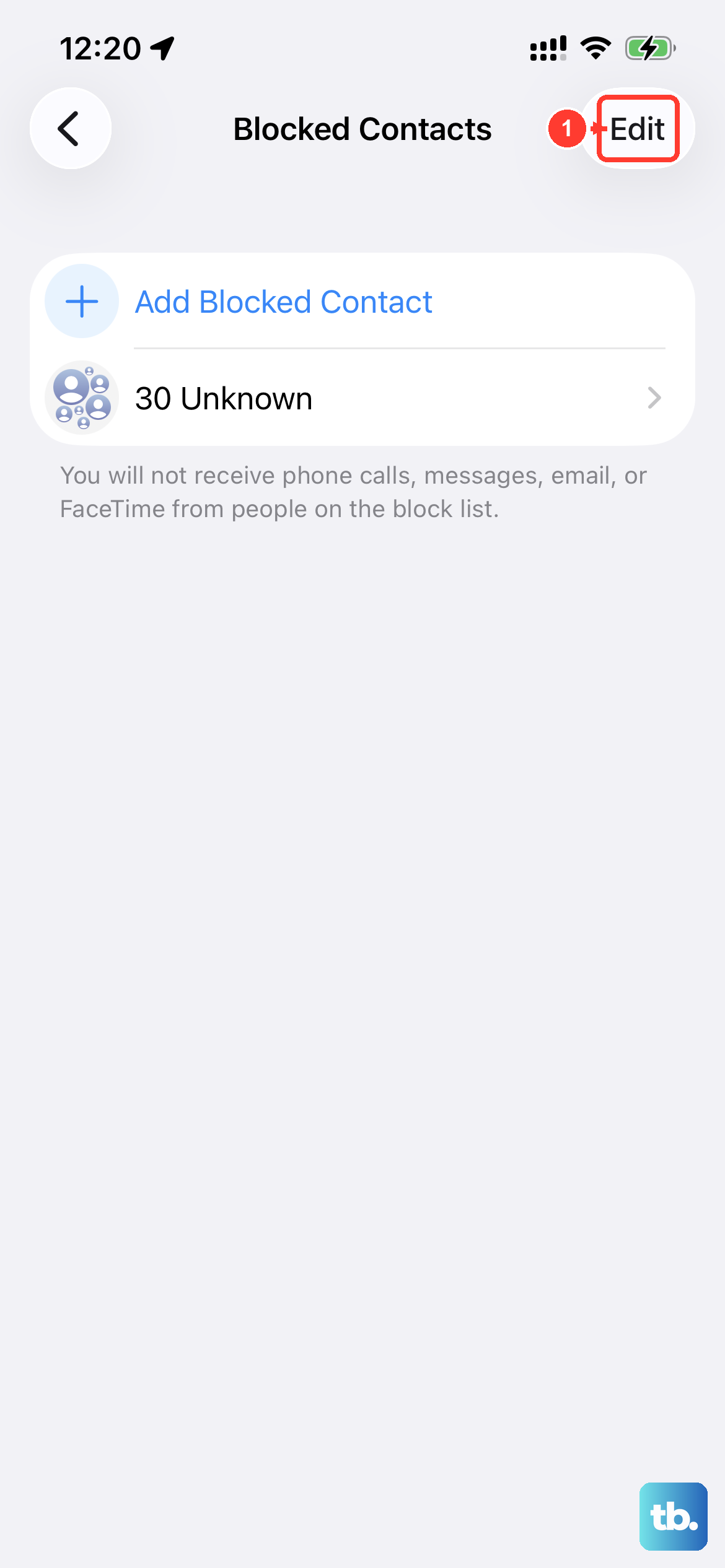
It's possible a number got added to your blocked list by accident, or you blocked a spam call and forgot about it. Your iPhone 13 won't ring or show a missed call notification for blocked numbers.
To check, head to Settings > Apps > Phone > Blocked Contacts. You'll see a list of all the numbers you've blocked. If you spot one that shouldn't be there, swipe left on it and tap "Unblock." This takes effect immediately.
Disable Call Silencing and Announce Calls
There are a couple of features designed to minimize interruptions that might be working a little too well. First, check the Silence Unknown Callers setting. When this is on, calls from numbers not in your contacts, Mail, or Messages go straight to voicemail without ringing.
You can find this in Settings > Apps > Phone. Scroll down and look for "Silence Unknown Callers." If it's green, tap the switch to turn it off. This is great for stopping spam, but it can also silence legitimate calls from doctors, schools, or delivery services.
Also, look at the "Announce Calls" setting right below it. If this is set to "Always" or "Headphones & Car," Siri will announce who's calling, which sometimes can cause a delay or issue with the ringtone playing properly. Try setting it to "Never" to see if that changes anything.
Update Your iPhone 13 to iOS 18
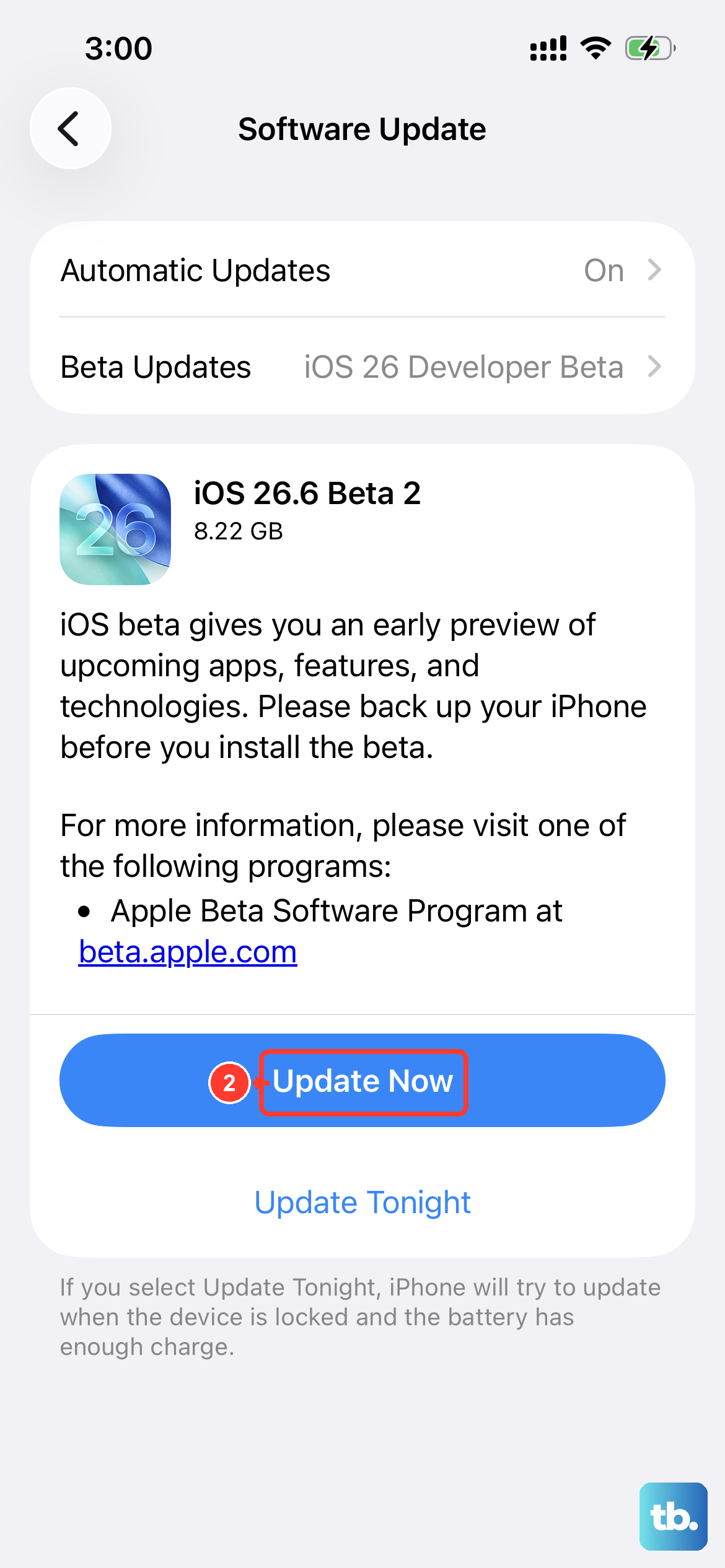
Software bugs can sometimes affect cellular and phone functions. Apple regularly releases updates that include fixes for these kinds of issues. Since your iPhone 13 can run iOS 26, it's important to stay current.
Open Settings > General > Software Update. Your phone will check for available updates. If you see one, tap "Download and Install." Make sure your phone is connected to Wi-Fi and has at least 50% battery, or plug it into its 20W charger. An update can resolve underlying problems you wouldn't be able to fix manually.
Reset All Network Settings
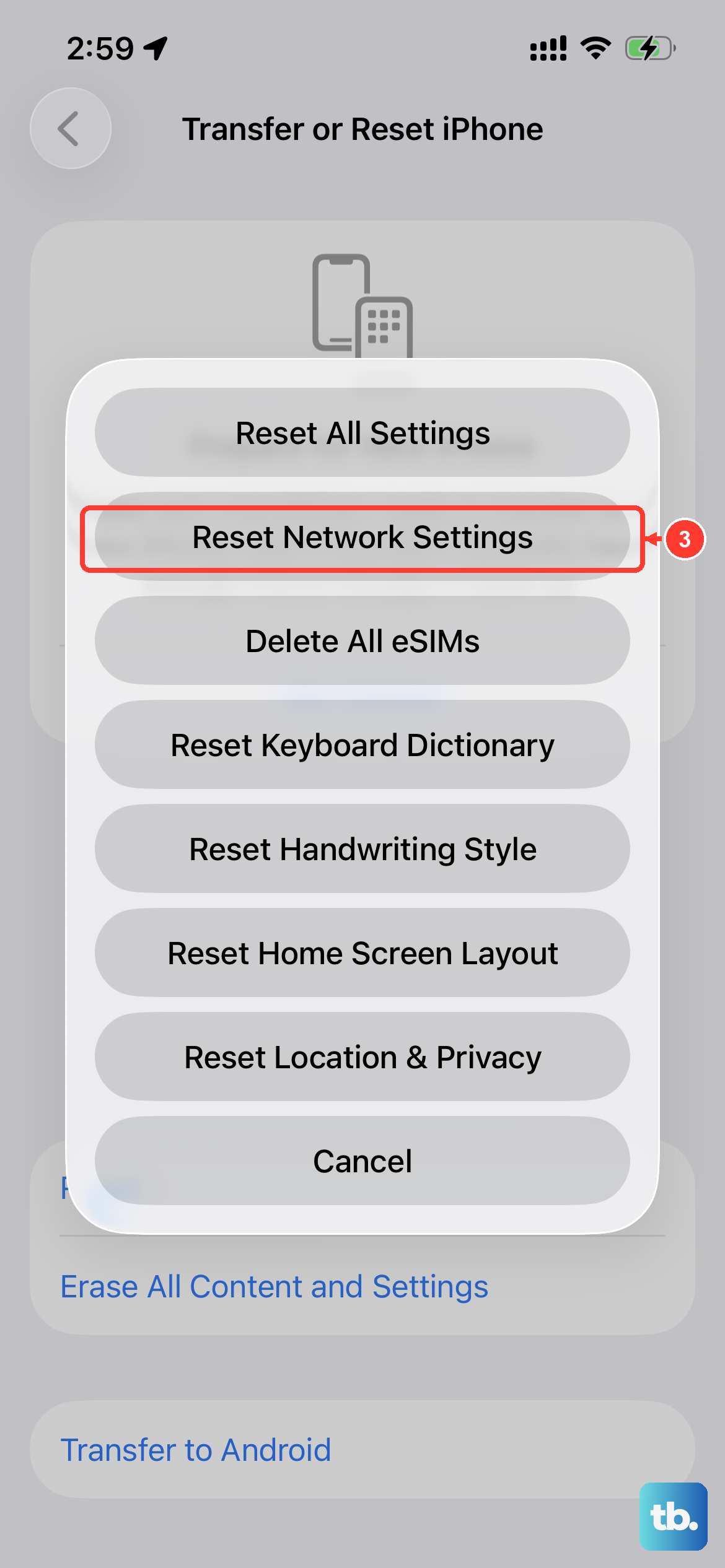
This step clears out all your network-related configurations, including Wi-Fi passwords, VPN settings, and cellular preferences. It's a powerful way to fix persistent calling and network issues without touching your personal data.
Go to Settings > General > Transfer or Reset iPhone. Tap "Reset" at the bottom, and then choose "Reset Network Settings." You'll need to enter your passcode to confirm. After the phone restarts, you'll have to reconnect to Wi-Fi networks and re-pair Bluetooth devices, but it often clears up stubborn call problems.
Check for a Carrier Settings Update
Your mobile carrier occasionally pushes small updates to your iPhone that improve network connectivity and performance. These updates happen automatically, but sometimes they need a prompt.
To check, go to Settings > General > About. If a carrier settings update is available, a pop-up message will appear on this screen asking you to update. You can also try turning Airplane Mode on for 30 seconds and then off again, as this can sometimes trigger the phone to check for the update.
Examine Your SIM Card
While less common on newer iPhones, a faulty or dirty SIM card can cause network instability. You'll need the SIM ejector tool that came with your iPhone 13 (or a small paperclip) to open the tray on the left side of the phone.
Gently remove the SIM tray and take out the card. Inspect the gold contacts for any visible dirt, dust, or damage. Give it a gentle wipe with a soft, dry cloth and then reinsert it, making sure it's seated correctly in the tray. Push the tray back in until it clicks. If you have access to another phone, you could test your SIM card in it to rule out a hardware issue with the card itself.
Turn Off Call Forwarding
If call forwarding is accidentally enabled on your line, all your calls are being sent to another number before your iPhone 13 even has a chance to ring. This is usually a carrier-level setting.
You can check by opening the Phone app and tapping the "Keypad" tab. Dial #21# and then tap the call button. This will run a quick status check and should show a message on screen telling you if call forwarding is active. To turn it off, you typically need to contact your carrier's customer support, as the deactivation code can vary.
Contact Your Wireless Carrier
If you've tried everything here and calls are still missing, the problem might be on your carrier's end. There could be an account issue, a network outage in your area, or a problem with your specific line.
Give them a call from another phone or use online chat support. Ask them to verify that your line is active and that there are no call blocking features enabled on your account. They can also run diagnostics on their side to see if your iPhone 13 is properly registering on their network. Sometimes, they can reprovision your line, which is like giving it a fresh start from their systems.