
Your iPhone 13 won't charge. You plug it in and nothing happens, or it sits stuck at 1%. In most cases you can fix this yourself without visiting a store.
Your Lightning port may seem dead, your MagSafe charger may not connect, or the phone may not respond at all. Whichever it is, the fixes below cover it. Start with the quickest ones.
Force Restart Your iPhone 13
Always try this first. A force restart clears temporary software glitches that can stop the phone from charging. It takes about 30 seconds.
Press and quickly release the Volume Up button. Then press and quickly release the Volume Down button. Finally, press and hold the Side button until the Apple logo appears.
Once it starts up, plug it in again. If the problem was a software hiccup, the charging indicator should appear.
Clean the Lightning Charging Port
A dirty port is one of the most common reasons an iPhone 13 won't charge. The Lightning port collects pocket lint and dust. Over time that debris gets packed in so tightly that the cable can't make a proper connection.
Shine a bright light into the port. If you see a mat of grey or black lint, that's the culprit. Turn the phone off first. Then gently scrape around the edges of the port with a wooden or plastic toothpick to loosen the lint and pull it out.
Don't use anything metal, like a paperclip, because it can damage the pins inside. Then plug the cable in firmly and check that it sits all the way in.
Check Your Cable, Adapter, and Power Source
Next, work out whether the problem is the phone, the cable or the power source. Check the cable and adapter for damage such as fraying, breaks or bent prongs, and stop using anything that's damaged. Try a different Lightning cable if you have one, either an original Apple cable or one with MFi (Made for iPhone) certification.
Damaged or uncertified accessories can cause charging problems and the "Accessory not supported" alert. Try a different wall adapter too. If you're charging from a computer's USB port, a USB hub or a car port, switch to a wall outlet, since those sources can charge more slowly.
Make sure the cable, adapter and outlet are firmly connected, or try a different outlet. Also take your iPhone out of its case, especially a thick or poorly fitting one that could stop the Lightning cable from seating fully.
Check Your Battery Health
Your iPhone 13 is several years old now, and all batteries lose capacity with age and use. A badly worn battery can cause charging problems and unexpected shutdowns.
Go to Settings > Battery > Battery Health & Charging and look at Maximum Capacity. Apple says batteries in iPhone 14 models and earlier are designed to keep 80% of their original capacity at 500 complete charge cycles under ideal conditions.
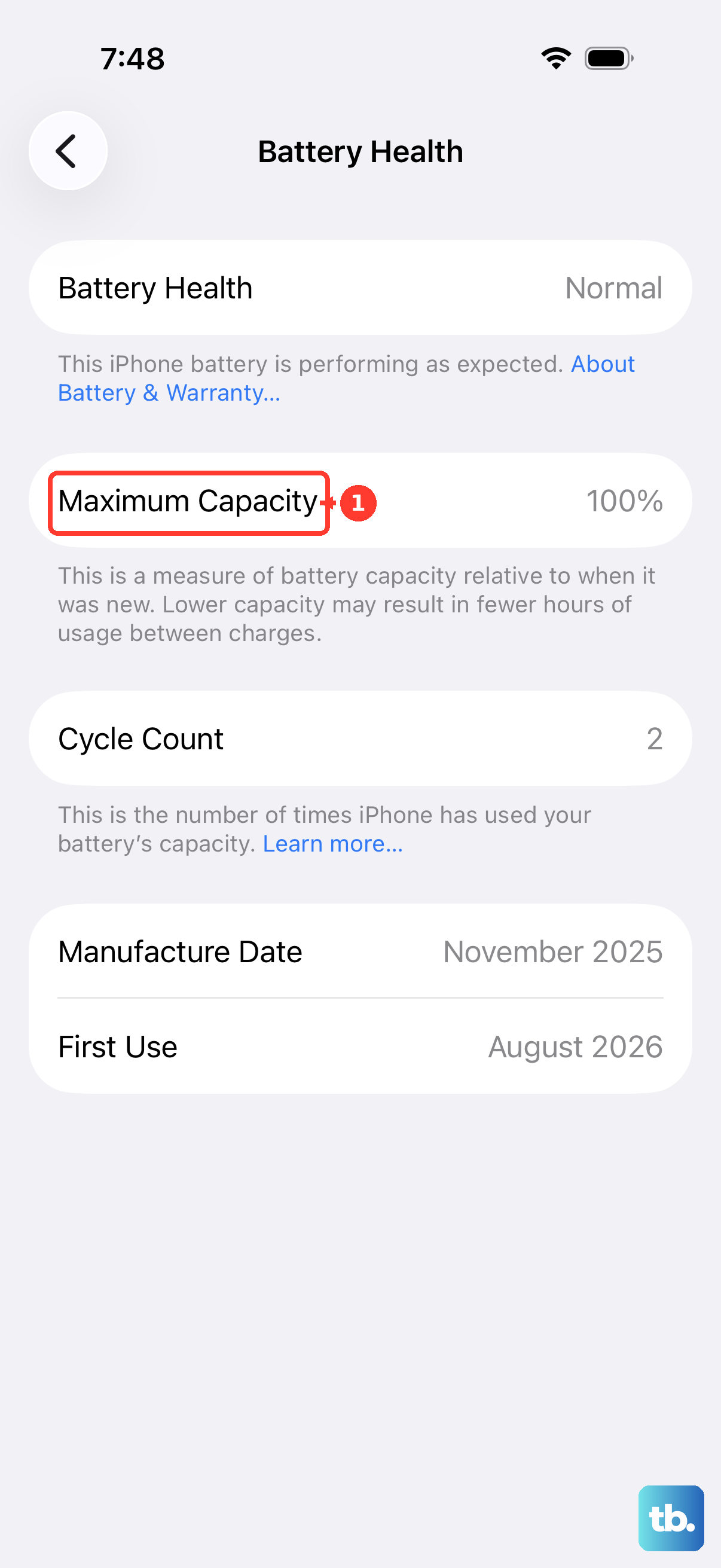
If your Maximum Capacity is around 80% or lower, or Battery Health shows a service message, the battery is worn and a replacement is worth considering. You can start a repair from Apple's iPhone repair page.
If your iPhone stops at 80% and won't go higher, the battery may be fine. Optimized Battery Charging can hold the charge at 80% until you need it, and the phone also limits charging above 80% when the battery gets too warm.
Try MagSafe or Qi Wireless Charging
If your Lightning port isn't working, your iPhone 13 can still charge wirelessly. This also helps you narrow down the problem. If the phone charges wirelessly but not with a cable, the Lightning port is almost certainly the cause.
Plug the MagSafe Charger into power before you place your iPhone on it. If you put the phone down first, lift it off, wait three seconds and put it back. To get up to 15W, use a 20W or higher USB-C power adapter (iPhone 13 mini tops out at 12W). Remove thick cases or cases with metal rings, and keep cards and key fobs out from between the phone and the charger.
All wireless charging produces some heat. If your iPhone gets too warm, it slows or pauses charging to protect the battery and resumes once it cools down. If this happens often, charge in a cooler spot.
Update to the Latest Version of iOS
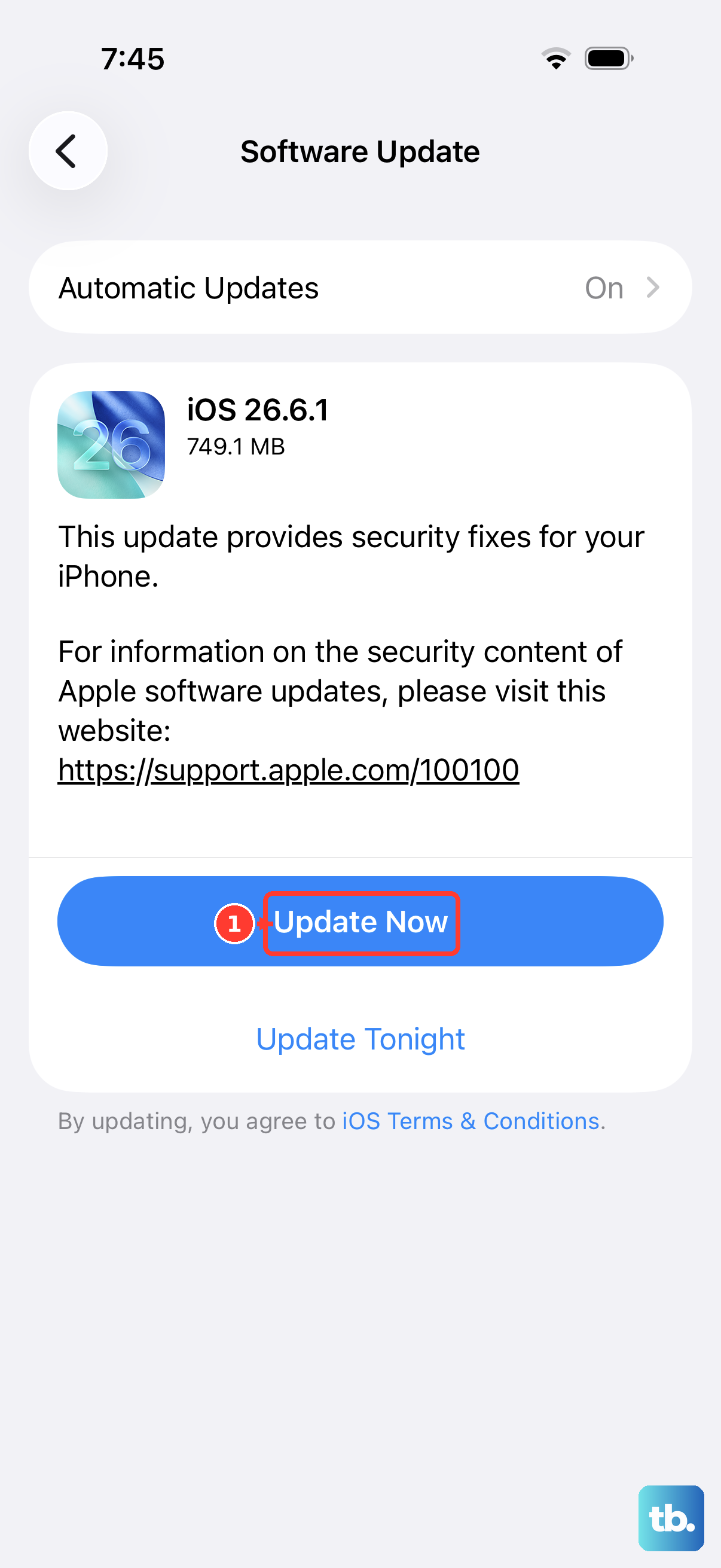
Software bugs can sometimes break charging, and Apple fixes these in iOS updates. iOS 27 is now available, and it supports every iPhone 13 model.
Go to Settings > General > Software Update. If an update is available, tap Download and Install and follow the onscreen instructions. Keep your phone connected to power and Wi-Fi while it updates.
If your iPhone won't turn on far enough to check for updates, use a computer instead. Connect your iPhone with a cable. On a Mac with macOS Catalina or later, open Finder. On a Windows PC, open the Apple Devices app. On a Mac with macOS Mojave or earlier, open iTunes. Select your iPhone and choose Check for Update.
Wait If the Battery Is Fully Drained
If the battery is completely empty, your iPhone 13 may show no sign of life as soon as you plug it in. This is normal, so don't panic.
Leave it connected to a working wall charger for half an hour. If it still won't turn on, or the screen only shows a battery icon, force restart it while it's still plugged in. Then let it charge for another half hour.
Charge with the Phone Turned Off
Sometimes a background app or process drains the battery faster than it can charge. You can rule this out by turning your iPhone 13 off completely.
Press and hold the Side button and either volume button until the power slider appears, then drag the slider. Plug the phone into your charger. If it charges normally while off, the problem is in the software that runs when the phone is on.
Restore Your iPhone Using a Computer
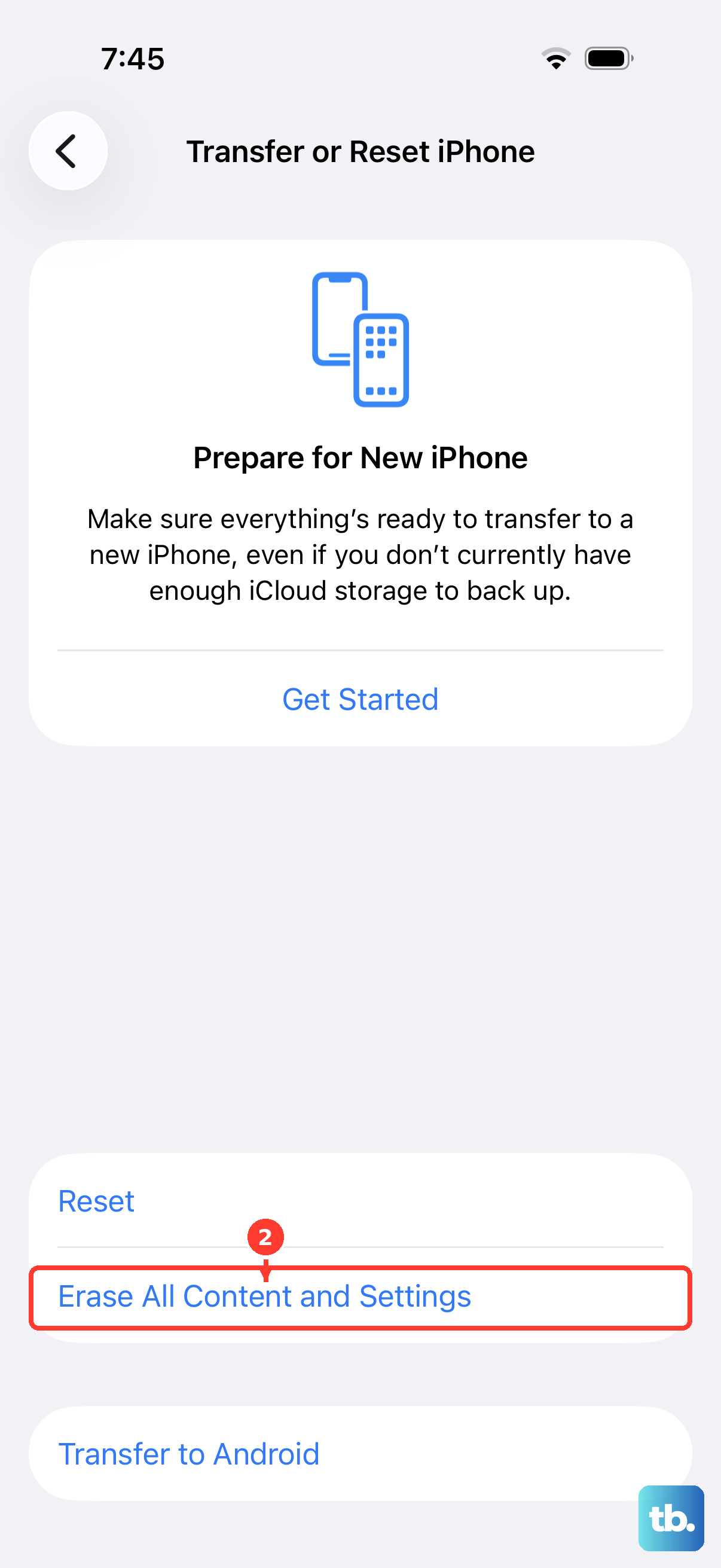
Use this only as a last resort for software problems that keep blocking charging. A restore erases all content and settings, so first make sure you have a recent backup in iCloud or on your computer.
These steps put the phone into recovery mode and reinstall iOS.
- 1.Connect your iPhone 13 to your computer. Open Finder on a Mac, or the latest version of the Apple Devices app on a Windows PC.
- 2.Press and quickly release Volume Up, press and quickly release Volume Down, then press and hold the Side button until the Connect to computer screen appears.
- 3.On your computer, select your iPhone. When it offers Update or Restore, try Update first, since it keeps your data. If that doesn't help, choose Restore.
If the download takes more than 15 minutes and your iPhone exits the recovery screen, let the download finish, then repeat step 2. After the restore, set up your phone and test charging again. If it still won't charge, the problem is almost certainly hardware.
Frequently Asked Questions
Why is my iPhone 13 stuck at 80% while charging?
This is usually Optimized Battery Charging, which holds the charge at 80% until you need the phone, or a warm battery. The phone charges past 80% again when it cools down. You can turn Optimized Battery Charging off in Settings > Battery > Battery Health & Charging.
Does the iPhone 13 support iOS 27?
Yes. iOS 27 is available for the iPhone 13, iPhone 13 mini, iPhone 13 Pro and iPhone 13 Pro Max.
What charger gives the fastest MagSafe charging on an iPhone 13?
A MagSafe Charger connected to a 20W or higher USB-C power adapter gives up to 15W, or up to 12W on the iPhone 13 mini. Newer chargers and bigger adapters won't charge an iPhone 13 any faster.
What if nothing works?
If your iPhone still won't charge after cleaning the port, trying other accessories and restoring iOS, the battery or Lightning port probably needs repair. Start a repair from Apple's iPhone repair page.