
Seeing "No Service" or "Searching..." in the corner of your iPhone 13 is a real headache. It cuts you off from calls, texts, and mobile data when you need them most. This can happen because of a connection problem, a carrier outage, an account issue, or a hardware problem.
Start with the simplest fix: try reconnecting to your cellular network.
Toggle Airplane Mode and Restart
First, swipe down from the top-right corner to open Control Center and tap the airplane icon to turn on Airplane Mode. Wait at least 15 seconds, then tap it again to turn it off. This can help your phone reconnect to the cellular network.
If that doesn't bring your bars back, give your iPhone 13 a full restart. Hold the Side button and either volume button, then slide to power off. Once the phone is off, hold the Side button until the Apple logo appears to turn it back on.
Check for a Carrier Settings Update
Your carrier occasionally pushes small configuration files to your phone to optimize network performance. To check for one, connect to Wi-Fi, then go to Settings > General > About.
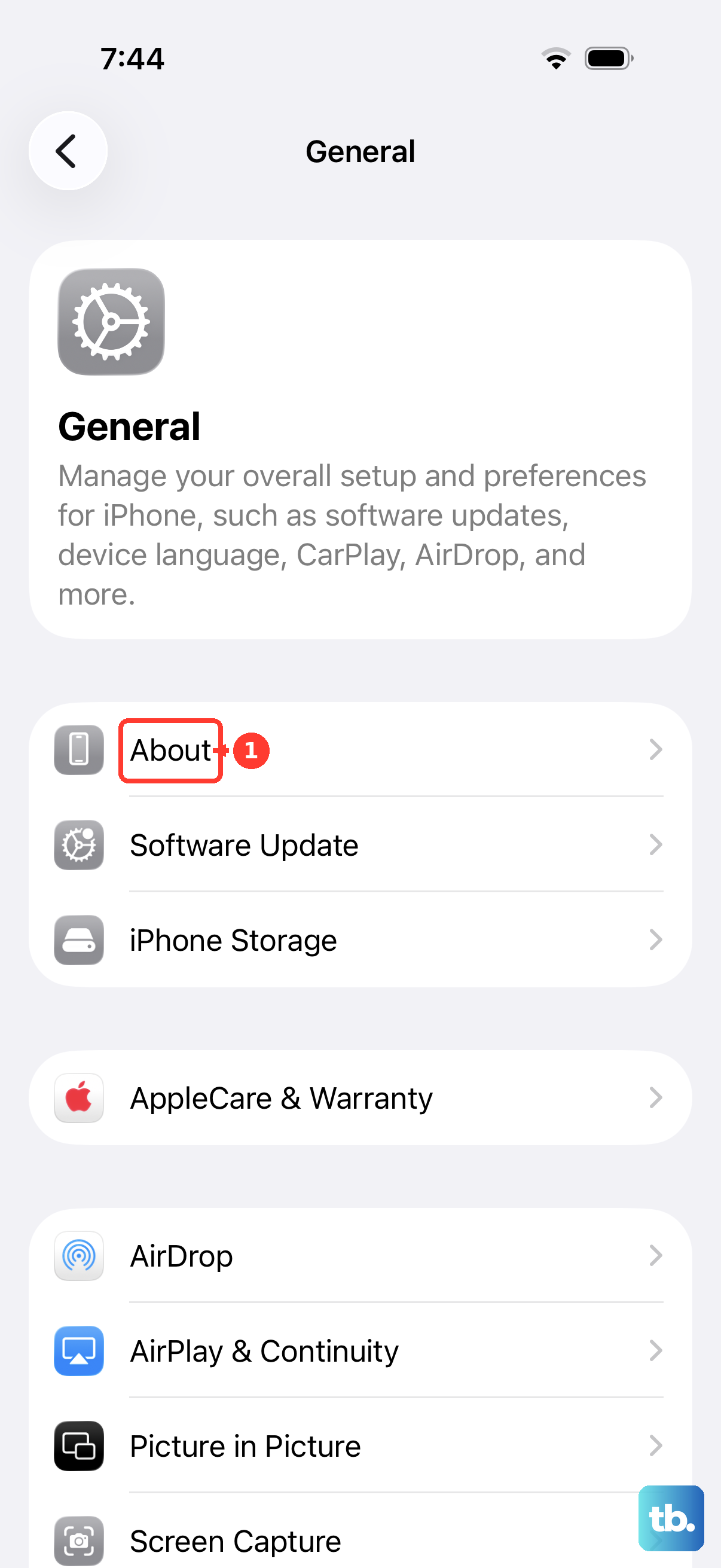
If an update is available, a prompt will appear on this screen. Tap it to install. You can check the installed version next to Carrier on this screen. It's a good, quick step that many people overlook.
Reinsert Your SIM Card
The SIM card tray on the iPhone 13 is on the left side. Grab the SIM ejector tool that came in the box (or a small paperclip) and gently push it into the tiny hole. The tray will pop out.
Remove the SIM card, give both the card and the tray slot a quick visual inspection for any dust or debris, then carefully reseat the card and push the tray back in. Then check whether service returns. If the card is damaged or doesn't fit properly, ask your carrier for a new SIM card.
Update Your iPhone to the Latest iOS
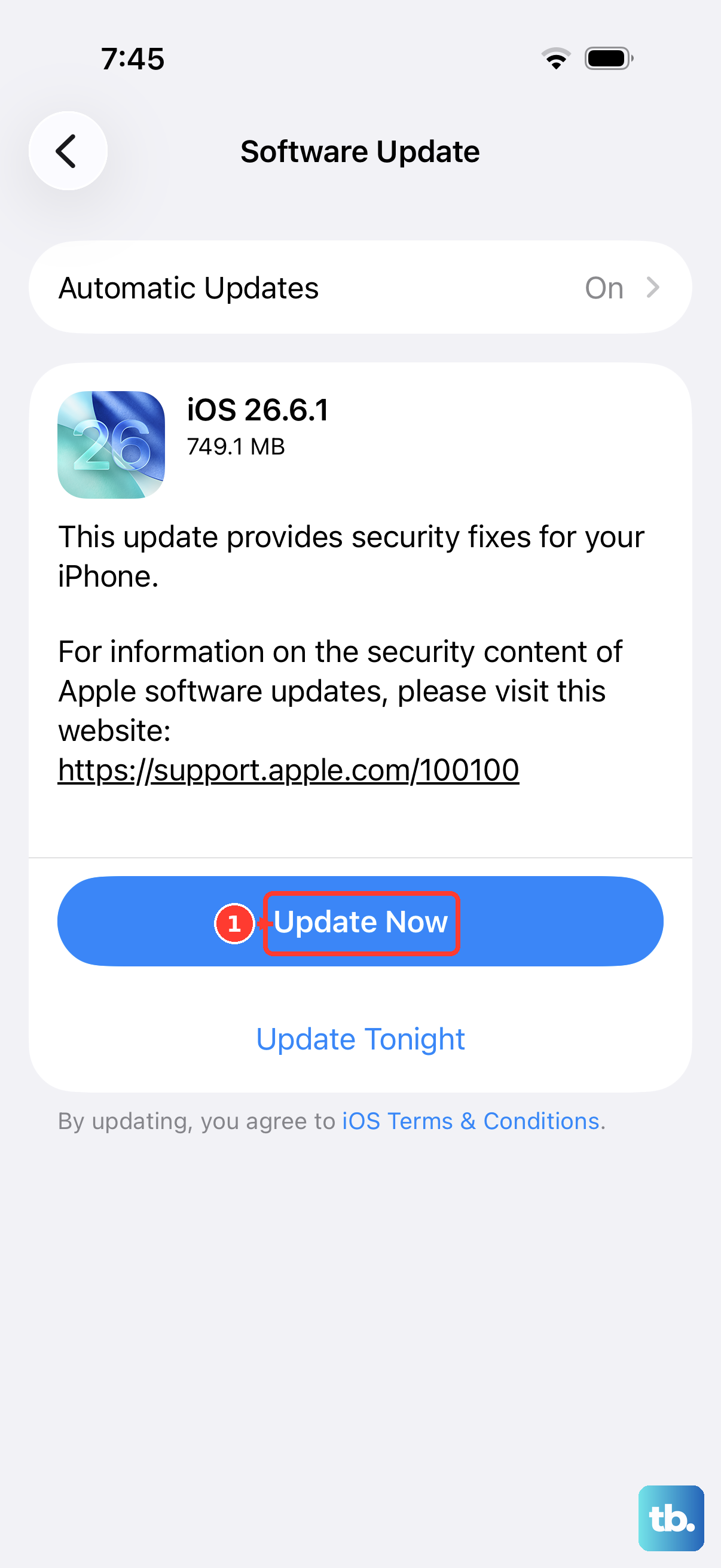
Updating your iPhone is another step to try when cellular service isn't working. Make sure you're on the latest version of iOS. Head to Settings > General > Software Update.
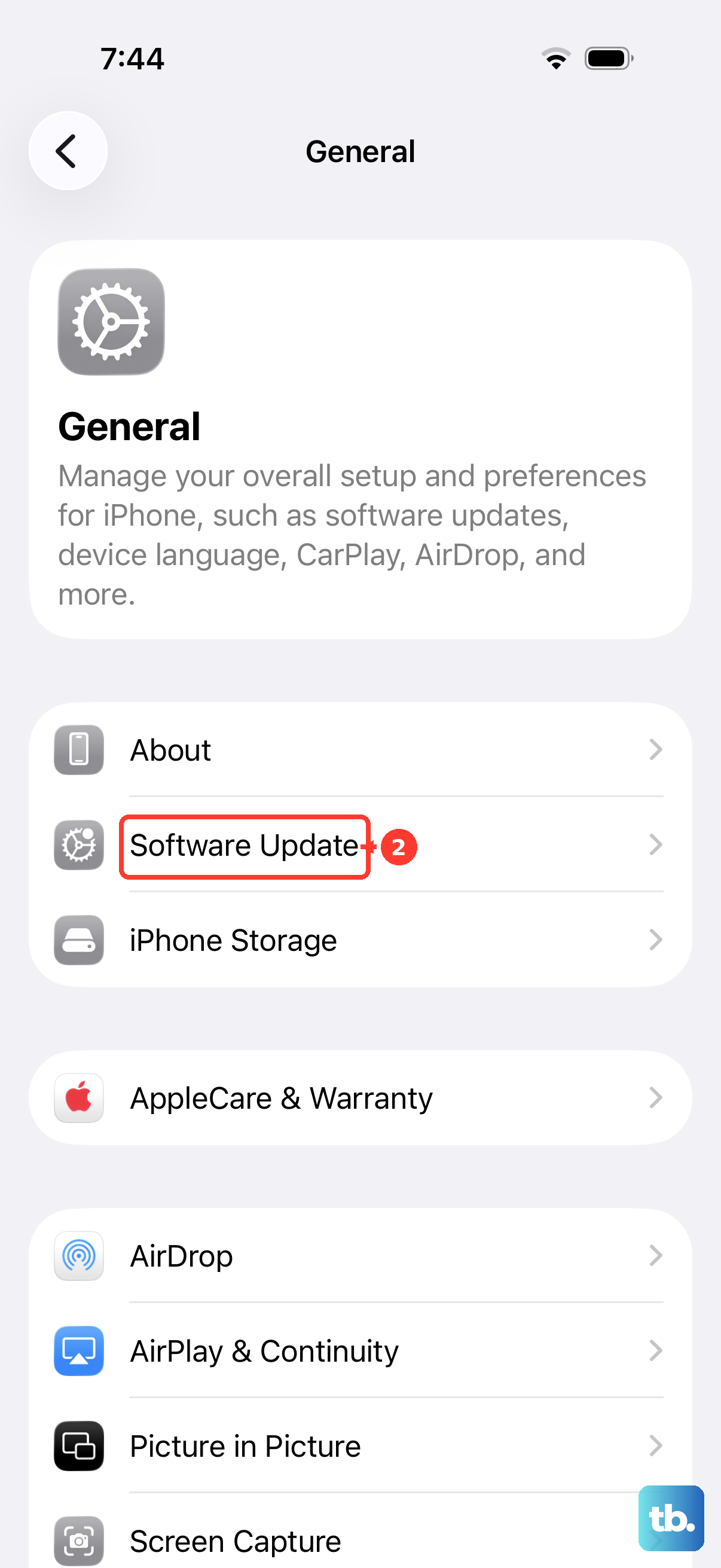
Download and install any available update. It's best to do this over Wi-Fi and while your phone is charging. Once the update is installed, check whether your iPhone connects to your carrier's network again.
Reset Your Network Settings
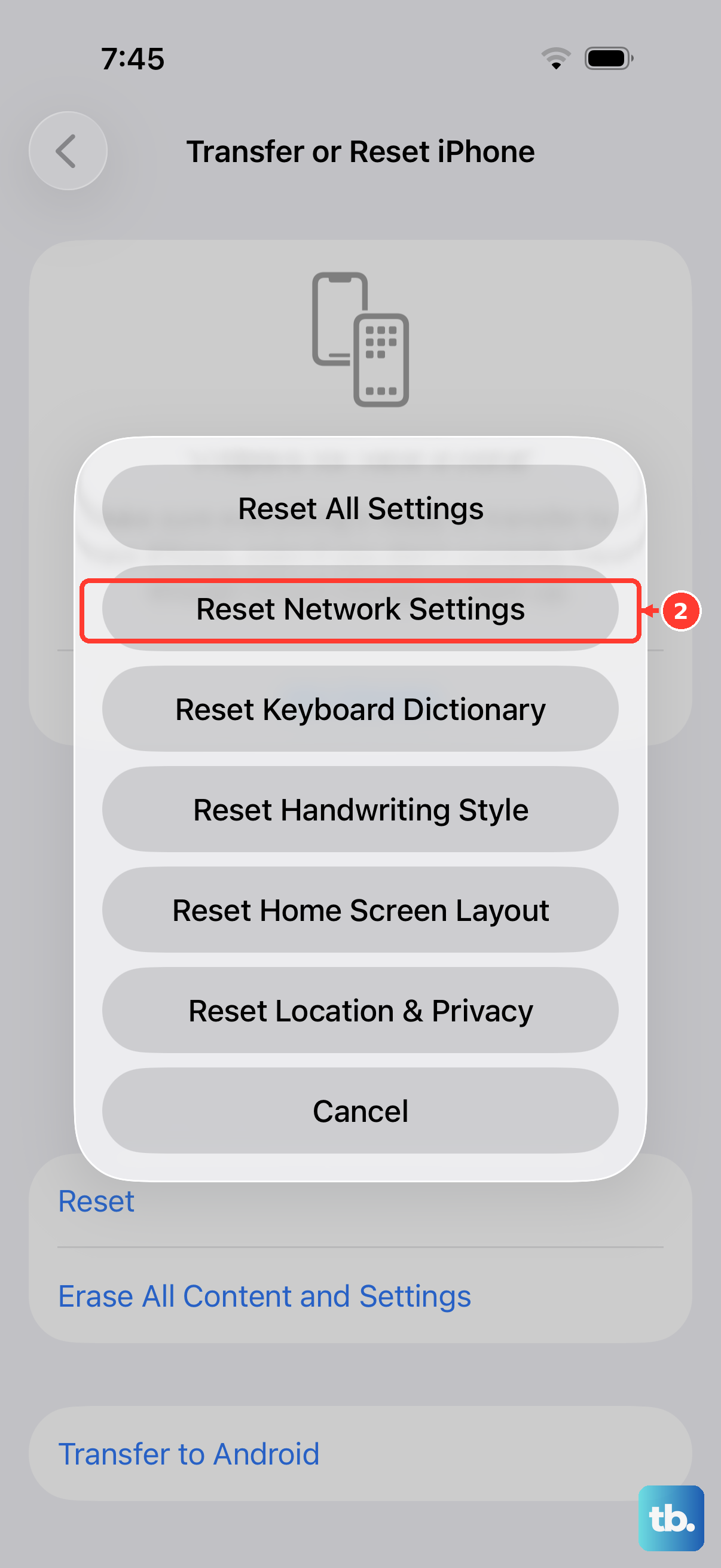
Save this more thorough step until the other fixes have failed. It will erase saved Wi-Fi networks and passwords, cellular settings, and VPN and APN settings, but it won't touch your personal data or apps.
Go to Settings > General > Transfer or Reset iPhone. Tap Reset and then choose Reset Network Settings. You'll need to enter your passcode and confirm. After your phone restarts, you'll need to reconnect to Wi-Fi networks.
Manually Select Your Network Carrier
If automatic network selection isn't connecting you to your carrier, try selecting the carrier manually. Go to Settings > Cellular.
Tap Network Selection and turn off the "Automatic" switch. Your phone will search for available networks. After a moment, a list will appear. Select your carrier's name from the list. If it doesn't connect, turn "Automatic" back on.
Try a Different SIM Card
This helps you figure out if the problem is with your phone or your SIM card account. If you have a friend or family member with the same carrier, ask if you can briefly pop their SIM into your iPhone 13.
If their SIM gets service in your phone, then the issue is likely with your original SIM card or your account. Contact your carrier to check your account and whether you need a replacement SIM. If their SIM also shows "No Service," check with your carrier for coverage or outages before suspecting a phone problem.
Perform a Force Restart
If your iPhone is unresponsive, try a force restart instead of a normal shutdown. On the iPhone 13, quickly press and release the Volume Up button, then quickly press and release the Volume Down button.
Immediately after that, press and hold the Side button. Continue holding until you see the Apple logo appear, then you can let go. This doesn't delete any data.
Check for Physical Damage or Case Interference
Take your iPhone 13 out of its case for a few minutes. Some cases, especially metal or very thick ones, can slightly block the antenna bands. The antenna lines are integrated into the frame of the phone.
Also, give the SIM tray area a look. If your phone has been dropped or exposed to moisture, there could be physical damage affecting the internal antennas. While the iPhone 13 is quite durable, a hard impact can still cause issues.
Contact Your Carrier for Support
If you've tried everything here, it's time to call your cellular provider. There could be a service outage in your area, a problem with your account, or they might need to reprovision your line on their network.
You can also visit a carrier store. They may be able to test your SIM card in another device and arrange a replacement if it's faulty. They can also check if your iPhone's IMEI is properly registered and active on their network.