
When your iPhone 13's GPS starts dropping signal, it can leave you stranded mid-navigation or cause apps to lose your location. This is usually a software hiccup that you can fix yourself. I'd start with the quick restart, as it clears up most temporary glitches on these models.
Restart Your iPhone 13
A simple restart is the most effective first step. It clears the phone's memory and resets all the radios, including the GPS module. For the iPhone 13, you'll want to do a force restart, which is a bit more thorough than a standard shutdown.
Press and quickly release the Volume Up button. Then, press and quickly release the Volume Down button. Finally, press and hold the Side button until you see the Apple logo appear on the screen, then let go.
Check Your Location Services Settings
Sometimes, the issue isn't the GPS hardware but how apps are allowed to use it. Head into Settings > Privacy & Security > Location Services. First, make sure the main Location Services toggle at the top is green and on.
Scroll down and tap on the app that's having trouble, like Maps or Google Maps. Ensure its permission is set to "While Using the App" or "Always," depending on what you need. The "Precise Location" switch should also be enabled for the best accuracy.
Toggle Airplane Mode
This is a quick trick to reset all wireless connections at once, including cellular, Wi-Fi, Bluetooth, and GPS. Swipe down from the top-right corner to open Control Center and tap the airplane icon to turn it on.
Wait about 15 seconds, then tap the icon again to turn Airplane Mode off. Your iPhone will reconnect to networks and the GPS, which often clears up any signal conflicts that were causing the drops.
Update iOS and Your Apps
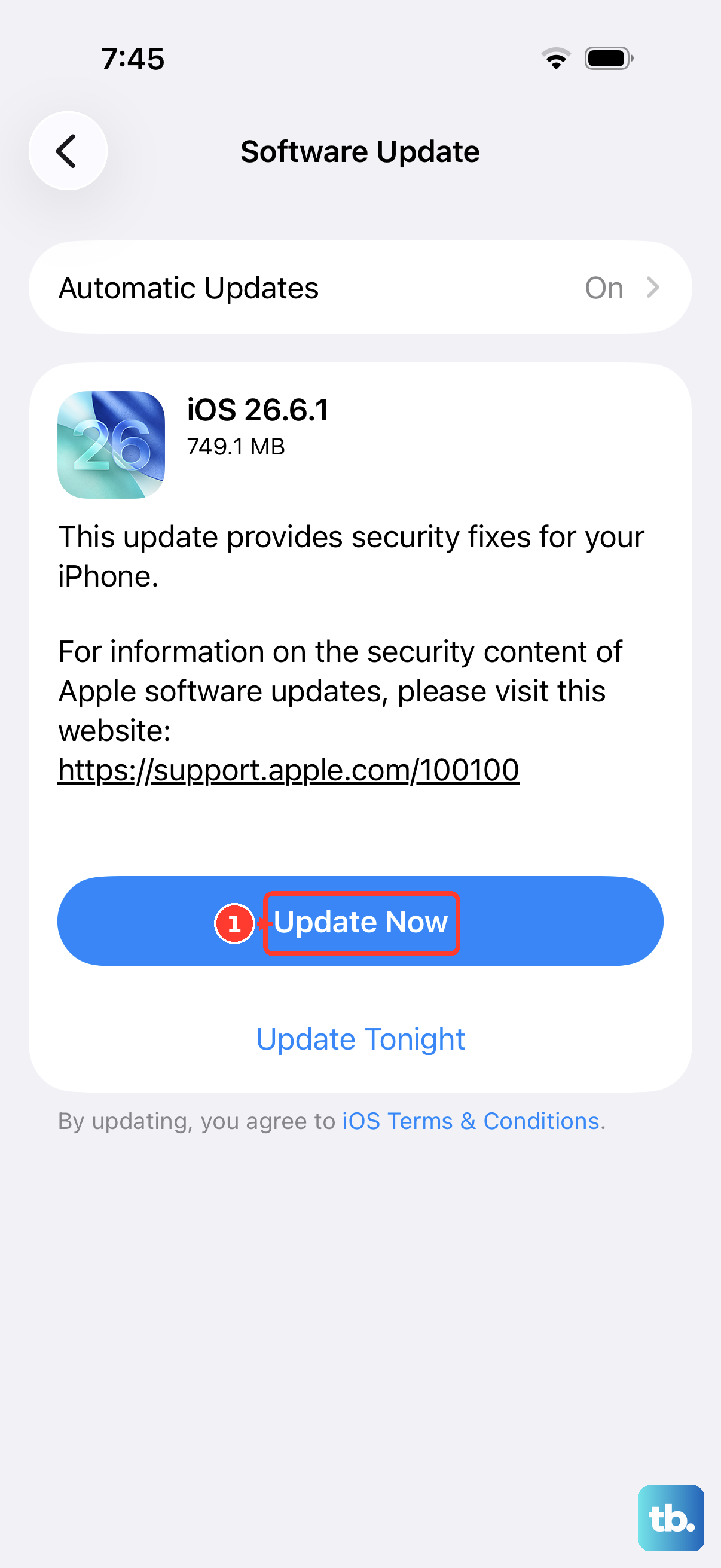
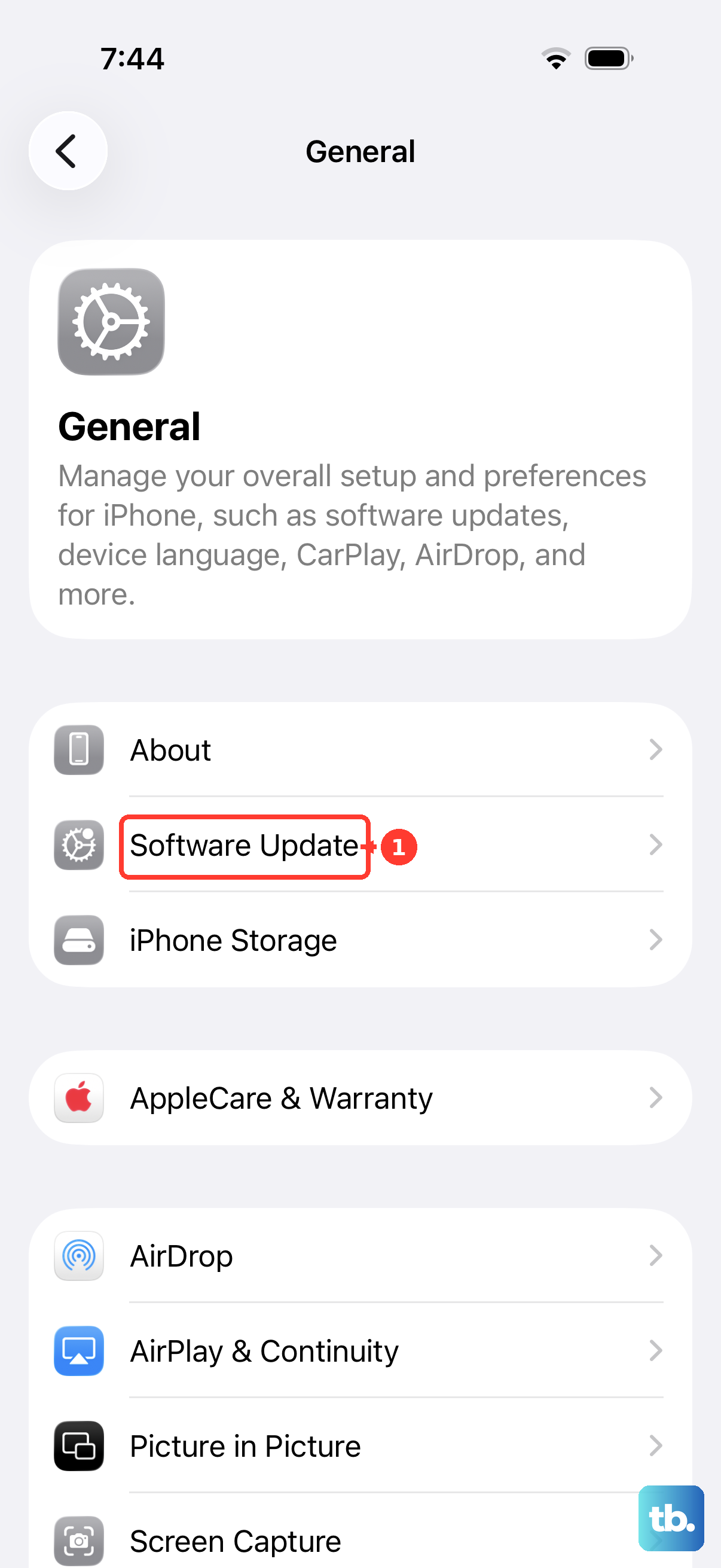
Running an old version of iOS can lead to bugs that affect location services. Apple frequently releases updates with fixes. Go to Settings > General > Software Update to check for and install any available updates.
Also, open the App Store, tap your profile icon, and update your navigation apps. An outdated version of Maps, Waze, or Google Maps might be the culprit behind the unstable GPS signal.
Reset Your Network Settings
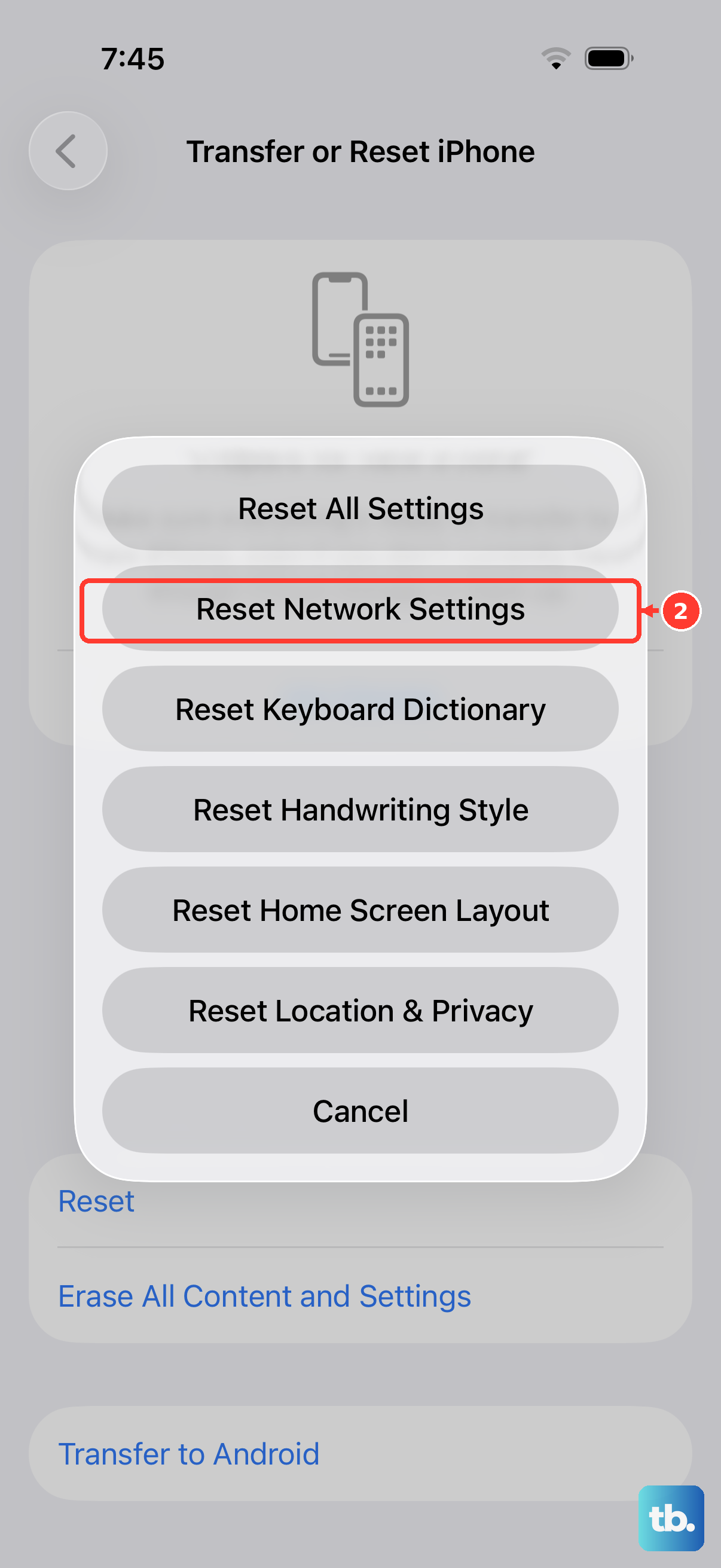
This resets all network-related configurations back to factory defaults, which can fix deeper software conflicts affecting GPS. You'll lose saved Wi-Fi passwords and Bluetooth pairings, so be ready to re-enter those.
Go to Settings > General > Transfer or Reset iPhone. Tap Reset and then choose Reset Network Settings. Enter your passcode if asked and confirm. Your iPhone will restart.
Check for Physical or Environmental Issues
The iPhone 13's GPS antenna is built into the frame. A very thick or metal phone case can sometimes interfere with the signal. Try removing your case temporarily to see if the GPS performance improves.
GPS signals also struggle indoors, in dense urban areas with tall buildings, or under heavy tree cover. If you're losing signal in a specific spot, try moving to a more open area to see if it stabilizes.
Disable Low Power Mode
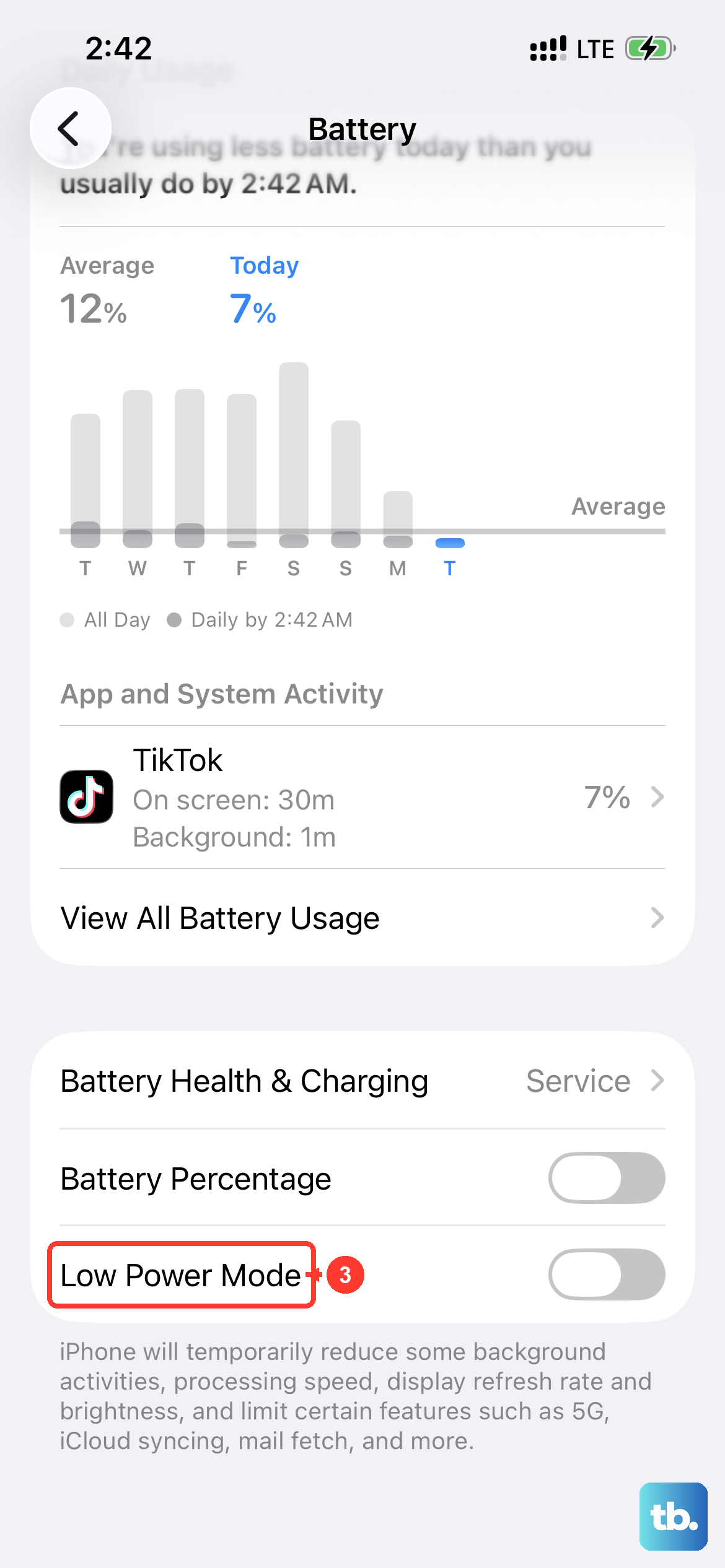
Low Power Mode is great for extending battery life, but it can limit background processes, including how frequently apps fetch your location. This can make GPS seem laggy or cause it to drop out.
You can check if it's on in Control Center (the battery icon) or in Settings > Battery. Turn it off when you need reliable, continuous navigation.
Calibrate Your Compass
A miscalibrated compass can throw off navigation apps. Open the built-in Compass app on your iPhone 13. If you see a message asking you to calibrate it, follow the on-screen instructions.
This usually involves tilting and moving your phone in a figure-8 pattern until the calibration is complete. It only takes a moment and can improve overall location accuracy.
Check for a System Location Services Glitch
There's a deeper settings reset that specifically targets location and privacy data without erasing your personal content. This can clear a corrupted system file causing the issue.
Navigate to Settings > General > Transfer or Reset iPhone. Tap Reset and this time select Reset Location & Privacy. After confirming, you'll need to re-grant location permissions to your apps.
Test with a Different App
To rule out a problem with a specific app, try using a different navigation tool. If Google Maps is losing signal, try Apple Maps or Waze. If the problem follows you to every app, it's likely a system or hardware issue.
If the GPS works perfectly in a different app, then the problem is isolated to the first app. Try force-closing it, clearing its cache (if the app allows it), or reinstalling it from the App Store.