
A blurry camera on your iPhone 13 can turn a great shot into a disappointing one. The blur might be consistent, only happen in low light, or seem to come from one specific lens. Before you worry about a hardware failure, which is less common, there are several software and simple fixes to try first.
Clean the Camera Lenses
This is the absolute first thing to check. The iPhone 13's camera bump can easily collect fingerprints and dust. Use a soft, lint-free microfiber cloth to gently wipe all three lenses on the back. I've seen smudges on the edge of a lens cause haze that people mistake for a sensor problem.
Avoid using your shirt or any rough material, as it can scratch the delicate lens coating. For stubborn grime, you can lightly breathe on the lens to create a bit of moisture and then wipe it clean with the cloth.
Remove Your Phone Case
Some cases, even well-known brands, can have a camera cutout that's just a hair too small or has a raised lip that catches light. Take your iPhone 13 out of its case and snap a quick photo. If the image is suddenly sharp, you've found the culprit.
Also, make sure you haven't accidentally left a plastic shipping film or a separate camera lens protector on the phone. These can dramatically reduce image clarity.
Tap to Focus and Adjust Exposure
Open the Camera app and tap directly on your subject on the screen. You'll see a yellow square appear, confirming the focus point. The iPhone 13's camera might be focusing on the background instead of your intended subject, especially in Portrait mode.
You can also press and hold on the screen to lock focus and exposure (AE/AF Lock). After locking, you can slide your finger up or down on the screen to manually brighten or darken the image before you take the shot.
Switch Between the Three Lenses
Your iPhone 13 has three distinct cameras: Wide (1x), Ultra Wide (0.5x), and Telephoto (2x on the Pro models). Tap the lens options at the bottom of the Camera app to switch between them.
If only one lens produces blurry photos while the others are clear, the issue is isolated to that specific camera module. It could need a more thorough cleaning, or there might be a hardware fault with that sensor.
Force Close and Reopen the Camera App
Swipe up from the bottom of the screen and pause in the middle to enter the app switcher. Find the Camera app preview and swipe it up and off the top of the screen to close it completely. Then, tap the Camera icon to relaunch it.
This clears the app from memory and can resolve temporary software glitches that cause autofocus to freeze or image processing to act up.
Restart Your iPhone 13
A full restart clears system caches and resets all background processes, including those for the camera. To restart, press and quickly release the Volume Up button, press and quickly release the Volume Down button, then press and hold the Side button until you see the Apple logo appear.
Wait for the phone to boot up fully, then open the Camera app again. This simple step fixes a surprising number of intermittent camera issues.
Check for and Disable Macro Control
If you have an iPhone 13 Pro or Pro Max, it has an automatic Macro mode that switches to the Ultra Wide lens for extreme close-ups. Sometimes this switch can happen unexpectedly, causing a sudden shift in focus and blur.
You can turn on manual control. Go to Settings > Camera and toggle on Macro Control. After this, a flower icon will appear in the Camera app when you're close to a subject, letting you tap it to manually enable or disable the macro mode.
Update to the Latest Version of iOS
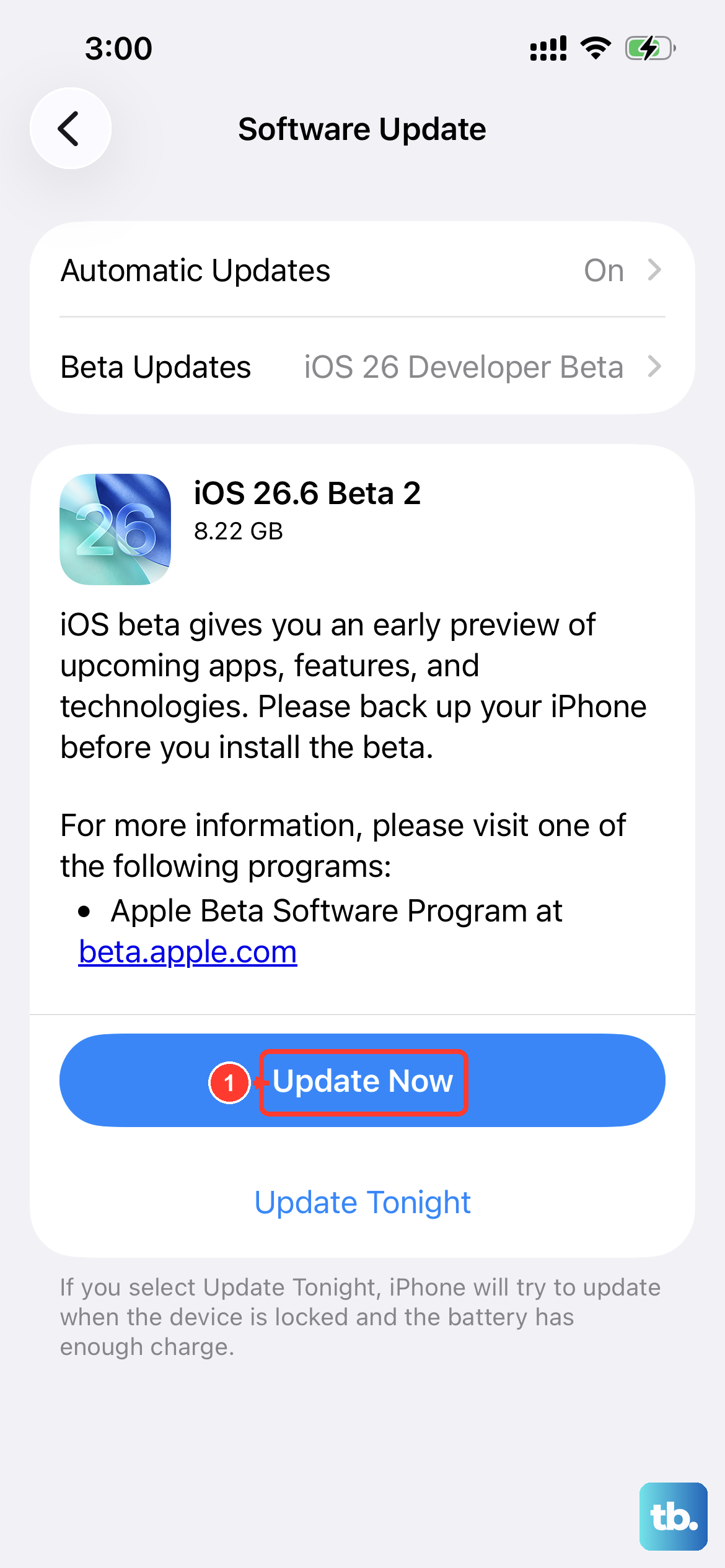
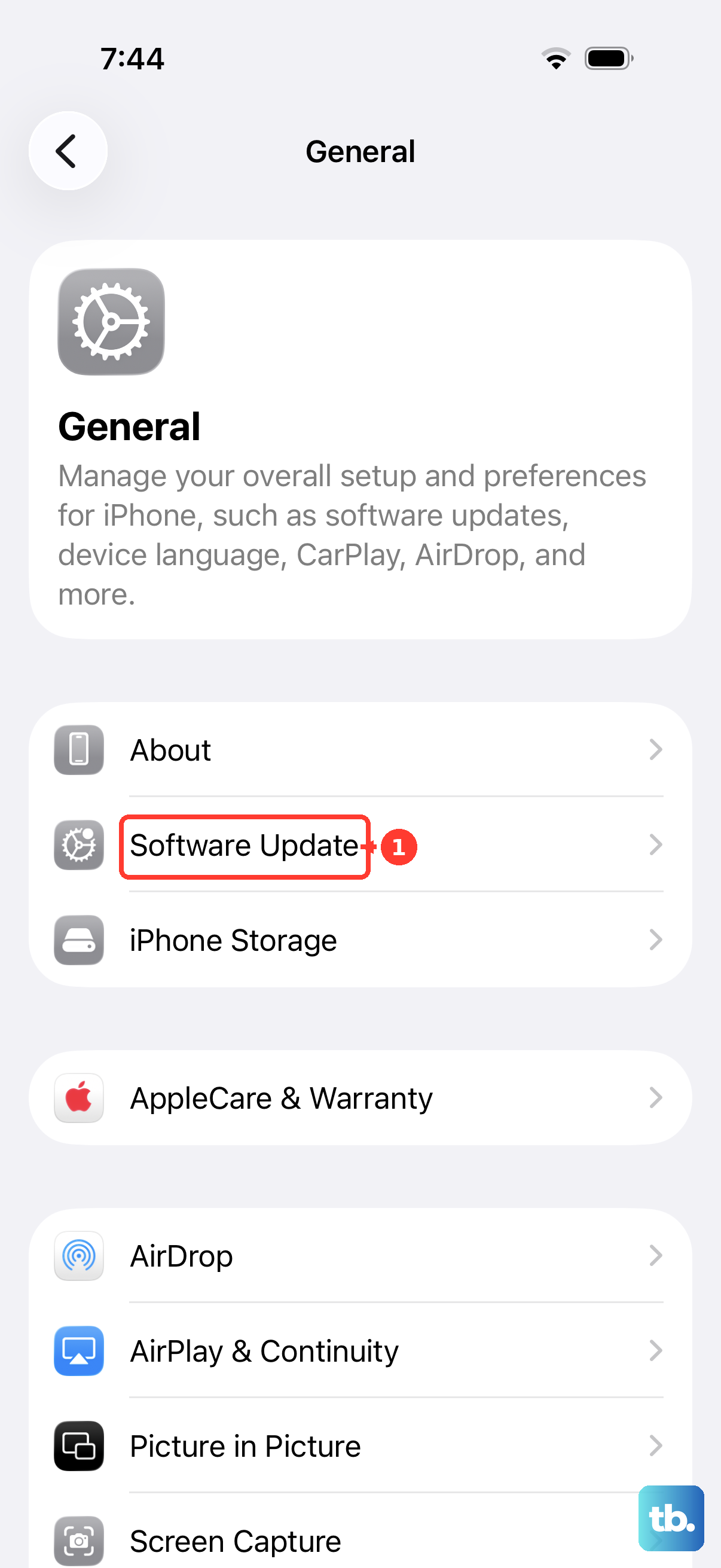
Apple regularly releases iOS updates that include camera improvements and bug fixes. Go to Settings > General > Software Update to see if an update is available. Installing the latest iOS version can resolve software-related focus and processing issues that cause blurriness.
Since your iPhone 13 supports up to iOS 18, make sure you're running the most recent version to get all the camera optimizations Apple has released for your model.
Reset All Camera Settings
If you've changed a lot of settings, something might be misconfigured. You can reset just the camera settings without affecting your personal data. Go to Settings > Camera and look for the option near the bottom.
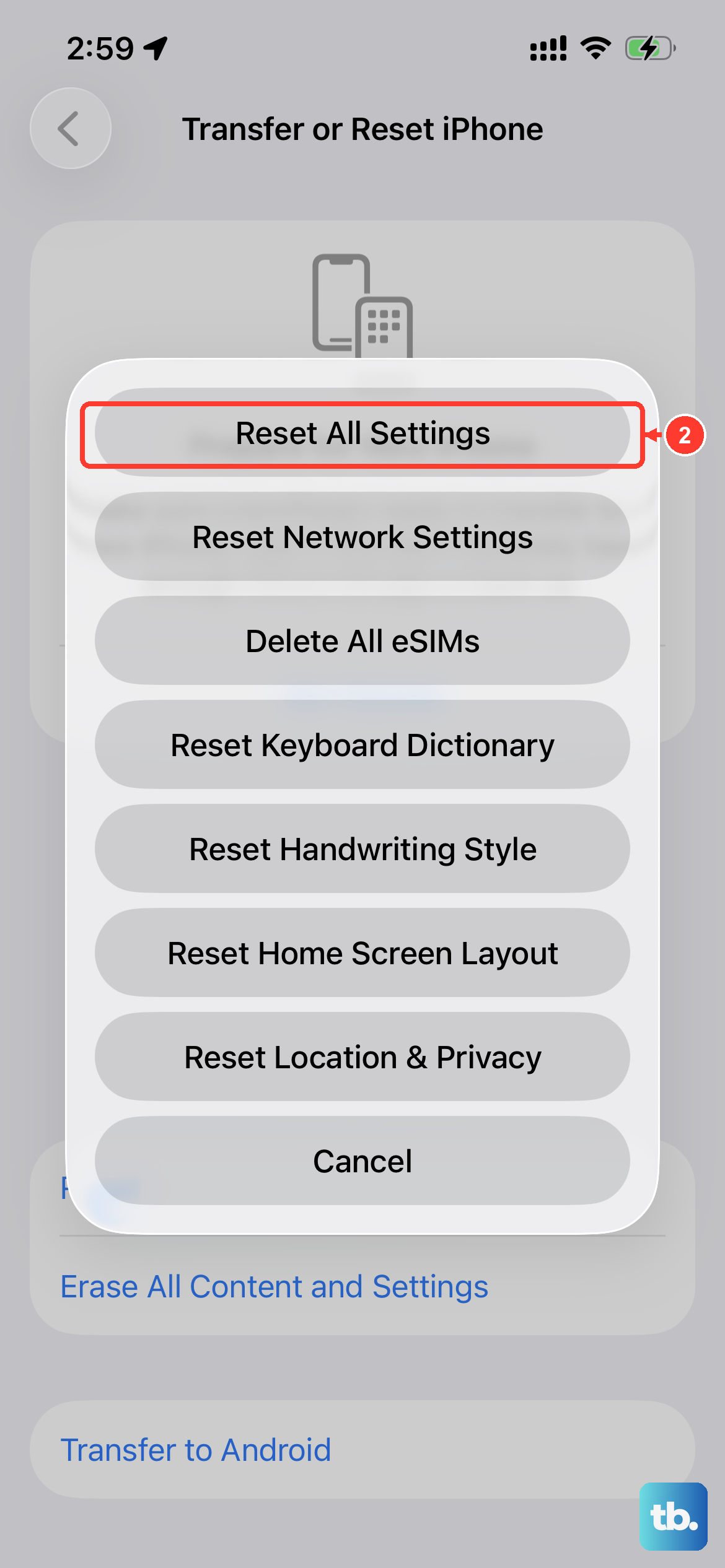
Alternatively, go to Settings > General > Transfer or Reset iPhone > Reset and tap Reset All Settings. This will revert camera preferences, along with network and display settings, back to their factory defaults.
Let the Phone Acclimate if It's Cold
Moving your iPhone 13 from a cold environment to a warm, humid one can cause condensation to form inside the camera lens housing. This creates a foggy, blurry effect in photos. The fix is to simply let the phone sit at room temperature for 15-20 minutes to allow the moisture to evaporate naturally.
Don't try to speed up the process by using a hairdryer or placing it on a heater, as extreme heat can damage internal components. Patience is the key here.