
Seeing "Call Failed" pop up on your iPhone 13 is a real headache, especially when you're trying to reach someone. This usually means your phone is having trouble connecting to the cellular network properly. It's often a quick software hiccup or a weak signal, but there are several things you can try to get your calls working again.
Let's start with the fastest fix you can do right now.
Toggle Airplane Mode On and Off
This is the quickest way to refresh your iPhone 13's connection to the cell towers. Swipe down from the top-right corner of your screen to open Control Center and tap the airplane icon. Wait about 10 seconds, then tap it again to turn Airplane Mode off. This clears out any temporary network glitches that might be blocking your calls.
Check Your Cellular Signal Strength
Look at the signal bars in the top-right corner of your screen. If you only have one or two bars, that's likely the culprit. Try moving to a different room, going near a window, or stepping outside. Buildings, walls, and even weather can interfere with the signal on your iPhone 13.
Perform a Force Restart
A simple restart can fix a surprising number of iOS bugs. For the iPhone 13, press and quickly release the Volume Up button. Then press and quickly release the Volume Down button. Finally, press and hold the Side button until you see the Apple logo appear, then let go. This is a bit different from older iPhones, but it's the standard method for your model.
Review Your Focus Modes
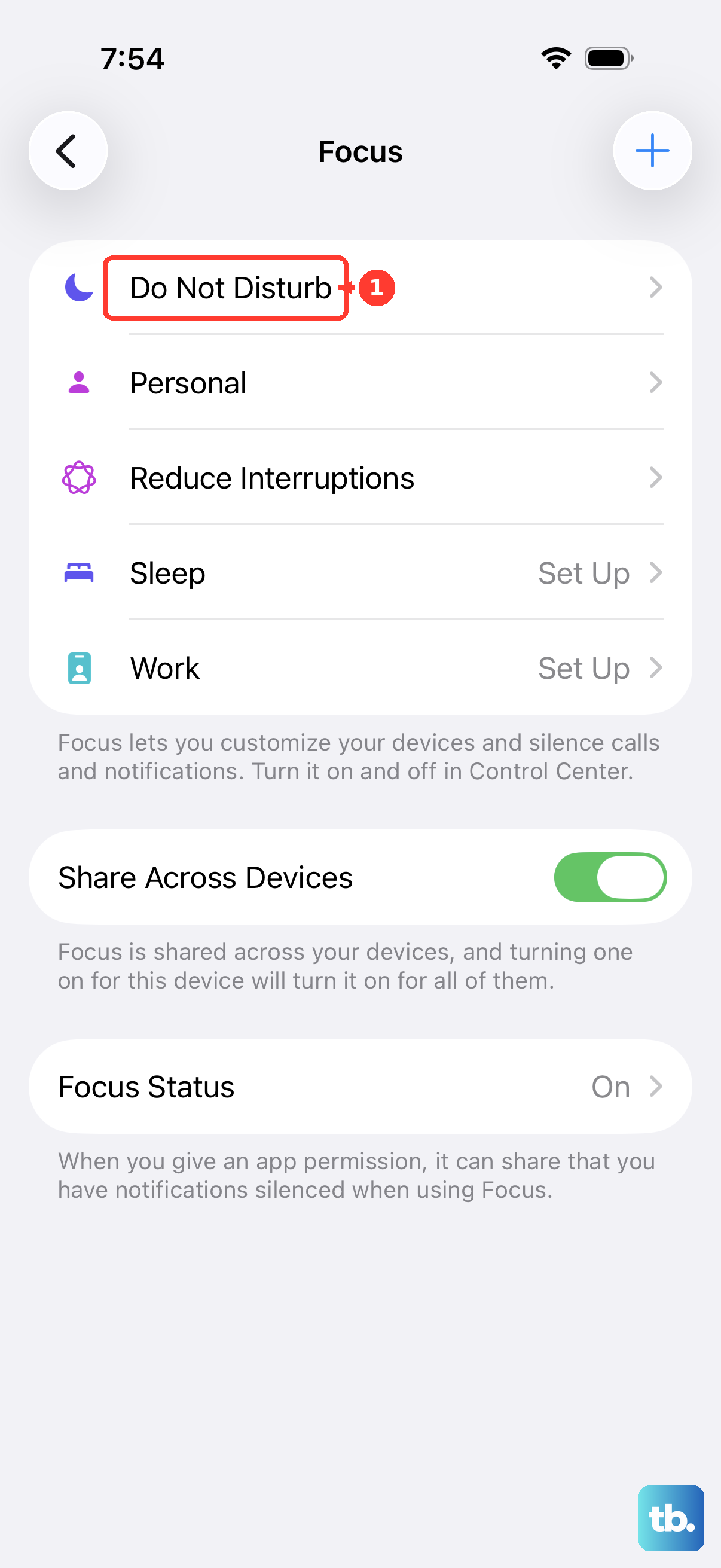
Focus modes like Do Not Disturb, Sleep, or Work can sometimes be too aggressive. They might be silencing calls from everyone except your favorites. Swipe down into Control Center and see if any Focus icon is highlighted at the top. If one is active, tap it to turn it off and see if your calls come through.
Update Your Carrier Settings
Your carrier (like Verizon, AT&T, or T-Mobile) occasionally sends small updates that improve network performance. Make sure your iPhone 13 is connected to Wi-Fi, then go to Settings > General > About. If an update is available, a prompt will appear on this screen. Just follow the instructions to install it.
Check for a Software Update
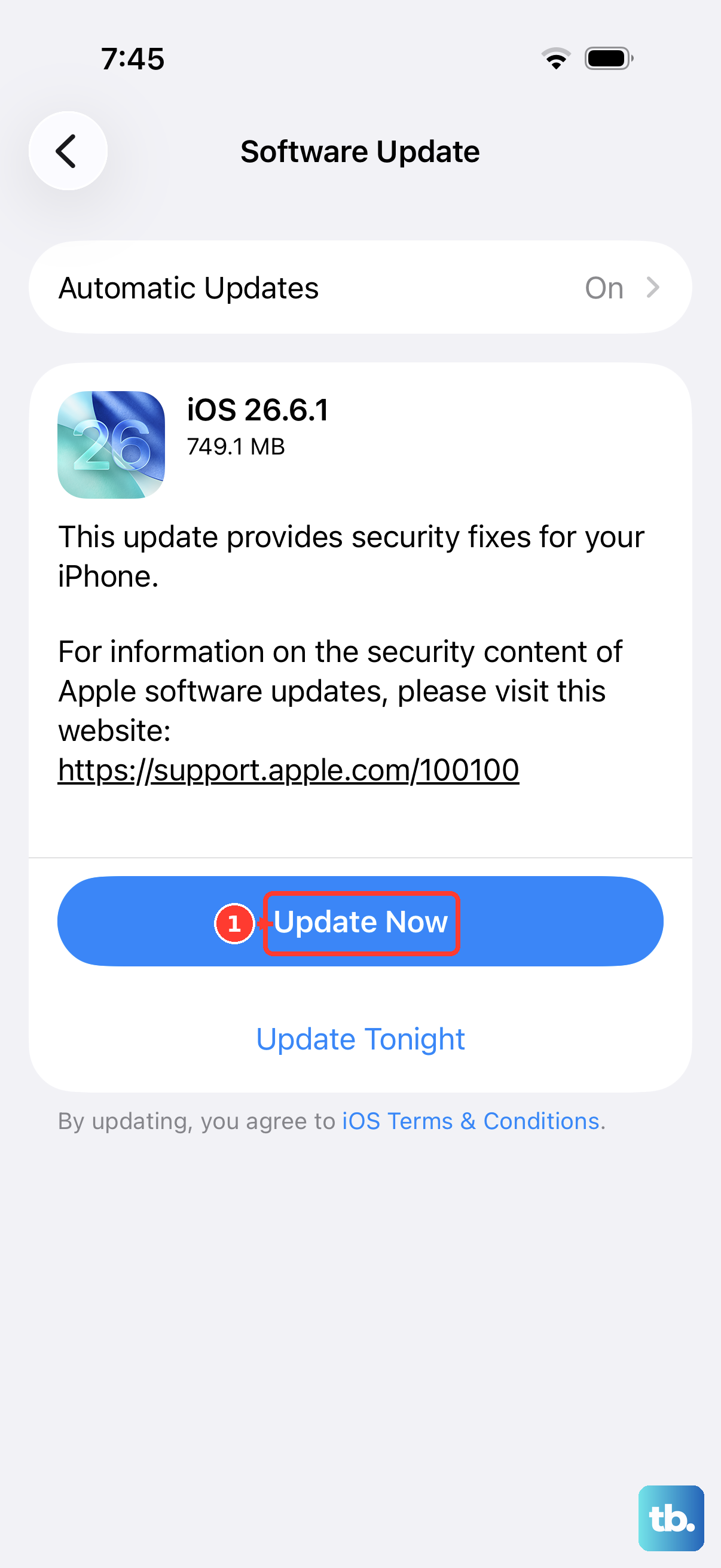
Keep iOS up to date on your iPhone 13. Apple lists iPhone 13 as compatible with iOS 26, and you can check manually in Settings > General > Software Update. If an update is available, tap Download and Install, then follow the onscreen instructions.
Verify Your Cellular Line
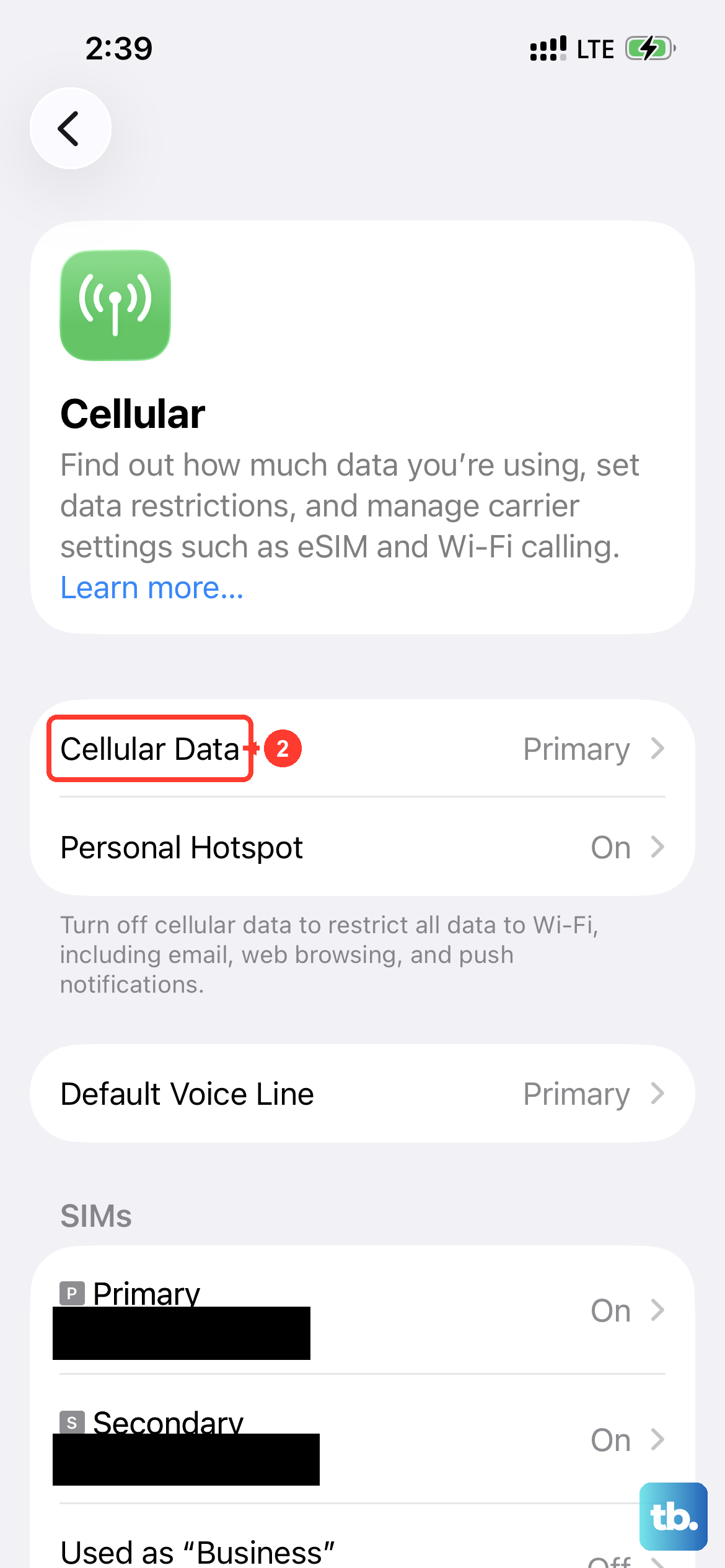
Go to Settings > Cellular, tap the line you use for calls, and make sure Turn On This Line is enabled. If you don't see your line, contact your carrier to set up an eSIM or insert a physical SIM. If you're traveling internationally, use the roaming controls for the relevant line under Cellular Data Options and confirm any charges with your carrier.
Reset Your Network Settings
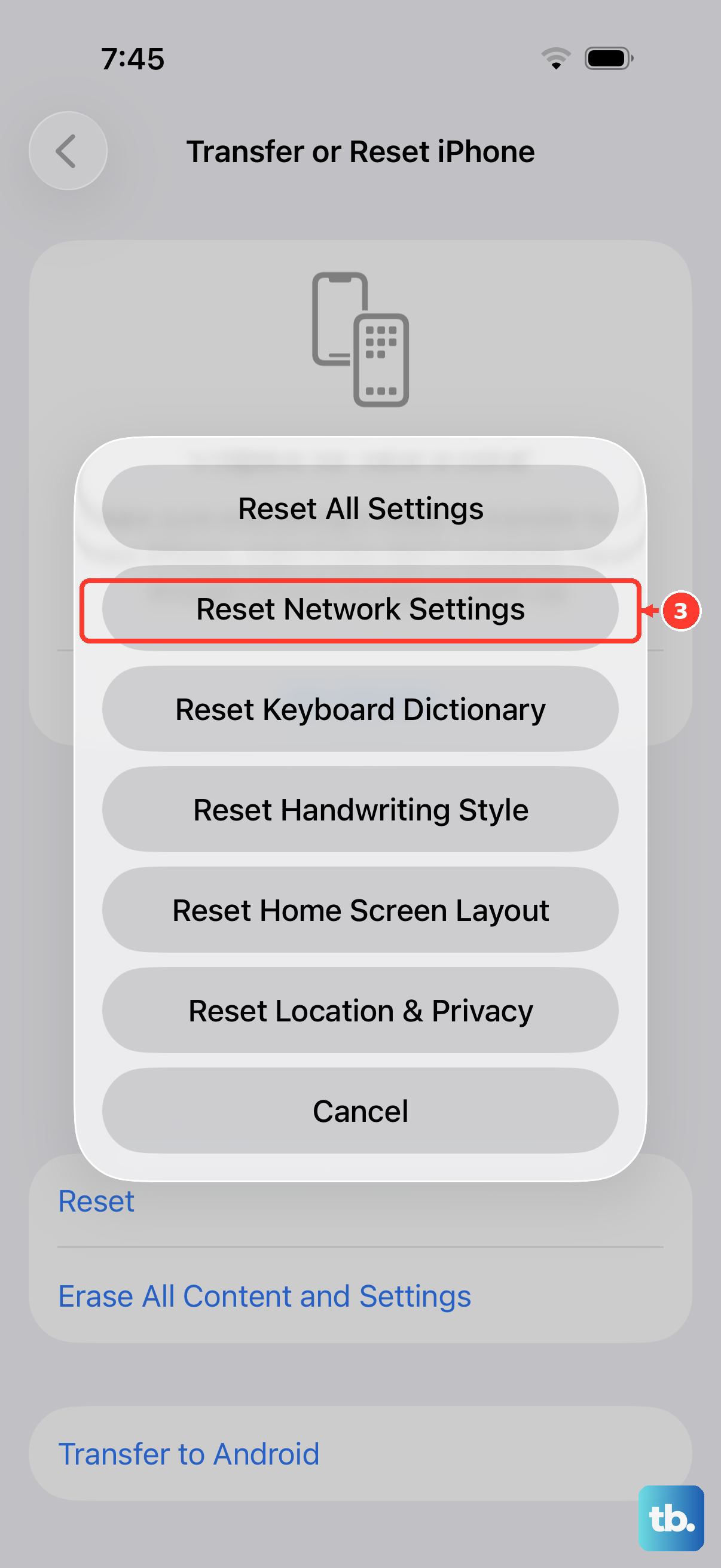
Use this only after simpler checks, because it removes saved network settings. Go to Settings > General > Transfer or Reset iPhone. Tap Reset, choose Reset Network Settings, and follow the onscreen prompts. Apple says all network settings are removed: previously used networks and VPN settings not installed by a configuration profile or mobile device management are removed, Wi-Fi turns off and back on, cellular data roaming may also be turned off, your device name resets to "iPhone," and manually trusted certificates become untrusted. Your content is not erased.
Inspect Your SIM or eSIM
If your active line uses a physical SIM, remove the SIM tray and put the SIM card back in. If you don't see your cellular line in Settings > Cellular, contact your carrier to set up an eSIM or insert a physical SIM. If the SIM card is damaged, doesn't fit in the tray, or came from another device and no longer works, ask your carrier for a replacement SIM.
Contact Your Wireless Carrier
If you've tried everything here and calls are still failing, the problem might be on your carrier's end. There could be a network outage in your area, or there might be an issue with your account. Give their customer service a call. They can check for outages, reprovision your line, or send you a new SIM card if yours is faulty.