
iPadOS 26 brought a lot to the iPad: redesigned widgets, Apple Intelligence features, refined multitasking. It also brought a long list of bugs that have persisted across the 26.x point releases.
If your iPad has been misbehaving since the iPadOS 26 update, you're not alone. Here's the rundown of the most common bugs users have reported, what Apple has actually addressed so far, and what you can do about each one.
Icons Flicker on the Home Screen
One of the most-reported visual bugs is icon flicker on the home screen. When you close an app or swipe between Home Screen pages, the icons visibly flicker or redraw instead of animating smoothly.
This bug was present in the iPadOS 26 beta and wasn't fixed in the final release. It's purely cosmetic; your apps and data are not affected. But it's distracting.
The workaround is to reduce motion. Go to Settings > Accessibility > Motion and toggle Reduce Motion on. The icon flicker disappears because the animation that triggers it is no longer playing. The trade-off is your iPad uses simpler crossfade transitions throughout the OS, but most users find this acceptable.
Screen Rotation Stops Working
Some iPads fail to rotate the screen orientation when the device is turned. You rotate from portrait to landscape and the screen stays in portrait.
First, make sure rotation isn't locked. Swipe down from the top-right corner to open Control Center and check the rotation lock icon. If it has a padlock on it, tap it to unlock rotation.
If rotation lock is already off and the screen still won't rotate, force-restart the iPad. Press and quickly release Volume Up, then quickly press and release Volume Down, then press and hold the Top button until the Apple logo appears. That clears stuck rotation state.
Screen Brightness Dims Unexpectedly
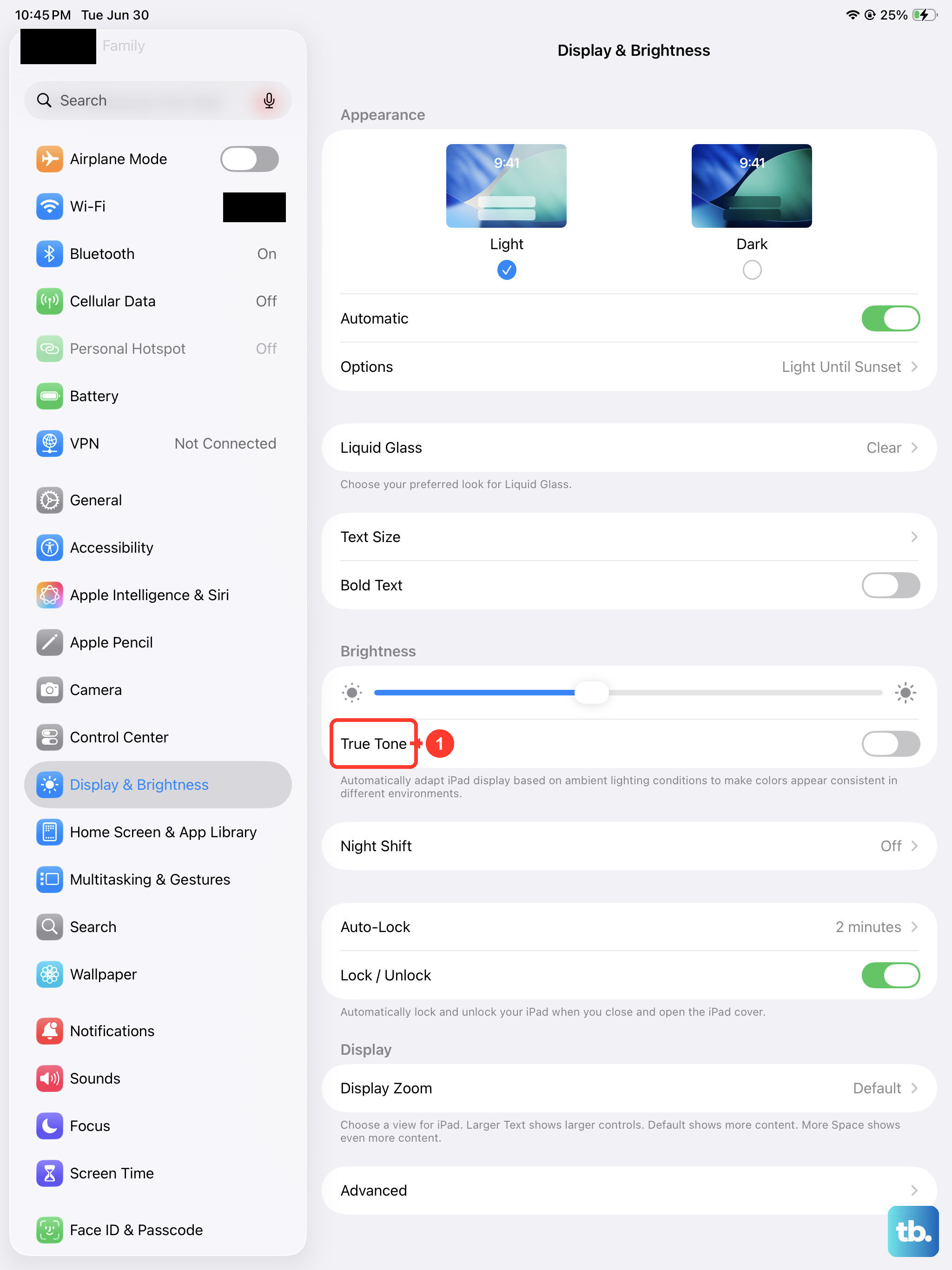
Another display bug is the screen dimming on its own, even when Auto-Brightness is off.
The fix is to toggle Auto-Brightness back on and off. Go to Settings > Accessibility > Display and Text Size > Auto-Brightness. Toggle it on, wait a few seconds, then toggle it off. The brightness should stop wandering after that.
If the dimming continues, check Settings > Display and Brightness > True Tone and toggle that off too. True Tone occasionally pulls the brightness curve in unexpected ways under iPadOS 26.
Apple Pencil Disconnects Repeatedly
This is one of the most severe iPadOS 26 issues, and as of iPadOS 26.2 there is still no reliable fix. The Apple Pencil pairs and stays connected while magnetically attached, but as soon as you lift it off the iPad to write, the connection drops within seconds.
The only consistent workaround is to detach and reattach the Pencil to re-pair it every time it disconnects. That's clearly not a real fix; it's a temporary measure until Apple ships a proper patch.
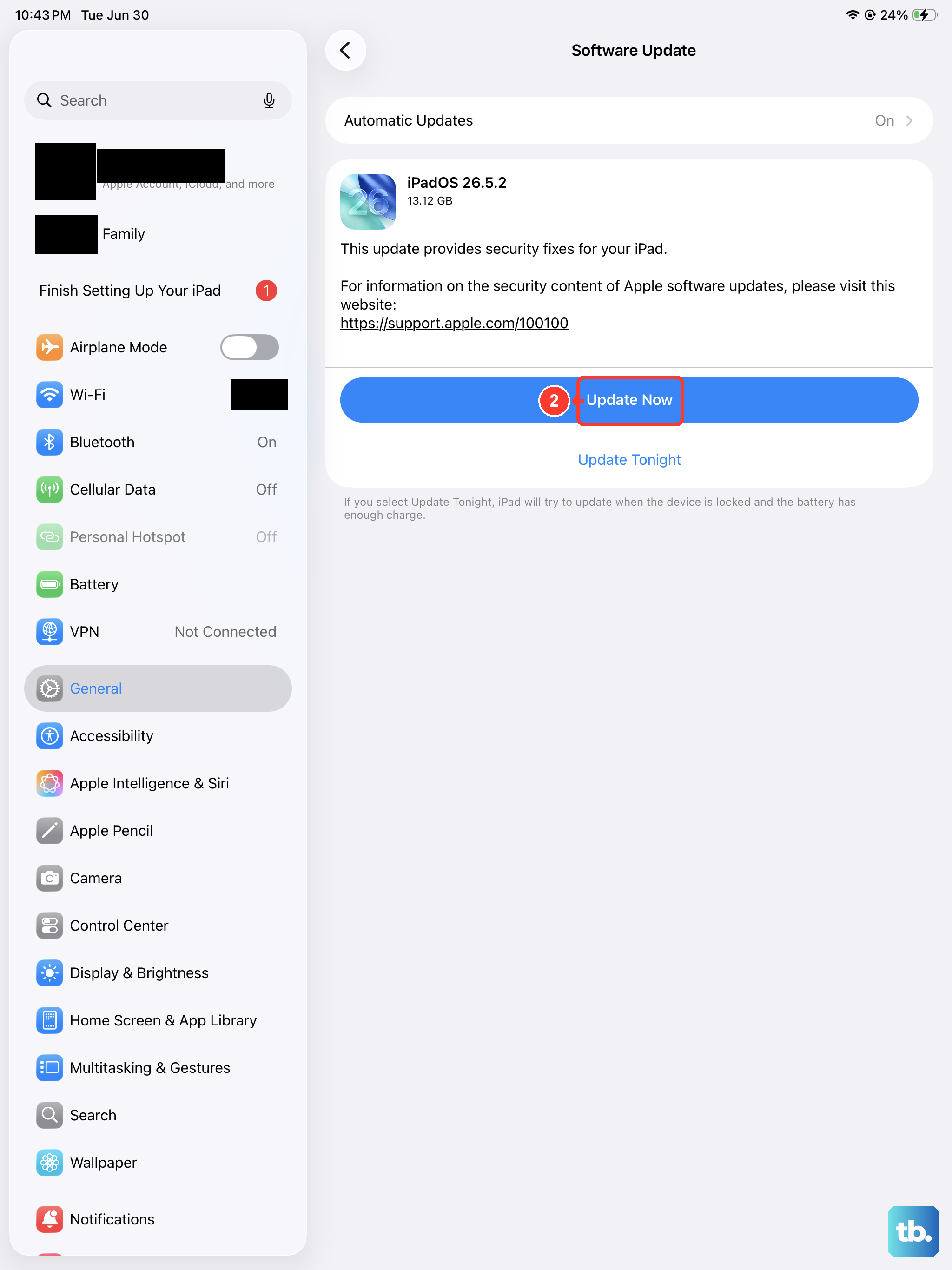
Make sure you are on the latest iPadOS 26 point release in case a future update finally addresses it. Go to Settings > General > Software Update and install whatever is available. Apple has shipped general Pencil stability improvements through 26.x releases, but the disconnect bug specifically persists for many users.
For the Apple Pencil Pro and Apple Pencil (USB-C), the Pencil firmware updates automatically when paired with a current iPadOS version, so keeping iPadOS current is the only Pencil-firmware path available.
Journal App Lags With Apple Pencil
The Journal app has been particularly affected by the Pencil issues. When you try to handwrite in Journal, the strokes appear in delayed bursts rather than flowing smoothly.
The Journal performance bug is app-specific and has no current workaround inside Journal itself. Apple has acknowledged the broader Pencil and Journal issues and is iterating, but the practical workaround is to use Notes or a third-party note-taking app (Notability, GoodNotes) for handwriting until Journal stabilizes. Those apps handle Pencil input more reliably under the current iPadOS.
Apps Don't Open When Tapped
Another reported bug is that tapping an app icon doesn't always bring the app to the foreground. The system does nothing for a few seconds, or it opens a new instance of the app instead of resuming the existing one.
This appears related to Stage Manager and the app multitasking system. The fix that helps most users is to toggle Stage Manager off and back on.
Swipe down from the top-right corner to open Control Center, then tap the Stage Manager icon to disable it. Wait a few seconds, then tap it again to re-enable. Apps should respond to taps normally after that.
If you don't use Stage Manager and the issue persists, a force restart usually clears it. Press and quickly release Volume Up, then Volume Down, then hold the Top button until the Apple logo appears.
Wi-Fi Connected But No Internet
This bug affects the iPad Pro M5 most prominently. The iPad shows full Wi-Fi signal but no traffic actually flows.
The most common cause is the Private Wi-Fi Address rotation in iPadOS 26 creating a MAC address your router doesn't recognize. The fix is to disable Private Address for your home network. Go to Settings > Wi-Fi, tap the (i) next to your network, and toggle Private Wi-Fi Address off.
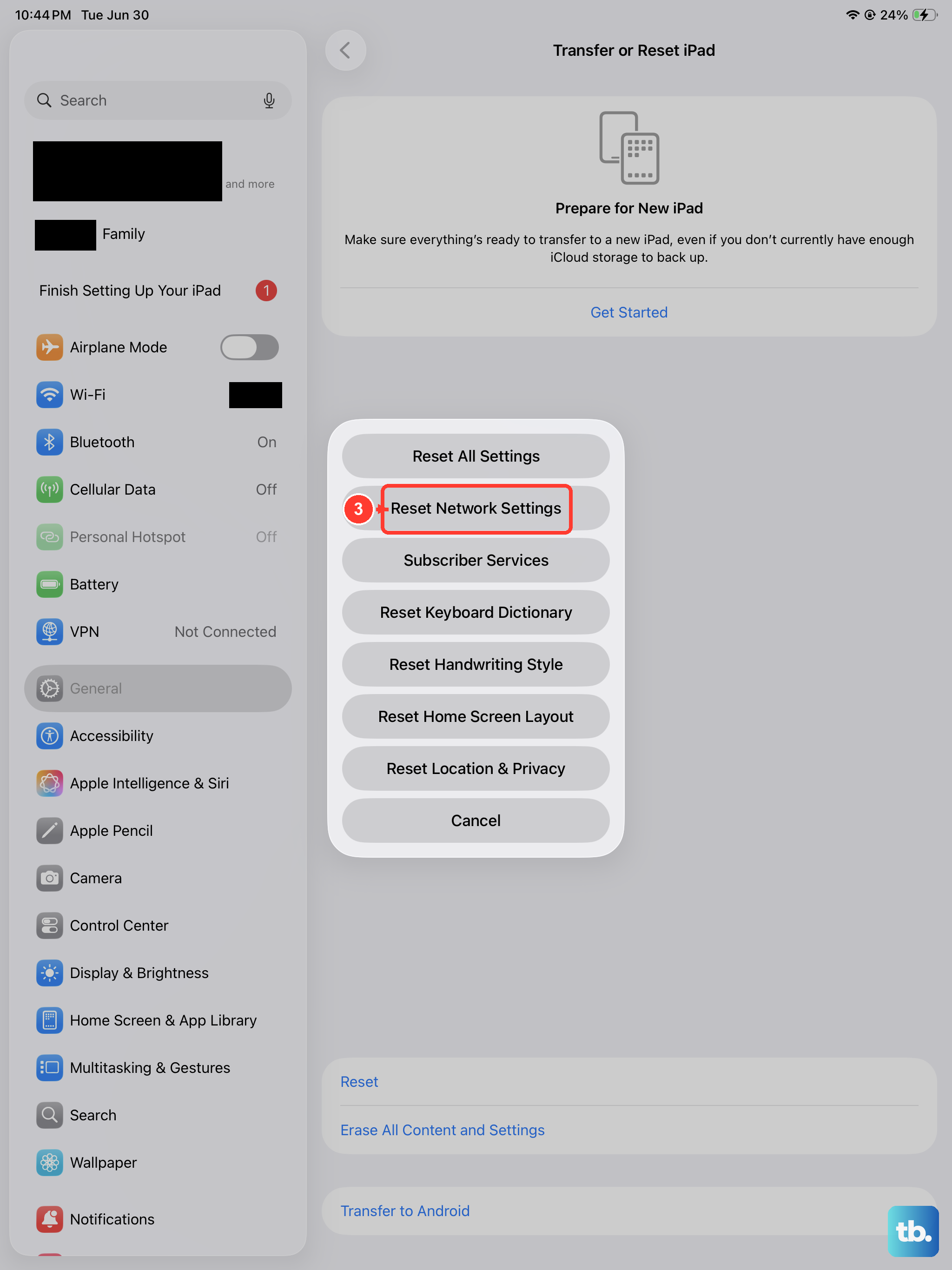
This issue can also be caused by stale DHCP leases or iCloud Private Relay conflicts. If the Private Address toggle doesn't resolve it, a Reset Network Settings is the next step.
Bluetooth Accessories Drop During Multitasking
Bluetooth keyboards, mice, and AirPods randomly disconnect and reconnect, especially when multitasking with multiple apps open.
The workaround is to reduce the multitasking load. Close apps you're not actively using by swiping up to the App Switcher and swiping up on each card. With fewer apps competing for system resources, the Bluetooth handshake stays stable.
If the dropouts continue with few apps open, unpair and re-pair the Bluetooth device. Go to Settings > Bluetooth, tap the (i) next to the device, tap Forget This Device, then re-pair from scratch.
What to Do Generally
For most iPadOS 26 bugs, three actions consistently help.
First, install the latest iPadOS 26 point release. Apple has been pushing fixes through point updates, and the current version is always more stable than older 26.x releases.
Second, restart the iPad. Many of these bugs are stuck-state problems that a clean restart clears. Use a force restart if a regular restart doesn't help.
Third, if a specific bug is making the iPad unusable and the above don't fix it, contact Apple Support. Some bugs have hardware-adjacent causes that warrant a service review.