
You're staring at your iPad, trying to stream a show or browse the web, but that Wi-Fi icon just won't light up. It's a frustrating roadblock, especially on a device designed for connectivity. Whether you're on an iPad Pro or another model, these connection issues can often be resolved with a few troubleshooting steps.
Toggle Wi-Fi and Restart Your iPad
Let's start with the simplest fix. Swipe down from the top right corner of your screen to open Control Center. The Wi-Fi button there temporarily disconnects from the current network; it doesn't fully turn Wi-Fi off. For a full toggle, go to Settings > Wi-Fi, turn Wi-Fi off, wait a few seconds, then turn it back on and select your network again.
If that doesn't work, restart your iPad by turning it off and back on. On iPads without a Home button, press and hold the top button and either volume button until the power-off slider appears, drag the slider, then hold the top button to turn the iPad back on. On iPads with a Home button, hold the top button until the slider appears, drag it, then hold the top button again.
If the iPad isn't responding, force restart it: on models without a Home button, press and quickly release the volume button nearest the top button, press and quickly release the volume button farthest from the top button, then hold the top button until the Apple logo appears; on models with a Home button, hold the Home and top buttons until the Apple logo appears.
Forget the Network and Rejoin
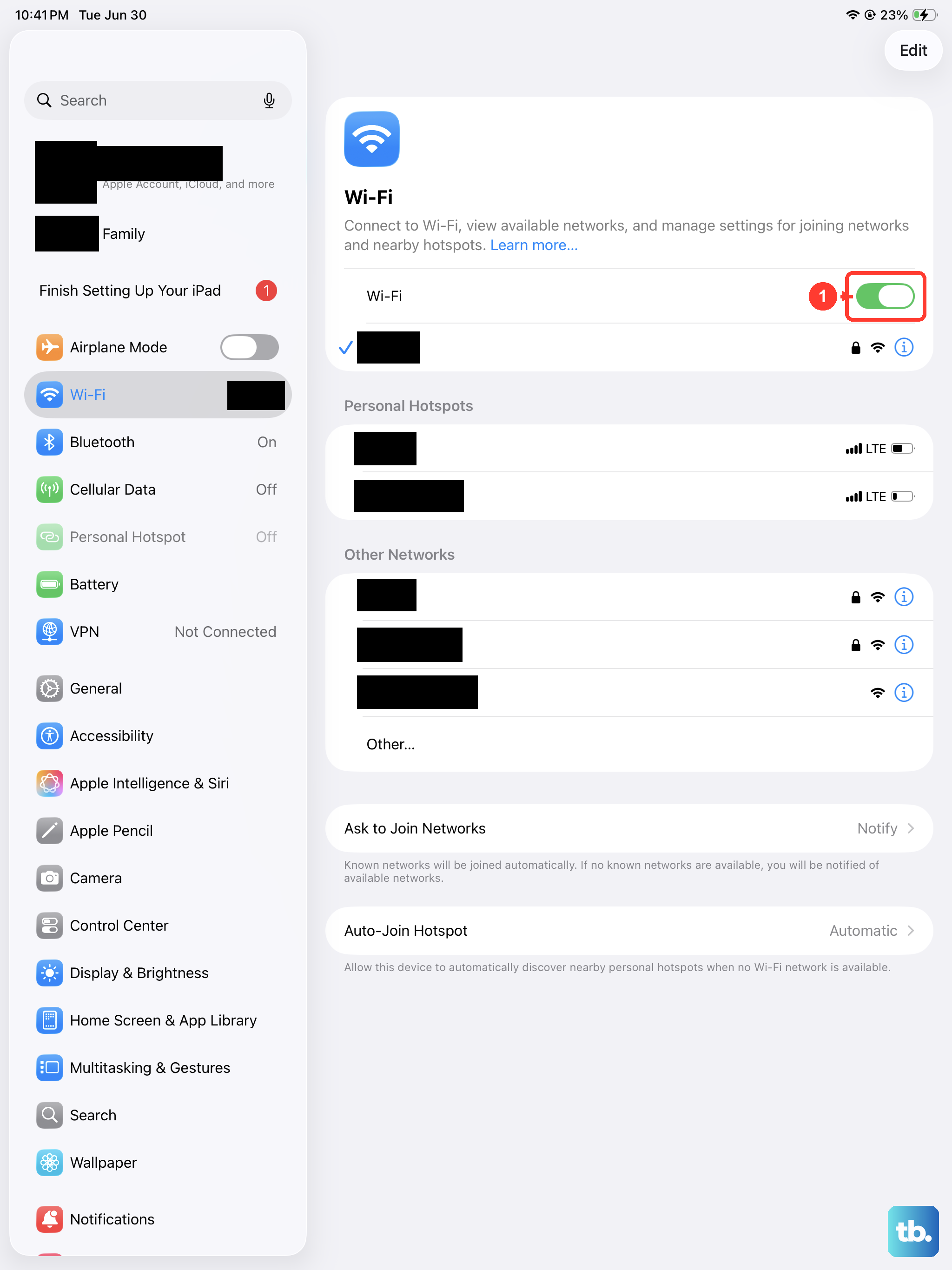
Your iPad might be holding onto outdated information for your home network. To clear it out, go to Settings > Wi-Fi. Tap the info icon (the small "i" in a circle) next to your network's name. Then, tap Forget This Network and confirm.
Now, go back to the list of available networks, select yours again, and re-enter the password. This is particularly important if you've recently changed your Wi-Fi password or gotten a new router. Your iPad will be trying to connect with the old credentials, which will never work.
Check for Router Issues
Before you spend more time on your iPad, make sure the problem isn't with your internet source. Restart your router and cable modem by unplugging them and plugging them back in. This can resolve minor connection issues. If other devices in your home are also offline, there may be a service outage; contact your internet service provider.
While you're thinking about the router, check how close your iPad is to it. Thick walls, especially made of concrete or brick, can significantly weaken the signal. Try moving closer to the router to see if the connection stabilizes.
Disable Bluetooth Temporarily
Bluetooth can contribute to interference in busy 2.4GHz environments. The Bluetooth button in Control Center only disconnects accessories temporarily, so to test this properly go to Settings > Bluetooth and turn Bluetooth off, then try reconnecting to Wi-Fi. If that helps, turn Bluetooth back on afterward and try using your router's 5GHz band or improving router placement instead of leaving Bluetooth off.
Review Your Date and Time Settings
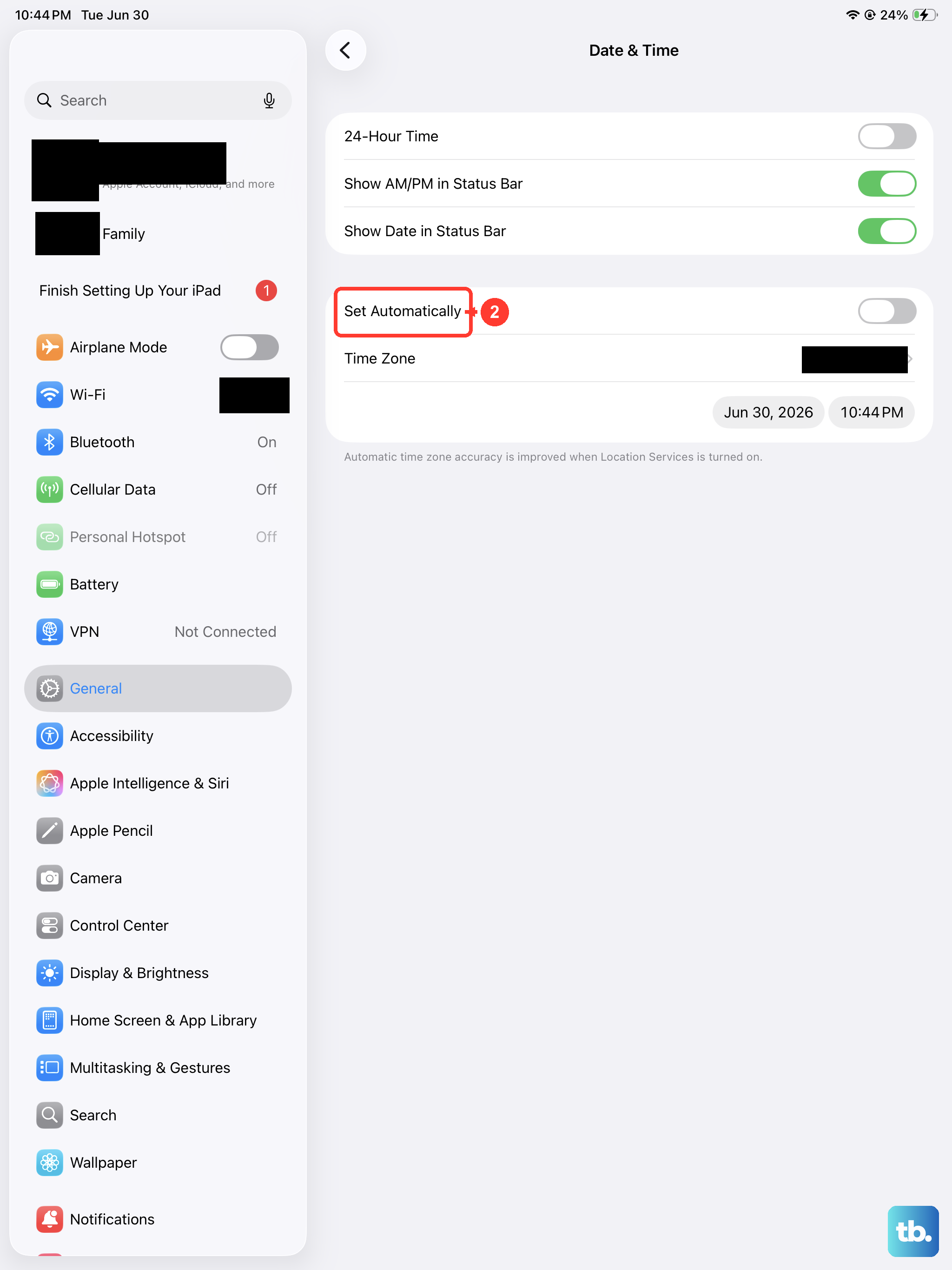
Check that your iPad's date and time are correct before trying the connection again. Go to Settings > General > Date & Time. Make sure the Set Automatically option is turned on. This allows your iPad to pull the correct time from the network.
Update iPadOS
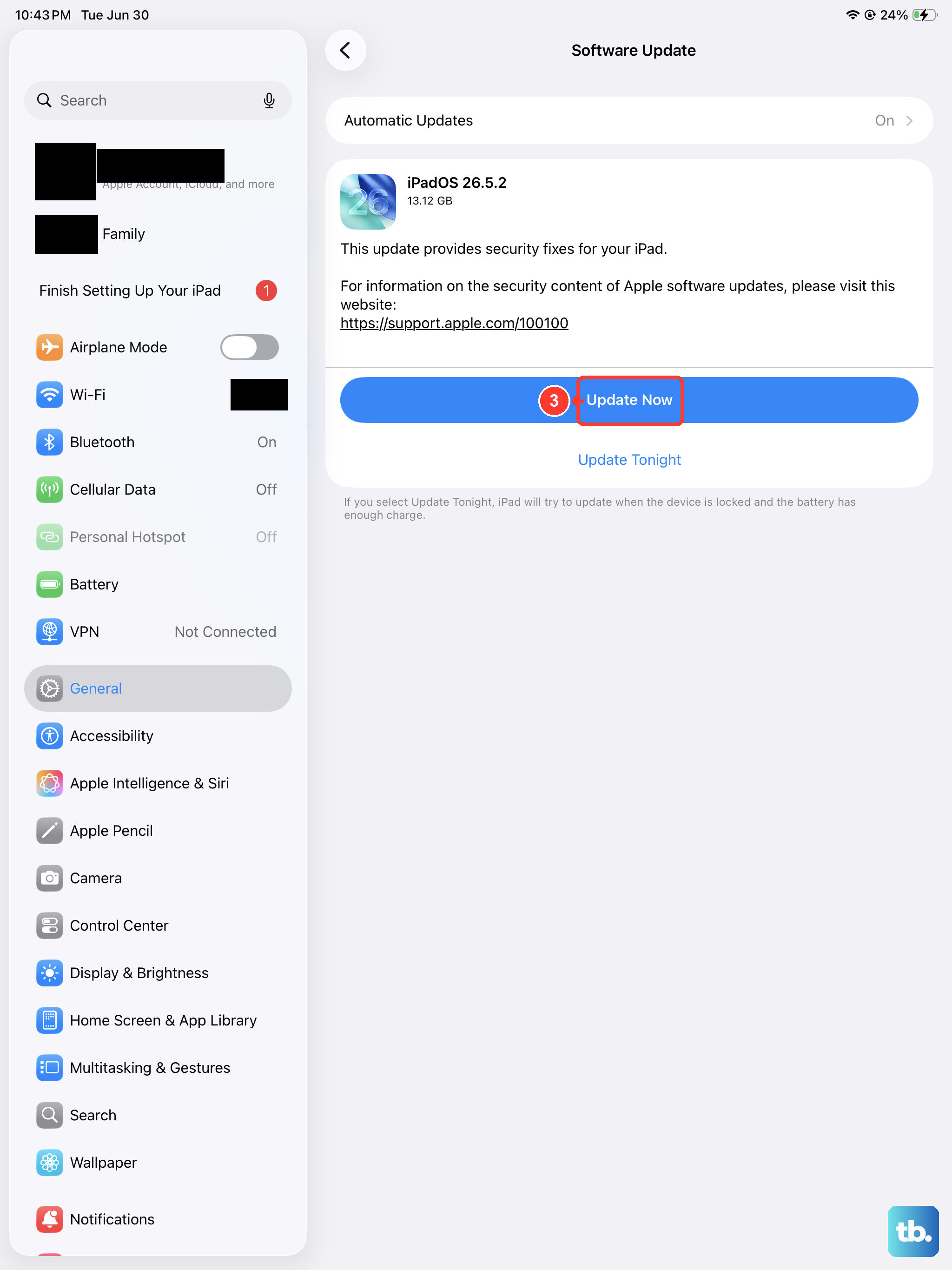
Check for an available iPadOS update. Back up your iPad first, then go to Settings > General > Software Update. If an update is available, tap Download and Install and follow the onscreen instructions. Keep your iPad connected to power during the update. If you can't connect to Wi-Fi, try another network or update using a computer.
Reset Your Network Settings
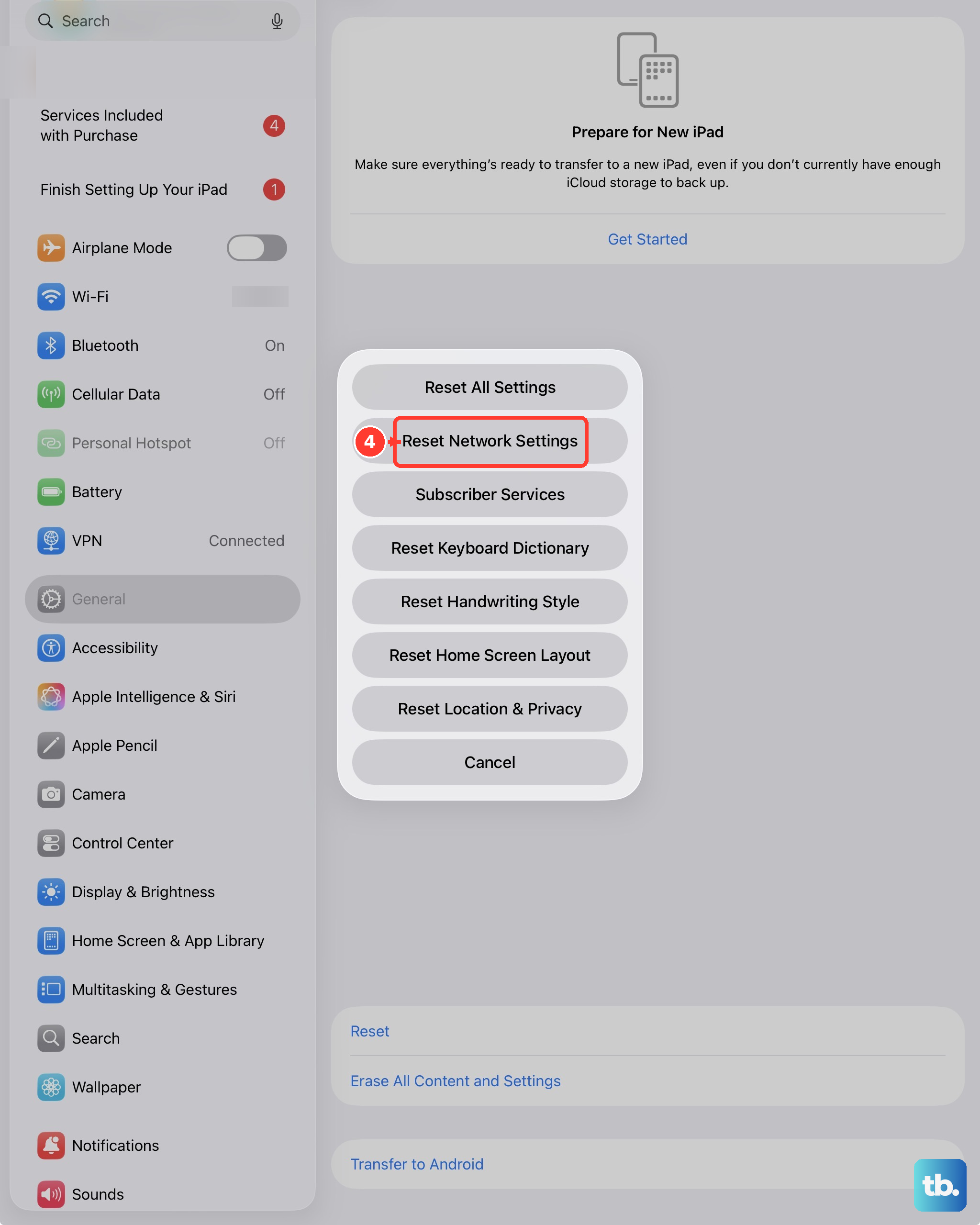
Reset network settings only if the other fixes fail. If a school or business configures your network, consult its IT team or network administrator first. This removes saved Wi-Fi networks and passwords, cellular settings, and VPN/APN settings; it does not erase your content. Go to Settings > General > Transfer or Reset iPad > Reset. Then, tap Reset Network Settings and enter your passcode to confirm.
After the reset, reconnect to your Wi-Fi network and re-enter its password. VPN or network settings installed by a configuration profile or mobile device management remain after this reset. Before removing a profile or management in Settings > General > VPN & Device Management, consult your network administrator, since removal also removes other associated settings, accounts, or certificates.
Check for a VPN or Content Blocker
VPN apps and Safari content blockers are great for privacy, but they can sometimes disrupt normal internet traffic. If you have VPN or security software installed, uninstall it, restart your iPad, and test the Wi-Fi connection. If that fixes the issue but you need the software, contact your VPN manager or security software provider. For content blockers, go to Settings > Apps > Safari > Extensions and toggle them off to test.
Try a Different Network
To check whether the problem is limited to your current network, try connecting to a completely different network. This could be a public hotspot, a friend's Wi-Fi, or even using your iPhone's Personal Hotspot. If your iPad connects without issue to other networks, your home network may be the cause.
If it fails to connect to any Wi-Fi network at all, contact Apple for help.
Review Router Settings (Advanced)
If you're comfortable logging into your router's admin panel, check the router against Apple's recommended settings. For security, use WPA3 Personal, WPA2/WPA3 Transitional for compatibility with older devices, or WPA2 Personal (AES) only if the more secure modes won't work. Avoid WEP, WPA, WPA/WPA2 mixed modes, TKIP, or open security.
You can also test another Wi-Fi band if your router exposes that option. Apple recommends using a single, unique network name for all bands, so don't split 2.4GHz and 5GHz into separate names as a permanent fix. If your router already lets you choose a band or has temporary separate-band testing, try the other band, and make sure each band uses the same recommended security setting.