
When your iPad's volume buttons stop responding, it can throw off your whole workflow. You press them to adjust a video or turn down a podcast, but nothing happens. The problem may be a software hiccup or a simple obstruction you can fix yourself, though damaged or intermittently working buttons may need a repair.
I'd start with the quick fixes at the top of this list. They resolve the majority of these issues.
Remove Your iPad Case
This is the easiest place to begin. Take your iPad out of its case, especially if it's a folio or a keyboard case like the Magic Keyboard. Sometimes, the case material can shift and put pressure on the button cutouts, preventing the physical buttons underneath from being fully depressed.
Test the volume buttons without the case on. If they work, you've found the culprit. You might need to adjust how the case sits or consider a different one.
Perform a Force Restart
First try restarting through Settings > General > Shut Down, then turn your iPad back on with the top button. If your iPad isn't responding and you can't restart it normally, try a force restart. The process depends on your model and requires working buttons.
For iPads without a Home button, press and quickly release the volume button nearest to the top button, then press and quickly release the volume button farthest from it. Finally, press and hold the top button, then release it when the Apple logo appears.
If you have an iPad with a Home button, press and hold both the Home button and the Top button at the same time. Keep holding them until the Apple logo appears, then you can let go.
Clean Around the Buttons
Dust, lint, and pocket debris are common enemies of small mechanical parts. Over time, this gunk can build up around the volume rocker, preventing it from clicking properly.
Check around each button for dirt or debris and gently clean it with a soft cloth. Avoid getting moisture in the openings, and don't use compressed air. Remove any protective film that might block the buttons, then test whether they respond normally.
Check Your Sound Settings
It's worth a quick look in Settings to make sure nothing got changed accidentally. Open the Settings app and tap on Sounds. Here, you can use the sliders to adjust your ringer and alert volumes manually. Turn on Change with Buttons if you want the buttons to adjust ringer and alert volume when no audio is playing; when it's off, they only control media playback.
Also, swipe down from the top-right corner to open Control Center. You'll find a volume slider there that you can use while you're troubleshooting the physical buttons.
Test the Buttons in Different Apps
Try using the volume buttons in a few different situations. Open the Music app and play a song, then try to adjust it. Open a video on YouTube or in the TV app and try again.
If the buttons work in one app but not another, the problem is likely with that specific app. Try force-closing the problematic app and reopening it, or check the App Store for an update.
Check Silent Mode
Open Settings, tap Sounds, and turn Silent Mode off if you want to hear ringtones, alerts, and system sounds. You can also turn Silent Mode on or off in Control Center.
Music and video audio still play in Silent Mode. Play some audio and test the volume buttons to check media volume separately from alerts.
Enable and Use AssistiveTouch
AssistiveTouch creates a floating menu on your screen with virtual controls, including volume buttons. You can use these while the physical buttons aren't working. Go to Settings, then tap Accessibility, followed by Touch, and finally AssistiveTouch. Turn the toggle on.
A small gray circle will appear on your screen. Tap it, then tap Device, and you'll see Volume Up and Volume Down buttons. Use these virtual buttons to adjust the volume. You can turn AssistiveTouch off afterward if you don't need it.
Update iPadOS
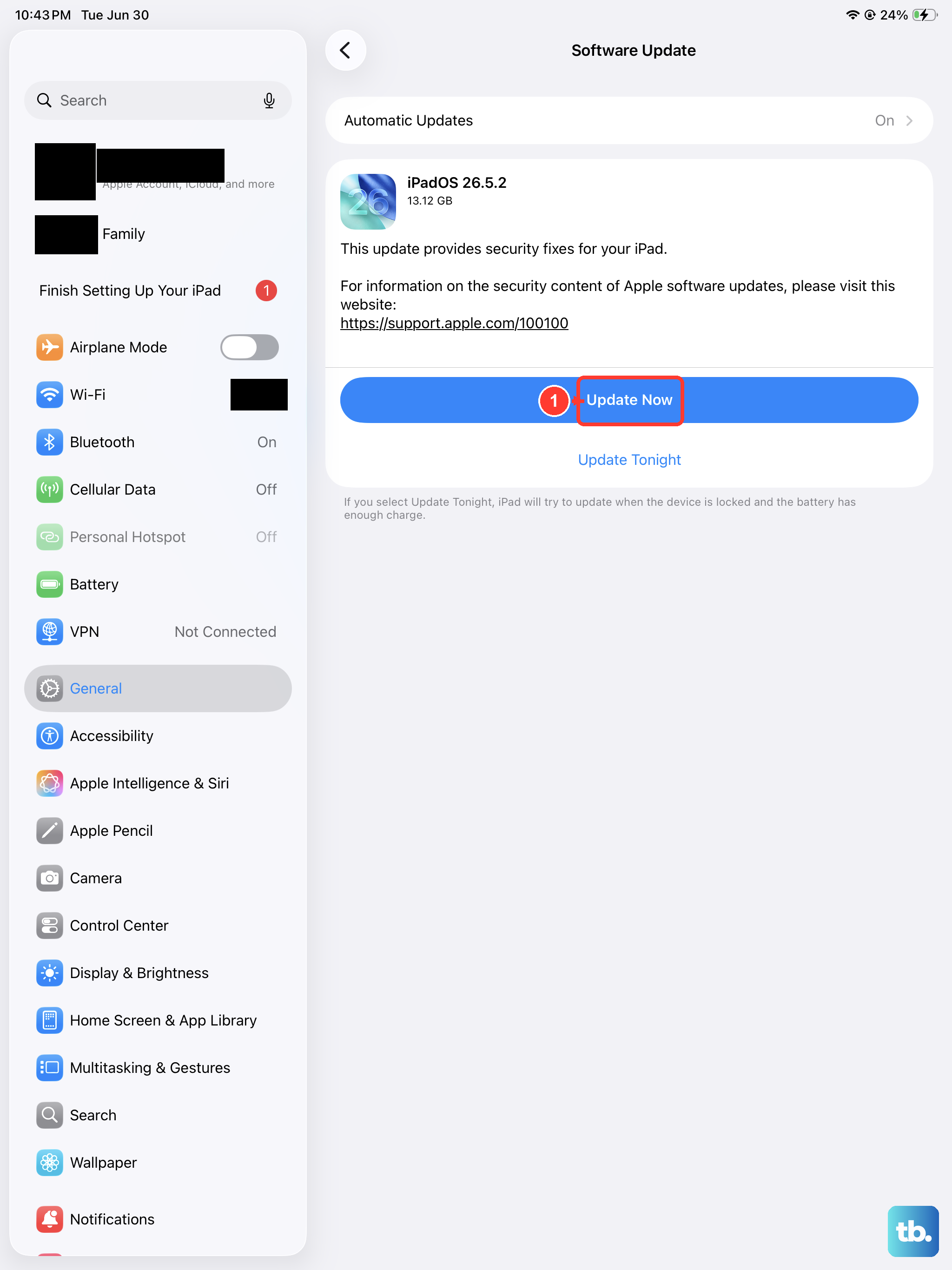
Updating iPadOS may help with software problems. Back up your iPad before updating. Make sure your iPad is connected to Wi-Fi and plugged into a charger.
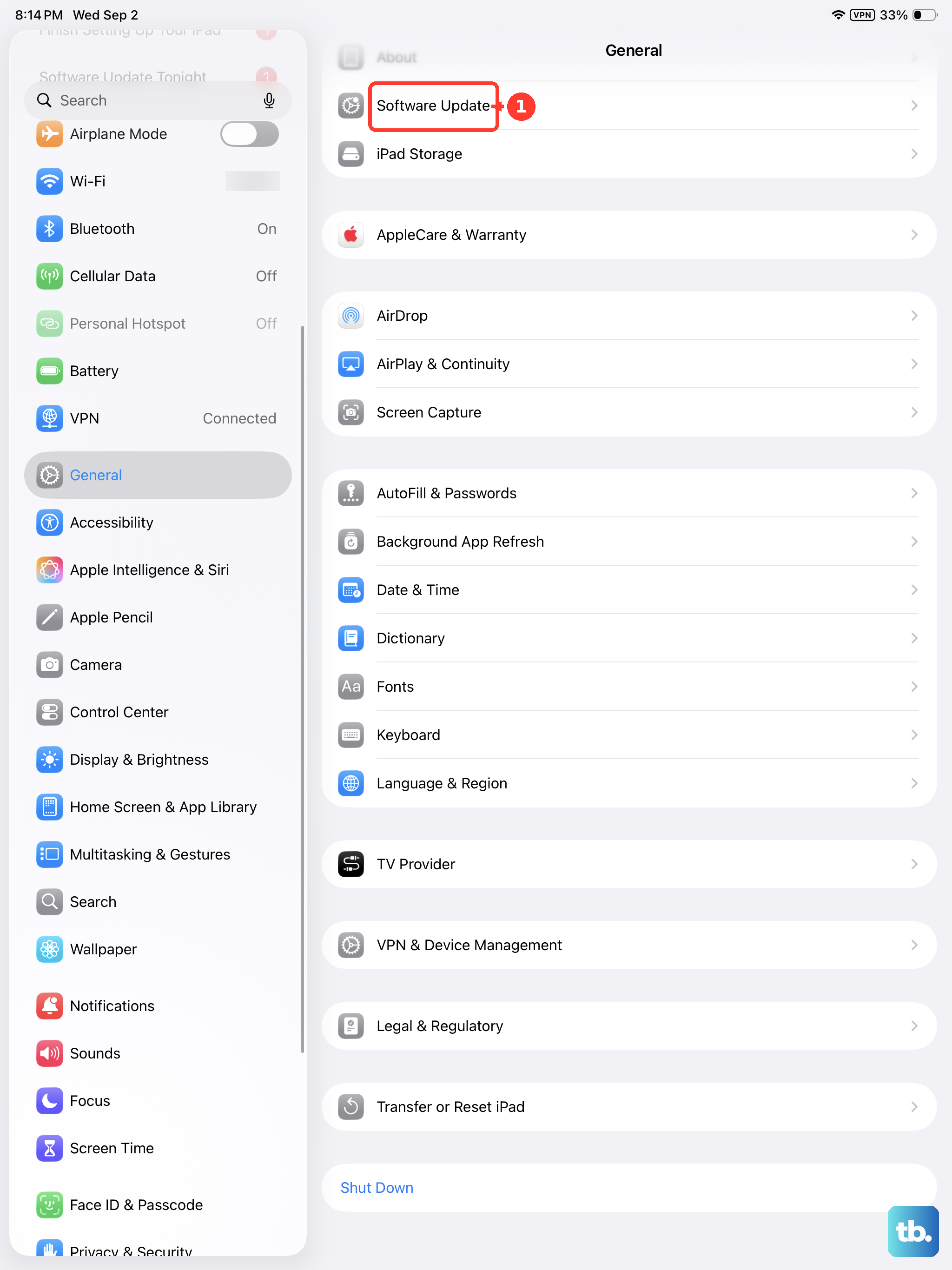
Go to Settings, then General, and tap Software Update. If an update is available, tap Download and Install, then follow the onscreen instructions. Keep your iPad connected to power while it updates.
Check for Button Obstruction or Damage
Check that no case or protective film is blocking either volume button, and clean any visible dirt around the buttons with a soft cloth. Test each button after removing these obstructions.
If a button still doesn't work, is damaged, or responds only intermittently, arrange an iPad repair.
Reset All Settings
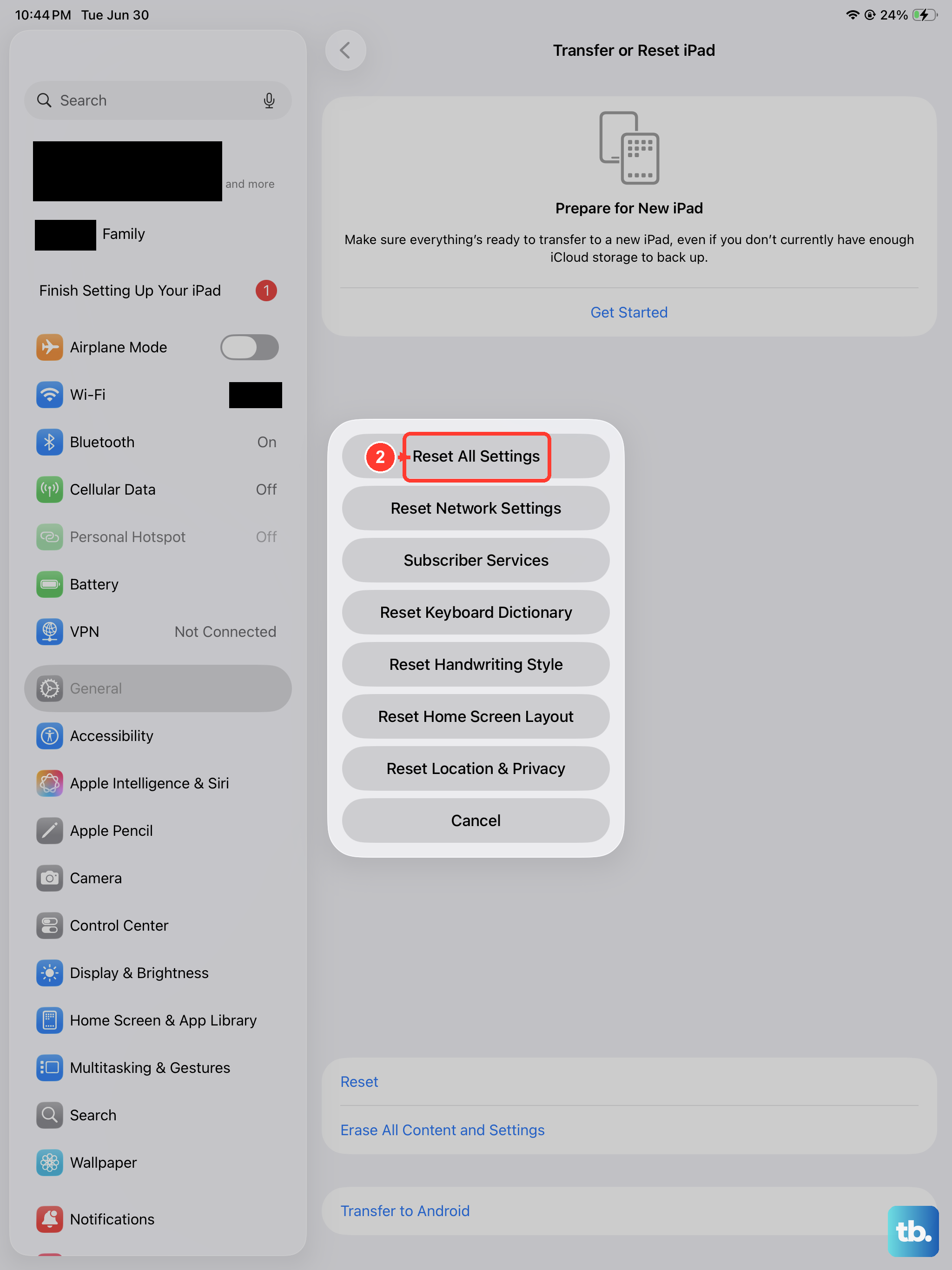
If you're still having trouble, a deeper software reset might help. This will revert all your system settings (like Wi-Fi passwords, wallpaper, and privacy permissions) back to their defaults, but it won't delete your apps or personal data.
Go to Settings, then General, then Transfer or Reset iPad. Tap Reset, and choose Reset All Settings. You'll need to enter your passcode to confirm. After the iPad restarts, you'll have to reconfigure your preferences. If the buttons still don't work, arrange an iPad repair.