When your iPad's voice assistant stops responding, it can feel like you've lost a helpful companion. Whether you're trying to set a timer while cooking or ask for the weather, a silent Siri on your iPad is a real inconvenience. The good news is that this is usually a software or settings issue you can fix yourself.
Let's start with the most common fix. Open the Settings app on your iPad and tap on Siri & Search. Make sure the switch next to "Listen for 'Hey Siri'" is turned on. While you're there, also check that "Allow Siri When Locked" is enabled. I've seen this get accidentally toggled off after an iPadOS update more times than I can count.
Retrain Siri to Recognize Your Voice
If Siri is enabled but still not listening, the voice profile might be corrupted. The best way to fix this is to retrain Siri. Go back to Settings > Siri & Search and turn "Listen for 'Hey Siri'" off. Wait a few seconds, then turn it back on.
Your iPad will walk you through the setup process again. You'll need to say a few phrases like "Hey Siri" and "Hey Siri, how's the weather today?" clearly and at a normal volume. This creates a fresh acoustic model of your voice for the iPad to use.
Check for Conflicting Accessibility Features
iPadOS has a feature called Sound Recognition, designed to alert you to important sounds like fire alarms or doorbells. When this is active, it automatically disables "Hey Siri" to avoid conflicts. To check, go to Settings > Accessibility > Sound Recognition and make sure it's switched off.
Another setting to look at is in the same Accessibility menu. Tap on Siri within Accessibility. Here, you'll find an option called "Always Listen for 'Hey Siri'". Enabling this lets Siri respond even when your iPad is face down or covered, which can sometimes resolve detection issues.
Review Your Audio and Focus Settings
Make sure your iPad isn't on silent mode and that the volume is turned up. You can adjust the ringer and alert volume in Settings > Sounds & Haptics. Also, check if a Focus mode like Do Not Disturb is active, as some users report this can occasionally interfere.
Within the Siri settings, tap on Siri Responses. Ensure the response settings are configured the way you want. You can choose to have Siri respond verbally always, or only when you're not using silent mode. If you can't hear Siri at all, try switching this to "Always" temporarily as a test.
Inspect Your iPad's Microphones
Your iPad has multiple microphones. On recent models without a Home button, you'll find them along the top edge and sometimes near the rear camera. If these tiny ports are blocked by a case, a screen protector, or even a bit of lint, Siri won't be able to hear you.
Take a close look at the edges of your iPad. Gently clean any visible microphone grilles with a soft, dry brush. Avoid using compressed air or any liquids, as you could push debris further in or cause damage. If you're using a bulky case, try removing it and testing Siri again.
Restart and Update Your iPad
A simple restart clears out temporary software glitches that can affect Siri. The method depends on your iPad model. For iPads without a Home button, quickly press and release the Volume button closest to the Top button, then the volume button farthest from the Top button, then press and hold the Top button until you see the Apple logo.
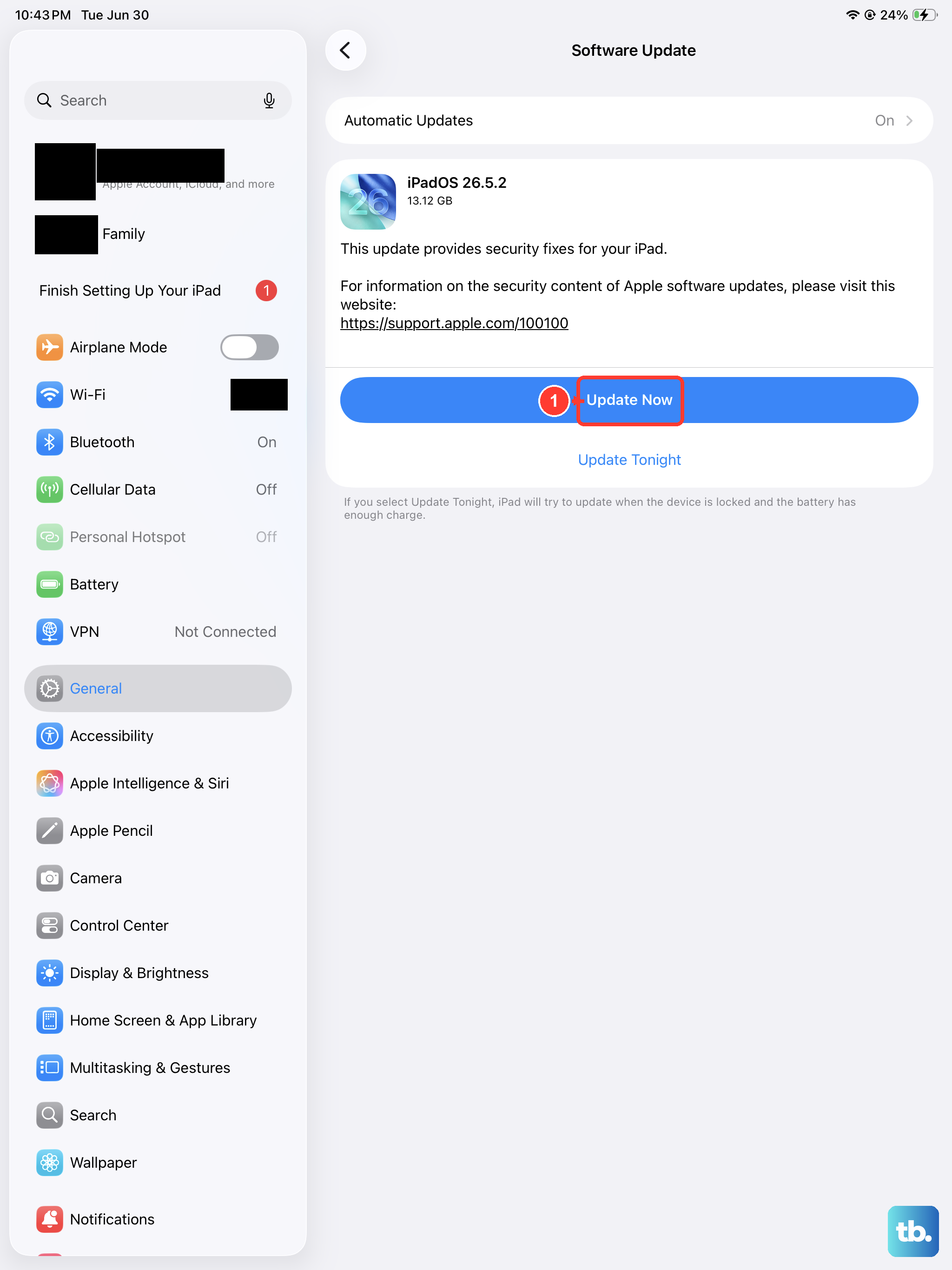
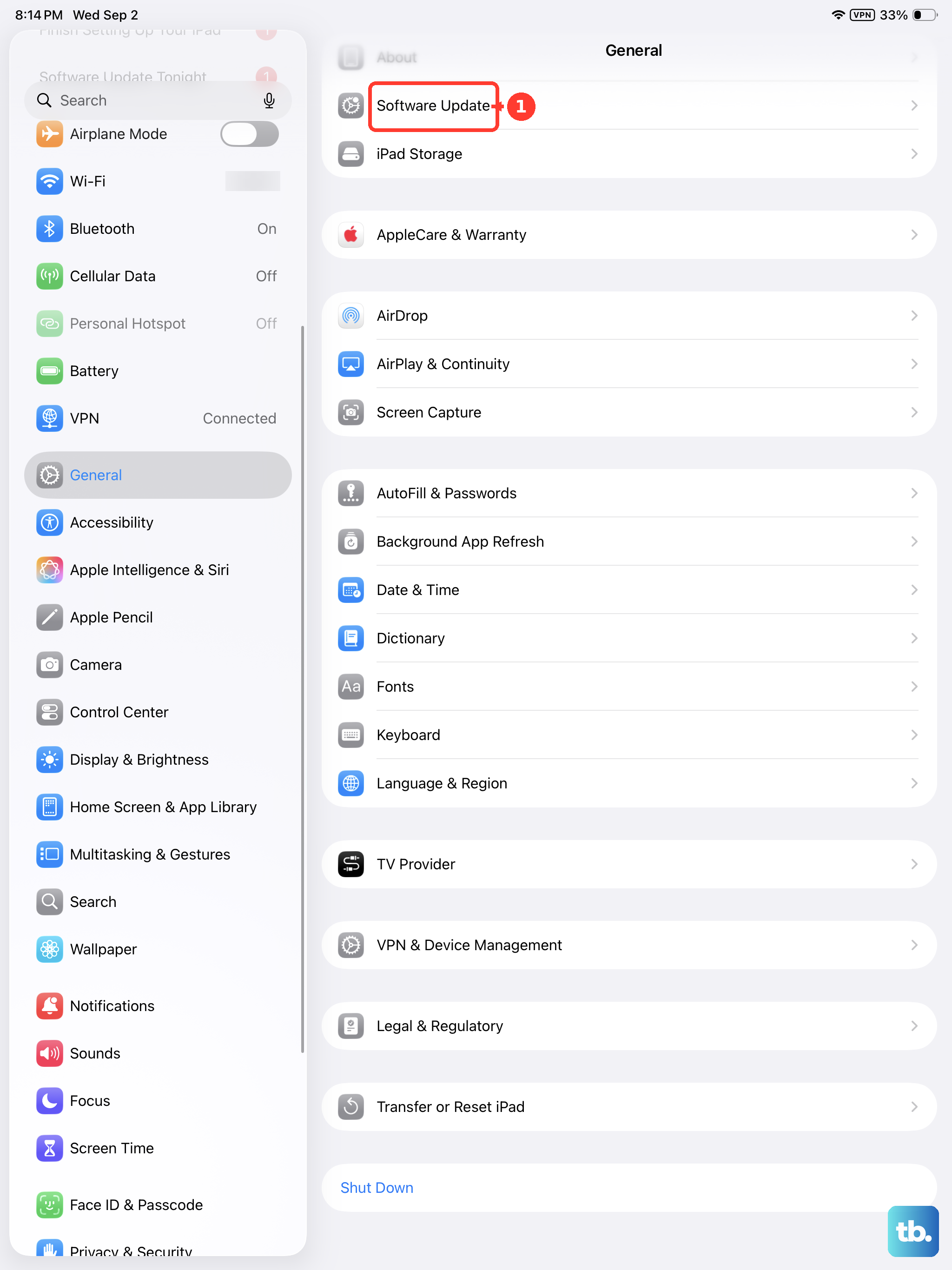
For iPads with a Home button, just press and hold both the Home button and the Top button until the Apple logo appears. After your iPad reboots, test Siri immediately. Next, check for a software update by going to Settings > General > Software Update. Installing the latest iPadOS version can fix known bugs related to voice recognition.
Disconnect External Accessories
Connected devices can sometimes cause conflicts. If you have any Bluetooth headphones, speakers, or a Magic Keyboard attached, disconnect them. Go to Settings > Bluetooth, tap the info icon next to the accessory, and select "Disconnect". Then try using "Hey Siri" again with no accessories connected.
This is especially important if you're using a keyboard case or a USB-C hub. These accessories can draw power and processing attention away from core functions like the microphone array. Try charging your iPad directly with its USB-C cable, without any hubs or docks in between.
Reset All Settings
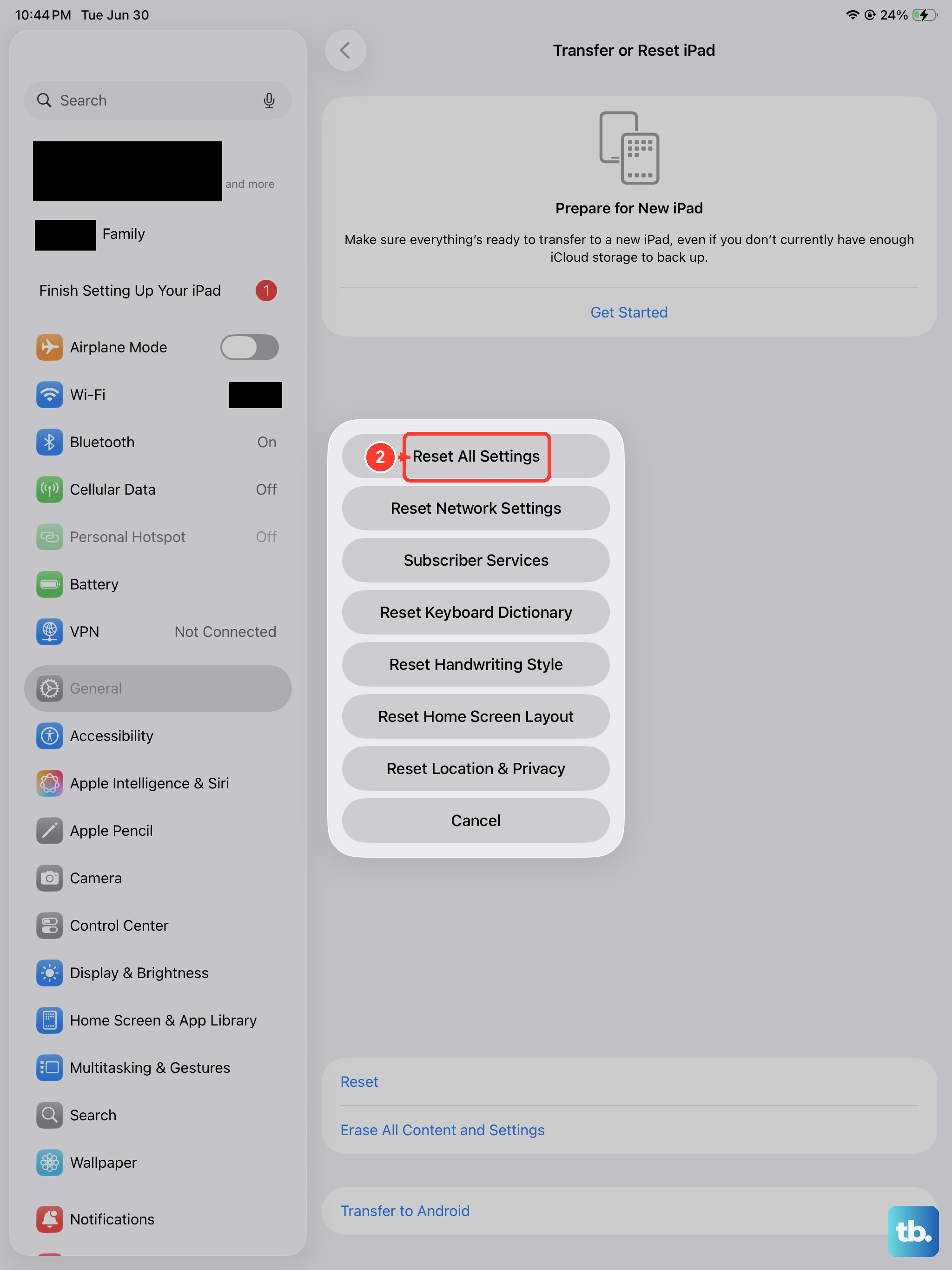
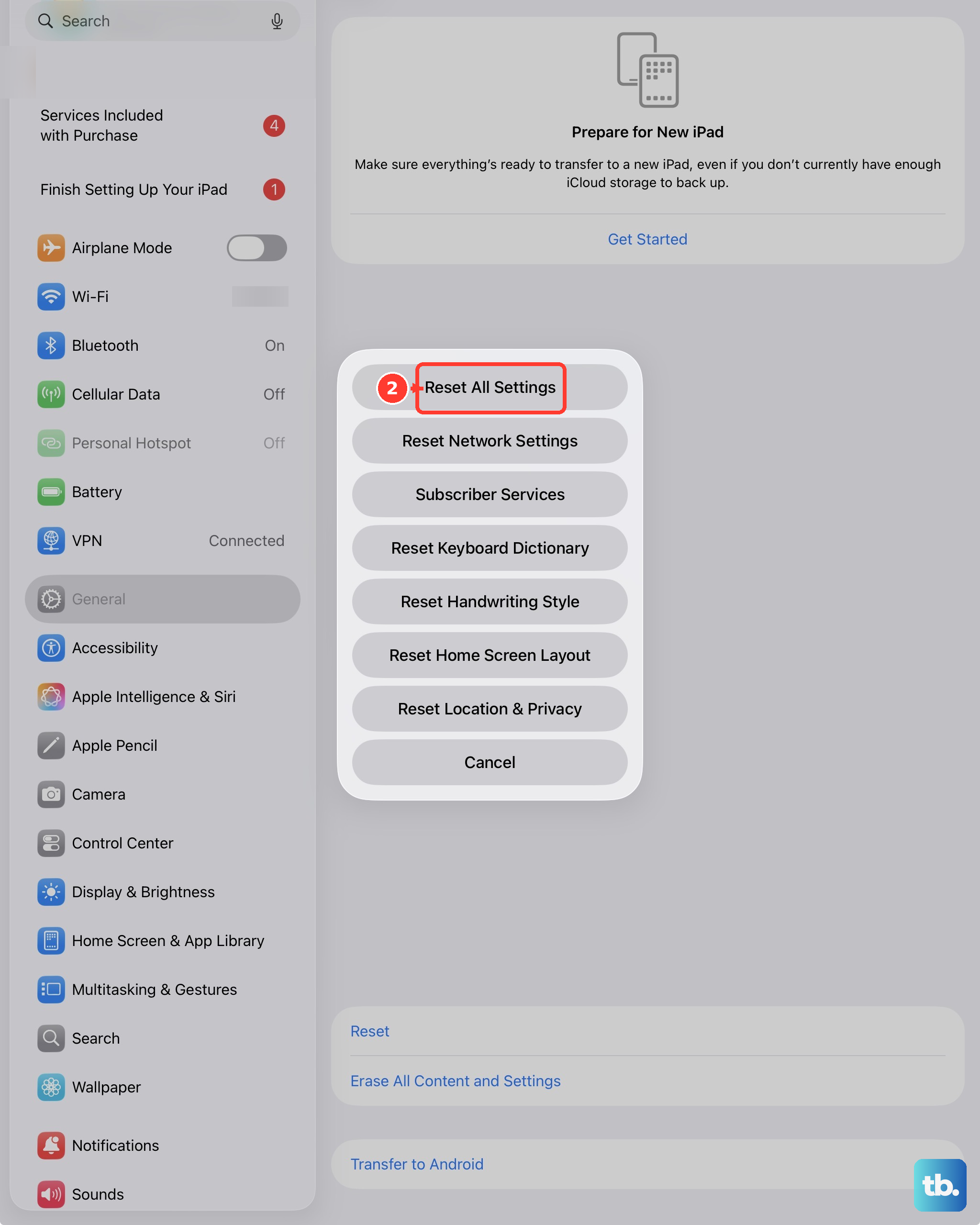
If Siri is still unresponsive, you can try resetting all settings. This won't delete your apps or personal data, but it will revert all system preferences, like Wi-Fi passwords, wallpaper, and privacy permissions, back to their defaults. It often resolves deeper configuration conflicts.
To do this, go to Settings > General > Transfer or Reset iPad. Tap on Reset, and then choose "Reset All Settings". Your iPad will restart. After it boots up, you'll need to re-enable "Hey Siri" and retrain your voice, but this fresh start frequently does the trick.