
If your iPad has gone silent and you're missing haptic feedback for notifications or keyboard taps, it's a surprisingly common hiccup. The good news is that it's almost always a software setting or a minor glitch you can fix yourself.
Restart Your iPad
Before diving into settings, give your iPad a quick restart. This clears out any temporary software bugs that might be telling the vibration motor to stay quiet. The method depends on which iPad model you have.
For iPads without a Home button (like most recent models), press and quickly release the Volume Up button, then the Volume Down button. Finally, press and hold the Top button until you see the Apple logo appear. For older iPads with a Home button, just press and hold both the Home button and the Top button until the Apple logo shows up.
Check Your Silent Switch and Focus Modes
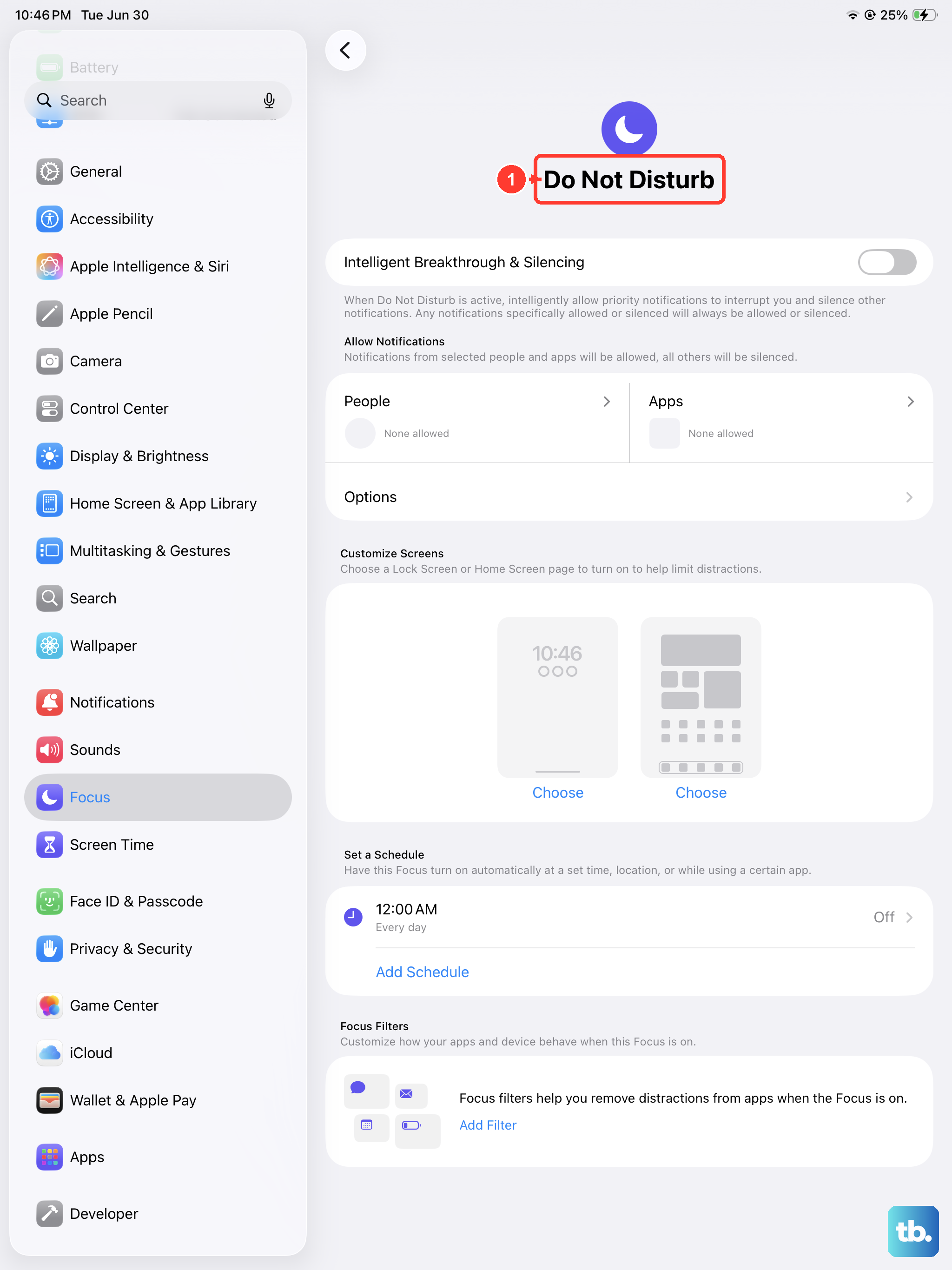
This is the most common culprit. On the side of your iPad, you'll find a physical switch. If this switch is flipped down (showing an orange line), your iPad is in Silent Mode and will not vibrate for alerts. Slide it up to turn silent mode off.
Also, check if a Focus mode like Do Not Disturb or Sleep is active. Swipe down from the top-right corner to open Control Center. If the moon icon or another Focus icon is highlighted, tap it to turn that Focus off, as they can silence notifications entirely.
Verify Sound and Haptics Settings
Head to Settings > Sounds & Haptics. First, make sure the "Vibrate on Ring" and "Vibrate on Silent" toggles are both turned on. Even if your iPad isn't silent, having both enabled covers all bases.
While you're there, drag the "Ringer and Alerts" slider back and forth. Sometimes a simple adjustment can jog the system. I'd also scroll down and ensure "Keyboard Feedback" is enabled, which controls vibration for key presses.
Review Notification Settings for Specific Apps
If you're only missing vibrations from certain apps like Messages or Mail, the problem is app-specific. Open Settings and scroll down to the app in question. Tap it, then select Notifications.
Make sure "Allow Notifications" is on. Then, tap on the specific notification type (like "Messages" for the Messages app). Look for the "Sounds" or "Haptics" option and ensure a sound and vibration pattern is selected, not "None".
Test with a Different Vibration Pattern
Sometimes the specific vibration pattern can get corrupted. Go back to Settings > Sounds & Haptics. Under "Sounds and Vibration Patterns," tap on "Ringtone" or "Text Tone".
At the top of the tone list, you'll see "Vibration". Tap it. Try selecting a different built-in pattern like "Symphony" or "Heartbeat," then go back and test. You can also create a new custom pattern by tapping "Create New Vibration".
Check for a Software Update
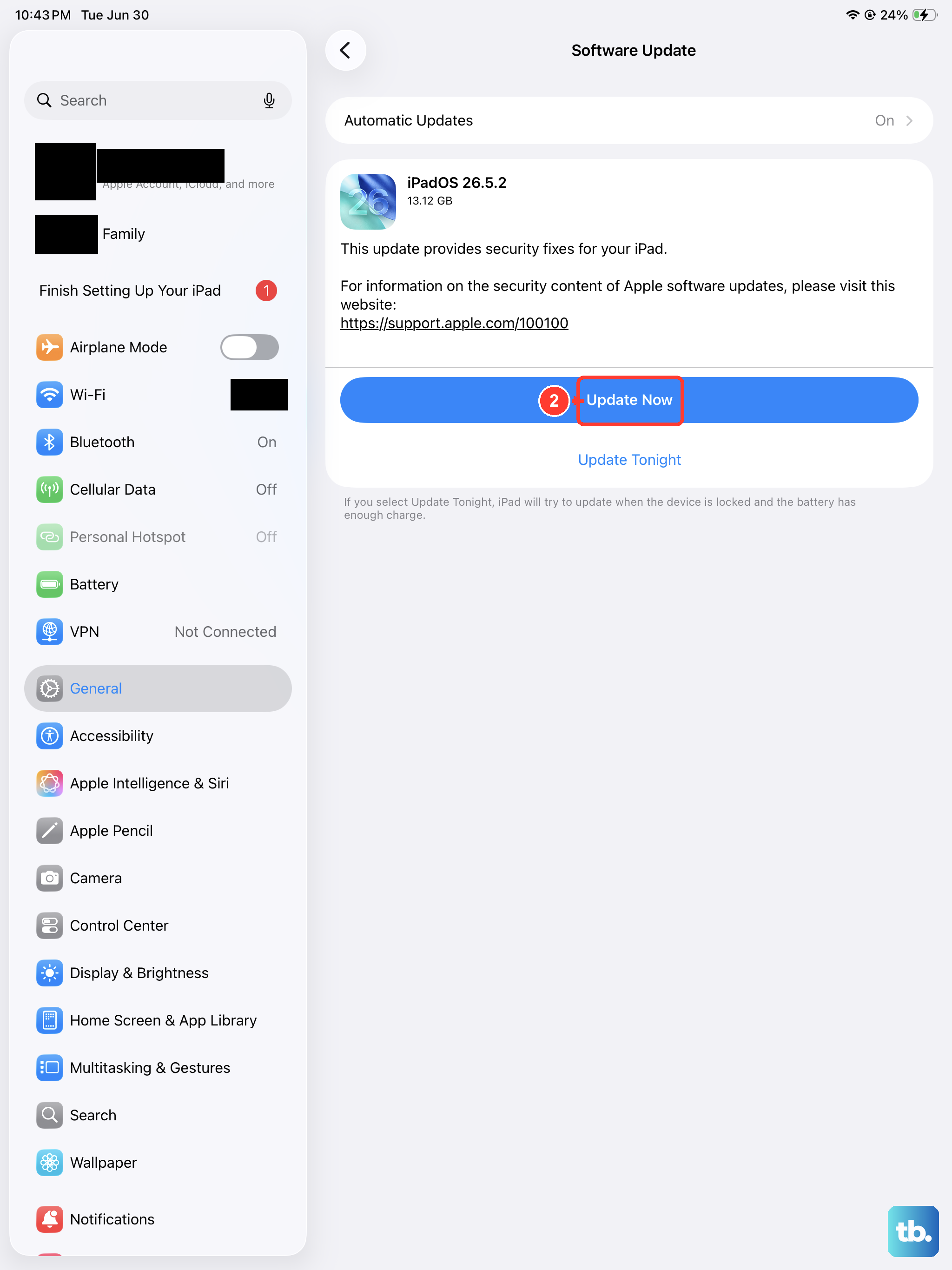
Occasional bugs in iPadOS can affect system haptics. Apple typically patches these out in subsequent updates. Connect your iPad to Wi-Fi and plug it into power.
Then, go to Settings > General > Software Update. If an update is available, tap "Download and Install". Keeping your iPad updated is one of the best ways to prevent odd glitches like this.
Reset All Settings
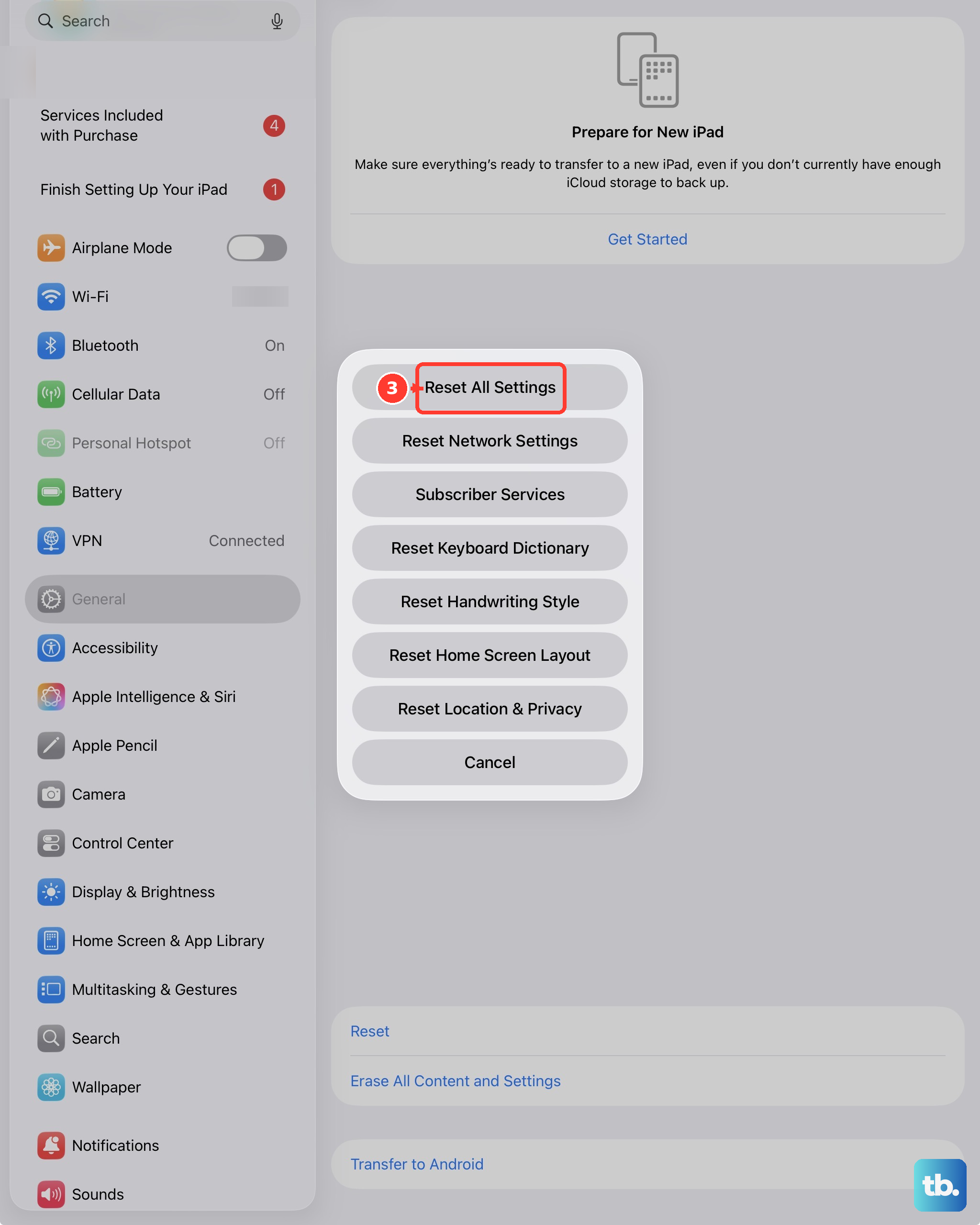
If the vibration motor works in some system areas but not others, a deeper settings conflict might be the cause. This reset will revert all your preferences (wallpaper, network passwords, privacy settings) back to default without erasing any of your personal data or apps.
Go to Settings > General > Transfer or Reset iPad. Tap "Reset" and then choose "Reset All Settings". Enter your passcode if prompted and confirm. Your iPad will restart.
Test in Safe Mode (For Persistent Third-Party App Issues)
If the problem started after installing a new app, that app could be interfering. To test, you'll need to restart your iPad in a special diagnostic state. First, turn off your iPad completely.
Now, turn it back on and immediately press and hold the Volume Down button (for iPads with a Home button, hold the Home button instead). Keep holding it until you see the lock screen. The words "Safe Mode" should appear in the bottom corner.
In Safe Mode, third-party apps are disabled. Test if vibrations work now. If they do, a recently installed app is likely the culprit. Restart your iPad normally to exit Safe Mode and start removing recent apps one by one to find the offender.
Check for Physical Damage or Case Interference
While less common, physical issues can be a factor. Remove your iPad from its case, especially if it's a thick or ill-fitting third-party case or a keyboard folio. Sometimes the case can physically dampen the vibration so much you can't feel it.
Gently inspect the edges of your iPad. If it's been recently dropped or exposed to moisture, there could be internal damage to the Taptic Engine (the component that creates vibration). In my experience, software is to blame 90% of the time, but it's worth a visual check.
As a Last Resort: Erase and Restore
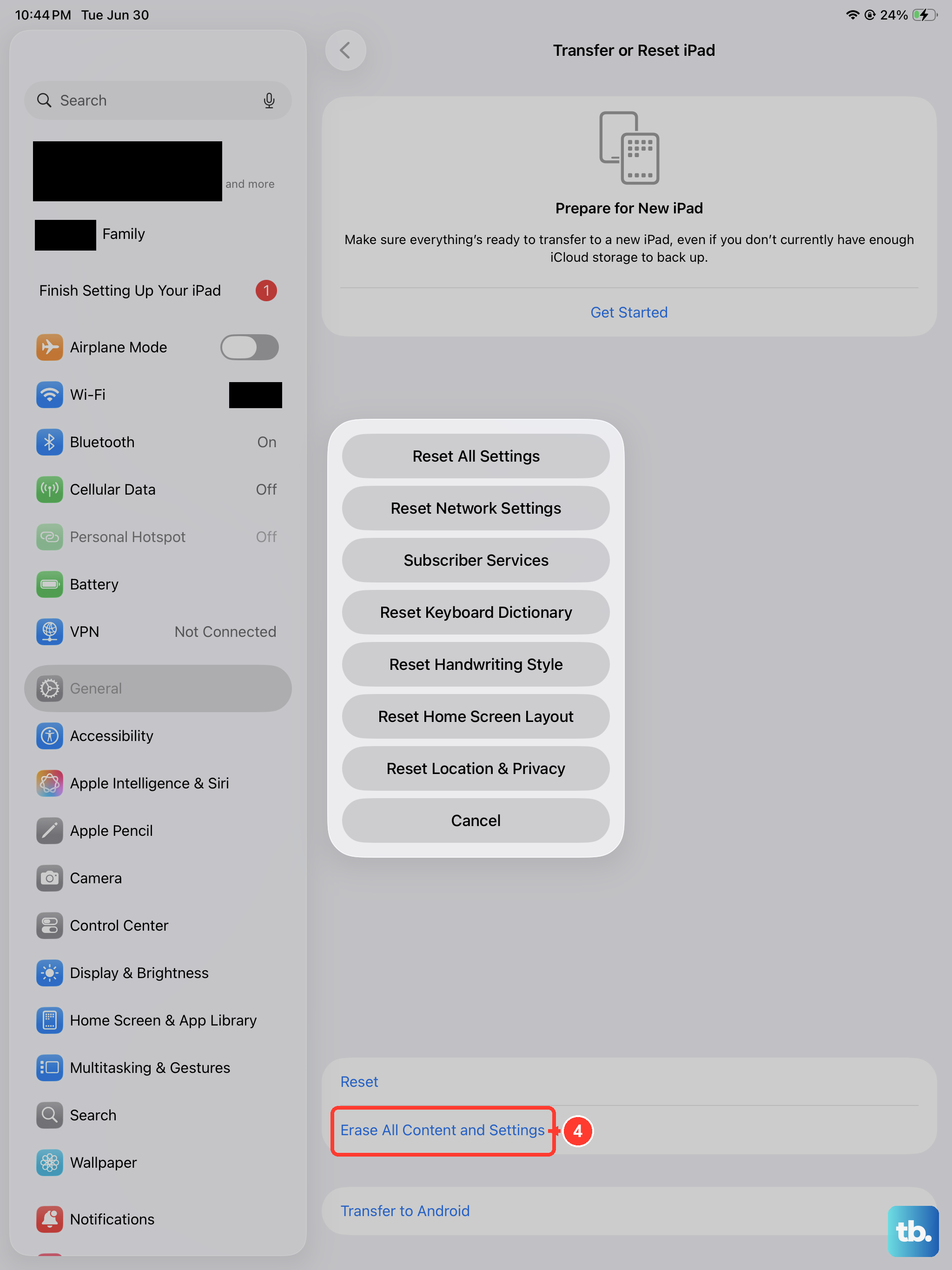
If none of the above works, a deeper software corruption might be the issue. Before you do this, ensure you have a recent iCloud or computer backup. This process will erase everything on your iPad and install a fresh copy of iPadOS.
You can do this by going to Settings > General > Transfer or Reset iPad and tapping "Erase All Content and Settings". After it restarts, set it up as new temporarily to test vibration. If it works, you can then restore from your backup, though there's a small chance the backup restores the problem.