
When your iPad suddenly goes silent, it can throw a wrench in your plans for watching videos, joining calls, or listening to music. The good news is that most sound issues are caused by simple settings or temporary glitches that you can fix yourself. I'd start by checking a few common culprits that are easy to overlook.
If you are not sure whether it is the speakers or the software, run an online quick sound test first. Working test tones show that your speakers can play sound, but intermittent problems may still occur.
Check Silent Mode and Volume
First, go to Settings > Sounds and turn Silent Mode off. Silent Mode silences ringtones, alerts, and system sounds, but music and video audio still play. For all models, quickly press the volume up button a few times while something is playing.
Also, pull down from the top-right corner to open Control Center. You'll see a volume slider there; drag it all the way to the right. Sometimes an app or a connected accessory can override the system volume, so it's worth checking here.
Disconnect Bluetooth Accessories
Your iPad might be silently sending all audio to a paired Bluetooth device like headphones, a speaker, or a car stereo. To check, open Control Center by swiping down from the top-right corner.
While audio is playing, look for the playback destination button with a triangle and waves icon in Control Center. Tap it to see the available audio outputs, then select your iPad. You can also go to Settings > Bluetooth and toggle it off temporarily to see if your iPad's speakers kick back in.
Clean the Speaker Grills
Dust, lint, or pocket debris can easily clog the small speaker openings on your iPad. Remove any screen protector, film, or case, then take a close look at the speaker openings to check whether they're blocked or dirty.
Use a soft, dry, clean-bristled toothbrush or a soft-bristled artist's brush to gently sweep away any visible particles. Never poke anything sharp like a pin into the grills.
Check Focus Modes and Do Not Disturb
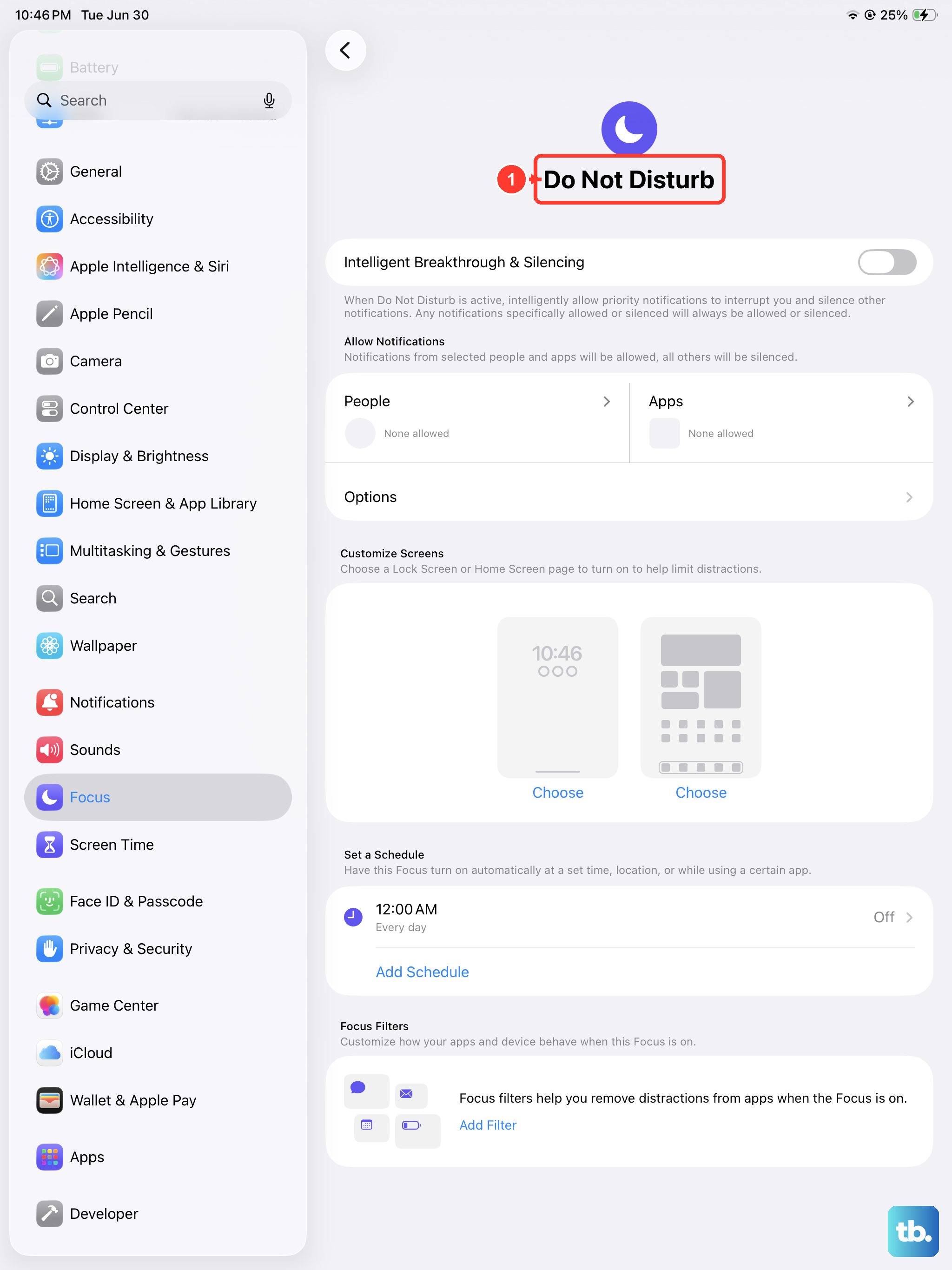
Focus modes in iPadOS, like Do Not Disturb, can silence notifications. Swipe down from the top-right corner to open Control Center and tap Focus. If a Focus is active, tap it to turn it off.
For a more thorough check, go to Settings > Focus. See if any Focus is active. You can also check the settings for each Focus to ensure "Silence Notifications" isn't set to mute everything from all apps.
Restart Your iPad
A simple restart can help with temporary software problems that affect the audio system. On iPads without a Home button, press and hold the top button and either volume button until the Power Off slider appears. On iPads with a Home button, press and hold the top button until the slider appears. Drag the slider and let the iPad turn off, then press and hold the top button until the Apple logo appears.
If your iPad isn't responding and you can't restart it normally, try a force restart. For iPads without a Home button: quickly press and release the volume button nearest to the top button, then the volume button farthest from the top button, then press and hold the top button until you see the Apple logo. Release the top button when the logo appears. For iPads with a Home button, press and hold the Home and top buttons together until the logo appears, then release both buttons.
Check for a Software Update
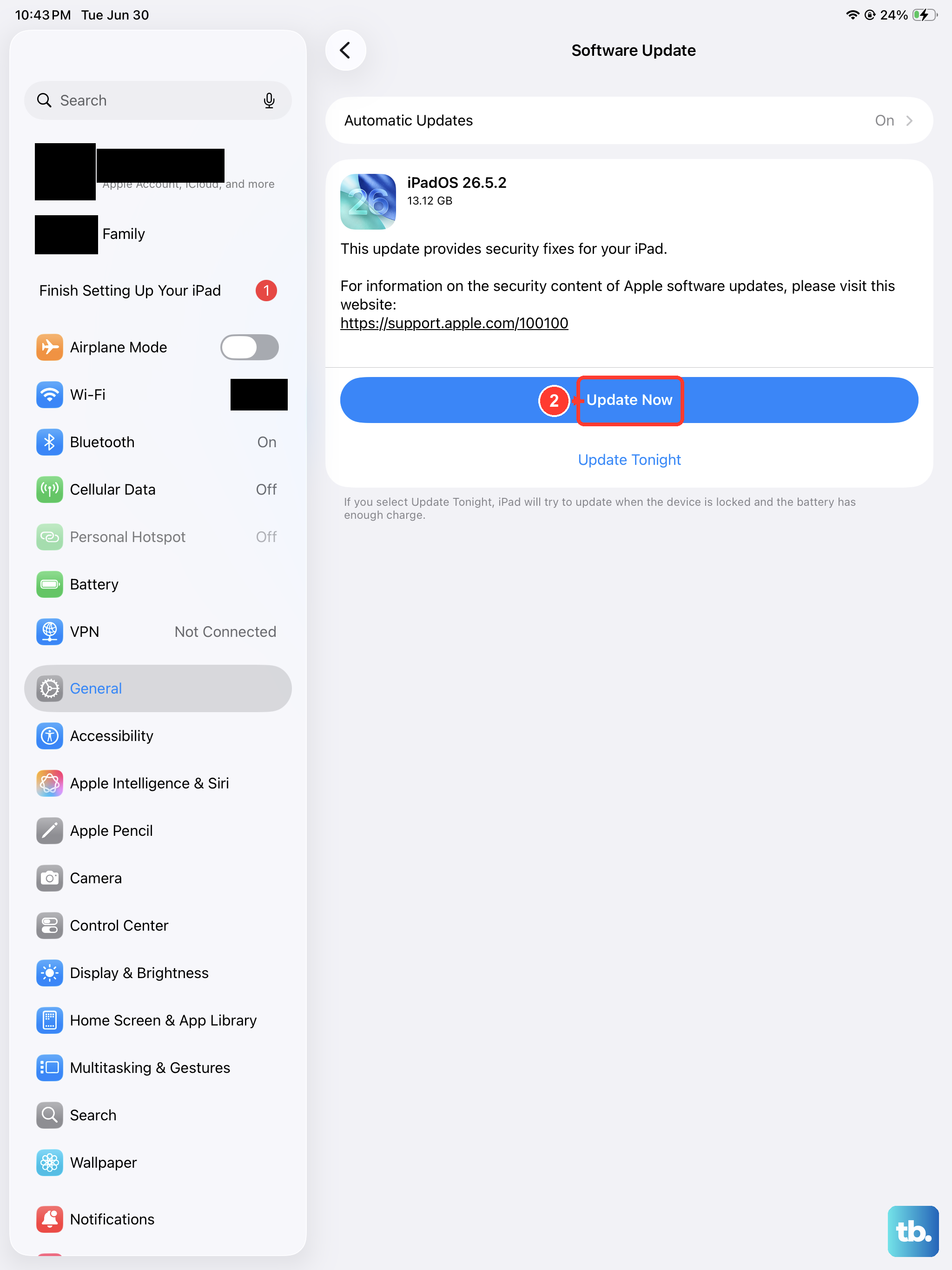
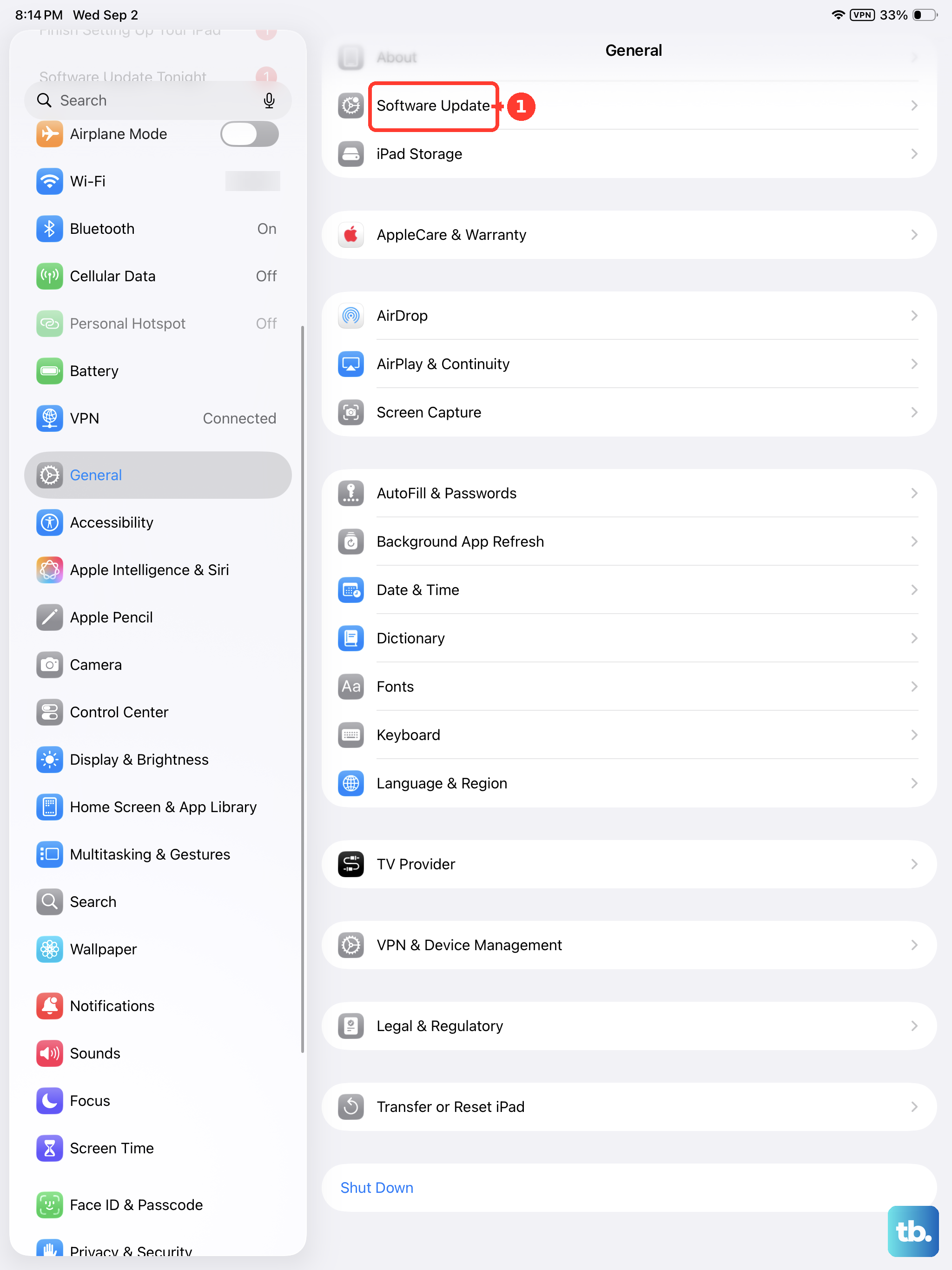
iPadOS updates can include bug fixes. It's a good idea to make sure you're running the latest version. Go to Settings > General > Software Update.
If an update is available, tap "Download and Install." I'd recommend plugging your iPad into power and connecting to Wi-Fi before starting the update. An update can often resolve glitches that appeared after a previous installation.
Review Sound Settings in Accessibility
There are a few settings in Accessibility that can alter sound. Go to Settings > Accessibility > Audio & Visual and check that the Balance slider is centered. "Mono Audio" makes the left and right speakers play the same content; it doesn't mute them.
Next, go to Settings > Accessibility > Touch and look for "Call Audio Routing." Make sure it's not set to an option that would automatically divert sound. To test sound directly, go to Settings > Sounds and move the volume slider below Ringtone back and forth a few times. If you hear no sound, your speaker may need service.
Close and Reopen Your App
Sometimes the issue is isolated to a single app. The audio engine within an app like YouTube, Netflix, or Spotify can crash. To fully close an app on an iPad without a Home button, swipe up from the bottom of the screen and pause in the middle to enter the app switcher. On an iPad with a Home button, double-click the Home button.
Find the app with no sound and swipe it up and off the top of the screen to close it. Wait a few seconds, then tap its icon to reopen it. This gives the app a fresh start and often resolves playback issues.
Reset All Settings
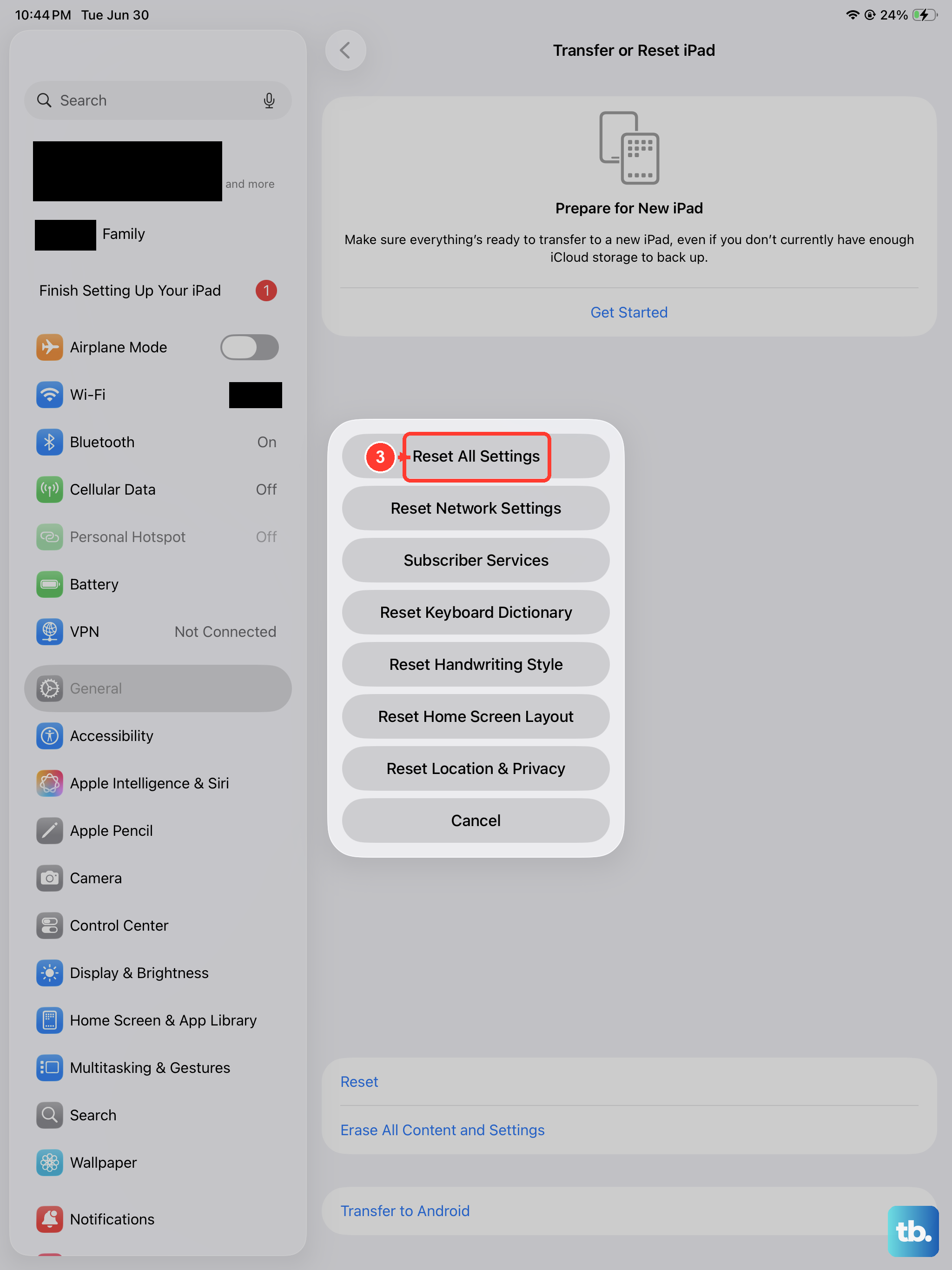
If you've tried everything else and sound is still missing, this step can help. It resets all your system settings, like Wi-Fi passwords, wallpaper, and privacy permissions, back to factory defaults without erasing your personal data, photos, or apps.
Go to Settings > General > Transfer or Reset iPad > Reset. Then, choose "Reset All Settings." You'll need to enter your passcode and confirm. You'll have to reconfigure some preferences afterward, and resetting settings may help with sound problems caused by those settings.