
When your iPad feels sluggish online, it can turn a simple task into a waiting game. Slow browsing can stem from browser settings, software or the network connection.
Whether you're on a cellular model or using WiFi, the fixes are often straightforward. I'd start by clearing out your browser's stored data, as that's a common culprit for slow page loads on iPadOS.
Clear Safari's Cache and History
Over months of use, Safari accumulates history and website data. Clearing it gives the browser a fresh start.
Open the Settings app and go to Apps > Safari. Scroll down and tap Clear History and Website Data. Choose a timeframe, then tap Clear History. This can log you out of websites, so you may need to sign back in afterward.
Close Unused Apps and Tabs
It's easy to leave dozens of Safari tabs open and apps in the app switcher. Apps listed there aren't necessarily running in the background. Close tabs you've finished with, and close an app if it isn't responding.
On iPads without a Home button, swipe up from the bottom of the screen and pause in the middle to enter the app switcher. On iPads with a Home button, double-click it. Swipe up on an unresponsive app's preview card to close it. In Safari, tap the tab view icon (two overlapping squares) and close tabs you've finished with.
Manage Background App Refresh
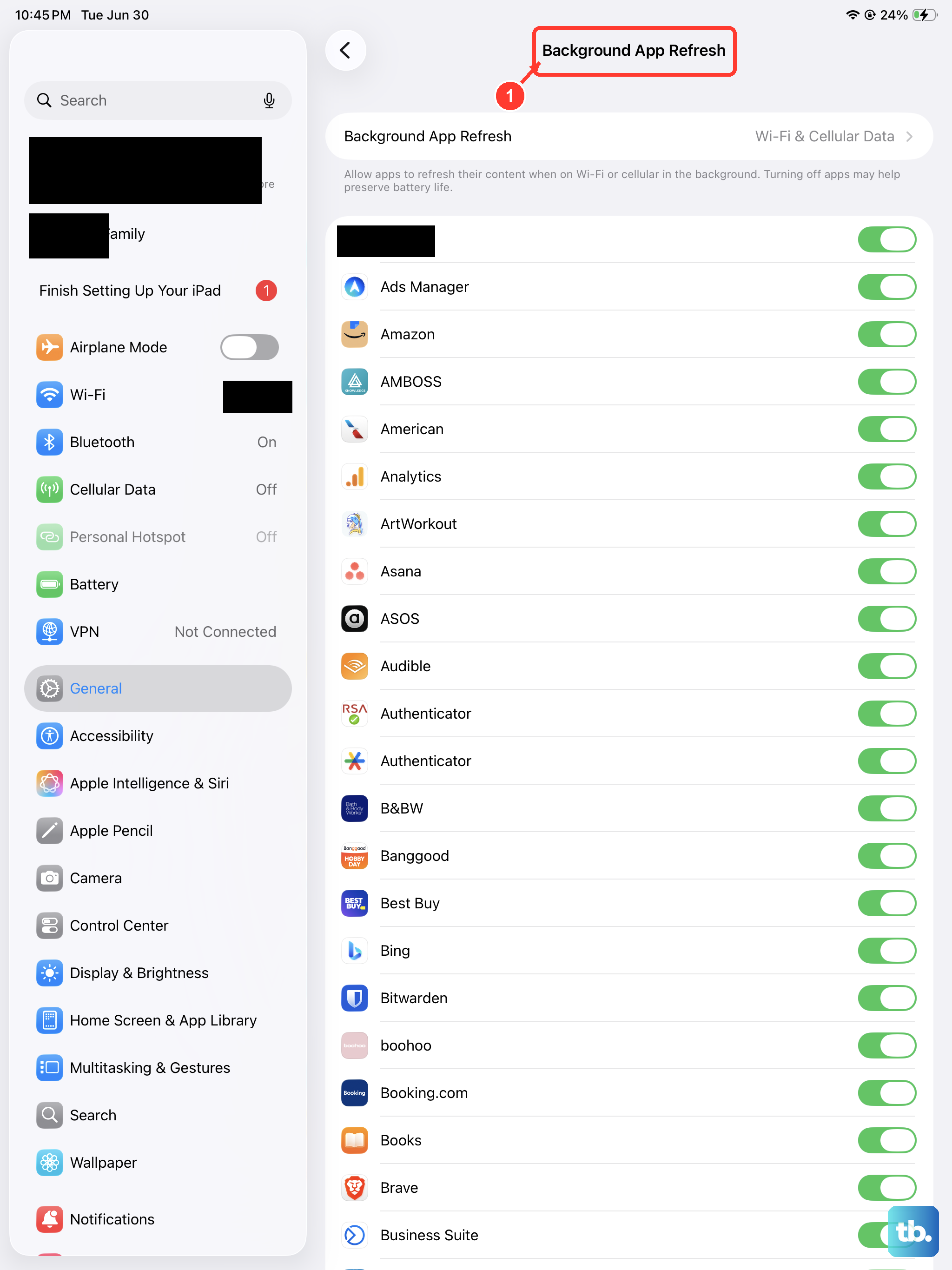
This setting allows apps to update their content in the background. While convenient, having many apps doing this can consume bandwidth and system resources, potentially slowing your active browsing.
Go to Settings > General > Background App Refresh. To turn it off entirely, tap Background App Refresh again and choose Off, or leave it on but scroll through the list and disable it for apps that don't need constant updates.
Check Your WiFi Network
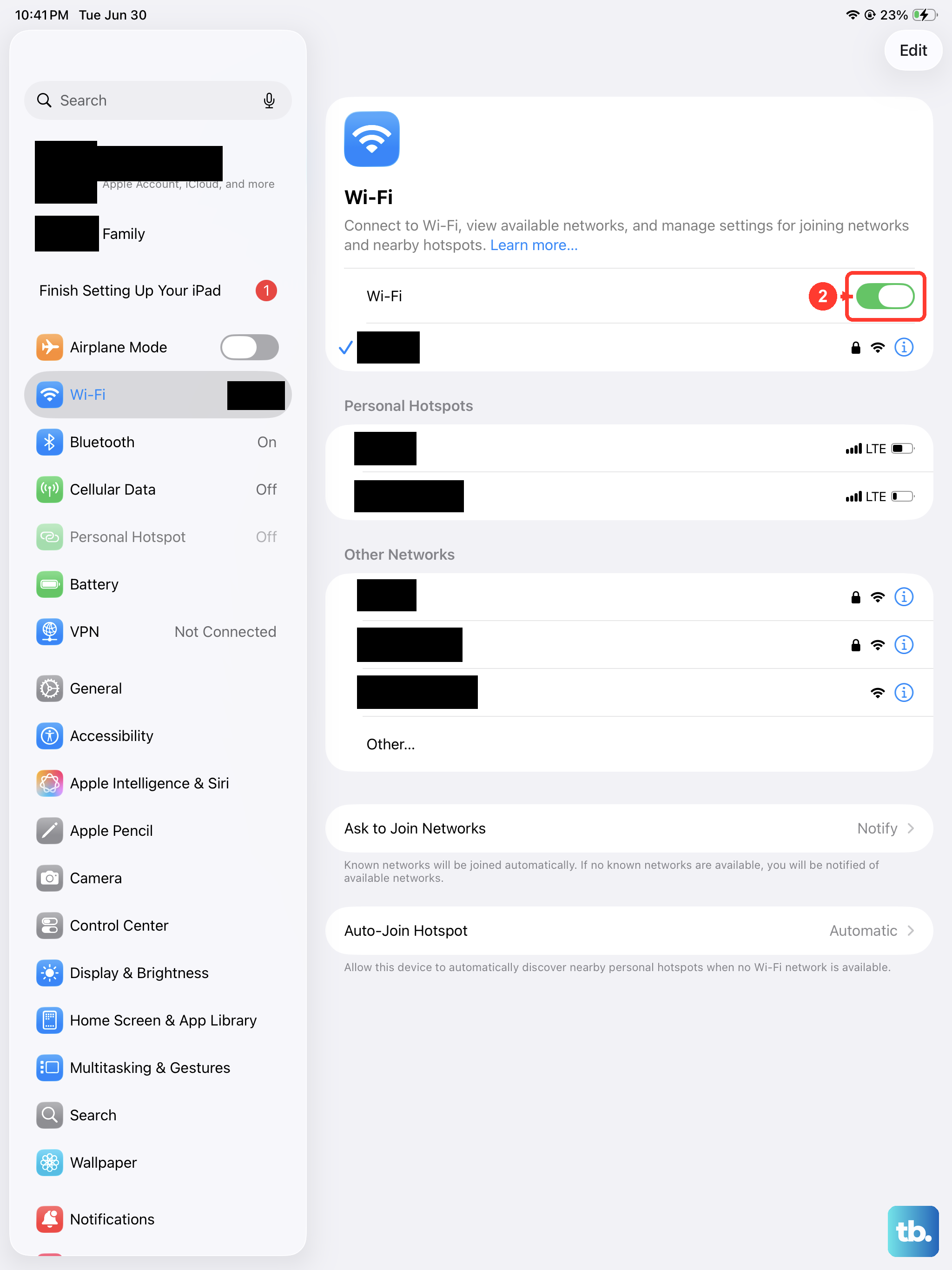
Sometimes the issue isn't your iPad, but the network it's connected to. Other devices streaming video or downloading large files can saturate your home bandwidth.
Try moving closer to your router or restart your router and cable modem by unplugging them and then plugging them back in. You can also try forgetting the network on your iPad and reconnecting. Go to Settings > Wi-Fi, tap the "i" icon next to your network, and select Forget This Network. Then rejoin by selecting it and entering the password.
Disable Content Blockers or VPNs Temporarily
While great for privacy and avoiding ads, some content blockers and VPNs can inadvertently slow down page loading as they process web traffic. It's worth testing if they're the bottleneck.
If you use a VPN, open the VPN app and disconnect. For content blockers in Safari, go to Settings > Apps > Safari > Extensions and toggle off any active blockers. Try browsing again to see if speed improves.
Update iPadOS
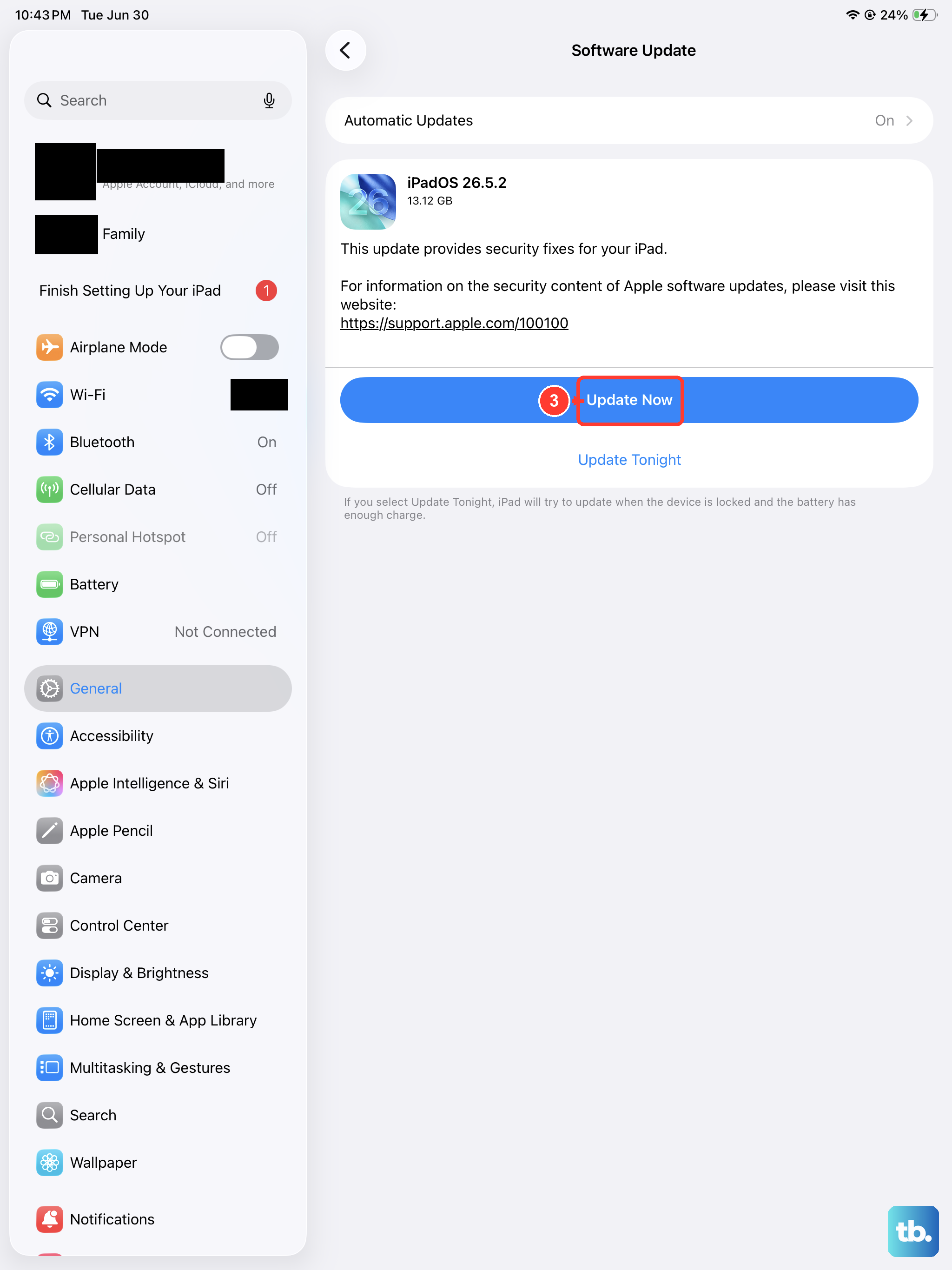
Keeping iPadOS up to date can help resolve software issues affecting browsing. Check for an available update and back up your iPad before installing it.
Go to Settings > General > Software Update. If an update is available, tap Download and Install. It's best to do this while your iPad is connected to power and WiFi.
Reset Your Network Settings
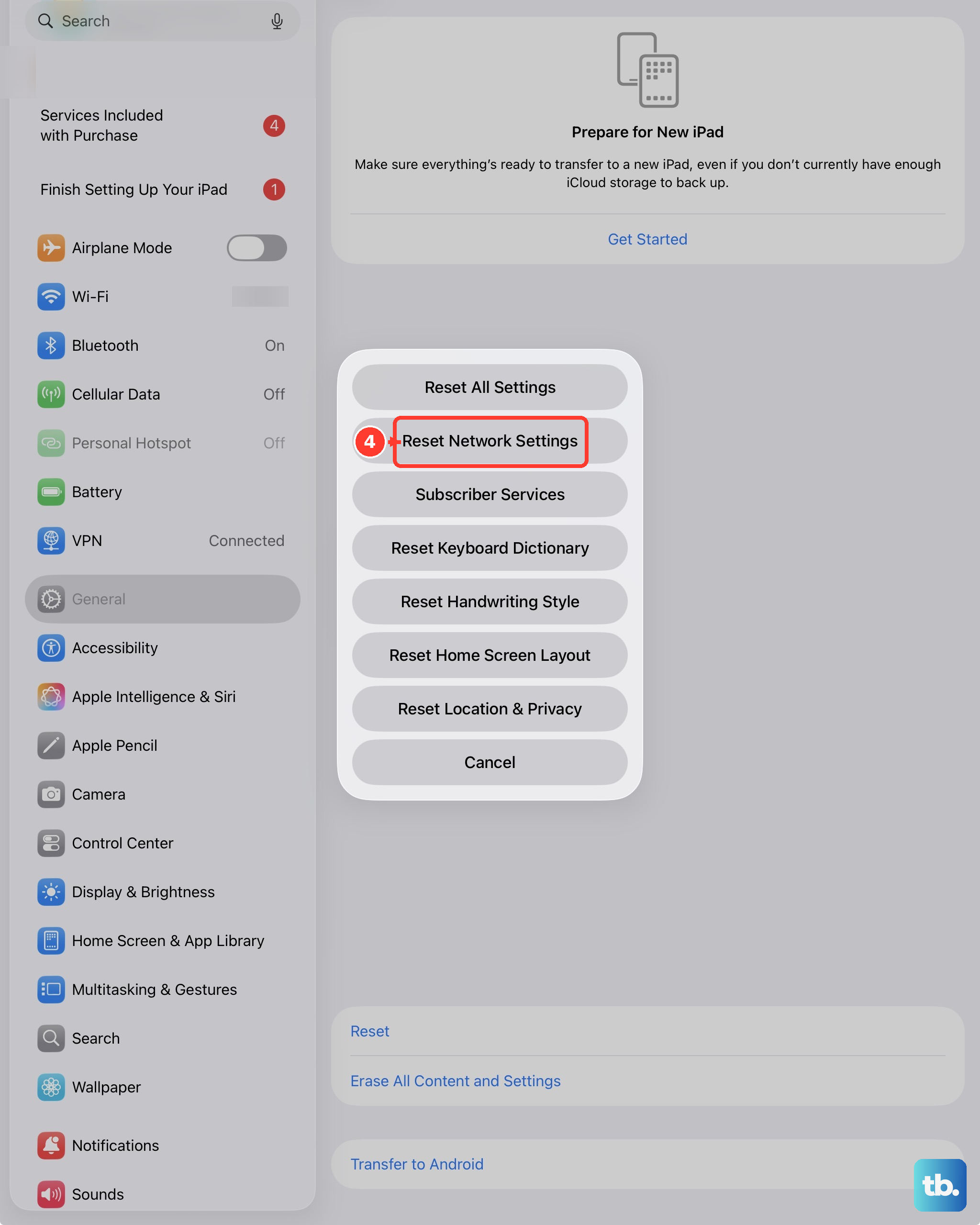
If browsing is still slow and you've ruled out your WiFi network, resetting your iPad's network configuration can clear out any corrupted settings. This will erase all saved WiFi passwords, so make sure you have them handy.
Navigate to Settings > General > Transfer or Reset iPad. Tap Reset and then choose Reset Network Settings. Wi-Fi will turn off and back on, and you'll need to reconnect to your WiFi networks.
Try a Different Browser
As a diagnostic step, download an alternative browser like Chrome or Firefox from the App Store. If browsing is significantly faster in the other app, the issue may be isolated to Safari's configuration or cache, which the earlier steps should address.
If the problem persists across all browsers, it points more toward a system or network issue.
Perform a Force Restart
First try a normal restart: go to Settings > General > Shut Down, then drag the slider. Press and hold the top button until the Apple logo appears to turn your iPad back on. If your iPad isn't responding and you can't restart it normally, use the force-restart steps below.
For iPads without a Home button, quickly press and release the volume button closest to the top button, then quickly press and release the volume button farthest from the top button. Press and hold the top button, then release it when the Apple logo appears. For iPads with a Home button, press and hold both the Home button and the top button, then release both when the Apple logo appears.
Review Cellular Data Settings (Cellular Models)
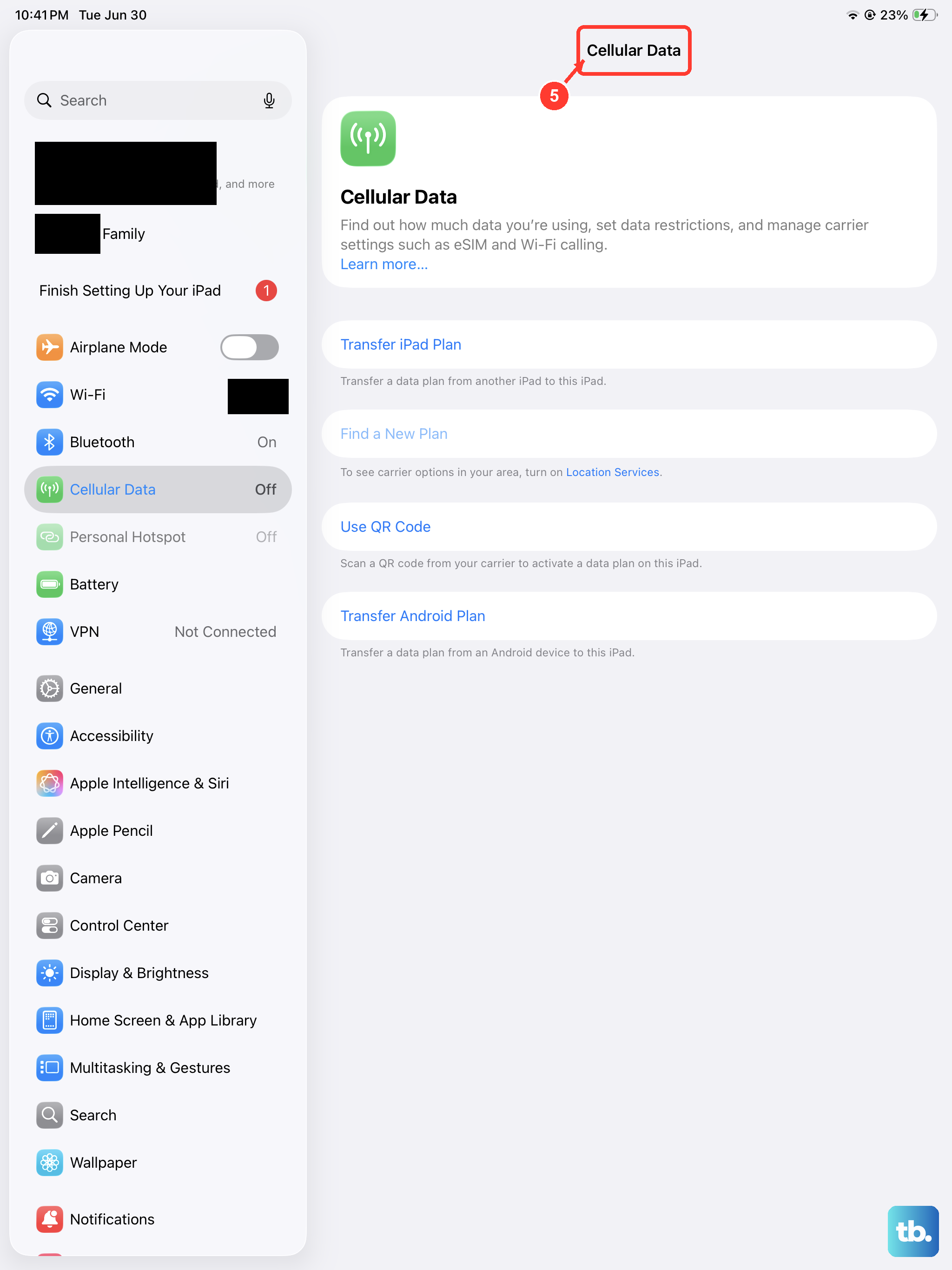
If slow browsing only happens on cellular data, check your settings on a Wi-Fi + Cellular iPad. Open Settings > Cellular Data and confirm Cellular Data is turned on.
Tap Cellular Data Options. Depending on your model, Low Data Mode appears here or under Data Mode; it pauses automatic updates and background tasks when you're not connected to Wi-Fi. On models that support 5G, Data Mode > Allow More Data on 5G enables higher-quality video and FaceTime HD. For help with cellular network performance, contact your carrier.