
If your iPad's Settings app keeps closing the moment you open it, you're stuck in a frustrating loop. This usually points to a temporary software glitch or corrupted data within the app itself. The good news is, you can almost always fix it yourself without losing any data.
Force Restart Your iPad
This is the first thing I'd try, as it clears out temporary system glitches that can cause apps to misbehave. The steps are slightly different depending on your iPad model.
For iPads without a Home button, like most recent models, quickly press and release the Volume Up button, then quickly press and release the Volume Down button. Finally, press and hold the Top button until you see the Apple logo appear.
If your iPad has a Home button, simply press and hold both the Home button and the Top button at the same time. Keep holding them until the Apple logo shows up on the screen.
Update iPadOS
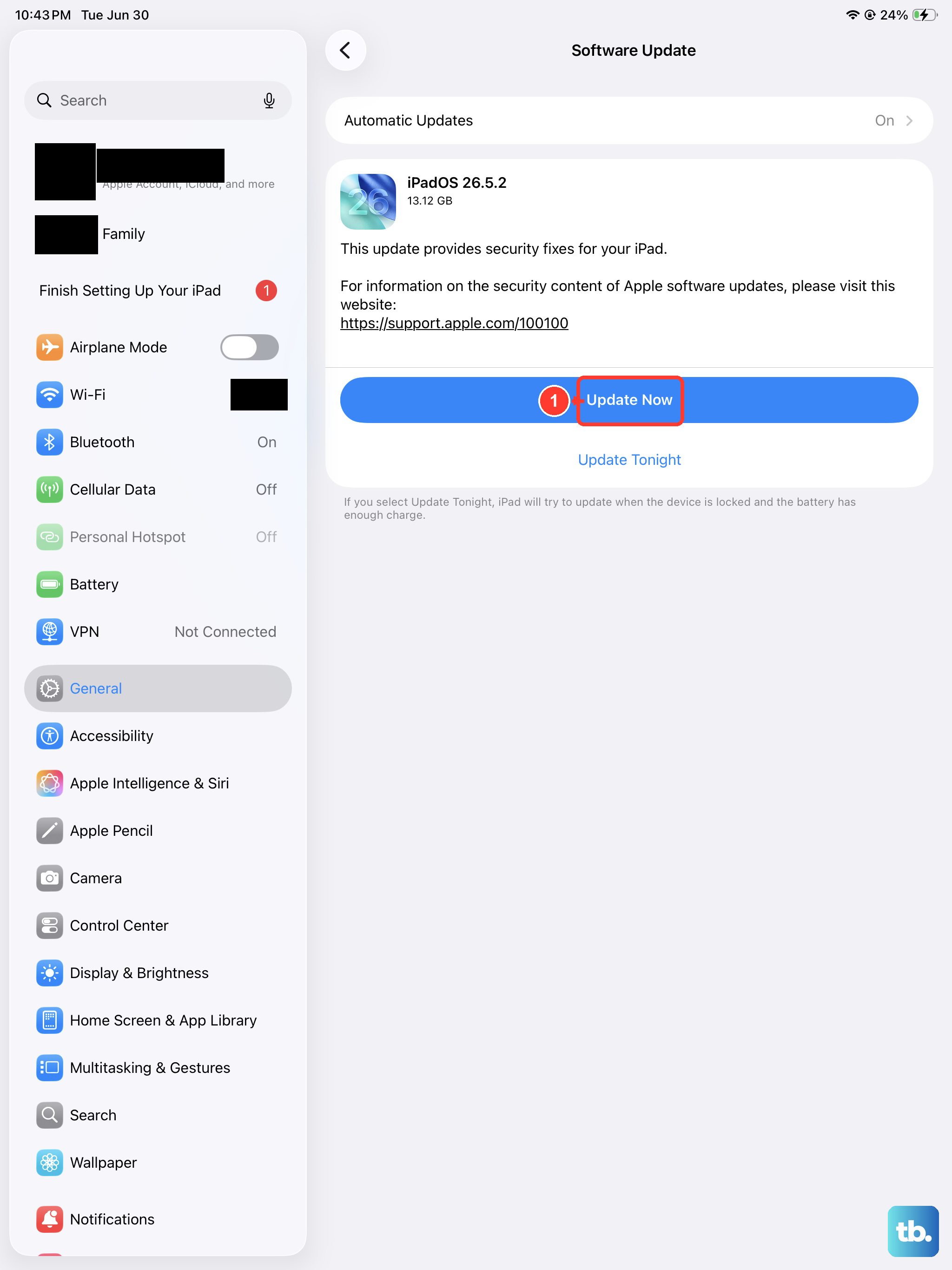
An outdated version of iPadOS can have bugs that cause system apps like Settings to crash. Apple frequently releases updates that fix these kinds of issues.
Go to the Settings app if you can, then navigate to General > Software Update. If the app crashes before you get there, you can try updating via your computer. Connect your iPad to a Mac or PC, open Finder (on Mac) or iTunes (on Windows), and check for an update there.
Installing the latest iPadOS version often resolves underlying compatibility problems that might be forcing the Settings app to close.
Check for iPadOS Beta Issues
If you're enrolled in the Apple Beta Software Program, you might be running an unstable test version. Beta software is notorious for bugs that can break core apps.
You can check this in Settings under General > Software Update > Beta Updates. If you are on a beta, the most reliable fix is to back up your iPad and restore it to the current stable public release of iPadOS using your computer.
I've seen this solve persistent crashing issues that only affect beta users. It's a more involved process, but it's very effective.
Reset All Settings
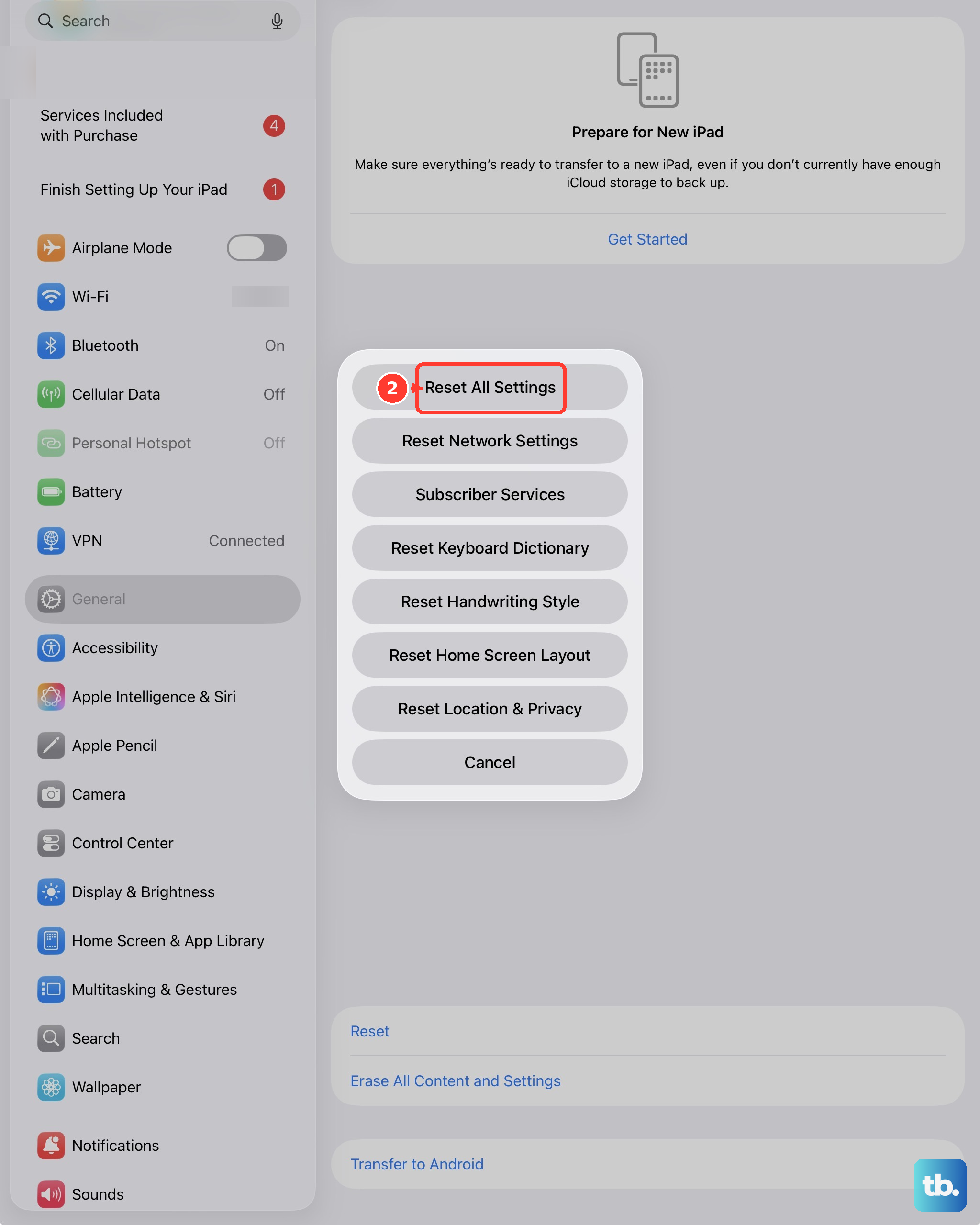
This is a stronger step that resets every system setting on your iPad back to factory defaults. Your personal data, photos, and apps remain safe, but you'll lose all your Wi-Fi passwords, Bluetooth pairings, and custom preferences.
Because you can't access the Settings app to do this, you'll need to use a computer. Connect your iPad to a Mac or PC, put it into Recovery Mode, and choose the "Restore" option. This installs a fresh copy of iPadOS.
After the restore, you can set up the iPad as new or restore from a backup you made before the problem started. This process eliminates any deep-seated corruption in the system software.
Free Up Storage Space
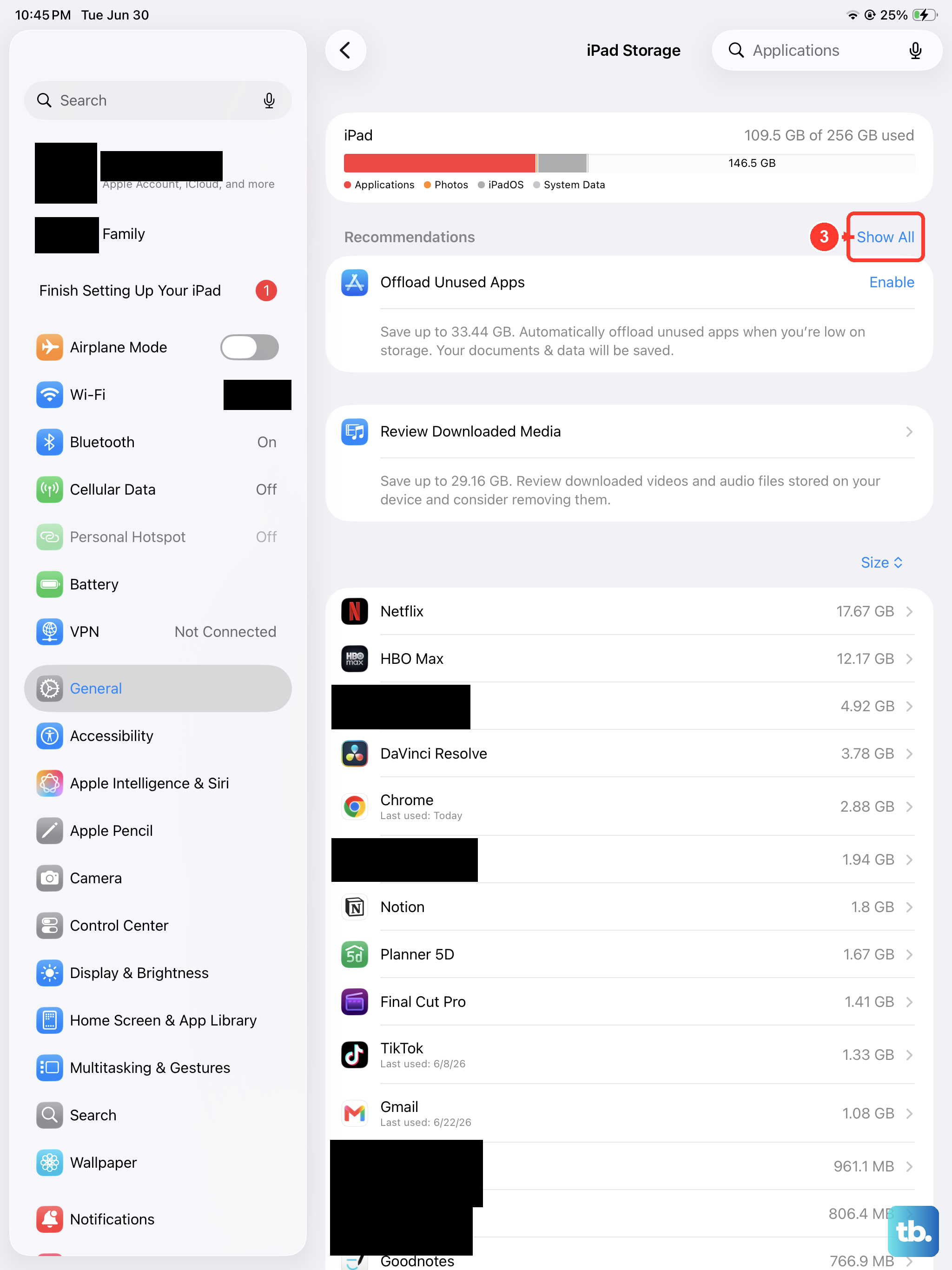
While less common, an iPad that's critically low on storage can cause system apps to malfunction. The operating system needs free space to function properly.
If you can briefly access Settings, go to General > iPad Storage to see what's using space. Offload unused apps or delete large videos and files you no longer need.
Getting your available storage above 10-15% can sometimes relieve the pressure on the system and stop apps from unexpectedly closing.