
Your brand-new iPad Pro M5 shows a full Wi-Fi signal. But the browser, Safari, and every app keep telling you there's no internet.
You're not alone. iPadOS 26 has a documented connectivity bug that hits the M5 hardest, and reports have been steady since early April.
The good news is most cases clear up in under five minutes with a network reset, and the rest with the four fixes below. Here is the full diagnostic path, in the order I would actually try.
What Is Going Wrong
The iPad shows as connected to the Wi-Fi network with full bars and the network name in the status bar. But no traffic actually flows.
Safari throws "You are not connected to the internet" instantly. iCloud syncs stall. App Store fails to load. Sometimes it lasts only a few seconds and self-corrects; sometimes it persists until you toggle Wi-Fi off and on or reboot.
The underlying cause is usually one of three things. The first is iPadOS 26's Private Wi-Fi Address rotation, which on some networks produces a MAC address your router doesn't recognize after the first connection. The second is a stale DHCP lease from when you first set up the iPad, sometimes left over from the migration assistant. The third, less common, is iCloud Private Relay routing DNS through a server your local network blocks or filters.
Toggle Wi-Fi Off and On (30-Second Fix)
Before anything else, try the simplest reset. Swipe down from the top-right corner to open Control Center, tap the Wi-Fi icon to turn it off, wait five seconds, then tap it again.
This forces a fresh DHCP request and clears the most common transient version of this bug. A meaningful share of cases clear here.
If the issue comes back within minutes, the toggle isn't enough; move on to the next fix.
Disable Private Wi-Fi Address for Your Home Network
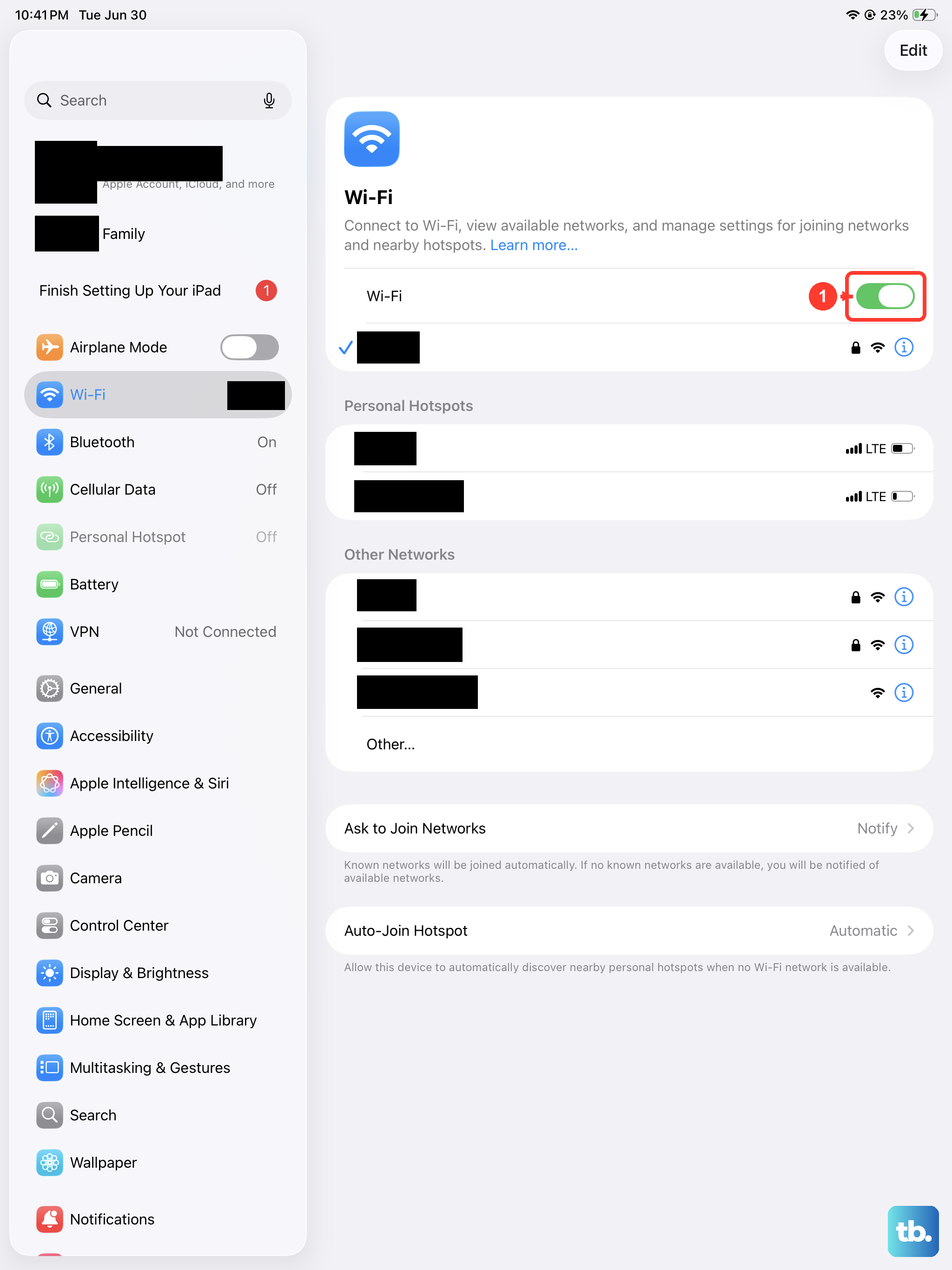
This is the single highest-success fix for the iPad Pro M5 specifically. Private Address is on by default in iPadOS 26 and rotates the MAC address your iPad uses to connect.
Some home routers (and most enterprise networks) recognize the device on first connection but then reject the rotated address on later reconnects.
Go to Settings > Wi-Fi and tap the (i) icon next to your network name. Toggle Private Wi-Fi Address off, then tap Join Network if prompted to reconnect.
You only need to do this for the networks where you have problems (home, office). Public networks can stay on Private Address for security.
Reset Network Settings
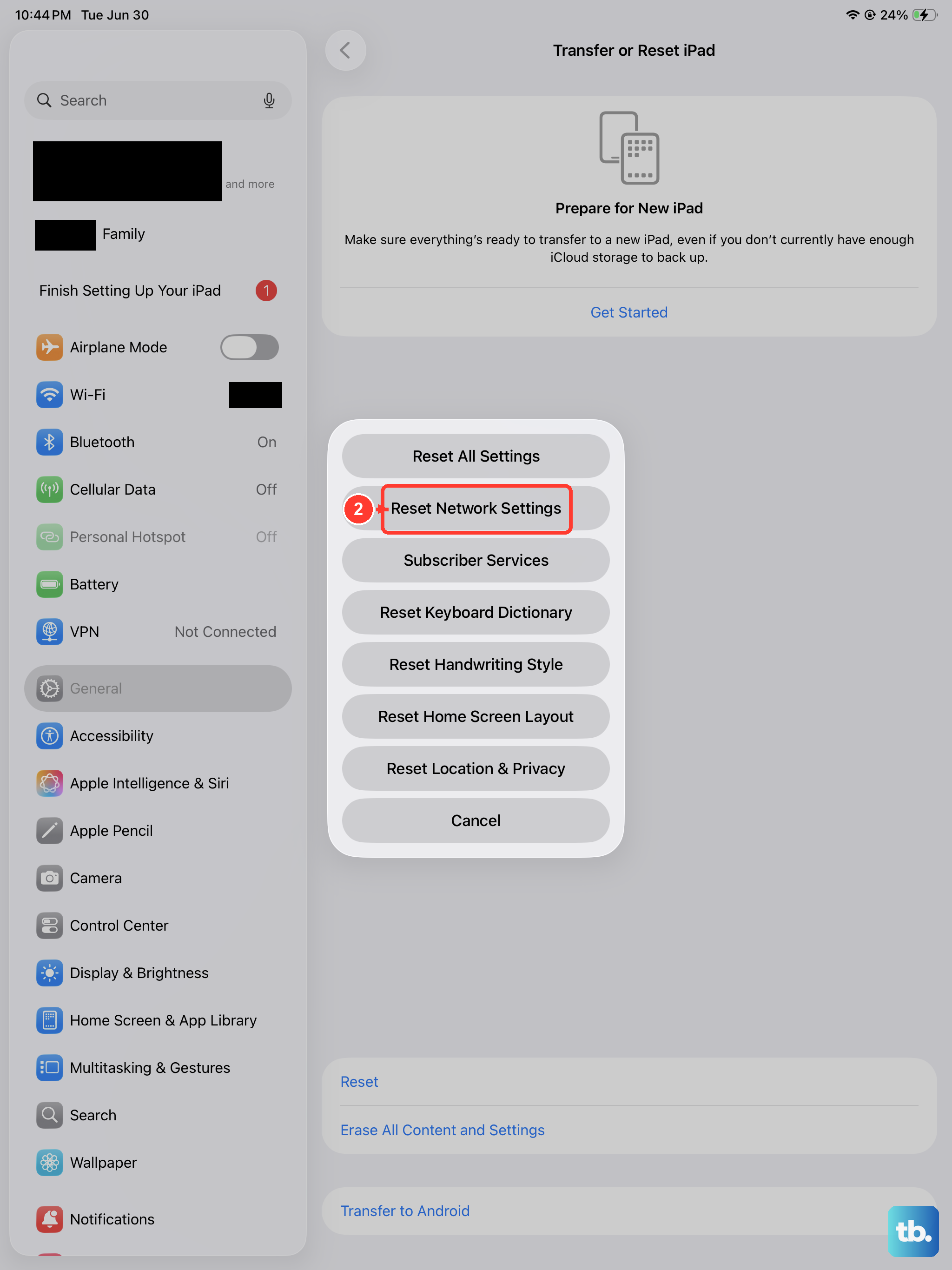
If the toggle and Private Address fix don't stick, do a full network reset. This wipes saved Wi-Fi passwords, VPN configurations, and cellular settings, then forces iPadOS to rebuild them from scratch.
Go to Settings > General > Transfer or Reset iPad > Reset > Reset Network Settings. Enter your passcode and confirm.
The iPad will reboot. After it comes back, rejoin your Wi-Fi network manually (the password is gone, so you'll need it handy). Most stubborn cases clear here.
Turn Off iCloud Private Relay (If You Use It)
iCloud Private Relay routes Safari and certain app traffic through Apple's encrypted relay. On iPadOS 26 with the M5, the relay occasionally conflicts with home networks that already filter DNS.
Anyone running Pi-hole, NextDNS, or an AdGuard-style filter at the router level will recognize this. Try turning Private Relay off temporarily.
Open Settings, tap your Apple ID name at the top, then iCloud > Private Relay. Toggle it off. If your internet comes back, you've found the conflict.
You can leave Private Relay off (you give up some privacy) or work around it by adjusting your DNS filter to allow Apple's relay servers (the specific IP ranges are published by Apple).
Update to the Latest iPadOS Version
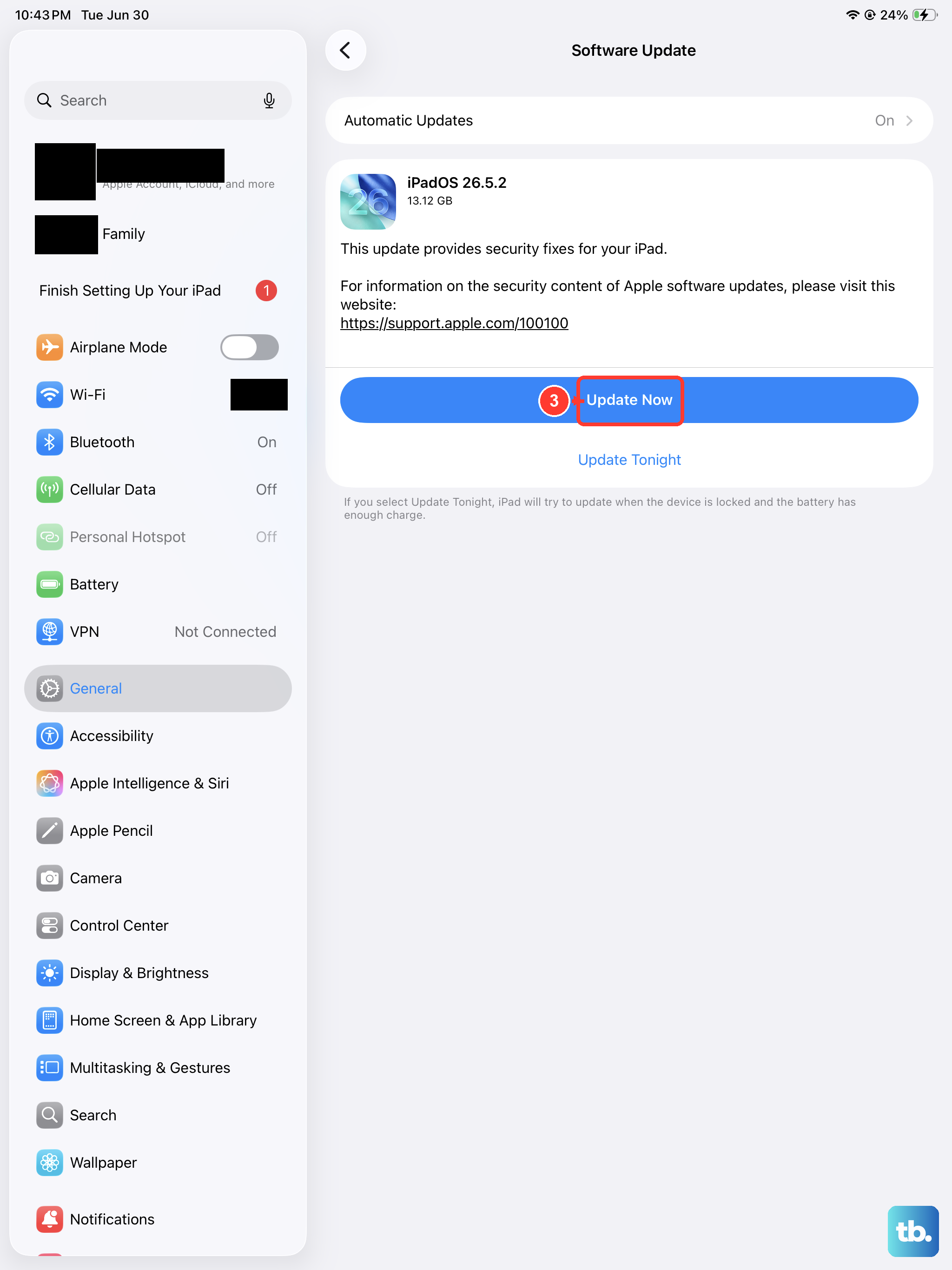
Apple has been patching individual cases of the connectivity bug throughout the iPadOS 26.x series. Each point release tends to clean up some routing and reconnection edge cases.
Check for an update via Settings > General > Software Update, and install whatever is offered.
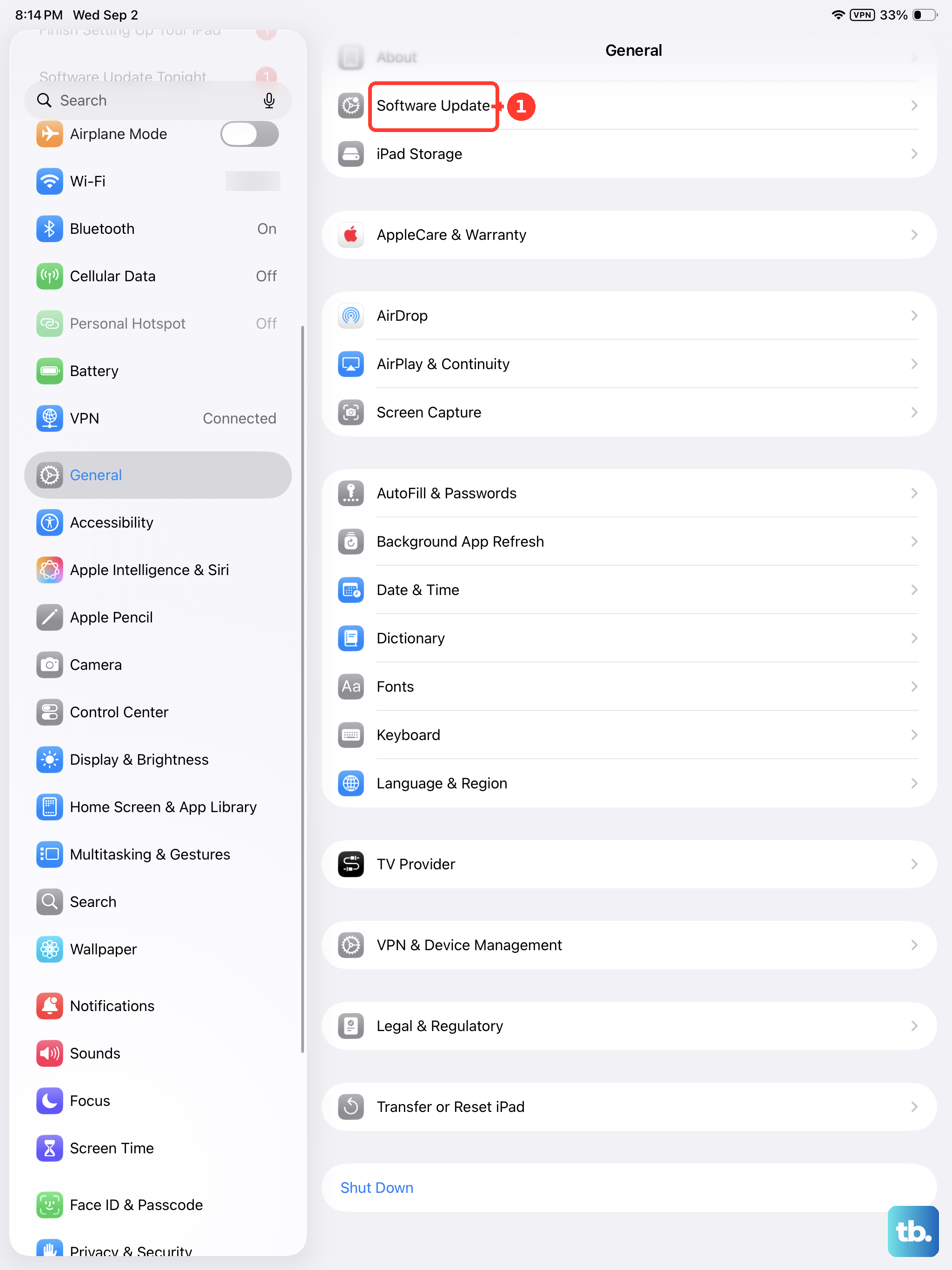
If you're already on the latest version, this step is no help, but it's worth confirming before moving to the next ones.
If None of That Works
If the five steps above don't give you stable connectivity within a day of trying them, three more paths to try.
First, restart your router. If your router hasn't been rebooted in months, it may have a stale ARP table that keeps rejecting the iPad's MAC. A 60-second router power cycle fixes more cases than people expect, especially with mesh systems that hold device leases longer than expected.
Second, try a different Wi-Fi band. The M5 supports Wi-Fi 7. If your router runs both 2.4 GHz and 5/6 GHz, manually connect to the 5 GHz band by separating the SSIDs in your router settings. Some users report that falling back to 5 GHz from the newer Wi-Fi 7 6 GHz band stabilizes the connection.
Third, schedule a free Genius Bar appointment or call AppleCare. Apple's diagnostics can identify whether the Wi-Fi module itself is at fault. If it is, replacement under the standard one-year warranty (or your AppleCare plan) is the path forward.
What This Doesn't Affect
The bug only affects Wi-Fi connectivity. Cellular (on 5G models) works normally; if you have a SIM or eSIM, you can toggle Wi-Fi off in Control Center and let cellular carry the traffic in the meantime.
The bug also doesn't affect iCloud syncing once you have a working connection. Cached data and app states are intact.