
If you've got a cellular iPad Pro M5 and want to switch carriers, you're not stuck forever. Carrier locks are common on subsidized tablets, but unlocking is straightforward once you know the process. Here's exactly how to get that 2026 iPad Pro M5 (11-inch or 13-inch) working with any carrier.
What You'll Need Before Starting
Before you make any calls, grab your iPad's IMEI number. Dial *#06# on the keypad (you can do this in the Phone app if you're using an iPhone, or check in Settings > General > About on the iPad itself). Write it down.
You'll also need your original carrier account details account holder name, phone number, and possibly the last four digits of your Social Security number if you're with a US carrier. Have your billing info handy too.
Most carriers will unlock your iPad for free once you meet their requirements. The whole process usually takes a few days at most.
Check Your Eligibility First
Carriers don't unlock tablets on a whim. They have rules, and they're pretty consistent across the industry.
Your iPad Pro M5 must not be reported lost or stolen, and it cannot be blacklisted. You need to have paid off any device installment plan or fulfilled your contract term (typically 12 to 24 months). All outstanding balances must be cleared. Some carriers also require the device to have been active on their network for at least 60 days.
If you bought your iPad outright from Apple or an authorized retailer, it's already unlocked. No need to go through this process. But if you got it from AT&T, T-Mobile, Verizon, or another carrier with a contract, read on.
Request the Unlock from Your Carrier
This is the step most people need to take. Contact your carrier's customer service and ask for a network unlock on your iPad Pro M5.
You can call, use your carrier's unlock portal, or visit a store. Provide your IMEI number and verify your account. The agent will check eligibility and submit the request. Processing times and rules vary by carrier. Under Verizon's policy effective February 18, 2026, postpaid devices unlock when bought at full retail price or when the device financing balance is paid in full; prepaid devices require 365 days of paid active service unless an exception applies.
Pro tip: If you're traveling internationally soon, mention that. Some carriers expedite unlock requests for customers leaving the country.
Wait for Confirmation and Then Activate
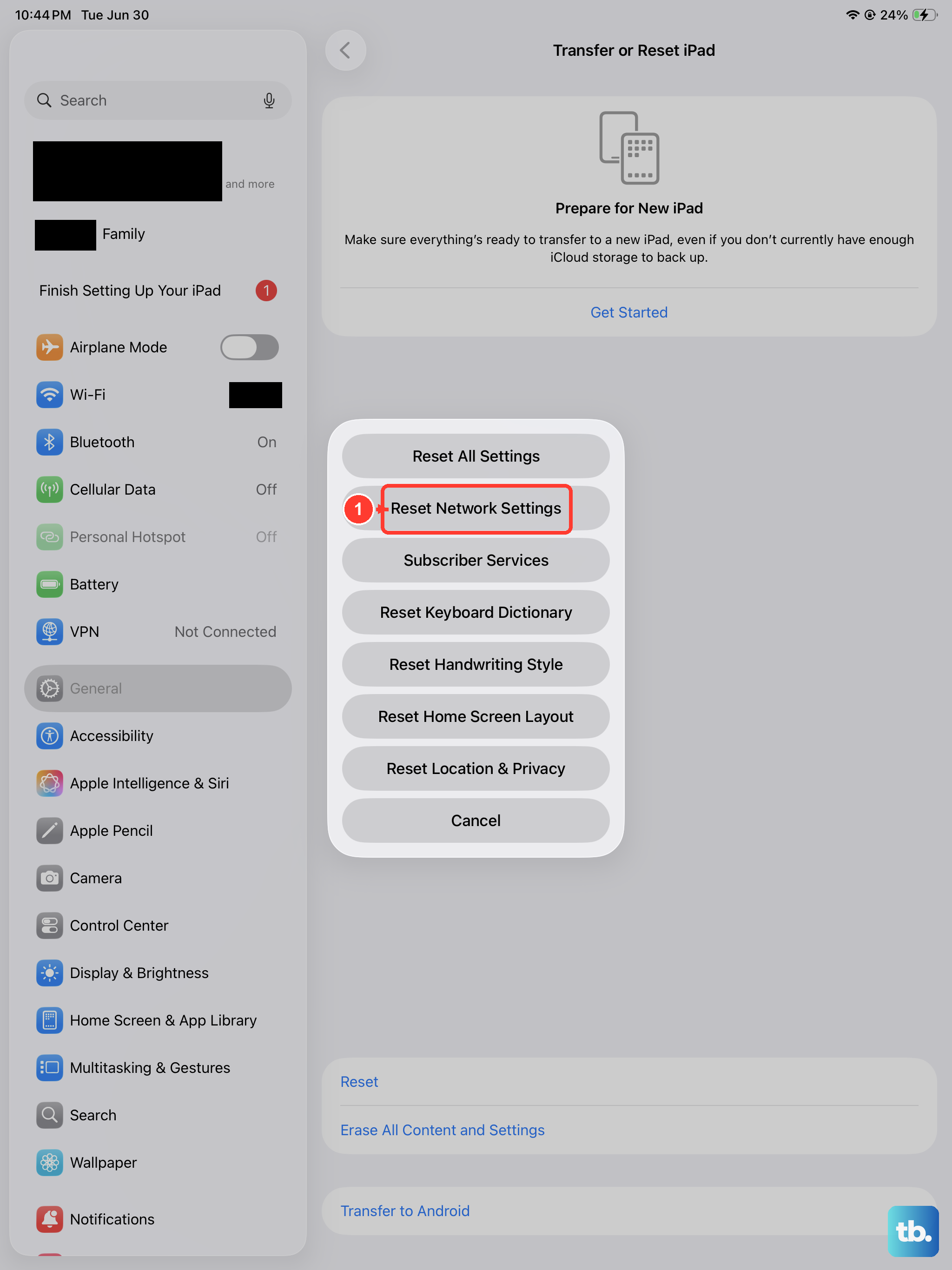
Once your carrier approves the unlock, you'll get a confirmation via email or text message. Some carriers send a specific unlock code, but modern iPads don't require you to type it in the unlock is applied server-side through Apple's activation system.
After receiving confirmation, the actual unlock happens the next time your iPad contacts Apple's activation servers. You can force this by doing a simple reset: go to Settings > General > Transfer or Reset iPad > Reset > Reset Network Settings. This won't erase your data, but it will clear saved Wi-Fi networks and VPN configs. Then restart the iPad.
Alternatively, you can connect your iPad to a computer and do a full restore via Finder (macOS Catalina or later) or iTunes (Windows or older macOS). That forces a fresh activation check and will apply the unlock. Just be sure to back up first a restore wipes everything.
Verify the Unlock Worked
Insert a SIM card from a different carrier. If your iPad has a physical SIM tray, pop in a new one. If it's eSIM-only, add a new cellular plan from a different provider in Settings > Cellular > Add Cellular Plan.
If the iPad accepts the new SIM without any "SIM Not Supported" or "Carrier Lock" message, you're all set. You'll see "No SIM Restrictions" under Settings > General > About.
If you still see a lock message, don't panic. Restart the iPad and try again. Sometimes it takes a couple of power cycles for the unlock to register.
Troubleshooting: When the Unlock Doesn't Stick
Unlocks usually go smoothly, but things can go sideways. Here's what to try if your iPad Pro M5 still refuses to accept another carrier's SIM.
The iPad Shows "SIM Not Supported"
This is the most common symptom of a lock that hasn't cleared. First, double-check that your carrier actually submitted the unlock request. Log into your account or call them back to confirm. If they say it's done, try a force restart: press and quickly release the Volume Up button, then press and quickly release the Volume Down button, then press and hold the Top button until the Apple logo appears. This won't erase anything but can trigger a fresh activation check.
If that doesn't help, back up your iPad and do a full restore through Finder or iTunes. Restore to the latest iPadOS 18 firmware and set it up as a new device temporarily just to test the unlock. If it works, you can then restore your backup.
"Unable to Activate" After Restore
During activation, the iPad verifies the unlock status with Apple's servers. If you get an activation error, make sure your Wi-Fi connection is stable. Also check that the carrier you're inserting a SIM from has compatible bands with the iPad Pro M5 unlikely to be an issue, but worth ruling out.
If the problem persists, contact your original carrier again and ask them to resubmit the unlock request. Occasionally the request gets lost or delayed.
Third-Party Unlocking Services
If your carrier flat-out refuses to unlock (say, you're not the original owner or the device is still under contract), you can use a reputable third-party unlocking service. These companies have relationships with carriers and can often unlock devices for a fee.
Do your research before paying. Look for services with verified reviews and a money-back guarantee. Avoid any service that claims "instant" or "free" unlocks those are almost always scams. Expect to pay anywhere from $15 to $50 depending on the carrier and model. Provide your IMEI and carrier info, and you'll typically get an unlock confirmation within 6 to 24 hours.
Once you have the confirmation, follow the same restore or reset steps above to force the unlock.
What If You Have an eSIM-Only iPad Pro M5?
The iPad Pro M5 (both 11-inch and 13-inch) supports eSIM. If your model doesn't have a physical SIM tray and many carriers now sell eSIM-only units the unlock process works exactly the same. You just need to use the "Add Cellular Plan" option in Settings with a new carrier's eSIM QR code or activation code.
The carrier unlock applies to the device's IMEI, regardless of whether you use a physical SIM or eSIM. So once it's unlocked, any compatible eSIM plan will work.
One catch: some carriers (especially prepaid ones) might not support eSIM on iPads. Check with the new carrier beforehand to confirm they offer eSIM activation for the iPad Pro M5.