
Your iPad Pro M5 isn't receiving calls, and you're probably missing important FaceTime calls or calls forwarded from your iPhone. This can happen for several reasons, but most of them are easy to fix. Let’s walk through the most likely causes and solutions.
Start with a force restart. It clears temporary glitches that can block incoming calls. On the iPad Pro M5, press and quickly release the Volume Up button, then press and quickly release the Volume Down button, then press and hold the Top button until you see the Apple logo. That takes about 10 seconds total. Once it restarts, test if calls come through.
If that didn’t help, check your FaceTime settings. Open Settings > Apps > FaceTime and make sure the switch at the top is green. If you have an iPhone, also check that Your Phone Number and Your Apple ID for FaceTime are both selected under “You can be reached by FaceTime at.” If the iPad is set to receive calls only via your Apple ID, calls to your phone number won’t come through.
Is Do Not Disturb or a Focus mode blocking calls?
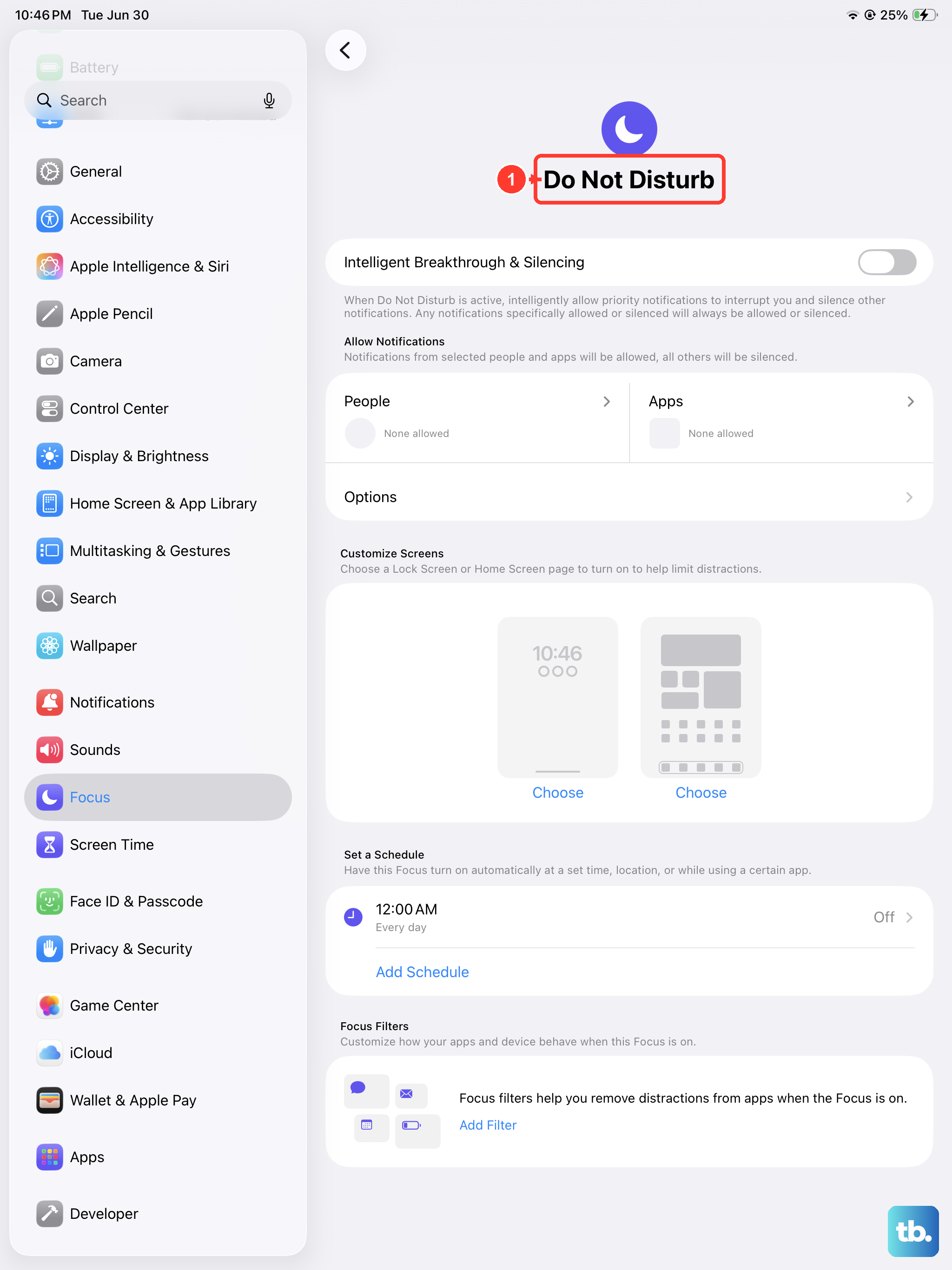
iPadOS 18 includes Focus modes that can silence calls from anyone except your allowed list. Swipe down from the top-right corner to open Control Center, then tap the Focus button to see if one is active. If it is, tap it again to turn it off. You can also go to Settings > Focus and check if Do Not Disturb, Sleep, or any custom Focus has “Allow Notifications” set to silence everyone. You can allow calls from everyone or just favorites right in that same screen.
Check your call forwarding settings from iPhone (Continuity)
If you rely on iPhone Cellular Calls on your iPad, make sure Continuity is set up correctly. On your iPhone, go to Settings > Apps > Phone > Calls on Other Devices, and confirm that your iPad Pro M5 is listed and enabled. On your iPad, go to Settings > Apps > FaceTime > Calls from iPhone, and make sure the toggle is on. Both devices need to be signed into the same Apple ID, connected to Wi‑Fi, and relatively close together. A quick toggle of that setting can sometimes refresh the connection.
Network and cellular issues
For the cellular model of the iPad Pro M5, a poor signal or a network outage can prevent calls. Check the status bar for signal bars and a carrier name. If you see “No Service” or just an empty circle, try toggling Airplane Mode on and off from Control Center. Wait about 10 seconds between toggles. If that doesn’t work, go to Settings > Cellular and make sure your cellular plan is active and not suspended. You can also try removing and reinserting the eSIM (if you have one) by tapping your plan and selecting “Remove eSIM,” then re-adding it using your carrier’s QR code or setup app.
For Wi‑Fi calling, ensure it’s enabled under Settings > Cellular > Wi‑Fi Calling. Sometimes Wi‑Fi Calling can glitch and stop routing calls. Turn it off, wait a minute, then turn it back on.
Software updates
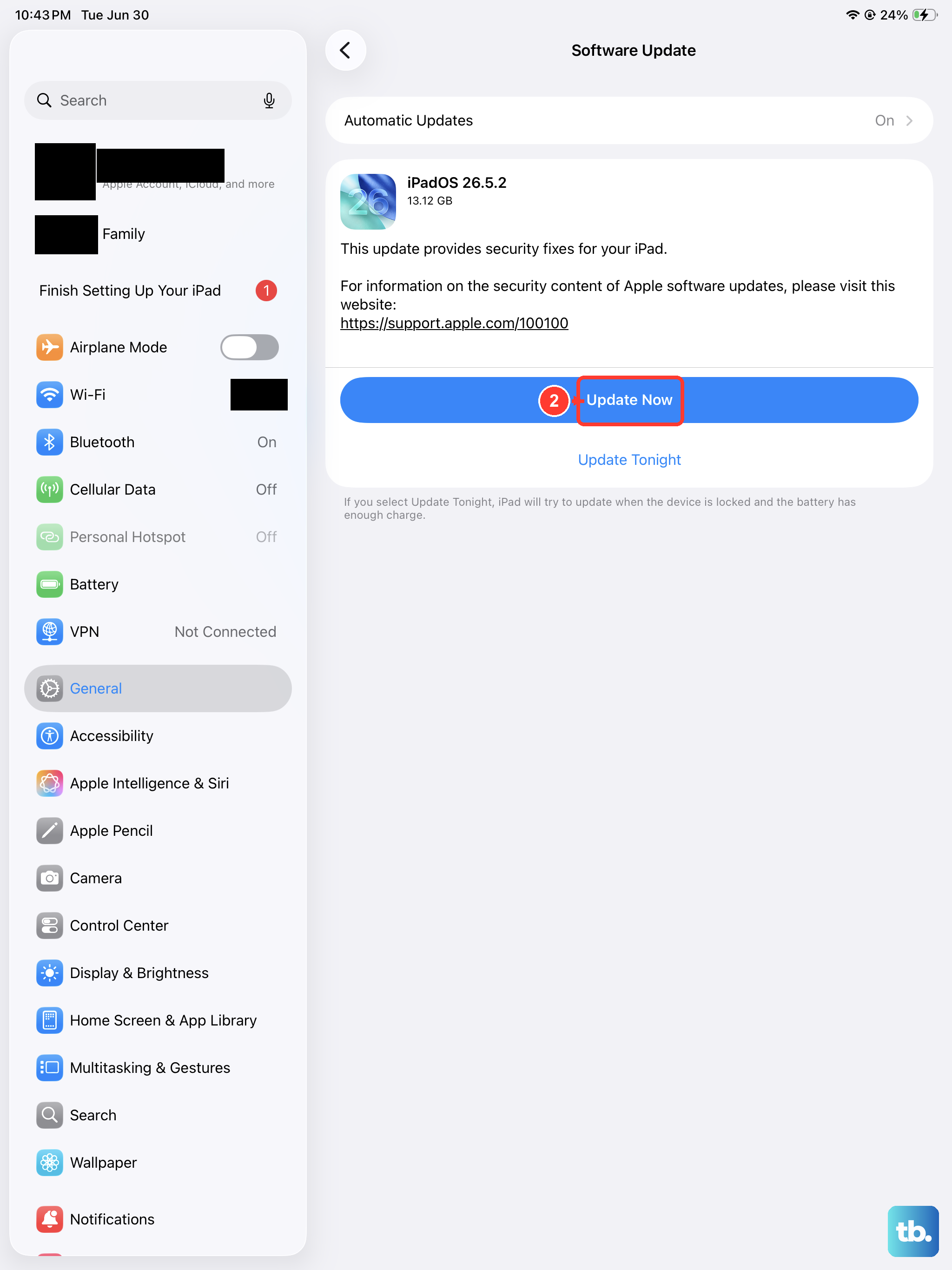
Outdated iPadOS can cause call‑related bugs. Go to Settings > General > Software Update and install any available updates. iPadOS 18 has had a few minor updates that addressed FaceTime and continuity issues. Even if you’re on the latest iPadOS 18.x, a quick reboot after updating is a good habit.
Reset network settings
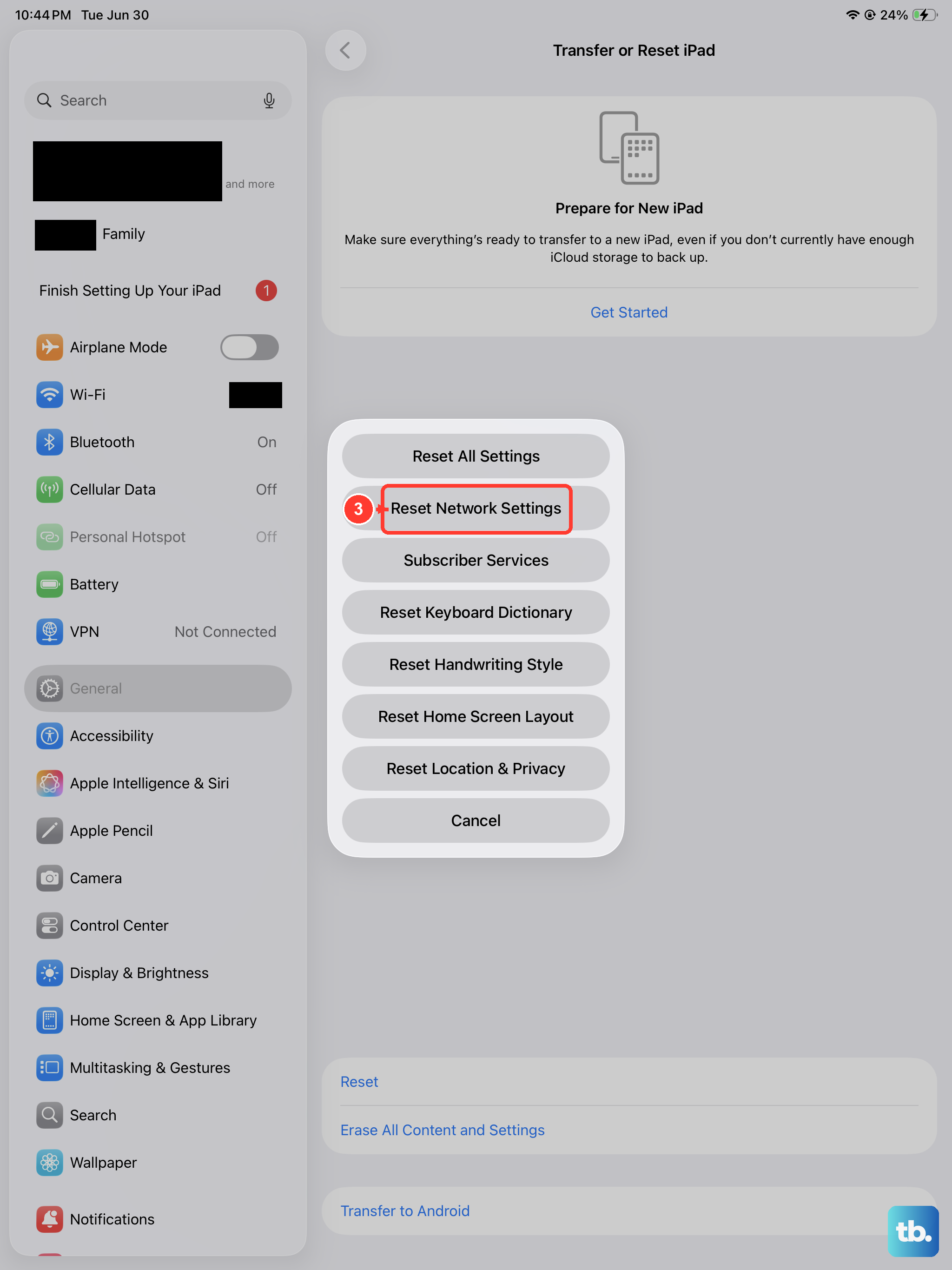
If calls still aren’t coming through, resetting your network settings can clear up Wi‑Fi, Bluetooth, and cellular configuration glitches. Go to Settings > General > Transfer or Reset iPad > Reset > Reset Network Settings. This will erase saved Wi‑Fi passwords and Bluetooth pairings, but it won’t delete your data. After the reset, reconnect to Wi‑Fi and test calls.
Sign out and back into FaceTime and iMessage
A less common but effective fix is to sign out of FaceTime and iMessage, then sign back in. Go to Settings > Apps > FaceTime and tap your Apple ID at the bottom of the screen, then choose “Sign Out.” Do the same in Settings > Apps > Messages. Restart your iPad, then sign back into both. This refreshes the registration with Apple’s servers, which can resolve routing issues.
Check for blocked contacts
You might have accidentally blocked a contact. Open the Phone or FaceTime app, tap Recents, then tap the “i” icon next to any number. Scroll down to “Block this Caller” to see if it’s blocked. Go to Settings > Apps > FaceTime > Blocked Contacts to review your full block list. If someone you’re expecting a call from is there, swipe left and tap Unblock.
Disable third‑party call‑blocking apps
Apps like Hiya, RoboKiller, or even some carrier apps can intercept incoming calls on your iPad. Go to Settings > Apps > Phone > Call Blocking & Identification (or Settings > Apps > FaceTime if that option doesn’t appear) and toggle off any third‑party apps. Restart your iPad afterward to make sure the changes take effect.
Factory reset (last resort)
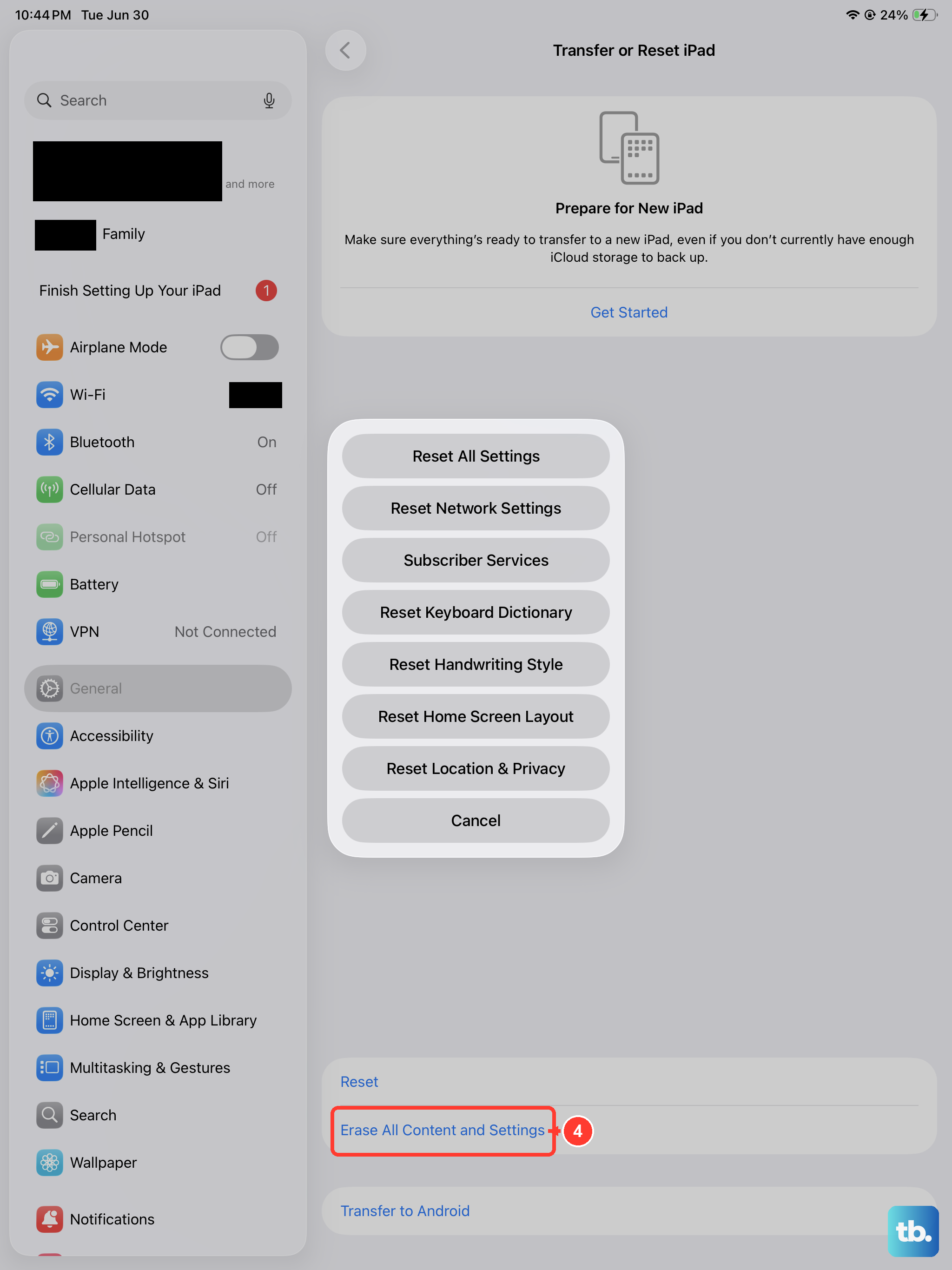
If you’ve tried everything and your iPad Pro M5 still won’t receive calls, a factory reset may be needed. This erases all your data, so back up to iCloud or a computer first. Go to Settings > General > Transfer or Reset iPad > Erase All Content and Settings. After the reset, set up as new or restore from your backup. This is a nuclear option, but it often cures persistent software‑level call problems.