
So your iPad Pro M5 won't charge. You've plugged it into the wall, tried a different cable, maybe even given it a few gentle taps. Don't stress, this is one of the most common iPad problems, and it's almost always fixable at home without a trip to the Apple Store.
The 11-inch and 13-inch iPad Pro M5 models use USB-C charging exclusively, no MagSafe or wireless option here. If your iPad won't take a charge, we'll run through the fixes from quickest to most involved.
Why Your iPad Pro M5 Isn't Charging
Before jumping into the fixes, here's what's likely going on. A few common culprits stand out with the M5 iPad Pro:
- Dust or debris in the USB-C port: Lint and pocket fuzz can pack into that tiny port and block the connection. This is the number one reason iPads stop charging.
- Damaged cable or adapter: Frayed wires or a worn-out 60W adapter will stop your iPad from charging.
- Software glitch in iPadOS 18: Bugs after an update can mess with charging detection.
- The battery is completely drained: A dead battery takes a few minutes to show any sign of life.
- Temperature protection: If your iPad got too hot (or too cold), it will pause charging to protect the battery.
Force Restart Your iPad Pro M5
This is always step one. A force restart clears out temporary software glitches that might be blocking the charging circuit. It takes about 30 seconds and fixes the problem more often than you'd expect.
For the iPad Pro M5 (both 11-inch and 13-inch), the force restart sequence is specific. Press and quickly release the Volume Up button, then press and quickly release the Volume Down button. Then press and hold the Top button until you see the Apple logo. Let go once the logo appears.
After it boots up, plug the USB-C cable in and check for the charging indicator on the screen.
Clean the USB-C Charging Port
This fix solves the problem for a shocking number of people. Over time, lint and dust get packed into the USB-C port every time you slide your iPad into a bag or case. Eventually there's enough gunk in there that the cable can't make a proper connection.
Grab a flashlight and take a close look inside the port. If you see debris, turn off your iPad first, then use a wooden or plastic toothpick to gently scrape out the lint. Don't use metal tools, they can damage the delicate contacts. Compressed air from a safe distance can also help. Tap the iPad gently with the port facing down to shake loose anything stubborn.
If the port looks damaged or the cable still feels loose after cleaning, you'll want a technician to take a look.
Try a Different Cable and Power Adapter
You need to figure out whether the problem is your cable, your adapter, or your wall outlet. Swap each one out individually to isolate the issue.
Start with a different USB-C cable, ideally one you know works with another device. Then try a different wall adapter. The iPad Pro M5 needs a 60W adapter for fast charging (it can hit 50% in about 30 minutes with the right brick), but it will still charge with lower-wattage adapters, just slower. Try plugging into a different wall outlet entirely, or into a computer's USB-C port to rule out outlet issues.
If your iPad charges fine with a different cable, toss the old one. If it works with a different adapter, that's your culprit.
Check the Cable and Adapter for Visible Damage
Sometimes the issue is obvious if you look closely. Check the full length of your charging cable for any fraying, kinks, or exposed wires. Inspect the USB-C connector on both ends, bent pins or discoloration can prevent a proper connection. Also look at the power adapter where the cable meets the brick; that's a common failure point.
Apple recommends using their 40W dynamic power adapter (model A3351) or any USB-C power adapter delivering 60W or higher for optimal charging speeds. If you're using a third-party adapter, make sure it's not damaged and is rated for at least 20W, anything lower might not charge the iPad at all, especially if the battery is very low.
Charge with the iPad Turned Off
Sometimes a background process or a stuck app interferes with charging. Turn your iPad completely off, hold the Top button and either volume button until the power off slider appears, then slide to power off. Now plug it in. If it starts charging normally, you know it's a software issue.
This is also the fastest way to charge your iPad when you're in a hurry. No screen, no apps running, just pure charging speed.
Let the Battery Wake Up
If your iPad Pro M5's battery hit absolute zero, it won't show any sign of life right away when you plug it in. This is normal. Leave it connected to a wall charger (not a computer USB port) for at least 15 to 30 minutes. You should eventually see a battery icon on the screen. If nothing shows up after 30 minutes, try a force restart while it's still plugged in.
Update iPadOS 18
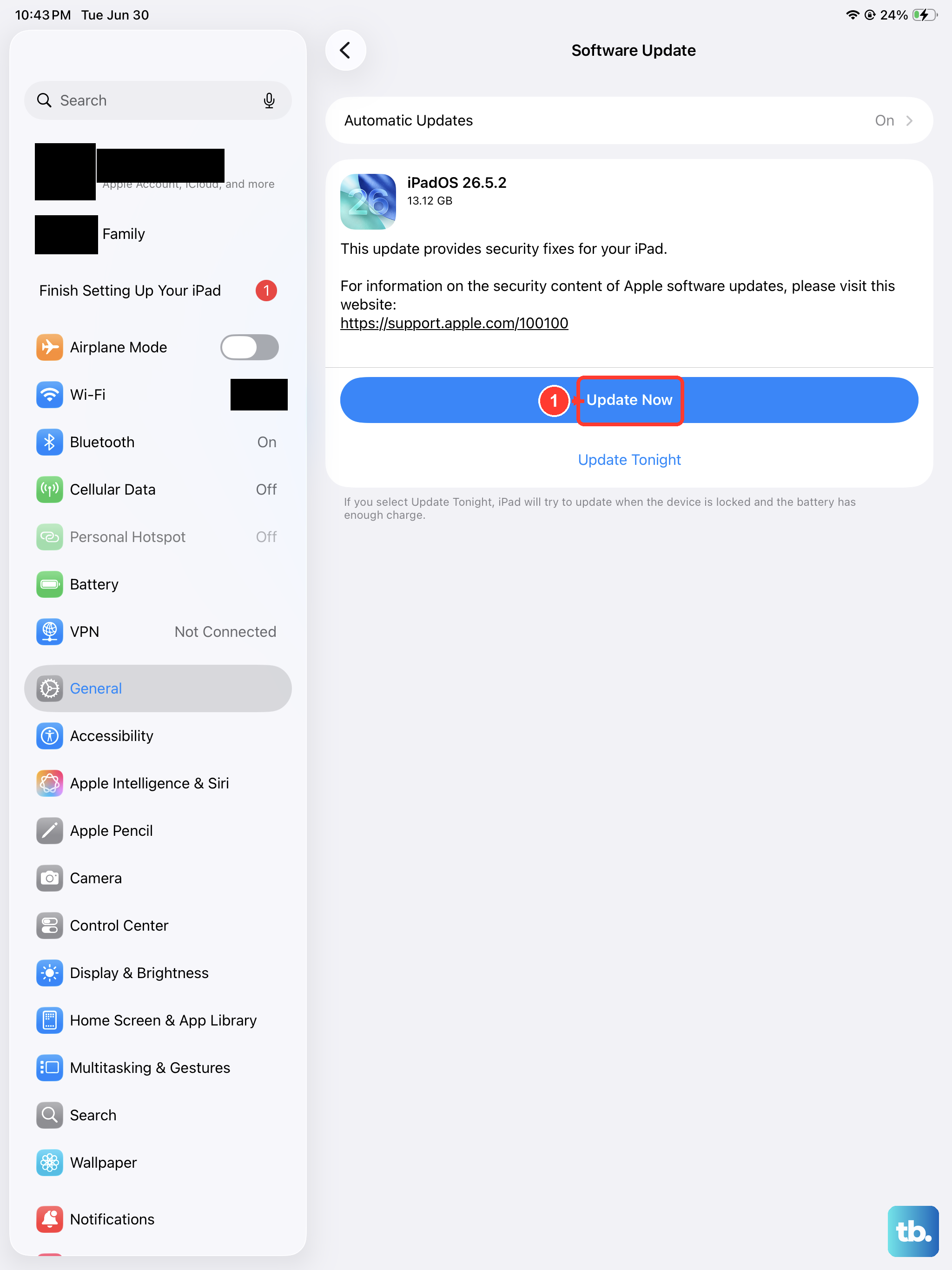
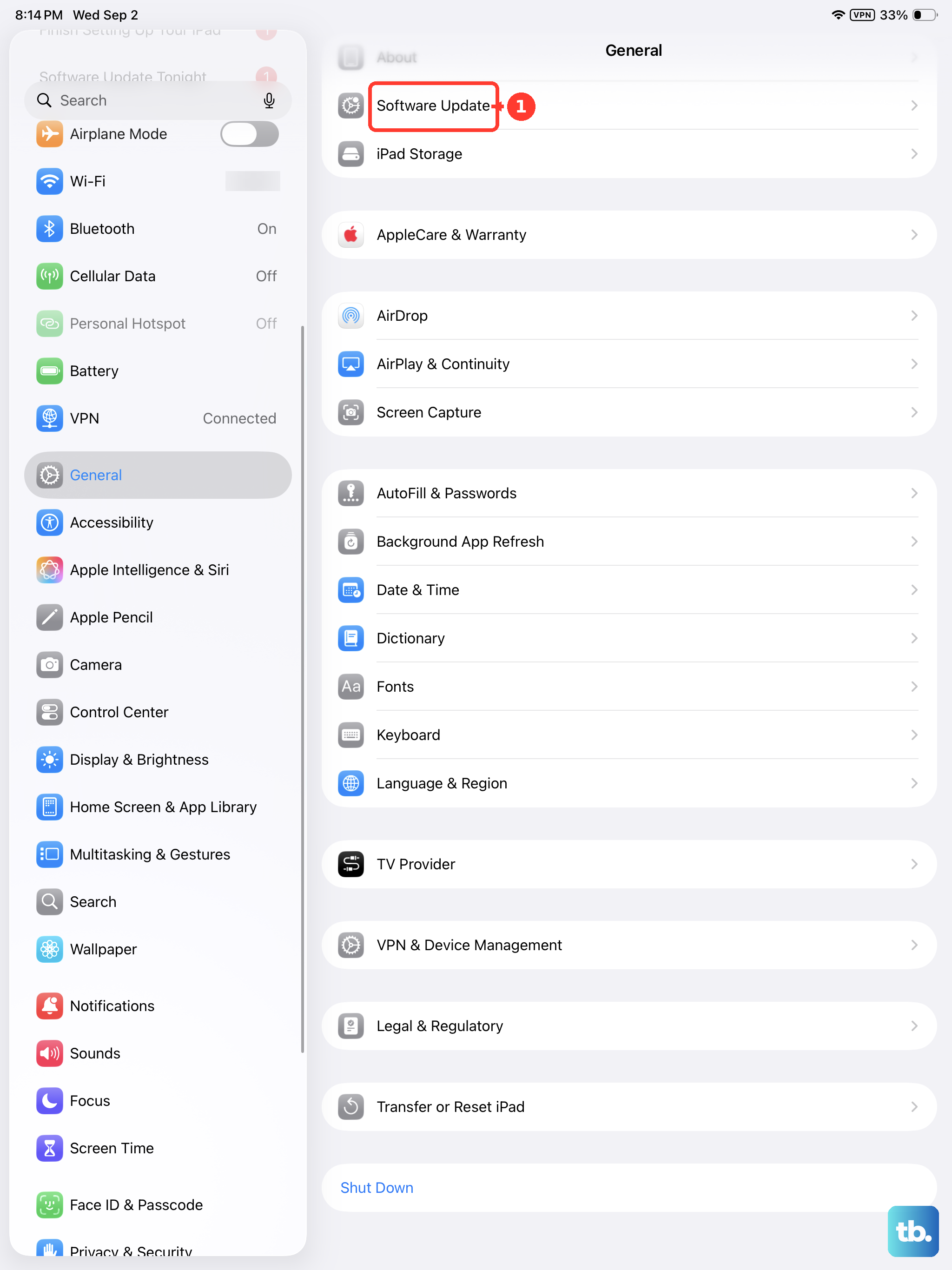
Apple regularly patches charging bugs in iPadOS updates. If you're running an older version of iPadOS 18, updating could fix the issue. Go to Settings > General > Software Update and install any available update.
If your iPad won't turn on at all, you can update through a computer. Connect it to a Mac (Finder) or PC (Apple Devices app), and click Check for Update.
Restore Your iPad Pro M5 (Last Resort)
If you've tried everything and your iPad still won't charge, a full restore can wipe out deep software issues. Back up your data first, this erases everything.
To restore using Recovery Mode: Turn off your iPad. Connect it to your computer with a USB-C cable. Press and hold the Top button, keep holding even after the Apple logo appears, until you see the recovery mode screen (a computer icon). Then choose Restore in Finder or Apple Devices.
After the restore, test charging again. If it still doesn't work, you're looking at a hardware problem, likely a damaged charging port or battery issue that needs professional repair.