
Even the new iPad Pro M5 can start feeling sluggish. You're not imagining it, and the good news is most slowdowns have straightforward fixes that don't require a trip to the Apple Store.
The M5 chip is incredibly fast, but software clutter, low storage, or background processes can still trip it up. Let's run through what usually works.
Start with a Force Restart
Before digging into settings, try a force restart. It clears out temporary system glitches without deleting anything.
Press and quickly release the Volume Up button, then press and quickly release the Volume Down button. Then press and hold the Top button until the Apple logo appears. That's it.
This is especially useful if your iPad Pro M5 feels completely unresponsive or apps keep crashing. I'd start here every time.
Close Apps You're Not Using
iPadOS 18 handles multitasking well, but leaving dozens of apps open can still eat up system resources. On the iPad Pro M5, swipe up from the bottom and pause to open the App Switcher.
Swipe left or right to find the apps you want to close, then swipe up on each one. You don't need to close everything, just the apps you haven't touched in hours.
Apps stuck in a weird state often cause lag that disappears as soon as you force-close them.
Free Up Storage Space
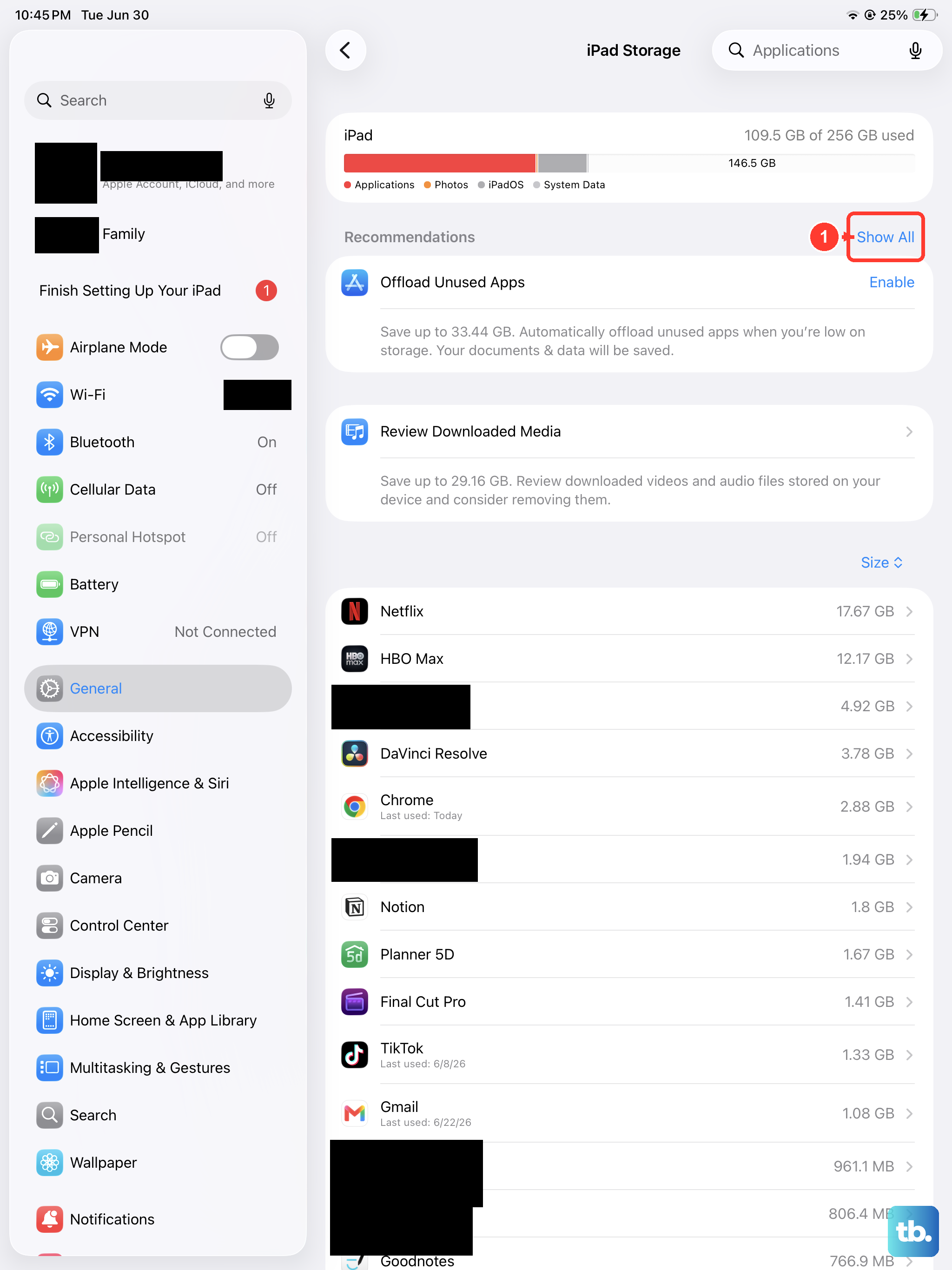
When your iPad's storage gets close to full, performance takes a noticeable hit. Go to Settings > General > iPad Storage and take a look.
You'll see a breakdown of what's eating space. Delete apps you don't use, offload old app data, and clear out large files. Offloading an app removes it but keeps its documents and data for when you reinstall it.
That option lives in Settings > App Store > Offload Unused Apps. Turn it on and let iPadOS handle the rest.
Clear Safari's Cache and History
Safari stores website data over time, and that cache can get bloated. On the iPad Pro M5 running iPadOS 18, go to Settings > Apps > Safari.
Scroll down and tap Clear History and Website Data. You'll lose saved login info for some sites, but it often makes browsing feel snappier again.
Background App Refresh Might Be the Culprit
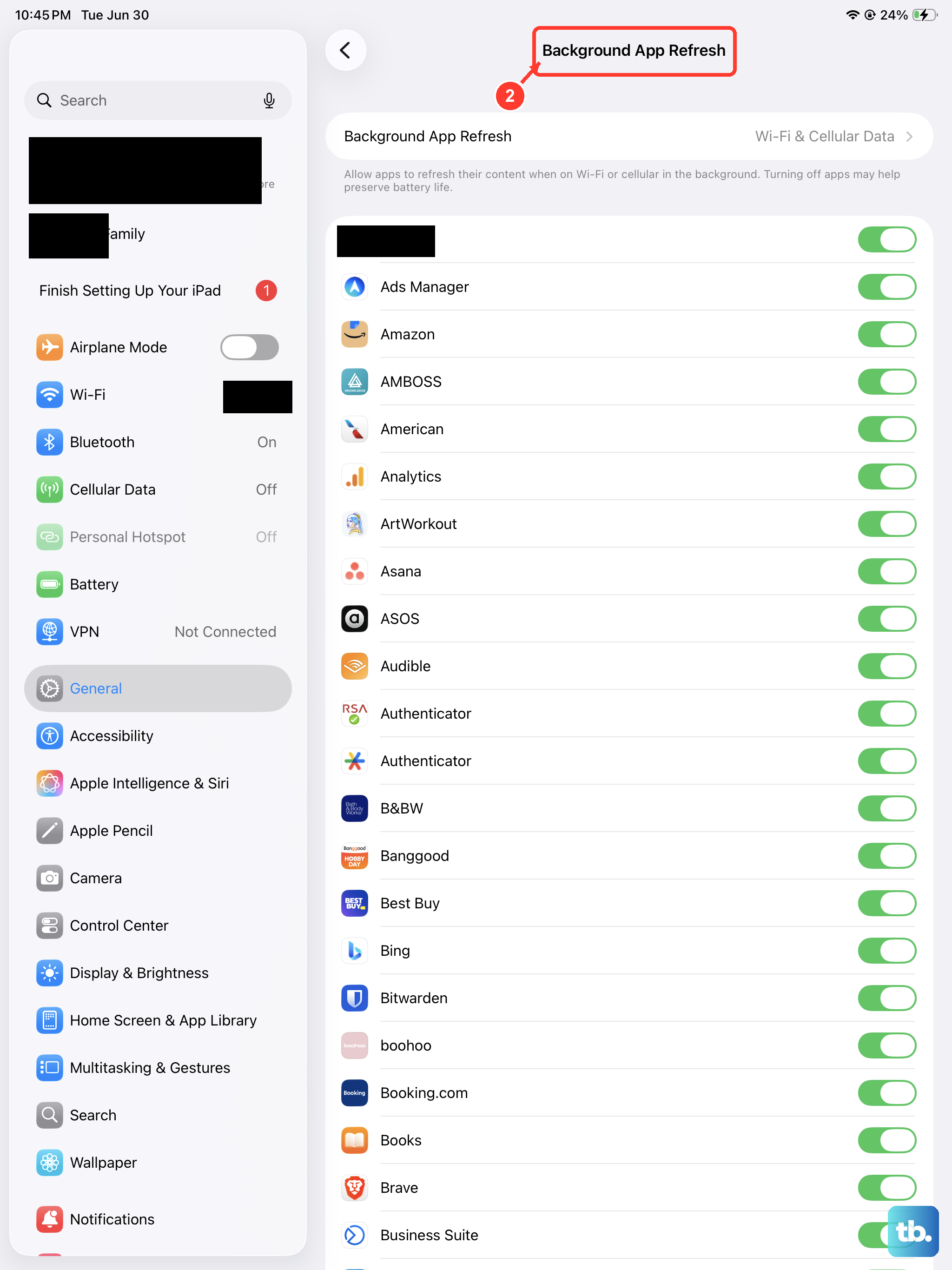
Apps refreshing in the background drain system resources even when you aren't using them. Head to Settings > General > Background App Refresh.
You can turn it off entirely or pick specific apps to restrict. Social media and news apps are the usual offenders, so start with those.
Is Your Battery Health Okay?
The iPad Pro M5's battery is rated for high performance, but as it ages, the system may throttle performance to prevent shutdowns. Check yours at Settings > Battery > Battery Health.
If Maximum Capacity has dropped below 80%, consider battery service. A fresh battery can restore full performance.
Keep iPadOS and Apps Current
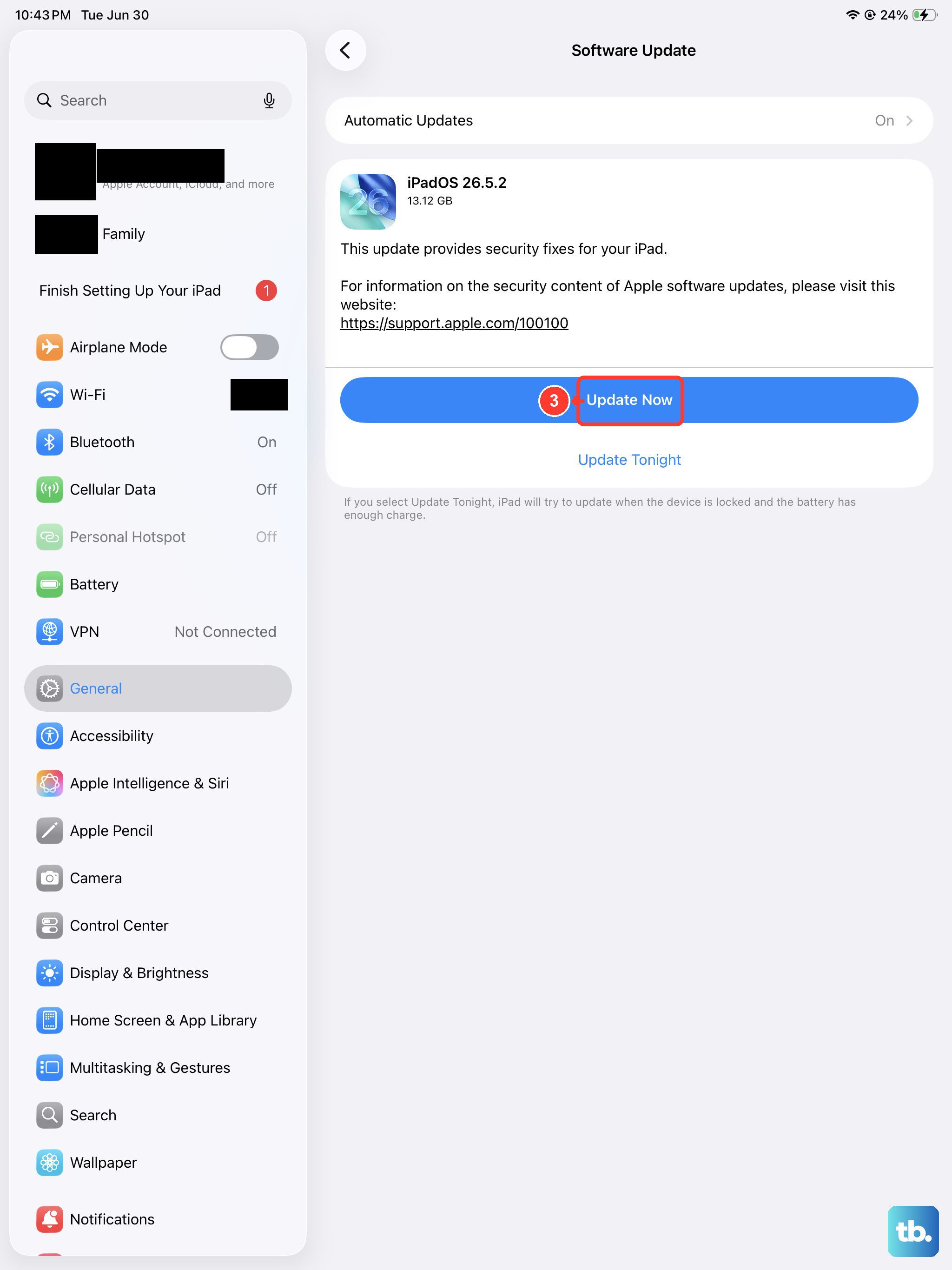
Updates often include performance fixes specifically tuned for the M5 chip. Go to Settings > General > Software Update and install anything available.
For apps, open the App Store, tap your profile icon, and update everything waiting in the list. Developers regularly patch performance issues with new releases.
Reduce Motion and Transparency
Visual effects like parallax wallpapers and translucency can add overhead. For a smoother experience, go to Settings > Accessibility > Motion and turn on Reduce Motion.
Then head to Settings > Accessibility > Display & Text Size and enable Reduce Transparency. The difference in smoothness is noticeable.
Widgets Can Slow Things Down
Widgets constantly update in the background, and a home screen packed with them can introduce lag. Long-press any widget on your home screen and tap Remove Widget.
Keep only the ones you actually check daily. Weather, calendar, and reminders are useful, but that stock ticker widget probably isn't essential.
Siri's Background Work
Siri keeps processing suggestions and learning from your usage in the background. To dial that back, go to Settings > Siri & Search.
Turn off Show in Look Up and Show in Spotlight for apps you don't need suggestions from. You can also disable suggestions from Apple entirely if you prefer.
Reset All Settings as a Last Resort
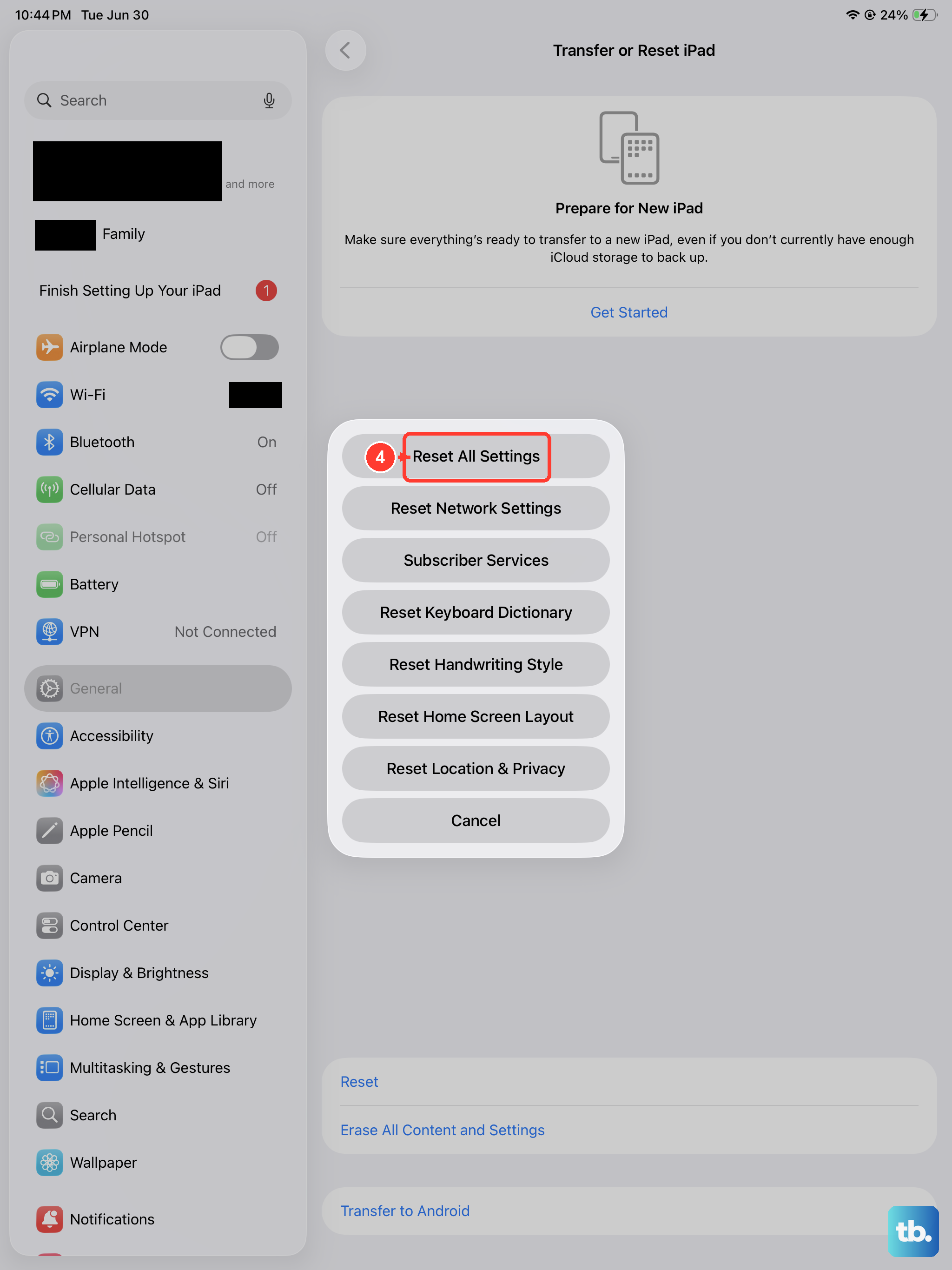
If nothing above helps, resetting your settings can clear deeper configuration issues without deleting your data. Go to Settings > General > Transfer or Reset iPad.
Tap Reset and then Reset All Settings. You'll need to enter your passcode, and the iPad will restart. Customizations like Wi-Fi passwords and wallpapers get wiped, but your photos, files, and apps stay untouched.
Start with the force restart and work through the list. Most performance issues on the iPad Pro M5 clear up by the time you reach the middle of these steps.