
An iPad that keeps restarting out of nowhere can make it nearly impossible to get anything done. Whether you're in the middle of drawing, typing, or just browsing, the disruption is real. Most of the time this is caused by a software glitch or a rogue app, but hardware quirks can also play a part.
Before jumping into fixes, back up your iPad to iCloud or a computer. That way you won't lose anything if you end up needing to erase the whole device.
Force Restart the iPad Pro M5
The fastest thing to try is a force restart. It clears out temporary system hiccups without deleting any of your stuff.
On the iPad Pro M5 (both 11-inch and 13-inch), the button sequence is specific: press and quickly release the Volume Up button, then press and quickly release the Volume Down button, then press and hold the Top button until you see the Apple logo. Keep holding even after the screen goes black, the logo will pop up after a few seconds.
This works even if the iPad is totally unresponsive. It's the same trick that resolves countless weird behaviors on iPadOS.
Check for Problematic Apps
Third‑party apps are a common source of random restarts. Start by closing everything that's running: swipe up from the bottom and pause in the middle of the screen, then swipe up on each app card to dismiss it.
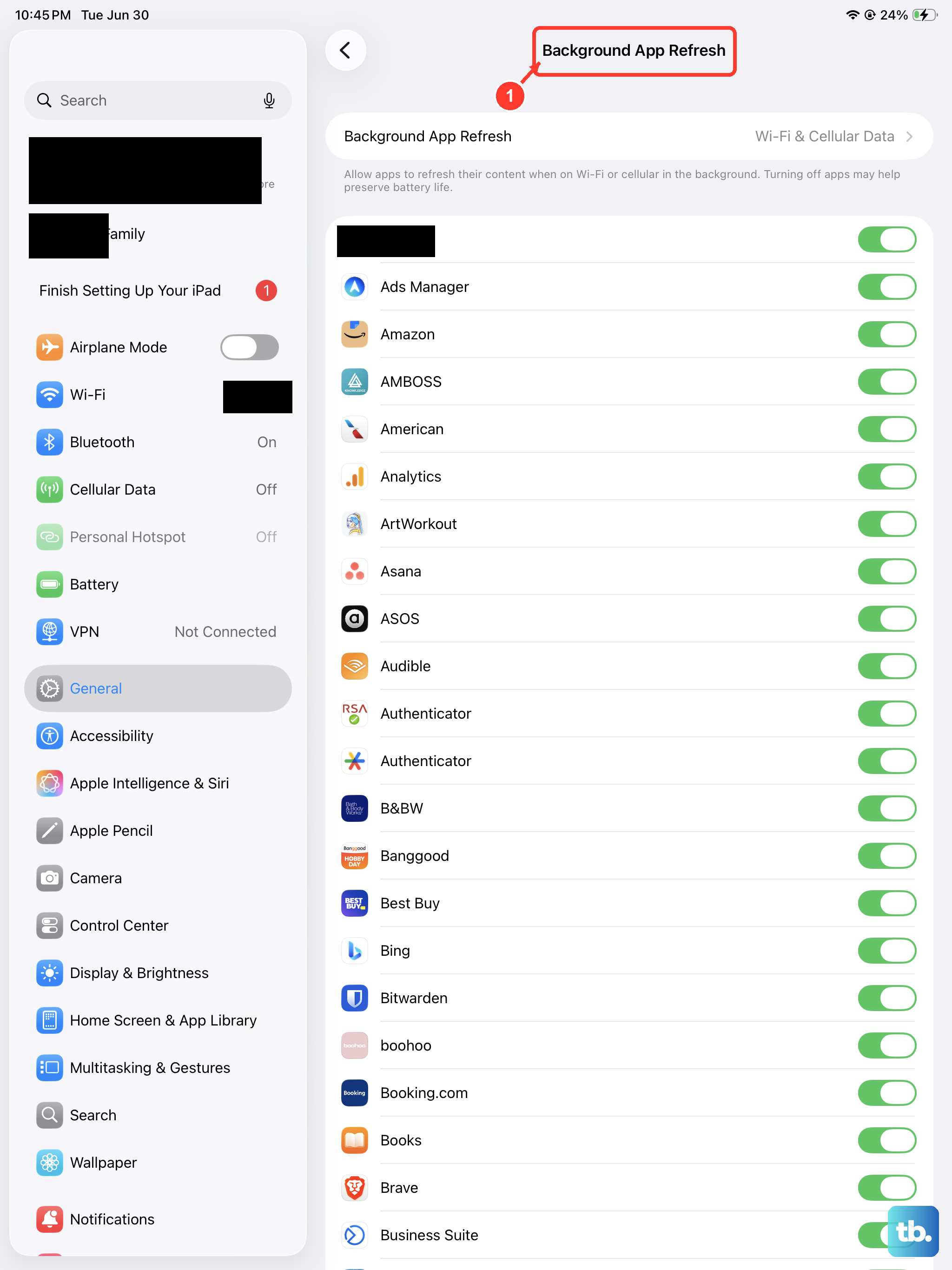
If the restarts stop, one of those apps was the culprit. You can narrow it down by reopening them one by one. Also go to Settings > General > Background App Refresh and turn it off for any app you don't need updating in the background. Some apps misbehave when they refresh while the iPad is idle.
Update Apps and iPadOS
Outdated software can cause compatibility headaches that trigger crashes and restarts. Open the App Store, tap your profile icon in the top right, and hit "Update All" to refresh every app at once.
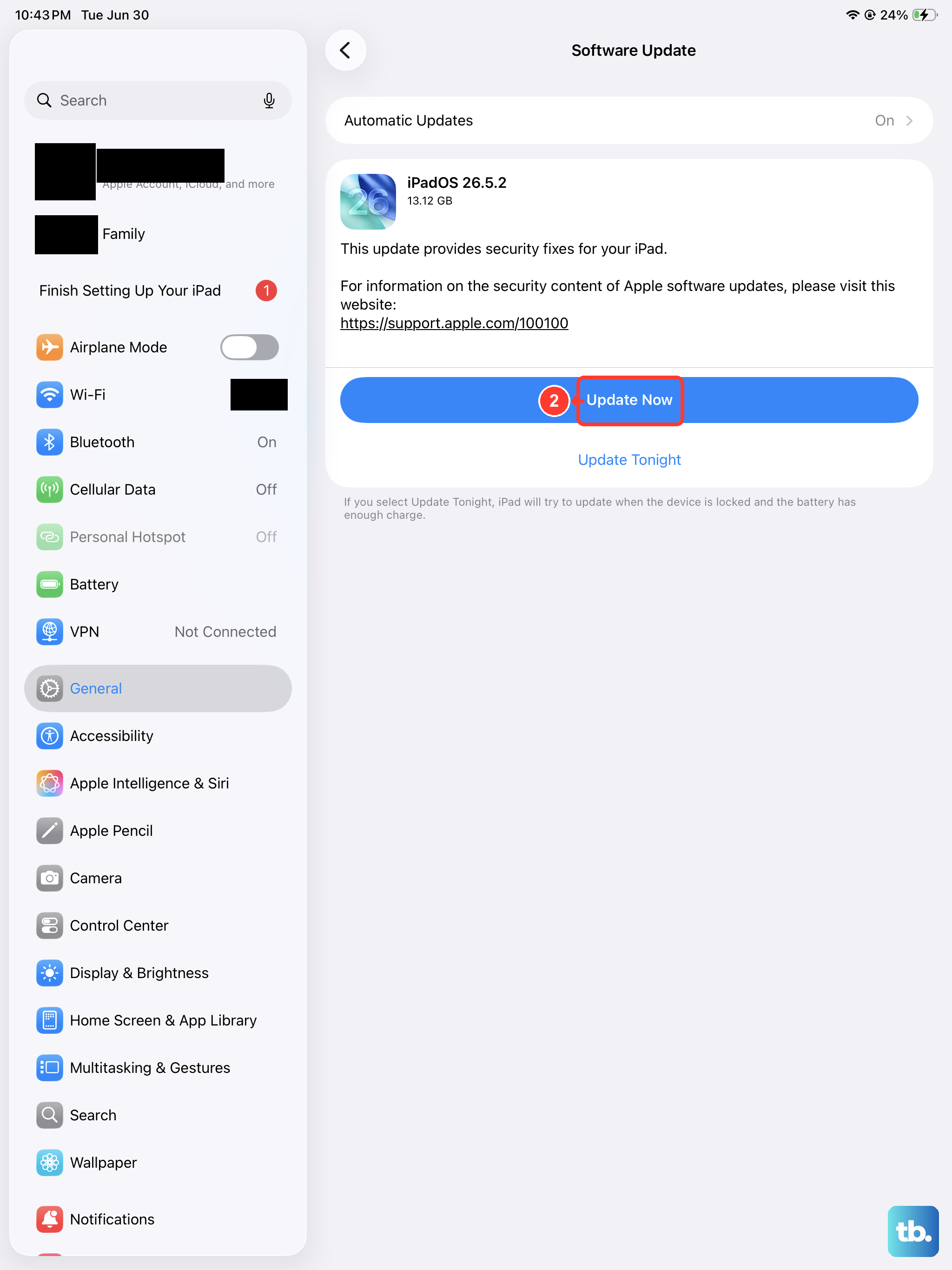
Then check for iPadOS updates: go to Settings > General > Software Update. If there's a pending update, download and install it. The iPad Pro M5 shipped with iPadOS 18, and Apple regularly pushes bug fixes that address stability issues like this.
Look at the Crash Logs
iPadOS keeps a log of every crash and kernel panic. You can use these logs to identify the troublemaker. Head to Settings > Privacy & Security > Analytics & Improvements > Analytics Data.
Scroll through the list and look for files that start with "panic‑full", those are system‑level crashes. You might also see entries with an app's name, which can point you toward a specific program causing the restarts. If you spot one, try deleting that app and see if the problem goes away.
Free Up Storage Space
When your iPad's storage is nearly full, the system can become unstable. Check your remaining space at Settings > General > iPad Storage.
If you're down to just a few gigabytes, consider offloading unused apps, moving photos and videos to iCloud, or deleting old downloads. iPadOS works best when it has at least 5 10 GB of breathing room.
Reset All Settings
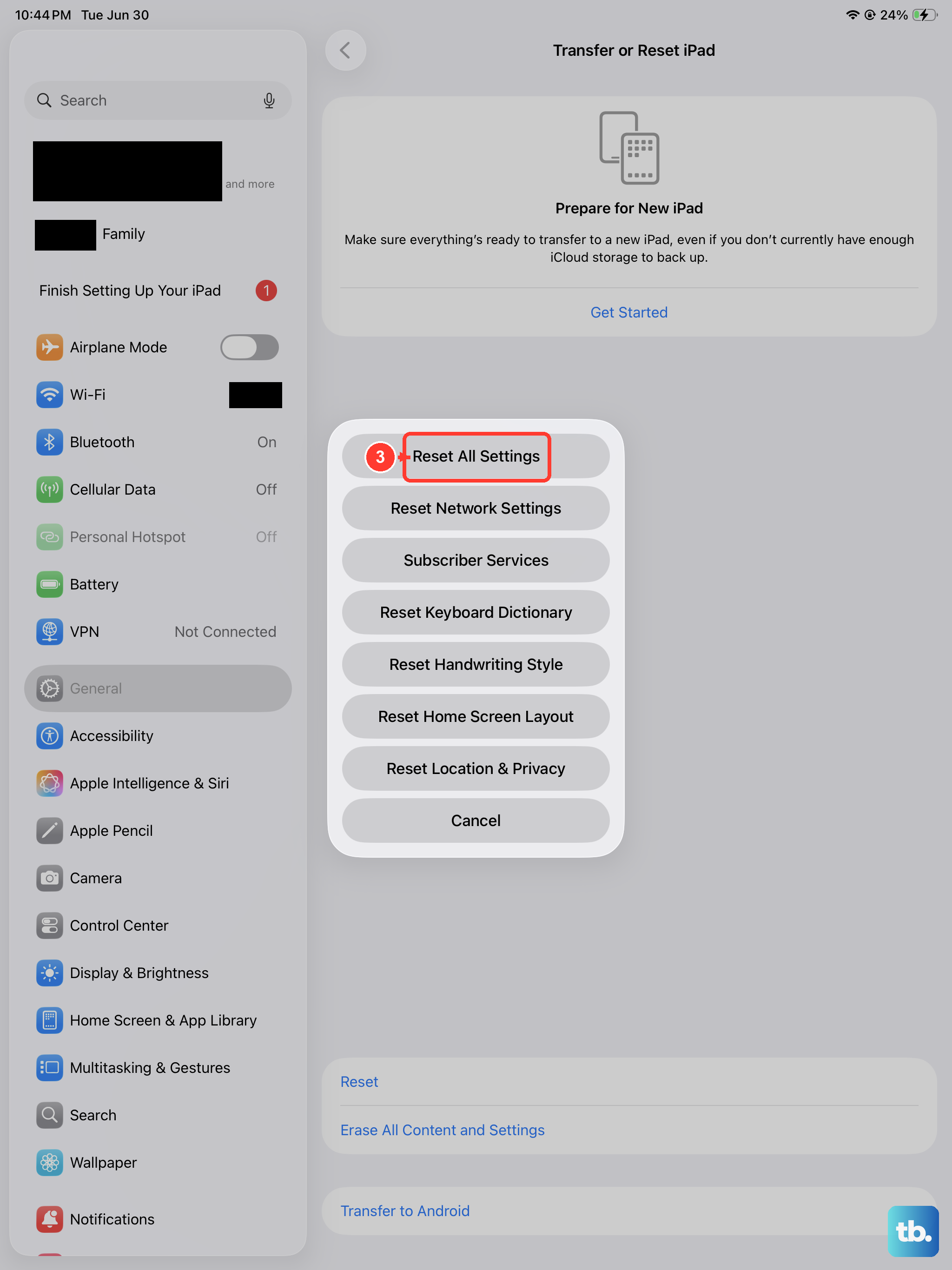
This step doesn't erase your personal data, but it does reset things like Wi‑Fi passwords, wallpapers, and accessibility settings to their defaults. It can fix deeper software conflicts that cause random restarts.
Go to Settings > General > Transfer or Reset iPad > Reset > Reset All Settings. Enter your passcode and confirm. The iPad will reboot and you'll need to set up a few preferences again, but your apps, photos, and documents stay put.
Factory Reset (Erase All Content and Settings)
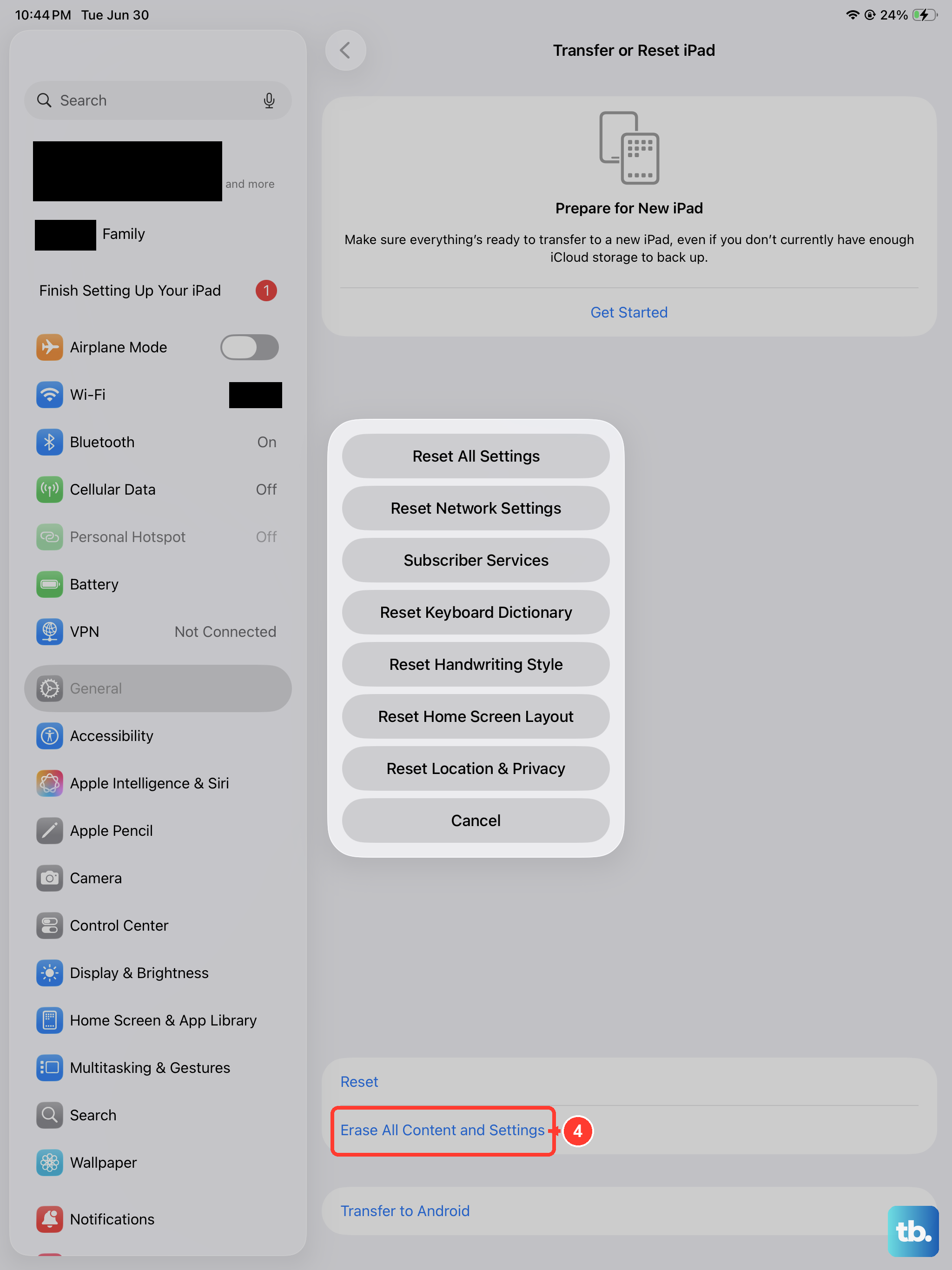
If the restarts keep happening despite everything above, a clean slate is the next logical step. This wipes the iPad completely, so your backup from earlier is essential.
Go to Settings > General > Transfer or Reset iPad > Erase All Content and Settings. Enter your passcode and confirm. The iPad will erase itself and restart as if it were new. After that, restore your backup and see if the restarts return.
Use Recovery Mode to Restore iPadOS
If your iPad is stuck in a restart loop or won't boot normally, recovery mode gives you a way to reinstall iPadOS from a computer. You'll need a Mac with Finder or a PC with iTunes (or the Apple Devices app).
Connect the iPad to your computer with a USB‑C cable. Press and quickly release the volume button nearest the Top button, then the other volume button, then press and hold the Top button. Keep holding the Top button even after the screen goes black, eventually a recovery mode screen (a computer icon with a cable) will appear. On your computer, you'll see an option to Update or Restore. Choose Update first to keep your data; if that fails, go with Restore to reinstall iPadOS completely.
This often fixes persistent software problems that a regular reset can't touch.
Inspect the Charging Hardware
A less obvious cause of random restarts on the iPad Pro M5 is a bad charging connection. If the battery is intermittently losing power or receiving unstable voltage, the system can panic and reboot.
Start by checking your USB‑C cable and power adapter for any visible damage, frays, bent pins, or melting. The iPad Pro M5 supports fast charging up to 60W, but using a cheap or worn‑out cable can introduce electrical noise. Try a different Apple or certified USB‑C cable and a power adapter that delivers at least 40W (the Apple 40W dynamic adapter, model A3351, is a good match).
Also inspect the USB‑C port on the iPad itself. Dust and lint can build up inside, preventing a solid connection. Use a soft, dry toothpick or a plastic SIM‑eject tool to gently clean out any debris. Do not use anything metal that could damage the pins.
If the restarts happen only while the iPad is plugged in, the cable or adapter is almost certainly the culprit. Replace it and see if the issue goes away.