
FaceTime calls dropping mid-conversation on your iPad Pro M5 can be frustrating, especially when you're in the middle of something important. Whether it's a Wi-Fi Calling issue or a cellular connection hiccup, most causes are fixable without a trip to Apple.
Here are ten practical fixes that actually work, starting with the quick ones you can try right now.
Toggle Airplane Mode
This is the fastest way to reset your wireless connections. Swipe down from the top-right corner to open Control Center, tap the airplane icon to turn it on, wait about ten seconds, then tap it again. It clears the network stack without restarting the whole iPad.
Check Your Signal Strength
Weak Wi-Fi or cellular signal is the most common reason calls drop. Look at the signal bars in the status bar or the Wi-Fi icon. If you're down to one bar or seeing "No Service," move closer to the router or a window. The iPad Pro M5's antenna works best with a clear line of sight.
Restart Your iPad
A simple restart often clears temporary software glitches. Press and hold the Top button and either volume button until the power-off slider appears, then drag to turn off. Wait 30 seconds and press the Top button to boot back up. If the iPad is unresponsive, use the force restart sequence: press and quickly release Volume Up, then Volume Down, then hold the Top button until the Apple logo shows up.
Check Do Not Disturb and Focus
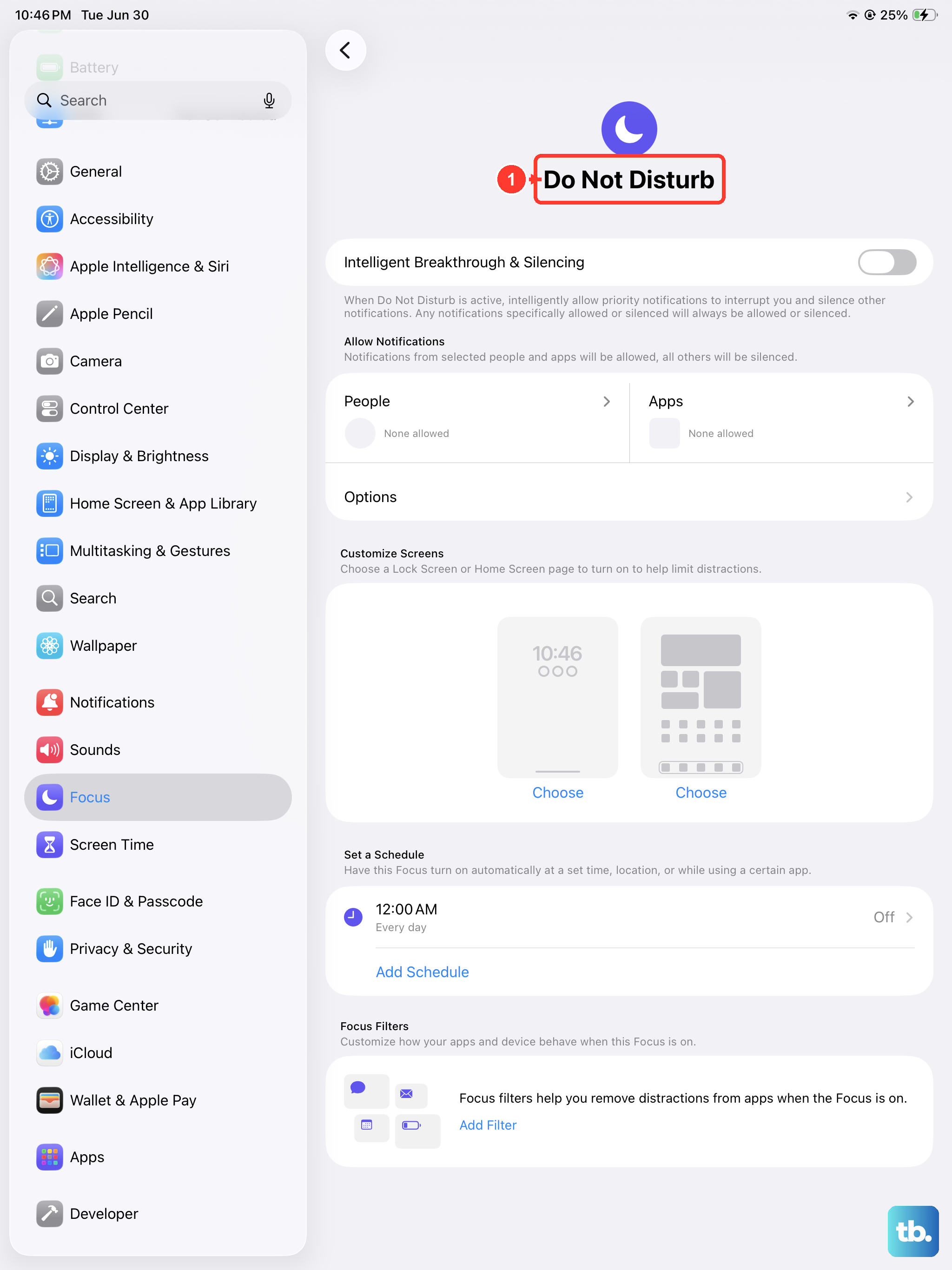
If you've set up a Focus mode, it might be silencing incoming FaceTime calls. Swipe down to Control Center and check if any Focus is active. Tap it to turn it off. You can also go to Settings > Focus and make sure FaceTime calls are allowed through.
Update Date and Time Settings
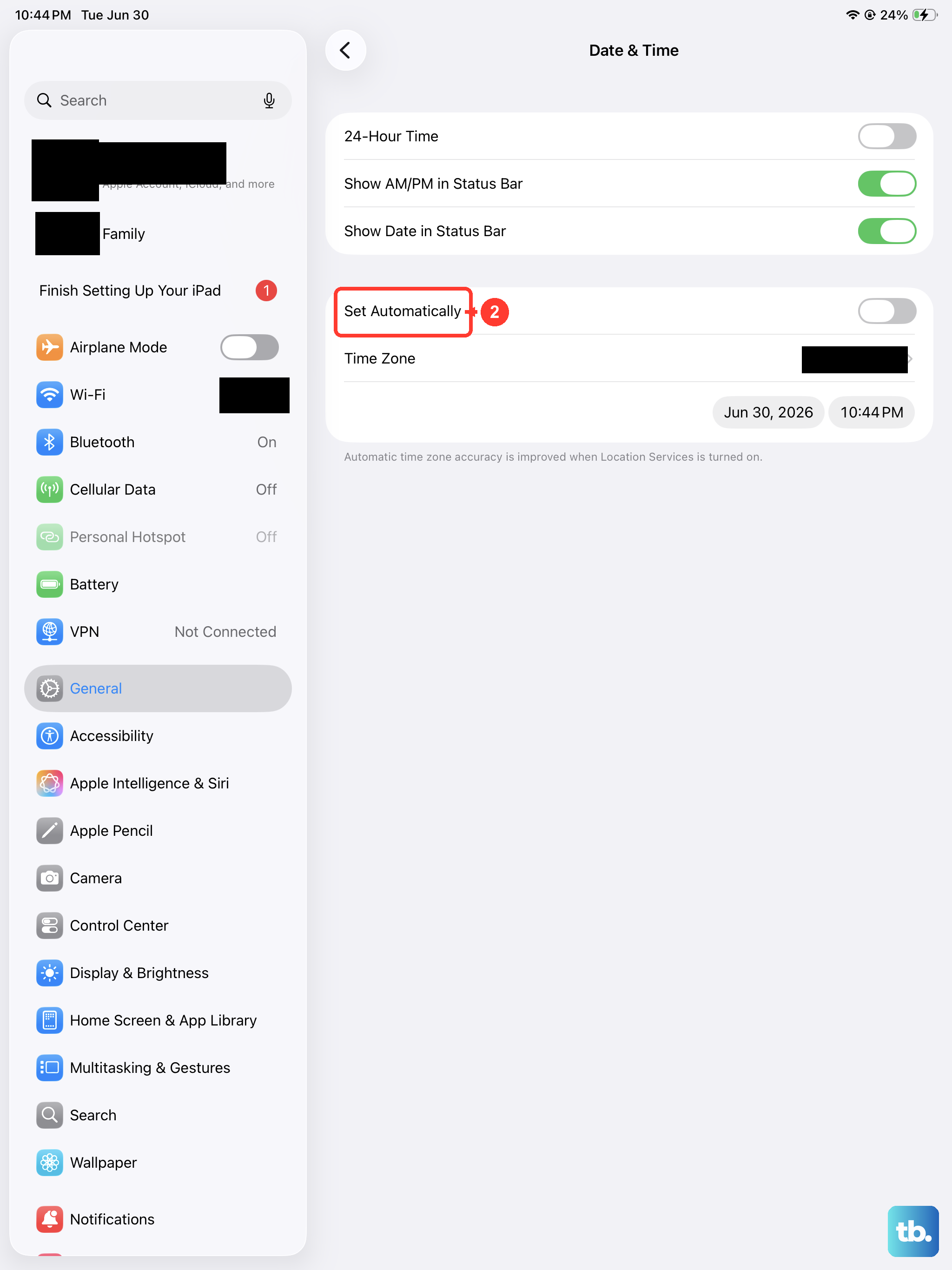
Incorrect date and time can mess with network authentication, especially for Wi-Fi Calling. Go to Settings > General > Date & Time and make sure "Set Automatically" is turned on. If it's already on, toggle it off and on again to force a refresh.
Check Blocked Contacts
Accidentally blocking someone prevents FaceTime from connecting properly. Head to Settings > Apps > FaceTime > Blocked Contacts. If the contact you're calling appears there, swipe left and tap Unblock. While you're there, make sure they're not blocked in your Phone settings through iCloud.
Update Carrier Settings
Carrier updates improve network compatibility and can fix calling bugs. Connect to Wi-Fi, then go to Settings > General > About. If an update is available, you'll see a pop-up after a few seconds. Tap Update and let it install. Doing this over cellular uses data, so stick with Wi-Fi.
Switch Between LTE and 5G
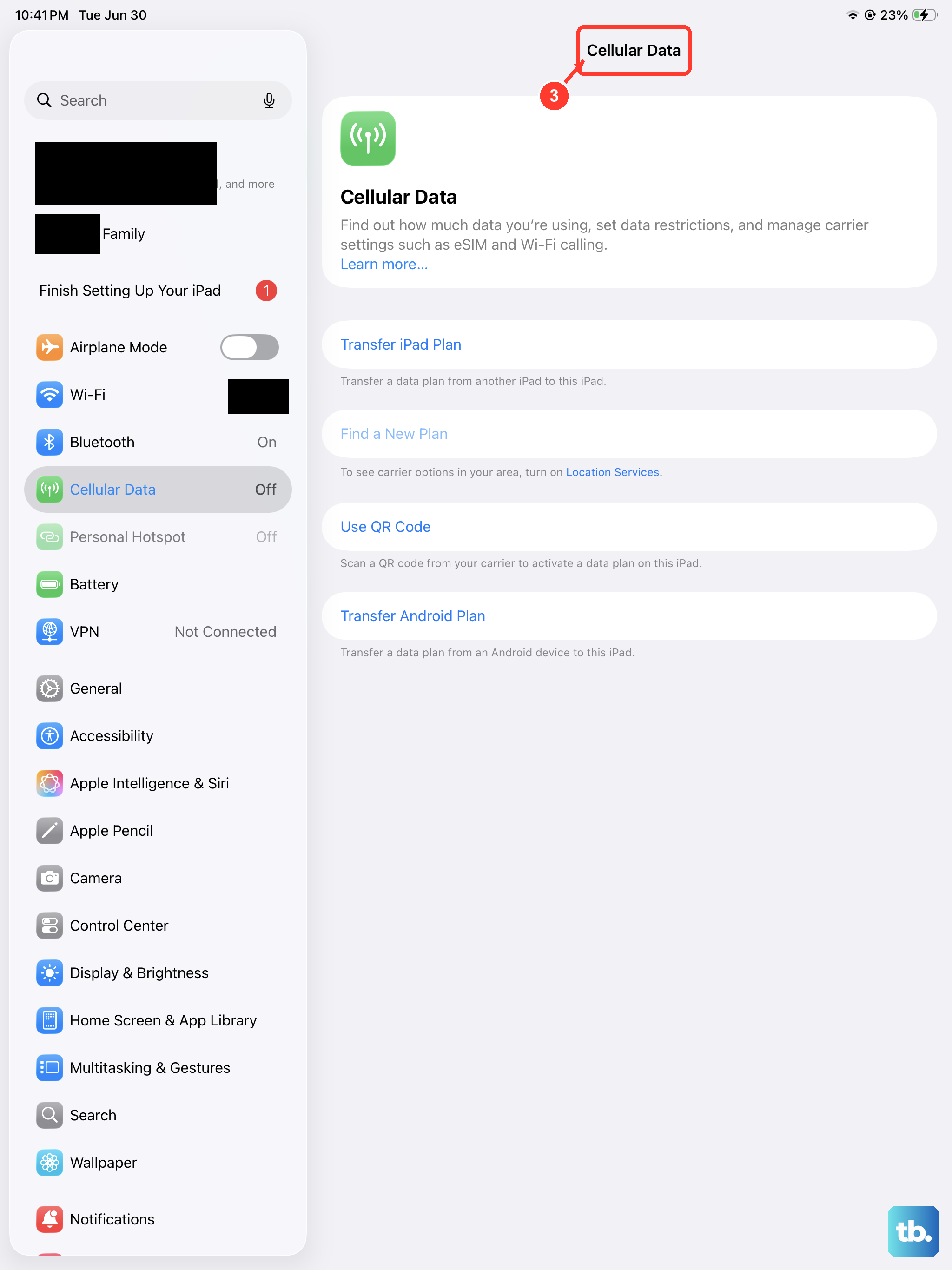
Sometimes a specific network mode causes instability with calls. Go to Settings > Cellular > Cellular Data Options > Voice & Data. Try switching from 5G Auto to LTE, or vice versa. Test a FaceTime call after each change. The iPad Pro M5 supports both, so pick the one that gives you consistent audio.
Reset Network Settings
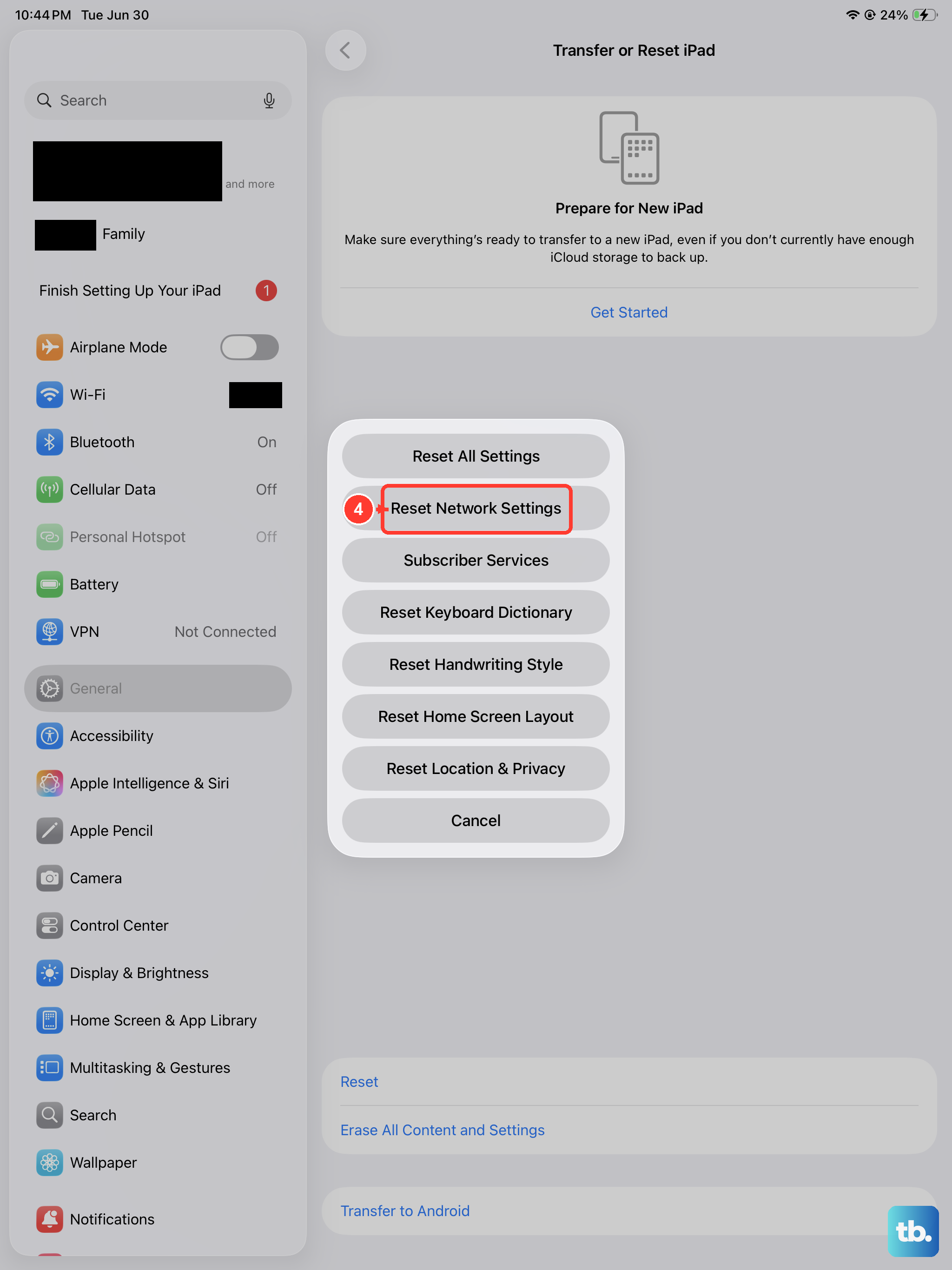
This clears saved Wi-Fi networks, Bluetooth pairings, and VPN configurations without deleting your apps or data. Go to Settings > General > Transfer or Reset iPad > Reset > Reset Network Settings. Enter your passcode and confirm. You'll need to reconnect to Wi-Fi afterward, but it often fixes deeper network issues.
Update iPadOS
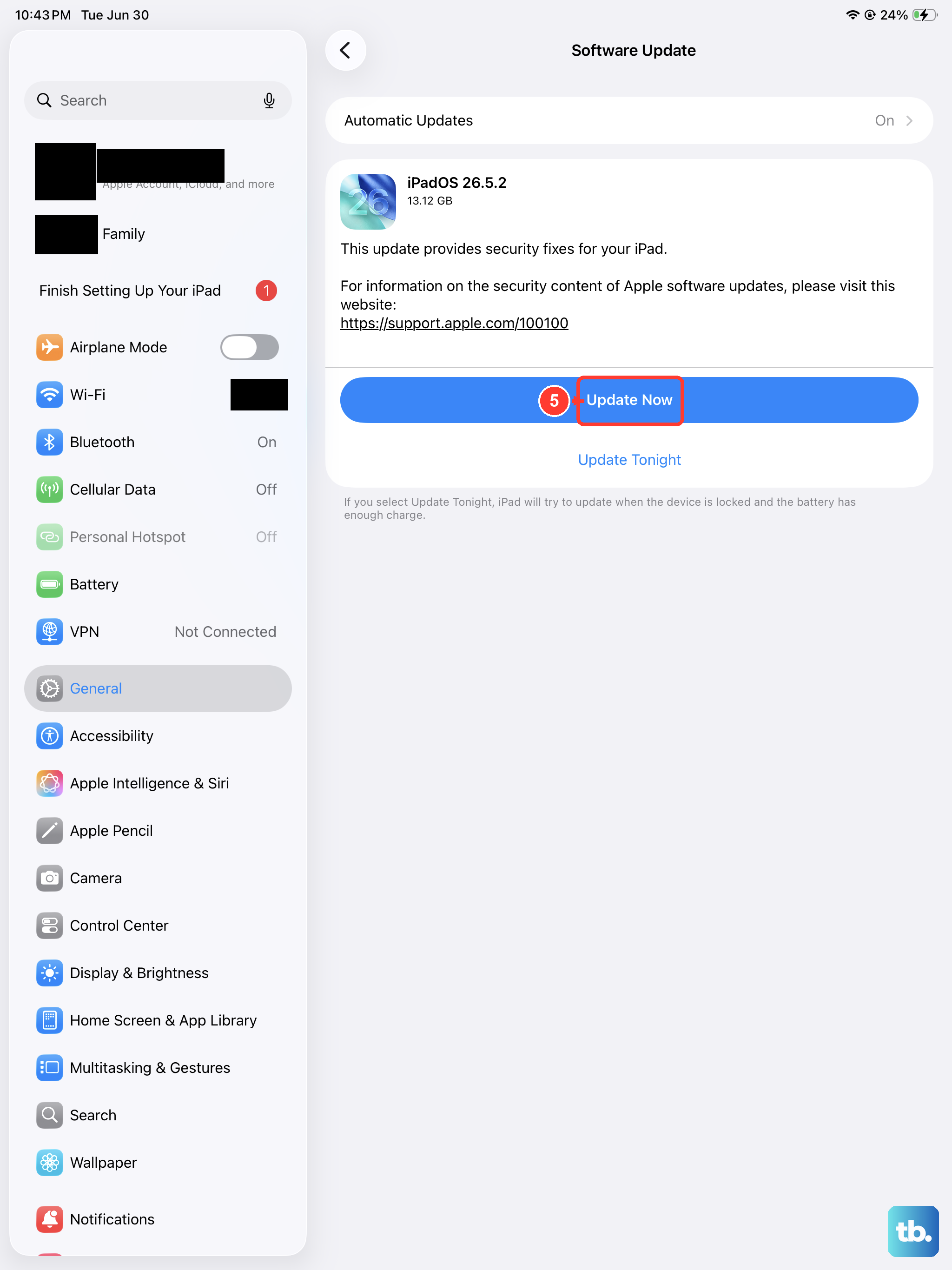
Software updates include targeted fixes for FaceTime and connectivity problems. Go to Settings > General > Software Update. If an update is available, download and install it. Your iPad Pro M5 runs iPadOS 18, and Apple regularly pushes patches for call reliability.
If you're still seeing drops after trying all ten, the problem might be on your carrier's end. Contact them and ask about network outages or account provisioning for your eSIM or physical SIM. They can send a fresh network profile or swap your SIM if needed.