
Your iPad Pro M5's apps are crashing more often than they should. Apps that worked fine before now quit unexpectedly when you switch back to them.
You're likely running into the storage-pressure problem that hits iPadOS hard once free space drops below a comfortable threshold. iPadOS uses free storage as a working area for temporary files, app caches, photo processing, and background tasks.
Once that working area gets too small, apps start crashing because the system has nowhere to write the data they need. Here is how to identify the issue, free up space, and prevent it from recurring.
How to Tell If Storage Is the Problem
The clearest sign is that apps crash more often when storage is low than when it is high. If you notice crashes mostly happen after taking a lot of photos, downloading large files, or installing new apps, storage is almost certainly the culprit.
Check your current storage status at Settings > General > iPad Storage. The bar at the top shows your total used and free space.
Apple does not publish a single hard threshold, but performance noticeably degrades as free space drops into single-digit gigabytes. Below 1 GB free, apps will crash routinely and even basic operations like opening Safari can fail. As a rough rule of thumb, keeping at least 10 percent of your total storage free leaves enough working room for the system.
Identify the Biggest Storage Users
On the same iPad Storage screen, you'll see a list of apps sorted by size. The largest entries are typically Photos, video editing apps, games with downloaded content, and offline media apps.
Tap each large app to see a breakdown of how much is the app itself versus its documents and data. Apps where the documents and data are much larger than the app itself are good candidates for cleanup. You can often delete cached content from inside the app without losing your real data.
For apps you haven't used in months, offloading is the cleanest path. It preserves your data but reclaims the app's binary space.
Optimize Photo Storage
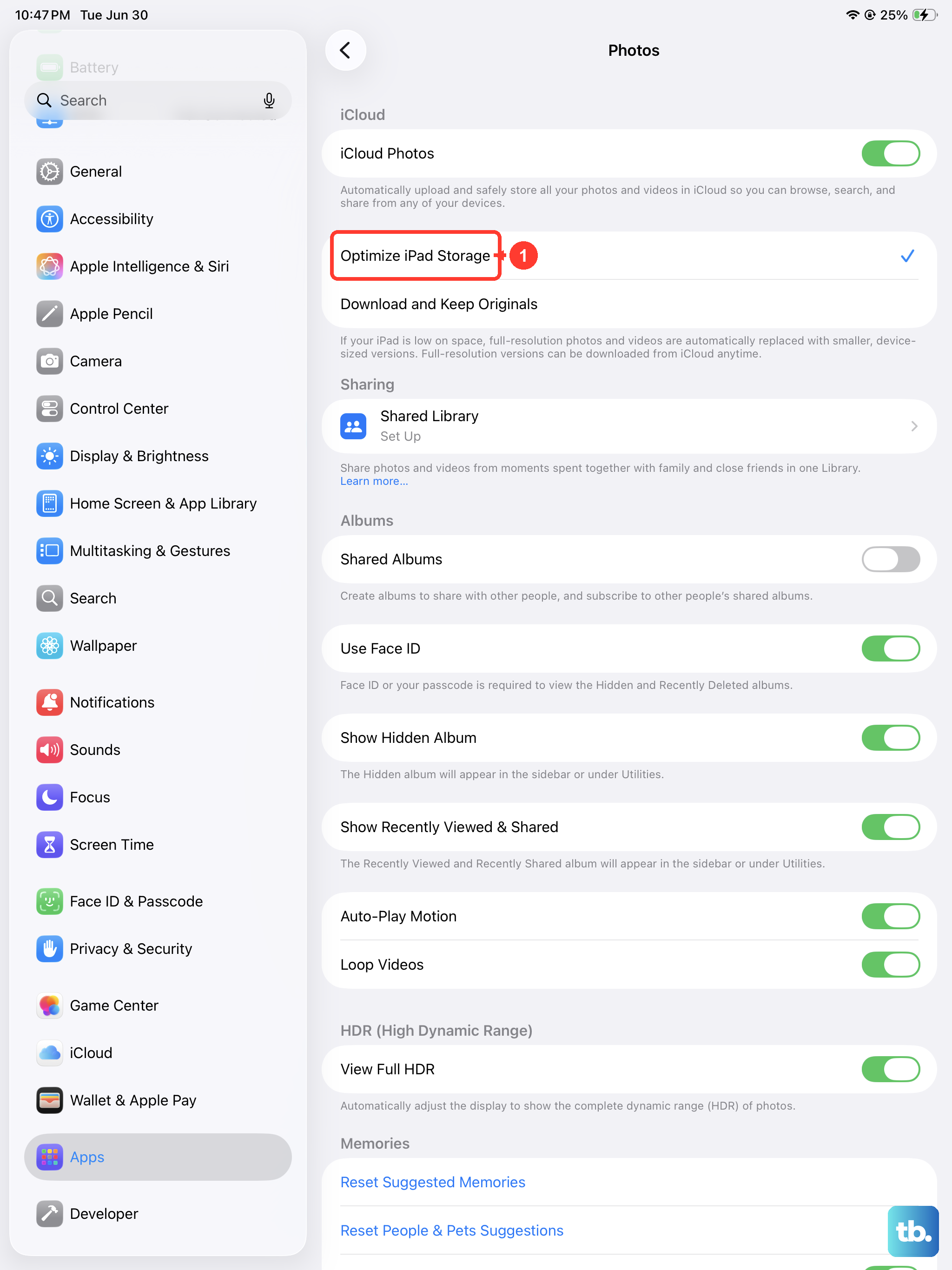
The Photos app is the single biggest storage user on most iPads.
Go to Settings > Apps > Photos and enable Optimize iPad Storage if it's not already on. This setting keeps the full-resolution originals in iCloud and stores compressed device-sized copies on your iPad.
When you tap a photo to view or edit it, the full-resolution version downloads on demand. For most users, optimizing photos reclaims a significant amount of space without affecting day-to-day photo use.
The only real trade-off is that browsing photos requires an internet connection to load originals. That's fine for the vast majority of usage patterns.
Turn On Offload Unused Apps
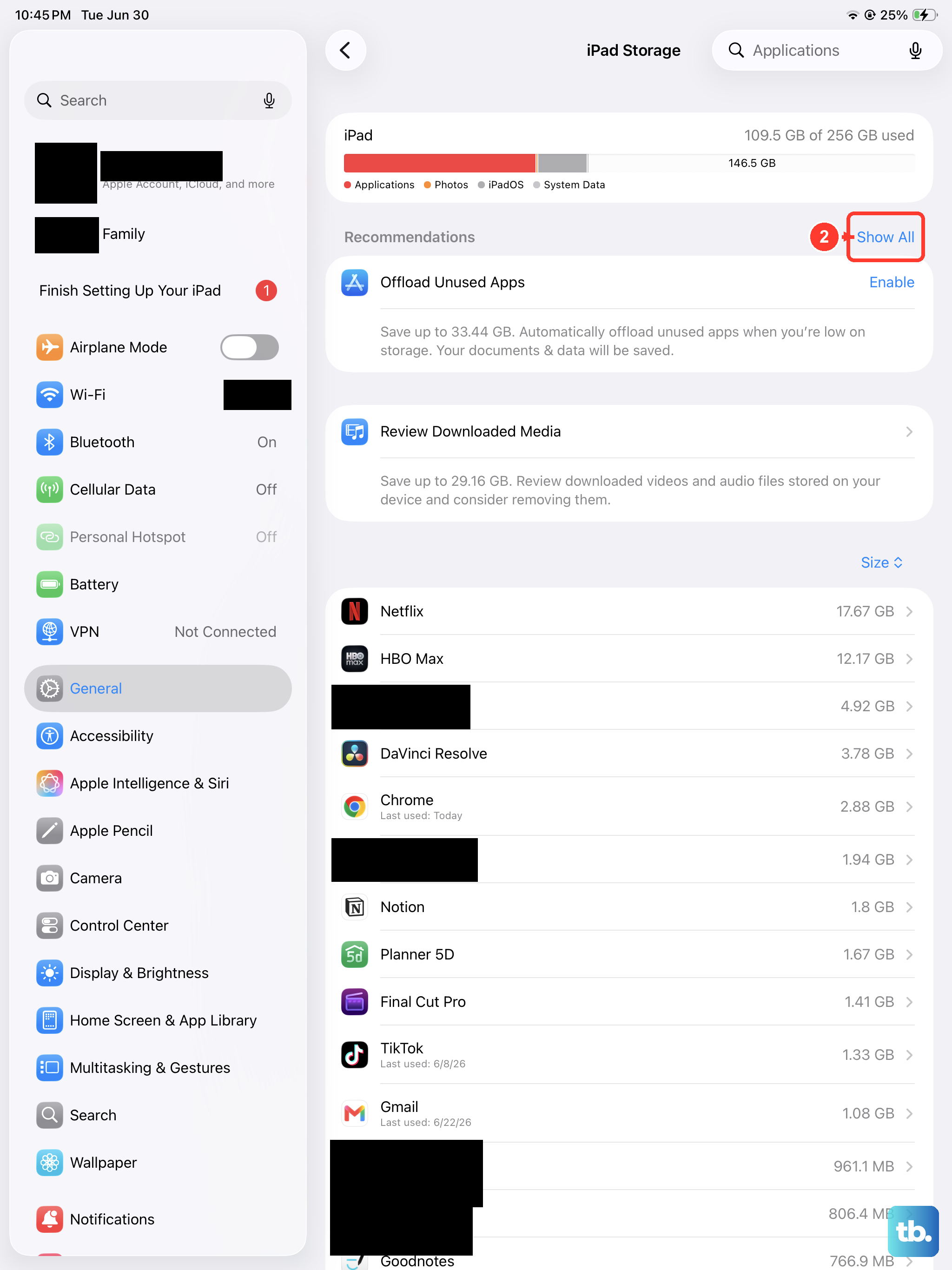
Back in iPad Storage, look for Offload Unused Apps and turn it on.
With this enabled, iPadOS automatically removes the binary for apps you haven't opened in a while. The icon stays on your home screen with a small cloud indicator. Tapping the icon re-downloads the app instantly, and your documents and data are preserved throughout.
This is the lowest-effort ongoing space management option. For most users, it reclaims a meaningful amount of space without any active maintenance.
Check System Data
After a major iPadOS update, the System Data category in iPad Storage can balloon to an unusually large size, sometimes 20 GB or more. System Data includes cached files, system logs, and temporary download data.
A regular restart of the iPad sometimes clears the bloated System Data. Press and hold the Top button and either volume button until the power-off slider appears, slide to power off, then hold the Top button again to turn it back on.
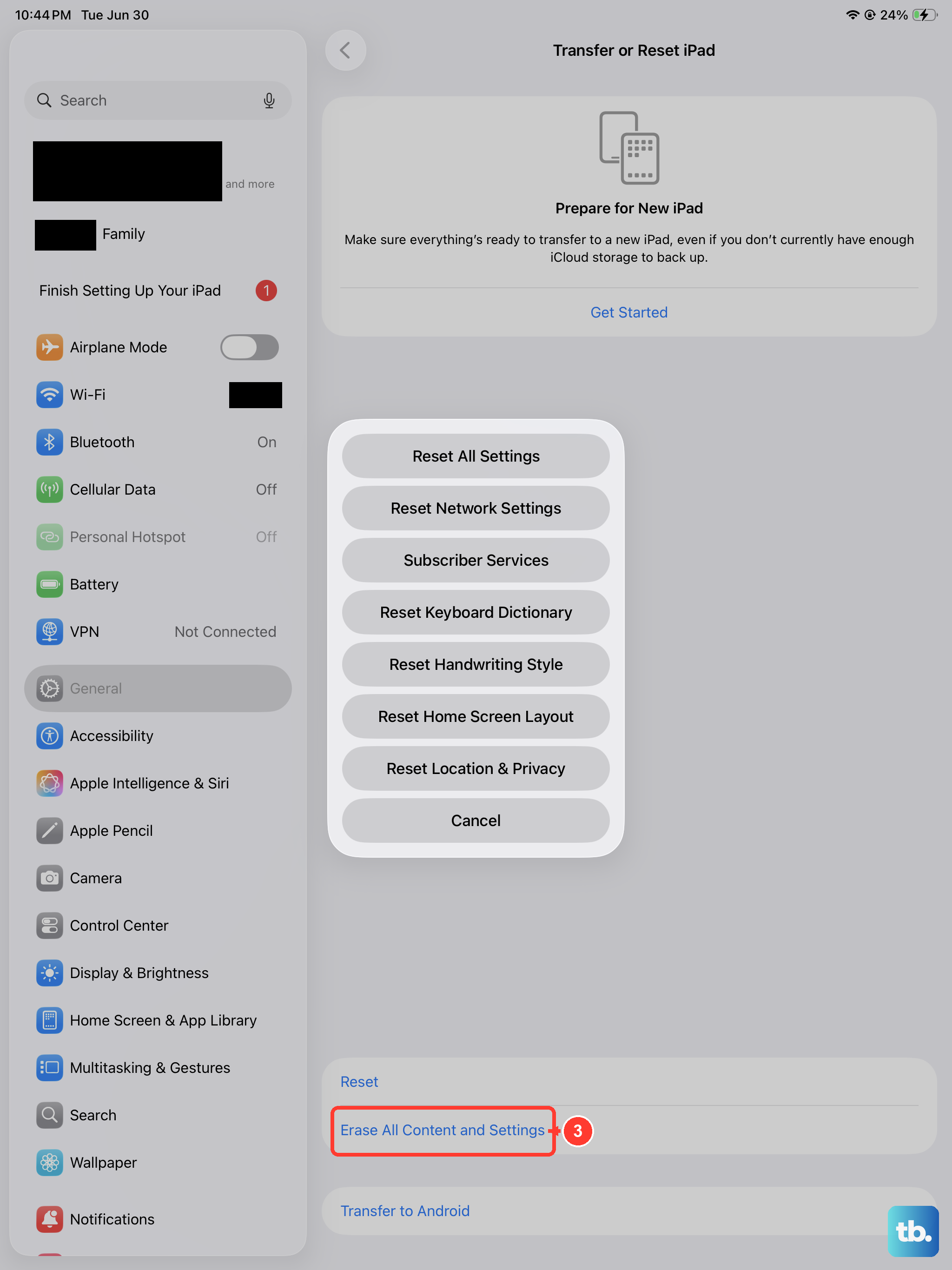
If a restart doesn't reduce System Data and it's taking up an unusually large amount of space, the heavier option is to back up the iPad, factory reset, and restore. That clears all cached system data and starts fresh.
What to Do If Apps Still Crash After Freeing Space
If you've freed up several gigabytes of space and apps are still crashing, the cause may not actually be storage. Three other possibilities to check.
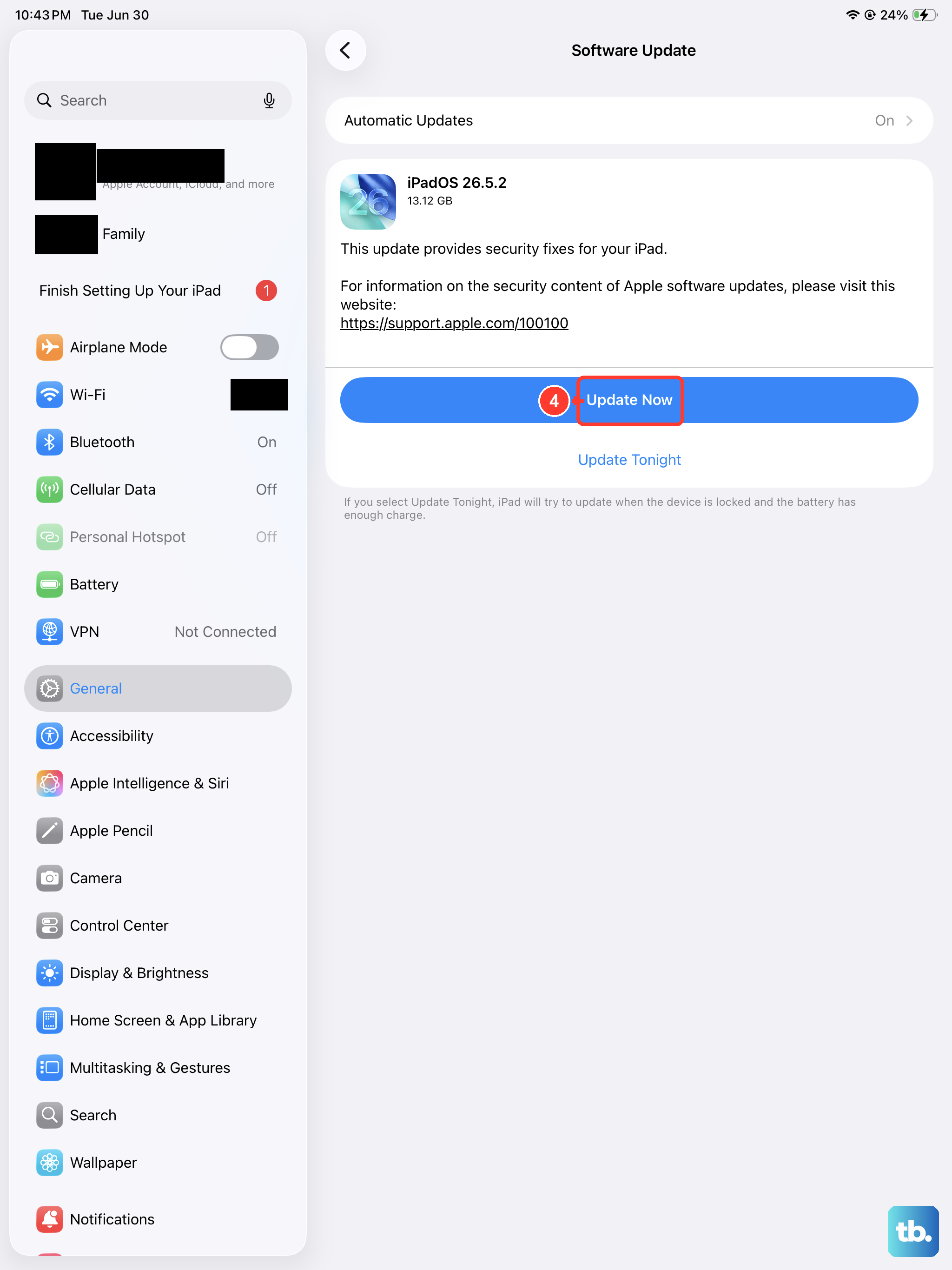
First, update iPadOS to the latest version. App crashes after a system update sometimes resolve themselves in the next point release. Go to Settings > General > Software Update.
Second, update the crashing apps from the App Store. Older app versions can have incompatibilities with the M5 hardware or the current iPadOS.
Third, force-restart the iPad. Quickly press and release Volume Up, then quickly press and release Volume Down, then press and hold the Top button until the Apple logo appears. That clears stuck background processes that a regular restart sometimes leaves in place.
How to Stay Above the Storage Threshold
Once you've freed up space, the goal is to maintain a comfortable buffer for the system to operate smoothly. As a general rule, aim to keep at least 10 percent of your iPad's total storage free.
The most reliable way to maintain that buffer is to keep Optimize iPad Storage on for photos and Offload Unused Apps enabled. Periodically (every month or two) check iPad Storage to see if anything has crept up.
Apps that grow silently are the most common culprits. Messaging apps with attachment archives, podcast apps that auto-download episodes, and game apps with downloadable content are the usual suspects.