
Seeing the Settings app crash on your iPad Pro (M4) can stop you in your tracks, especially when you're trying to adjust something important. This error usually pops up due to a temporary software hiccup or a conflict with a recent update. Let's get it sorted.
Force Restart Your iPad
This is almost always my first move. A force restart clears the device's memory and stops any background processes that might be causing the crash. It doesn't delete any of your data.
On your iPad Pro (M4), press and quickly release the Volume Up button, then press and quickly release the Volume Down button. Immediately after, press and hold the Power button. Keep holding it until you see the Apple logo appear, then let go.
Update iPadOS
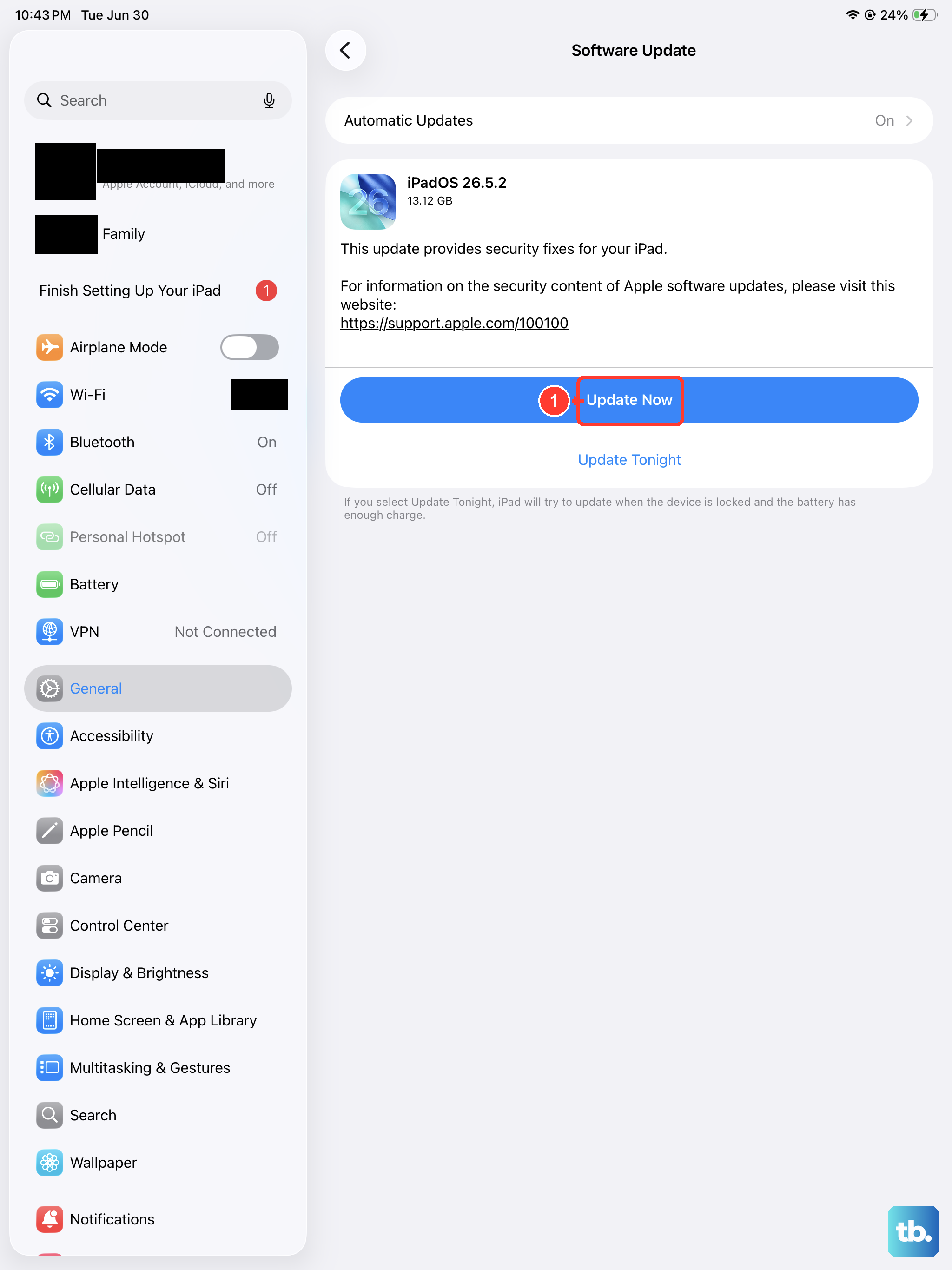
If the Settings crash started after a recent app install or a minor update, there might be a newer version of iPadOS that fixes it. Apple is usually quick to patch these kinds of bugs.
You'll need to get to the Settings app to check, even if it's crashing. Try opening it immediately after a restart, or use Siri by saying "Open Software Update." Go to Settings > General > Software Update. If an update is available, install it using a stable Wi-Fi connection and make sure your iPad is charged above 50% or plugged into power.
Check for App Updates
Sometimes, a third-party app with deep system integration can cause conflicts. It's worth making sure everything is up to date through the App Store.
Open the App Store and tap your profile icon in the top right. Scroll down to see if any pending updates are listed. If there are, update them all. After updating, restart your iPad Pro and see if you can open Settings without issue.
Reset All Settings
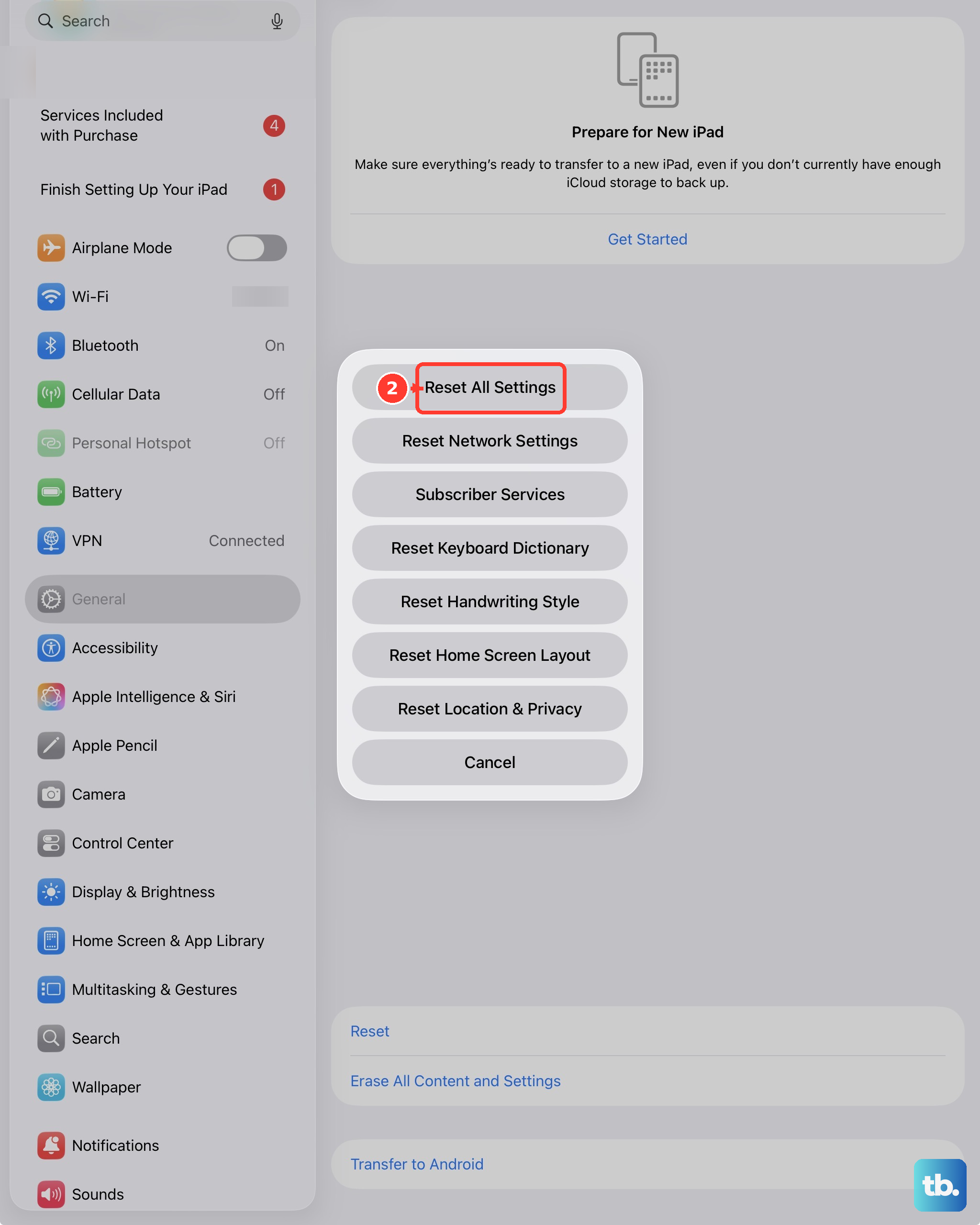
This is a more thorough step that resets all your preferences, like Wi-Fi passwords, wallpaper, and privacy settings, back to factory defaults. Your personal data and media are left untouched, but you will have to reconfigure things afterward.
Go to Settings > General > Transfer or Reset iPad. Tap Reset and then choose Reset All Settings. Enter your passcode if prompted and confirm. Your iPad will restart, and you can test the Settings app again.
Free Up Storage Space
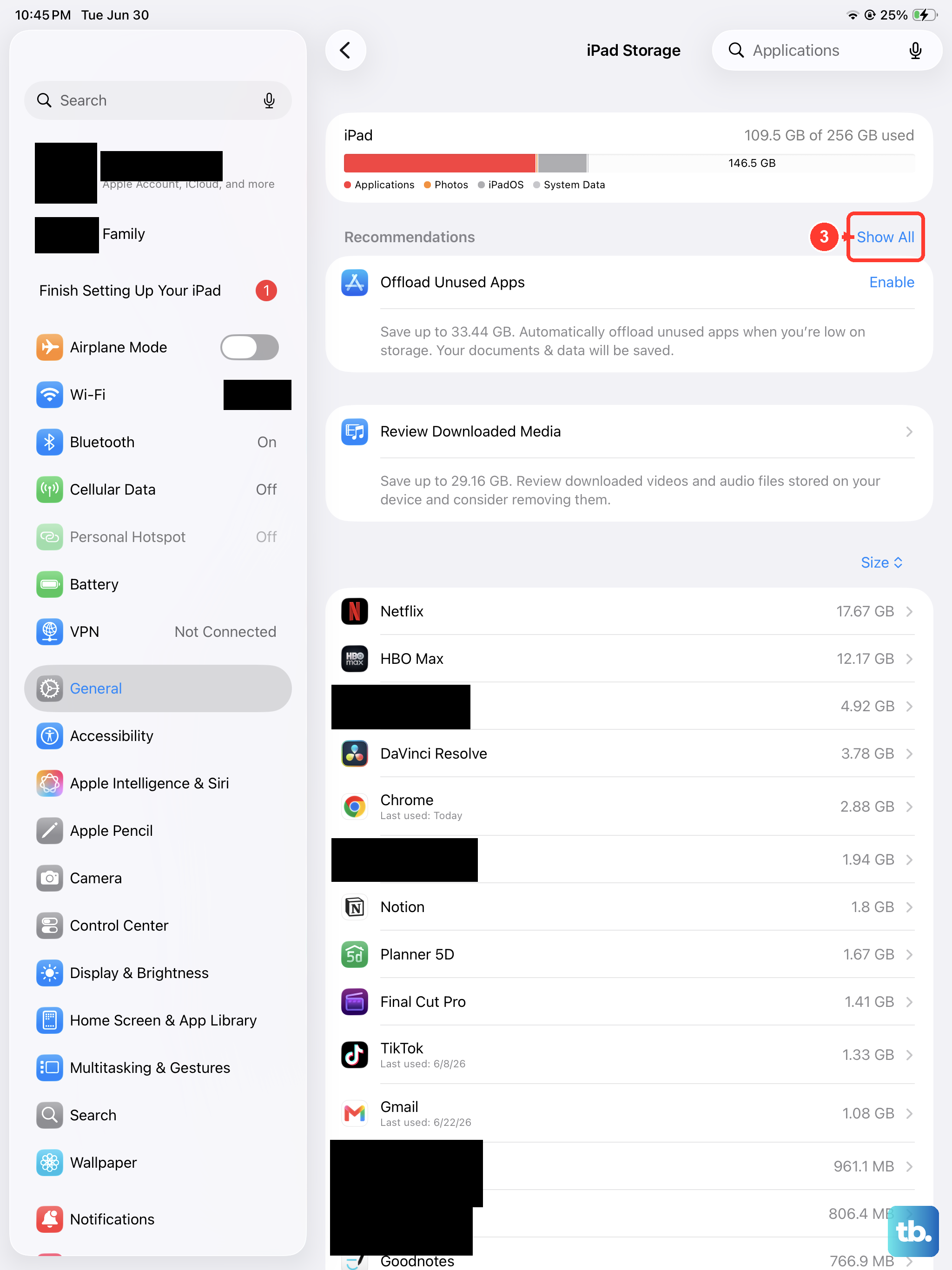
While less common on newer models, a nearly full storage drive can cause system apps to behave unpredictably. It's a good thing to check if you're close to capacity.
You can check storage from the Home Screen by searching for "Storage" in Spotlight Search. To manage it, try to open Settings > General > iPad Storage. If you can get in, the system will often provide recommendations for offloading unused apps or reviewing large files.
Restore via a Computer
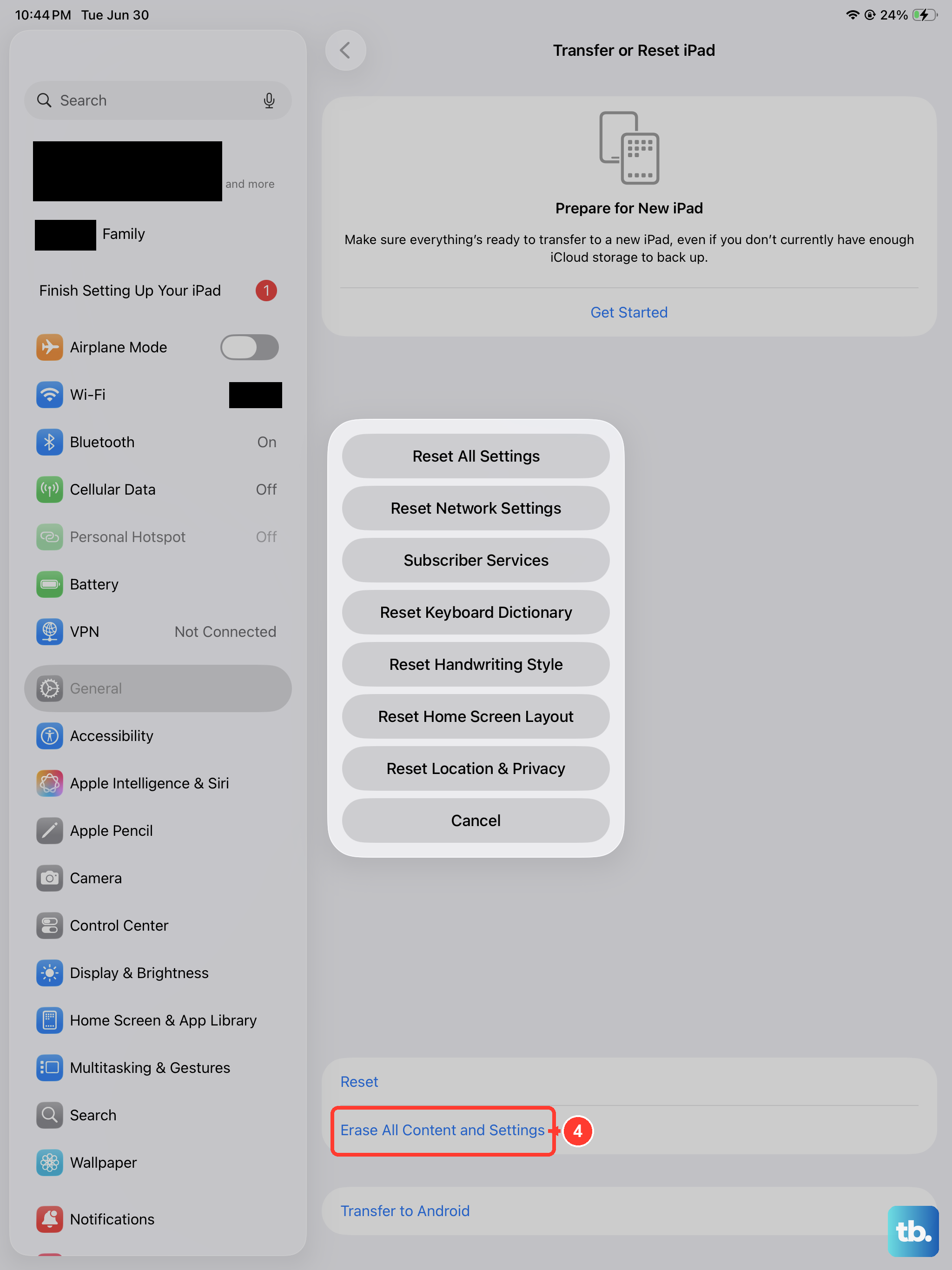
If the crash is persistent and seems tied to the system software itself, restoring the iPadOS through a computer is the most definitive fix. This will install a fresh, clean copy of the operating system.
Connect your iPad Pro (M4) to a Mac or PC using a high-quality USB-C cable. On a Mac with macOS Catalina or later, open Finder. On a PC or older Mac, open iTunes. Put your iPad into recovery mode by following the force restart steps, but continue holding the Power button until you see the recovery mode screen.
In Finder or iTunes, you'll see an option to Restore your iPad. This will download and install the latest version of iPadOS. Remember, this will erase all content and settings, so ensure you have a recent backup in iCloud or on your computer.
Set Up as New for Testing
After a restore, you have the option to set up your iPad as a new device. This is the best way to rule out any corruption in a backup being carried over. If Settings works perfectly on a fresh setup, you know the issue was in your previous configuration or data.
You can always erase the iPad again later and restore from your backup if you prefer, but starting fresh for a day is a great diagnostic step. To do this, after the restore is complete, follow the on-screen setup prompts and choose "Set Up as New iPad."