
Screen flickering on your iPad Pro 2026 is incredibly distracting, turning that beautiful Liquid Retina XDR display into a frustrating mess. You might see random flashes, persistent horizontal lines, or the whole screen blinking. This can stem from a software hiccup in iPadOS 26, a problematic display setting, or, less commonly, a hardware fault. Let's get it sorted.
Before adjusting cables and settings, run a quick monitor test in your browser. Its fullscreen patterns make problems like flicker, banding, and uniformity issues much easier to spot and describe.
Force Restart Your iPad Pro
This is almost always my first move with any weird iPad behavior. A force restart clears out temporary glitches in memory that can affect the display. On your M4 iPad Pro, quickly press and release the Volume Up button, then quickly press and release the Volume Down button. Immediately after, press and hold the Power button until you see the Apple logo appear, then let go. This takes about 15 seconds and often fixes flickering that just started.
Turn Off True Tone and Auto-Brightness
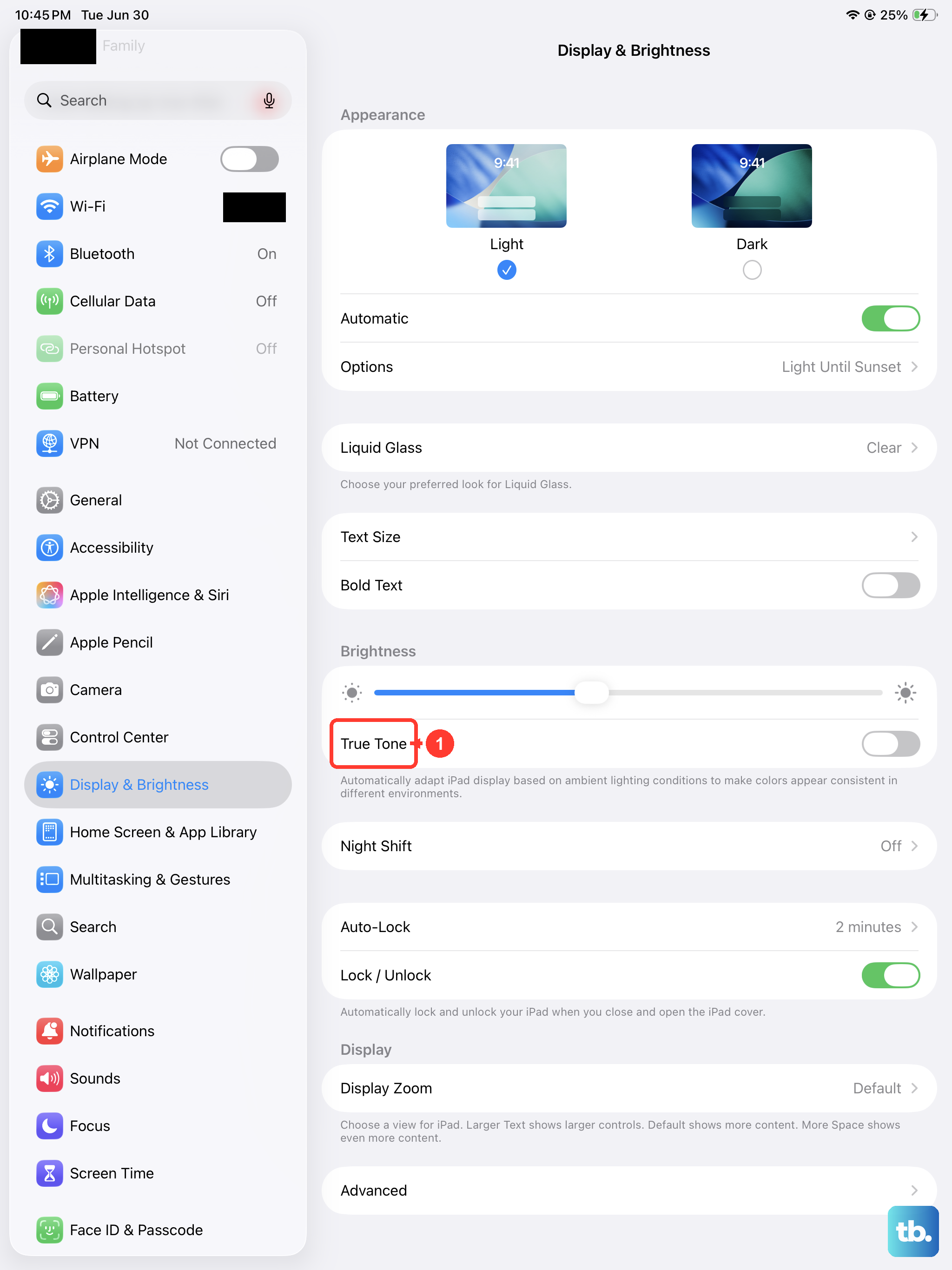
The ambient light sensors that control True Tone and Auto-Brightness can sometimes get confused, especially under certain lighting, and cause the screen to flicker as it tries to adjust. Head to Settings > Display & Brightness and toggle off True Tone. Then, go to Settings > Accessibility > Display & Text Size and turn off Auto-Brightness. Manually set your preferred brightness level and see if the flickering settles down.
Check for a Rogue App
An app that hasn't been optimized for the M4 chip or iPadOS 26 could be causing graphics corruption. Swipe up from the bottom of the screen and pause in the middle to bring up the App Switcher. Swipe up on every app preview to close them all. Open the app you were using when the flickering started. If the problem is gone, you've likely found the culprit. Try checking for an update to that specific app in the App Store.
Update iPadOS
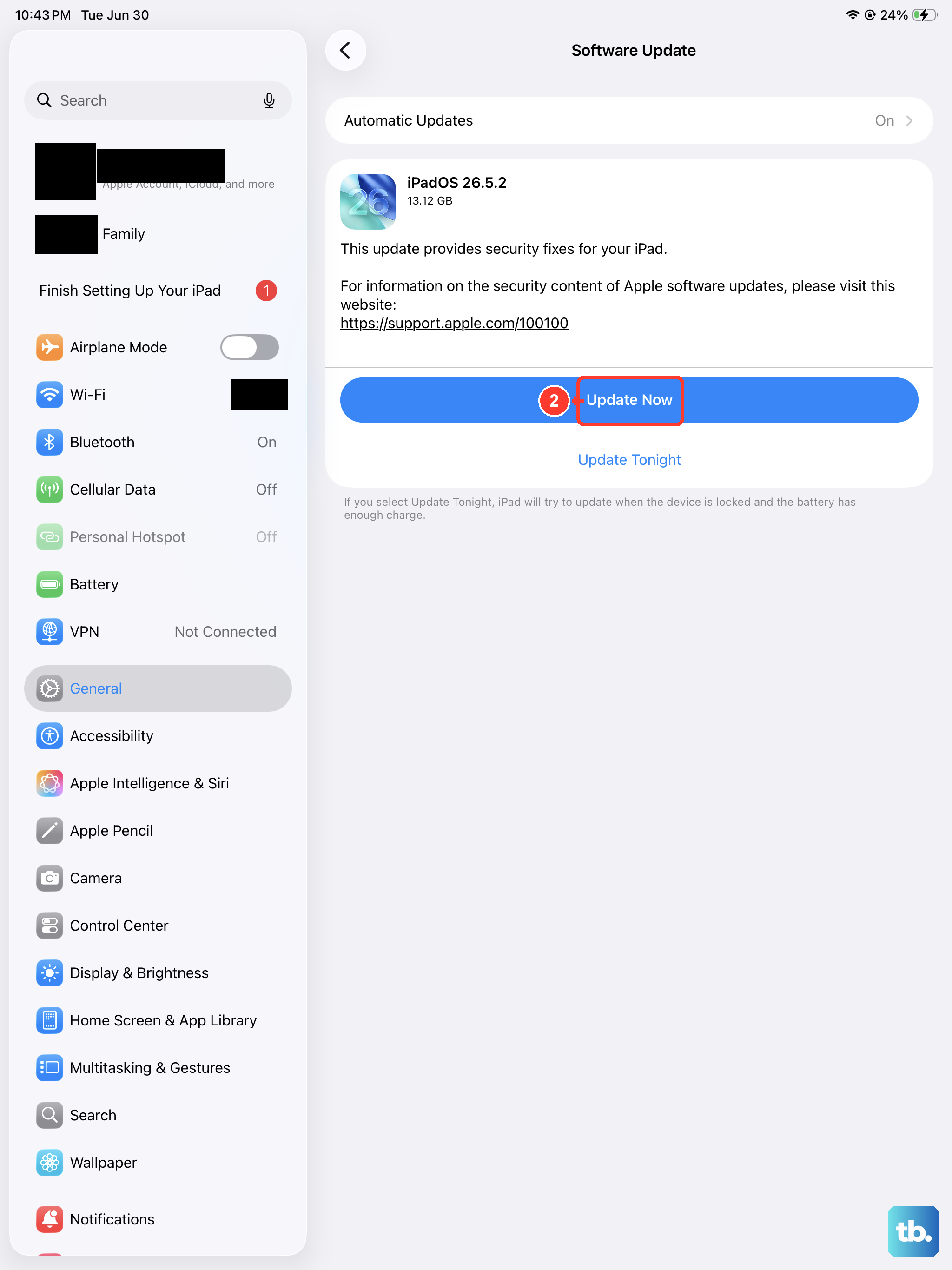
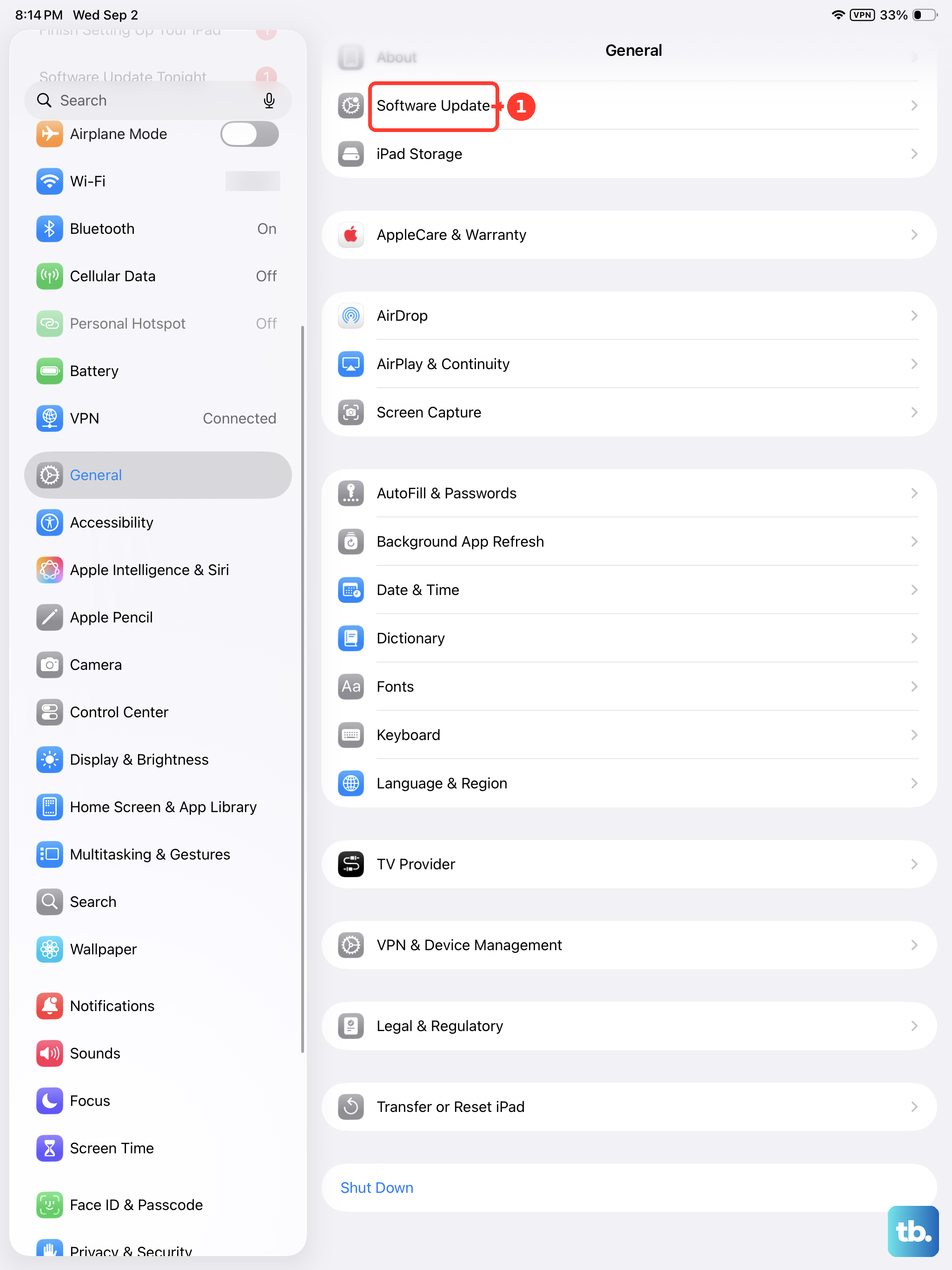
Apple frequently releases updates that include fixes for display and graphics performance. Go to Settings > General > Software Update. If an update for iPadOS 26 is available, install it. It's a good idea to plug your iPad into power using a certified USB-C cable and a 30W or higher charger during the update process to ensure it doesn't get interrupted.
Reset All Settings
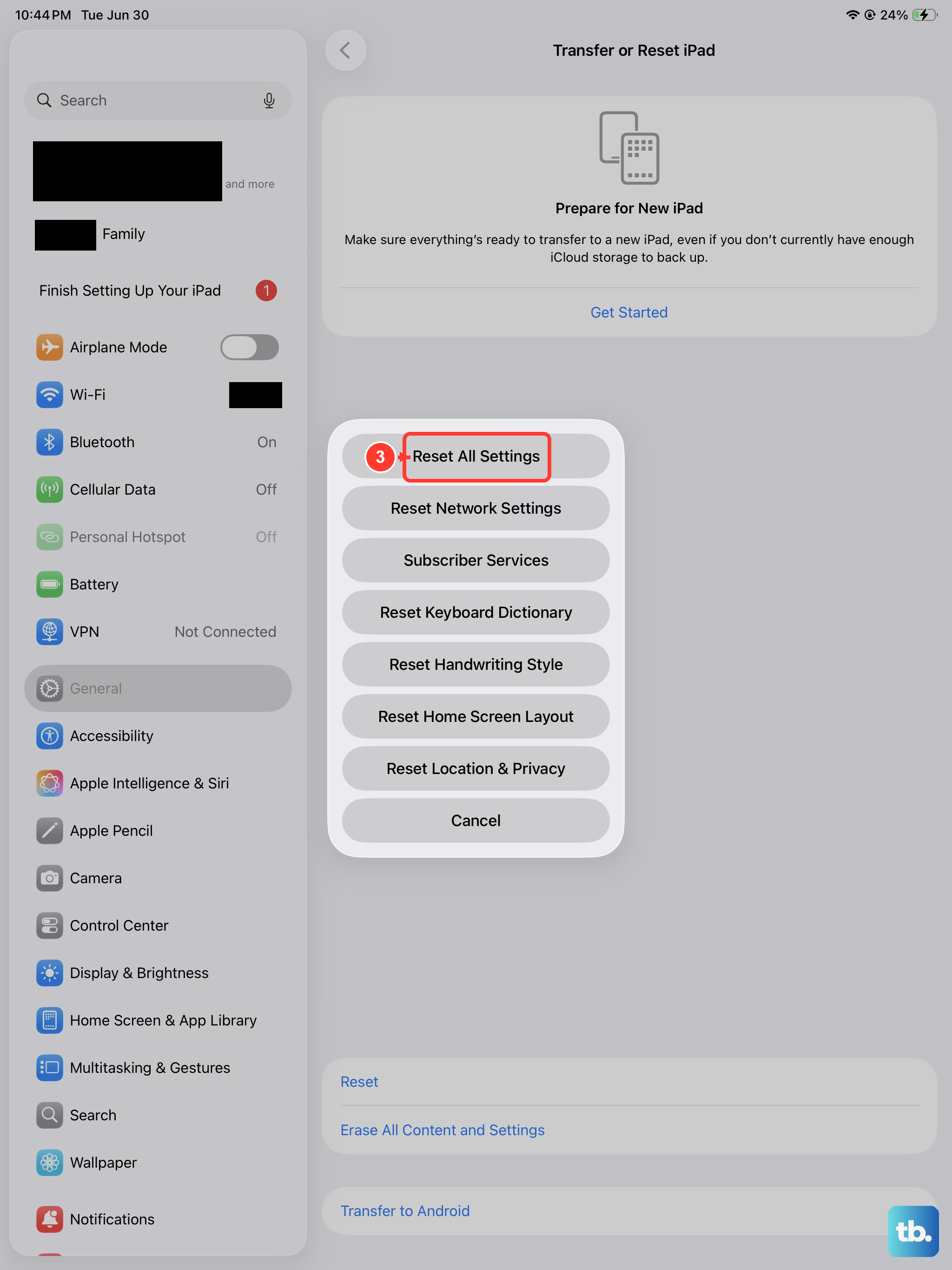
If the flickering persists, a deeper settings reset can help. This won't delete your apps or personal data, but it will reset your Wi-Fi networks, wallpaper, display settings, and privacy permissions. Go to Settings > General > Transfer or Reset iPad, tap Reset, and then choose Reset All Settings. You'll need to re-enter Wi-Fi passwords and reconfigure some preferences, but it can resolve stubborn software conflicts affecting the display.
Inspect for Physical Issues
If the flickering started after your iPad was bumped or dropped, there could be a physical connection issue. Carefully examine the screen for any new cracks or pressure marks. Also, check if the flickering changes when you gently flex the iPad or apply light pressure to different areas of the screen. A loose internal display connector or a failing display component would require a professional repair.
Restore via a Computer
As a last software step, a full restore can determine if the issue is with the iPadOS installation itself. First, make sure you have a recent backup in iCloud or on your computer. Connect your iPad Pro to a Mac or PC using a high-quality USB-C cable. On a Mac with macOS Catalina or later, open Finder. On a PC or older Mac, open iTunes. Select your iPad and choose the option to Restore iPad. This erases the device and installs a fresh copy of iPadOS. If the flickering is gone after the restore, it was a software problem. If it remains on a clean install, the issue is almost certainly hardware-related.











