
If you tap send on a photo or group message in the Messages app on your iPad Pro and it just sits there, it's a common but fixable problem. On an iPad, MMS issues almost always come down to your cellular data connection or a specific setting that needs a quick toggle.
The very first thing to check is whether your iPad has an active cellular data connection. Unlike iMessage, which can use Wi-Fi, traditional MMS (for sending photos to Android contacts or in group chats with non-Apple users) requires cellular data to be on and working.
Swipe down from the top-right corner to open Control Center and look for the cellular data icon. If it's not lit up, tap it to enable it. I've seen this fix the issue more often than not, especially if you've recently been on a flight or in an area with no service.
Verify Your MMS Settings in Messages
Open the Settings app on your iPad and scroll down to find Messages. Tap on it, then look for the "MMS Messaging" option. Make sure this switch is turned on.
Right below that, also ensure "Send as SMS" is enabled. This setting helps as a fallback. If a message can't send as an iMessage, your iPad will try to send it as a standard SMS or MMS instead.
While you're in the Messages settings, it's worth checking the "Send & Receive" section. Confirm that your phone number and Apple ID email are correctly listed and checked. This ensures iMessage is properly configured, which can sometimes affect overall messaging stability.
Check Your Cellular Data Settings
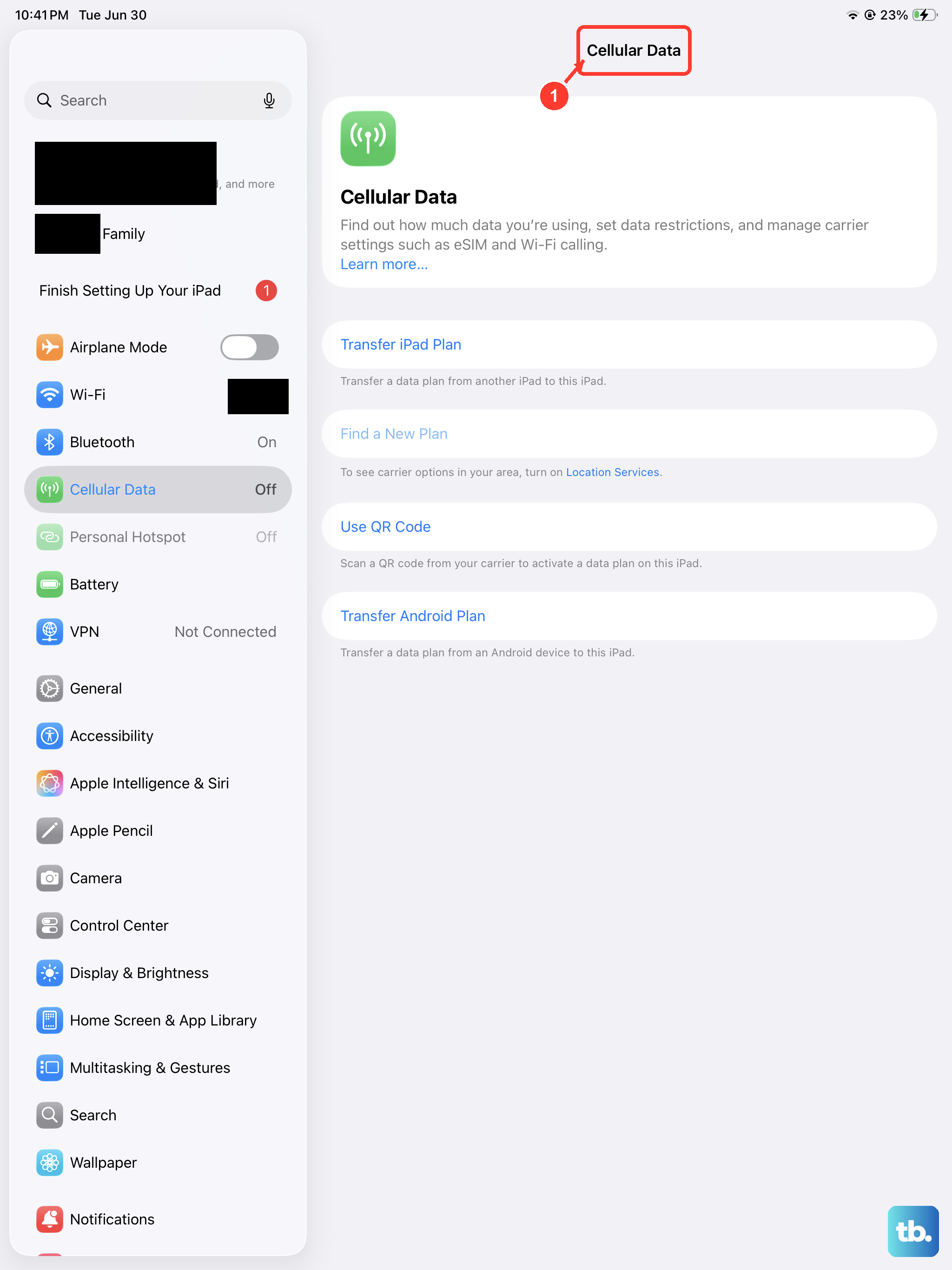
Since MMS relies on your cellular plan, you need to dig into those settings. Go to Settings > Cellular Data or Mobile Data. First, make sure the main Cellular Data switch at the top is green.
Scroll down further to the "Cellular Data Options" section. Here, you'll find settings for Data Mode and potentially an option for Low Data Mode. If Low Data Mode is on, try turning it off, as it can restrict background data services like MMS.
Finally, scroll all the way down in the Cellular Data menu. You'll see a list of all your apps with a toggle next to each one. Find the Messages app in this list and verify that it is allowed to use cellular data. The switch should be on.
Restart Your iPad Pro
A simple restart can clear out temporary software glitches that might be hanging up the messaging service. For the iPad Pro (M4) with the M4 chip, you'll use the standard iPad force restart sequence.
Press and quickly release the Volume Up button, then press and quickly release the Volume Down button. Immediately after, press and hold the Power button (on the top edge) until you see the Apple logo appear on the screen, then let go.
This doesn't delete any data, it just gives the system a fresh start. Once it boots back up, try sending the MMS again.
Update iPadOS
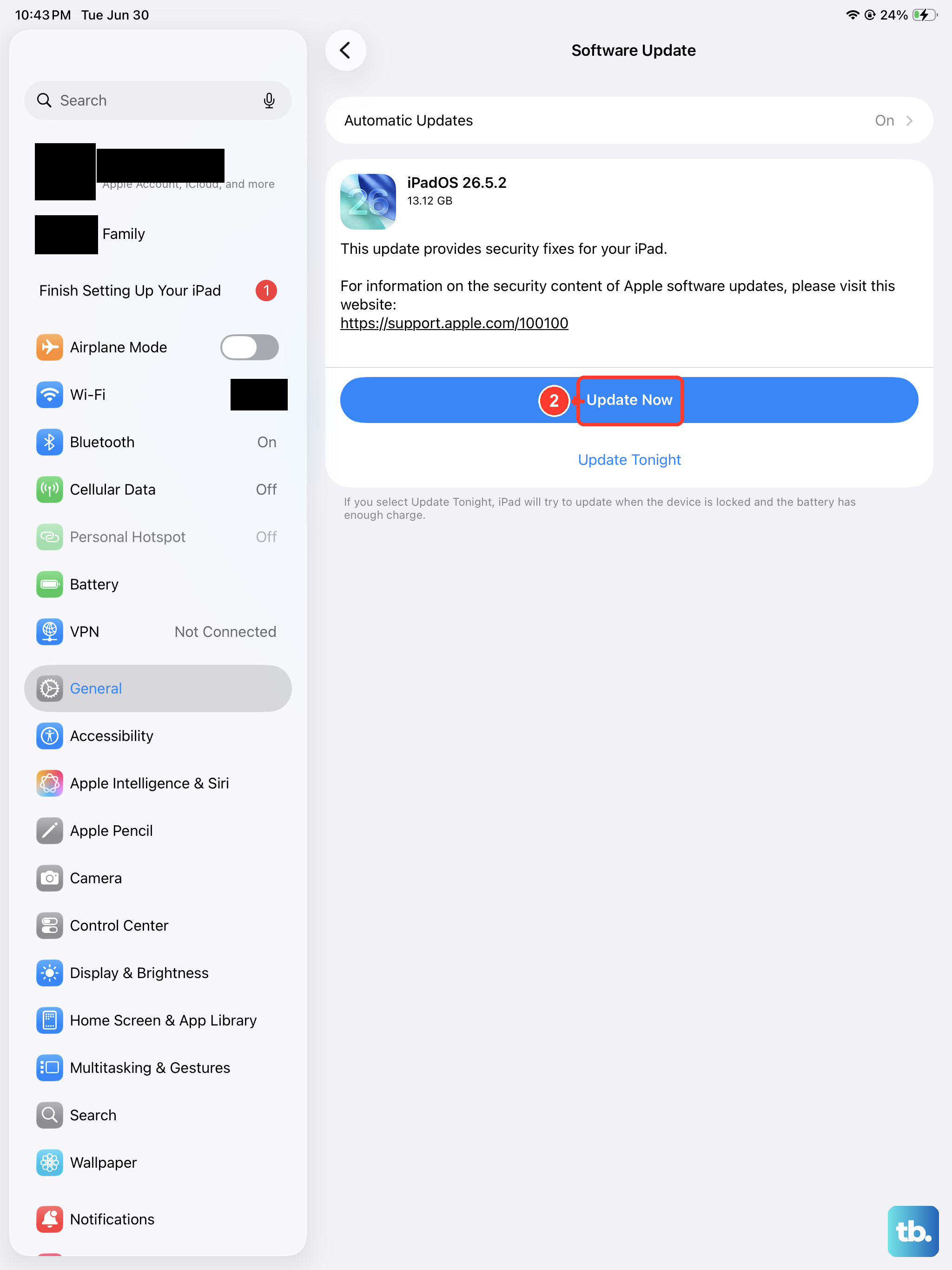
Running an outdated version of iPadOS can lead to bugs that affect core services like messaging. Apple frequently releases updates that include fixes for connectivity issues.
Open Settings and go to General > Software Update. Your iPad Pro will check for any available updates. If one is listed, tap "Download and Install." Make sure your iPad is connected to Wi-Fi and has sufficient battery life, or plug it into power using a 30W+ USB-C PD charger for the fastest update process.
After the update installs and your iPad restarts, test your MMS sending capability again. This resolves a lot of persistent, unexplained issues.
Reset Network Settings
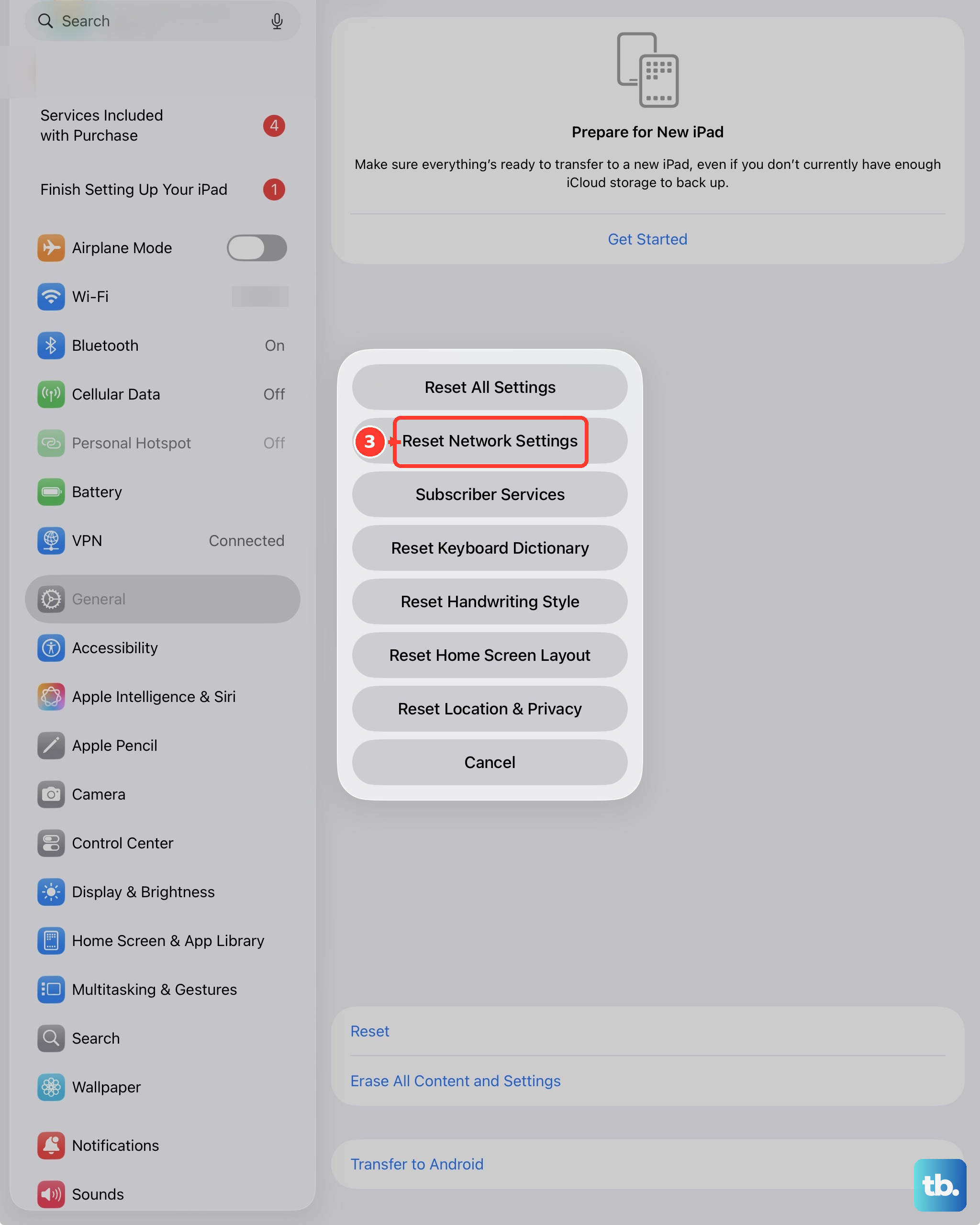
If you're still stuck, resetting your network settings can be the next effective step. This clears all saved Wi-Fi networks, passwords, cellular settings, and VPN configurations, so you'll need to reconnect to Wi-Fi afterward.
To do this, go to Settings > General > Transfer or Reset iPad. Tap on "Reset" at the bottom, and then choose "Reset Network Settings." You'll be asked to enter your passcode to confirm.
Your iPad will restart. Once it's back on, you'll need to rejoin your Wi-Fi network and re-enable cellular data. This process often cleans up any deeper configuration errors that were blocking MMS traffic.
Contact Your Cellular Carrier
Sometimes the issue is on your carrier's end. They can check if MMS services are active on your specific cellular data plan for the iPad. It's also worth asking them to reprovision your line or refresh your connection to their network.
You can ask them to verify your APN (Access Point Name) settings. On most modern iPads, these settings are automatically configured when you insert the SIM, but it doesn't hurt to have them confirm. They may send a configuration profile to your iPad that updates these settings automatically.
If you've recently switched from an Android phone or another device, ensure your phone number has been fully ported and that all messaging services are correctly associated with your new iPad line.
Check Date & Time Settings
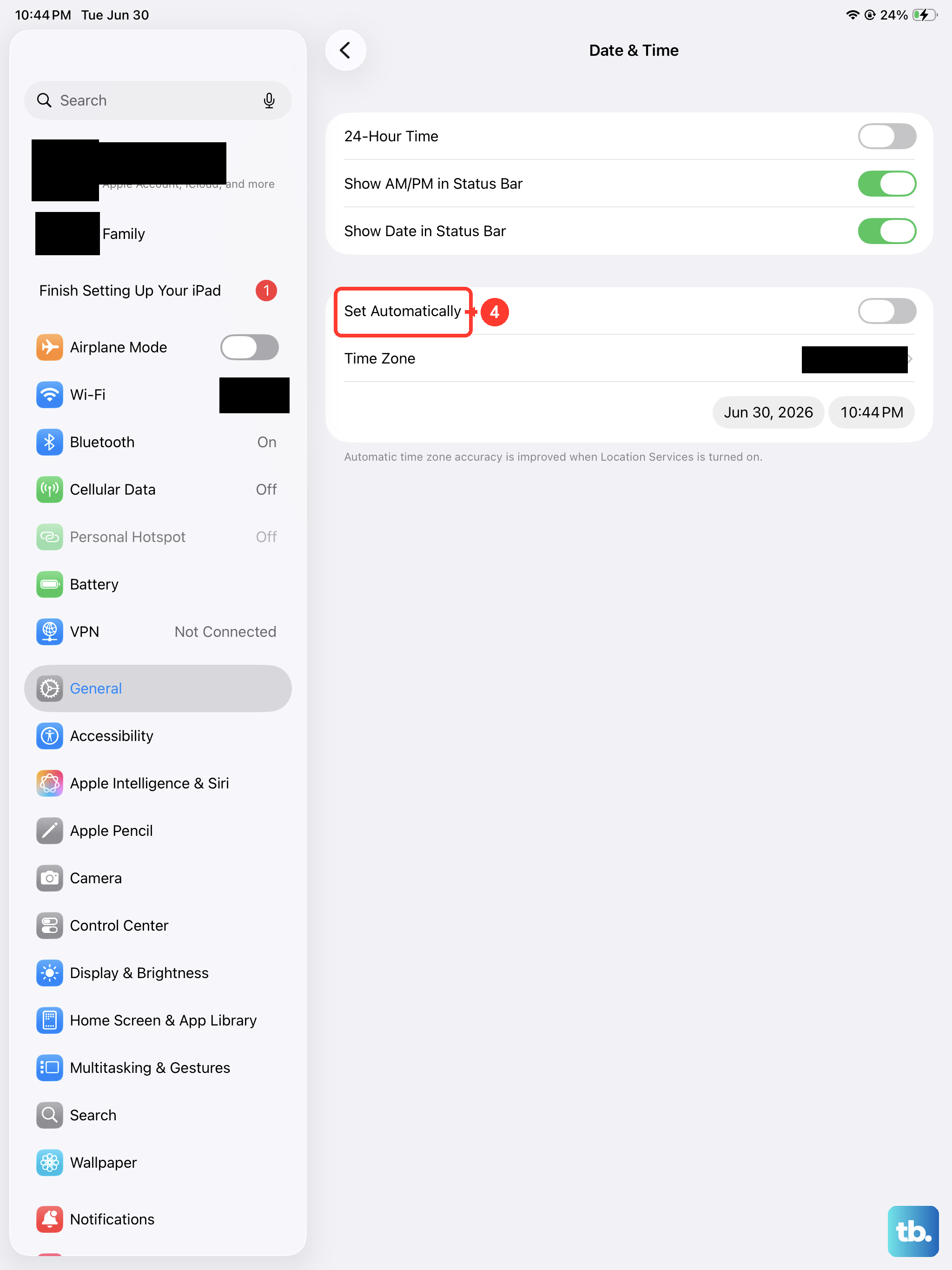
This might seem minor, but an incorrect date or time can cause authentication issues with cellular networks and services. Go to Settings > General > Date & Time.
Make sure the "Set Automatically" option is turned on. This allows your iPad to get the correct time from the network, which is crucial for all secure communications, including MMS.
If it was already on, try turning it off for a moment, then turn it back on. This forces a fresh sync with the time server.