
When the microphone on your iPad Pro (M4) stops picking up your voice, it can throw a wrench into everything from FaceTime calls and voice notes to recording videos and using Siri. The first thing I'd do is figure out exactly which microphone is acting up, as this sleek tablet has a few of them.
If you are not sure whether the mic is dead or just misconfigured, open a online mic test first. A moving level meter means the hardware is healthy, which rules out the worst case before you touch any settings.
You'll find microphones along the top edge, near the front-facing camera for calls, and others are integrated around the camera array on the back. A quick test in the Voice Memos app can tell you a lot. Just open it, hit record, speak normally, and play it back. If you sound muffled or there's nothing at all, it's time to start troubleshooting.
Remove Any Case or Cover
It sounds simple, but it's a great first step. Some cases, especially rugged ones or those with front covers that fold back, can accidentally cover the microphone ports. Take the iPad out of its case completely and run that Voice Memos test again. You'd be surprised how often this is the culprit.
Disconnect Bluetooth Audio Devices
If you have AirPods, a headset, or a Bluetooth speaker connected, your iPad might be stubbornly trying to use that device's microphone instead of its own. Swipe down from the top-right corner to open Control Center, tap the Bluetooth icon to turn it off temporarily, and then test your built-in mic. This fixes the issue more often than not.
Check for App Permissions in iPadOS
Apps like Zoom, Teams, or even social media platforms need your explicit permission to use the microphone. If you denied this access accidentally, the app will seem like it has a dead mic. Go to Settings > Privacy & Security > Microphone.
Scroll through the list and make sure the toggle is enabled (green) for any app where you need audio input. I've seen this trip up many users after an app update.
Force Restart Your iPad Pro
A force restart is different from a normal power off and on. It clears the device's memory and can knock out minor software glitches affecting the audio hardware. For the iPad Pro (M4), press and quickly release the Volume Up button, then quickly press and release the Volume Down button.
Immediately after, press and hold the Power button. Keep holding it until you see the Apple logo appear on the screen, then let go. This process takes about 15 seconds.
Close and Reopen the Problem App
If the microphone only fails in one specific app, that app's process might have gotten stuck. Swipe up from the bottom of the screen and pause in the middle to enter the app switcher. Find the app's preview and swipe it all the way up and off the top of the screen to close it completely.
Wait a moment, then tap the app icon again to relaunch it fresh. This gives it a clean slate to access the microphone properly.
Update to the Latest iPadOS
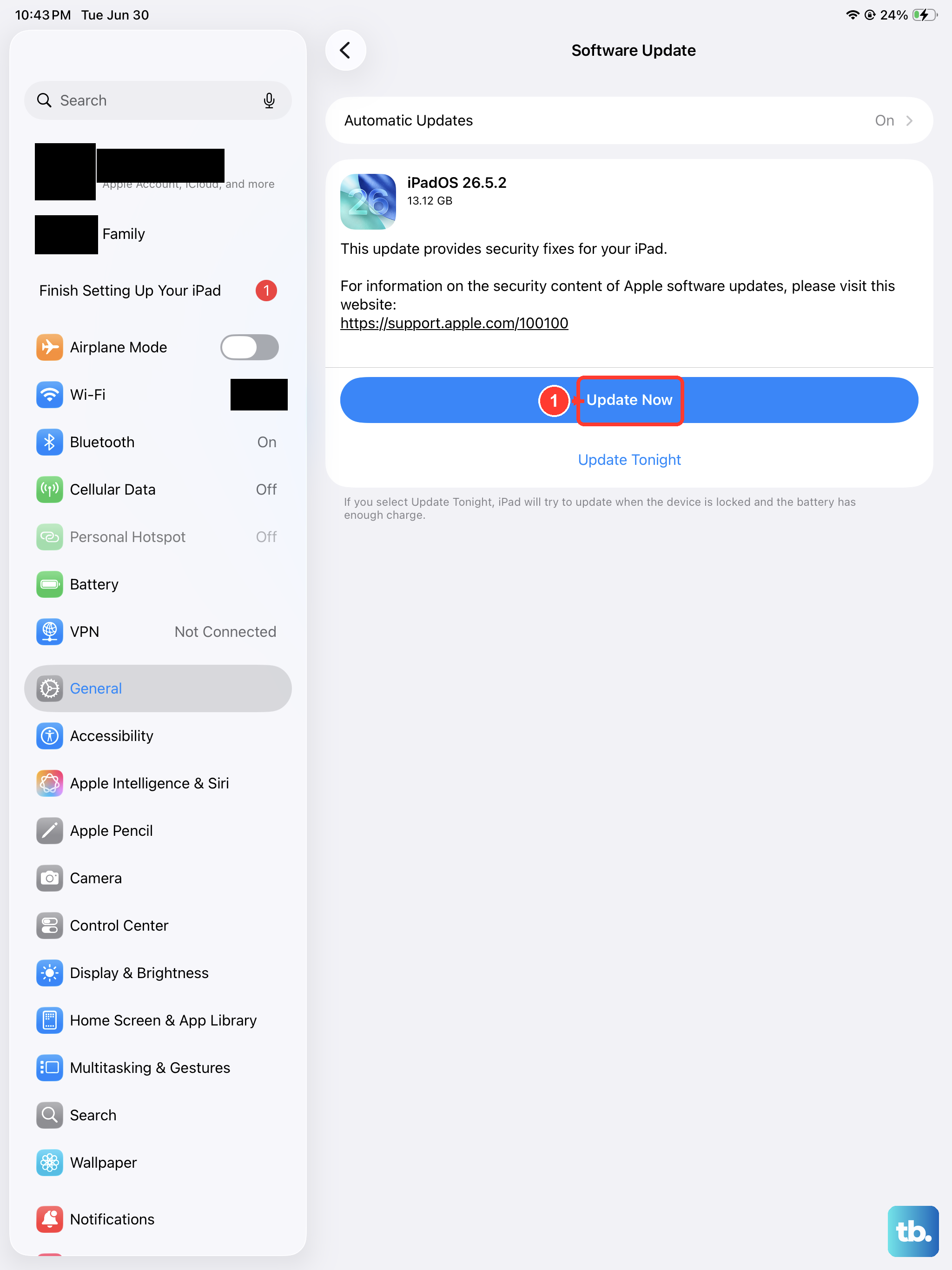
Apple routinely releases software updates that include fixes for audio and hardware communication bugs. Keeping your iPad Pro (M4) on the latest version of iPadOS is one of the best ways to prevent issues. Open Settings > General > Software Update.
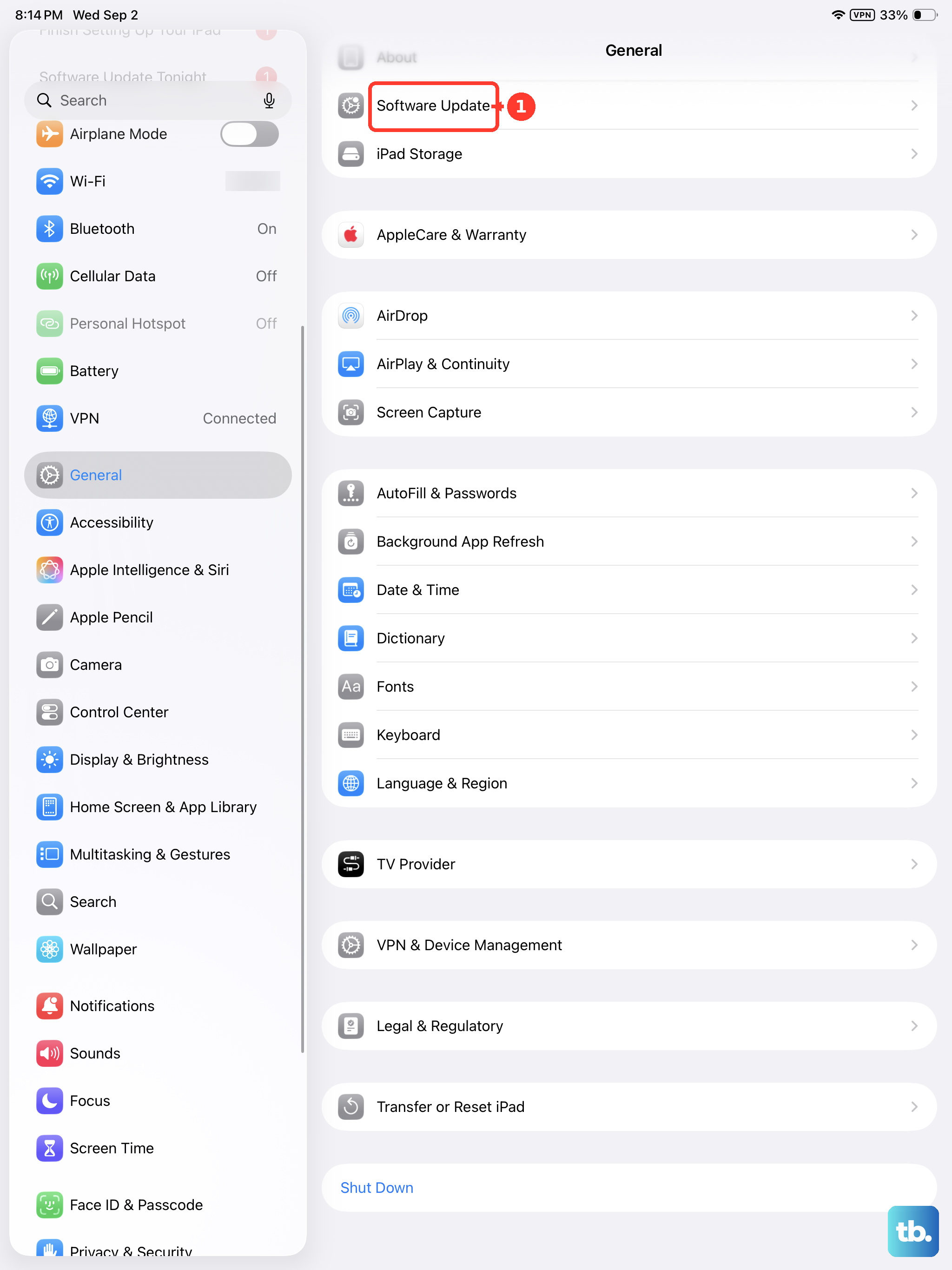
If an update is available, tap "Download and Install." Make sure your iPad is connected to power and Wi-Fi first. An update can resolve a microphone problem that appeared out of nowhere after you've changed nothing.
Inspect and Clean the Microphone Ports
Take a close look at the tiny microphone holes along the top edge and near the rear cameras. Over time, pocket lint, dust, or other debris can get packed in there, physically blocking sound. Use a soft, dry, clean brush, like a new makeup brush or a soft-bristled toothbrush, to gently dislodge any visible particles.
You can also try blowing sharply across the openings. Avoid using compressed air cans or poking anything metallic into the holes, as you could easily cause damage.
Reset All Settings
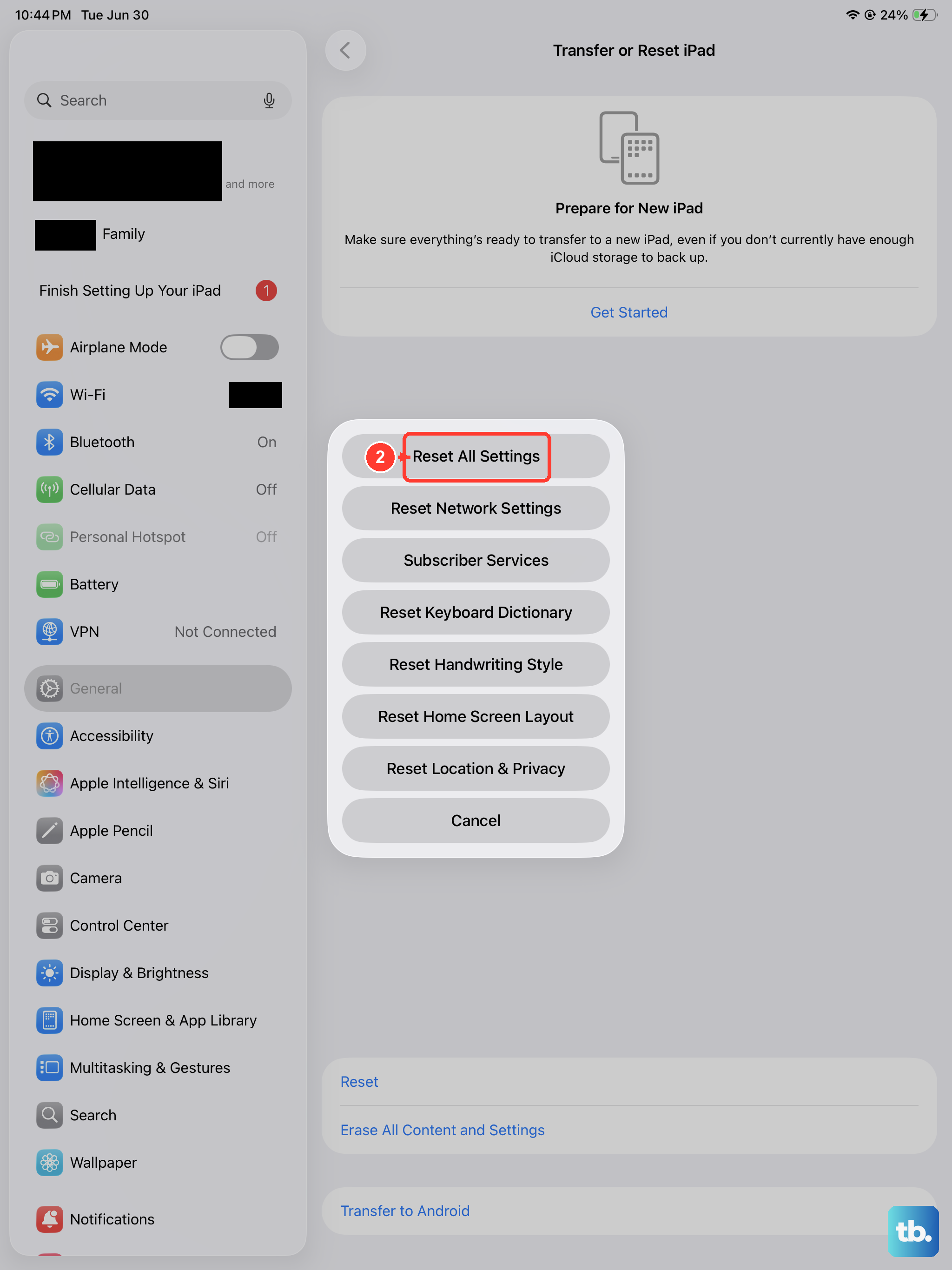
This is a more significant step, but it won't delete your personal data like photos or apps. It will, however, reset every single setting on your iPad back to its factory defaults. That includes network settings, privacy permissions, display brightness, and home screen layout.
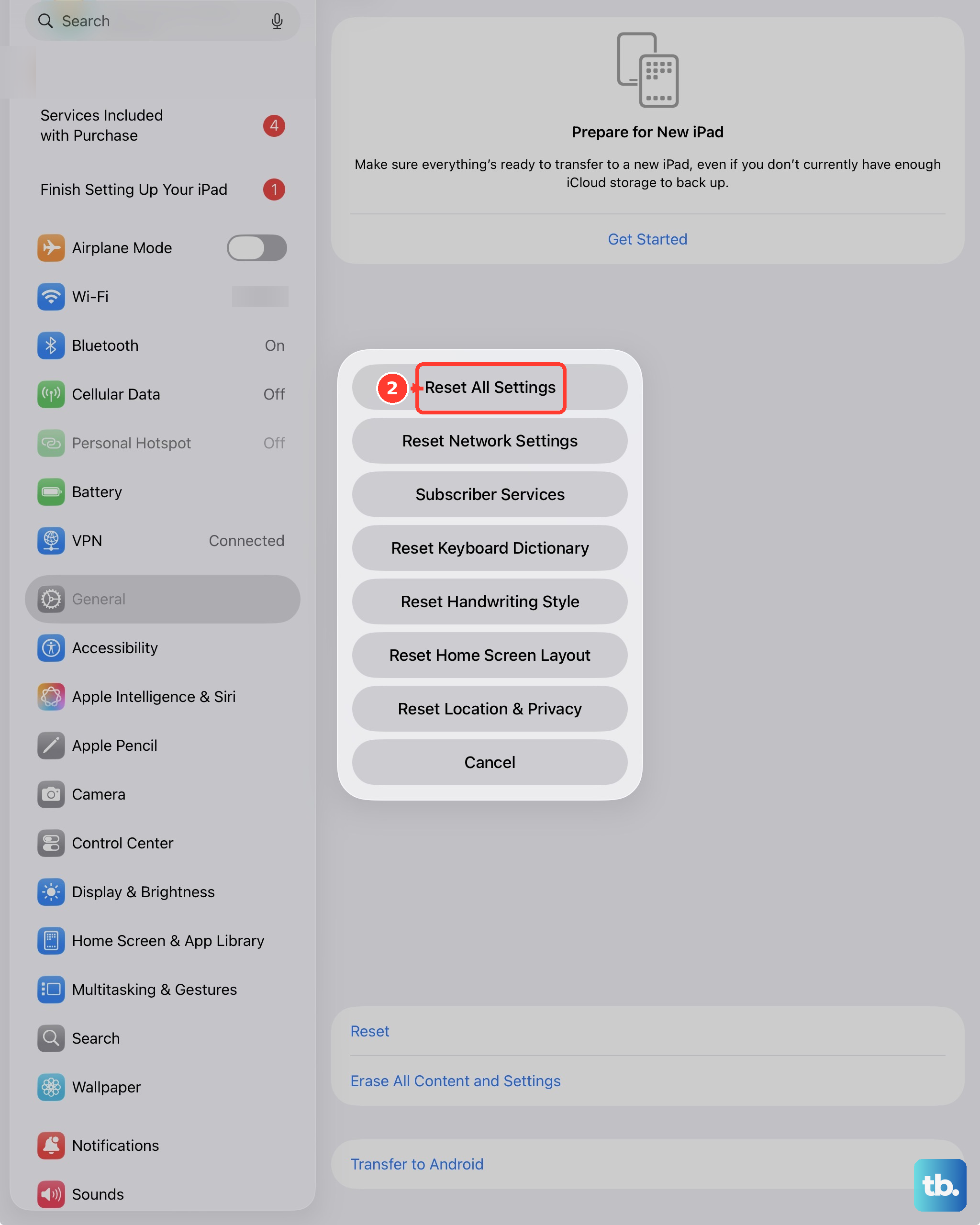
Go to Settings > General > Transfer or Reset iPad. Tap "Reset" at the bottom, then choose "Reset All Settings." You'll need to enter your passcode. After the iPad reboots, you'll have to reconfigure your Wi-Fi and preferences, but it can clear out any corrupted settings causing the mic to fail.
Check for Physical or Liquid Damage
Think back, has the iPad taken any recent bumps, drops, or been exposed to moisture? Even small amounts of liquid can interfere with the delicate microphone components. Signs of damage might not always be obvious on the outside.
If you suspect physical damage, the internal microphone connectors or the microphones themselves may have been dislodged or shorted. This kind of problem typically requires a professional diagnosis.
Restore Your iPad Using a Computer
If all else fails, a full restore via a Mac or PC can address deep-seated software corruption. First, make sure you have a recent backup in iCloud or on your computer. Connect your iPad Pro to the computer using a high-quality USB-C cable.
On a Mac with macOS Catalina or later, open Finder. On a Windows PC or older Mac, open iTunes. Select your iPad when it appears, and choose the option to "Restore iPad." This will wipe the device and install a fresh, clean copy of iPadOS. After it's done, you can set it up as new or from your backup to see if the microphone works.