
If your iPad Pro with the M4 chip is starting to feel sluggish, you're not imagining it. Even the most powerful tablets can slow down, often due to simple software clutter or settings that have crept in over time. The good news is you can almost always fix it yourself in a few minutes.
I'd start with a force restart. It's the quickest way to clear out any temporary glitches that might be bogging down the system. Just press and quickly release the Volume Up button, then quickly press and release the Volume Down button. Finally, press and hold the Power button until you see the Apple logo appear on the screen.
Check Your Available Storage
When your iPad's storage gets critically low, iPadOS has less room to work, which can cause everything to slow down. Head to Settings > General > iPad Storage to see a breakdown. If you're below 5-10GB of free space, it's time to clean up.
Look for the "Recommendations" section at the top, as iPadOS will suggest things like offloading unused apps or reviewing large attachments. Offloading an app removes the app itself but keeps its documents and data, so you can reinstall it later without losing your progress.
Update to the Latest iPadOS
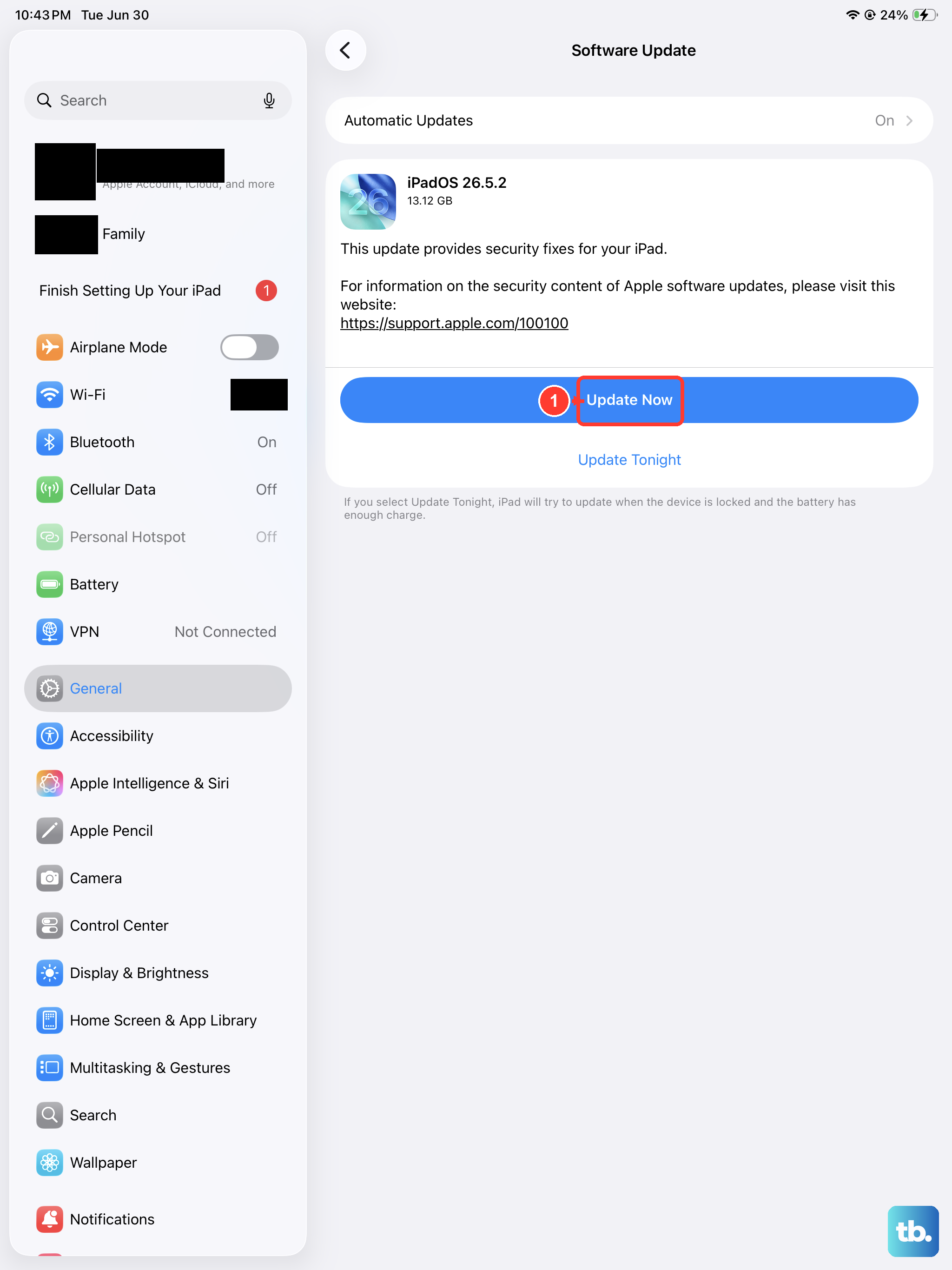
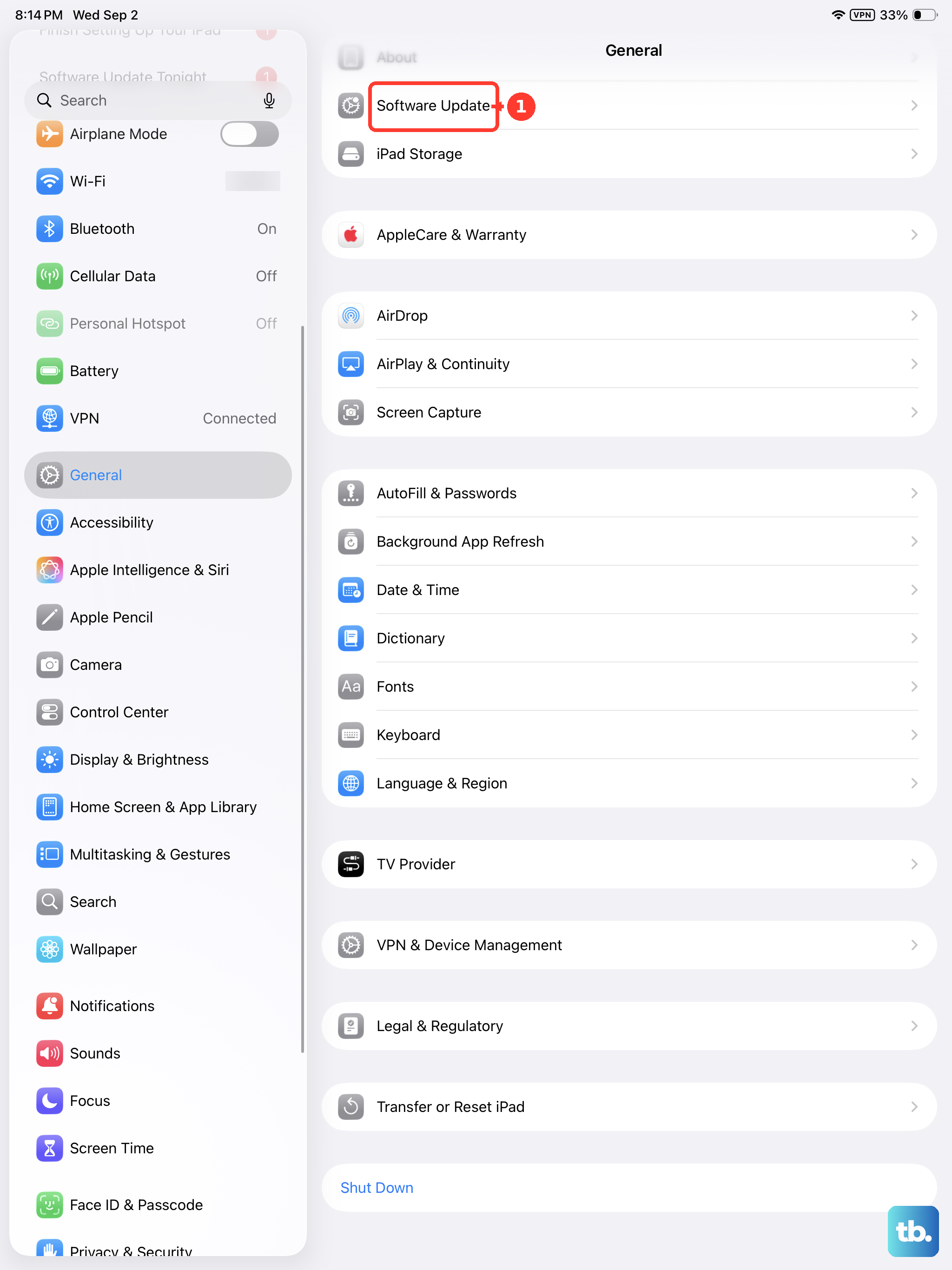
Apple frequently releases updates that include performance improvements and bug fixes. An outdated version of iPadOS 26 could be the culprit. Go to Settings > General > Software Update and install any available updates.
Make sure your iPad is connected to Wi-Fi and has at least 50% battery, or is plugged into a charger. I've seen updates specifically target memory management and app responsiveness, so this is a crucial step.
Manage Apps Running in the Background
Even though the M4 chip is incredibly efficient, having dozens of apps suspended in the background can use up precious RAM. To close them, swipe up from the bottom of the screen and pause in the middle to enter the App Switcher. Swipe up on each app's preview to close it.
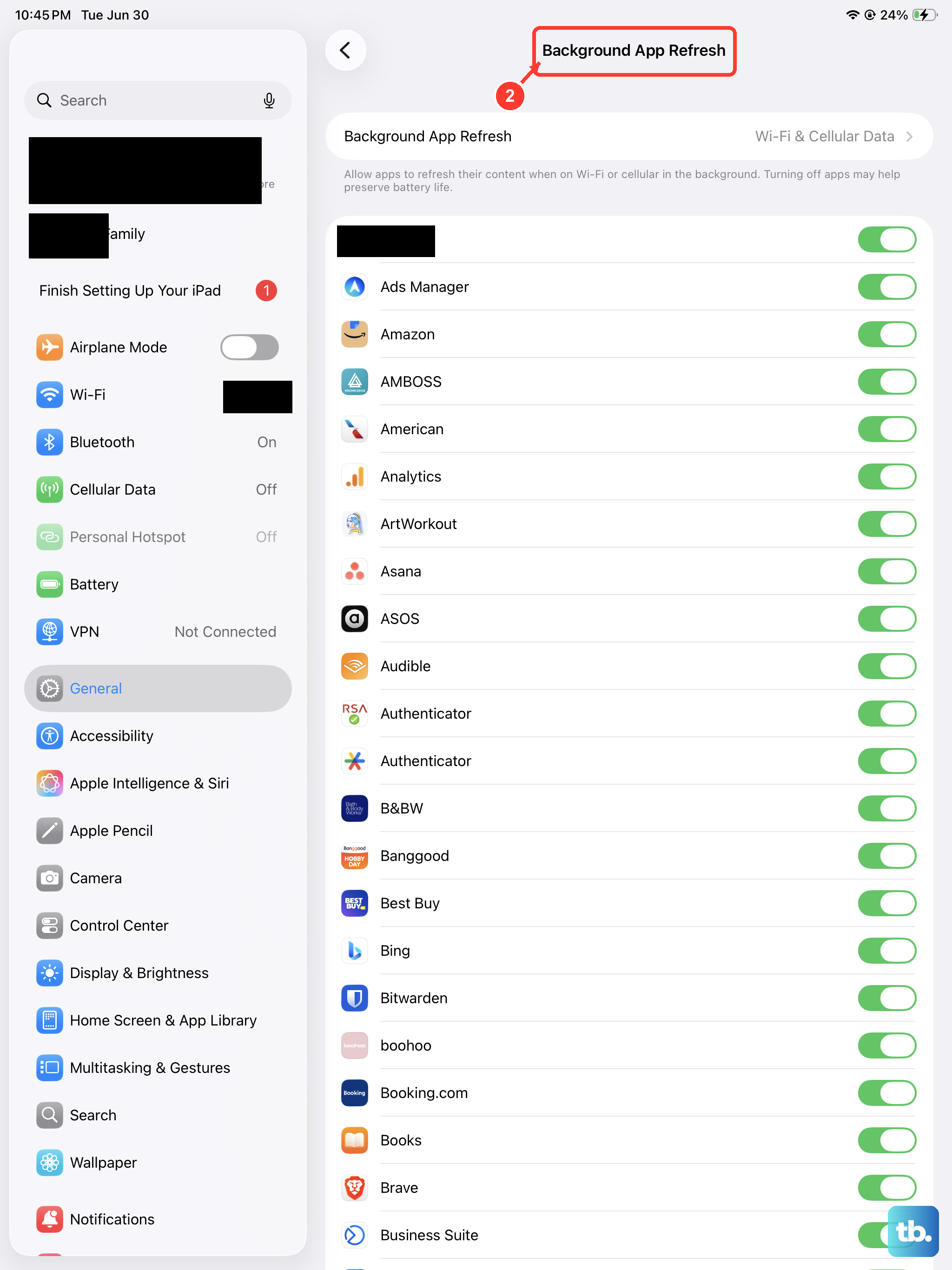
For a more permanent solution, manage Background App Refresh. Go to Settings > General > Background App Refresh. You can turn it off entirely or just for specific apps that don't need to update content when you're not using them.
Review and Limit Location Services
Some apps constantly use your location in the background, which can drain battery and processor resources. Go to Settings > Privacy & Security > Location Services. Scroll through the list and see which apps are set to "Always."
For most apps, "While Using the App" or "Ask Next Time" is sufficient. Changing this for a few apps can make a noticeable difference in background activity.
Clear Safari's Website Data
Safari caches website data to load pages faster on repeat visits, but over months this cache can become bloated and slow things down. Clearing it is safe and will only log you out of some websites. Go to Settings > Apps > Safari.
Scroll down and tap Clear History and Website Data. Confirm your choice. This can free up a surprising amount of space and often resolves browser lag.
Disable Automatic Downloads
Your iPad might be automatically downloading app updates and new purchases from your other Apple devices. This process can happen at inopportune times. To turn it off, go to Settings > App Store.
Under the Automatic Downloads section, toggle off Apps and App Updates. You can manually update your apps from the App Store when it's convenient for you.
Reduce Motion and Visual Effects
The parallax and zoom effects on the home screen are slick, but they require graphical processing power. Reducing them can make the interface feel snappier. Go to Settings > Accessibility > Motion.
Turn on the switch for Reduce Motion. This will change the zooming effect to a simpler fade. You can also enable Reduce Transparency in the Display & Text Size settings within Accessibility to simplify some backgrounds.
Reset All Settings
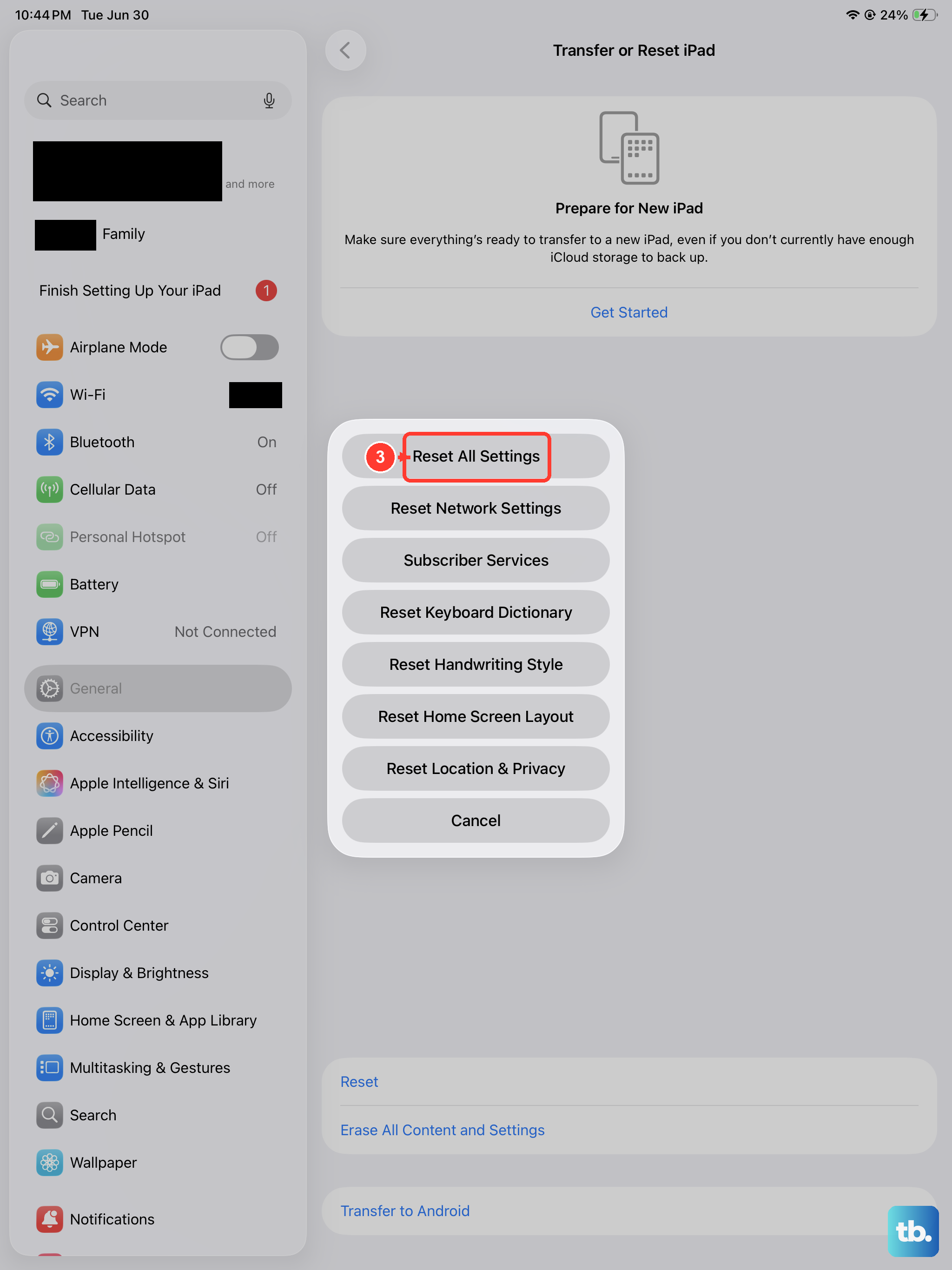
If you've tried everything and your iPad Pro is still slow, this is a strong next step. It resets all your preferences, like Wi-Fi passwords, wallpaper, and privacy settings, back to factory defaults without erasing any of your personal data or apps.
Go to Settings > General > Transfer or Reset iPad. Tap Reset and then choose Reset All Settings. You'll need to enter your passcode. After it reboots, you'll have to reconfigure things like Face ID and notifications, but it often clears out deep-seated software conflicts.
Start with the force restart and storage check, as those solve the majority of issues. Work your way down the list until your iPad Pro feels fast and responsive again. With the M4 chip inside, it should be flying through tasks, not crawling.