
When your iPad Pro's keyboard stops responding, it can really halt your workflow. Whether you're using the on-screen keyboard or a connected Magic Keyboard, the issue usually comes down to a software hiccup or a simple connection problem.
I'd start by checking the basics. If you're using a physical keyboard, make sure it's charged and properly connected via Bluetooth or the Smart Connector. For the on-screen keyboard, a quick restart of your iPad often clears up any temporary glitches.
Restart Your iPad Pro
A force restart is the most reliable first step for any unresponsive accessory or app on iPadOS. It clears the device's memory without affecting your data.
On your iPad Pro (M4), press and quickly release the Volume Up button. Then, press and quickly release the Volume Down button. Finally, press and hold the Power button until you see the Apple logo appear on the screen.
This process takes about 15 seconds. Once your iPad boots back up, try using the keyboard again in a few different apps to see if the issue is resolved.
Check Your Physical Keyboard Connection
If you're using a Magic Keyboard or other Bluetooth keyboard, the connection might have dropped. Open the Settings app on your iPad and navigate to Bluetooth.
Look for your keyboard in the list of "My Devices." If it says "Connected," try tapping the information icon (i) next to it and selecting "Forget This Device." Then, put your keyboard back into pairing mode and reconnect it.
For keyboards using the Smart Connector, simply detach it and firmly reattach it to the side of your iPad Pro. Listen for the subtle magnetic click to ensure it's seated properly.
Update iPadOS
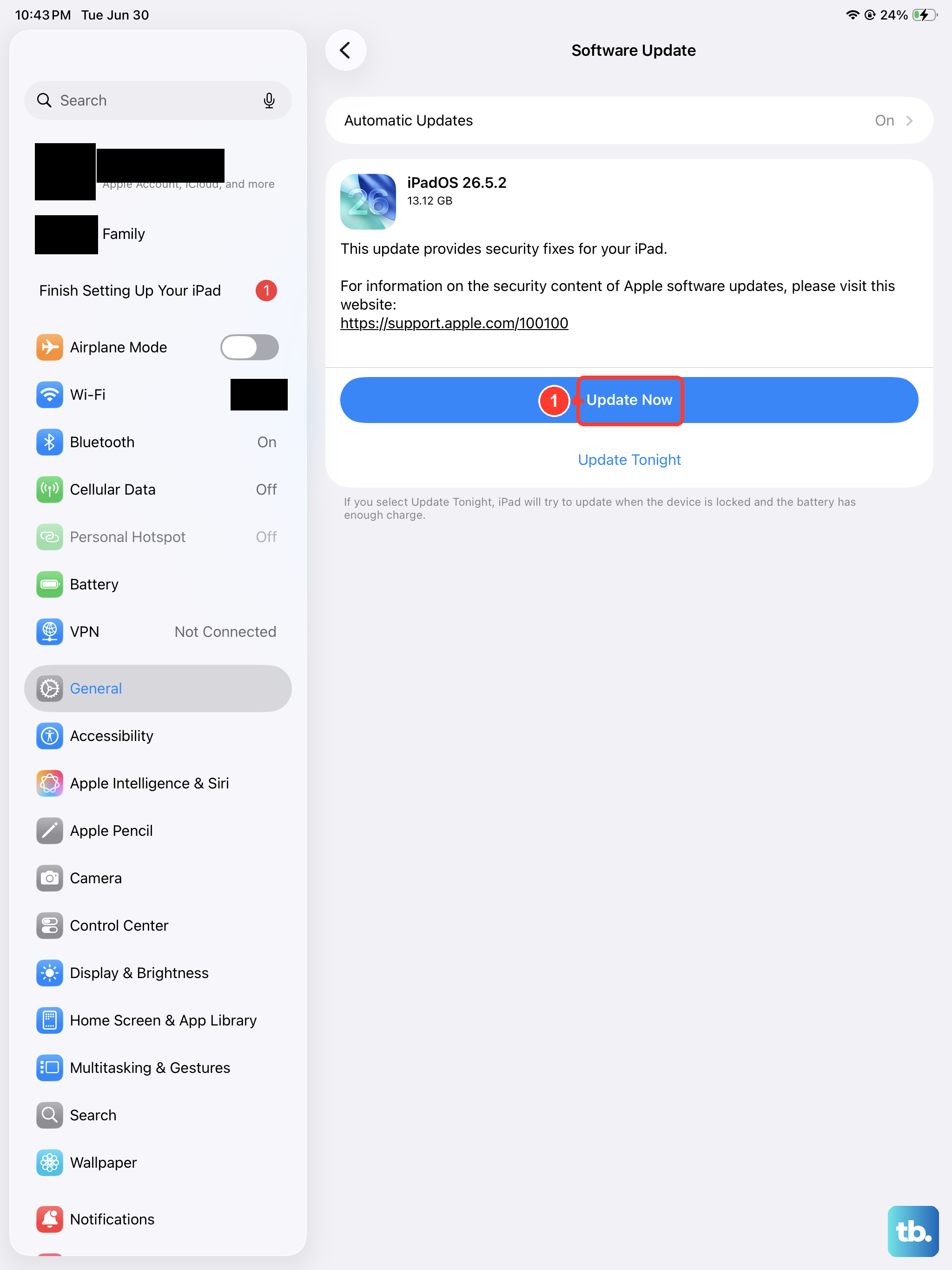
An outdated version of iPadOS can sometimes cause compatibility issues with keyboard inputs. Apple regularly releases updates that include bug fixes for these kinds of problems.
Go to Settings > General > Software Update. Your iPad Pro will check for any available updates. If one is listed, I'd recommend installing it, especially if it's a minor point update (like iPadOS 26.1 to 26.2).
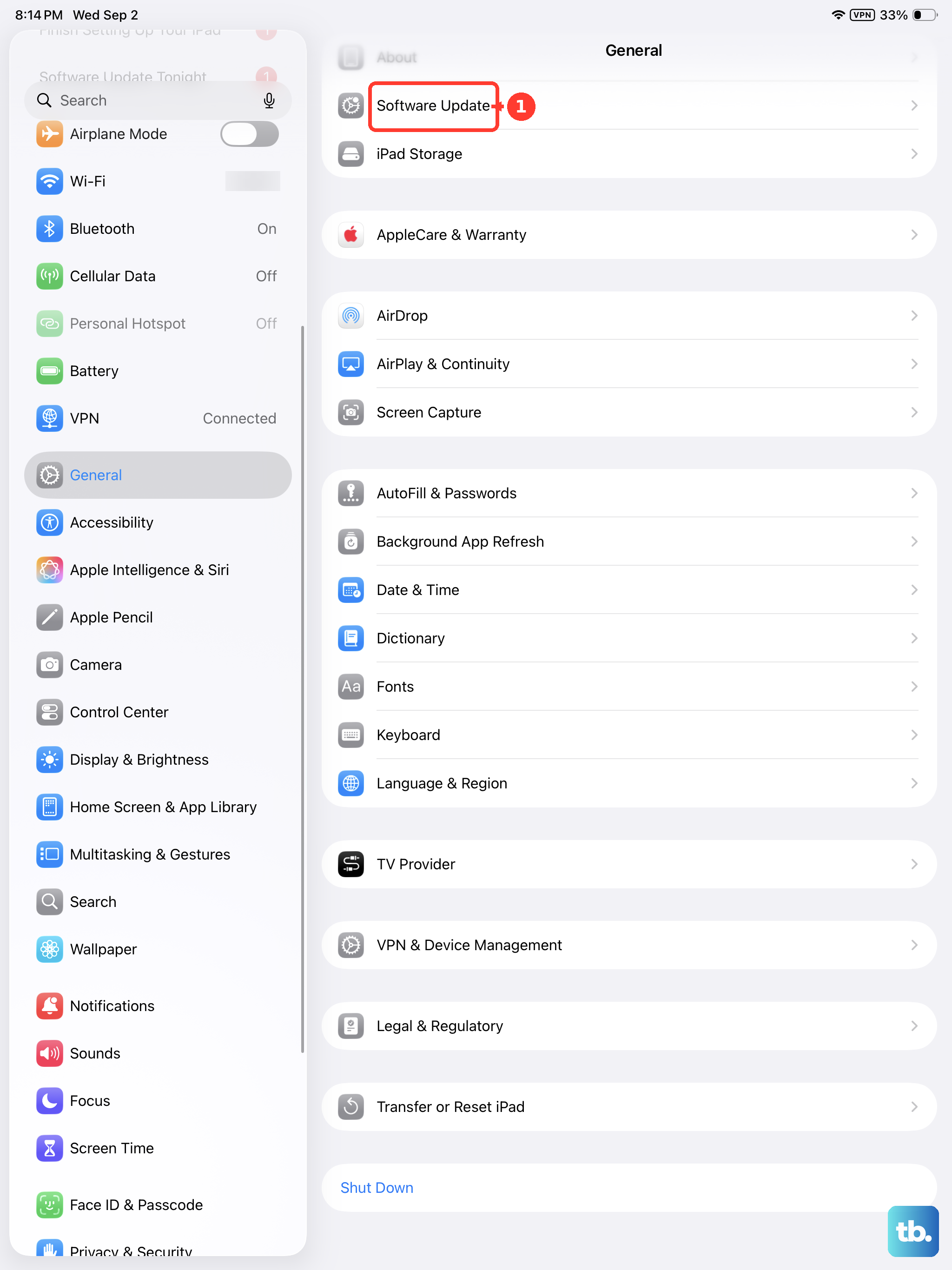
Make sure your iPad is connected to Wi-Fi and has at least 50% battery, or is plugged into power, before starting the update. This process can take 10 to 20 minutes.
Check for Keyboard App Updates
If you're using a third-party keyboard from the App Store, like Gboard or SwiftKey, it might need an update. Outdated apps can crash or become unresponsive.
Open the App Store on your iPad and tap your profile picture in the top right corner. Scroll down to see if any keyboard apps you use have pending updates.
Tap "Update" next to the app, or "Update All" to install everything at once. After updating, restart the app you were trying to type in to see if the keyboard now works.
Reset All Settings
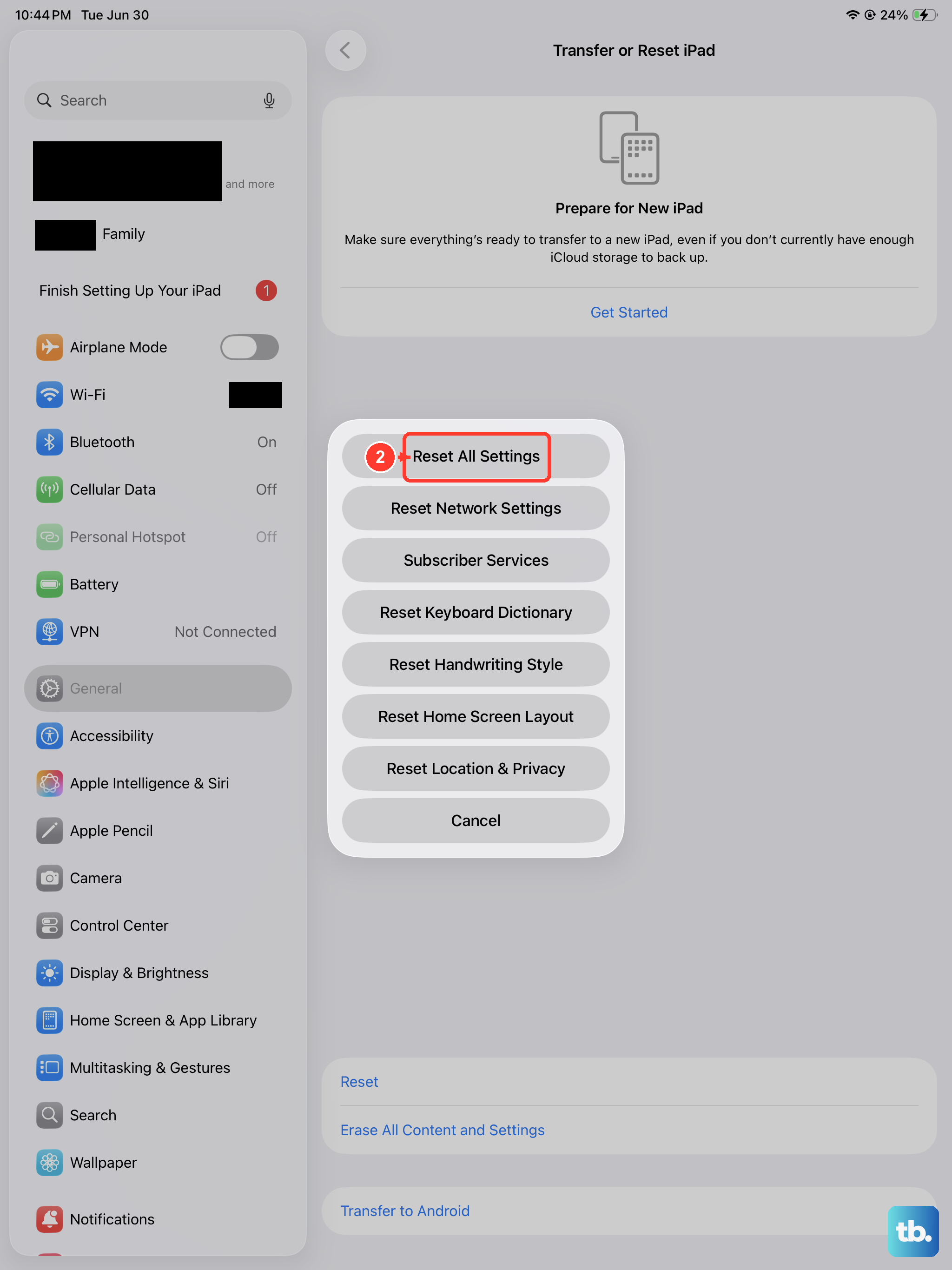
This is a more involved step, but it can resolve deeper software conflicts that affect hardware accessories. Resetting all settings will not delete your apps, photos, or personal files.
It will, however, revert your Wi-Fi passwords, wallpaper, and privacy settings back to their defaults. Go to Settings > General > Transfer or Reset iPad.
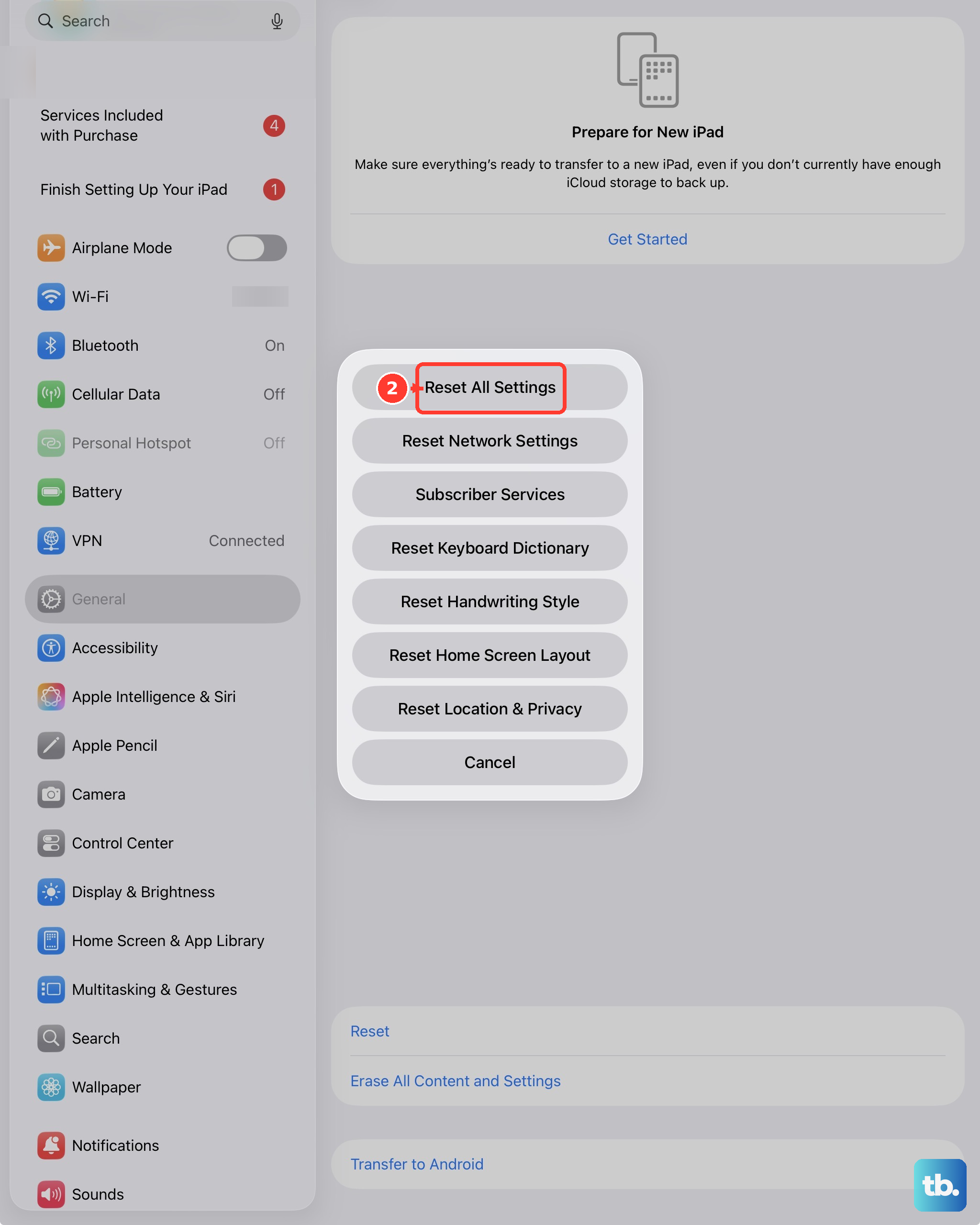
Tap "Reset" at the bottom, and then choose "Reset All Settings." You'll need to enter your passcode to confirm. After the iPad restarts, you'll need to reconnect to Wi-Fi and re-pair Bluetooth devices like your keyboard.
Check for Accessibility Settings Conflicts
Certain accessibility features, particularly those related to touch or voice control, can sometimes interfere with keyboard input. It's worth a quick look to make sure nothing is accidentally enabled.
Navigate to Settings > Accessibility. Look at features like "AssistiveTouch," "Voice Control," or "Switch Control." If any of these are turned on, try turning them off temporarily to test your keyboard.
Also, check the "Keyboards" section under Accessibility. Ensure settings like "Sticky Keys," "Slow Keys," or "Key Repeat" are configured as you intend, or try disabling them to test.
Try a Different App or User Interface
Sometimes the problem is isolated to a single app. Open a different app, like Notes or Safari, and try to bring up the keyboard there.
If the keyboard works in other apps, the issue is likely with the original app you were using. Try force-closing that app by swiping it away from the App Switcher and reopening it.
You can also try switching between using your iPad in portrait and landscape mode. This can sometimes re-trigger the on-screen keyboard to appear correctly if it's stuck.
Charge Your Accessories
A Magic Keyboard or Magic Trackpad with a critically low battery may connect but not function properly. If you're using a Smart Keyboard Folio or similar accessory, plug it in to charge.
For wireless Bluetooth keyboards, replace the batteries or connect them to a power source. While the iPad Pro (M4) supports MagSafe charging for itself, remember that your accessories have their own separate power needs.
As a Last Resort, Restore Your iPad
If no other solution works, restoring your iPad via a computer can eliminate persistent software corruption. This is a last-resort step, so ensure you have a recent backup in iCloud or on your computer.
Connect your iPad Pro to a Mac or PC using a certified USB-C cable. On a Mac with macOS Catalina or later, open Finder. On a PC or older Mac, open iTunes.
Select your iPad, choose "Restore iPad," and follow the on-screen prompts. This will install a fresh copy of iPadOS. Afterward, you can set up the iPad as new or restore from your backup to see if the keyboard issue is resolved.